> For the complete documentation index, see [llms.txt](https://help.supplyd.co/llms.txt). Markdown versions of documentation pages are available by appending `.md` to page URLs; this page is available as [Markdown](https://help.supplyd.co/supplyd-lite/purchases/managing-orders-supplyd-lite.md).
# Managing Orders (Supply'd Lite)
Managing orders in Supply’d Lite is simple, with clear order tracking, easy access to order details, and the ability to edit or reorder as needed.
Managing orders in Supply'd Lite is simple and efficient. Supply'd Lite lets you track, review, and organise your orders from all suppliers in one place. Whether you're checking past orders or managing current ones, Supply'd Lite helps keep your ordering process smooth and stress-free.
This document will guide you through:
* [#the-purchases-page](#the-purchases-page "mention")
* [#managing-orders](#managing-orders "mention")
* [#postponed-orders](#postponed-orders "mention")
***
## The Purchases Page
Selecting **Purchases** from the main menu opens the **Purchases** page, which lists all orders you have placed with suppliers.

#### Purchases
Purchase Orders you have placed with suppliers in Supply'd.
👉 You can read about how to place a purchase order [Ordering (Supply'd Lite)](/supplyd-lite/purchases/ordering-supplyd-lite.md) document.
#### Standing
Standing Orders which are repeating orders for consistent order schedules.
👉 You can read more about creating and managing Standing Orders in the [Standing Purchase Orders (Supply'd Lite)](/supplyd-lite/purchases/standing-purchase-orders-supplyd-lite.md) document.
#### Postponed
Postponed Orders for completion at a later date.
👉 See the [#postponed-orders](#postponed-orders "mention") section below for more details.
{% hint style="success" %}
Order statuses are colour-coded in the **Purchase Orders** list for quick and easy identification:
- An order you have been putting together but have not yet placed.
- You are modifying, or editing, the order.
- The order is in the queue for sending. It generally takes 1-2 minutes to send.
- Supply'd has delivered the order via email to the supplier.
- The email failed to send to the supplier. Check the email address and try to resend the order. (Open the order, click on the 3 dots, select **Actions > Resend Order**.)
- The supplier has shipped your order and it is on the way to you.
- Order has been received and paid for.
- You have cancelled the order with the supplier or the supplier has cancelled the order.
{% endhint %}
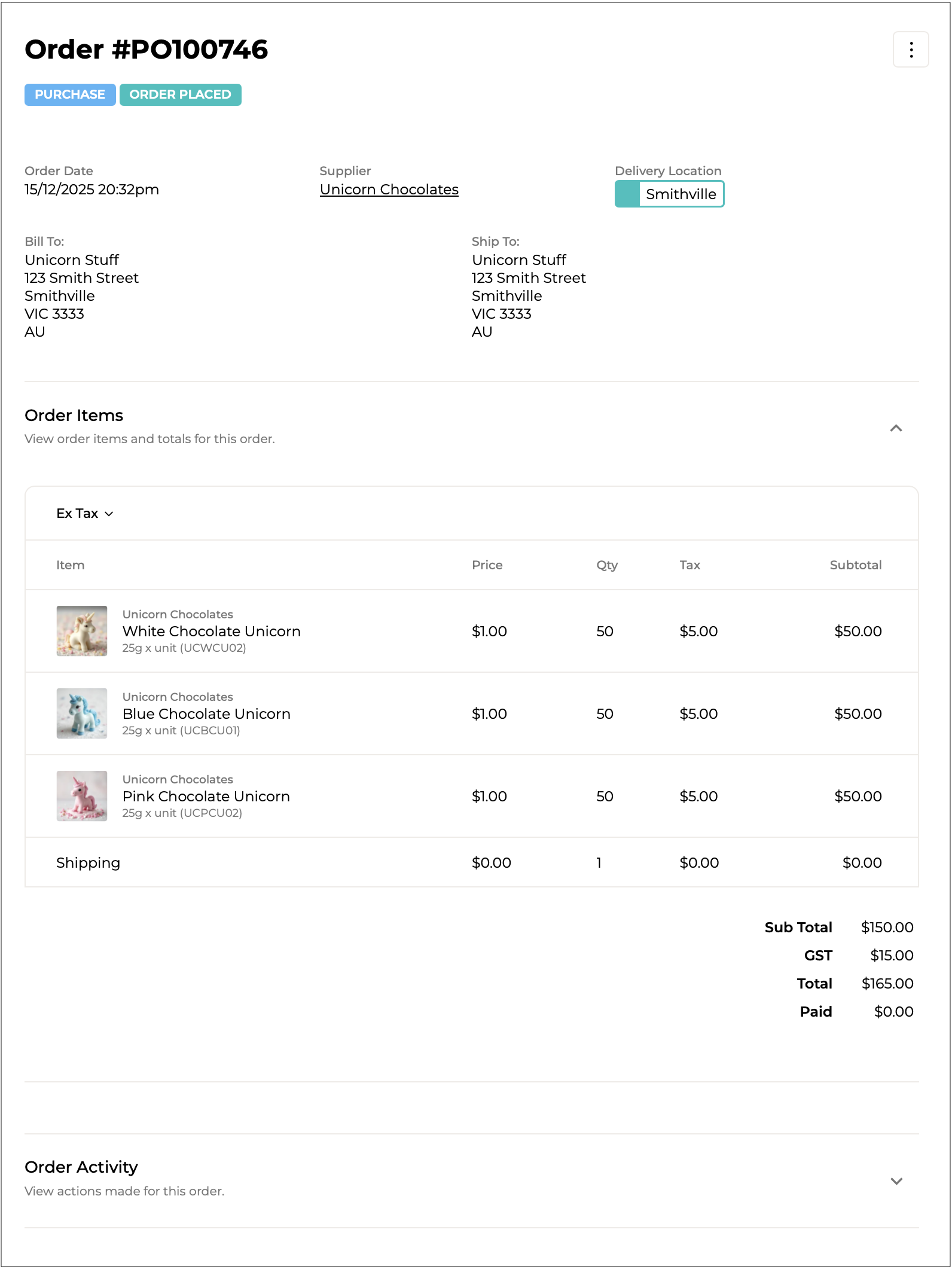
To see the details of an order, click on it in the **Purchase Orders** list to open it.
{% hint style="success" %}
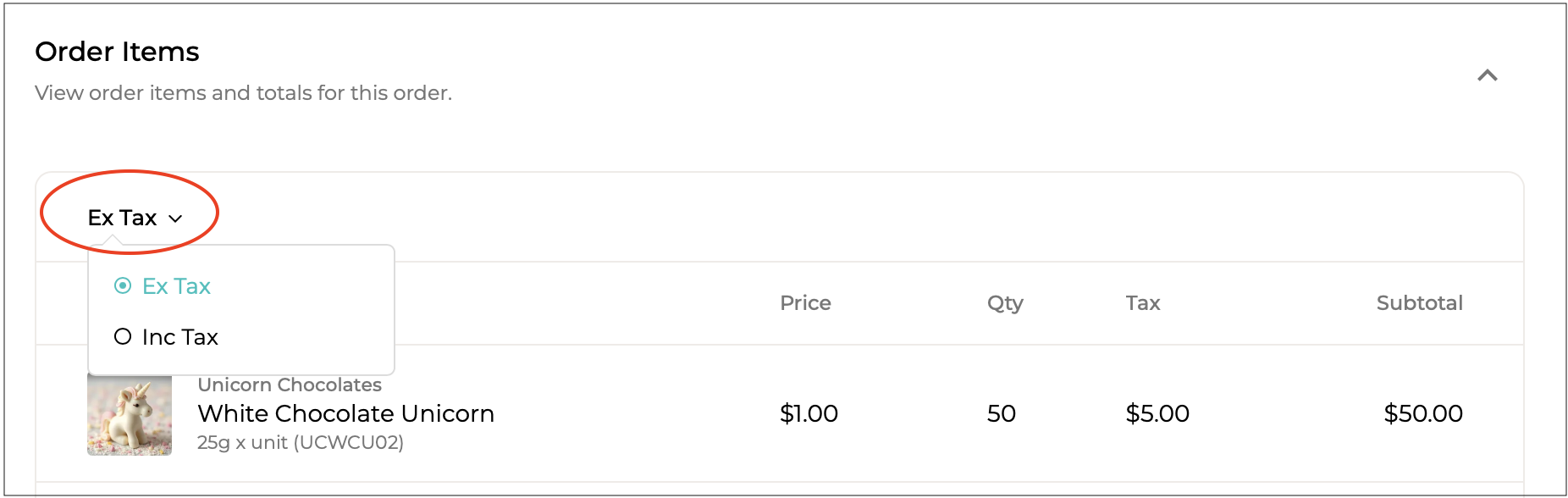
Clicking on **Ex Tax** gives you the option to view the order excluding tax - **Ex Tax** (eg. GST) - or including tax - **Inc Tax**.
{% endhint %}
***
## Managing Orders
Clicking on the 3 dots on the top right corner of the order will show a menu for all action options for an order.

***
#### Download
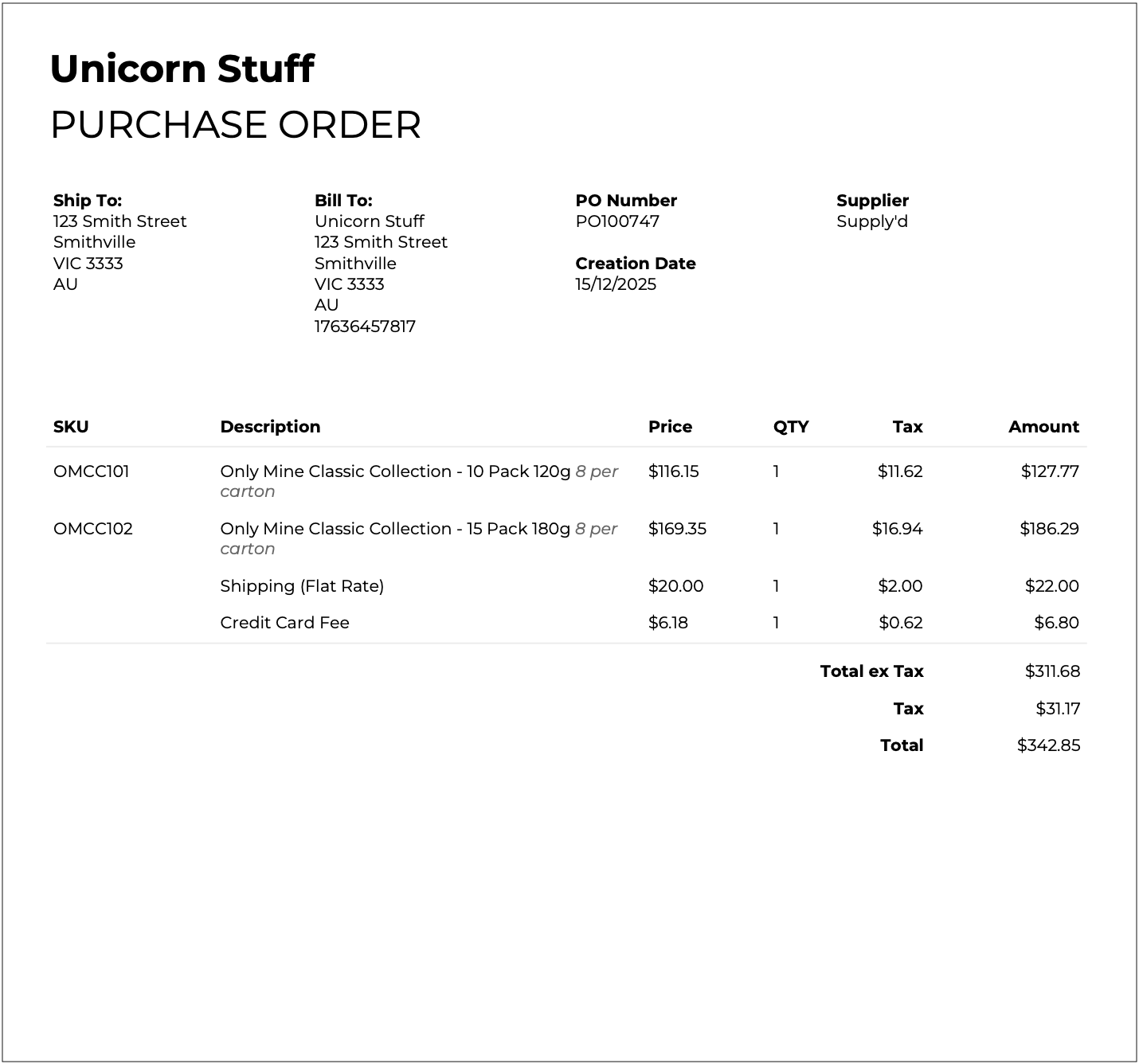
Allows you to download the purchase order or packing slip for viewing or printing.
**Purchase Order**
**Pack Slip**
***
#### Mark As >
**Paid**
Will mark the order as **Paid.** If you click this by mistake, you’ll have the option to mark the order as **Unpaid** instead of **Paid**.
**Shipped**
Will mark the order as .
**Completed**
Will mark the order as being . Complete this step when you have paid and received all the items in your order.
***
#### Hold Order
Puts the order on hold.
{% hint style="info" %}
This only applies to orders from custom suppliers that have not been marked as .
{% endhint %}
***
#### Modify Order
Will open the **Edit Purchase Order** form and allow you to make changes to the order.
{% hint style="info" %}
Only applies to orders from a custom supplier that have not been completed.
{% endhint %}
***
#### Cancel Order
Will cancel the order. You will be asked to confirm.
{% hint style="info" %}
Only applicable to orders from a custom supplier that have not been completed.
{% endhint %}
***
#### Actions >
**Resend Order**
Will send the order to the supplier again.
**Re-order**
Adds all items from the order to your cart for easy reordering. You can edit quantities or remove items on the screen that appears after selecting this option.
***
{% hint style="success" %}
The available actions will vary depending on the order status and whether or not the supplier is on Supply'd or is a custom supplier.
#### Completed - :
####
* **Download >**
* Purchase Order
* Pack Slip
* **Mark As**
* Paid or Unpaid
* **Actions >**
* Resend Order
* Re-order
#### Cancelled - :
Orders that have been cancelled will only have one option:
* **Actions > Re-order**\
\
\
{% endhint %}
***
## Postponed Orders
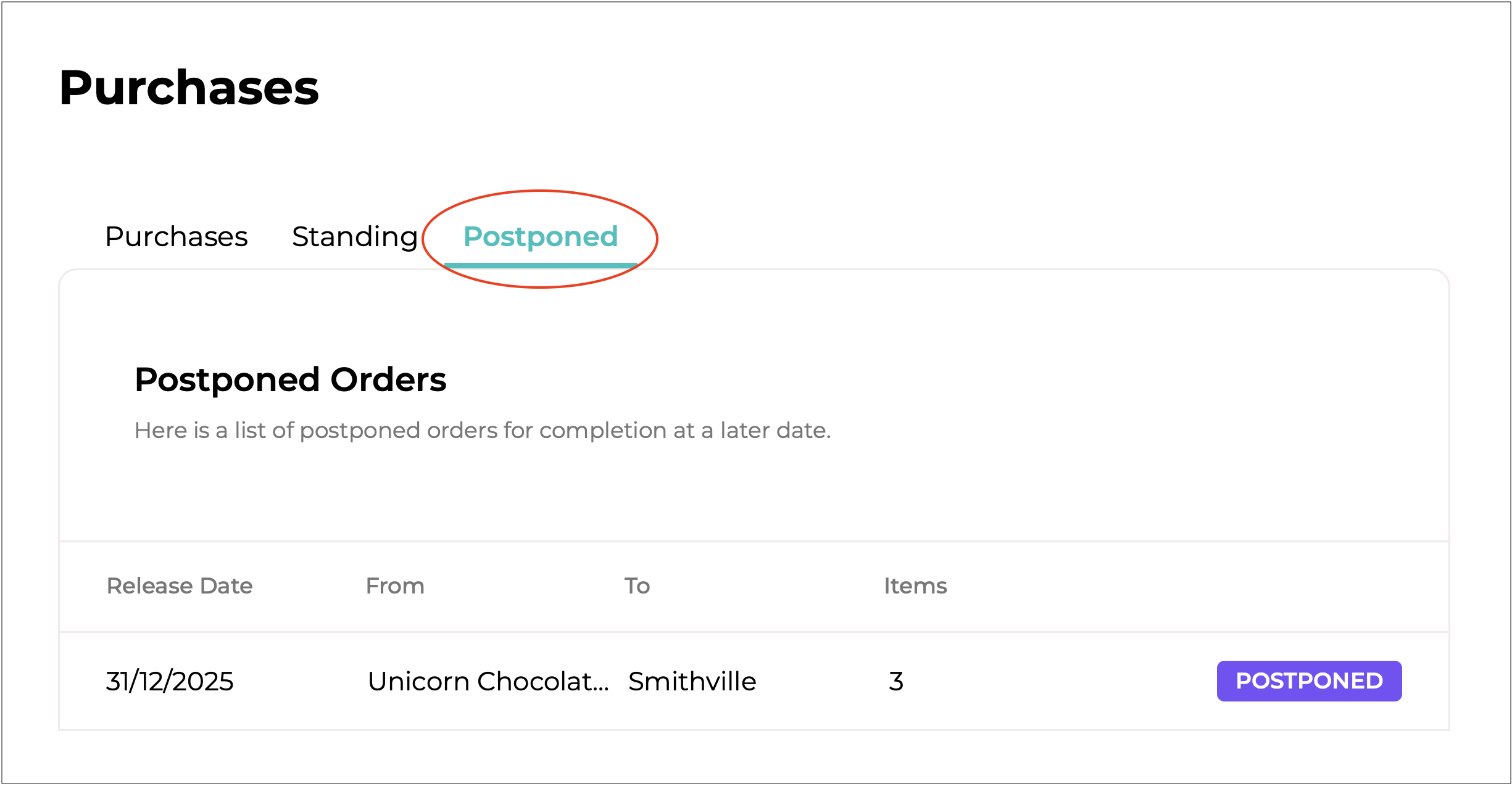
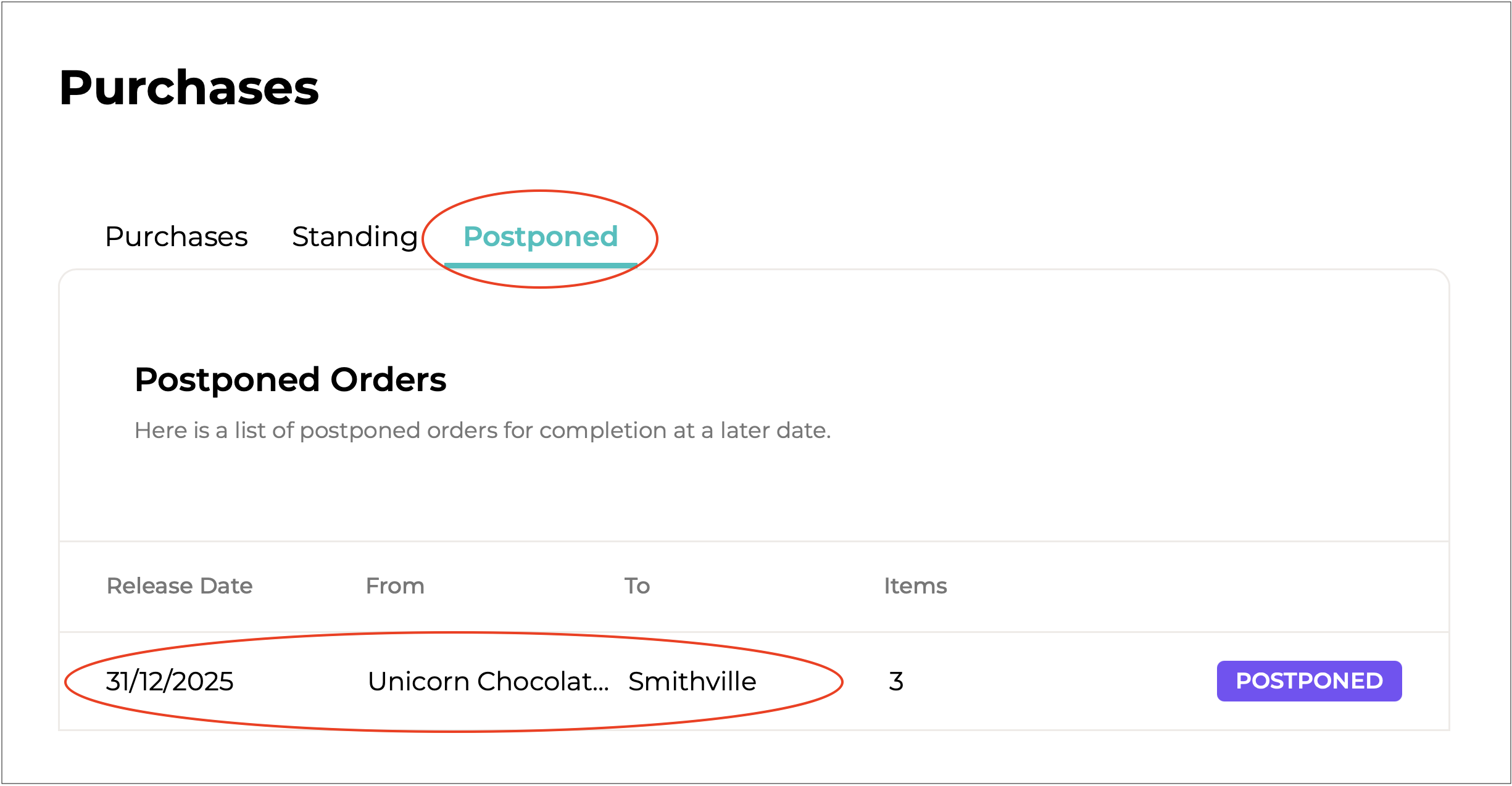
The **Postponed** tab on the **Purchases** page lists any orders that have been postponed to a later date.
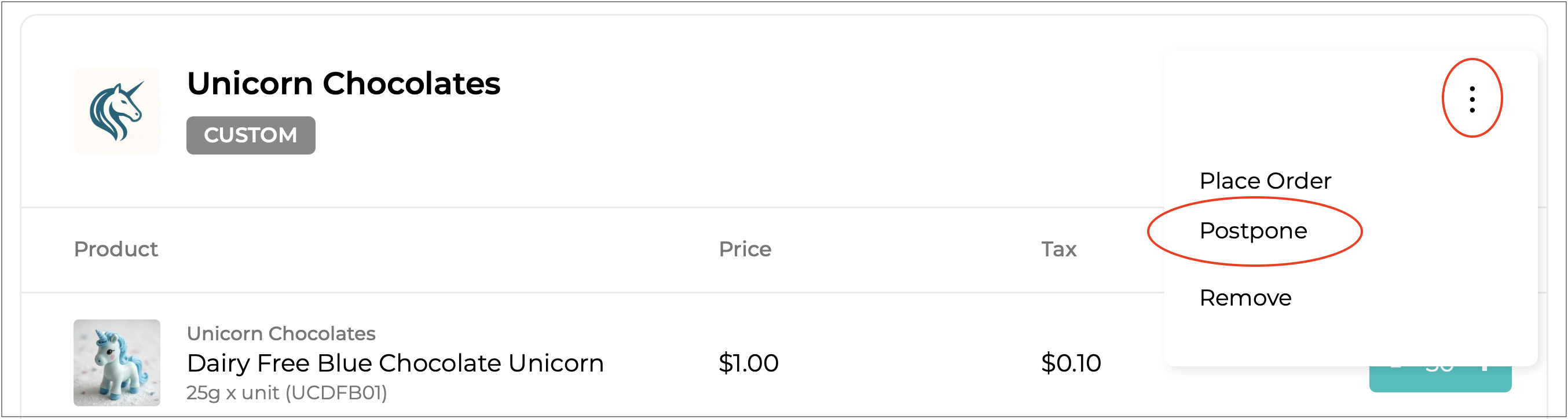
In the cart, clicking on the 3 dots on the right beside the supplier's name will bring up a menu.
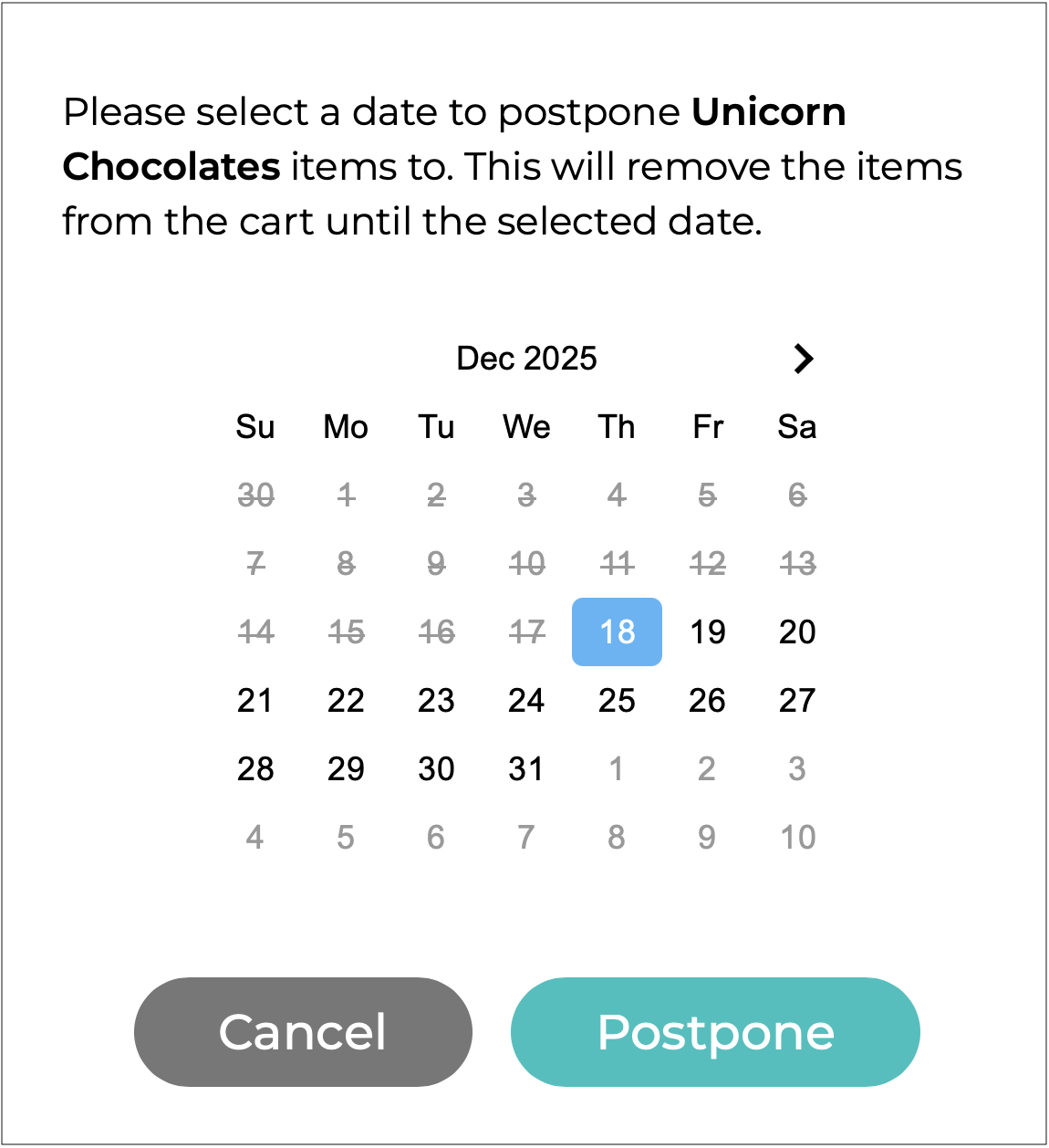
Selecting **Postpone** allows you to postpone sending the order to a later date. After selecting this option, a calendar will appear for you to choose the desired date. The items will be temporarily removed from your cart until the selected date.
The postponed order will appear under the **Postponed** tab.
Clicking on an postponed order will show its details. Orders cannot be edited while they are postponed.
***
#### Releasing a Postponed Order
The items in a postponed order will reappear in the cart on the selected date, allowing you to send the order at that time. If you need to send it earlier than the selected date, you can release the order:
{% stepper %}
{% step %}
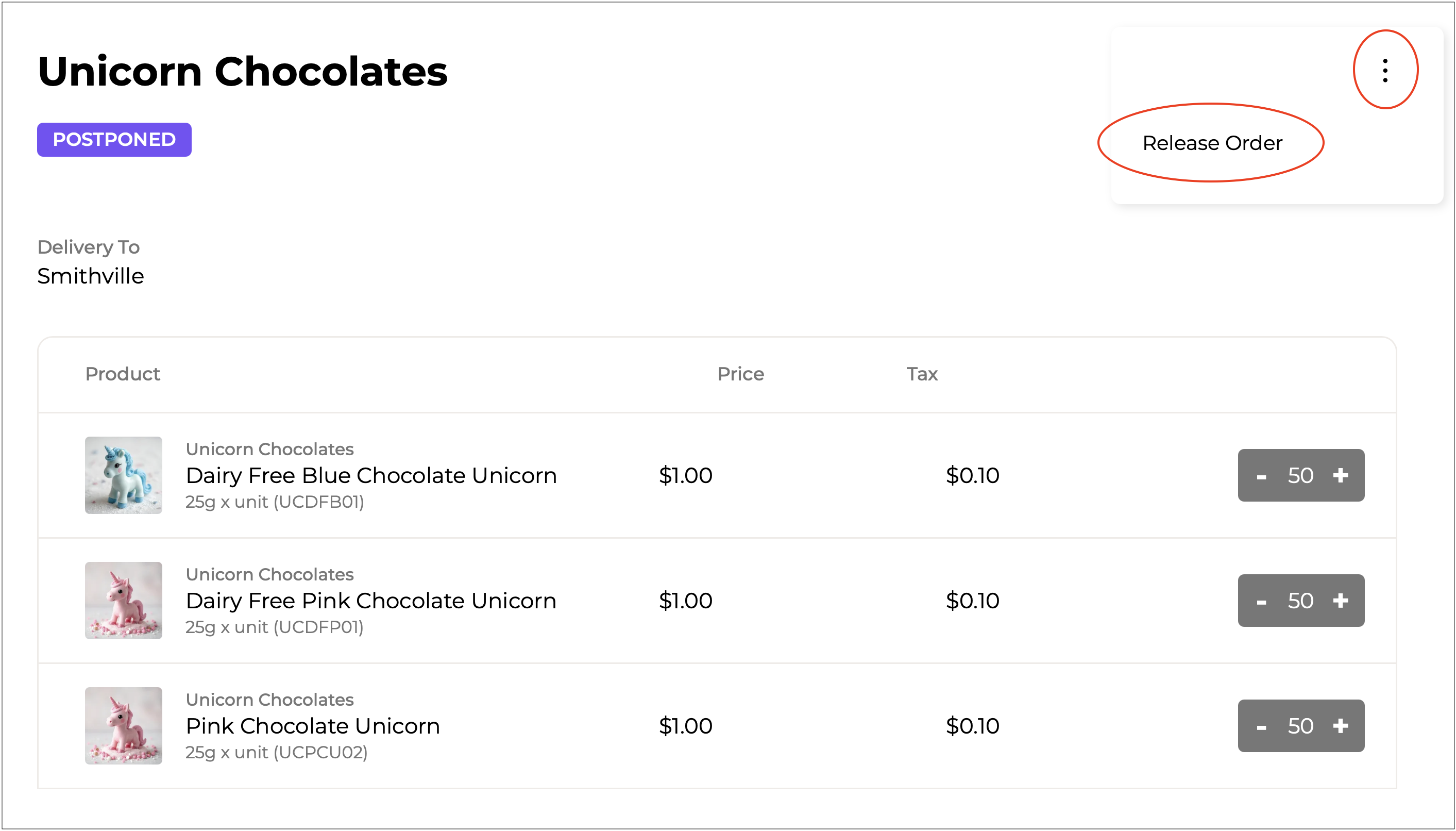
Open the postponed order.
{% endstep %}
{% step %}
Click on the 3 dots in the top right and select **Release Order**.
{% endstep %}
{% step %}
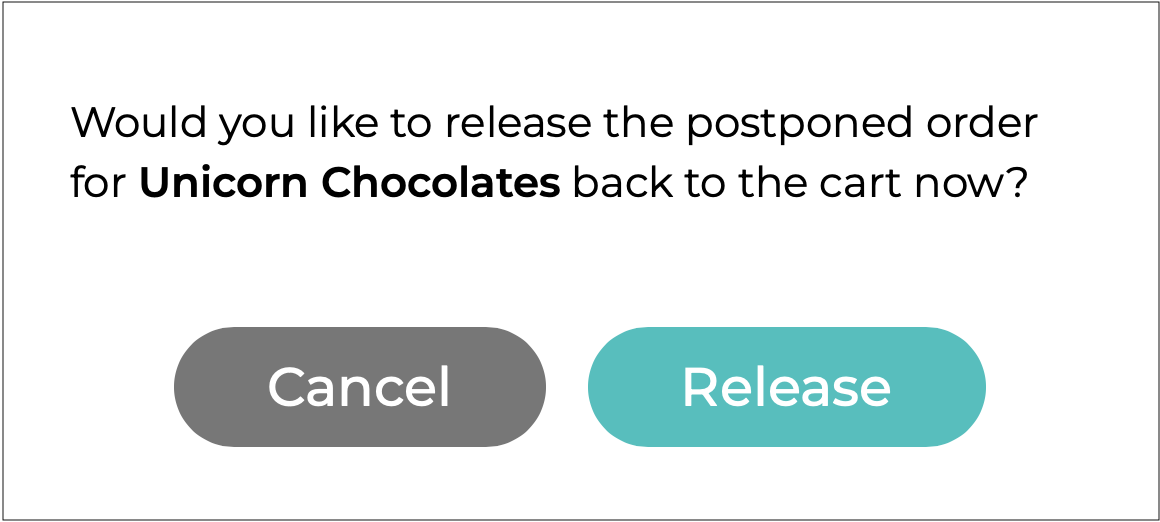
Confirm that you would like to release the order.
{% endstep %}
{% endstepper %}
The order will appear in the cart and can be edited or placed.
{% hint style="info" %}
If any items from a supplier have been postponed, all items from that supplier will appear greyed out for ordering when ordering via Add to Cart or from the Supplier page. This helps prevent accidental double-ordering. (Items will not appear greyed out when ordering from the Purchases page.) If you click on any greyed-out item, a warning will appear to let you decide whether to release the postponed order or leave it as is.
{% endhint %}
***
## Order Activity
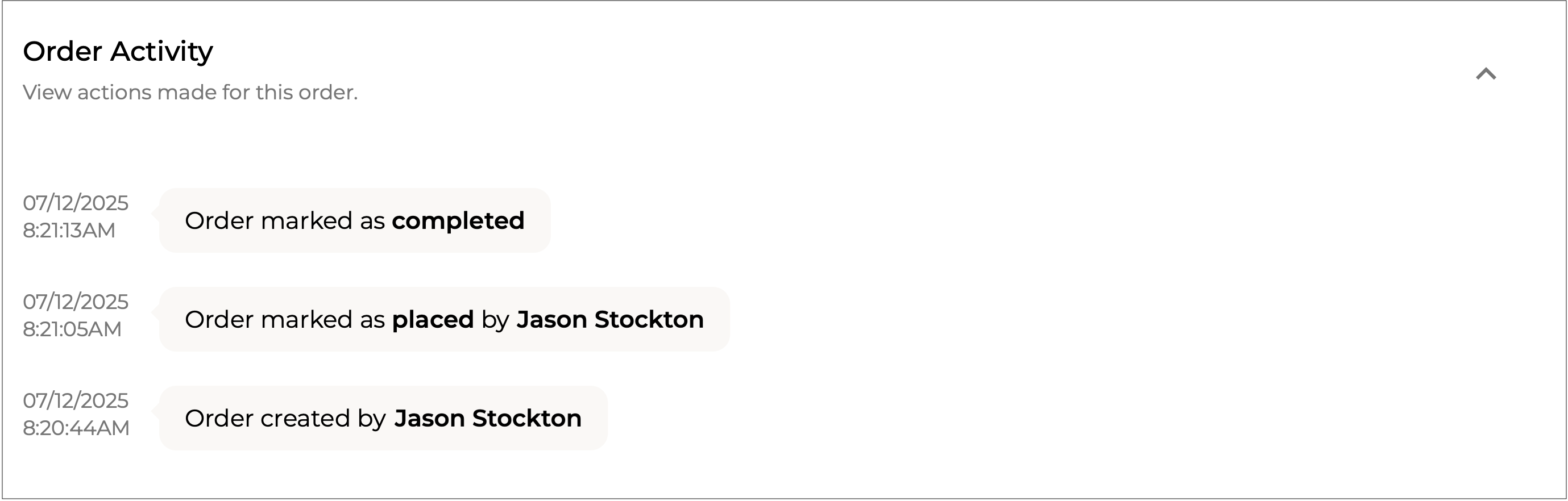
At the bottom of the form there is an **Order Activity** section. This lists any activity taken on the order, such as, when the order was created, marked as paid, marked as completed etc.
---
# Agent Instructions
This documentation is published with GitBook. GitBook is the documentation platform designed so that both humans and AI agents can read, navigate, and reason over technical content effectively. Learn more at gitbook.com.
## Querying This Documentation
If you need additional information that is not directly available in this page, you can query the documentation dynamically by asking a question.
Perform an HTTP GET request on the current page URL with the `ask` query parameter, and the optional `goal` query parameter:
```
GET https://help.supplyd.co/supplyd-lite/purchases/managing-orders-supplyd-lite.md?ask=&goal=
```
`ask` is the immediate question: it should be specific, self-contained, and written in natural language.
`goal` is optional and describes the broader end goal you are ultimately trying to accomplish on behalf of the user. GitBook uses it to tailor the answer towards what is most useful for that goal.
The response will contain a direct answer to the question and relevant excerpts and sources from the documentation.
Use this mechanism when the answer is not explicitly present in the current page, you need clarification or additional context, or you want to retrieve related documentation sections.
 - An order you have been putting together but have not yet placed.
 - You are modifying, or editing, the order.
 - The order is in the queue for sending. It generally takes 1-2 minutes to send.
 - Supply'd has delivered the order via email to the supplier.
 - The email failed to send to the supplier. Check the email address and try to resend the order. (Open the order, click on the 3 dots, select **Actions > Resend Order**.)
 - The supplier has shipped your order and it is on the way to you.
 - Order has been received and paid for.
 - You have cancelled the order with the supplier or the supplier has cancelled the order.
{% endhint %}
To see the details of an order, click on it in the **Purchase Orders** list to open it.
- You have cancelled the order with the supplier or the supplier has cancelled the order.
{% endhint %}
To see the details of an order, click on it in the **Purchase Orders** list to open it.