> For the complete documentation index, see [llms.txt](https://help.supplyd.co/llms.txt). Markdown versions of documentation pages are available by appending `.md` to page URLs; this page is available as [Markdown](https://help.supplyd.co/supplyd-lite/purchases/ordering-supplyd-lite.md).
# Ordering (Supply'd Lite)
Ordering with Supply’d Lite simplifies the purchasing process by allowing you to manage all your purchase orders (orders you place with suppliers) in one easy-to-use system.
With Supply'd Lite, you can add items from multiple suppliers to your cart. Supply’d Lite makes checkout easy by letting you place one order for all suppliers or check out each one separately.
* [#adding-items-to-the-cart](#adding-items-to-the-cart "mention")
* [#review-cart-and-checkout](#review-cart-and-checkout "mention")
* [#placing-postponing-or-removing-orders-one-at-a-time](#placing-postponing-or-removing-orders-one-at-a-time "mention")
* [#placing-all-orders-at-once](#placing-all-orders-at-once "mention")
* [#creating-an-order-from-the-purchases-page](#creating-an-order-from-the-purchases-page "mention")
***
## Adding Items to the Cart
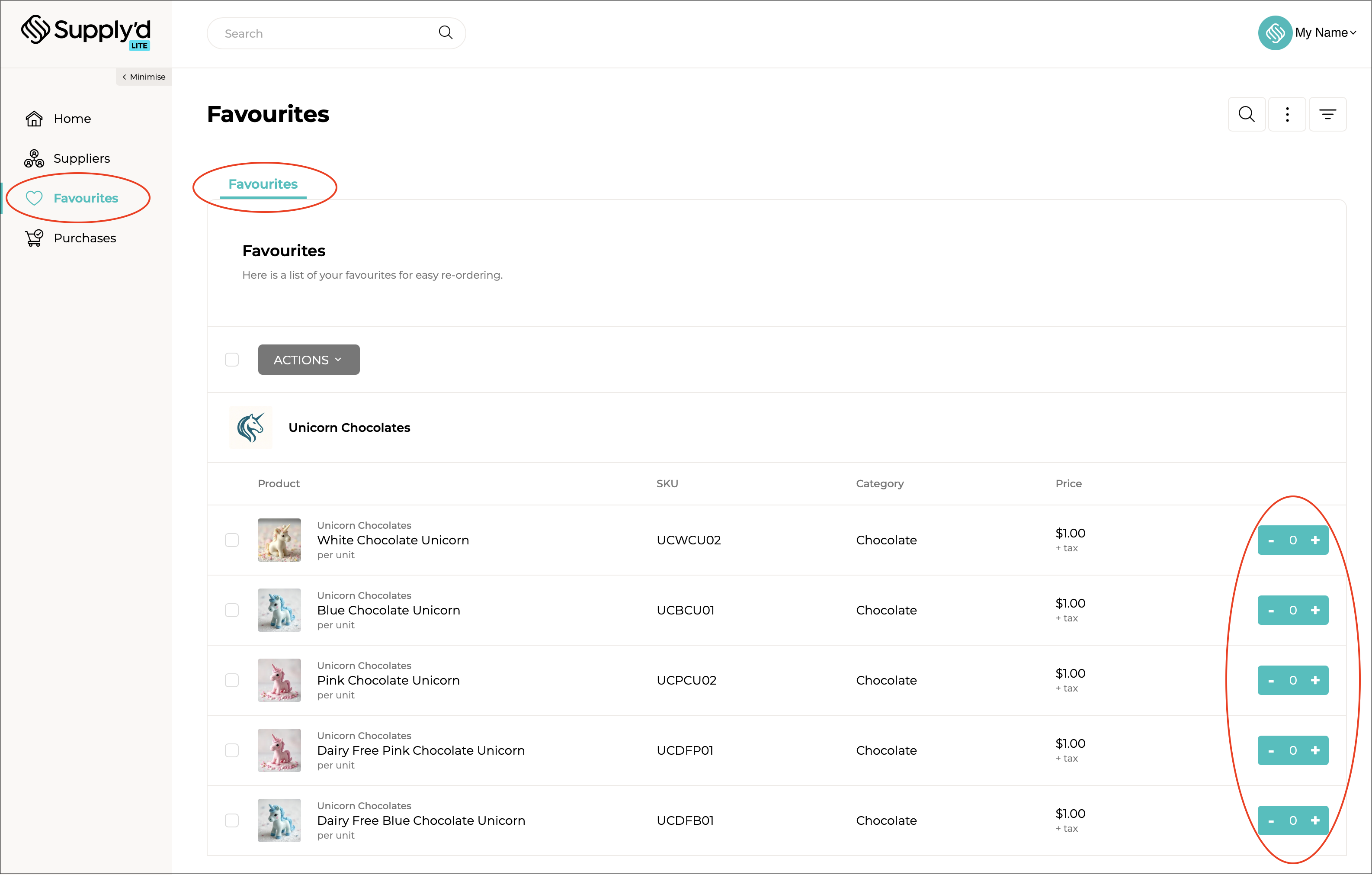
With Supply’d Lite, you can add items to your orders from **Favourites**, **Supplier Products** lists or a **Product's** page; anywhere you see beside the product. Add products anytime and keep them there until you're ready to place your orders.
**Favourites:**
**Products List:**
**Product Page:**
To add items to your cart, simply click the "**+**" button next to the product you want to add. Each click will increase the quantity by one. If you need to reduce the quantity, click the "**-**" button until you reach the desired amount. This makes it easy to adjust your order as you go.
{% hint style="success" %}
If you want to add a large number of items you can click and hold (or long press on mobile) the "**+**" or "**-**" for about 2 seconds and a text field will appear to enter a new value. Click the tick to update.
{% endhint %}
***
## Review Cart & Checkout
Checking out on Supply'd is really quick and easy.
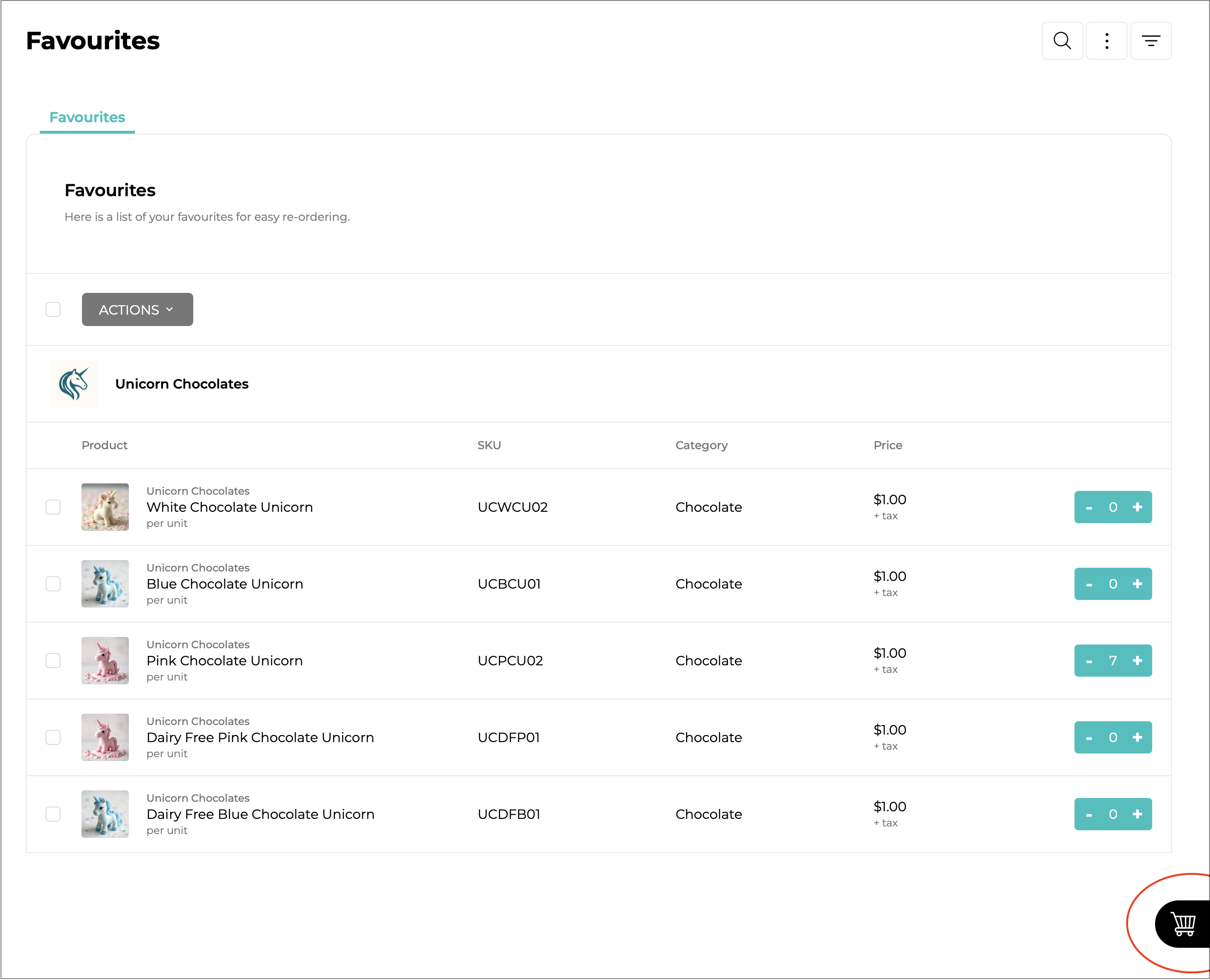
When your cart has items, a **Checkout** button with the total will show at the bottom right of each page. Click it anytime to review, change, or place your order.
When you hover over the button, it expands to show "Checkout".
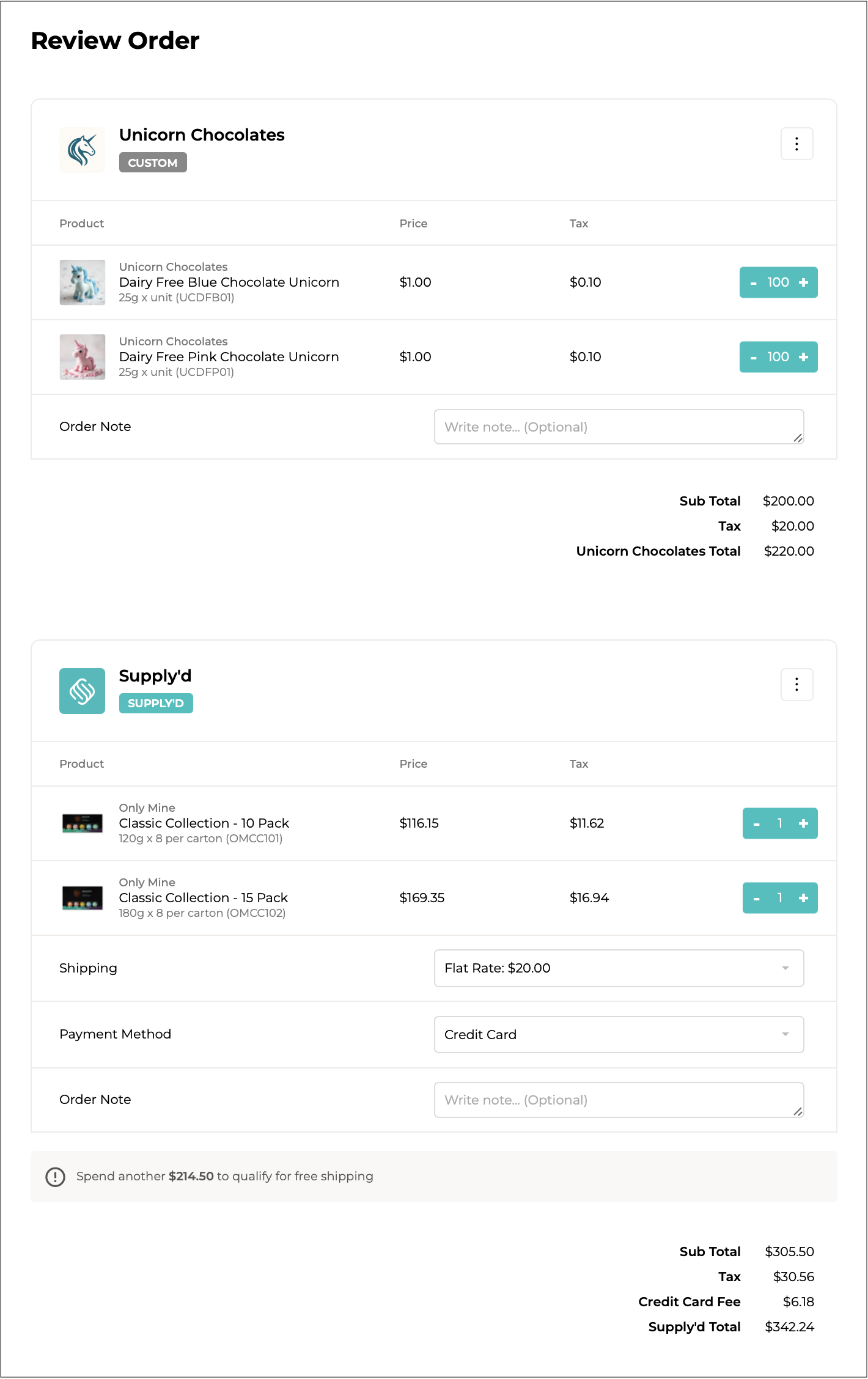
Clicking the **Checkout** button opens the **Review Order** page, showing all items in your cart grouped by supplier.
You can review and update quantities as needed.
***
### Placing, Postponing or Removing Orders One at a Time
Clicking on the 3 dots beside a supplier's name will open a menu with these options:
***
#### Place Order
Will place only that particular supplier's order.
{% hint style="info" %}
To place all orders at the one time use the button at the bottom of the page, see [#placing-all-orders-at-once](#placing-all-orders-at-once "mention") below.
{% endhint %}
***
#### Place Without Sending
**Place Without Sending** allows you to submit a Purchase Order without sending an email notification to the supplier.
{% hint style="info" %}
This option is primarily used to update your own purchasing records, similar to modifying an existing Purchase Order. The order is placed in Supply’d, but the supplier is not notified.
This can be useful when correcting or managing Purchase Orders internally. For example, if a Purchase Order was partially received and a second Purchase Order was later created for outstanding items, you may need to update your records so stock can be received against the correct Purchase Order. In these situations, notifying the supplier could result in confusion or a duplicate delivery.
When you select **Place Without Sending**, Supply’d displays a confirmation message advising that you are **silently placing the order**. Once confirmed, the Purchase Order will be submitted without sending any email or order notification to the supplier.
**Note:** Use this option only when the Purchase Order is being created or updated for internal record-keeping purposes and the supplier does not need to be notified.
{% endhint %}
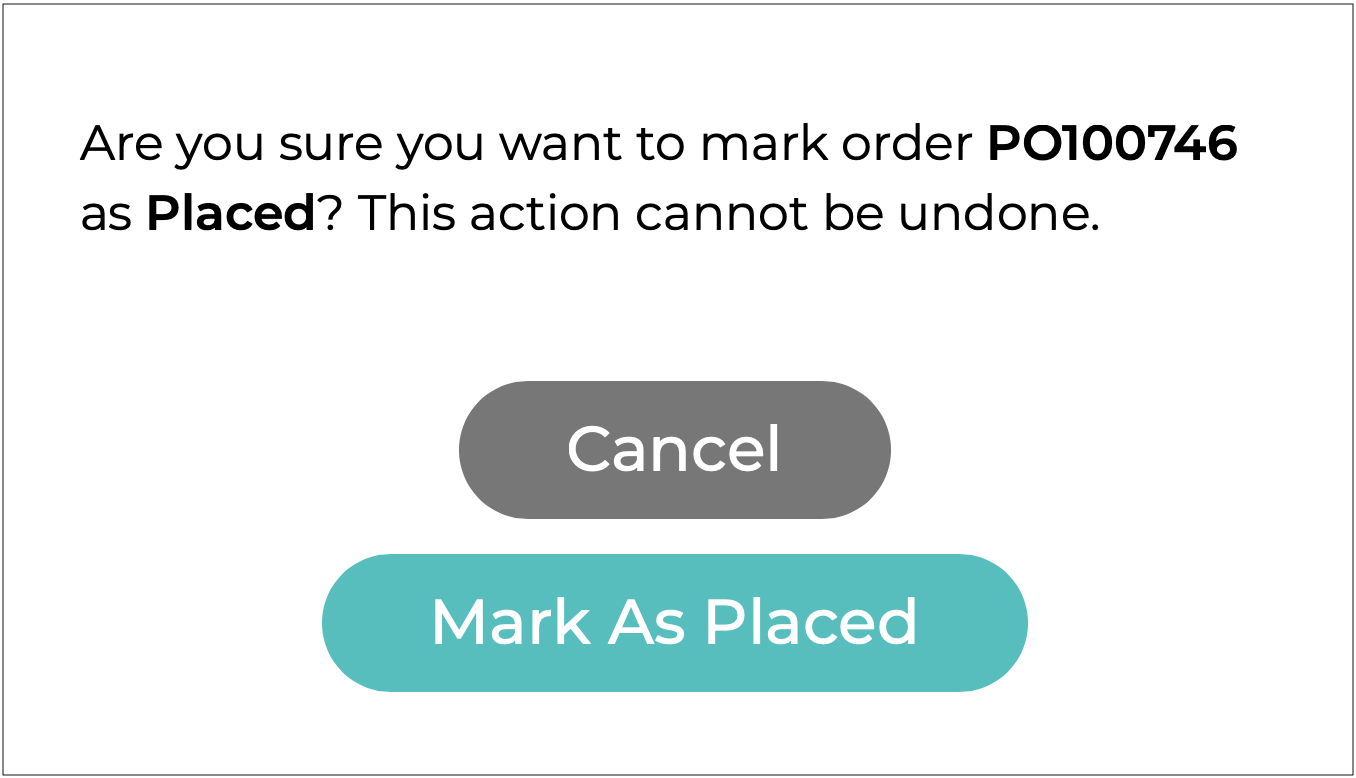
You will be asked to confirm.
***
#### Postpone
If you would like to postpone the order until a later date:
1. Select **Postpone**.
2. A calendar will appear - select your desired date.
3. Click .
4. The items will be temporarily removed from your cart until the selected date, at which time can again review the order and send it.
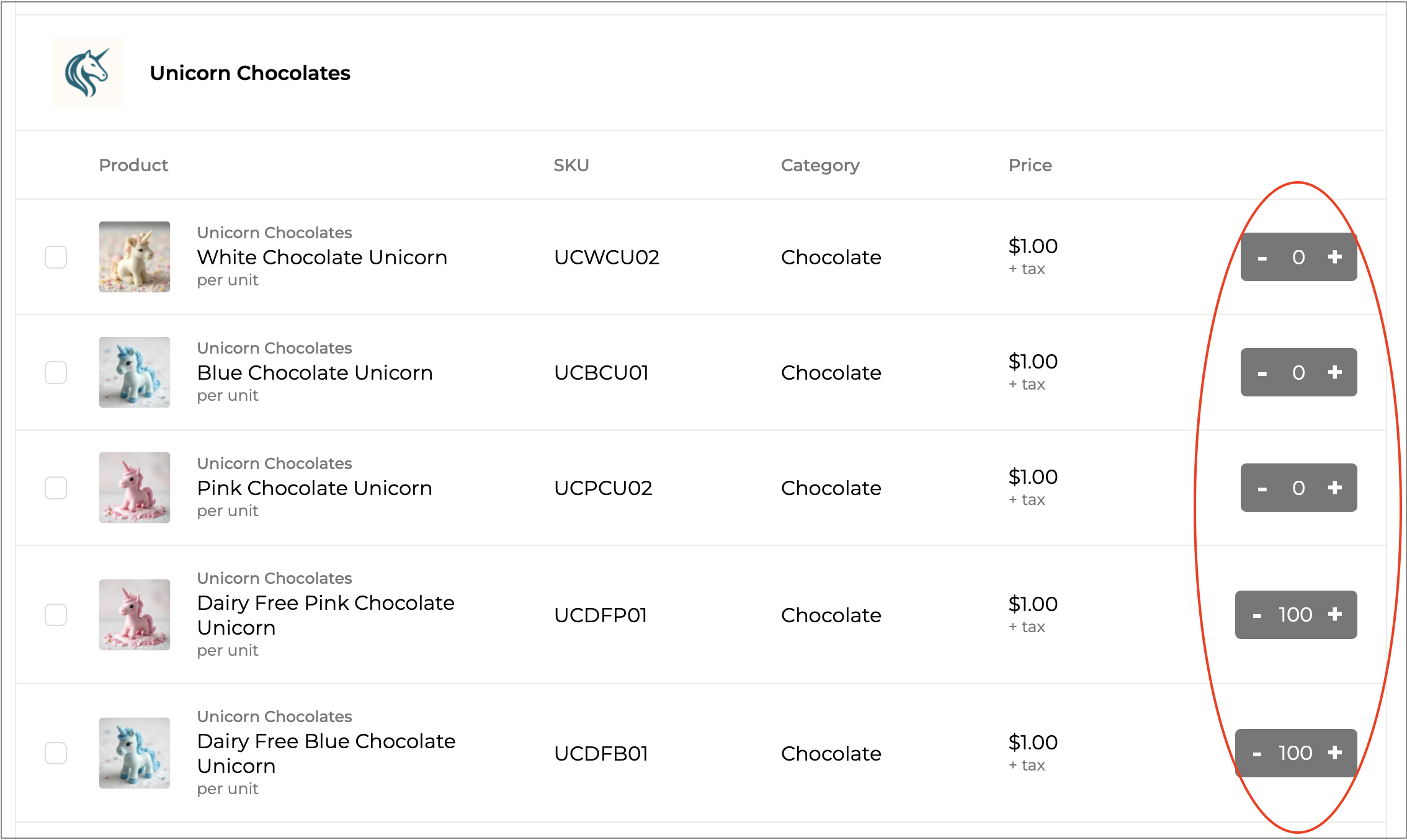
If any items from a supplier have been postponed, all items from that supplier will appear greyed out for ordering. This helps prevent accidental double-ordering.
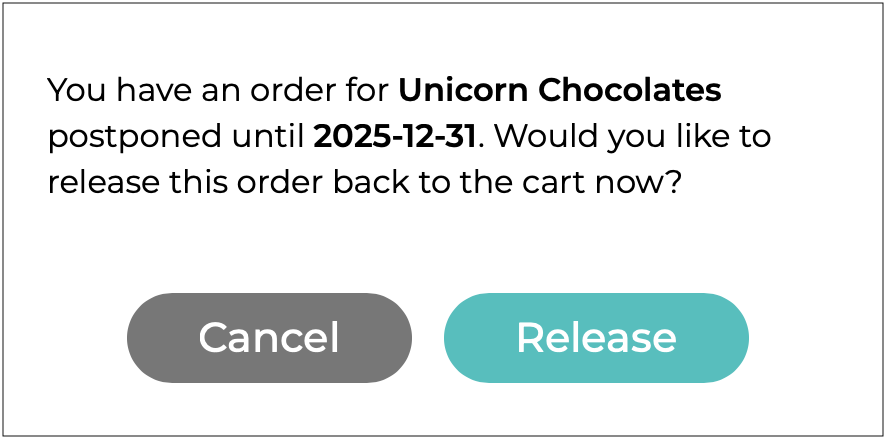
If you click on any greyed-out item, a warning will appear to let you decide whether to release the postponed order and return the items to your cart or leave it as is.
Click .
***
#### Change Location
Lets you select a different location for the order before placing it. This is useful if you manage multiple locations and need the order associated with a different site.
Select the location in the **New Location** field, then click .
***
#### Remove
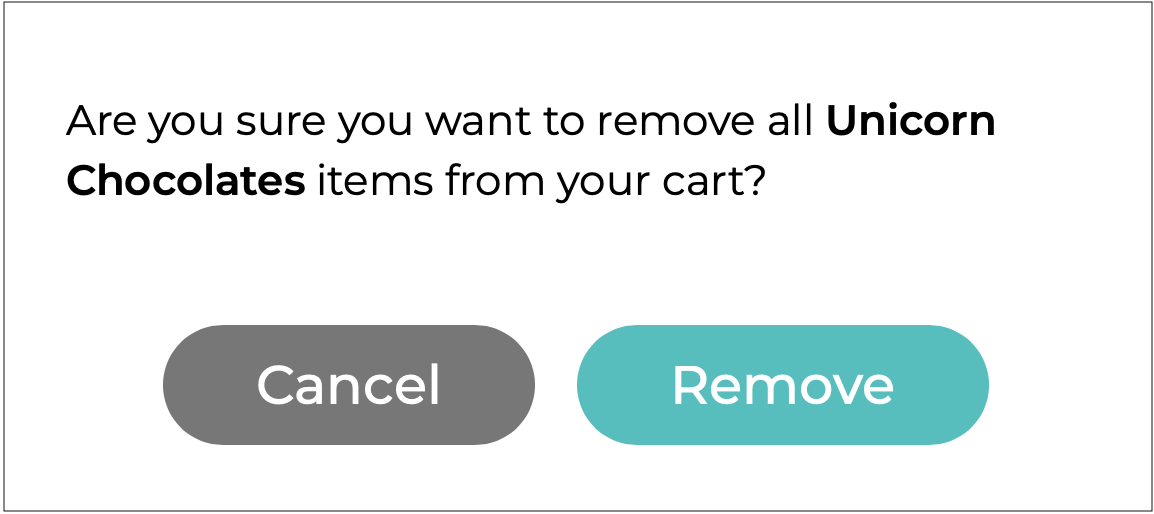
Will remove that particular supplier's order items. You will be asked to confirm.\
\
\
Click .
***
### Placing All Orders at Once
To place all the orders at the same time, with one click of a button, scroll to the bottom of the page and click .
{% hint style="warning" %}
If there are any issues, such as not meeting a supplier's minimum order shown below, fix them before placing the order.
{% endhint %}
Once everything looks good, click .
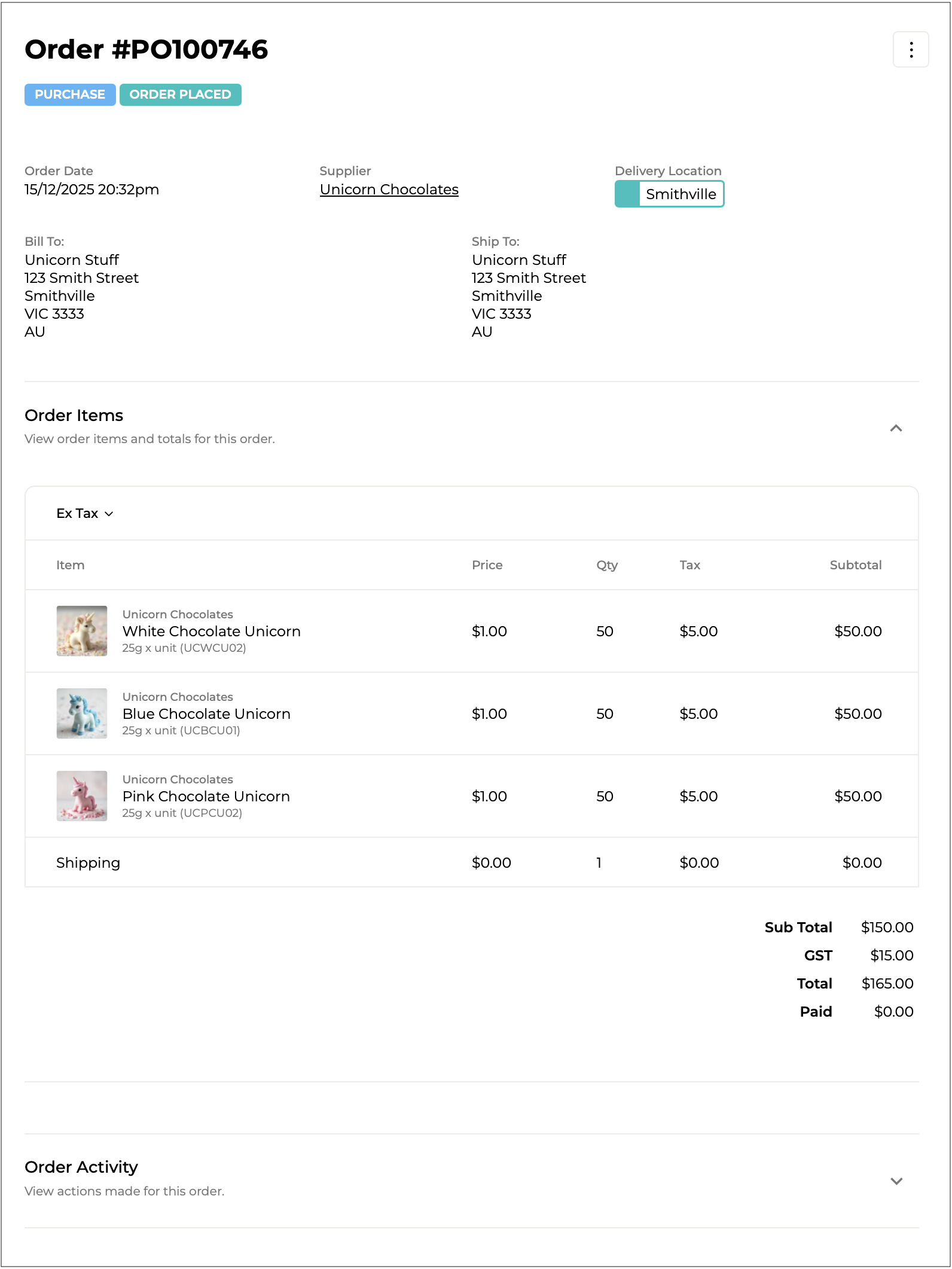
If successful, all suppliers will be notified and can begin processing your order.
***
## Creating an Order from the Purchases Page
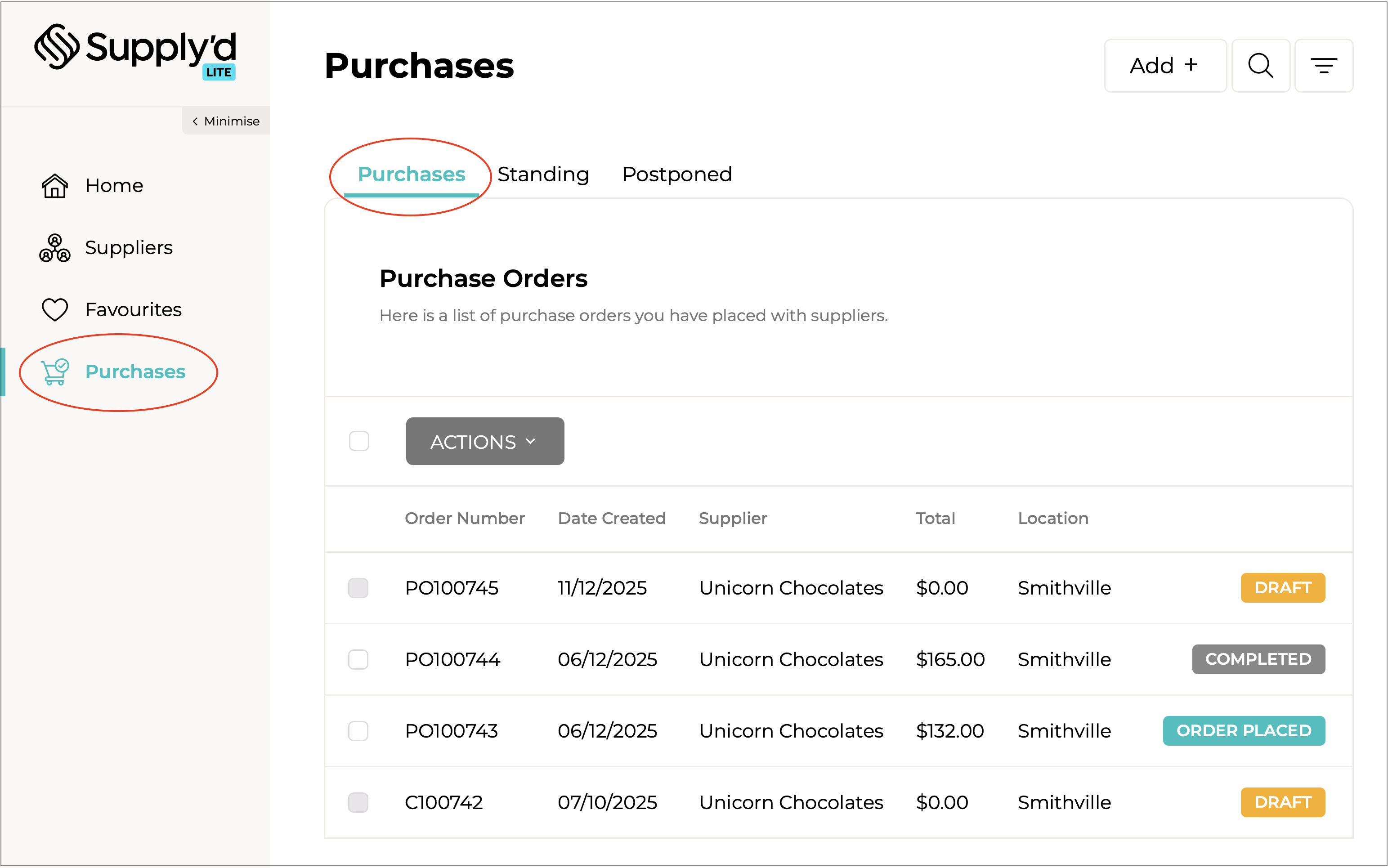
You can also create an order from the **Purchases** page.
{% stepper %}
{% step %}
#### Select Purchases
Select **Purchases** from the main menu to open the **Purchases** page, which lists all the purchase orders you have created.
***
{% endstep %}
{% step %}
#### Click Add +
Click **Add +** in the top right.
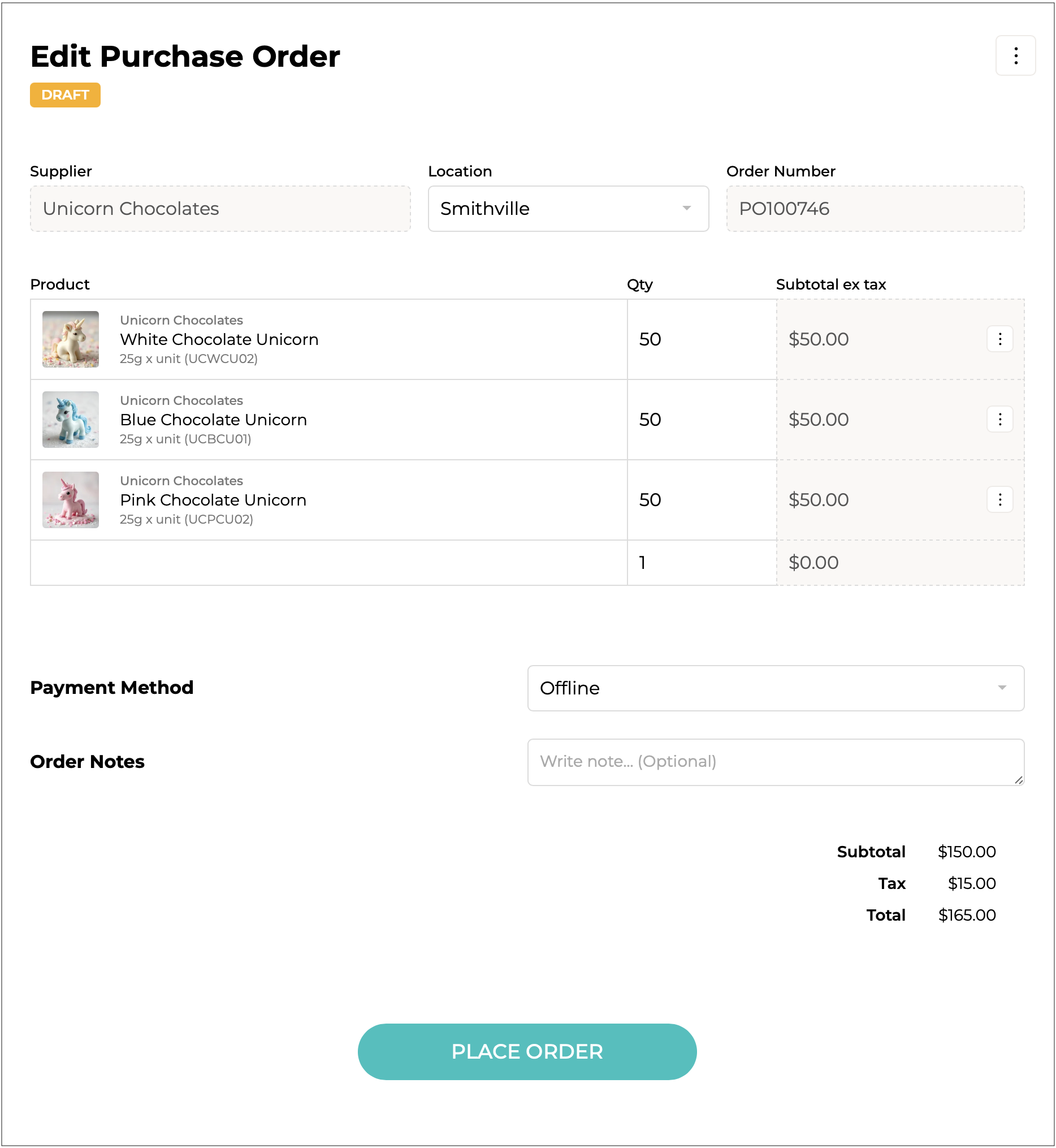
The **Add Purchase Order** form will open.
***
{% endstep %}
{% step %}
#### Select the Supplier
Clicking on or typing in the **Supplier** field will bring up a list of your suppliers to select from.
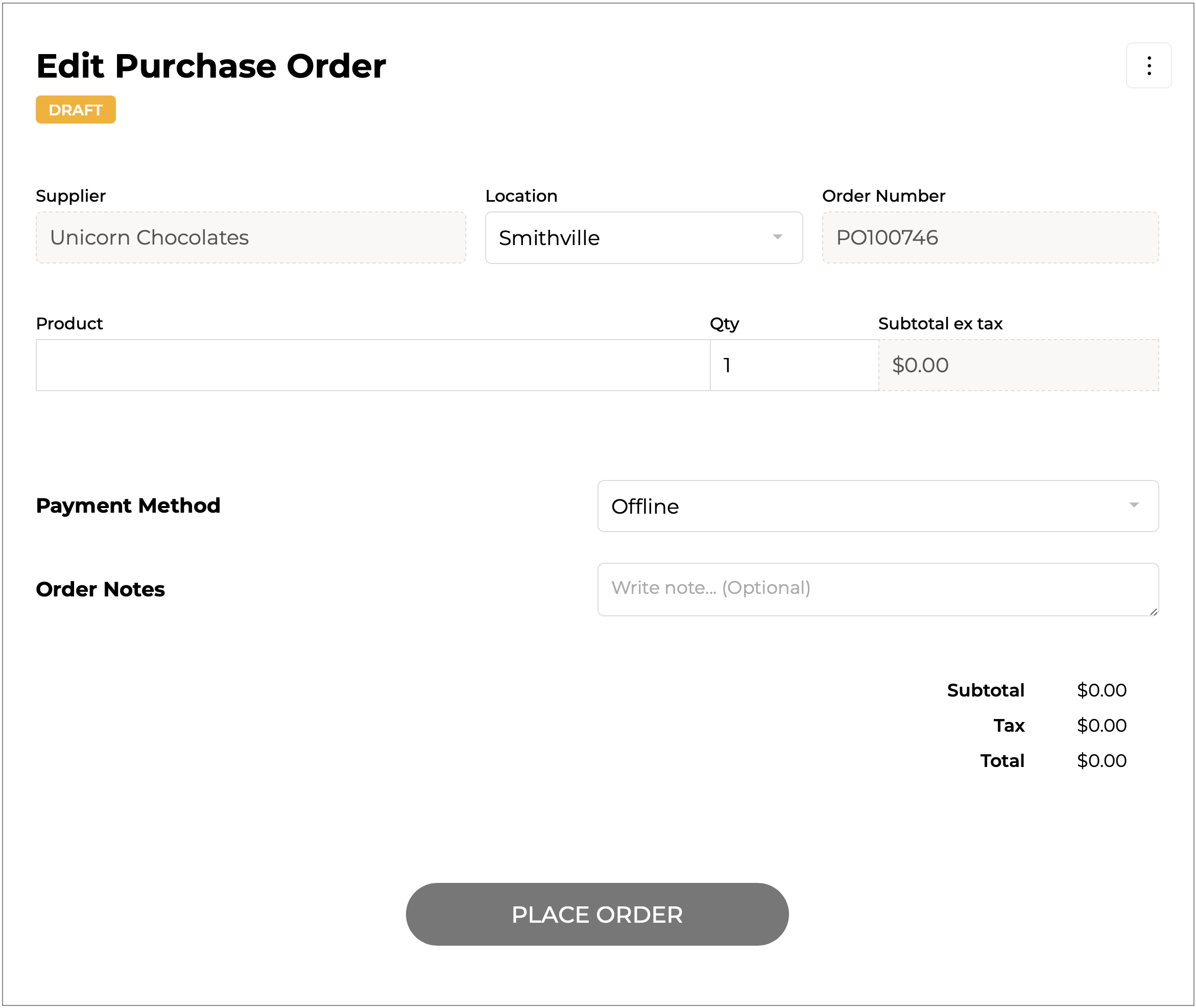
Once a supplier is selected, fields for adding products will show. The form will now say **Edit Purchase Order** and will show as a .
{% hint style="warning" %}
At this stage, the supplier cannot be changed. To use a different supplier, you will need to create a new order.
{% endhint %}
***
{% endstep %}
{% step %}
#### Select the Location
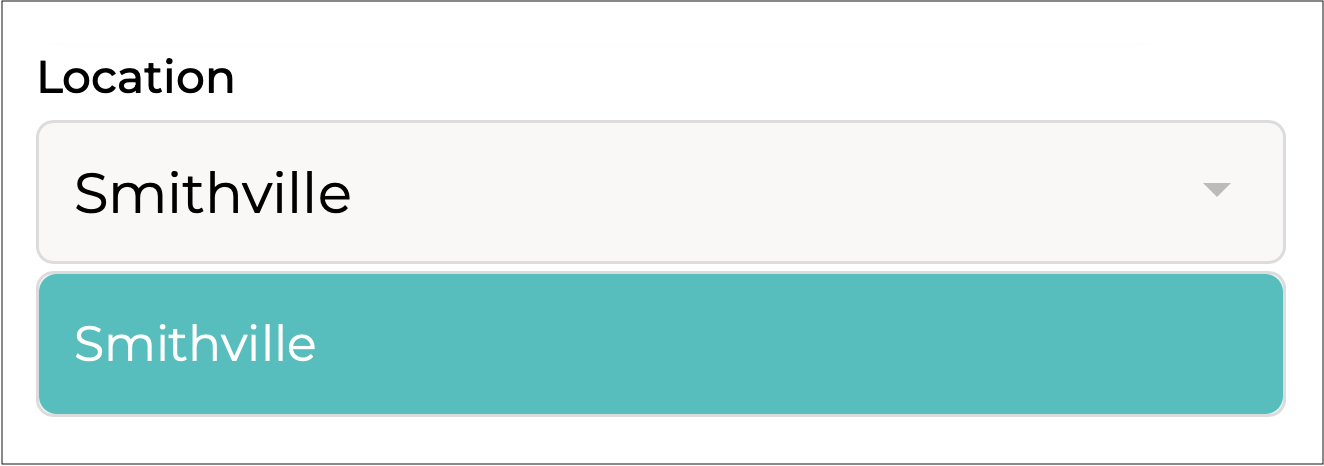
If you have more than one location set up in Supply'd Lite, select the location for the order from the drop-down menu.
***
{% endstep %}
{% step %}
#### Add the Order Products
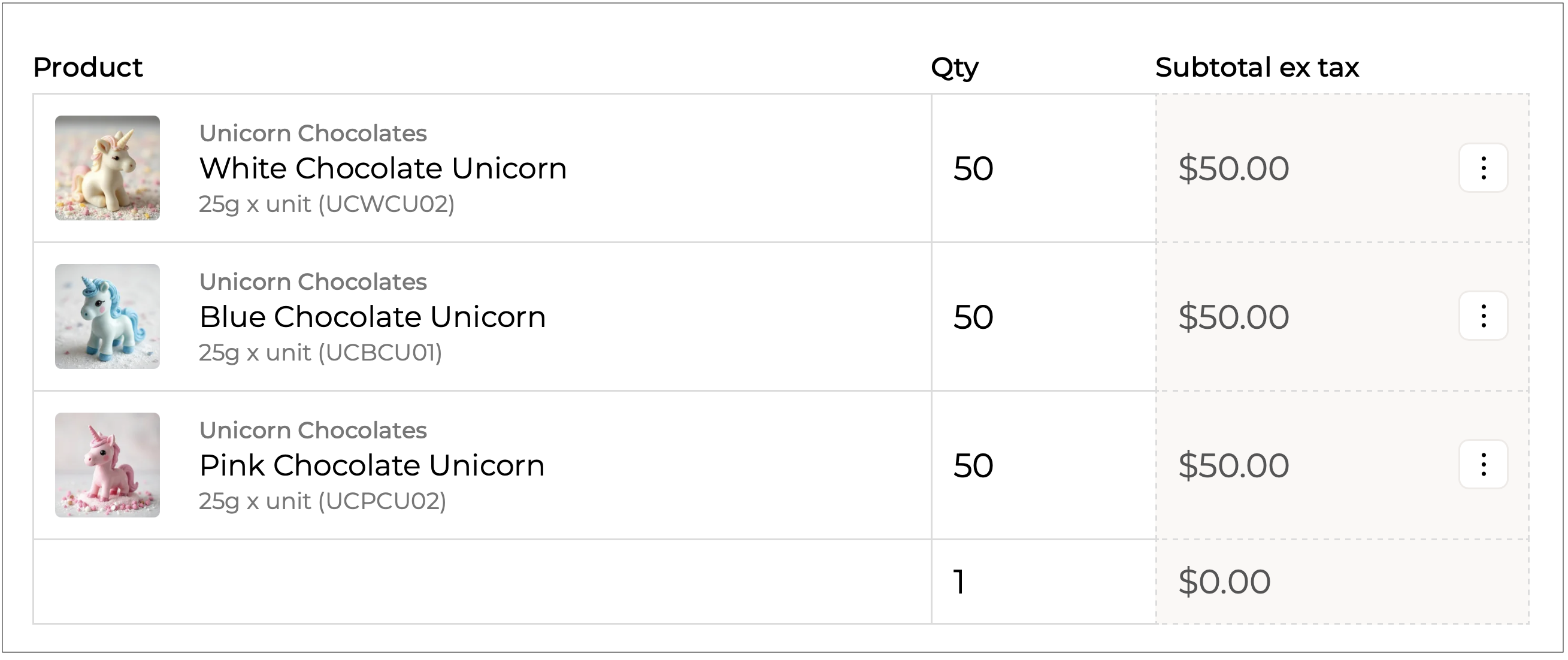
Select the products and add the desired quantities.
Click or type in the **Product** field to display the supplier’s product list and select a product.
Type the amount in the **Qty** field. The **Subtotal ex tax** will be automatically calculated for you.
Repeat for any other items you would like to add to the order.
***
{% endstep %}
{% step %}
#### Perform Additional Options for the Items
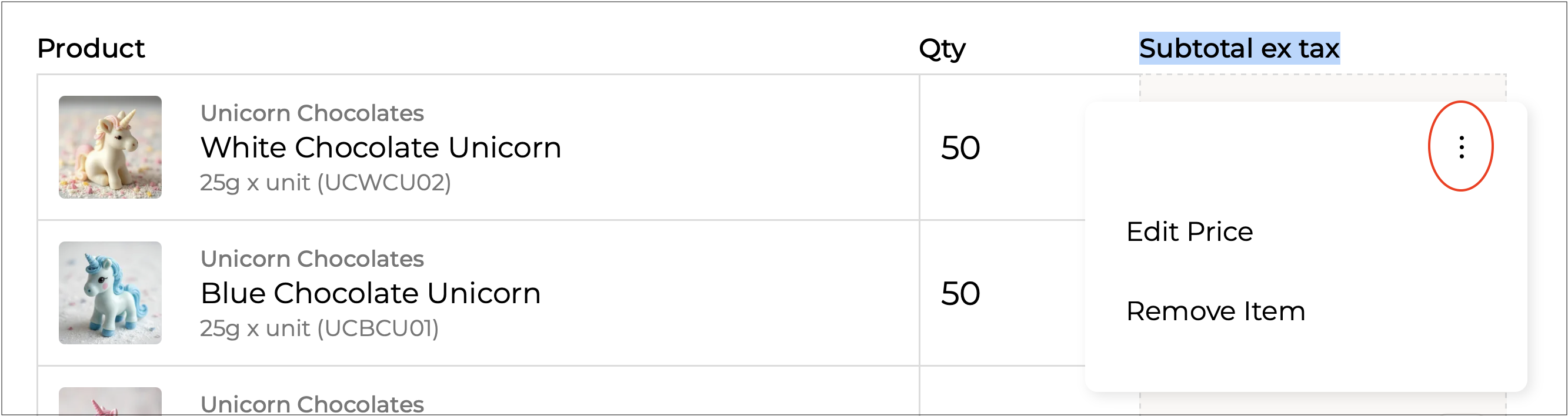
Clicking the 3 dots beside an item will give you the following options:
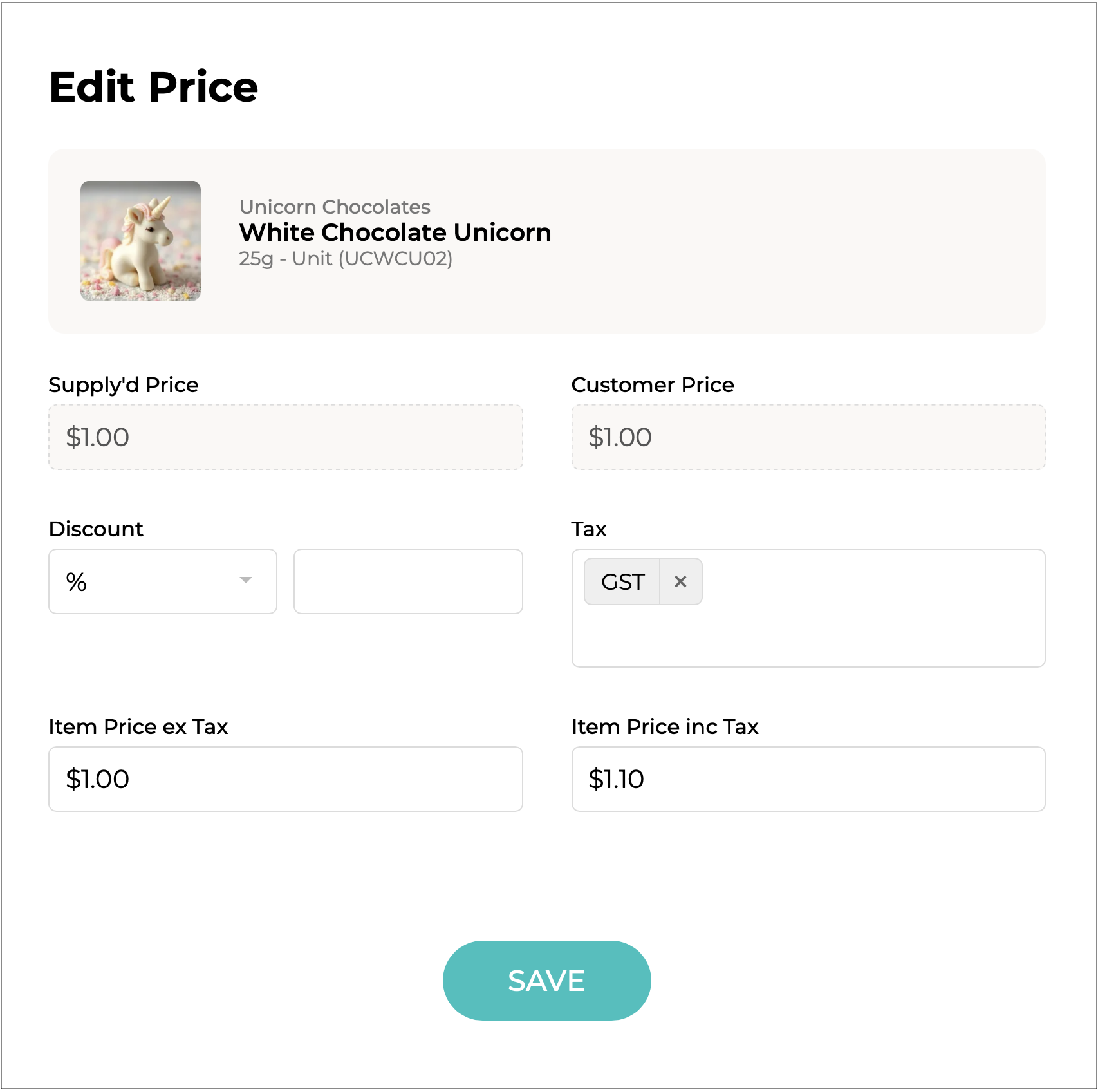
**Edit Price**
Opens the **Edit Price** form, allowing you to update the pricing or apply a discount.
* **Supply'd Price:** The default price of the product set in Supply'd. Automatically entered from the product's settings.
* **Customer Price:** The price set for the product for this customer. Automatically entered from the customer's settings.
* **Discount:** Optionally set a discount to apply to this price. Select a discount type from the drop-down menu: either **%** (percentage) or **$** (dollar amount). This will apply from the **Customer Price** if it is different to the **Supply'd Price**.
* **Tax:** The type of tax that applies to this item, eg. GST.
* **Item Price ex Tax:** Price of the item before GST is applied. You also can set a new price for the item here. The **Item Price Inc Tax** will automatically adjust.
* **Item Price Inc Tax:** Price of the item after GST is applied. You can also set a new price for the item here. The **Item Price Ex Tax** will automatically adjust.
Click to apply the new item price.
Repeat with any remaining items that you wish to edit the price for.
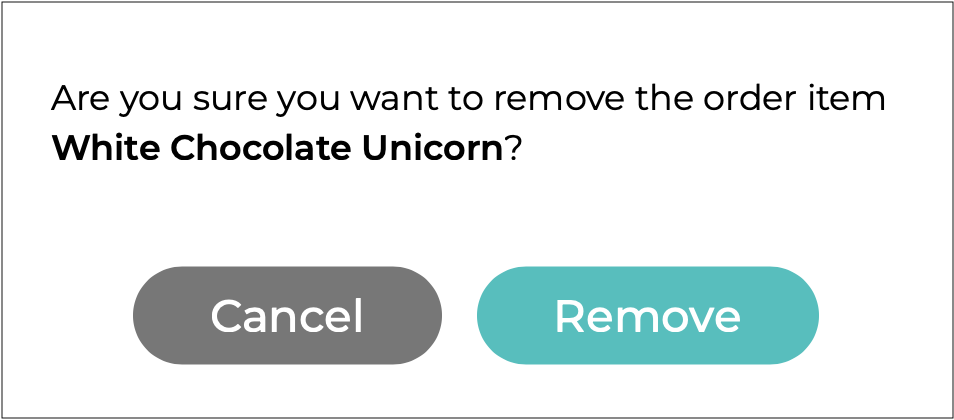
**Remove Item**
Will remove the item from the order. You will be asked to confirm.
***
{% endstep %}
{% step %}
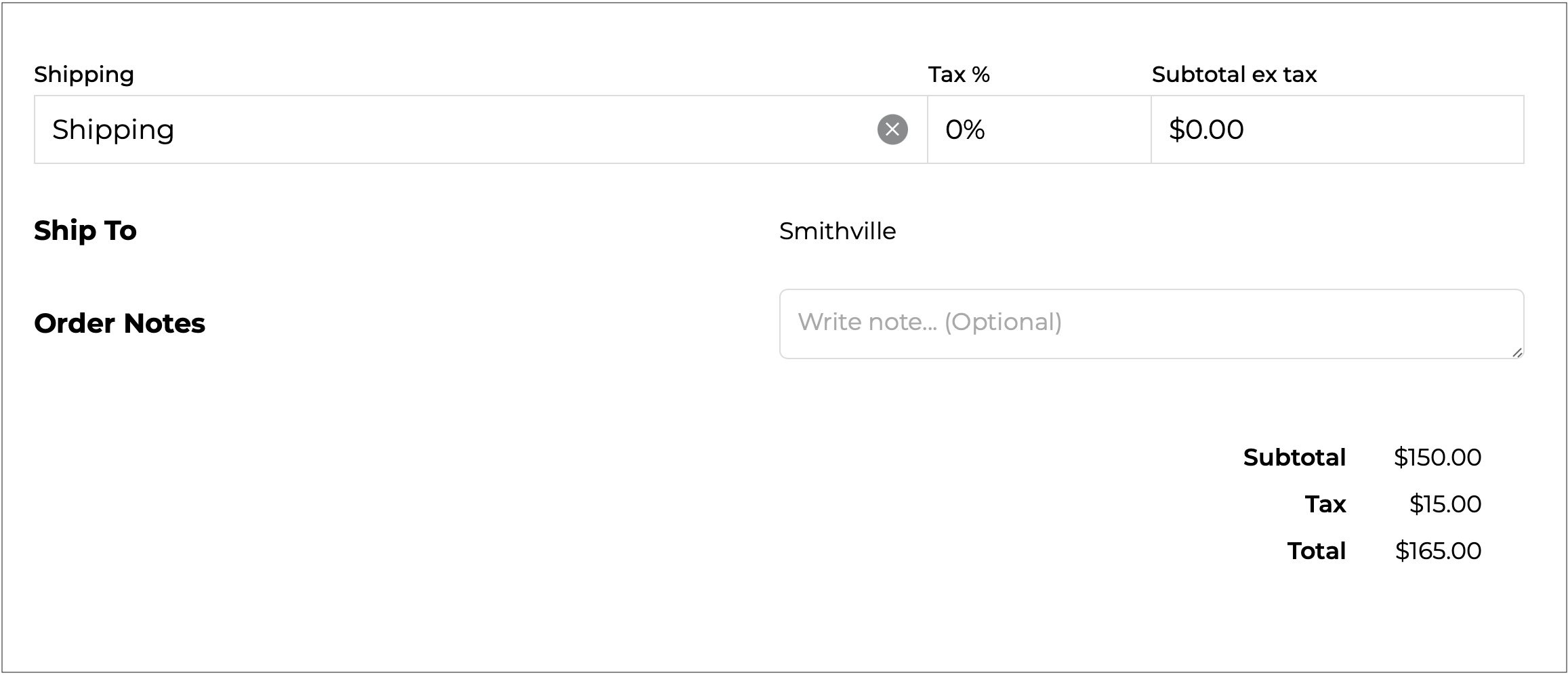
#### Select Shipping, Ship To Location & Add Notes
Once all items have been added and any desired modifications made, select the applicable **Shipping** rate, **Tax** that may apply to shipping, and add any **Notes** that you might want to add.
The **Subtotal** and **Total** are displayed on the lower right.
{% hint style="success" %}
If the order total is below the supplier’s minimum (set when the supplier was added), Supply’d Lite will alert you and prevent the order from being placed until the minimum is met.
{% endhint %}
{% hint style="success" %}
Once all required fields are completed and minimums are met, the button will change from grey to blue - .
{% endhint %}
***
{% endstep %}
{% step %}
#### Click Place Order
Click to send the order to the supplier.
{% endstep %}
{% endstepper %}
***
### Additional Options
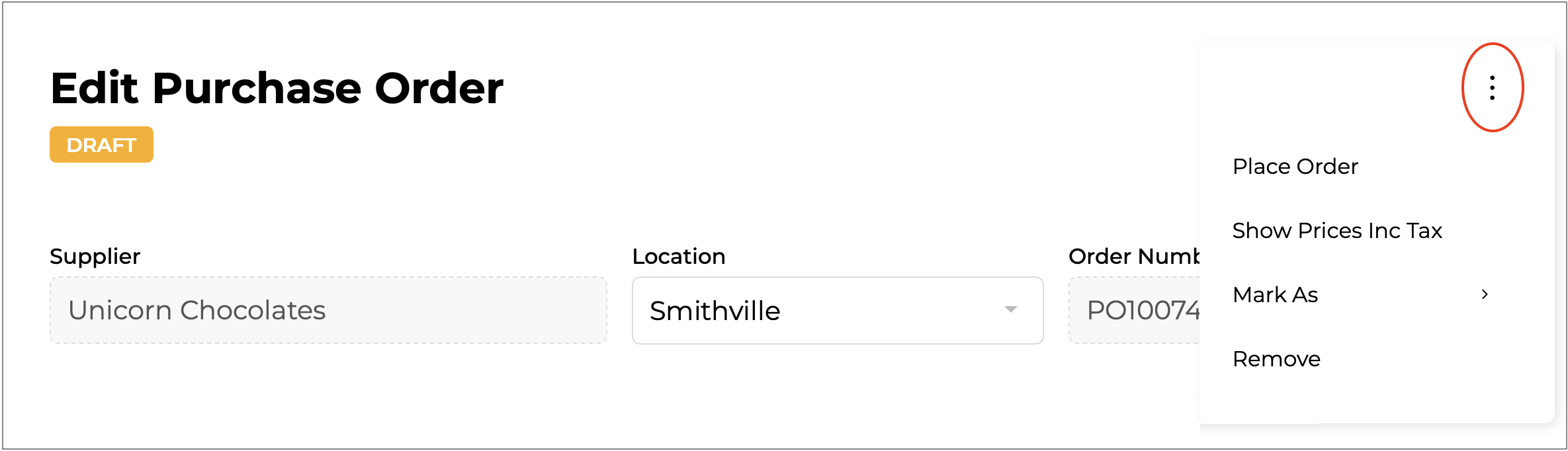
Prior to placing the order, clicking on the 3 dots in the top right corner will open a menu:
**Place Order**
Will place the order. An alternative to the button at the bottom of the form.
**Show Prices Inc Tax**
Will show prices including taxes such as GST. Will change to **Show Prices Ex Tax** when clicked.
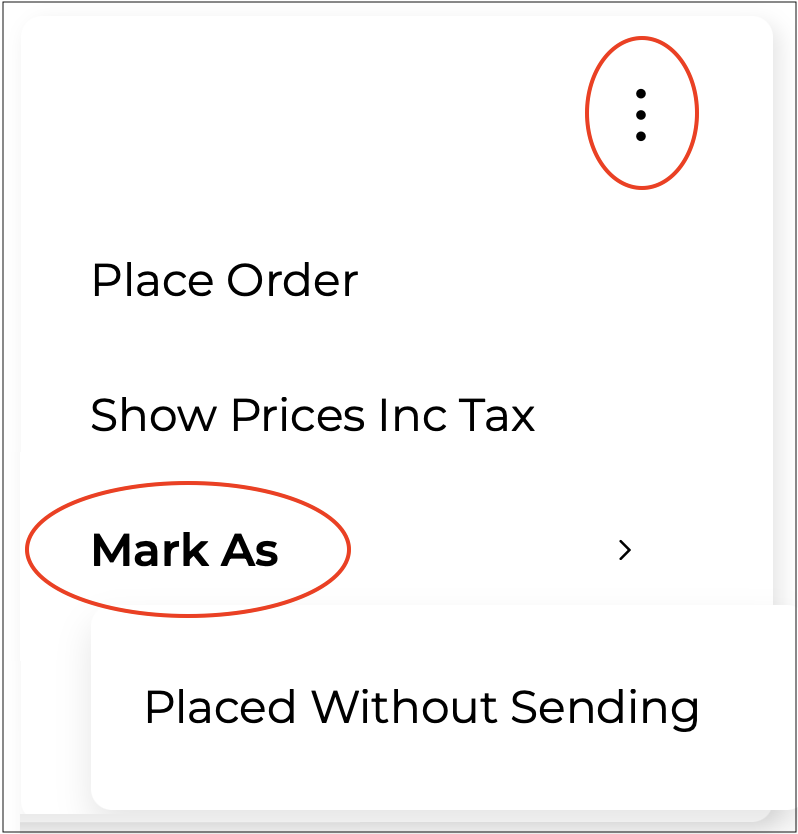
**Mark As > Placed Without Sending**
If you place an order via another method - for example, through a representative or over the phone - you can mark the order as **Placed** without sending it from Supply'd.
You will be asked to confirm.
**Remove**
Will remove the order. You will be asked to confirm.
{% hint style="success" %}
You can find out more about how to manage your orders in the [Managing Orders (Supply'd Lite)](/supplyd-lite/purchases/managing-orders-supplyd-lite.md) document.
{% endhint %}
---
# Agent Instructions
This documentation is published with GitBook. GitBook is the documentation platform designed so that both humans and AI agents can read, navigate, and reason over technical content effectively. Learn more at gitbook.com.
## Querying This Documentation
If you need additional information that is not directly available in this page, you can query the documentation dynamically by asking a question.
Perform an HTTP GET request on the current page URL with the `ask` query parameter, and the optional `goal` query parameter:
```
GET https://help.supplyd.co/supplyd-lite/purchases/ordering-supplyd-lite.md?ask=&goal=
```
`ask` is the immediate question: it should be specific, self-contained, and written in natural language.
`goal` is optional and describes the broader end goal you are ultimately trying to accomplish on behalf of the user. GitBook uses it to tailor the answer towards what is most useful for that goal.
The response will contain a direct answer to the question and relevant excerpts and sources from the documentation.
Use this mechanism when the answer is not explicitly present in the current page, you need clarification or additional context, or you want to retrieve related documentation sections.
 beside the product. Add products anytime and keep them there until you're ready to place your orders.
**Favourites:**
beside the product. Add products anytime and keep them there until you're ready to place your orders.
**Favourites:**




 button at the bottom of the page, see [#placing-all-orders-at-once](#placing-all-orders-at-once "mention") below.
{% endhint %}
***
#### Place Without Sending
**Place Without Sending** allows you to submit a Purchase Order without sending an email notification to the supplier.
{% hint style="info" %}
This option is primarily used to update your own purchasing records, similar to modifying an existing Purchase Order. The order is placed in Supply’d, but the supplier is not notified.
This can be useful when correcting or managing Purchase Orders internally. For example, if a Purchase Order was partially received and a second Purchase Order was later created for outstanding items, you may need to update your records so stock can be received against the correct Purchase Order. In these situations, notifying the supplier could result in confusion or a duplicate delivery.
When you select **Place Without Sending**, Supply’d displays a confirmation message advising that you are **silently placing the order**. Once confirmed, the Purchase Order will be submitted without sending any email or order notification to the supplier.
**Note:** Use this option only when the Purchase Order is being created or updated for internal record-keeping purposes and the supplier does not need to be notified.
{% endhint %}
You will be asked to confirm.
button at the bottom of the page, see [#placing-all-orders-at-once](#placing-all-orders-at-once "mention") below.
{% endhint %}
***
#### Place Without Sending
**Place Without Sending** allows you to submit a Purchase Order without sending an email notification to the supplier.
{% hint style="info" %}
This option is primarily used to update your own purchasing records, similar to modifying an existing Purchase Order. The order is placed in Supply’d, but the supplier is not notified.
This can be useful when correcting or managing Purchase Orders internally. For example, if a Purchase Order was partially received and a second Purchase Order was later created for outstanding items, you may need to update your records so stock can be received against the correct Purchase Order. In these situations, notifying the supplier could result in confusion or a duplicate delivery.
When you select **Place Without Sending**, Supply’d displays a confirmation message advising that you are **silently placing the order**. Once confirmed, the Purchase Order will be submitted without sending any email or order notification to the supplier.
**Note:** Use this option only when the Purchase Order is being created or updated for internal record-keeping purposes and the supplier does not need to be notified.
{% endhint %}
You will be asked to confirm.

 .
4. The items will be temporarily removed from your cart until the selected date, at which time can again review the order and send it.
.
4. The items will be temporarily removed from your cart until the selected date, at which time can again review the order and send it.

 .
***
#### Change Location
Lets you select a different location for the order before placing it. This is useful if you manage multiple locations and need the order associated with a different site.
.
***
#### Change Location
Lets you select a different location for the order before placing it. This is useful if you manage multiple locations and need the order associated with a different site.

 .
***
#### Remove
Will remove that particular supplier's order items. You will be asked to confirm.\
\
\
.
***
#### Remove
Will remove that particular supplier's order items. You will be asked to confirm.\
\
\ 
 .
***
### Placing All Orders at Once
To place all the orders at the same time, with one click of a button, scroll to the bottom of the page and click
.
***
### Placing All Orders at Once
To place all the orders at the same time, with one click of a button, scroll to the bottom of the page and click 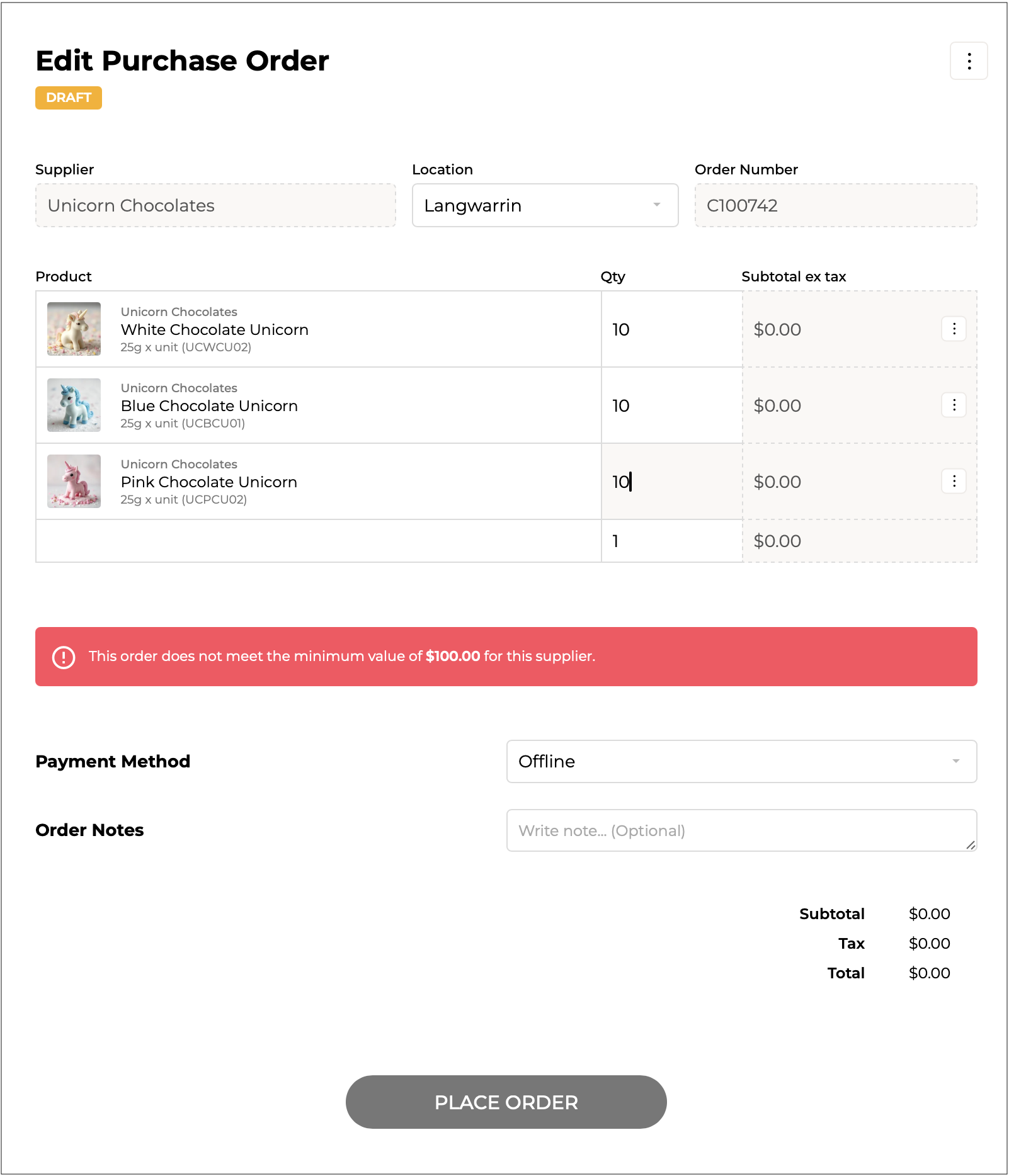



 .
.










 button will change from grey to blue -
  .
{% endhint %}
.
{% endhint %}