> For the complete documentation index, see [llms.txt](https://help.supplyd.co/llms.txt). Markdown versions of documentation pages are available by appending `.md` to page URLs; this page is available as [Markdown](https://help.supplyd.co/~/changes/1509/getting-started/quickstart.md).
# Creating Your Account
To create your account with Supply'd use the link you were provided to register from the referring supplier or Supply'd sales rep.
If you have not been provided a referral link but would like to register for a free Supply'd Lite account, or a trial of a Pro account visit . You will then be presented with a series of steps in order to create your account.
On the **Register** page, enter your email and click .
Select the type of account you would like to create, in this case select **Lite**. Enter your ABN, business address and optional website. Click .
{% hint style="info" %}
The account type will only show if you haven't been referred by a supplier. The ABN must be valid and current. You will not be able to proceed with an invalid ABN.
{% endhint %}
Enter your first name, last name and mobile number. Click .
You will be sent a code to verify your mobile phone number. Enter the code in the field shown. If you do not receive the code click **Resend Code**.
You will also be required to verify your email address before being able to trade on Supply'd. See the [Verifying Your Email Address](https://help.supplyd.co/~/changes/1509/getting-started/quickstart/verifying-your-email-address.md) document for details on how to do this.

To **Complete Set-up,** click on **Complete Company Profile**.
#### Trading Name\* \[Required]
Defines the trading name of your business. This is the name customers will see in Supply'd. For example if your legal business name was Milk Co Pty Ltd, but you trade as Milk Co, you would simply enter the value "Milk Co".
#### Company Logo
Upload your company logo. It is recommended to use a PNG image with a transparent background. Square images work best if available at least 500px wide. Wider images can be used as well. JPG images are also accepted.
#### Support Email\* \[required]
The email address customers/suppliers can use to contact you in case of an an issue or enquiry. This is not publicly available until an order or connection has been made.
#### Support Phone\* \[required]
The email phone number customers/suppliers can use to contact you in case of an an issue or enquiry. This is not publicly available until an order or connection has been made.
#### Your Website
Your website address. If you don't have a website please enter a Facebook or Instagram URL.
#### Business Categories
Defines the business type that your business is. Select the category or categories that are most appropriate for your business. For example, if you are a bakery who also has a cafe, you would select "Cafe" and "Bakery/Patisserie". These will define what product your see in the marketplace to ensure it is relevant to your business. For a full list of possible buyer business types click here.
#### Timezone\* \[required]
The timezone your business most commonly trades in. This will be a default timezone for all new users you add to Supply'd.
#### Liquor Licence
If your business has a liquor licence, upload a copy here. This is used if purchasing product that require a liquor license in the marketplace.
#### Description
A description of your business to be displayed on your profile. Used to help sell your business to potential customers.
Click to apply your settings.

Welcome to Supply'd Lite. Here you can manage and order from all of your suppliers in one place, saving you hours in ordering. You can order from Supply'd suppliers, or add your own custom suppliers to make ordering easy. (Instructions for adding custom suppliers can be found in the [Adding Suppliers & Supplier Groups](https://help.supplyd.co/~/changes/1509/suppliers/adding-suppliers-and-supplier-groups.md) document.)
---
# Agent Instructions
This documentation is published with GitBook. GitBook is the documentation platform designed so that both humans and AI agents can read, navigate, and reason over technical content effectively. Learn more at gitbook.com.
## Querying This Documentation
If you need additional information that is not directly available in this page, you can query the documentation by asking a question.
Perform an HTTP GET request on the following URL with the `ask` and `goal` query parameters:
```
GET https://help.supplyd.co/~/changes/1509/getting-started/quickstart.md?ask=&goal=
```
`ask` is the immediate question: it should be specific, self-contained, and written in natural language.
`goal` is what the user is ultimately trying to achieve, the reason they need the answer. Sharing it helps GitBook give you a better, more relevant answer. A goal is most helpful when it describes the outcome the user wants rather than restating the question. For example, with `ask=how do I create an API token`, a goal like `automate deployments from our CI pipeline` lets GitBook tailor the answer to that use case.
The response will contain a direct answer to the question and relevant excerpts and sources from the documentation.
Use this mechanism when the answer is not explicitly present in the current page, you need clarification or additional context, or you want to retrieve related documentation sections.

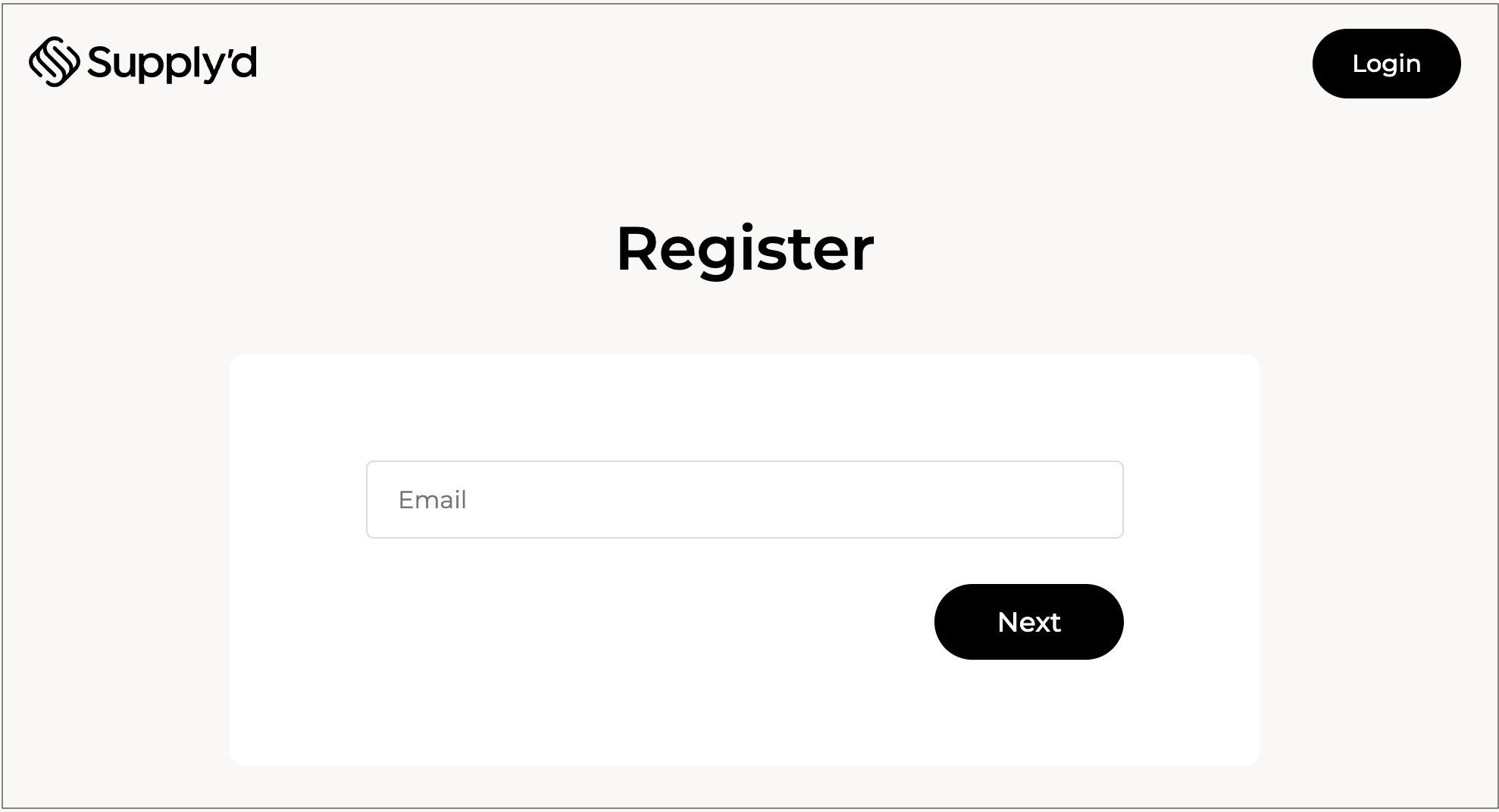 On the **Register** page, enter your email and click
 .
 .
{% hint style="info" %}
The account type will only show if you haven't been referred by a supplier. The ABN must be valid and current. You will not be able to proceed with an invalid ABN.
{% endhint %}
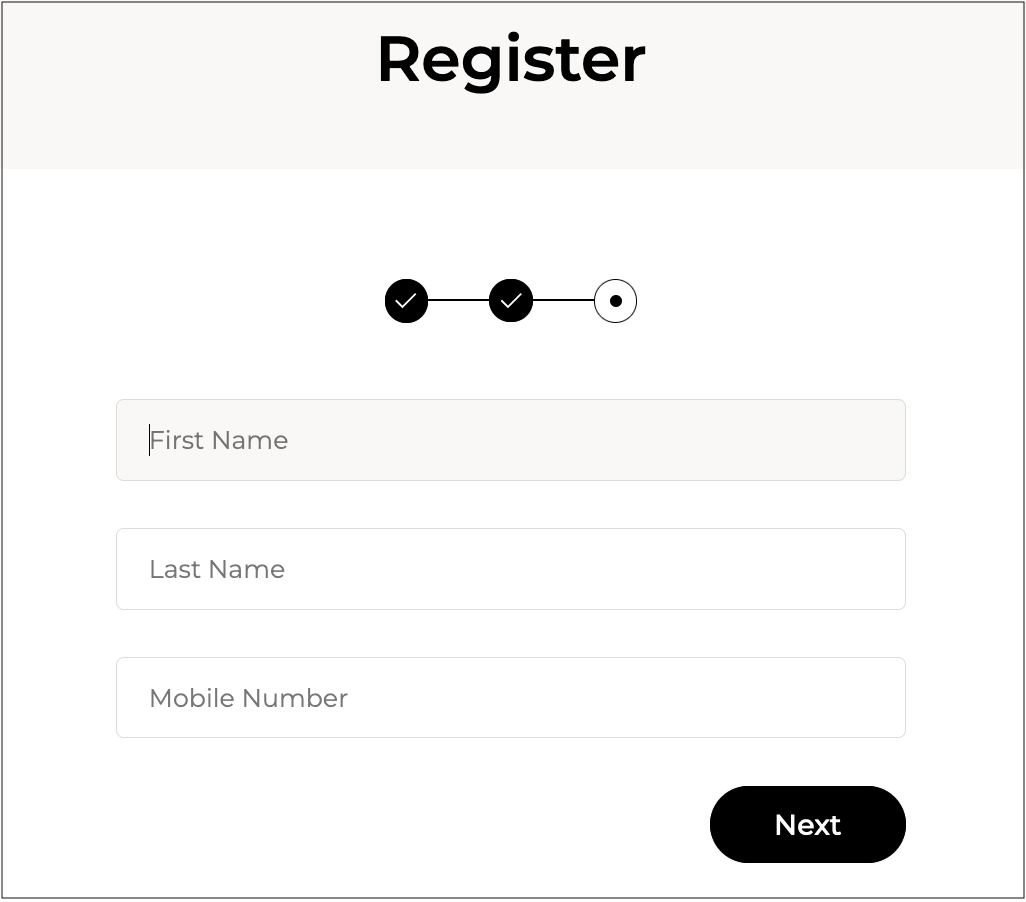
 .
You will be sent a code to verify your mobile phone number. Enter the code in the field shown. If you do not receive the code click **Resend Code**.
You will also be required to verify your email address before being able to trade on Supply'd. See the [Verifying Your Email Address](https://help.supplyd.co/~/changes/1509/getting-started/quickstart/verifying-your-email-address.md) document for details on how to do this.

To **Complete Set-up,** click on **Complete Company Profile**.

 to apply your settings.

Welcome to Supply'd Lite. Here you can manage and order from all of your suppliers in one place, saving you hours in ordering. You can order from Supply'd suppliers, or add your own custom suppliers to make ordering easy. (Instructions for adding custom suppliers can be found in the [Adding Suppliers & Supplier Groups](https://help.supplyd.co/~/changes/1509/suppliers/adding-suppliers-and-supplier-groups.md) document.)
---
# Agent Instructions
This documentation is published with GitBook. GitBook is the documentation platform designed so that both humans and AI agents can read, navigate, and reason over technical content effectively. Learn more at gitbook.com.
## Querying This Documentation
If you need additional information that is not directly available in this page, you can query the documentation by asking a question.
Perform an HTTP GET request on the following URL with the `ask` and `goal` query parameters:
```
GET https://help.supplyd.co/~/changes/1509/getting-started/quickstart.md?ask=