> For the complete documentation index, see [llms.txt](https://help.supplyd.co/llms.txt). Markdown versions of documentation pages are available by appending `.md` to page URLs; this page is available as [Markdown](https://help.supplyd.co/supplyd-lite/settings/supplier-settings-supplyd-lite.md).
# Supplier Settings (Supply'd Lite)
Supplier settings in Supply’d Lite help you manage supplier preferences and connections more efficiently, making ordering and communication easier and more organised.
**Supplier Settings** in Supply’d Supplier Settings in Supply’d Lite allow businesses to manage and customise supplier information used across the platform.
***
## Applying & Editing Supplier Settings
{% stepper %}
{% step %}
#### Go to Settings
Click on your company name in the top right and select **Settings**.
***
{% endstep %}
{% step %}
#### Select Supplier Settings
Select **Supplier Settings** from the **Settings** menu.
The **Supplier Settings** form will open.
{% hint style="success" %}
To open or close the sections on this form click the little arrows to the right of the titles (as circled in red above).
{% endhint %}
Complete the sections as per the guidelines below:
***
{% endstep %}
{% step %}
### Invoice Settings
Set default settings for invoices created by Supply'd.
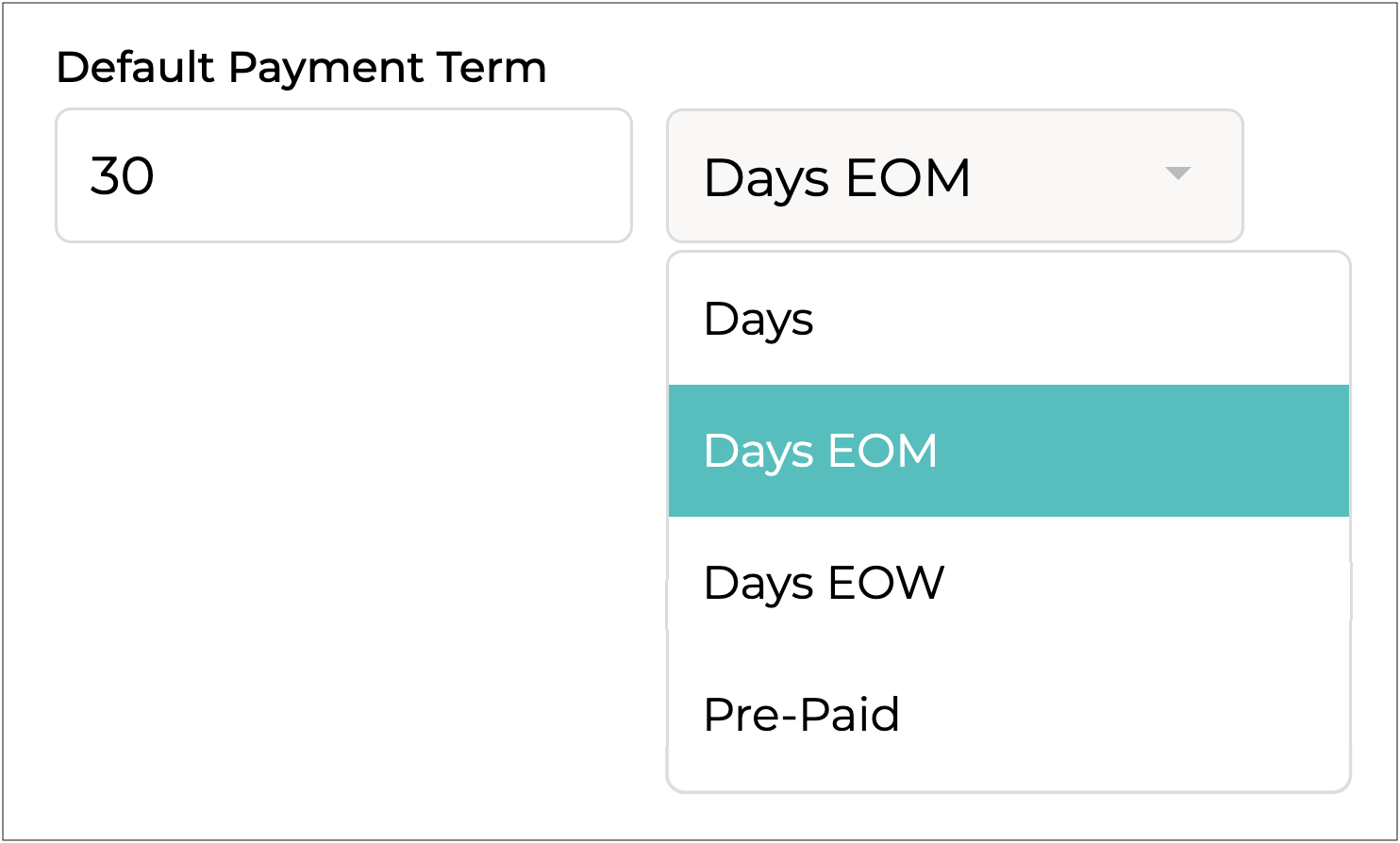
**Default Payment Term**
Enter the default payment terms to apply to supplier purchase orders. This can be overridden at a supplier level.
Enter the number of days, then choose one of the following options:
* **Days:** The invoice is due a set number of days after the invoice date. For example, “30 Days” means payment is due 30 days from when the invoice is issued.
* **Days EOM (End of Month):** The invoice is due a set number of days after the end of the invoice month. For example, “15 Days EOM” means payment is due 15 days after the last day of the month in which the invoice was issued.
* **Days EOW (End of Week)**: The invoice is due a set number of days after the end of the invoice week (usually Sunday or the chosen week end). For example, “10 Days EOW” means payment is due 10 days after the end of that week.
* **Pre-paid**: Payment is required before the goods or services are delivered, ie. the invoice must be paid upfront.
**Pre-Paid Handled Automatically**
Select whether or not orders on pre-paid terms are automatically switched to/from status.
{% hint style="success" %}
Orders that require payment before processing will have the status beside them. If enabled, the order status will automatically change to once payment is received, helping streamline order tracking and ensuring orders are not processed before payment is made.
{% endhint %}
***
{% endstep %}
{% step %}
### Custom Fields
Custom Fields are not supported in Supply'd Lite.
***
{% endstep %}
{% step %}
#### Click Save
Click to apply your settings.
{% endstep %}
{% endstepper %}
---
# Agent Instructions
This documentation is published with GitBook. GitBook is the documentation platform designed so that both humans and AI agents can read, navigate, and reason over technical content effectively. Learn more at gitbook.com.
## Querying This Documentation
If you need additional information that is not directly available in this page, you can query the documentation dynamically by asking a question.
Perform an HTTP GET request on the current page URL with the `ask` query parameter, and the optional `goal` query parameter:
```
GET https://help.supplyd.co/supplyd-lite/settings/supplier-settings-supplyd-lite.md?ask=&goal=
```
`ask` is the immediate question: it should be specific, self-contained, and written in natural language.
`goal` is optional and describes the broader end goal you are ultimately trying to accomplish on behalf of the user. GitBook uses it to tailor the answer towards what is most useful for that goal.
The response will contain a direct answer to the question and relevant excerpts and sources from the documentation.
Use this mechanism when the answer is not explicitly present in the current page, you need clarification or additional context, or you want to retrieve related documentation sections.






 status.
 status beside them. If enabled, the order status will automatically change to
  once payment is received, helping streamline order tracking and ensuring orders are not processed before payment is made.
{% endhint %}
once payment is received, helping streamline order tracking and ensuring orders are not processed before payment is made.
{% endhint %}
 to apply your settings.