> For the complete documentation index, see [llms.txt](https://help.supplyd.co/llms.txt). Markdown versions of documentation pages are available by appending `.md` to page URLs; this page is available as [Markdown](https://help.supplyd.co/supplyd-lite/settings/company-settings-supplyd-lite.md).
# Company Settings (Supply'd Lite)
Company settings define details about your company such as profile details and the company type.
**Company Settings** in Supply’d Lite let you manage your business details and preferences. You can set or update your company information, choose default settings and set opening days and hours. This helps keep your account organised and your orders running smoothly.
## Applying Your Company Settings
{% stepper %}
{% step %}
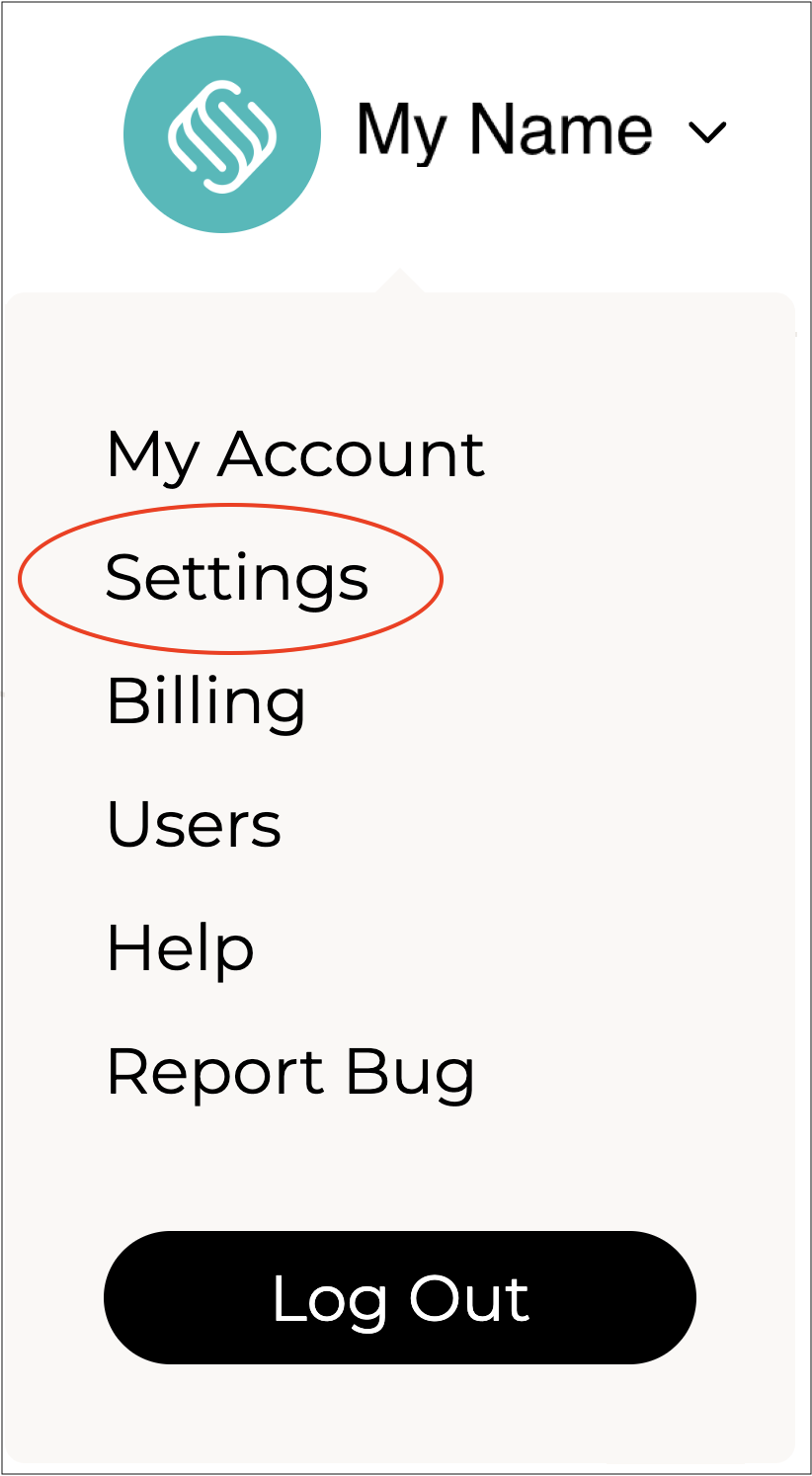
#### Go to Settings
Click on your company name in the top right and select **Settings**.
***
{% endstep %}
{% step %}
#### Select Company Settings
Select **Company Settings** from the **Settings** menu.
\
The **Company Settings** form will open.
{% hint style="success" %}
To open or close the sections on this form click the little arrows to the right of the titles (as circled in red above).
{% endhint %}
\
Complete the fields as per the guidelines below:
***
{% endstep %}
{% step %}
### Company Settings
Enter or edit your company information.
**Trading Name\* \[required field]**
Enter the trading name of your business. This is the name customers will see in Supply'd.
**Company Logo**
Upload your company logo. It is recommended to use a PNG image with a transparent background. Square images work best if available at least 500px wide. Wider images can be used as well. JPG images are also accepted.
**Business Number\* \[required field]**
Add your business number. Commonly known as ABN or NZBN depending on the region. The number must be valid and active. Your legal company name will automatically be pulled from the business registration database.
**Company Legal Name\* \[required field]**
This is automatically pulled from the business registration database after entering your business number and cannot be edited.
***
{% endstep %}
{% step %}
### Company Profile
**Support Email\* \[required field]**
Add the email address suppliers can use to contact you in case of an issue or enquiry. This is not publicly available until an order or connection has been made.
**Support Phone\* \[required field]**
Enter the phone number suppliers can use to contact you in case of an issue or enquiry. This is not publicly available until an order or connection has been made.
**Your Website**
Add your website address. If you don't have a website please use a Facebook or Instagram URL.
**Business Categories**
This shows what type of business you are. Select the category or categories that best match your business.
For example, if you are a bakery who also has a cafe, you would select "Cafe" and "Bakery/Patisserie".
**Description**
Add a description of your business to be displayed on your profile.
***
{% endstep %}
{% step %}
### Company Setting

**Timezone\* \[required field]**
Select the time zone your business mainly operates in. This will be the default time zone for all new users you add to Supply’d.
**Week Starts On**
Select the first day of the week according to your business.
{% hint style="info" %}
This is mainly used in the full version of Supply’d. It helps the system work out the due date when a customer has payment terms like 5 days end of week.
{% endhint %}
**Date Format**
Choose how dates are displayed in Supply’d to match your regional or company preferences.
**Liquor Licence**
To order products that require a liquor licence, you must upload your licence here. Accepted file formats are PDF, JPG, or PNG.
**Accept Hub Connections**
Select whether or not your company shows in the **Customer** > **Connect** tab for suppliers on Supply'd. Enabling this allows suppliers using Supply’d ERP or Hub to connect with you and submit products for ranging consideration.

**Place Product Offers To Customers**
Select whether or not your company would like to allow suppliers to submit products for ranging consideration.
***
{% endstep %}
{% step %}
### Operating Days
Select the days your business operates.
***
{% endstep %}
{% step %}
#### Save
Click to apply your settings.
{% endstep %}
{% endstepper %}
---
# Agent Instructions
This documentation is published with GitBook. GitBook is the documentation platform designed so that both humans and AI agents can read, navigate, and reason over technical content effectively. Learn more at gitbook.com.
## Querying This Documentation
If you need additional information that is not directly available in this page, you can query the documentation dynamically by asking a question.
Perform an HTTP GET request on the current page URL with the `ask` query parameter, and the optional `goal` query parameter:
```
GET https://help.supplyd.co/supplyd-lite/settings/company-settings-supplyd-lite.md?ask=&goal=
```
`ask` is the immediate question: it should be specific, self-contained, and written in natural language.
`goal` is optional and describes the broader end goal you are ultimately trying to accomplish on behalf of the user. GitBook uses it to tailor the answer towards what is most useful for that goal.
The response will contain a direct answer to the question and relevant excerpts and sources from the documentation.
Use this mechanism when the answer is not explicitly present in the current page, you need clarification or additional context, or you want to retrieve related documentation sections.



 to apply your settings.