> For the complete documentation index, see [llms.txt](https://help.supplyd.co/llms.txt). Markdown versions of documentation pages are available by appending `.md` to page URLs; this page is available as [Markdown](https://help.supplyd.co/supplyd-hub/sales/managing-sales-orders-supplyd-hub.md).
# Managing Sales Orders (Supply'd Hub)
Managing Sales Orders in Supply’d Hub helps you track customer orders, streamline order processing, and ensure accurate fulfilment from one central location.
**Sales** orders in Supply’d Hub provide a central place to view and manage customer orders. From the **Sales** page, you can track order status, update order details, and monitor fulfilment to ensure orders are processed accurately and efficiently. Managing Sales Orders in one place helps streamline operations, improve order visibility, and provide a better experience for your customers.
{% hint style="success" %}
Sales Orders in Supply’d Hub are created by connected customers through the platform. While Hub users cannot create Sales Orders themselves, they can view, manage, and process all orders received from customers.
{% endhint %}
This doc explains how to manage Sales Orders in Supply’d Hub. It covers:
* [#the-sales-page](#the-sales-page "mention")
* [#managing-sales-orders](#managing-sales-orders "mention")
* [#additional-options-for-the-sales-page](#additional-options-for-the-sales-page "mention")
* [#bulk-actions](#bulk-actions "mention")
* [#viewing-orders-on-the-customers-page](#viewing-orders-on-the-customers-page "mention")
* [#filtering-and-searching-sales-orders](#filtering-and-searching-sales-orders "mention")
***
## The Sales Page
Selecting **Sales** from the main menu will open the **Sales** page. You will see 2 tabs on the page.

**Sales**
Lists all the Sales Orders your customers have placed with you.
**Standing**
Shows all your Standing Sales Orders, which are repeating orders for consistent order schedules.
👉 You can read more about managing Standing Orders in the [Managing Standing Sales Orders (Supply'd Hub)](/supplyd-hub/sales/managing-standing-sales-orders-supplyd-hub.md) doc.
{% hint style="success" %}
Order statuses will appear on the **Orders** list in various colours for easy identification.
* - The order has been placed.
* - The order is being edited.
* - The Order has been placed on hold.
* - The order has been cancelled
* - Products have been picked and the order is ready for packing.
* - The order has been packed and is ready for shipping.
* - The order has been shipped to the customer.
* - The order has been completed.
{% endhint %}
***
### Additional Options for the Sales Page
Clicking the three dots in the top right opens additional options for the **Sales** page.
#### Export Orders
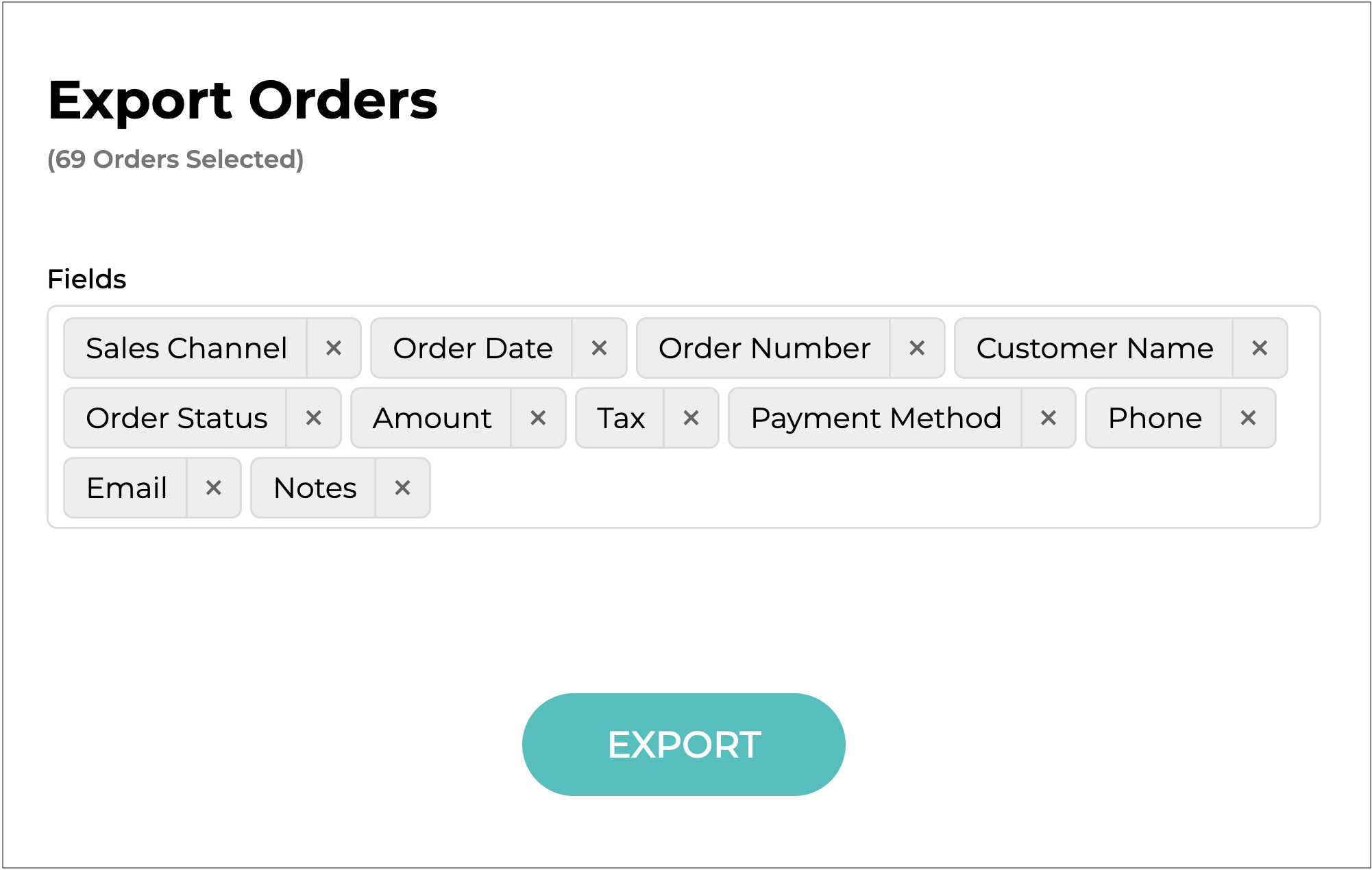
This option opens the **Export Sales** form, where you can export your sales data to a spreadsheet.
{% stepper %}
{% step %}
**Date Range**
Select the date range you would like to export the data for.
{% endstep %}
{% step %}
**Sales Channel**
As you are using a Supply’d Hub account, your account name will be the only option available.
{% endstep %}
{% step %}
**Fields**
Select the **Fields** you would like to include in the export.
{% hint style="success" %}
Fields can be excluded by clicking the "**X**' bedside the field name -
{% endhint %}
{% endstep %}
{% step %}
**Click Export**
Click to download the data to your device in a spreadsheet.
{% endstep %}
{% endstepper %}
***
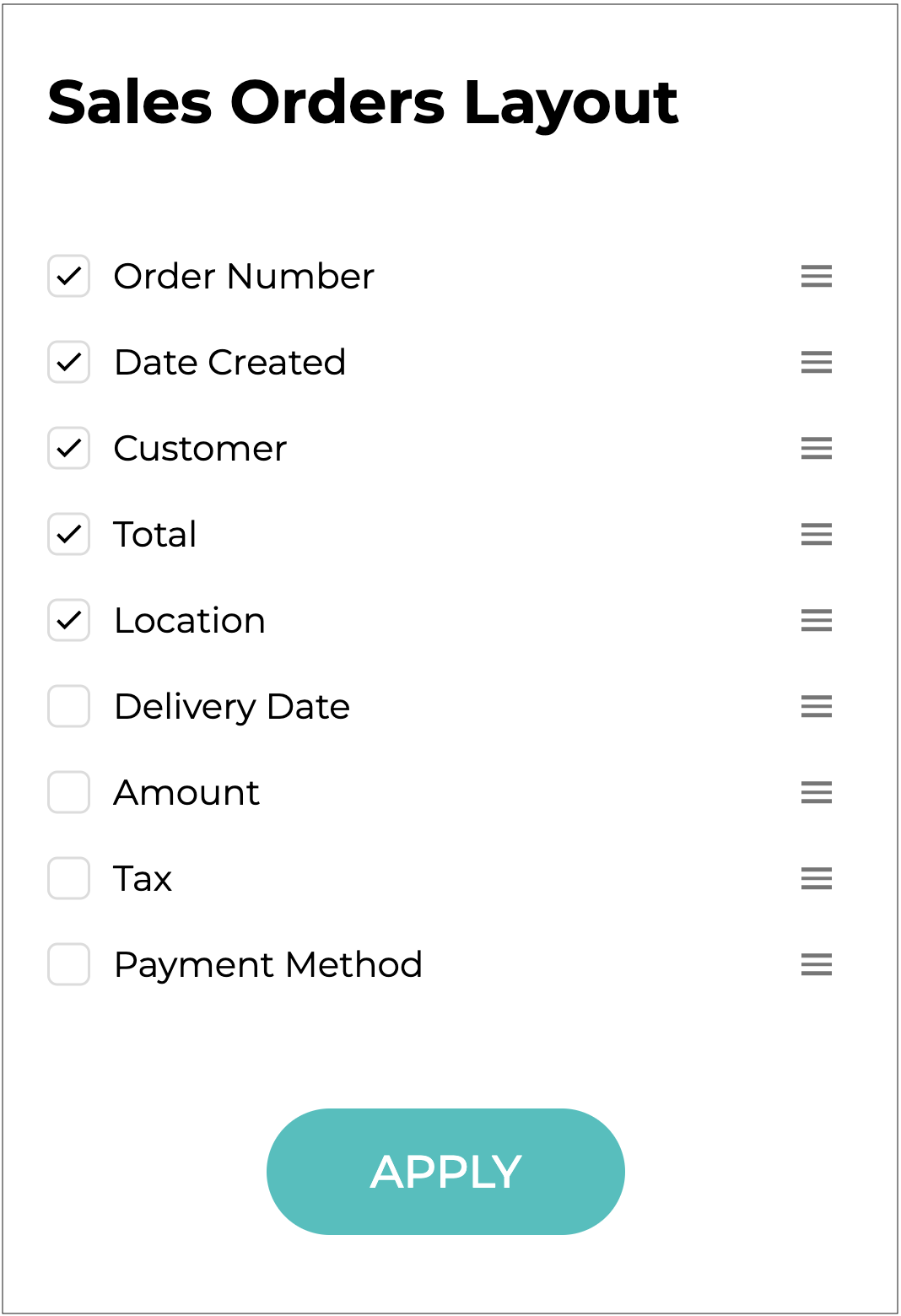
#### Edit Table Layout
Selecting this option opens the **Sales Orders Layout** form, allowing you to customise the **Sales** page. You can choose which information is displayed and the order in which it appears.
{% stepper %}
{% step %}
Select the information you would like to see on the page.
{% endstep %}
{% step %}
Arrange the order in which information appears by clicking the 3 lines to the right of a name and dragging it to your preferred position.
{% endstep %}
{% step %}
Click .
{% endstep %}
{% endstepper %}
***
## Managing Sales Orders
The **Sales** tab contains a list of all orders placed by your customers.
To review an order, click on the order in the **Sales** list.
The Order details will open.
Orders details include all the information about the order, who the customer is, where to ship the order and how the customer is paying for the order.
{% hint style="success" %}
Clicking on **Inc Tax** give you the option to view the order **Inc Tax** (including tax) or **Exc Tax** (excluding tax).\
{% endhint %}
***
### Order Options
Clicking on the 3 dots on the top right will open a menu for all options on an order.
***
### Email Invoice
Email the invoice to the customer. You can add any message you would like to include to the recipient of the email. The invoice will be attached to the sent email.
***
### Download >
**Invoice**
Allows you to download the invoice for viewing, saving, or printing.
***
### Hold Order
Places the order on hold. The order status will change to on both the order and the order list. To take the order off hold select **Unhold Order**.
***
### Modify Order
Opens the **Edit Order** form for you to make any changes that may be required. The order status will change to until is clicked and the changes are saved.
{% stepper %}
{% step %}
#### Edit Reference Number & Dates
If required, edit the **Reference** number, **Invoice Due Date**, and **Delivery Date**.
**Channel**
The channel the order is for. Pre-filled and can't be changed.
{% hint style="warning" %}
Since this is a Hub account, this will be your account name.
{% endhint %}
**Reference**
Add an optional customer reference for this order, eg. a purchase order number.
**Order Number**
Automatically generated by Supply'd and cannot be edited.
**Customer**
The customer the order is for. Pre-filled and can't be changed.
**Invoice Due Date\* \[required field]**
Select the invoice due date for this order by clicking the field to open a calendar and choose your date.
**Delivery Date**
Optionally set a delivery date for this order by clicking the field and selecting a date from the calendar.
***
{% endstep %}
{% step %}
#### Add Products
If required, you can add products to the order.
1. **Product:** Clicking or typing in the **Product** field will display a list of your products to choose from.
2. **Qty:** Add the **Qty** (quantity) required.
{% hint style="success" %}
For faster entries, clicking on the **Qty** field opens a pop-up that gives you the option to select **1**, **10**, or **100** or, if you type a different number, it will give other options to select from.\
{% endhint %}
3. **Subtotals:** These are automatically calculated using the product prices in Supply’d Hub or, if applied, the customer’s specific pricing set in [Customer Specific Pricing (Supply'd Hub)](/supplyd-hub/customers/customer-specific-pricing-supplyd-hub.md).
{% hint style="warning" %}
If a yellow **$** sign appears next to the subtotal, it indicates a price difference from the default system price, usually because the price was manually changed, such as for customer-specific pricing.
Hovering over the $ will display the current default system price for the item.\
\
{% endhint %}
4. Repeat for any additional products needed for the order.
***
{% endstep %}
{% step %}
#### Perform Additional Options
Perform any additional changes required, such as removing items or updating prices, as explained in the [#additional-options-for-order-items](#additional-options-for-order-items "mention") and [#additional-options-for-the-order](#additional-options-for-the-order "mention") sections.
***
{% endstep %}
{% step %}
#### Update Shipping & Payment Details
**Shipping**
Leave as **Shipping** or change it to a suitable title for shipping or handling costs.
**Subtotal ex tax**
Enter a shipping amount, excluding any taxes.
{% hint style="success" %}
Clicking the 3 dots to the left of the field opens a menu where you can select any applicable taxes, such as GST, for the shipping cost.\
Selecting **Edit Tax** opens a form where you can select the tax.\
\
Click to apply the tax.
{% endhint %}
**Ship To**
The location to ship the order to.
**Payment Method**
The customer's payment method.
**Order Notes**
Any relevant notes for the customer regarding the order.
**Subtotal, Tax, Total**
Displays the totals for the order.
**Modify Reason**
Select a reason or enter note for the customer to understand why the modification was made.
{% hint style="success" %}
You can also add additional notes in the **Order Notes** field to explain why the order was modified.
{% endhint %}
***
{% endstep %}
{% step %}
#### Save the Changes
Click to save these changes.
The order status will change from to .
{% endstep %}
{% endstepper %}
***
#### Additional Order Options when Modifying
Clicking the 3 dots on the top right of the **Edit Order** form opens a menu with the following options:
* **Place Order:** An alternative to the button. Will place the order.
* **Show Price Inc (or Ex) Tax:** Shows the pricing including/excluding tax.
* **Remove:** Will remove the order. You will be asked to confirm.
***
**Order Item Options**
Clicking the 3 dots beside an item opens a menu with the following options:
***
**Edit Price**
Opens the **Edit Price** form to edit the items price.
* **Supply'd Price:** The default price of the product set in Supply'd. Automatically entered from the product's settings.
* **Customer Price:** The price set for the product for this customer. Automatically entered from the customer's settings.\
👉 See the [Customer Specific Pricing](/supplyd-erp/customers/customer-specific-pricing.md) doc for more information.
* **Discount:** Optionally set a discount you will like to apply to this price. Select a discount type from the drop-down menu: either **%** (percentage) or **$** (dollar amount). This will apply from the **Customer Price** if it is different to the **Supply'd Price**.\
\
* **Tax Type:** The type of tax that applies to this item, eg. GST.
* **Item Price ex Tax:** Price of the item before GST is applied. You also can set a new price for the item here. The **Item Price Inc Tax** will automatically adjust.
* **Item Price Inc Tax:** Price of the item after GST is applied. You can also set a new price for the item here. The **Item Price Ex Tax** will automatically adjust.
\
\
Click to apply the new item price.
Repeat with any remaining items that you wish to edit.
***
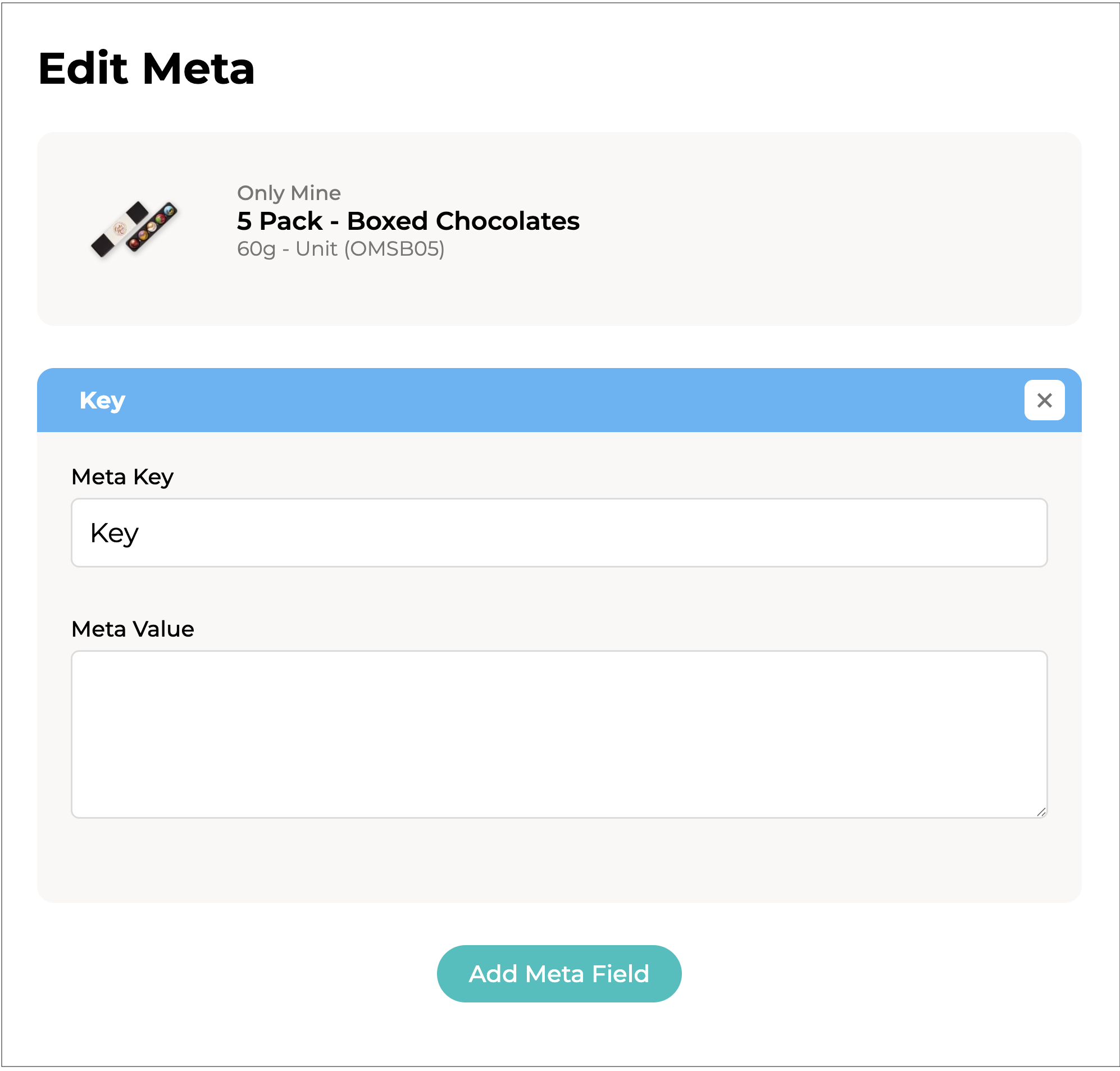
**Edit Meta Data**
Meta data allows you to store additional data against an order item as a key and value pair. For example, if you wanted to specify order specific information such as specific colours, specs, flavours etc you can use Meta Data for this.\
\
Clicking allows you to enter this data.
Multiple **Meta Fields** can be added.
* **Meta Key:** A key for this meta data. Each key should be unique within a specific order item.
* **Meta Value:** The value to pair with this key.
\
\
For example, you are quoting on a five pack of chocolate bonbons. \
\
Flavours can be added via as:\
* **Meta Key:** 1st Flavour
* **Meta Value:** Raspberry\
* **Meta Key -** 2nd Flavour
* **Meta Value -** Caramel\
and so on.\
\
This will show on the order as pictured.\
Click to save the data.
***
#### Remove Item
Will remove the item from the order. You will be asked to confirm.
***
### Cancel Order
This will cancel the order. You will be asked to confirm.
Click .
The order status will change to .
***
## Bulk Actions
Clicking the button on the **Sales Orders** page allows you to make changes singularly or in bulk.
Selecting one or more orders from the list and then clicking the button will open a menu with the options for those orders.
{% hint style="success" %}
Ticking the check box to the left of the actions button will select all standing orders in the list.
{% endhint %}
{% hint style="warning" %}
Only actual orders can be selected; orders that are still in , or status cannot be selected.
{% endhint %}
***
### Download >
* **Invoices:** Allows you to download the invoices and thus print the invoices.
* **Pick List:** Download the pick list and thus print the pick lists.
* **Pack Slip:** Download and thus print the packing slips for inclusion with the order.
* **Shipping Labels:** Allows you to print the label for shipping the order.
***
### Mark As >
* **Picked:** Mark the orders as picked and ready for packing.
* **Packed:** Mark the orders as packed and ready for shipping.
* **Shipped:** Mark the orders as shipped. Typically means the orders have been dispatched from your premises.
* **Completed:** Mark the orders as completed. This means the orders have been fully delivered and has arrived at the destinations.
***
### Export >
* **Customer Pick List:** Will download the **Pick Lists** for the selected order(s).
{% hint style="info" %}
This is primarily used in scenarios where products are picked as they are produced - for example, in large-scale bakeries where items are collected straight from the oven - where waiting for all stock to be ready before picking can be inefficient, so instead, items are picked progressively as they become available.
{% endhint %}
* **Orders:** Allows you to download the selected Sales Orders from Supply’d in a spreadsheet format. This is useful for reporting, analysis, auditing, or sharing order information outside the platform.
Select the **Fields** you would like to include in the export.
{% hint style="success" %}
Fields can be excluded by clicking the "**X**' bedside the field name -
{% endhint %}
***
### Cancel Orders
Will cancel the selected orders. You will be asked to confirm.
Click .
***
## Order Activity
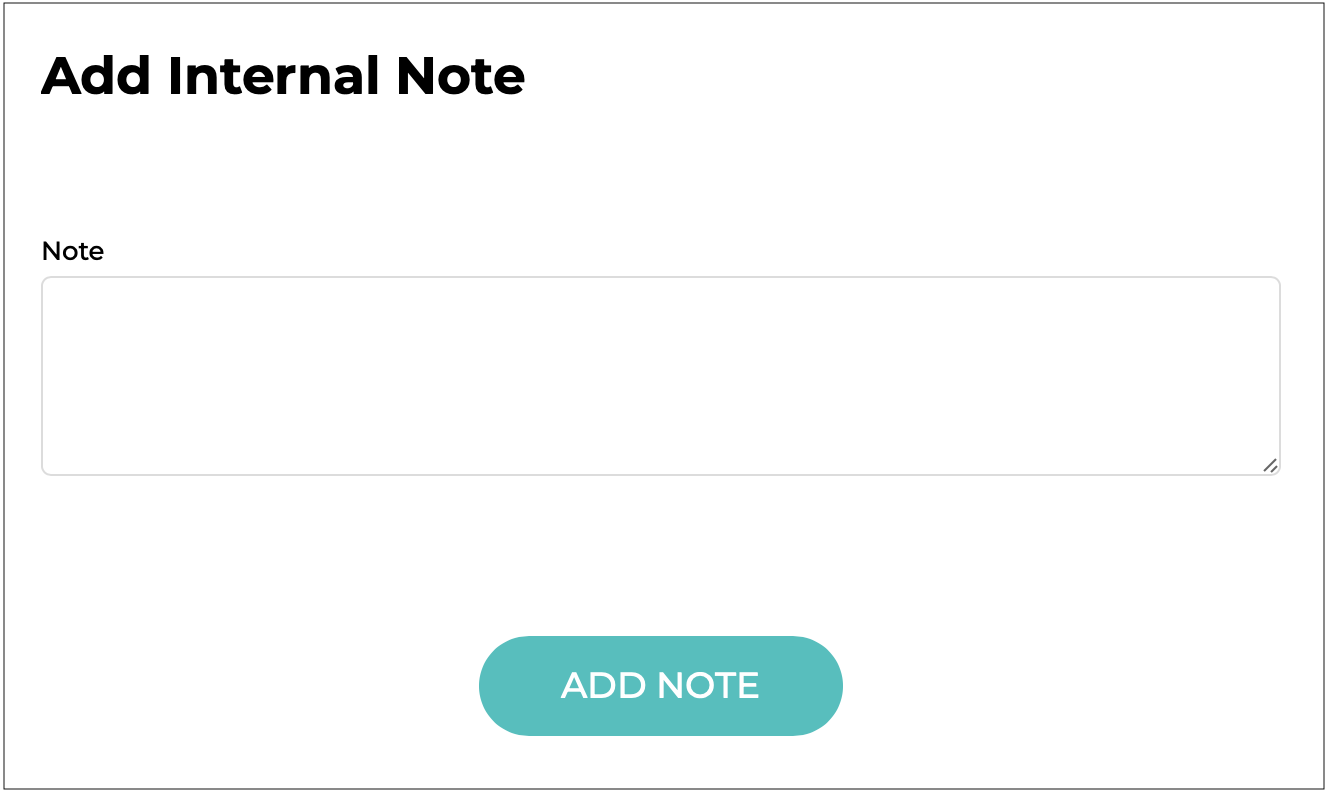
At the bottom of the page there is an **Order Activity** section. This lists any activity there has been on the order, such as, when the order was placed, paid, picked etc.
You also have the option to add an internal note. Simply click , enter your note, then click to add it to the **Order Activity**.
***
## Viewing Orders on the Customer's Page
You can view all the orders a customer has placed with you in Supply’d from the **Customers** page.
{% stepper %}
{% step %}
Select **Customers** from the main menu.
{% endstep %}
{% step %}
Click on the customer you would like to see all the orders for.
The customers details will open.
{% endstep %}
{% step %}
Go to the **Sales** tab to see the list of all the orders that a particular customer has placed with you on Supply'd.

Orders can be managed as above.
{% endstep %}
{% endstepper %}
***
## Filtering & Searching Sales Orders
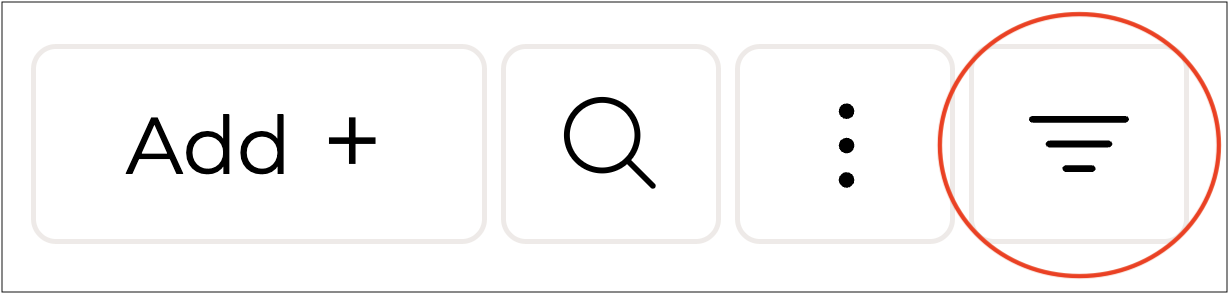
With the **Sales** tab selected on the **Orders** page, the three lines next to the three dots in the top right corner allow you to filter the **Sales** list, while the magnifying glass lets you search for specific orders.
Clicking on the magnifying glass, you can search the sales list by customer name, order number, products etc.
Clicking the three lines opens the **Filter Sales** form, where you can access all available filtering options.
{% hint style="warning" %}
Some filtering options are not available in Supply’d Hub, as they apply only to features and functionality used in Supply’d ERP.
{% endhint %}
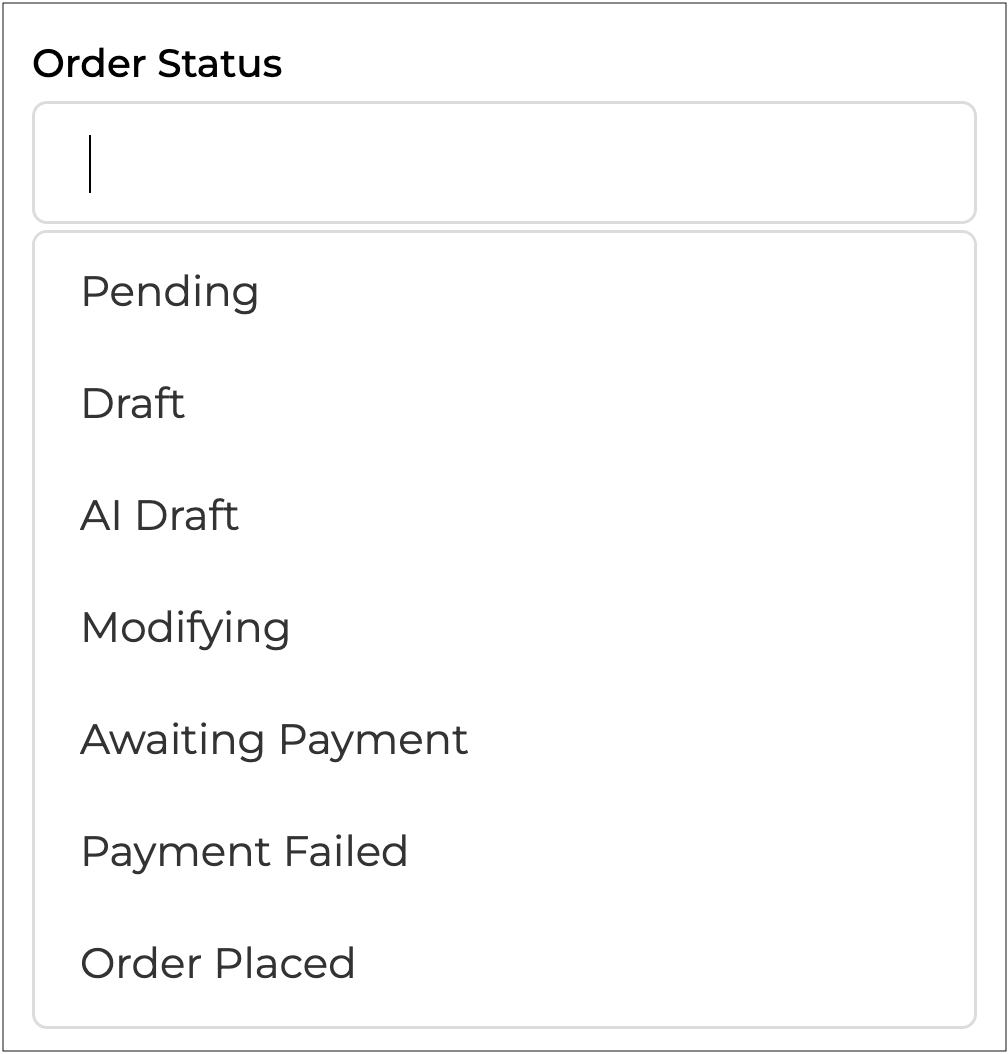
**Order Status**
Select one or more order statuses to filter orders based on their current progress.
**Sales Channel**
Filter orders by the channel through which they were placed.
{% hint style="info" %}
As you are using a Supply’d Hub account, your account name will be the only option available.
{% endhint %}
**Pick Location**
Filter sales by the location where items are picked.
**Pick Priority**
This functionality is not included in Supply’d Hub.
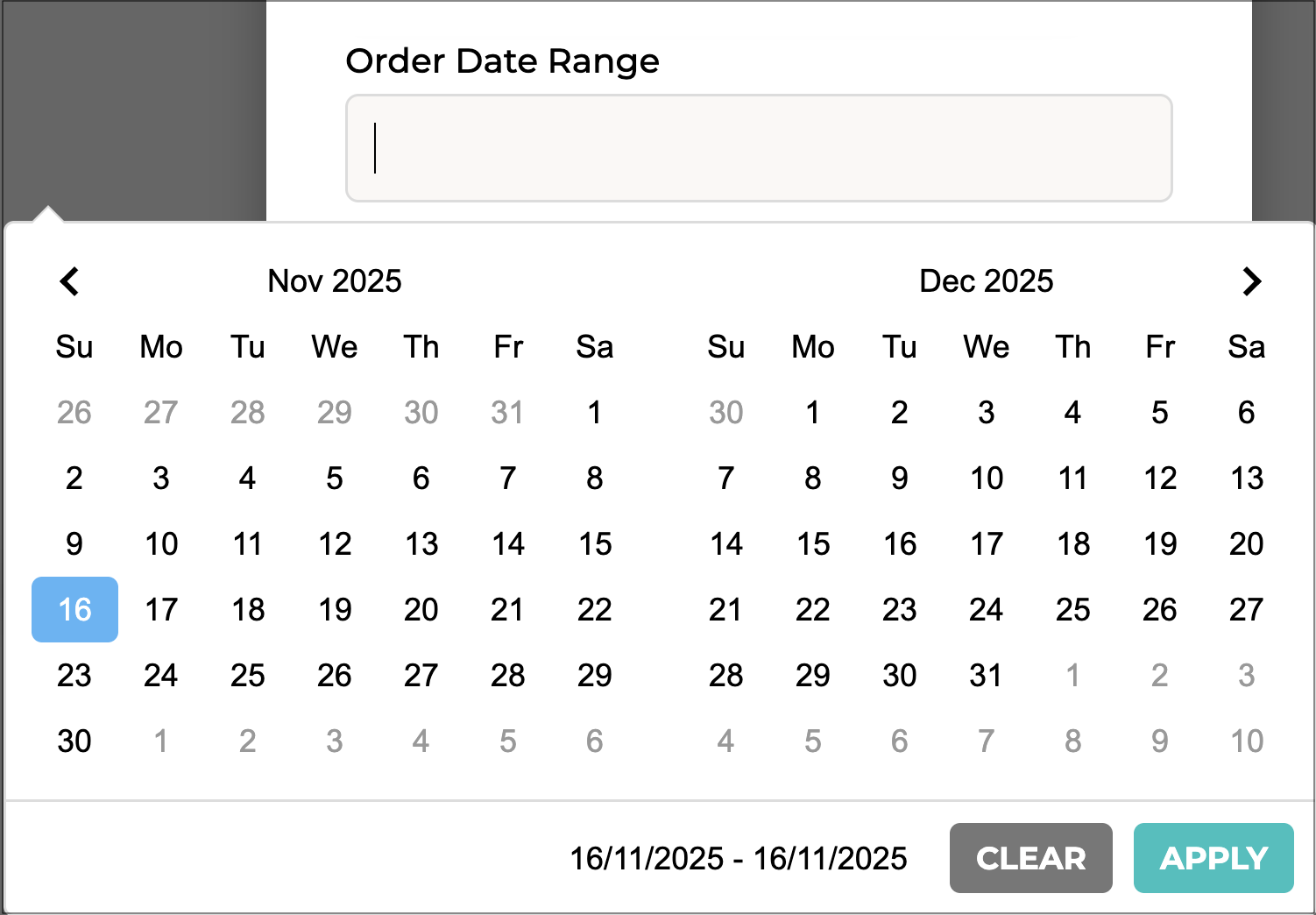
**Order Date Range**
Filter orders by the date range in which they were created. Clicking on the field will open a calendar for you to select the date range. Click to set the range.
**Delivery Date Range**
Filter orders based on a range of delivery dates.
**Customer Name**
Enter a customer name to view only the orders placed by that customer.
**Customer Group**
This functionality is not included in Supply’d Hub.
**Shipping Rule**
This functionality is not included in Supply’d Hub.
**Shipping Zone**
This functionality is not included in Supply’d Hub.
**Delivery Suburb**
Filter orders by the delivery suburb(s), separated by commas.
**Delivery State**
Filter orders by the delivery state(s), separated by commas (eg. NSW, VIC, QLD).
**Delivery Postcode**
Filter orders using the delivery postcode(s), separated by commas.
**Fulfilment Status**
Filter sales based on their fulfilment progress, such as picked, packed, or shipped.
**Payment Status**
Filter orders according to their payment status.
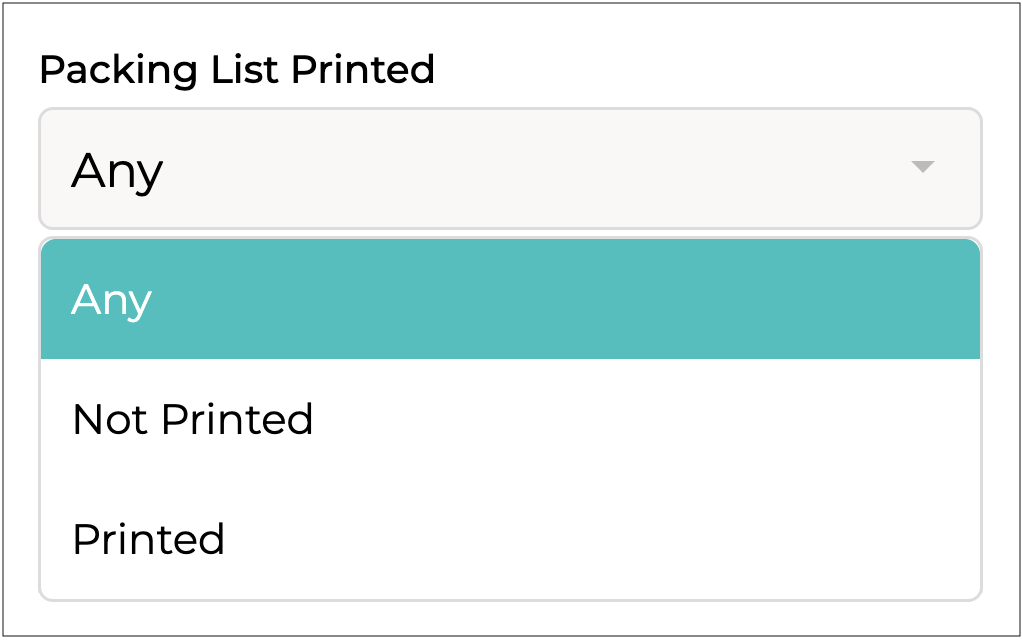
**Packing List Printed**
Filter orders based on whether a packing list has been printed for them.
**Show In Store Orders**
Choose whether or not to include or exclude in-store orders from the results.
**Historical Data**
Access older sales records beyond the default view.
Click to apply your selections and filter the **Sales Orders** list.
---
# Agent Instructions
This documentation is published with GitBook. GitBook is the documentation platform designed so that both humans and AI agents can read, navigate, and reason over technical content effectively. Learn more at gitbook.com.
## Querying This Documentation
If you need additional information that is not directly available in this page, you can query the documentation dynamically by asking a question.
Perform an HTTP GET request on the current page URL with the `ask` query parameter, and the optional `goal` query parameter:
```
GET https://help.supplyd.co/supplyd-hub/sales/managing-sales-orders-supplyd-hub.md?ask=&goal=
```
`ask` is the immediate question: it should be specific, self-contained, and written in natural language.
`goal` is optional and describes the broader end goal you are ultimately trying to accomplish on behalf of the user. GitBook uses it to tailor the answer towards what is most useful for that goal.
The response will contain a direct answer to the question and relevant excerpts and sources from the documentation.
Use this mechanism when the answer is not explicitly present in the current page, you need clarification or additional context, or you want to retrieve related documentation sections.

 - The order has been placed.
*
- The order has been placed.
*  - The order is being edited.
*
- The order is being edited.
*  - The Order has been placed on hold.
*
- The Order has been placed on hold.
*  - The order has been cancelled
*
- The order has been cancelled
*  - Products have been picked and the order is ready for packing.
*
- Products have been picked and the order is ready for packing.
*  - The order has been packed and is ready for shipping.
*
- The order has been packed and is ready for shipping.
*  - The order has been shipped to the customer.
*
- The order has been shipped to the customer.
*  - The order has been completed.
{% endhint %}
***
### Additional Options for the Sales Page
Clicking the three dots in the top right opens additional options for the **Sales** page.
- The order has been completed.
{% endhint %}
***
### Additional Options for the Sales Page
Clicking the three dots in the top right opens additional options for the **Sales** page.


 {% endhint %}
 to download the data to your device in a spreadsheet.


 .
.

 Orders details include all the information about the order, who the customer is, where to ship the order and how the customer is paying for the order.
{% hint style="success" %}
Clicking on **Inc Tax** give you the option to view the order **Inc Tax** (including tax) or **Exc Tax** (excluding tax).\
Orders details include all the information about the order, who the customer is, where to ship the order and how the customer is paying for the order.
{% hint style="success" %}
Clicking on **Inc Tax** give you the option to view the order **Inc Tax** (including tax) or **Exc Tax** (excluding tax).\ 


 is clicked and the changes are saved.





 to apply the tax.
 to save these changes.
The order status will change from
to save these changes.
The order status will change from  .
.


 to apply the new item price.
Repeat with any remaining items that you wish to edit.
***
**Edit Meta Data**
Meta data allows you to store additional data against an order item as a key and value pair. For example, if you wanted to specify order specific information such as specific colours, specs, flavours etc you can use Meta Data for this.\
\
Clicking
to apply the new item price.
Repeat with any remaining items that you wish to edit.
***
**Edit Meta Data**
Meta data allows you to store additional data against an order item as a key and value pair. For example, if you wanted to specify order specific information such as specific colours, specs, flavours etc you can use Meta Data for this.\
\
Clicking  allows you to enter this data.



 .
The order status will change to
.
The order status will change to  .
***
## Bulk Actions
Clicking the
.
***
## Bulk Actions
Clicking the  button on the **Sales Orders** page allows you to make changes singularly or in bulk.
Selecting one or more orders from the list and then clicking the
button on the **Sales Orders** page allows you to make changes singularly or in bulk.
Selecting one or more orders from the list and then clicking the 

 ,
, 




 , enter your note, then click
  to add it to the **Order Activity**.





 to set the range.



 to apply your selections and filter the **Sales Orders** list.
---
# Agent Instructions
This documentation is published with GitBook. GitBook is the documentation platform designed so that both humans and AI agents can read, navigate, and reason over technical content effectively. Learn more at gitbook.com.
## Querying This Documentation
If you need additional information that is not directly available in this page, you can query the documentation dynamically by asking a question.
Perform an HTTP GET request on the current page URL with the `ask` query parameter, and the optional `goal` query parameter:
```
GET https://help.supplyd.co/supplyd-hub/sales/managing-sales-orders-supplyd-hub.md?ask=
to apply your selections and filter the **Sales Orders** list.
---
# Agent Instructions
This documentation is published with GitBook. GitBook is the documentation platform designed so that both humans and AI agents can read, navigate, and reason over technical content effectively. Learn more at gitbook.com.
## Querying This Documentation
If you need additional information that is not directly available in this page, you can query the documentation dynamically by asking a question.
Perform an HTTP GET request on the current page URL with the `ask` query parameter, and the optional `goal` query parameter:
```
GET https://help.supplyd.co/supplyd-hub/sales/managing-sales-orders-supplyd-hub.md?ask=