> For the complete documentation index, see [llms.txt](https://help.supplyd.co/llms.txt). Markdown versions of documentation pages are available by appending `.md` to page URLs; this page is available as [Markdown](https://help.supplyd.co/supplyd-hub/sales/creating-a-sales-order-supplyd-hub.md).
# Creating a Sales Order (Supply'd Hub)
Creating sales orders in Supply’d helps streamline fulfilment, improve accuracy, and keep customer records up to date.
Sales in Supply’d Hub provides a central place to manage and track all customer orders. It allows you to create, view, and process sales orders efficiently, whether they are placed by customers or created on their behalf.
With Sales in Hub, you can streamline order management, improve accuracy, and ensure smooth fulfilment. Sales in Supply’d make it easy to stay on top of customer demand and maintain smooth operations.
Selecting **Sales** from the main menu will open the **Sales** page, listing any sales you have made through Supply'd.

You will see 2 tabs on the orders page:
**Sales**
Sales orders your customers have placed with you.
**Standing**
Standing Orders which are repeating orders for consistent order schedules.
👉 You can read more about creating and managing Standing Orders in the [Standing Sales Orders](/supplyd-erp/sales/standing-sales-orders/standing-sales-orders.md) document.
***
In Supply'd Hub, sales can be created form the **Sales** page or the **Customers** page. This document will guide you through creating **Sales** orders through the app, including:
* [#creating-a-sales-order-from-the-sales-page](#creating-a-sales-order-from-the-sales-page "mention")
* [#creating-a-sales-order-from-the-customers-page](#creating-a-sales-order-from-the-customers-page "mention")
* [#additional-options-for-order-items](#additional-options-for-order-items "mention")
* [#additional-options-for-the-order](#additional-options-for-the-order "mention")
***
## Creating a Sales Order from the Sales Page
{% stepper %}
{% step %}
#### Go to the Orders Page
Select **Orders** from the main menu.
The **Sales** tab contains a list of all the orders your customers have placed with you or that you have placed for them.
***
{% endstep %}
{% step %}
#### Click Add +
To create a new **Sales** order, click on the **Add +** button on the top right.
The **Add Order** form will open.
***
{% endstep %}
{% step %}
#### Complete the Form
**Channel**
Select the channel you would like to create an order for.
{% hint style="warning" %}
Since this is a Hub account, the only selection will be your account name.
{% endhint %}
{% hint style="warning" %}
Once the order has been created with the customer this cannot be edited.
{% endhint %}
**Customer**
Select the customer to assign this order to.
{% hint style="success" %}
Once these two fields have been entered, the form will expand allowing you to enter more details and select items for the order.
{% endhint %}
***
{% endstep %}
{% step %}
#### Add Reference & Dates
**Reference**
Add an optional customer reference for this order, eg. a purchase order number.
**Order Number**
Automatically generated by Supply'd and cannot be edited.
**Invoice Due Date\* \[required field]**
Select the invoice due date for this order by clicking the field to open a calendar and choose your date.
**Delivery Date**
Optionally set a delivery date for this order by clicking the field and selecting a date from the calendar.
***
{% endstep %}
{% step %}
#### Add Products to the Order
Select the products and add the desired quantities.
1. **Product:** Clicking or typing in the **Product** field will display a list of your products to choose from.
2. **Qty:** Add the **Qty** (quantity) required.
{% hint style="success" %}
For faster entries, clicking on the **Qty** field opens a pop-up that gives you the option to select **1**, **10**, or **100** or, if you type a different number, it will give other options to select from.\
{% endhint %}
3. **Subtotals:** These are automatically calculated using the product prices in Supply’d Hub or, if applied, the customer’s specific pricing set in [Customer Specific Pricing (Supply'd Hub)](/supplyd-hub/customers/customer-specific-pricing-supplyd-hub.md).
{% hint style="warning" %}
If a yellow **$** sign appears next to the subtotal, it indicates a price difference from the default system price, usually because the price was manually changed, such as for customer-specific pricing.
Hovering over the $ will display the current default system price for the item.\
\
{% endhint %}
4. Repeat for any additional products needed for the order.
***
{% endstep %}
{% step %}
#### Perform Additional Options
Perform any additional options as explained below in the [#additional-options-for-order-items](#additional-options-for-order-items "mention") and [#additional-options-for-the-order](#additional-options-for-the-order "mention") sections.
***
{% endstep %}
{% step %}
#### Add Shipping & Payment Details
**Shipping**
Leave as **Shipping** or change it to a suitable title for shipping or handling costs.
**Subtotal ex tax**
Enter a shipping amount, excluding any taxes.
{% hint style="success" %}
Clicking the 3 dots to the left of the field opens a menu where you can select any applicable taxes, such as GST, for the shipping cost.\
Selecting **Edit Tax** opens a form where you can select the tax.\
\
Click to apply the tax.
{% endhint %}
**Ship To**
The location to ship the order to.
**Payment Method**
The customer's payment method.
**Order Notes**
Any relevant notes for the customer regarding the order.
**Subtotal, Tax, Total**
Displays the totals for the order.
***
{% endstep %}
{% step %}
#### Place Order
Once all details have been completed, click .
The order will open displaying all the details and the status will change from to .
The order will be appear in the **Sales** list.
{% endstep %}
{% endstepper %}
***
## Creating a Sales Order from the Customers Page
{% stepper %}
{% step %}
#### Select the Customer
Select **Customers** from the main menu. The **Customers** page will open, showing a list of all your customers.

Select the customer that you would like to place the order for. The customer's detail page will open.
***
{% endstep %}
{% step %}
#### Go to the Sales Tab
Go to the **Sales** tab. If any this customer has any sales with you, they will be listed on this page.
***
{% endstep %}
{% step %}
#### Click Add+
Click **Add+** in the top right.
The **Add Order** form will open.
***
{% endstep %}
{% step %}
#### Complete the Form
Complete the form as outlined in the [#creating-a-sales-order-from-the-sales-page](#creating-a-sales-order-from-the-sales-page "mention") above.
{% endstep %}
{% endstepper %}
***
## Additional Options for Order Items
Prior placing the order, clicking on the 3 dots to the right of an order item will open a menu.
***
### Edit Price
Opens the **Edit Price** form to edit the items price.
* **Supply'd Price:** The default price of the product set in Supply'd. Automatically entered from the product's settings.
* **Customer Price:** The price set for the product for this customer. Automatically entered from the customer's settings.\
👉 See the [Customer Specific Pricing (Supply'd Hub)](/supplyd-hub/customers/customer-specific-pricing-supplyd-hub.md) doc for more information.
* **Discount:** Optionally set a discount you will like to apply to this price. Select a discount type from the drop-down menu: either **%** (percentage) or **$** (dollar amount). This will apply from the **Customer Price** if it is different to the **Supply'd Price**.\
\
* **Tax:** The type of tax that applies to this item, eg. GST.
* **Item Price ex Tax:** Price of the item before tax is applied. You also can set a new price for the item here. The **Item Price Inc Tax** will automatically adjust.
* **Item Price Inc Tax:** Price of the item after tax is applied. You can also set a new price for the item here. The **Item Price Ex Tax** will automatically adjust.
\
\
Click to apply the new item price.
Repeat with any remaining items that you wish to edit.
***
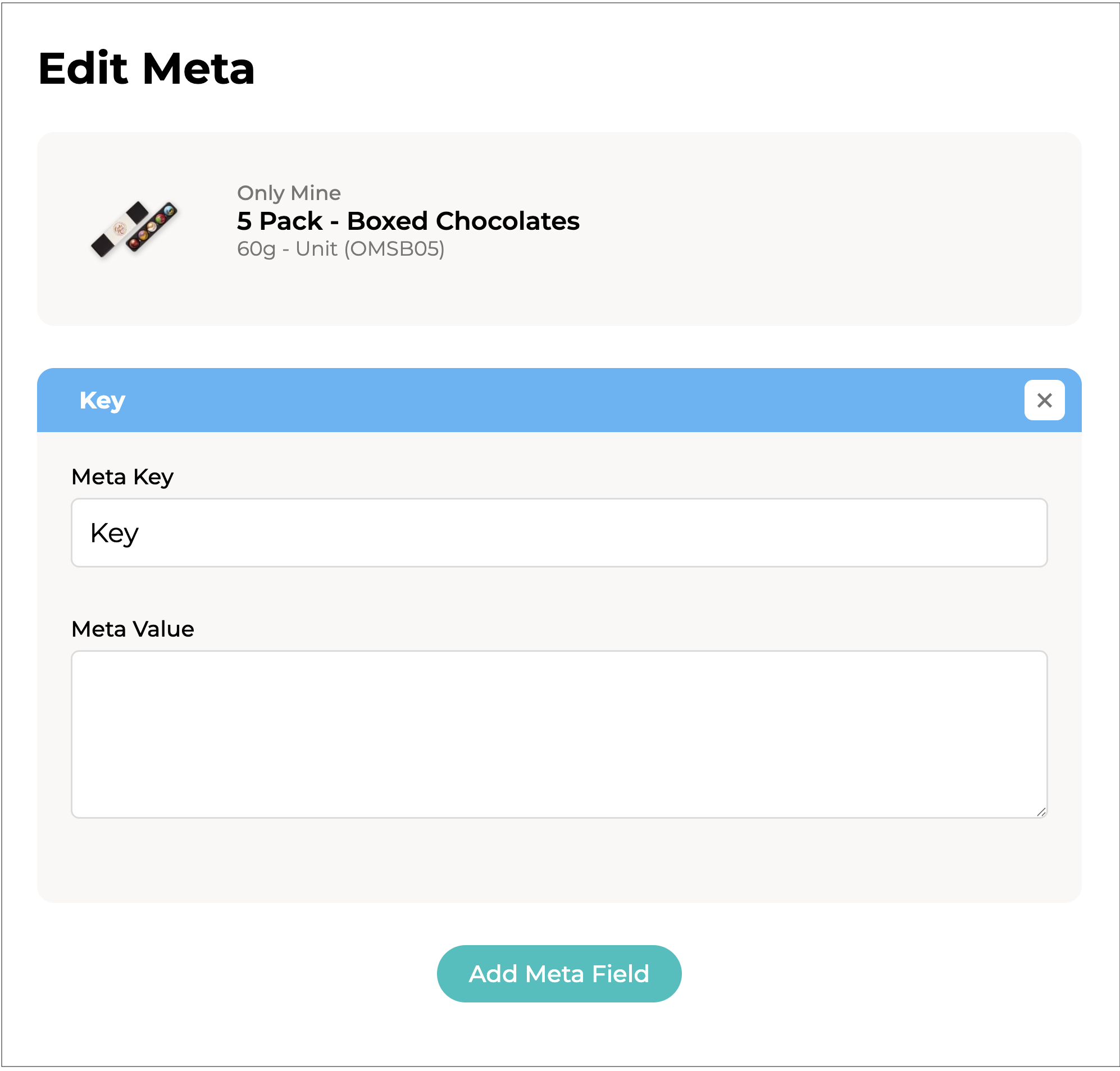
### Edit Meta Data
Metadata allows you to store additional information against an order item as a key-value pair. For example, you can use it to add order-specific details such as colours, specifications, or flavours. In this example, we will use it to specify flavours in a 5-pack of chocolate bonbons.\
\
Clicking allows you to enter this data.
Multiple **Meta Fields** can be added.
* **Meta Key:** A key for this meta data. Each key should be unique within a specific order item.
* **Meta Value:** The value to pair with this key.
\
\
For example, you are quoting on a five pack of chocolate bonbons. \
\
Flavours can be added via as:\
* **Meta Key:** 1st Flavour
* **Meta Value:** Raspberry\
* **Meta Key -** 2nd Flavour
* **Meta Value -** Caramel\
and so on.\
\
This will show on the quote as pictured.\
Click to save the data.
***
### Remove Item
Will remove the item from the order. You will be asked to confirm.
Click .
***
## Additional Options for the Order
Prior to saving the order, clicking the 3 dots at the top right corner of the order will bring up an additional menu:
**Place Order**
Will place the order. An alternative to the button.
**Show Prices Inc Tax**
Will show prices including taxes such as GST. Will change to **Show Prices Ex Tax** when clicked.
**Remove**
Will remove the order. You will be asked to confirm.
{% hint style="success" %}
Once an order is placed, it can be managed as needed by following the instructions in the **Managing Sales Orders** document.
{% endhint %}
---
# Agent Instructions
This documentation is published with GitBook. GitBook is the documentation platform designed so that both humans and AI agents can read, navigate, and reason over technical content effectively. Learn more at gitbook.com.
## Querying This Documentation
If you need additional information that is not directly available in this page, you can query the documentation by asking a question.
Perform an HTTP GET request on the following URL with the `ask` and `goal` query parameters:
```
GET https://help.supplyd.co/supplyd-hub/sales/creating-a-sales-order-supplyd-hub.md?ask=&goal=
```
`ask` is the immediate question: it should be specific, self-contained, and written in natural language.
`goal` is what the user is ultimately trying to achieve, the reason they need the answer. Sharing it helps GitBook give you a better, more relevant answer. A goal is most helpful when it describes the outcome the user wants rather than restating the question. For example, with `ask=how do I create an API token`, a goal like `automate deployments from our CI pipeline` lets GitBook tailor the answer to that use case.
The response will contain a direct answer to the question and relevant excerpts and sources from the documentation.
Use this mechanism when the answer is not explicitly present in the current page, you need clarification or additional context, or you want to retrieve related documentation sections.








 to apply the tax.
 .
.

 to
to  .
.




 to apply the new item price.
Repeat with any remaining items that you wish to edit.
***
### Edit Meta Data
Metadata allows you to store additional information against an order item as a key-value pair. For example, you can use it to add order-specific details such as colours, specifications, or flavours. In this example, we will use it to specify flavours in a 5-pack of chocolate bonbons.\
\
Clicking
to apply the new item price.
Repeat with any remaining items that you wish to edit.
***
### Edit Meta Data
Metadata allows you to store additional information against an order item as a key-value pair. For example, you can use it to add order-specific details such as colours, specifications, or flavours. In this example, we will use it to specify flavours in a 5-pack of chocolate bonbons.\
\
Clicking  allows you to enter this data.



 .
***
## Additional Options for the Order
Prior to saving the order, clicking the 3 dots at the top right corner of the order will bring up an additional menu:
.
***
## Additional Options for the Order
Prior to saving the order, clicking the 3 dots at the top right corner of the order will bring up an additional menu:
