> For the complete documentation index, see [llms.txt](https://help.supplyd.co/llms.txt). Markdown versions of documentation pages are available by appending `.md` to page URLs; this page is available as [Markdown](https://help.supplyd.co/supplyd-hub/products/managing-products-supplyd-hub.md).
# Managing Products (Supply'd Hub)
Managing products in Supply’d Hub helps keep your catalogue accurate and up to date, ensuring customers see the correct pricing, availability, and product information.
Managing products in **Supply’d** helps you keep your product list accurate, organised, and up to date. From the **Products** page, you can view, edit, and update product details, manage pricing, and control how products appear to your customers. Efficient product management ensures that your listings are consistent, and customers always have the correct information when ordering.
{% hint style="success" %}
The [Adding Products (Supply'd Hub)](/supplyd-hub/products/adding-products-supplyd-hub.md) doc describes how to manually add a product to Supply'd Hub, while the [Bulk Importing of Products (Supply'd Hub)](/supplyd-hub/products/bulk-importing-of-products-supplyd-hub.md) document covers how to add and update products in bulk using a CSV file.
{% endhint %}
This document describes how to manage the products in your product list, including:
* [#the-products-page](#the-products-page "mention")
* [#product-details](#product-details "mention")
* [#additional-options](#additional-options "mention")
* [#bulk-actions](#bulk-actions "mention")
* [#filtering-or-searching-the-products-list](#filtering-or-searching-the-products-list "mention")
***
## **The Products Page**
The **Products** page in Supply’d Hub shows a list of all the products you sell. From this page, you can view product details like name, SKU, category and price. You can also add new products, edit existing ones, offer products to customers or manage pricing. It’s the main place to keep your product information up to date and organised.
{% hint style="success" %}
You will see colour-coded product type beside each product for easy identification.
**-** The most common product type. It is a single product with no advanced traits.
{% endhint %}
Clicking on a product will show that product's page with all the information on that product.
On the left you have :
**Product Photo**
A photo of the product.
**Locations**
A drop-down box where you can select the location you would like to see the product information for if you have more than 1 location.
Choose from 1 location or choose **All Locations**.
On the right:
**Product Name**
The product brand, name and size.
**Pricing**
The pricing of this item.
Hover over the price to view a pop-up showing the pricing details.
**Ranging**
Displays all customers the product has been offered to, along with the prices set for each customer and the status of each offer.
Clicking on a customer will open the details of that offer. The button allows you to offer the product to customers.
👉 See the [Offers (Supply'd Hub)](/supplyd-hub/products/offers-supplyd-hub.md) doc for more details.
{% hint style="success" %}
Offer statuses are colour-coded for easy identification:
* - The offer has been sent and is waiting for the customer to review and respond.
* - The customer has requested additional information or feedback before deciding whether to range the product.
* - The customer has requested product samples for evaluation.
* - The customer has accepted the product and added it to their product range, making it available for ordering.
* - The customer has decided not to range the product at this time.
* - The offer has been withdrawn and is no longer active or available for the customer to respond to.
{% endhint %}
**Details**
Details for the product that were entered when adding the product, such as, a description, Category, Tags, SKU, Barcode, etc.
👉 Refer to the [Adding Products (Supply'd Hub)](/supplyd-hub/products/adding-products-supplyd-hub.md) doc for details on how to add this information.
{% hint style="success" %}
Clicking the arrow (^) to the right of the "Details" will show/hide these details.
{% endhint %}
**Labelling**
Any ingredient or nutrition information you added when you added the product.
***
### Additional Options
Clicking on the 3 dots in the top right of the **Products** page will open a menu with additional options.
#### Import
Allows you to upload product information into Supply’d Hub using a CSV file. This is useful for adding new products or updating multiple products at once instead of editing them individually.
👉 See the [Bulk Importing of Products (Supply'd Hub)](/supplyd-hub/products/bulk-importing-of-products-supplyd-hub.md) for more details.
#### Export
Lets you download your product data into a spreadsheet file. This is helpful for reviewing your product list, making offline changes, or keeping a backup of your product information.
#### Arrange Categories
This option lets you rearrange your product categories. Simply click and drag the 3 lines next to a category to move it into your preferred position.
***
## Managing Products
Clicking on the 3 dots in the top right corner of a product's detail page, brings up a menu with the following options:
* [#edit-product](#edit-product "mention")
* [#duplicate-product](#duplicate-product "mention")
* [#remove-products](#remove-products "mention")
***
### Edit Product
Opens the **Edit Product** form.
Here you can update details such as description, ingredients, pricing etc., following the guidelines in the [Adding Products (Supply'd Hub)](/supplyd-hub/products/adding-products-supplyd-hub.md) doc.
***
### Duplicate Product
**Duplicate Product** is a quick way to create a new product using an existing one as a starting point. It's especially useful when creating a similar product, such as the same item in a different size or flavour.
Simply click **Duplicate Product** to create a copy, then update any details needed for the new product, such as the name, SKU and barcode (which must be unique), description, pricing, and other product information.
Click to finish creating the new product.
***
### Remove Product
Will remove the product. You will be asked to confirm.
Click .
***
## Bulk Actions
Clicking the button on the **Products** page allows you to make changes and perform certain actions singularly or in bulk.
Selecting one or more products from the list, then clicking the button will open a menu with the options for those products.
{% hint style="info" %}
The button stays grey and inactive until at least one product is selected. After selecting products, it turns green and becomes clickable.
{% endhint %}
{% hint style="success" %}
Ticking the square beside the button will select all products on the list.
{% endhint %}
{% hint style="success" %}
Use the **Filter Products** form to narrow the list by specific criteria if you want to perform actions on matching products.
{% endhint %}
***
### Bulk >
### Bulk > Edit
This will open the **Bulk Edit Products** form which is a very useful feature if you need to update multiple products with the same changes - such as price, supplier, category, availability etc. This allows you to apply consistent changes across a range of items all at once, saving time and reducing the chance of errors.
👉 For full details see the [Bulk Editing Products (Supply'd Hub)](/supplyd-hub/products/bulk-editing-products-supplyd-hub.md) document.
***
### Bulk > Assign Tags
Lets you apply one or more tags to multiple products at the same time. This saves time by allowing you to categorise and organise products in bulk, rather than updating each product individually. Tags can then be used to help filter, group, and manage products more efficiently.
**Tags**
Select the tag(s) you would like to add or replace existing ones with
**Actions**
Choose how the tags are applied to the selected products.
* **Add:** The selected tags are added to the products, leaving any existing product tags still there.
* **Replace:** The product tags will be replaced with what has been selected here.
Click to apply your selections.
***
### Create Offer
If you have a large number of products that you would like to offer to customers, you can use **Create Offer** to create offers for multiple products at once.
👉 See the [Offers (Supply'd Hub)](/supplyd-hub/products/offers-supplyd-hub.md#bulk-actions) section of the [Offers (Supply'd Hub)](/supplyd-hub/products/offers-supplyd-hub.md) doc.
***
### Export Products
This allows you to export the details of the selected products to a spreadsheet on your computer.
Select the fields you would like to include and click .
{% hint style="warning" %}
Since this is a Hub account, the only available export is **Product Info**.
{% endhint %}
***
### Remove Products
This option will remove the selected product(s). You will be asked to confirm.
Click .
***
## Filtering or Searching the Products List
On the **Products** page, the 3 lines next to the 3 dots in the top right let you filter the product list, while the magnifying glass allows you to search for specific items.
Clicking on the magnifying glass, you can search the products list by product name or word.

Clicking the 3 lines opens the **Filter Products** form, giving you access to all available filtering options.
**Brand**
Select the brand or brands that you would like to filter the list by.
**Category**
Choose the category or categories that you would like to filter the list by.
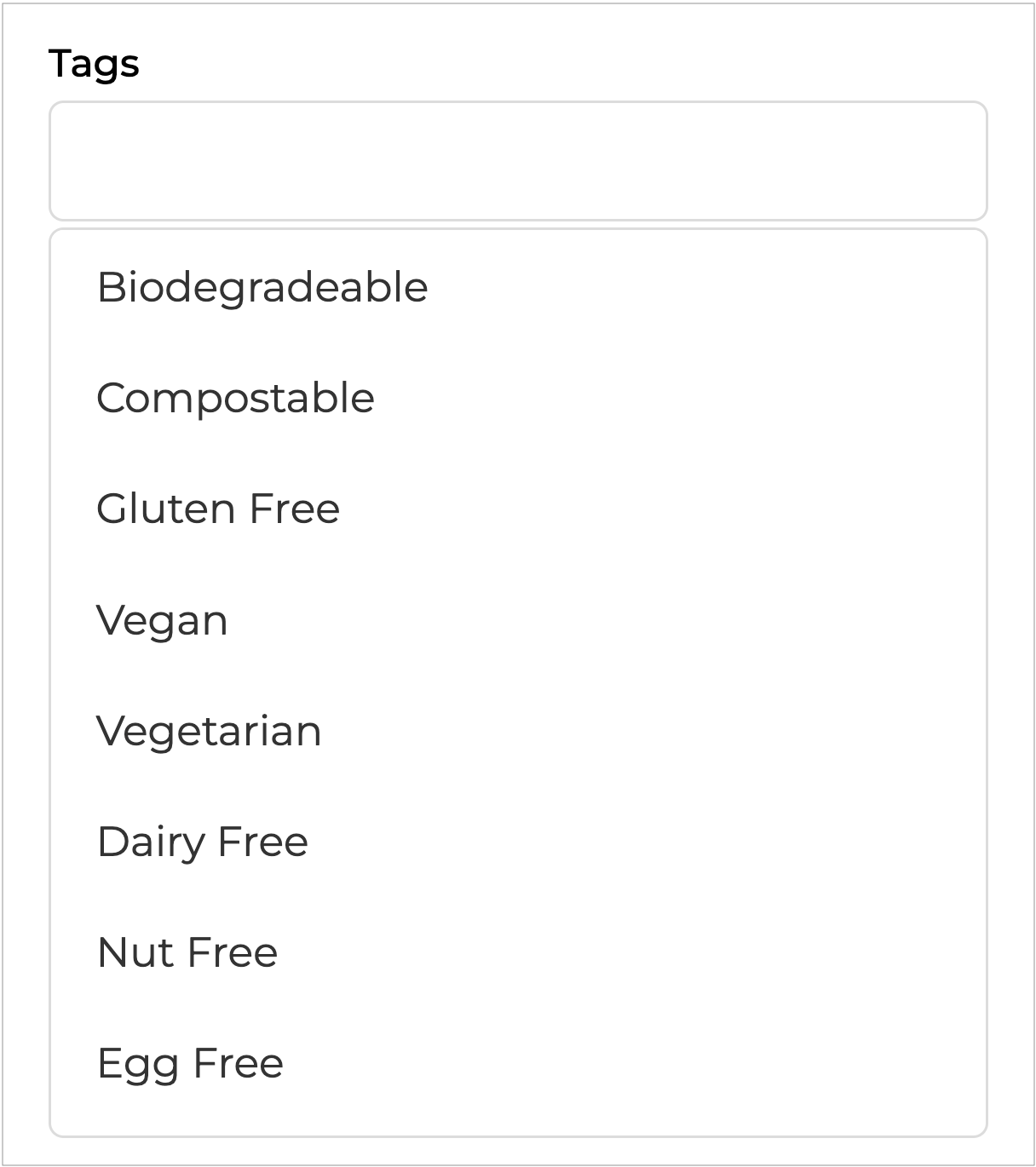
**Tags**
Select the tag or tags that you would like to filter the list by from the drop-down menu, eg. gluten-free, vegan etc.
**Name**
Enter a name to search for in your product list.
**SKU**
Enter a SKU to search for in your product list.
**Barcode**
Enter a barcode to search for in your product list.
**Sales Channel**
Select the sales channel that you would like to filter the list by.
{% hint style="warning" %}
Since this is a Hub account, the only selection will be your account name.
{% endhint %}
**Product Status**
Select the **Status** that you would like to filter the list by.
Click to apply your selections and filter the **Products** list.
---
# Agent Instructions
This documentation is published with GitBook. GitBook is the documentation platform designed so that both humans and AI agents can read, navigate, and reason over technical content effectively. Learn more at gitbook.com.
## Querying This Documentation
If you need additional information that is not directly available in this page, you can query the documentation dynamically by asking a question.
Perform an HTTP GET request on the current page URL with the `ask` query parameter, and the optional `goal` query parameter:
```
GET https://help.supplyd.co/supplyd-hub/products/managing-products-supplyd-hub.md?ask=&goal=
```
`ask` is the immediate question: it should be specific, self-contained, and written in natural language.
`goal` is optional and describes the broader end goal you are ultimately trying to accomplish on behalf of the user. GitBook uses it to tailor the answer towards what is most useful for that goal.
The response will contain a direct answer to the question and relevant excerpts and sources from the documentation.
Use this mechanism when the answer is not explicitly present in the current page, you need clarification or additional context, or you want to retrieve related documentation sections.

 **-** The most common product type. It is a single product with no advanced traits.
{% endhint %}
Clicking on a product will show that product's page with all the information on that product.
**-** The most common product type. It is a single product with no advanced traits.
{% endhint %}
Clicking on a product will show that product's page with all the information on that product.


 button allows you to offer the product to customers.
👉 See the [Offers (Supply'd Hub)](/supplyd-hub/products/offers-supplyd-hub.md) doc for more details.
{% hint style="success" %}
Offer statuses are colour-coded for easy identification:
button allows you to offer the product to customers.
👉 See the [Offers (Supply'd Hub)](/supplyd-hub/products/offers-supplyd-hub.md) doc for more details.
{% hint style="success" %}
Offer statuses are colour-coded for easy identification: - The offer has been sent and is waiting for the customer to review and respond.
*
- The offer has been sent and is waiting for the customer to review and respond.
*  - The customer has requested additional information or feedback before deciding whether to range the product.
*
- The customer has requested additional information or feedback before deciding whether to range the product.
*  - The customer has requested product samples for evaluation.
*
- The customer has requested product samples for evaluation.
*  - The customer has accepted the product and added it to their product range, making it available for ordering.
*
- The customer has accepted the product and added it to their product range, making it available for ordering.
*  - The customer has decided not to range the product at this time.
*
- The customer has decided not to range the product at this time.
*  - The offer has been withdrawn and is no longer active or available for the customer to respond to.


 to finish creating the new product.
***
### Remove Product
Will remove the product. You will be asked to confirm.
to finish creating the new product.
***
### Remove Product
Will remove the product. You will be asked to confirm.
 Click
Click  .
***
## Bulk Actions
Clicking the
.
***
## Bulk Actions
Clicking the  button on the **Products** page allows you to make changes and perform certain actions singularly or in bulk.
Selecting one or more products from the list, then clicking the
button on the **Products** page allows you to make changes and perform certain actions singularly or in bulk.
Selecting one or more products from the list, then clicking the  button stays grey and inactive until at least one product is selected. After selecting products, it turns green and becomes clickable.
{% endhint %}
button stays grey and inactive until at least one product is selected. After selecting products, it turns green and becomes clickable.
{% endhint %}


 .
.


 .
***
## Filtering or Searching the Products List
On the **Products** page, the 3 lines next to the 3 dots in the top right let you filter the product list, while the magnifying glass allows you to search for specific items.
Clicking on the magnifying glass, you can search the products list by product name or word.

Clicking the 3 lines opens the **Filter Products** form, giving you access to all available filtering options.
.
***
## Filtering or Searching the Products List
On the **Products** page, the 3 lines next to the 3 dots in the top right let you filter the product list, while the magnifying glass allows you to search for specific items.
Clicking on the magnifying glass, you can search the products list by product name or word.

Clicking the 3 lines opens the **Filter Products** form, giving you access to all available filtering options.


 to apply your selections and filter the **Products** list.
---
# Agent Instructions
This documentation is published with GitBook. GitBook is the documentation platform designed so that both humans and AI agents can read, navigate, and reason over technical content effectively. Learn more at gitbook.com.
## Querying This Documentation
If you need additional information that is not directly available in this page, you can query the documentation dynamically by asking a question.
Perform an HTTP GET request on the current page URL with the `ask` query parameter, and the optional `goal` query parameter:
```
GET https://help.supplyd.co/supplyd-hub/products/managing-products-supplyd-hub.md?ask=
to apply your selections and filter the **Products** list.
---
# Agent Instructions
This documentation is published with GitBook. GitBook is the documentation platform designed so that both humans and AI agents can read, navigate, and reason over technical content effectively. Learn more at gitbook.com.
## Querying This Documentation
If you need additional information that is not directly available in this page, you can query the documentation dynamically by asking a question.
Perform an HTTP GET request on the current page URL with the `ask` query parameter, and the optional `goal` query parameter:
```
GET https://help.supplyd.co/supplyd-hub/products/managing-products-supplyd-hub.md?ask=