> For the complete documentation index, see [llms.txt](https://help.supplyd.co/llms.txt). Markdown versions of documentation pages are available by appending `.md` to page URLs; this page is available as [Markdown](https://help.supplyd.co/supplyd-erp/suppliers/managing-suppliers/supplier-favourites-tab.md).

# Supplier Favourites Tab

Using Supplier Favourites makes it quicker and easier to find frequently purchased products, helping streamline the ordering process.

**Supplier Favourites** in Supply’d provide a convenient way to access products you regularly purchase or want to easily find from a particular supplier. Products added to **Favourites** are displayed together on the supplier’s **Favourites** tab, making it quicker to find and order frequently used products.

This document will guide you through viewing and managing a supplier’s **Favourites** in Supply’d.

* [#the-suppliers-favourites-tab](#the-suppliers-favourites-tab "mention")
* [#bulk-edit-export-products-and-download](#bulk-edit-export-products-and-download "mention")
* [#adding-favourites](#adding-favourites "mention")
* [#removing-favourites](#removing-favourites "mention")

***

## The Supplier's Favourites Tab

Selecting a supplier from the **Suppliers** list will open their **Supplier Page**, where you can view and manage their information across the available tabs.

The **Favourites** tab on a supplier’s page displays products you have favourited or previously ordered from that supplier. Products are automatically added to **Favourites** when you order them, making it quick and easy to find and reorder items you regularly purchase.

<figure><img src="https://2965503026-files.gitbook.io/~/files/v0/b/gitbook-x-prod.appspot.com/o/spaces%2FDaPYJDB89ny0x7wcMedb%2Fuploads%2FrrjDyUMuZizKgMENT8T7%2FSupplier%20-%20Favourites%20Tab.png?alt=media&amp;token=cef28c5f-dff7-4a77-ab54-3dc1c75669f8" alt=""><figcaption></figcaption></figure>

Selecting a product will open its **Product Details** page, where you can view all information associated with the product.

<figure><img src="https://2965503026-files.gitbook.io/~/files/v0/b/gitbook-x-prod.appspot.com/o/spaces%2FDaPYJDB89ny0x7wcMedb%2Fuploads%2FMxZHKkAgBG90NdPAtObf%2FSpacer.png?alt=media&amp;token=6671f0f7-cac8-4ab8-b422-db63c525c8d6" alt=""><figcaption></figcaption></figure>

<figure><img src="https://2965503026-files.gitbook.io/~/files/v0/b/gitbook-x-prod.appspot.com/o/spaces%2FDaPYJDB89ny0x7wcMedb%2Fuploads%2FYrOjV09zxQjPvLmSSVjM%2F2%20-%20Product%20Details.png?alt=media&amp;token=383a0349-b905-49d9-85e5-644f7f3bf8f7" alt="" width="563"><figcaption></figcaption></figure>

{% hint style="success" %}
👉 To manage these products, refer to the [Managing a Product](https://help.supplyd.co/supplyd-erp/products/managing-products/managing-a-product.md) document.
{% endhint %}

***

## Adding Favourites

Products you order are automatically added to your **Favourites**, but you can also add products manually from a supplier’s page. Managing Favourites at the supplier level allows you to choose which products appear in your **Favourites** list, providing quick access to the items you want to find and reorder regularly.

{% stepper %}
{% step %}

#### Go to the Supplier's Page

Select **Suppliers** from the main menu, then click the name of the supplier whose product you would like to add to **Favourites**.

<figure><img src="https://2965503026-files.gitbook.io/~/files/v0/b/gitbook-x-prod.appspot.com/o/spaces%2FDaPYJDB89ny0x7wcMedb%2Fuploads%2FmJisjZPXst2qwJaQ9DN0%2FSpacer.png?alt=media&amp;token=7fe89e29-eb53-481b-80e7-7a23f9e98336" alt=""><figcaption></figcaption></figure>

<figure><img src="https://2965503026-files.gitbook.io/~/files/v0/b/gitbook-x-prod.appspot.com/o/spaces%2FDaPYJDB89ny0x7wcMedb%2Fuploads%2FMDFPVIdA5kDphJL7PT1A%2FSelect%20Supplier.png?alt=media&amp;token=2858fdb0-30fe-4fb4-94b7-74998e7c0f86" alt=""><figcaption></figcaption></figure>

<figure><img src="https://2965503026-files.gitbook.io/~/files/v0/b/gitbook-x-prod.appspot.com/o/spaces%2FDaPYJDB89ny0x7wcMedb%2Fuploads%2FmJisjZPXst2qwJaQ9DN0%2FSpacer.png?alt=media&amp;token=7fe89e29-eb53-481b-80e7-7a23f9e98336" alt=""><figcaption></figcaption></figure>

{% hint style="info" %}
Alternatively:

1. Select **Favourites** from the main menu.
2. Select the supplier.

{% endhint %}

<figure><img src="https://2965503026-files.gitbook.io/~/files/v0/b/gitbook-x-prod.appspot.com/o/spaces%2FDaPYJDB89ny0x7wcMedb%2Fuploads%2FmJisjZPXst2qwJaQ9DN0%2FSpacer.png?alt=media&amp;token=7fe89e29-eb53-481b-80e7-7a23f9e98336" alt=""><figcaption></figcaption></figure>

The supplier's profile page will open.

<figure><img src="https://2965503026-files.gitbook.io/~/files/v0/b/gitbook-x-prod.appspot.com/o/spaces%2FDaPYJDB89ny0x7wcMedb%2Fuploads%2FmJisjZPXst2qwJaQ9DN0%2FSpacer.png?alt=media&amp;token=7fe89e29-eb53-481b-80e7-7a23f9e98336" alt=""><figcaption></figcaption></figure>

***

{% endstep %}

{% step %}

#### Go to the Products Tab

Open the **Products** tab to view a list of the supplier's products.

<figure><img src="https://2965503026-files.gitbook.io/~/files/v0/b/gitbook-x-prod.appspot.com/o/spaces%2FDaPYJDB89ny0x7wcMedb%2Fuploads%2FmJisjZPXst2qwJaQ9DN0%2FSpacer.png?alt=media&amp;token=7fe89e29-eb53-481b-80e7-7a23f9e98336" alt=""><figcaption></figcaption></figure>

<figure><img src="https://2965503026-files.gitbook.io/~/files/v0/b/gitbook-x-prod.appspot.com/o/spaces%2FDaPYJDB89ny0x7wcMedb%2Fuploads%2F3eAY0xFIqANUb5BkzO8G%2F7%20-%20Supplier%20Products%20Tab%20-%20Lite.png?alt=media&amp;token=fc85f91b-9a55-41d9-b198-ef52ba62c184" alt=""><figcaption></figcaption></figure>

<figure><img src="https://2965503026-files.gitbook.io/~/files/v0/b/gitbook-x-prod.appspot.com/o/spaces%2FDaPYJDB89ny0x7wcMedb%2Fuploads%2FmJisjZPXst2qwJaQ9DN0%2FSpacer.png?alt=media&amp;token=7fe89e29-eb53-481b-80e7-7a23f9e98336" alt=""><figcaption></figcaption></figure>

{% hint style="warning" %}
For a **Custom** supplier you will have needed to have added the product(s) first.

👉 See the [Adding Products](https://help.supplyd.co/supplyd-erp/products/adding-products.md) document for detailed instructions on how to do this.
{% endhint %}

<figure><img src="https://2965503026-files.gitbook.io/~/files/v0/b/gitbook-x-prod.appspot.com/o/spaces%2FDaPYJDB89ny0x7wcMedb%2Fuploads%2FmJisjZPXst2qwJaQ9DN0%2FSpacer.png?alt=media&amp;token=7fe89e29-eb53-481b-80e7-7a23f9e98336" alt=""><figcaption></figcaption></figure>

***

{% endstep %}

{% step %}

#### Select the Product(s)

Select the products you would like to add to your **Favourites** list by ticking the boxes beside them, as explained in [#bulk-actions](#bulk-actions "mention") above.

<figure><img src="https://2965503026-files.gitbook.io/~/files/v0/b/gitbook-x-prod.appspot.com/o/spaces%2FDaPYJDB89ny0x7wcMedb%2Fuploads%2FbJDih3Dwv41QavjV1QDa%2FSpacer.png?alt=media&amp;token=6c34f805-9610-4de9-8f8a-a029f13dd1a1" alt=""><figcaption></figcaption></figure>

***

{% endstep %}

{% step %}

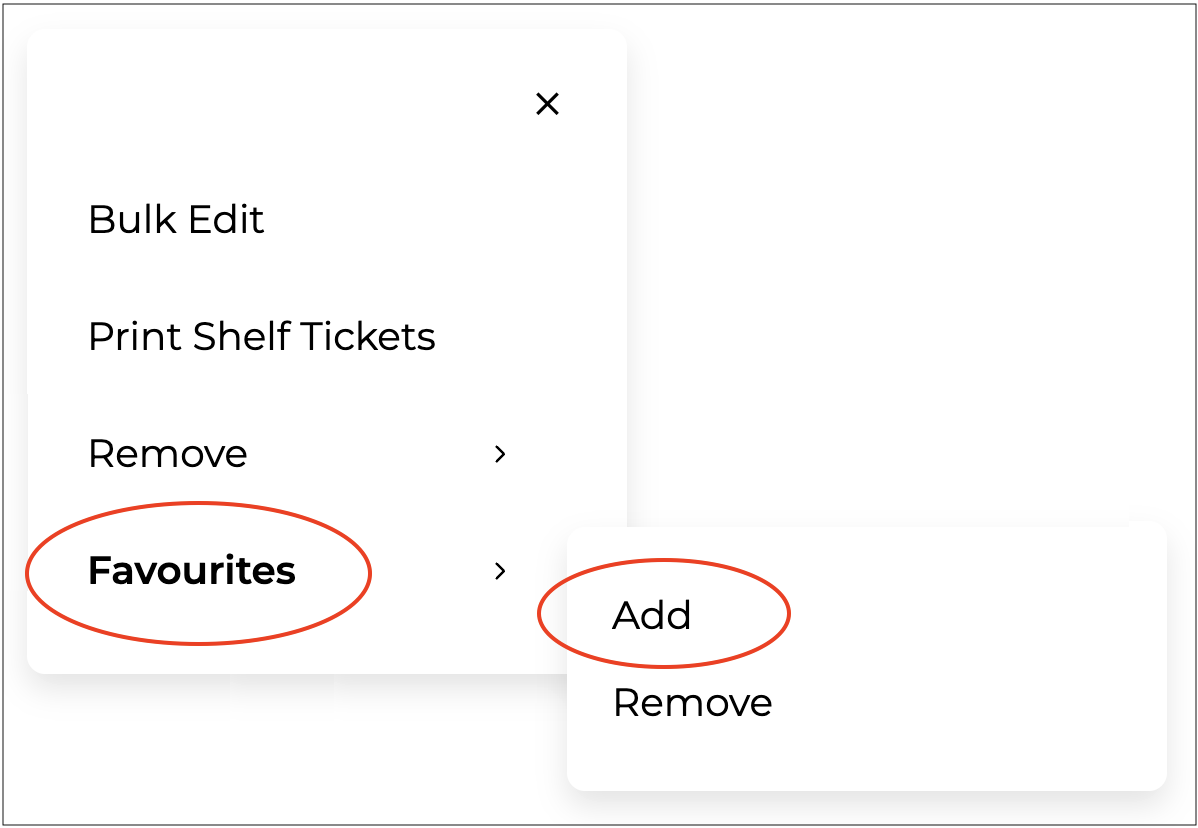
#### Select Favourites > Add

Click on the <img src="https://2965503026-files.gitbook.io/~/files/v0/b/gitbook-x-prod.appspot.com/o/spaces%2FDaPYJDB89ny0x7wcMedb%2Fuploads%2F5GmXafAyQeEAcNfpBY59%2FACTIONS.png?alt=media&amp;token=15d840df-e961-4378-ba64-328077e773a2" alt="" data-size="line"> button and select **Favourites**, then **Add**.

<figure><img src="https://2965503026-files.gitbook.io/~/files/v0/b/gitbook-x-prod.appspot.com/o/spaces%2FDaPYJDB89ny0x7wcMedb%2Fuploads%2FmJisjZPXst2qwJaQ9DN0%2FSpacer.png?alt=media&amp;token=7fe89e29-eb53-481b-80e7-7a23f9e98336" alt=""><figcaption></figcaption></figure>

<figure><img src="https://2965503026-files.gitbook.io/~/files/v0/b/gitbook-x-prod.appspot.com/o/spaces%2FDaPYJDB89ny0x7wcMedb%2Fuploads%2FDGaJymt7Fo6Zf0kH0jE7%2FAdd%20Favourite.png?alt=media&amp;token=f531826e-7eca-42ac-a0db-03b8c728fcfb" alt="" width="375"><figcaption></figcaption></figure>

<figure><img src="https://2965503026-files.gitbook.io/~/files/v0/b/gitbook-x-prod.appspot.com/o/spaces%2FDaPYJDB89ny0x7wcMedb%2Fuploads%2FmJisjZPXst2qwJaQ9DN0%2FSpacer.png?alt=media&amp;token=7fe89e29-eb53-481b-80e7-7a23f9e98336" alt=""><figcaption></figcaption></figure>

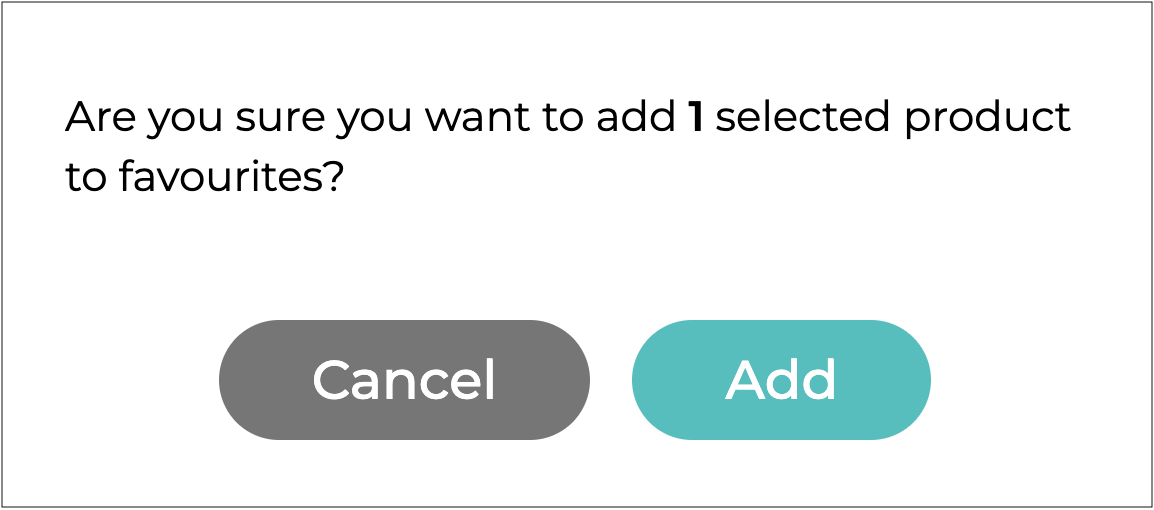
You will be asked to confirm.

<figure><img src="https://2965503026-files.gitbook.io/~/files/v0/b/gitbook-x-prod.appspot.com/o/spaces%2FDaPYJDB89ny0x7wcMedb%2Fuploads%2FmJisjZPXst2qwJaQ9DN0%2FSpacer.png?alt=media&amp;token=7fe89e29-eb53-481b-80e7-7a23f9e98336" alt=""><figcaption></figcaption></figure>

<figure><img src="https://2965503026-files.gitbook.io/~/files/v0/b/gitbook-x-prod.appspot.com/o/spaces%2FDaPYJDB89ny0x7wcMedb%2Fuploads%2FMhO48qLuVP57Nv1suHCW%2FConfirm%20Add.png?alt=media&amp;token=0a609457-7a9b-424c-a96e-25ffbc8157cc" alt="" width="375"><figcaption></figcaption></figure>

<figure><img src="https://2965503026-files.gitbook.io/~/files/v0/b/gitbook-x-prod.appspot.com/o/spaces%2FDaPYJDB89ny0x7wcMedb%2Fuploads%2FmJisjZPXst2qwJaQ9DN0%2FSpacer.png?alt=media&amp;token=7fe89e29-eb53-481b-80e7-7a23f9e98336" alt=""><figcaption></figcaption></figure>

Click <img src="https://2965503026-files.gitbook.io/~/files/v0/b/gitbook-x-prod.appspot.com/o/spaces%2FDaPYJDB89ny0x7wcMedb%2Fuploads%2FHlS3fIn29yYkixsYsDZJ%2FAdd%20-%20Lower%20Case.png?alt=media&amp;token=8690522e-953f-4bc7-bc12-2adcd0ac2afb" alt="" data-size="line">.

The product will show on the **Favourites** page.

<figure><img src="https://2965503026-files.gitbook.io/~/files/v0/b/gitbook-x-prod.appspot.com/o/spaces%2FDaPYJDB89ny0x7wcMedb%2Fuploads%2FmJisjZPXst2qwJaQ9DN0%2FSpacer.png?alt=media&amp;token=7fe89e29-eb53-481b-80e7-7a23f9e98336" alt=""><figcaption></figcaption></figure>

{% endstep %}
{% endstepper %}

***

## Removing Favourites

{% stepper %}
{% step %}
Select **Suppliers** from the main menu, then click the name of the supplier whose product you would like to remove from favourites.

{% endstep %}

{% step %}
Open the **Favourites** tab to view a list of your favourited products from the supplier.

{% endstep %}

{% step %}
Select the products you would like to remove from your **Favourites** list by ticking the boxes beside them.

{% endstep %}

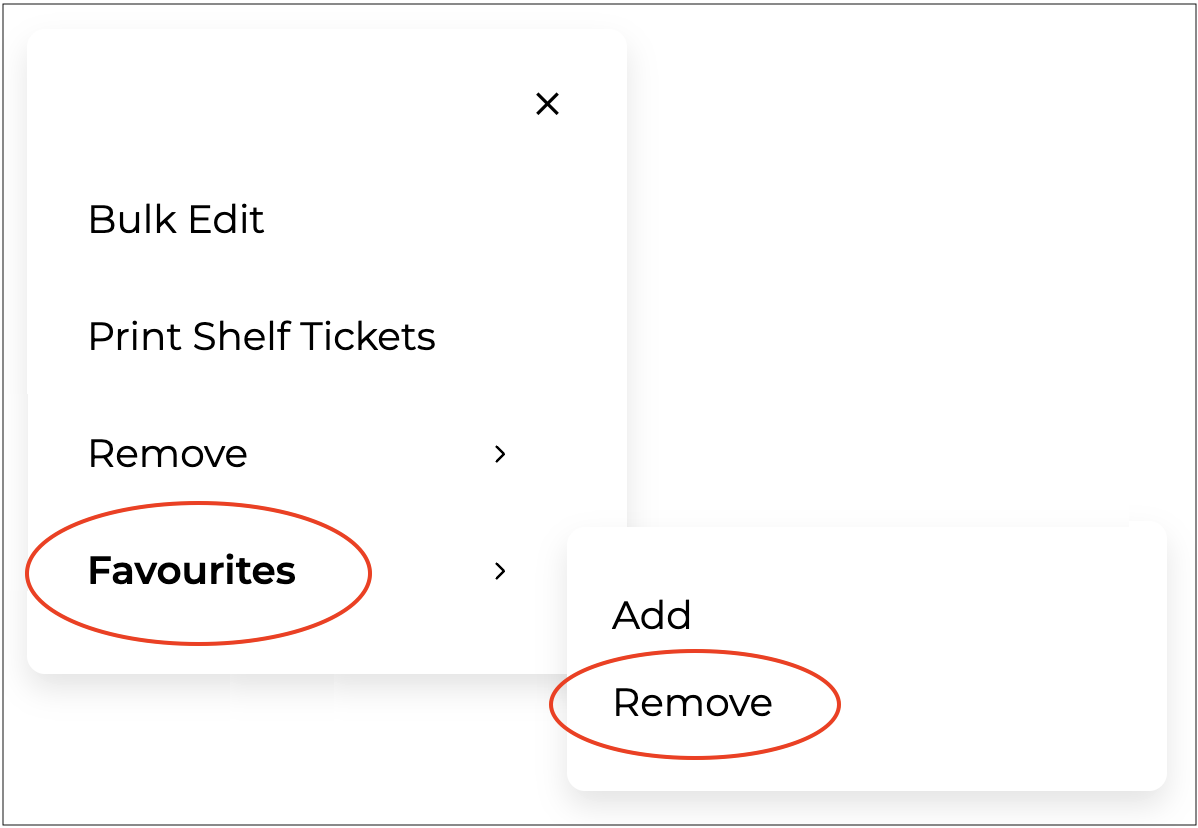
{% step %}
Click on the <img src="https://2965503026-files.gitbook.io/~/files/v0/b/gitbook-x-prod.appspot.com/o/spaces%2FDaPYJDB89ny0x7wcMedb%2Fuploads%2F5GmXafAyQeEAcNfpBY59%2FACTIONS.png?alt=media&amp;token=15d840df-e961-4378-ba64-328077e773a2" alt="" data-size="line"> button and select **Favourites**, then **Remove**.

<figure><img src="https://2965503026-files.gitbook.io/~/files/v0/b/gitbook-x-prod.appspot.com/o/spaces%2FDaPYJDB89ny0x7wcMedb%2Fuploads%2FmJisjZPXst2qwJaQ9DN0%2FSpacer.png?alt=media&amp;token=7fe89e29-eb53-481b-80e7-7a23f9e98336" alt=""><figcaption></figcaption></figure>

<figure><img src="https://2965503026-files.gitbook.io/~/files/v0/b/gitbook-x-prod.appspot.com/o/spaces%2FDaPYJDB89ny0x7wcMedb%2Fuploads%2FS4cxHiA8nqxhTvGsRxYc%2FRemove%20Favourite.png?alt=media&amp;token=355945ab-ce26-4dc2-bd8b-fec3f379044a" alt="" width="375"><figcaption></figcaption></figure>

<figure><img src="https://2965503026-files.gitbook.io/~/files/v0/b/gitbook-x-prod.appspot.com/o/spaces%2FDaPYJDB89ny0x7wcMedb%2Fuploads%2FmJisjZPXst2qwJaQ9DN0%2FSpacer.png?alt=media&amp;token=7fe89e29-eb53-481b-80e7-7a23f9e98336" alt=""><figcaption></figcaption></figure>

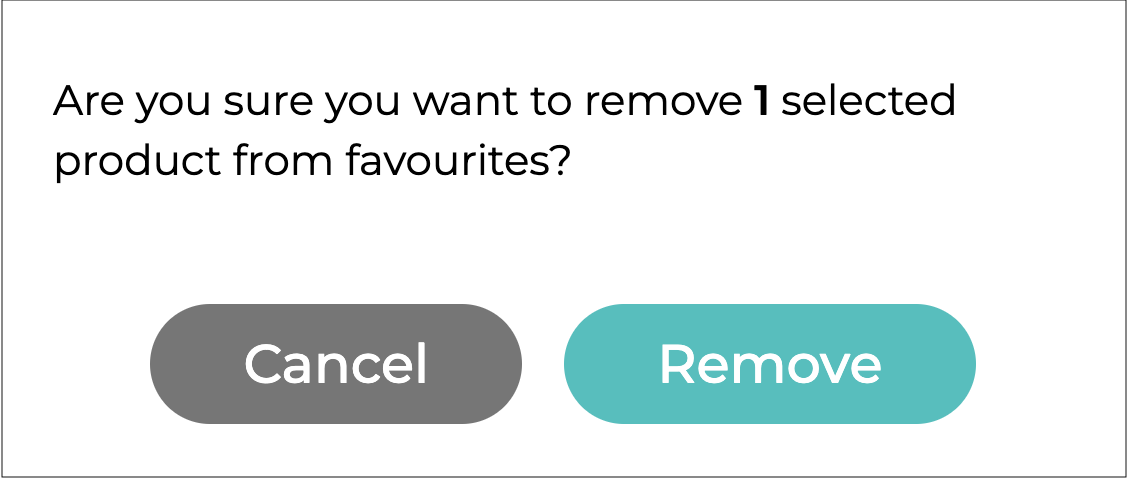
You will be asked to confirm.

<figure><img src="https://2965503026-files.gitbook.io/~/files/v0/b/gitbook-x-prod.appspot.com/o/spaces%2FDaPYJDB89ny0x7wcMedb%2Fuploads%2FmJisjZPXst2qwJaQ9DN0%2FSpacer.png?alt=media&amp;token=7fe89e29-eb53-481b-80e7-7a23f9e98336" alt=""><figcaption></figcaption></figure>

<figure><img src="https://2965503026-files.gitbook.io/~/files/v0/b/gitbook-x-prod.appspot.com/o/spaces%2FDaPYJDB89ny0x7wcMedb%2Fuploads%2F6XPNHsDB2LgkAU2SywDD%2FConfirm%20Remove.png?alt=media&amp;token=920d6564-fc4d-46e8-8d50-5b62ade01cd7" alt="" width="375"><figcaption></figcaption></figure>

<figure><img src="https://2965503026-files.gitbook.io/~/files/v0/b/gitbook-x-prod.appspot.com/o/spaces%2FDaPYJDB89ny0x7wcMedb%2Fuploads%2FmJisjZPXst2qwJaQ9DN0%2FSpacer.png?alt=media&amp;token=7fe89e29-eb53-481b-80e7-7a23f9e98336" alt=""><figcaption></figcaption></figure>

Click <img src="https://2965503026-files.gitbook.io/~/files/v0/b/gitbook-x-prod.appspot.com/o/spaces%2FDaPYJDB89ny0x7wcMedb%2Fuploads%2FnxEPPopP8Lg6iQR4I0cH%2FRemove.png?alt=media&amp;token=929f38a3-9c52-45f2-bbf2-293e7b122383" alt="" data-size="line">.

<figure><img src="https://2965503026-files.gitbook.io/~/files/v0/b/gitbook-x-prod.appspot.com/o/spaces%2FDaPYJDB89ny0x7wcMedb%2Fuploads%2FmJisjZPXst2qwJaQ9DN0%2FSpacer.png?alt=media&amp;token=7fe89e29-eb53-481b-80e7-7a23f9e98336" alt=""><figcaption></figcaption></figure>

{% endstep %}
{% endstepper %}

***

## Bulk Action Options for Managing Favourites <a href="#bulk-actions" id="bulk-actions"></a>

Clicking the <img src="https://2965503026-files.gitbook.io/~/files/v0/b/gitbook-x-prod.appspot.com/o/spaces%2FDaPYJDB89ny0x7wcMedb%2Fuploads%2F2phYbESTziCRtybMmzwB%2FACTIONS.png?alt=media&amp;token=51baccf7-210c-46b4-b4fa-e38ed6d4fba5" alt="" data-size="line"> button on the **Favourites** tab allows you to perform actions on individual products or multiple products at once.

Select one or more products from the list, then select the <img src="https://2965503026-files.gitbook.io/~/files/v0/b/gitbook-x-prod.appspot.com/o/spaces%2FDaPYJDB89ny0x7wcMedb%2Fuploads%2F2phYbESTziCRtybMmzwB%2FACTIONS.png?alt=media&amp;token=51baccf7-210c-46b4-b4fa-e38ed6d4fba5" alt="" data-size="line"> button to view the available actions for the selected products.

{% hint style="success" %}
Ticking the square beside the <img src="https://2965503026-files.gitbook.io/~/files/v0/b/gitbook-x-prod.appspot.com/o/spaces%2FDaPYJDB89ny0x7wcMedb%2Fuploads%2F2phYbESTziCRtybMmzwB%2FACTIONS.png?alt=media&amp;token=51baccf7-210c-46b4-b4fa-e38ed6d4fba5" alt="" data-size="line"> button will select all products on the list.  &#x20;
{% endhint %}

{% hint style="info" %}
The <img src="https://2965503026-files.gitbook.io/~/files/v0/b/gitbook-x-prod.appspot.com/o/spaces%2FDaPYJDB89ny0x7wcMedb%2Fuploads%2FMDyQDh7Gg9Jdv255AfEe%2FACTIONS%20-%20Grey.png?alt=media&amp;token=ae9828a0-3926-4832-80ea-3d932a8971c1" alt="" data-size="line"> button remains greyed out and inactive until at least one product is selected. Once a product is selected, the button turns green and becomes available.
{% endhint %}

<figure><img src="https://2965503026-files.gitbook.io/~/files/v0/b/gitbook-x-prod.appspot.com/o/spaces%2FDaPYJDB89ny0x7wcMedb%2Fuploads%2FLp5Efcdgf6vhhaB3UwOo%2F3%20-%20Favourites%20Actions%20Button.png?alt=media&amp;token=563d1da3-f824-4e16-bfe7-89a065b761bf" alt=""><figcaption></figcaption></figure>

<figure><img src="https://2965503026-files.gitbook.io/~/files/v0/b/gitbook-x-prod.appspot.com/o/spaces%2FDaPYJDB89ny0x7wcMedb%2Fuploads%2FMxZHKkAgBG90NdPAtObf%2FSpacer.png?alt=media&amp;token=6671f0f7-cac8-4ab8-b422-db63c525c8d6" alt=""><figcaption></figcaption></figure>

<figure><img src="https://2965503026-files.gitbook.io/~/files/v0/b/gitbook-x-prod.appspot.com/o/spaces%2FDaPYJDB89ny0x7wcMedb%2Fuploads%2FRoK63fsgECJcSlkT6q80%2FActions%20Menu.png?alt=media&amp;token=921af3e7-f085-4202-839c-0186b4c059e0" alt="" width="375"><figcaption></figcaption></figure>

***

#### Bulk Edit, Export Products & Download

{% hint style="success" %}
👉 These options are explained in the [Bulk Actions for Products](https://help.supplyd.co/supplyd-erp/products/managing-products/bulk-actions-for-products.md) document.
{% endhint %}

***

#### Remove

<figure><img src="https://2965503026-files.gitbook.io/~/files/v0/b/gitbook-x-prod.appspot.com/o/spaces%2FDaPYJDB89ny0x7wcMedb%2Fuploads%2FODizk5AqbQvF7ORDzfjH%2FRemove.png?alt=media&amp;token=191d6dda-d67e-40da-b655-2c95a59c3879" alt="" width="375"><figcaption></figcaption></figure>

**From Favourites**

This option will remove the selected product(s) from your **Favourites** list. Once removed, the products will no longer appear on the supplier’s **Favourites** tab but can still be found and accessed from the supplier’s product list.

<figure><img src="https://2965503026-files.gitbook.io/~/files/v0/b/gitbook-x-prod.appspot.com/o/spaces%2FDaPYJDB89ny0x7wcMedb%2Fuploads%2F6fGazE1AHWYnZb5GROVV%2FConfirm%20Remove%20from%20Favourites.png?alt=media&amp;token=32ff17de-21c3-4fd4-83c3-41e2aae7d2e8" alt="" width="375"><figcaption></figcaption></figure>

**From Supplier**

This option will remove the selected product(s) from the supplier while keeping the products in your system. This is useful if you no longer purchase the products from this supplier, for example, if you have switched to purchasing them from another supplier.

**Products**

This option will remove the selected product(s) from your **Products** list. Use this option when you no longer need the products in your system.


---

# Agent Instructions
This documentation is published with GitBook. GitBook is the documentation platform designed so that both humans and AI agents can read, navigate, and reason over technical content effectively. Learn more at gitbook.com.

## Querying This Documentation
If you need additional information that is not directly available in this page, you can query the documentation by asking a question.

Perform an HTTP GET request on the following URL with the `ask` and `goal` query parameters:

```
GET https://help.supplyd.co/supplyd-erp/suppliers/managing-suppliers/supplier-favourites-tab.md?ask=<question>&goal=<user_goal>
```

`ask` is the immediate question: it should be specific, self-contained, and written in natural language.
`goal` is what the user is ultimately trying to achieve, the reason they need the answer. Sharing it helps GitBook give you a better, more relevant answer. A goal is most helpful when it describes the outcome the user wants rather than restating the question. For example, with `ask=how do I create an API token`, a goal like `automate deployments from our CI pipeline` lets GitBook tailor the answer to that use case.

The response will contain a direct answer to the question and relevant excerpts and sources from the documentation.

Use this mechanism when the answer is not explicitly present in the current page, you need clarification or additional context, or you want to retrieve related documentation sections.