> For the complete documentation index, see [llms.txt](https://help.supplyd.co/llms.txt). Markdown versions of documentation pages are available by appending `.md` to page URLs; this page is available as [Markdown](https://help.supplyd.co/supplyd-erp/suppliers/adding-suppliers-and-supplier-groups/adding-a-supplier-group.md).

# Adding a Supplier Group

Adding Supplier Groups helps keep your suppliers organised and makes it quicker and easier to manage and order from suppliers you regularly use together.

Adding a **Supplier Group** in Supply’d allows you to organise related suppliers together for easier management and ordering. Groups can be created based on how your business works with suppliers, such as **Local Suppliers**, **Refrigerated Suppliers**, or suppliers you regularly order from together. This helps keep your supplier list organised and makes it quicker to select multiple suppliers when placing orders.

\
This document will guide you through creating a **Supplier Group** and adding suppliers as members of the group.

* [#creating-a-supplier-group](#creating-a-supplier-group "mention")
* [#adding-members-to-a-supplier-group](#adding-members-to-a-supplier-group "mention")
  * [#existing-suppliers](#existing-suppliers "mention")
  * [#new-custom-suppliers](#new-custom-suppliers "mention")
  * [#adding-group-members-in-bulk](#adding-group-members-in-bulk "mention")

***

## Creating a Supplier Group

{% stepper %}
{% step %}

#### Go to the Suppliers Groups Page

<figure><img src="https://2965503026-files.gitbook.io/~/files/v0/b/gitbook-x-prod.appspot.com/o/spaces%2FDaPYJDB89ny0x7wcMedb%2Fuploads%2FP4wdmWAltZPVJhzVrSCD%2FSpacer.png?alt=media&amp;token=406e9e78-6ce7-4d66-8a91-156cc7ec7364" alt=""><figcaption></figcaption></figure>

1. Select **Suppliers** from the main menu.
2. Select the **Groups** tab. The **Groups** page will open, displaying any Supplier Groups that have already been created.

<figure><img src="https://2965503026-files.gitbook.io/~/files/v0/b/gitbook-x-prod.appspot.com/o/spaces%2FDaPYJDB89ny0x7wcMedb%2Fuploads%2F5HLITEeLJEcHDq922sfa%2FSpacer.png?alt=media&amp;token=6a6b7042-3cb9-45f6-8151-abf8c2de2ac7" alt=""><figcaption></figcaption></figure>

<figure><img src="https://2965503026-files.gitbook.io/~/files/v0/b/gitbook-x-prod.appspot.com/o/spaces%2FDaPYJDB89ny0x7wcMedb%2Fuploads%2FKCwi9B3qnJc8mGrQafUA%2F7%20-%20Suppliers%20-%20Groups%20Tab.png?alt=media&amp;token=ec0ec86c-4335-4a59-99d1-38030a679c97" alt=""><figcaption></figcaption></figure>

<figure><img src="https://2965503026-files.gitbook.io/~/files/v0/b/gitbook-x-prod.appspot.com/o/spaces%2FDaPYJDB89ny0x7wcMedb%2Fuploads%2F5HLITEeLJEcHDq922sfa%2FSpacer.png?alt=media&amp;token=6a6b7042-3cb9-45f6-8151-abf8c2de2ac7" alt=""><figcaption></figcaption></figure>

***

{% endstep %}

{% step %}

#### Click Add+

Click **Add +** in the top right.&#x20;

<figure><img src="https://2965503026-files.gitbook.io/~/files/v0/b/gitbook-x-prod.appspot.com/o/spaces%2FDaPYJDB89ny0x7wcMedb%2Fuploads%2F5HLITEeLJEcHDq922sfa%2FSpacer.png?alt=media&amp;token=6a6b7042-3cb9-45f6-8151-abf8c2de2ac7" alt=""><figcaption></figcaption></figure>

<figure><img src="https://2965503026-files.gitbook.io/~/files/v0/b/gitbook-x-prod.appspot.com/o/spaces%2FDaPYJDB89ny0x7wcMedb%2Fuploads%2FRI92l9RN7rOPFmtFrdwv%2FSuppliers%20-%20Groups%20Add%2B.png?alt=media&amp;token=e24b0dac-2f40-4e84-ad5f-75e365a1ddef" alt=""><figcaption></figcaption></figure>

<figure><img src="https://2965503026-files.gitbook.io/~/files/v0/b/gitbook-x-prod.appspot.com/o/spaces%2FDaPYJDB89ny0x7wcMedb%2Fuploads%2F5HLITEeLJEcHDq922sfa%2FSpacer.png?alt=media&amp;token=6a6b7042-3cb9-45f6-8151-abf8c2de2ac7" alt=""><figcaption></figcaption></figure>

The **Add Supplier Group** form will appear.

<figure><img src="https://2965503026-files.gitbook.io/~/files/v0/b/gitbook-x-prod.appspot.com/o/spaces%2FDaPYJDB89ny0x7wcMedb%2Fuploads%2F5HLITEeLJEcHDq922sfa%2FSpacer.png?alt=media&amp;token=6a6b7042-3cb9-45f6-8151-abf8c2de2ac7" alt=""><figcaption></figcaption></figure>

***

{% endstep %}

{% step %}

#### Enter a Name

<figure><img src="https://2965503026-files.gitbook.io/~/files/v0/b/gitbook-x-prod.appspot.com/o/spaces%2FDaPYJDB89ny0x7wcMedb%2Fuploads%2F5HLITEeLJEcHDq922sfa%2FSpacer.png?alt=media&amp;token=6a6b7042-3cb9-45f6-8151-abf8c2de2ac7" alt=""><figcaption></figcaption></figure>

<figure><img src="https://2965503026-files.gitbook.io/~/files/v0/b/gitbook-x-prod.appspot.com/o/spaces%2FDaPYJDB89ny0x7wcMedb%2Fuploads%2FkZusX6cIpGQVMHgvXRev%2FAdd%20Supplier%20Group%20Form.png?alt=media&amp;token=488776e2-c12a-4a9e-9a29-3da0a15a9456" alt="" width="563"><figcaption></figcaption></figure>

<figure><img src="https://2965503026-files.gitbook.io/~/files/v0/b/gitbook-x-prod.appspot.com/o/spaces%2FDaPYJDB89ny0x7wcMedb%2Fuploads%2F5HLITEeLJEcHDq922sfa%2FSpacer.png?alt=media&amp;token=6a6b7042-3cb9-45f6-8151-abf8c2de2ac7" alt=""><figcaption></figcaption></figure>

**Group Name\* \[required field]**

Enter a clear and descriptive name for the **Supplier Group** to help you easily identify the suppliers included in the group.

<figure><img src="https://2965503026-files.gitbook.io/~/files/v0/b/gitbook-x-prod.appspot.com/o/spaces%2FDaPYJDB89ny0x7wcMedb%2Fuploads%2F5HLITEeLJEcHDq922sfa%2FSpacer.png?alt=media&amp;token=6a6b7042-3cb9-45f6-8151-abf8c2de2ac7" alt=""><figcaption></figcaption></figure>

***

{% endstep %}

{% step %}

#### Save

Click <img src="https://2965503026-files.gitbook.io/~/files/v0/b/gitbook-x-prod.appspot.com/o/spaces%2FDaPYJDB89ny0x7wcMedb%2Fuploads%2Fw7vNdWre4ViL4czC3qLv%2FSAVE.png?alt=media&amp;token=96a25e18-5d77-4c97-82c6-d9d9d6362740" alt="" data-size="line"> to create the group.

The group will show in the **Supplier Groups** list.

<figure><img src="https://2965503026-files.gitbook.io/~/files/v0/b/gitbook-x-prod.appspot.com/o/spaces%2FDaPYJDB89ny0x7wcMedb%2Fuploads%2FbJDih3Dwv41QavjV1QDa%2FSpacer.png?alt=media&amp;token=6c34f805-9610-4de9-8f8a-a029f13dd1a1" alt=""><figcaption></figcaption></figure>

{% endstep %}
{% endstepper %}

***

## Adding Members to a Supplier Group

Suppliers can be added to a **Supplier Group** when adding a new supplier or editing an existing supplier.

### Existing Suppliers

{% stepper %}
{% step %}

#### Go to the Suppliers Page

Select **Suppliers** from the main menu.&#x20;

<figure><img src="https://2965503026-files.gitbook.io/~/files/v0/b/gitbook-x-prod.appspot.com/o/spaces%2FDaPYJDB89ny0x7wcMedb%2Fuploads%2FbJDih3Dwv41QavjV1QDa%2FSpacer.png?alt=media&amp;token=6c34f805-9610-4de9-8f8a-a029f13dd1a1" alt=""><figcaption></figcaption></figure>

***

{% endstep %}

{% step %}

#### Select the Supplier

Select a supplier from the list to edit their details.

<figure><img src="https://2965503026-files.gitbook.io/~/files/v0/b/gitbook-x-prod.appspot.com/o/spaces%2FDaPYJDB89ny0x7wcMedb%2Fuploads%2FbJDih3Dwv41QavjV1QDa%2FSpacer.png?alt=media&amp;token=6c34f805-9610-4de9-8f8a-a029f13dd1a1" alt=""><figcaption></figcaption></figure>

***

{% endstep %}

{% step %}

#### Select Edit Supplier

For an existing Supplier, click on the 3 dots in the top right, then select **Edit Supplier**.

<figure><img src="https://2965503026-files.gitbook.io/~/files/v0/b/gitbook-x-prod.appspot.com/o/spaces%2FDaPYJDB89ny0x7wcMedb%2Fuploads%2FL0HBUkjVM6xFL4NOH7qX%2FSpacer.png?alt=media&amp;token=471d4574-3791-4e58-bcb8-3ab9c7014816" alt=""><figcaption></figcaption></figure>

<figure><img src="https://2965503026-files.gitbook.io/~/files/v0/b/gitbook-x-prod.appspot.com/o/spaces%2FDaPYJDB89ny0x7wcMedb%2Fuploads%2FzVV0XYU4kyly5tgXHvTW%2FEdit%20Supplier.png?alt=media&amp;token=d37dc072-fdf8-404d-b870-780f9e478169" alt=""><figcaption></figcaption></figure>

<figure><img src="https://2965503026-files.gitbook.io/~/files/v0/b/gitbook-x-prod.appspot.com/o/spaces%2FDaPYJDB89ny0x7wcMedb%2Fuploads%2FL0HBUkjVM6xFL4NOH7qX%2FSpacer.png?alt=media&amp;token=471d4574-3791-4e58-bcb8-3ab9c7014816" alt=""><figcaption></figcaption></figure>

The **Edit Supplier** form will open.

<figure><img src="https://2965503026-files.gitbook.io/~/files/v0/b/gitbook-x-prod.appspot.com/o/spaces%2FDaPYJDB89ny0x7wcMedb%2Fuploads%2FbJDih3Dwv41QavjV1QDa%2FSpacer.png?alt=media&amp;token=6c34f805-9610-4de9-8f8a-a029f13dd1a1" alt=""><figcaption></figcaption></figure>

***

{% endstep %}

{% step %}

#### Select the Group

In the **Groups** field of the **Company Details** section, select the **Supplier Group** you want to assign the supplier to.

<figure><img src="https://2965503026-files.gitbook.io/~/files/v0/b/gitbook-x-prod.appspot.com/o/spaces%2FDaPYJDB89ny0x7wcMedb%2Fuploads%2FbJDih3Dwv41QavjV1QDa%2FSpacer.png?alt=media&amp;token=6c34f805-9610-4de9-8f8a-a029f13dd1a1" alt=""><figcaption></figcaption></figure>

<figure><img src="https://2965503026-files.gitbook.io/~/files/v0/b/gitbook-x-prod.appspot.com/o/spaces%2FDaPYJDB89ny0x7wcMedb%2Fuploads%2F2ln3XAK8mB2n9DKBRDS5%2FSupplier%20Edit%20Supplier%20-%20Groups.png?alt=media&amp;token=5f4cbfa3-7cc7-4bfb-9e36-583fa329cd56" alt=""><figcaption></figcaption></figure>

<figure><img src="https://2965503026-files.gitbook.io/~/files/v0/b/gitbook-x-prod.appspot.com/o/spaces%2FDaPYJDB89ny0x7wcMedb%2Fuploads%2FbJDih3Dwv41QavjV1QDa%2FSpacer.png?alt=media&amp;token=6c34f805-9610-4de9-8f8a-a029f13dd1a1" alt=""><figcaption></figcaption></figure>

<figure><img src="https://2965503026-files.gitbook.io/~/files/v0/b/gitbook-x-prod.appspot.com/o/spaces%2FDaPYJDB89ny0x7wcMedb%2Fuploads%2F6vtIUvcp2TsqvEDXjooO%2FSupplier%20Group%20Drop%20Down.png?alt=media&amp;token=6f3a93db-5ffc-4a4a-968b-7c5e6917a7e0" alt="" width="375"><figcaption></figcaption></figure>

<figure><img src="https://2965503026-files.gitbook.io/~/files/v0/b/gitbook-x-prod.appspot.com/o/spaces%2FDaPYJDB89ny0x7wcMedb%2Fuploads%2FbJDih3Dwv41QavjV1QDa%2FSpacer.png?alt=media&amp;token=6c34f805-9610-4de9-8f8a-a029f13dd1a1" alt=""><figcaption></figcaption></figure>

***

{% endstep %}

{% step %}

#### Click Save

Click <img src="https://2965503026-files.gitbook.io/~/files/v0/b/gitbook-x-prod.appspot.com/o/spaces%2FDaPYJDB89ny0x7wcMedb%2Fuploads%2Fw7vNdWre4ViL4czC3qLv%2FSAVE.png?alt=media&amp;token=96a25e18-5d77-4c97-82c6-d9d9d6362740" alt="" data-size="line"> to apply the setting and add the supplier to the group.

<figure><img src="https://2965503026-files.gitbook.io/~/files/v0/b/gitbook-x-prod.appspot.com/o/spaces%2FDaPYJDB89ny0x7wcMedb%2Fuploads%2FbJDih3Dwv41QavjV1QDa%2FSpacer.png?alt=media&amp;token=6c34f805-9610-4de9-8f8a-a029f13dd1a1" alt=""><figcaption></figcaption></figure>

{% endstep %}
{% endstepper %}

***

### New Custom Suppliers

{% stepper %}
{% step %}

#### Go to the Suppliers Page

Select **Suppliers** from the main menu.&#x20;

<figure><img src="https://2965503026-files.gitbook.io/~/files/v0/b/gitbook-x-prod.appspot.com/o/spaces%2FDaPYJDB89ny0x7wcMedb%2Fuploads%2FbJDih3Dwv41QavjV1QDa%2FSpacer.png?alt=media&amp;token=6c34f805-9610-4de9-8f8a-a029f13dd1a1" alt=""><figcaption></figcaption></figure>

***

{% endstep %}

{% step %}

#### Click Add +

Click **Add +** in the top right to open the **Add Supplier** form.

<figure><img src="https://2965503026-files.gitbook.io/~/files/v0/b/gitbook-x-prod.appspot.com/o/spaces%2FDaPYJDB89ny0x7wcMedb%2Fuploads%2FbJDih3Dwv41QavjV1QDa%2FSpacer.png?alt=media&amp;token=6c34f805-9610-4de9-8f8a-a029f13dd1a1" alt=""><figcaption></figcaption></figure>

***

{% endstep %}

{% step %}

#### Select the Group

Following the guidelines in the [Adding a Custom Supplier](/supplyd-erp/suppliers/adding-suppliers-and-supplier-groups/adding-a-custom-supplier.md) document, select the **Supplier Group** you want to assign the supplier to from the **Groups** field when completing the **Company Details** section.

<figure><img src="https://2965503026-files.gitbook.io/~/files/v0/b/gitbook-x-prod.appspot.com/o/spaces%2FDaPYJDB89ny0x7wcMedb%2Fuploads%2FbJDih3Dwv41QavjV1QDa%2FSpacer.png?alt=media&amp;token=6c34f805-9610-4de9-8f8a-a029f13dd1a1" alt=""><figcaption></figcaption></figure>

<figure><img src="https://2965503026-files.gitbook.io/~/files/v0/b/gitbook-x-prod.appspot.com/o/spaces%2FDaPYJDB89ny0x7wcMedb%2Fuploads%2FKQIUaq2VlJ0MXzsG3leB%2FSupplier%20-%20Add%20Supplier%20-%20Groups.png?alt=media&amp;token=4bd65058-575c-4876-bbd7-5d088d2f18a5" alt=""><figcaption></figcaption></figure>

<figure><img src="https://2965503026-files.gitbook.io/~/files/v0/b/gitbook-x-prod.appspot.com/o/spaces%2FDaPYJDB89ny0x7wcMedb%2Fuploads%2FbJDih3Dwv41QavjV1QDa%2FSpacer.png?alt=media&amp;token=6c34f805-9610-4de9-8f8a-a029f13dd1a1" alt=""><figcaption></figcaption></figure>

<figure><img src="https://2965503026-files.gitbook.io/~/files/v0/b/gitbook-x-prod.appspot.com/o/spaces%2FDaPYJDB89ny0x7wcMedb%2Fuploads%2F6vtIUvcp2TsqvEDXjooO%2FSupplier%20Group%20Drop%20Down.png?alt=media&amp;token=6f3a93db-5ffc-4a4a-968b-7c5e6917a7e0" alt="" width="375"><figcaption></figcaption></figure>

<figure><img src="https://2965503026-files.gitbook.io/~/files/v0/b/gitbook-x-prod.appspot.com/o/spaces%2FDaPYJDB89ny0x7wcMedb%2Fuploads%2FbJDih3Dwv41QavjV1QDa%2FSpacer.png?alt=media&amp;token=6c34f805-9610-4de9-8f8a-a029f13dd1a1" alt=""><figcaption></figcaption></figure>

***

{% endstep %}

{% step %}

#### Complete the Set Up

Complete the supplier set up, then click <img src="https://2965503026-files.gitbook.io/~/files/v0/b/gitbook-x-prod.appspot.com/o/spaces%2FDaPYJDB89ny0x7wcMedb%2Fuploads%2Fw7vNdWre4ViL4czC3qLv%2FSAVE.png?alt=media&amp;token=96a25e18-5d77-4c97-82c6-d9d9d6362740" alt="" data-size="line"> to add the supplier and assign them to the selected **Supplier Group**.

<figure><img src="https://2965503026-files.gitbook.io/~/files/v0/b/gitbook-x-prod.appspot.com/o/spaces%2FDaPYJDB89ny0x7wcMedb%2Fuploads%2FbJDih3Dwv41QavjV1QDa%2FSpacer.png?alt=media&amp;token=6c34f805-9610-4de9-8f8a-a029f13dd1a1" alt=""><figcaption></figcaption></figure>

{% endstep %}
{% endstepper %}

***

### Adding Group Members in Bulk

{% stepper %}
{% step %}
Select **Suppliers** from the main menu.

{% endstep %}

{% step %}
Select the 3 dots in the top right, then **Import > Supplier Data**.

<figure><img src="https://2965503026-files.gitbook.io/~/files/v0/b/gitbook-x-prod.appspot.com/o/spaces%2FDaPYJDB89ny0x7wcMedb%2Fuploads%2F5HLITEeLJEcHDq922sfa%2FSpacer.png?alt=media&amp;token=6a6b7042-3cb9-45f6-8151-abf8c2de2ac7" alt=""><figcaption></figcaption></figure>

<figure><img src="https://2965503026-files.gitbook.io/~/files/v0/b/gitbook-x-prod.appspot.com/o/spaces%2FDaPYJDB89ny0x7wcMedb%2Fuploads%2FhX2HOYj8uFZJV7pYC0cN%2F2%20-%20Select%20Import%20%3E%20Supplier%20Data.png?alt=media&amp;token=084f7523-1495-4ca1-8924-d7a8c8ba0783" alt=""><figcaption></figcaption></figure>

<figure><img src="https://2965503026-files.gitbook.io/~/files/v0/b/gitbook-x-prod.appspot.com/o/spaces%2FDaPYJDB89ny0x7wcMedb%2Fuploads%2F5HLITEeLJEcHDq922sfa%2FSpacer.png?alt=media&amp;token=6a6b7042-3cb9-45f6-8151-abf8c2de2ac7" alt=""><figcaption></figcaption></figure>

{% endstep %}

{% step %}
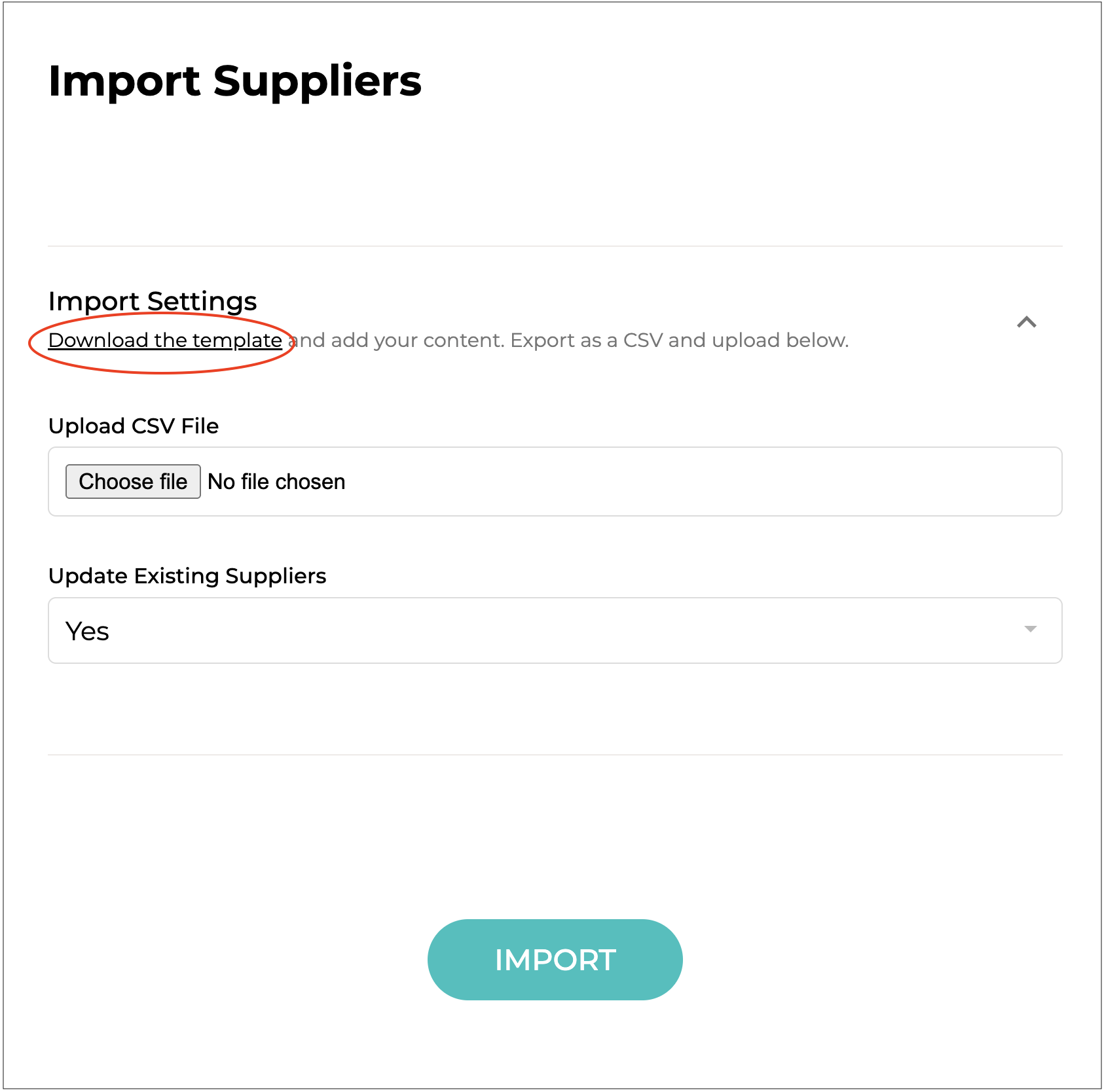
Click on the **Download the template** link.

<figure><img src="https://2965503026-files.gitbook.io/~/files/v0/b/gitbook-x-prod.appspot.com/o/spaces%2FDaPYJDB89ny0x7wcMedb%2Fuploads%2F5HLITEeLJEcHDq922sfa%2FSpacer.png?alt=media&amp;token=6a6b7042-3cb9-45f6-8151-abf8c2de2ac7" alt=""><figcaption></figcaption></figure>

<figure><img src="https://2965503026-files.gitbook.io/~/files/v0/b/gitbook-x-prod.appspot.com/o/spaces%2FDaPYJDB89ny0x7wcMedb%2Fuploads%2FvkGCSZ8la7h4LAUvZ0wq%2FImport%20Supplier%20Form.png?alt=media&amp;token=5992167e-5caa-437f-8ee5-8f4b41c43392" alt="" width="563"><figcaption></figcaption></figure>

<figure><img src="https://2965503026-files.gitbook.io/~/files/v0/b/gitbook-x-prod.appspot.com/o/spaces%2FDaPYJDB89ny0x7wcMedb%2Fuploads%2F5HLITEeLJEcHDq922sfa%2FSpacer.png?alt=media&amp;token=6a6b7042-3cb9-45f6-8151-abf8c2de2ac7" alt=""><figcaption></figcaption></figure>

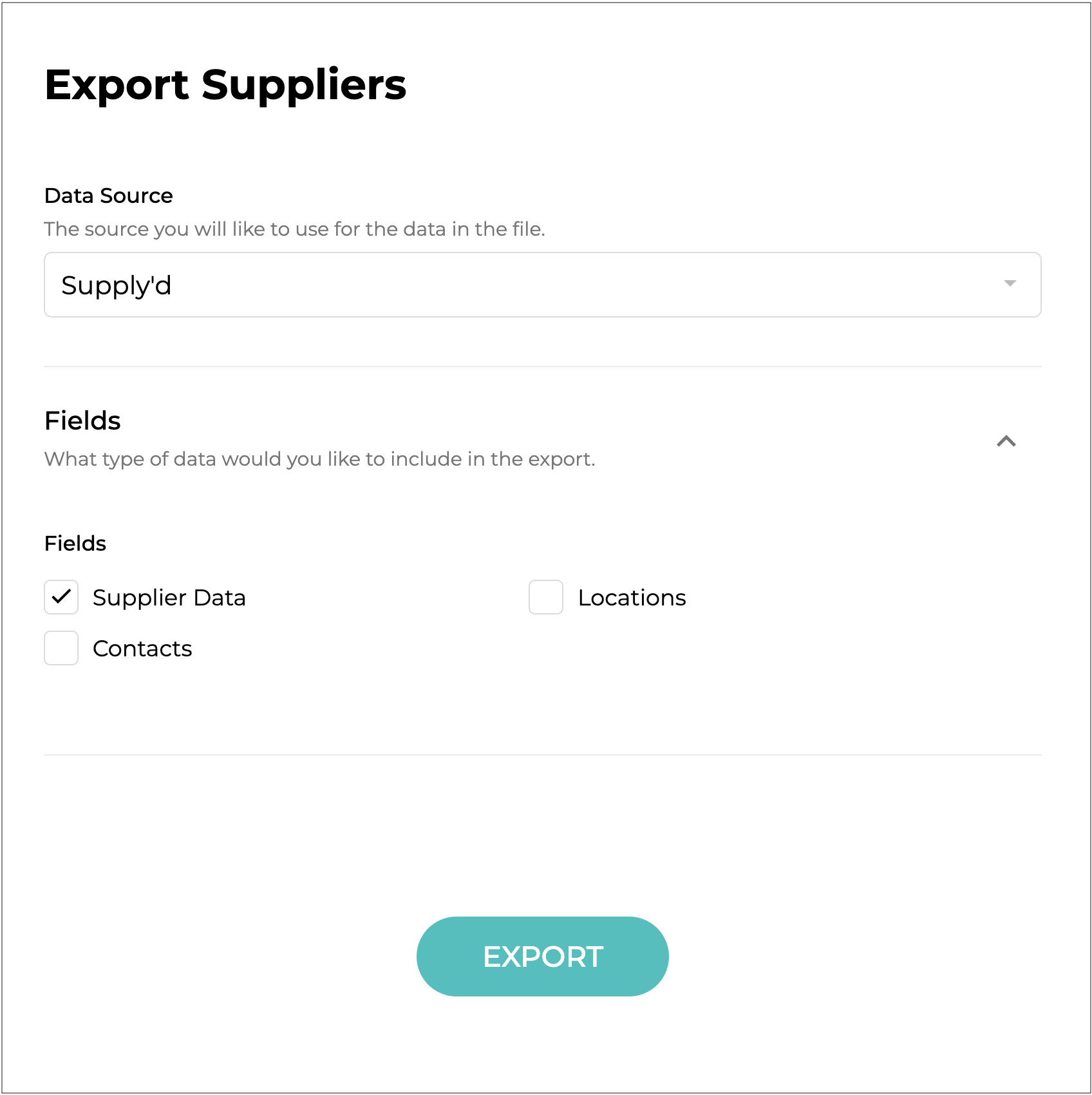
The **Export Suppliers** form will open.&#x20;

<figure><img src="https://2965503026-files.gitbook.io/~/files/v0/b/gitbook-x-prod.appspot.com/o/spaces%2FDaPYJDB89ny0x7wcMedb%2Fuploads%2F5HLITEeLJEcHDq922sfa%2FSpacer.png?alt=media&amp;token=6a6b7042-3cb9-45f6-8151-abf8c2de2ac7" alt=""><figcaption></figcaption></figure>

<figure><img src="https://2965503026-files.gitbook.io/~/files/v0/b/gitbook-x-prod.appspot.com/o/spaces%2FDaPYJDB89ny0x7wcMedb%2Fuploads%2FuYLZQRZyMiMMnx6UfzsK%2FExport%20Suppliers%20Form.png?alt=media&amp;token=ef6c496a-cf2f-4289-831f-9711b144f1ca" alt="" width="563"><figcaption></figcaption></figure>

<figure><img src="https://2965503026-files.gitbook.io/~/files/v0/b/gitbook-x-prod.appspot.com/o/spaces%2FDaPYJDB89ny0x7wcMedb%2Fuploads%2Fgm1lLnsL3UmGeKlFMD5d%2FSpacer.png?alt=media&amp;token=9490e112-dce7-4e69-baf5-bf4ee3ef4513" alt=""><figcaption></figcaption></figure>

{% endstep %}

{% step %}
Select **Supply'd** in the **Data Source** field to generate the template using your supplier data.

In the **Export Suppliers** form, select **Supply’d** as the **Data Source** and select **Supplier Data** under **Fields**.

{% endstep %}

{% step %}
Click <img src="https://2965503026-files.gitbook.io/~/files/v0/b/gitbook-x-prod.appspot.com/o/spaces%2FDaPYJDB89ny0x7wcMedb%2Fuploads%2Fk4dNldeF9sa3RlM8n4dQ%2FEXPORT.png?alt=media&amp;token=1ebf56ac-e755-43ba-a60d-8d996ec3de7c" alt="" data-size="line"> and a file will be generated and downloaded to your computer. Open the file in a spreadsheet application, such as **Excel** or **Numbers**.

{% endstep %}

{% step %}
Scroll across to the **Groups** column, then enter the group name for each supplier you want to add to that group.

{% hint style="success" %}
Suppliers can be assigned to multiple groups by separating the group names with commas.
{% endhint %}

{% endstep %}

{% step %}
Save or export the completed spreadsheet as a **CSV** file, as this is the required format for importing the data into Supply’d.

{% endstep %}

{% step %}
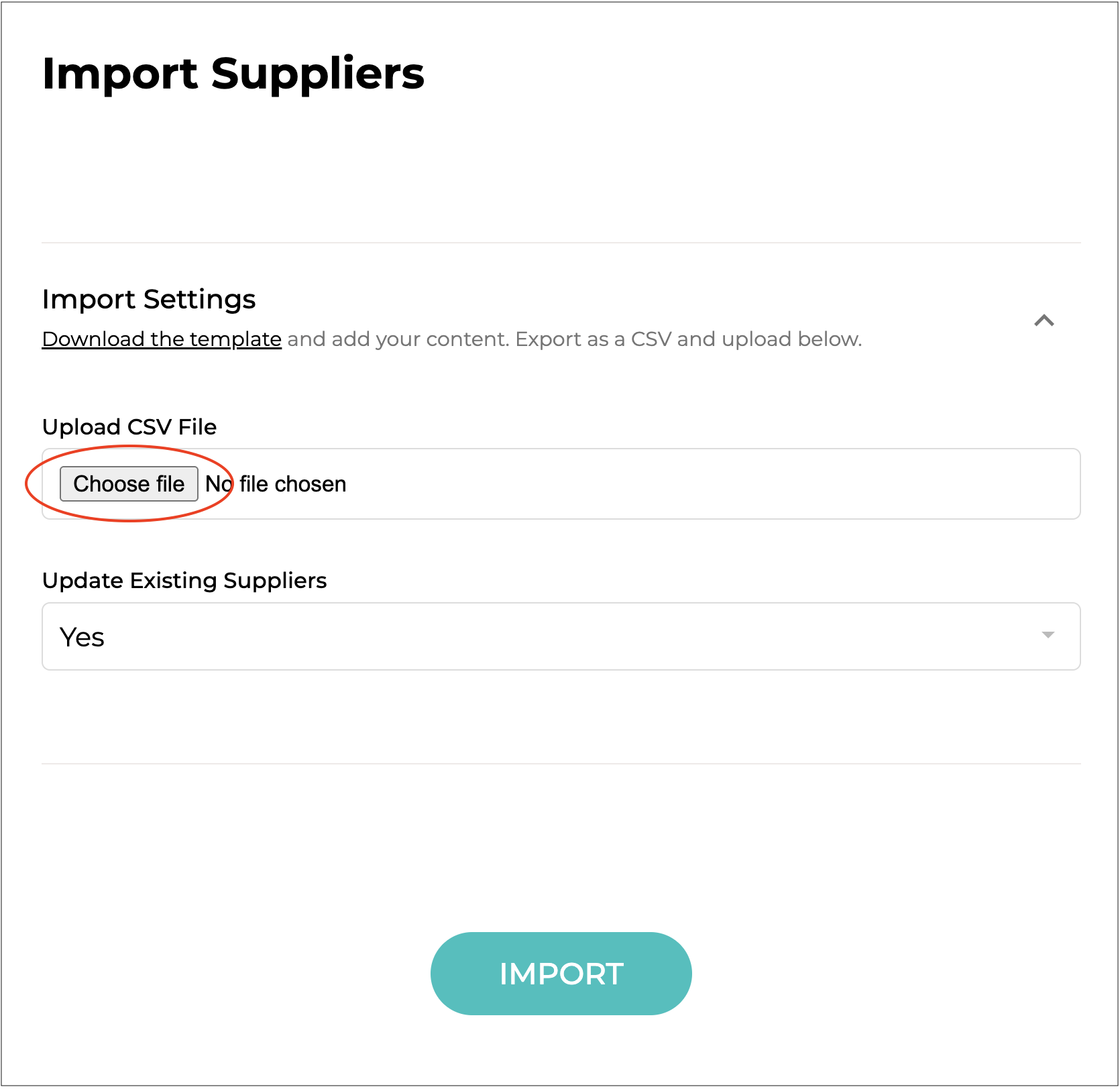
Return to the **Suppliers** page and select **Import > Supplier Data** again.

Click on <img src="https://2965503026-files.gitbook.io/~/files/v0/b/gitbook-x-prod.appspot.com/o/spaces%2FDaPYJDB89ny0x7wcMedb%2Fuploads%2FlcR4wT192s3YEnpyHDsH%2FChoose%20file.png?alt=media&amp;token=977a33d7-13b9-4e78-b39b-2b3b9ffa1d8e" alt="" data-size="line"> in the **Upload CSV File** field in the **Import Suppliers** form, to select the **CSV** file from your device to upload it into Supply’d.

<figure><img src="https://2965503026-files.gitbook.io/~/files/v0/b/gitbook-x-prod.appspot.com/o/spaces%2FDaPYJDB89ny0x7wcMedb%2Fuploads%2FxCpJSnY9cAWkXCSDXFhc%2FSpacer.png?alt=media&amp;token=afe204fe-beb4-4ae2-9a9d-85b55c10514a" alt=""><figcaption></figcaption></figure>

<figure><img src="https://2965503026-files.gitbook.io/~/files/v0/b/gitbook-x-prod.appspot.com/o/spaces%2FDaPYJDB89ny0x7wcMedb%2Fuploads%2FD7dDaNFySNWFWsVTLTxF%2F10%20-%20Choose%20File.png?alt=media&amp;token=57a82ea4-1857-44b3-b157-f21c919decc8" alt="" width="563"><figcaption></figcaption></figure>

<figure><img src="https://2965503026-files.gitbook.io/~/files/v0/b/gitbook-x-prod.appspot.com/o/spaces%2FDaPYJDB89ny0x7wcMedb%2Fuploads%2FxCpJSnY9cAWkXCSDXFhc%2FSpacer.png?alt=media&amp;token=afe204fe-beb4-4ae2-9a9d-85b55c10514a" alt=""><figcaption></figcaption></figure>

{% endstep %}

{% step %}
Select **Yes** under **Update Existing Suppliers**.

{% hint style="info" %}
The **Update Existing Suppliers** option will only appear if you already have **Custom Suppliers** in Supply’d.
{% endhint %}

<figure><img src="https://2965503026-files.gitbook.io/~/files/v0/b/gitbook-x-prod.appspot.com/o/spaces%2FDaPYJDB89ny0x7wcMedb%2Fuploads%2FxCpJSnY9cAWkXCSDXFhc%2FSpacer.png?alt=media&amp;token=afe204fe-beb4-4ae2-9a9d-85b55c10514a" alt=""><figcaption></figcaption></figure>

{% endstep %}

{% step %}
Click <img src="https://2965503026-files.gitbook.io/~/files/v0/b/gitbook-x-prod.appspot.com/o/spaces%2FDaPYJDB89ny0x7wcMedb%2Fuploads%2FNvqBlmVCXgh4IfijYXgb%2FIMPORT.png?alt=media&amp;token=c8a75d9b-cd9c-46e0-9cd8-f8f74cdcfe7a" alt="" data-size="line"> to import the supplier data into Supply’d.

<figure><img src="https://2965503026-files.gitbook.io/~/files/v0/b/gitbook-x-prod.appspot.com/o/spaces%2FDaPYJDB89ny0x7wcMedb%2Fuploads%2FxCpJSnY9cAWkXCSDXFhc%2FSpacer.png?alt=media&amp;token=afe204fe-beb4-4ae2-9a9d-85b55c10514a" alt=""><figcaption></figcaption></figure>

{% endstep %}
{% endstepper %}

{% hint style="success" %}
The import process is explained in more detail in the [Adding Suppliers in Bulk](/supplyd-erp/suppliers/bulk-importing-suppliers/adding-suppliers-in-bulk.md) document.
{% endhint %}


---

# Agent Instructions
This documentation is published with GitBook. GitBook is the documentation platform designed so that both humans and AI agents can read, navigate, and reason over technical content effectively. Learn more at gitbook.com.

## Querying This Documentation
If you need additional information that is not directly available in this page, you can query the documentation by asking a question.

Perform an HTTP GET request on the following URL with the `ask` and `goal` query parameters:

```
GET https://help.supplyd.co/supplyd-erp/suppliers/adding-suppliers-and-supplier-groups/adding-a-supplier-group.md?ask=<question>&goal=<user_goal>
```

`ask` is the immediate question: it should be specific, self-contained, and written in natural language.
`goal` is what the user is ultimately trying to achieve, the reason they need the answer. Sharing it helps GitBook give you a better, more relevant answer. A goal is most helpful when it describes the outcome the user wants rather than restating the question. For example, with `ask=how do I create an API token`, a goal like `automate deployments from our CI pipeline` lets GitBook tailor the answer to that use case.

The response will contain a direct answer to the question and relevant excerpts and sources from the documentation.

Use this mechanism when the answer is not explicitly present in the current page, you need clarification or additional context, or you want to retrieve related documentation sections.