> For the complete documentation index, see [llms.txt](https://help.supplyd.co/llms.txt). Markdown versions of documentation pages are available by appending `.md` to page URLs; this page is available as [Markdown](https://help.supplyd.co/supplyd-erp/settings/supplier-settings.md).
# Supplier Settings
Supplier Settings in Supply’d offer an easy way to manage options such as default payment terms for invoices you create in Supply'd, with support for custom fields.
In **Supplier Settings**, you can configure default payment terms for invoices from your suppliers to support consistent and efficient purchase order payment processes across your business. You can also create custom fields to capture and track additional supplier information relevant to your operational, financial, or reporting requirements, helping maintain accurate and organised supplier records within Supply’d.
Supplier settings you can manage are:
* [#invoice-settings](#invoice-settings "mention")
* [#custom-fields](#custom-fields "mention")
***
## Applying & Editing Supplier Settings
{% stepper %}
{% step %}
#### Go to Settings
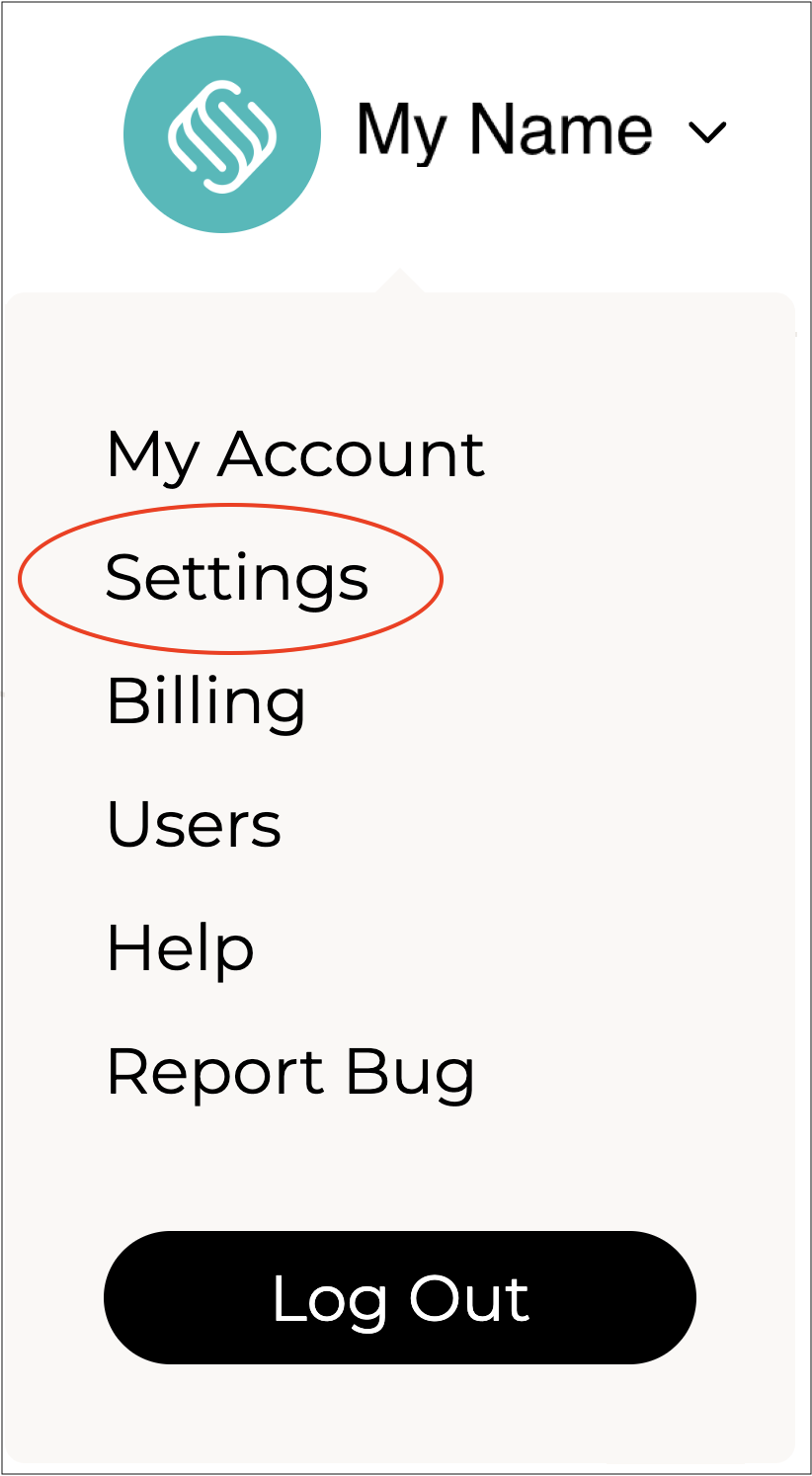
Click on your company name in the top right and select **Settings**.
***
{% endstep %}
{% step %}
#### Select Supplier Settings
Select **Supplier Settings** from the **Settings** menu.
The **Supplier Settings** form will open.
{% hint style="success" %}
To open or close the sections on this form click the little arrows to the right of the titles (as circled in red above).
{% endhint %}
Complete the sections as per the guidelines below:
***
{% endstep %}
{% step %}
### Invoice Settings
Set default settings for invoices created by Supply'd.
**Default Payment Term**
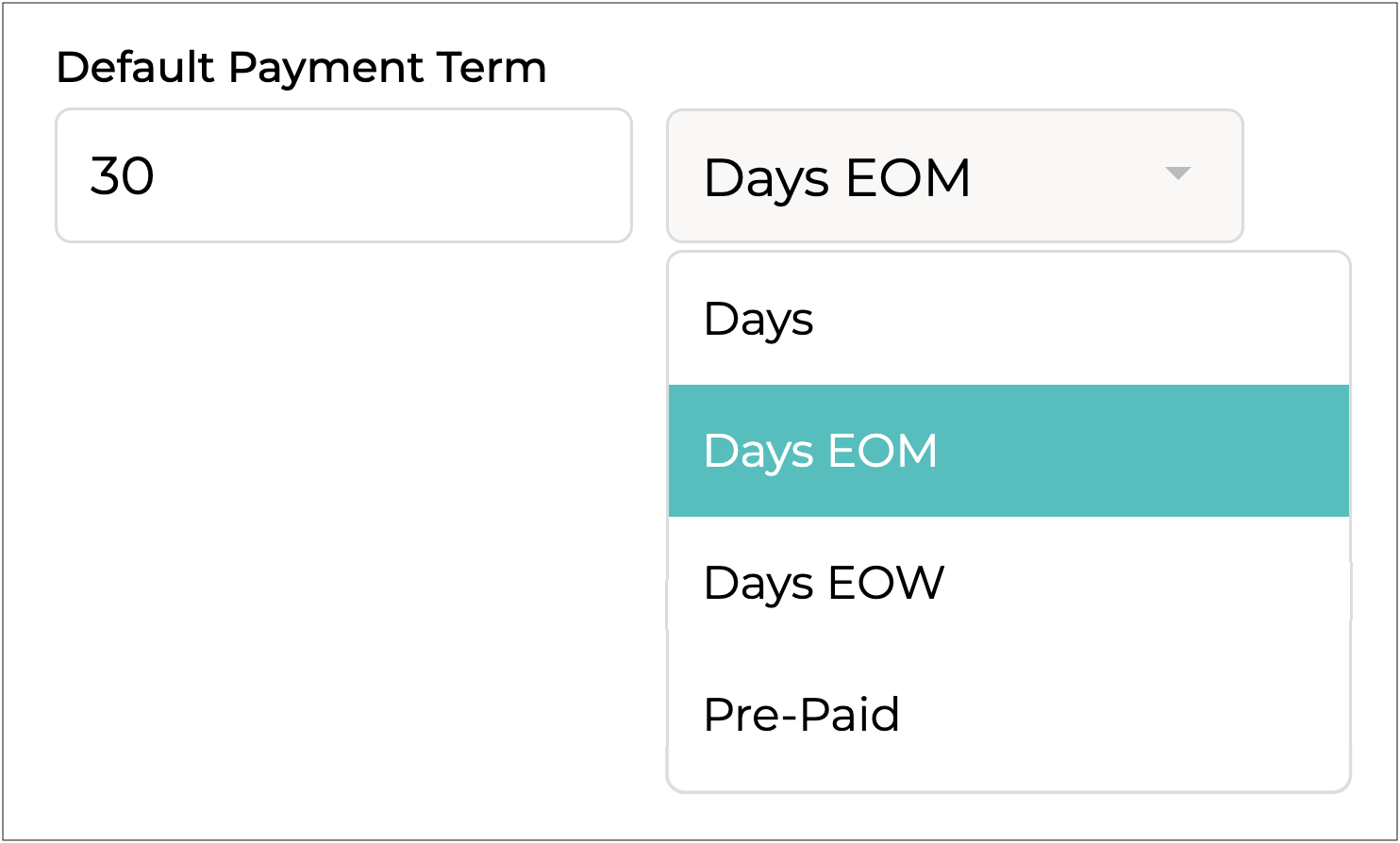
Enter the default payment terms to apply to supplier purchase orders. This can be overridden at a supplier level.
Enter the number of days, then choose one of the following options:
* **Days:** The invoice is due a set number of days after the invoice date. For example, “30 Days” means payment is due 30 days from when the invoice is issued.
* **Days EOM (End of Month):** The invoice is due a set number of days after the end of the invoice month. For example, “15 Days EOM” means payment is due 15 days after the last day of the month in which the invoice was issued.
* **Days EOW (End of Week)**: The invoice is due a set number of days after the end of the invoice week (usually Sunday or the chosen week end). For example, “10 Days EOW” means payment is due 10 days after the end of that week.
* **Pre-paid**: Payment is required before the goods or services are delivered, ie. the invoice must be paid upfront.
**Pre-Paid Handled Automatically**
Select whether or not orders on pre-paid terms are automatically switched to/from status.
{% hint style="success" %}
Orders that require payment before processing will have the status beside them. If enabled, the order status will automatically change to once payment is received, helping streamline order tracking and ensuring orders are not processed before payment is made.
{% endhint %}
**Tax on Credit Card Fees**
Select the default tax rates (eg. GST) applied to credit card fees charged from your suppliers.
{% hint style="success" %}
The **Credit Card Tax** field can be preset for expense reconciliations from custom suppliers that include credit card fees. For ERP suppliers, these values will automatically be populated from the supplier’s settings.
{% endhint %}
***
{% endstep %}
{% step %}
### Custom Fields
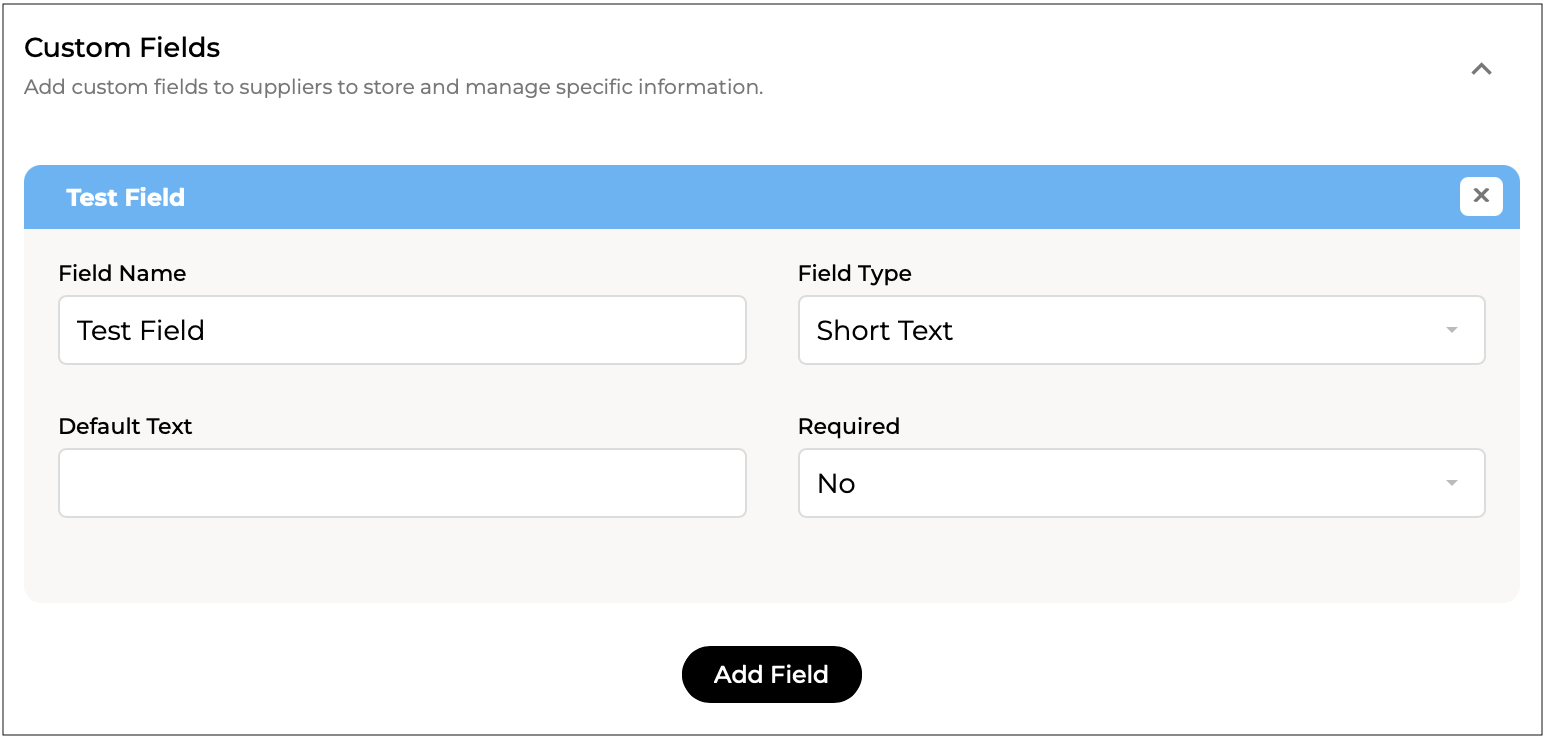
Add custom fields to **Suppliers** to store and manage specific information that is unique to your business.
To add a custom field, click the button. A **Custom Field** form will appear.
**Field Name**
Enter a name for the field. This will be displayed as the label on the supplier screen for this field.
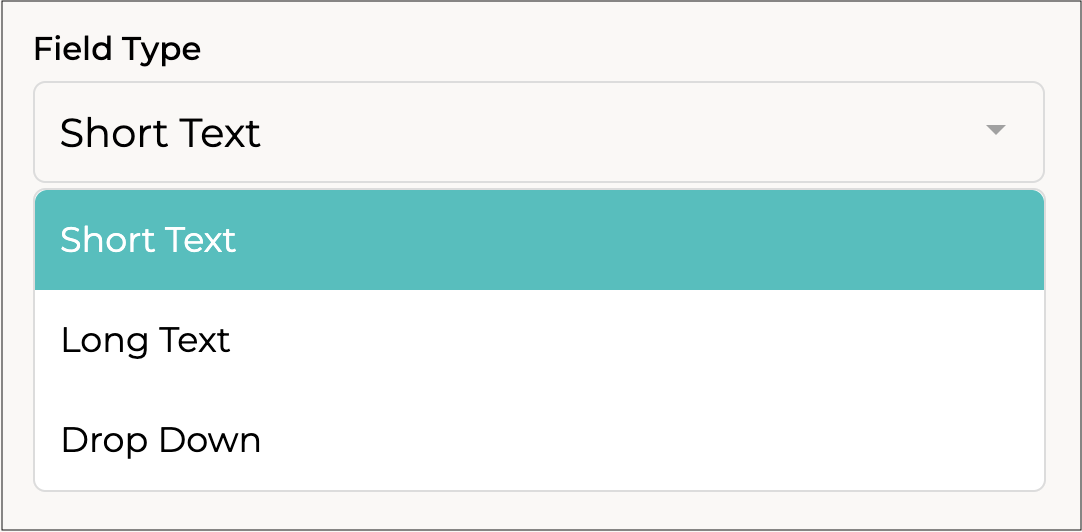
**Field Type**
Select the type of field.
**Default Text**
The default text to pre-fill this field. Leave blank to not pre-fill this field.
**Required**
Select whether or not the field is required, ie. the field must be completed.
Repeat the steps above for any other custom fields you would like to create.
{% hint style="success" %}
To remove a custom field, click the **X** beside the field name.
{% endhint %}

***
{% endstep %}
{% step %}
#### Click Save
Click to apply your settings.
{% endstep %}
{% endstepper %}
---
# Agent Instructions
This documentation is published with GitBook. GitBook is the documentation platform designed so that both humans and AI agents can read, navigate, and reason over technical content effectively. Learn more at gitbook.com.
## Querying This Documentation
If you need additional information that is not directly available in this page, you can query the documentation by asking a question.
Perform an HTTP GET request on the following URL with the `ask` and `goal` query parameters:
```
GET https://help.supplyd.co/supplyd-erp/settings/supplier-settings.md?ask=&goal=
```
`ask` is the immediate question: it should be specific, self-contained, and written in natural language.
`goal` is what the user is ultimately trying to achieve, the reason they need the answer. Sharing it helps GitBook give you a better, more relevant answer. A goal is most helpful when it describes the outcome the user wants rather than restating the question. For example, with `ask=how do I create an API token`, a goal like `automate deployments from our CI pipeline` lets GitBook tailor the answer to that use case.
The response will contain a direct answer to the question and relevant excerpts and sources from the documentation.
Use this mechanism when the answer is not explicitly present in the current page, you need clarification or additional context, or you want to retrieve related documentation sections.




 status.
{% hint style="success" %}
Orders that require payment before processing will have the
status.
{% hint style="success" %}
Orders that require payment before processing will have the  status beside them. If enabled, the order status will automatically change to
  once payment is received, helping streamline order tracking and ensuring orders are not processed before payment is made.
{% endhint %}
once payment is received, helping streamline order tracking and ensuring orders are not processed before payment is made.
{% endhint %}

 button. A **Custom Field** form will appear.

 to apply your settings.