> For the complete documentation index, see [llms.txt](https://help.supplyd.co/llms.txt). Markdown versions of documentation pages are available by appending `.md` to page URLs; this page is available as [Markdown](https://help.supplyd.co/supplyd-erp/settings/shipping-settings.md).
# Shipping Settings
Shipping Settings in Supply’d help streamline deliveries, ensure accurate shipping costs, and provide a better experience for both your business and your customers.
**Shipping Settings** in Supply’d allow you to define where and how your deliveries are made. You can create different zones based on regions, postcodes, or distances, and apply specific delivery rules such as minimum order values, delivery fees, or schedules. This helps streamline logistics, ensuring your delivery operations are efficient, accurate, and tailored to your business needs.
This document will guide you through:
* [#shipping-zones](#shipping-zones "mention")
* [#shipping-rules](#shipping-rules "mention")
* [#assigning-a-zone-on-a-customer-level](#assigning-a-zone-on-a-customer-level "mention")
* [#assigning-a-zone-on-a-product-level](#assigning-a-zone-on-a-product-level "mention")
***
## Shipping Zones
**Shipping zones** are defined delivery areas used to organise and manage where your business delivers.
Shipping zones have two main functions in Supply’d:
1. **Define service areas** – Only customers located within a defined shipping zone can purchase your products.
2. **Set separate shipping pricing** – Apply different delivery charges based on the delivery area.
***
### Adding a Shipping Zone
{% stepper %}
{% step %}
#### Go to Settings
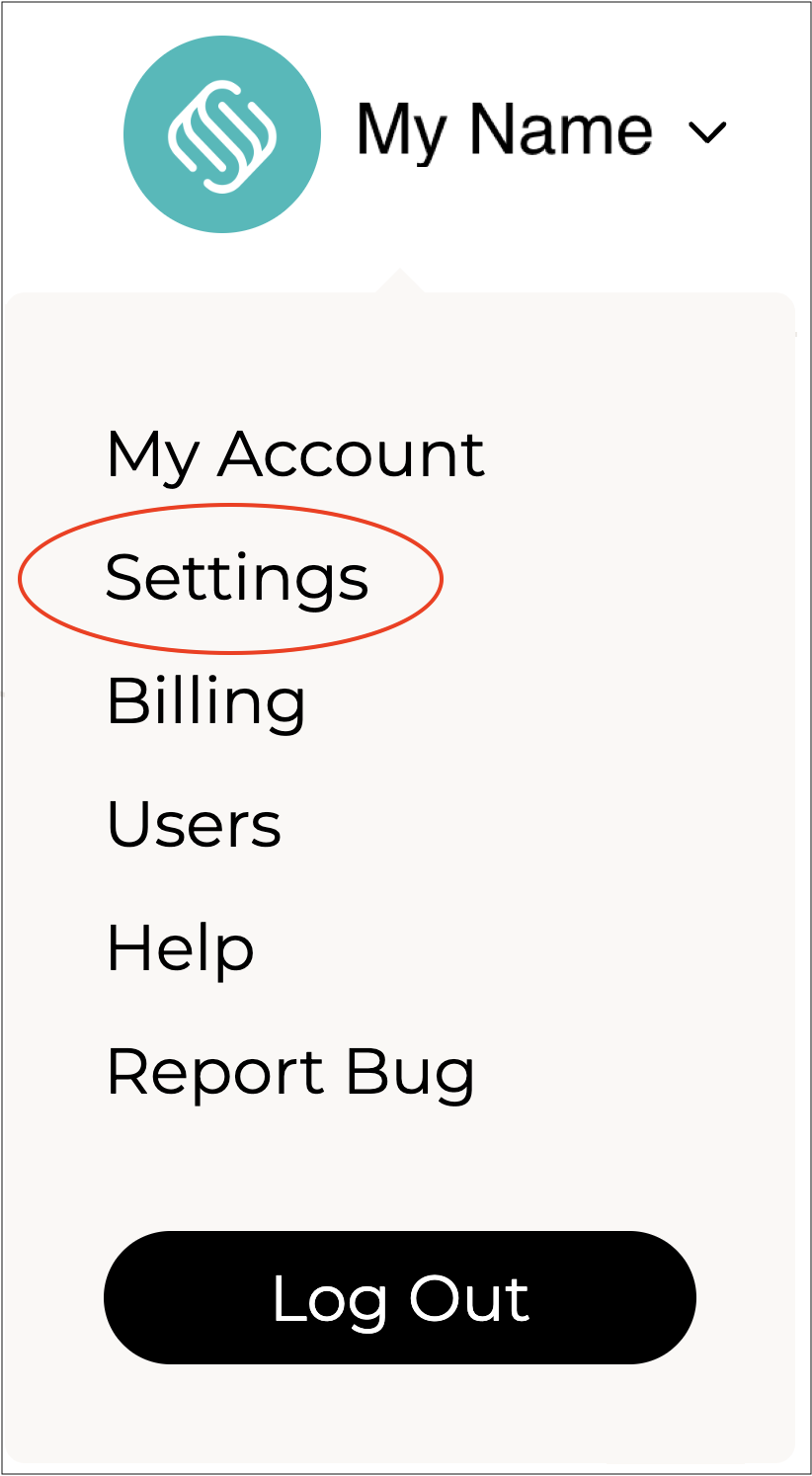
Click on your company name in the top right and select **Settings**.
***
{% endstep %}
{% step %}
#### Select Shipping Settings
Scroll down and select **Shipping Settings** from the **Settings** menu.

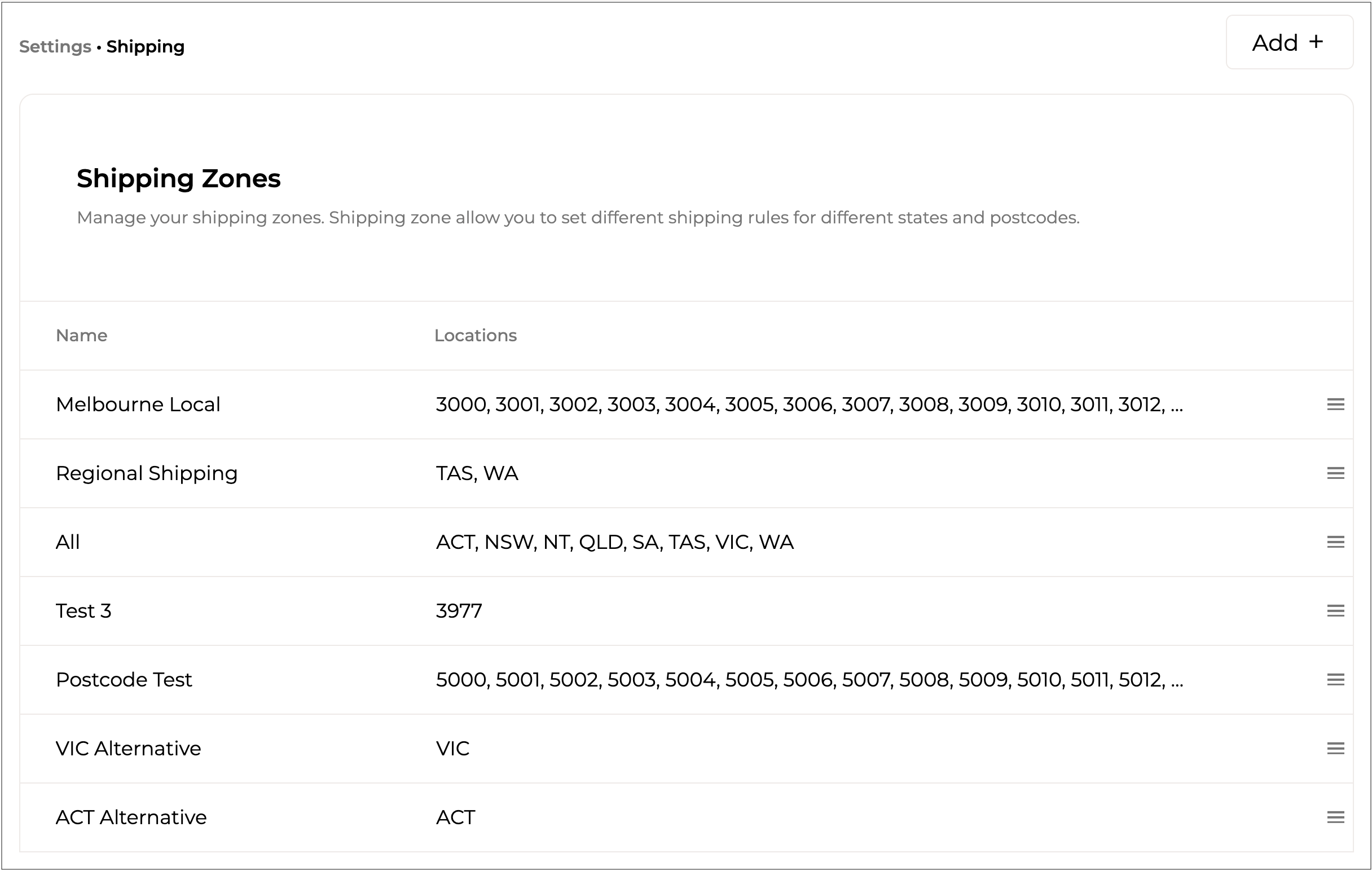
The **Shipping Zones** page will open listing any zones you may have set up.
{% hint style="success" %}
The **Shipping Zones** list can easily be reordered by simply clicking and holding on the 3 lines beside a zone and dragging it to the desired position in the list.
{% endhint %}
***
{% endstep %}
{% step %}
#### Click Add +
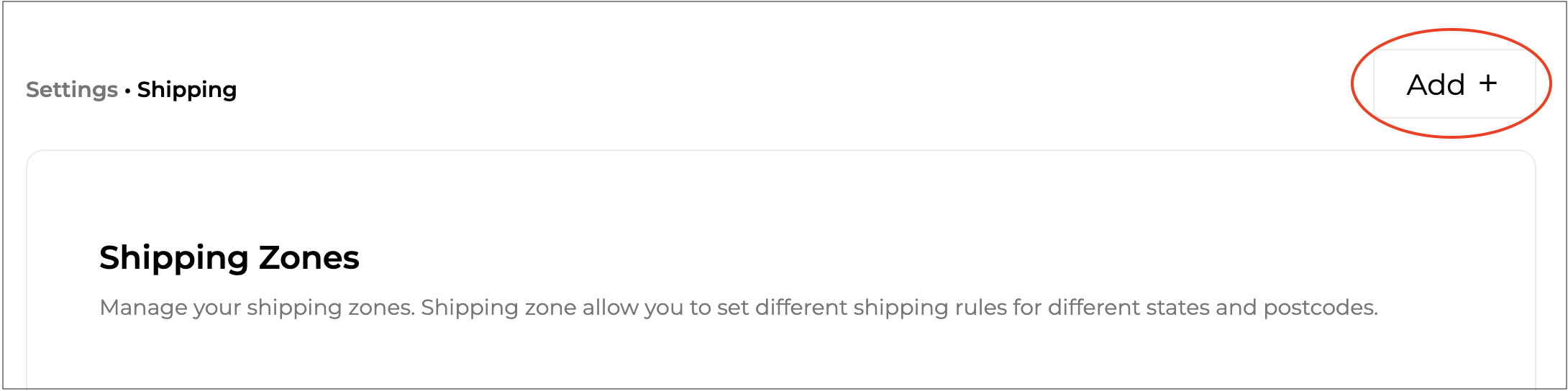
To add a new zone, click the **Add +** button in the top right corner.
The **Add Shipping Zone** form will appear.
{% hint style="success" %}
To open or close the sections on this form click the little arrows to the right of the titles (as circled in red above).
{% endhint %}
Complete the sections as per the guidelines below:
***
{% endstep %}
{% step %}
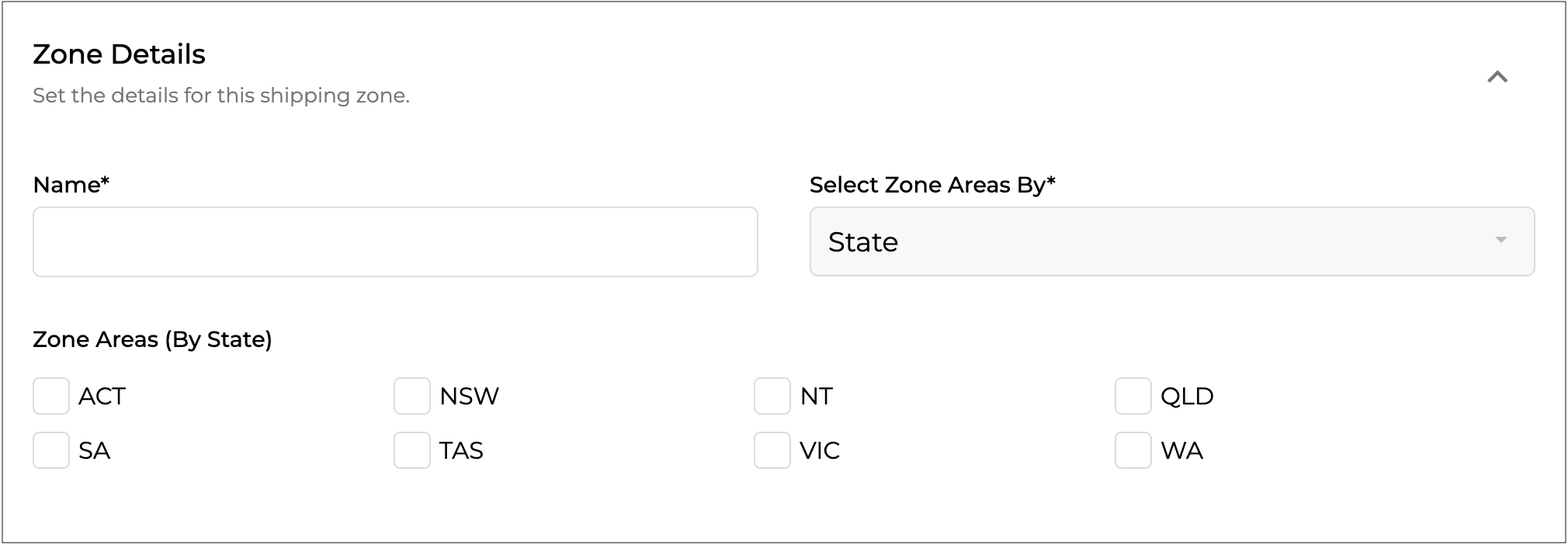
#### Zone Details
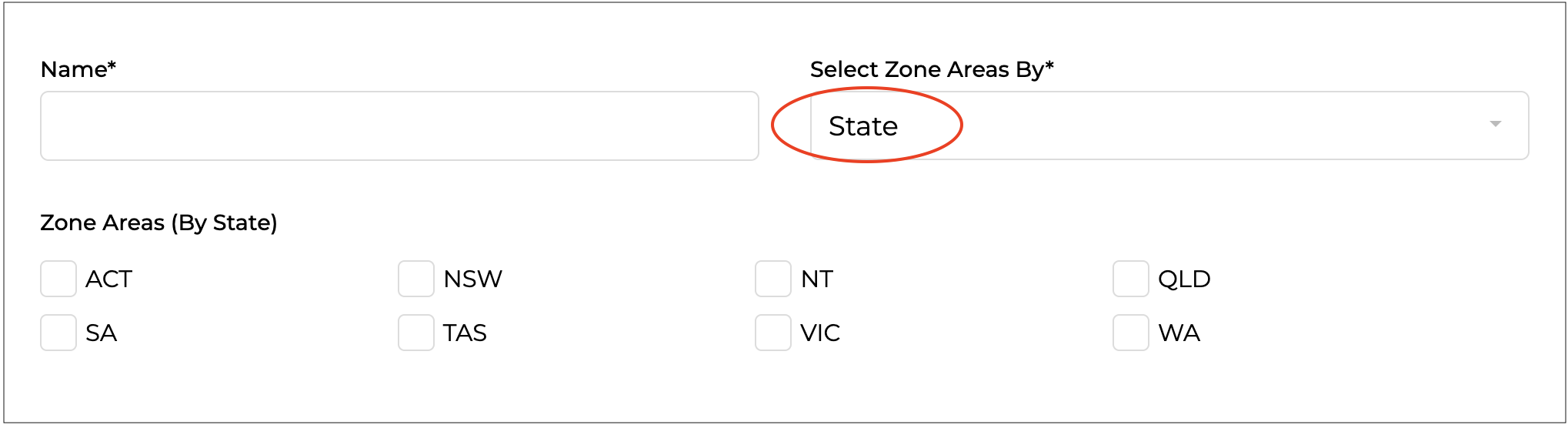
**Name\* \[required field]**
Enter the reference name for the shipping zone.
For example if the Shipping zone is for servicing Victoria only you can simply name it "Victoria".
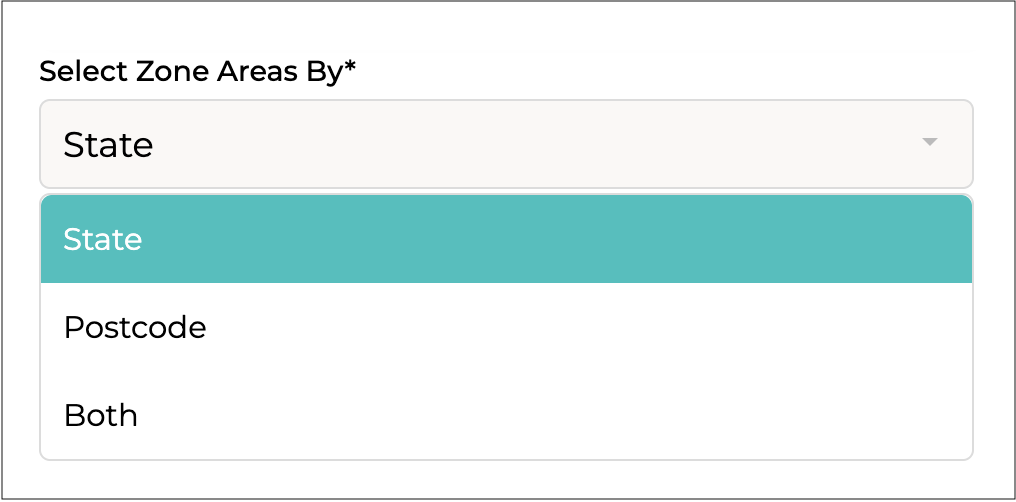
**Select Zone Areas By\* \[required field]**
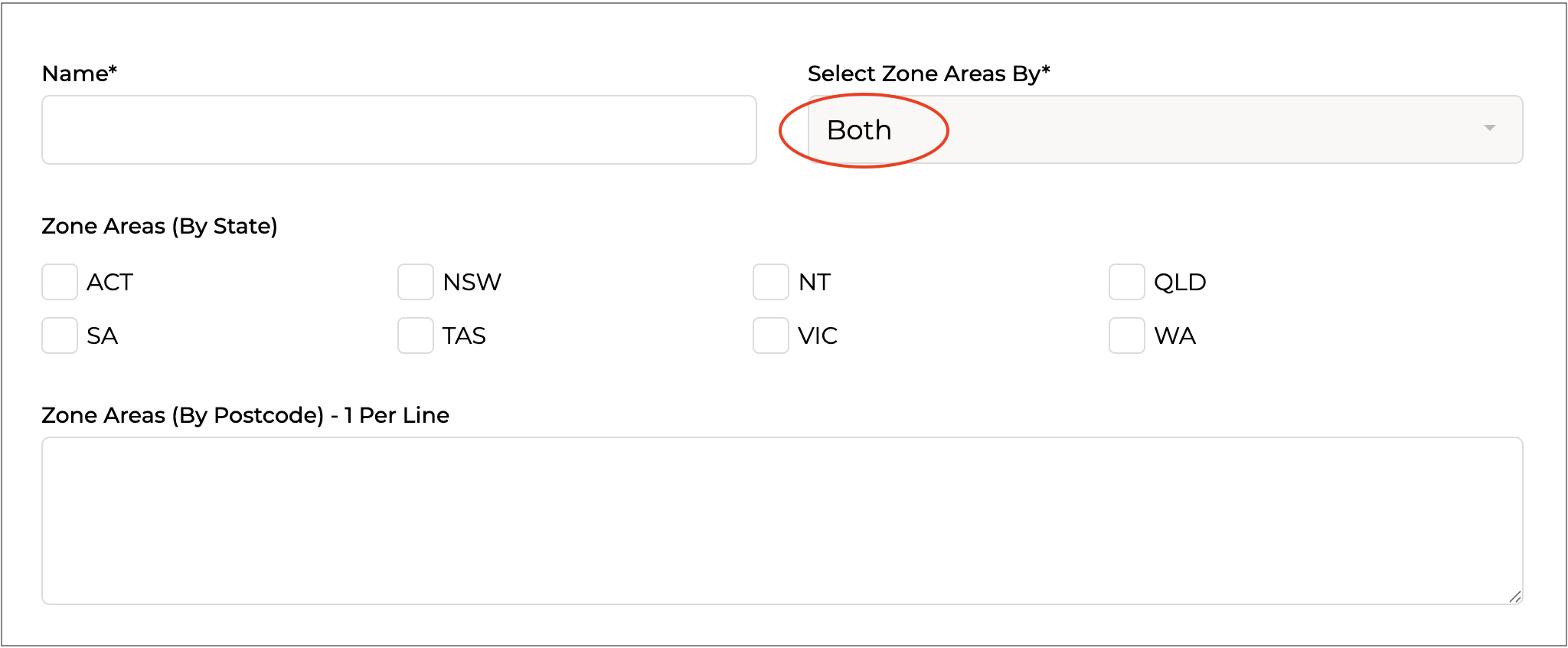
Select the areas for this zone to apply - **State**, **Postcode** or **Both**.
* **State:** The rules within this zone will apply to all or selected states only. Tick the states under **Zone Areas (By State)** to which the rules should apply.\
\
* **Postcodes:** The rules within this zone can apply to specific postcodes only.
Enter the postcodes that the shipping zone applies to under **Zone Areas (By Postcode)**, entering one postcode or range per line. \
\
Examples:
* Single postcode: 3000
* Range of postcodes: 3000 - 3100 (all numbers within the range will apply)
* **Both:** The rules in this zone apply to selected states and postcodes. States take priority, but you can add postcodes to include additional delivery areas.\
\
\
Tick the states under **Zone Areas (By State)** to which the rules should apply, then enter the postcodes, one postcode or range per line, under **Zone Areas (By Postcode)**.\
\
***
{% endstep %}
{% step %}
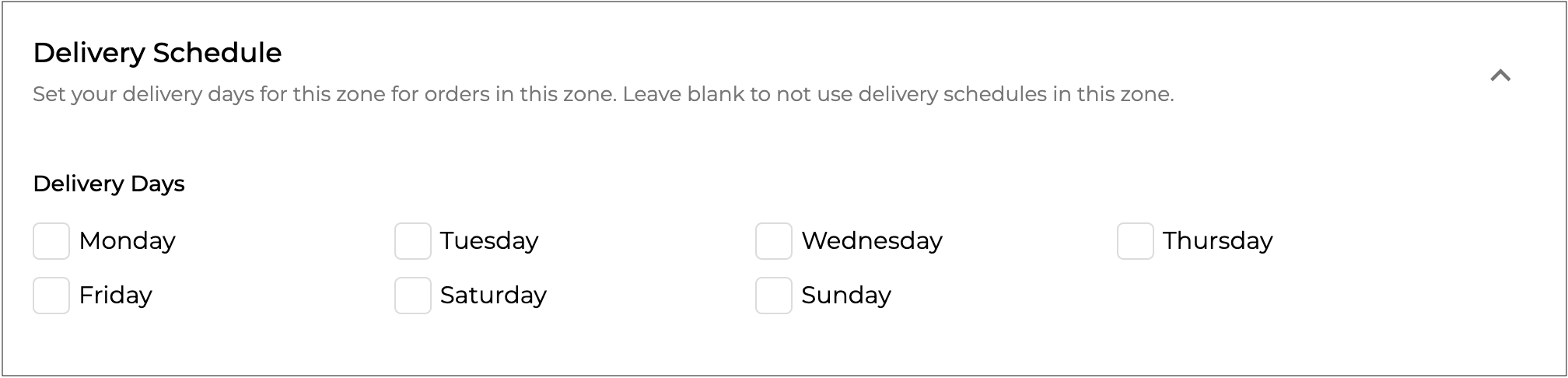
#### **Delivery Schedule**
Set the delivery days for orders in this zone.
Leave blank to not use delivery schedules in this zone.
***
{% endstep %}
{% step %}
#### Click Save
Click to apply your settings.
{% endstep %}
{% endstepper %}
***
{% hint style="info" %}
Supply’d automatically selects the shipping zone for orders based on the customer’s state or postcode, using the order of zones listed in the Shipping Zones list.
* For example: A customer in postcode 3011 falls within the **Melbourne Local** zone, so the rules, delivery costs, and other settings for that zone will apply.
* For orders outside the listed postcodes, the **All** zone and its rules will be applied.
The **Shipping Zones** list can easily be reordered by simply clicking and holding on the 3 lines beside a zone and dragging it to the desired position in the list.
{% endhint %}
***
### Editing a Zone
To edit a zone:
{% stepper %}
{% step %}
Click on your company name in the top right and select **Settings**.
{% endstep %}
{% step %}
Scroll down and select **Shipping Settings** from the **Settings** menu. The **Shipping Zones** list will open.
{% endstep %}
{% step %}
Choose the zone you would like to edit.
{% endstep %}
{% step %}
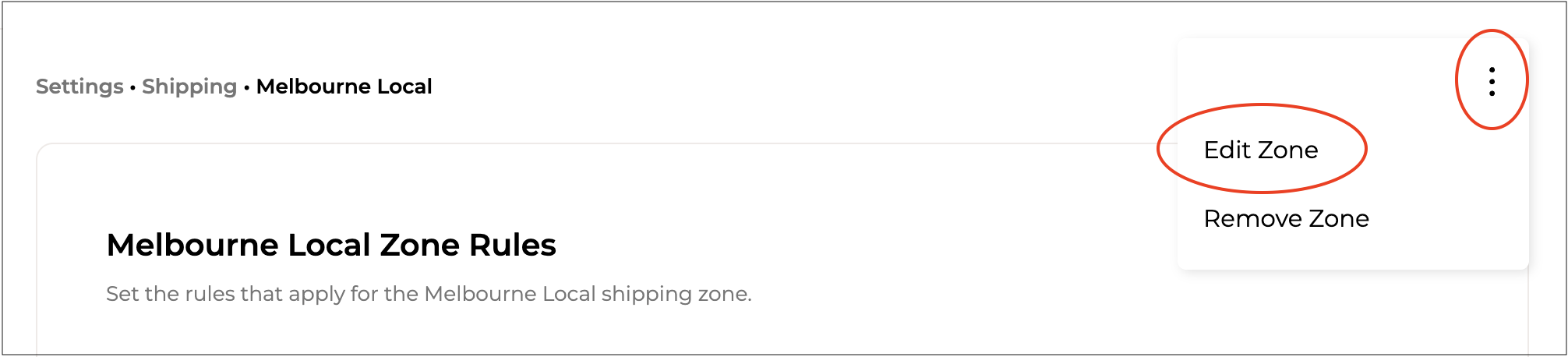
Click on the 3 dots in the top right and select **Edit Zone** from the menu.
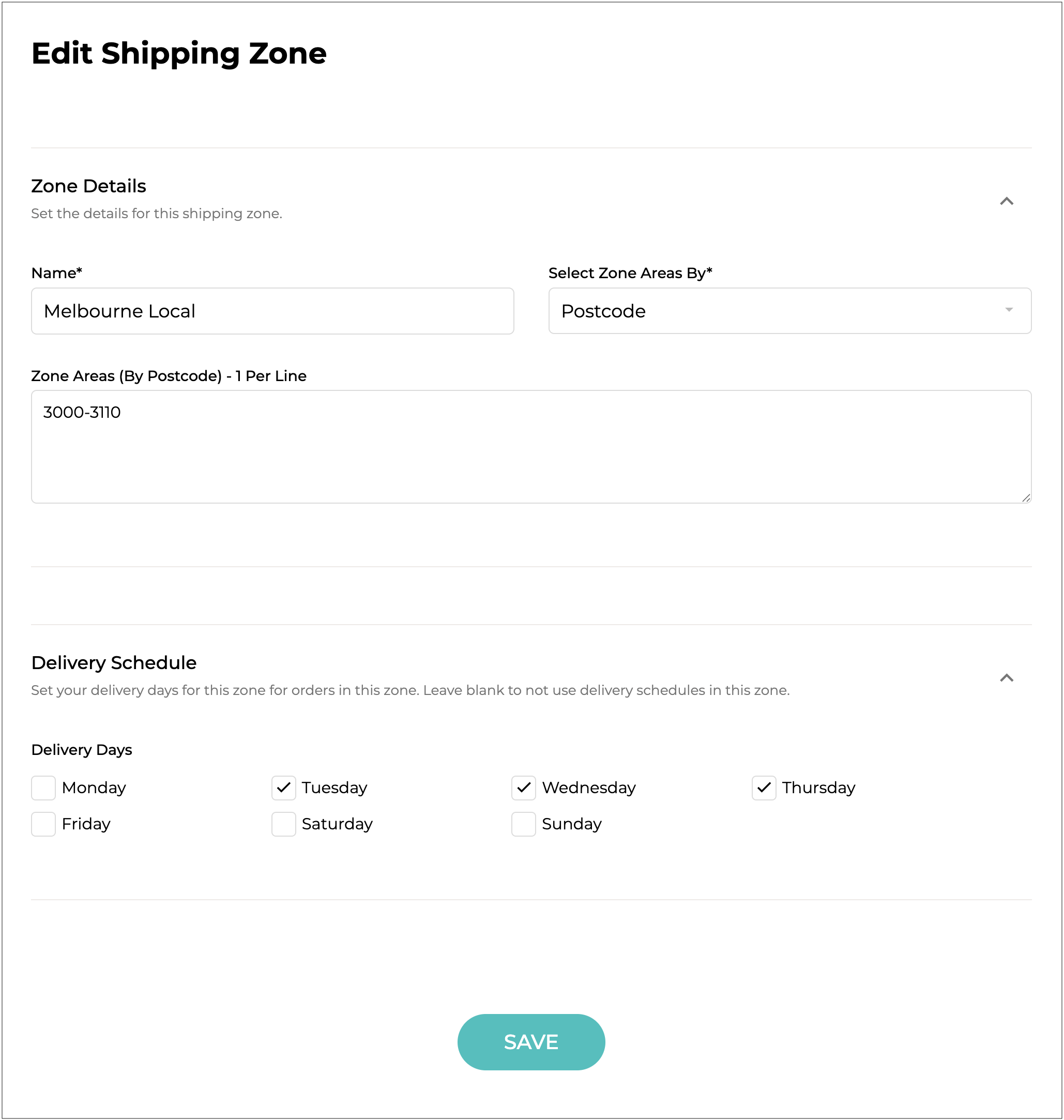
The **Edit Shipping Zone** form will open.
{% endstep %}
{% step %}
Update any details as needed, following the guidelines outlined above for [#adding-a-shipping-zone](#adding-a-shipping-zone "mention").
{% endstep %}
{% step %}
Click to update the zone details.
{% hint style="warning" %}
Changes to the service areas based on the shipping zones may take up to a few hours to be applied to Supply'd stores.
{% endhint %}
{% endstep %}
{% endstepper %}
***
### Removing a Zone
To remove a zone:
{% stepper %}
{% step %}
Click on your company name in the top right and select **Settings**.
{% endstep %}
{% step %}
Scroll down and select **Shipping Settings** from the **Settings** menu. The **Shipping Zones** list will open.
{% endstep %}
{% step %}
Select the zone you would like to remove.
{% endstep %}
{% step %}
Click on the 3 dots in the top right and select **Remove Zone** from the menu.
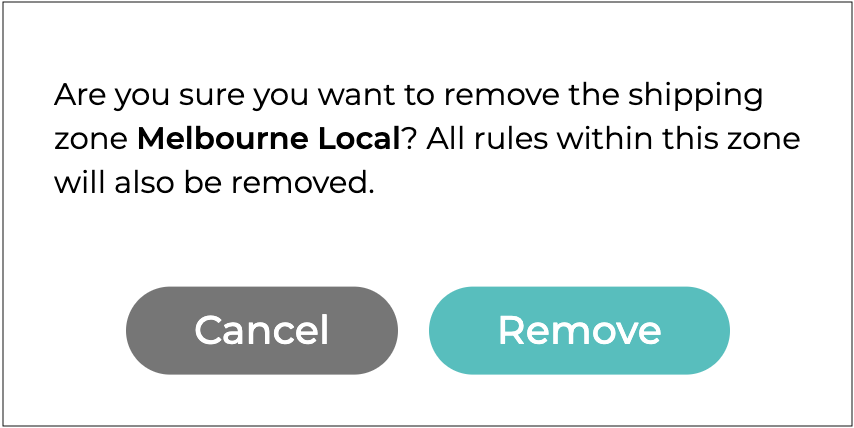
You will be asked to confirm.
Click .
{% endstep %}
{% endstepper %}
***
## Shipping Rules
Shipping rules are created within a specific zone and define the delivery options available to customers at checkout.
***
### Adding a Shipping Rule
{% stepper %}
{% step %}
#### Go to Settings
Click on your company name in the top right and select **Settings**.
***
{% endstep %}
{% step %}
#### Select Shipping Settings
Scroll down and select **Shipping Settings** from the **Settings** menu.
The **Shipping Zones** page will open listing any zones you have set up.
***
{% endstep %}
{% step %}
#### Select Zone
Select the zone you would like to add the shipping rule to.
***
{% endstep %}
{% step %}
#### Click Add+
Click or **Add+** in the top right.
{% hint style="info" %}
The button only appears when no rules have been added. To add additional rules, use **Add +**.
{% endhint %}
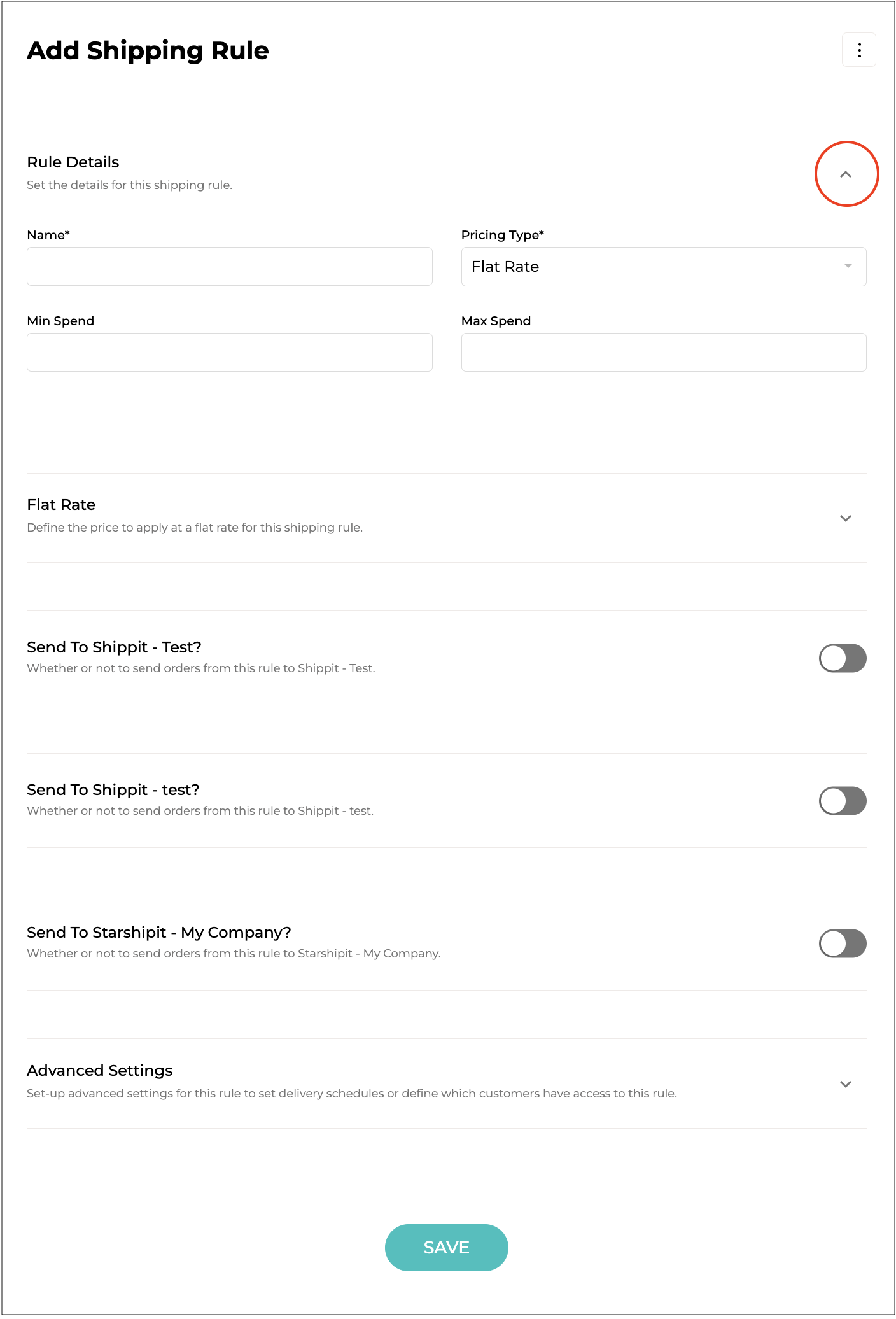
The **Add Shipping Rule** form will open.
{% hint style="success" %}
To open or close the sections on this form click the little arrows to the right of the titles (as circled in red above).
{% endhint %}
Complete the sections as per the guidelines below:
***
{% endstep %}
{% step %}
#### Rule Details
Set the details for this shipping rule.
**Name\* \[required field]**
Enter a reference name for the shipping rule. This will be what is displayed to the customer at the checkout.
Examples would be: "Standard", "Express", "Next Day Delivery", "Free Shipping".
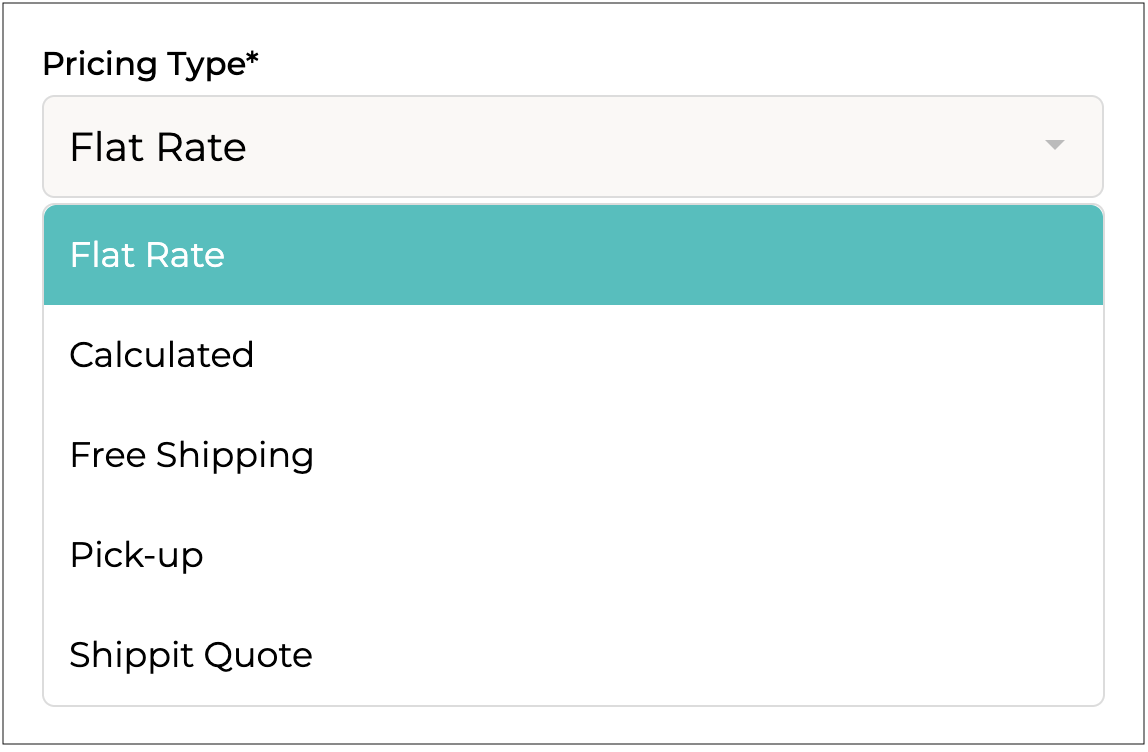
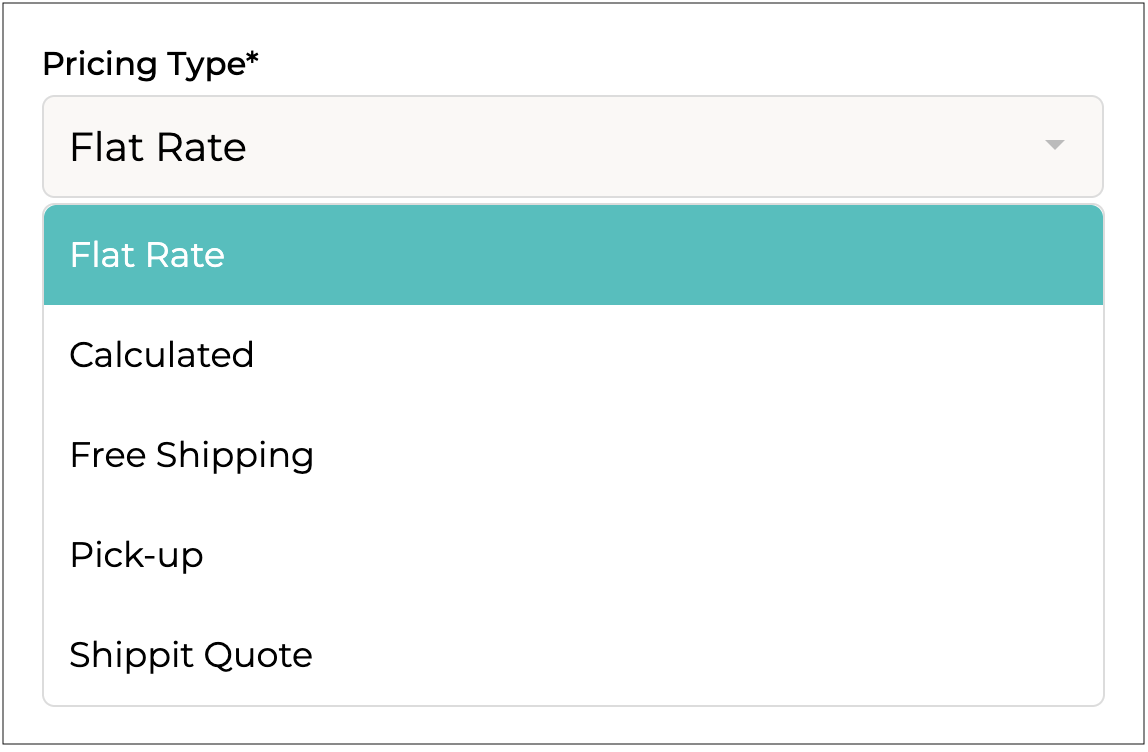
**Pricing Type\* \[required field]**
Select the pricing type to choose how this rule will be charged.
* **Flat Rate:** Flat rate shipping charges a fixed delivery fee per order, regardless of the number of items or their weight.
* **Calculated:** Calculated pricing allows you to set a variable price based on a base price plus a percentage of the sale value.
* **Free Shipping:** Free Shipping will not charge the customer for shipping.
* **Pick-up:** Pick-up can be used for offering pick-up from a location/warehouse. There is no amount charged for this pricing type.
* **Shippit Quote** (if integrated): Shippit Quote allows you to charge a quoted amount from Shippit.
The options shown for each one will vary.
👉 See the [#rule-details-pricing-type](#rule-details-pricing-type "mention") section below for more details about each type.
**Min Spend**
Defines the minimum spend of the customers entire cart before the rule appears.
For example, if you wanted to set free shipping over $100, you would set the value as "$100.00".
**Max Spend**
Defines the maximum spend of the customers entire cart for the rule to appear.
For example, if you offer standard shipping but provide free standard shipping for orders over $100, you can hide the standard shipping option at checkout when the order value exceeds $100.
* To do this, set the value as "$99.99".
* This ensures the standard shipping option disappears just before the free shipping threshold.
* If both options were set at "$100", a cart valued at exactly $100 would show both options.
{% hint style="warning" %}
The next section will vary depending on what is chosen in the **Pricing Type** field - Flat Rate, Calculated, Free Shipping, Pick-up or Shippit Quote.
{% endhint %}
***
{% endstep %}
{% step %}
#### Rule Details - Pricing Type Additional Sections
These sections will vary depending on the **Pricing Type** set above.
***
#### Flat Rate
Flat Rate gives you the ability to set a single fixed price to be applied for the rule.
**Price\* \[required field]**
Enter the price to apply at a flat rate for this shipping rule.
**Subject To Tax\* \[required field]**
Select whether or not tax applies to this shipping method.
{% hint style="info" %}
The **Flat Rate** section will only show when "**Flat Rate**" is selected in the **Pricing Type** field.
{% endhint %}
***
#### Calculated
Calculated pricing allows you to set a variable price based on a base price plus a percentage of the sale value.

**Base Price**
Enter the base price for the shipping rule.
* For free shipping, enter "$0.00".
* For a fixed shipping fee, enter the desired amount (eg. $10.00).
* You can also combine the base price with the **Percentage of Sale** option below. In this case, the total shipping cost will be calculated as **Base Price + Percentage of Sale** (eg. $10.00 plus a set percentage of the cart value).
**Percentage of Sale**
Enter a percentage to charge based on the total cart value. Do not include the percentage sign.
* For example: entering "5" on a $200 order will calculate a shipping cost of 5% of the order value, ie. $10.
* You can also combine this with the **Base Price** field to add a fixed amount in addition to the percentage of the sale.
**Min Price**
Enter a minimum shipping fee.
This is useful when using the **Percentage of Sale** option to ensure low-value orders still meet a minimum shipping cost.
* For example: If Percentage of Sale is set to "5" (5%) on a $50 order, the calculated shipping would be $2.50.
* If your **Min Price** is set to "$10.00", the shipping fee will default to $10 instead, ensuring it covers your costs.
**Max Price**
Similarly to the **Min Price** option you can define a maximum price.
This is useful when using the **Percentage of Sale** option to prevent shipping costs from becoming too high on larger orders.
* Example: If Percentage of Sale is set to "10" (10%) on a $1,500 order, the calculated shipping would be $150.
* To avoid charging customers excessively, you can set a **Max Price** of "$50.00". In this case, if the calculated shipping exceeds $50, the fee will be capped at $50.
**Subject To Tax\* \[required field]**
Select whether or not tax applies to this shipping method.
{% hint style="info" %}
The **Calculated Rate** section will only show when "**Calculated**" is selected in the **Pricing Type** field.
{% endhint %}
***
#### Free Shipping
Free Shipping will not charge the customer for shipping when this rule is applied.
There is no additional section when this option is selected.
***
#### Pick-up
Pick-up can be used for offering pick-up from a location/warehouse. There is no amount charged for this pricing type.

**Pick-up Location**
Select the pick-up location.
**Pick-up Details**
Enter any additional details such as opening hours and pick-up instructions.
{% hint style="success" %}
We recommend including opening times and specific directions for where to collect the order. These details are emailed to customers when you mark an order as ready for pick-up.
{% endhint %}
{% hint style="info" %}
The **Pick-up Settings** section will only show when "**Pick-up**" is selected in the **Pricing Type** field.
{% endhint %}
***
#### Shippit Quote
**Shippit Quote** allows you to charge a quoted amount from Shippit.
{% hint style="warning" %}
You will need to add carton dimensions and weights to products for the quoted price to be accurate.
👉 See [Adding Products](/supplyd-erp/products/adding-products.md) for details on how to that.
{% endhint %}
{% hint style="info" %}
Shippit is a third party service you can integrate with Supply'd. Shippit allows you to streamline your shipping process more efficiently with multiple couriers.
This section will only show when "**Shippit Quote**" is selected in the **Pricing Type** field and Shippit is integrated with your account.
👉 See the [Shippit](/supplyd-erp/settings/integrations/shipping-integrations/shippit.md) document for details about integrating Shippit with Supply'd.
{% endhint %}

**Shippit Integration**
Select the **Shippit** integration.
{% hint style="info" %}
Our example uses **Shippit - Test**, where "Test" is the name given to the integration during setup. Your integration name will reflect whatever name you chose when configuring it.
{% endhint %}
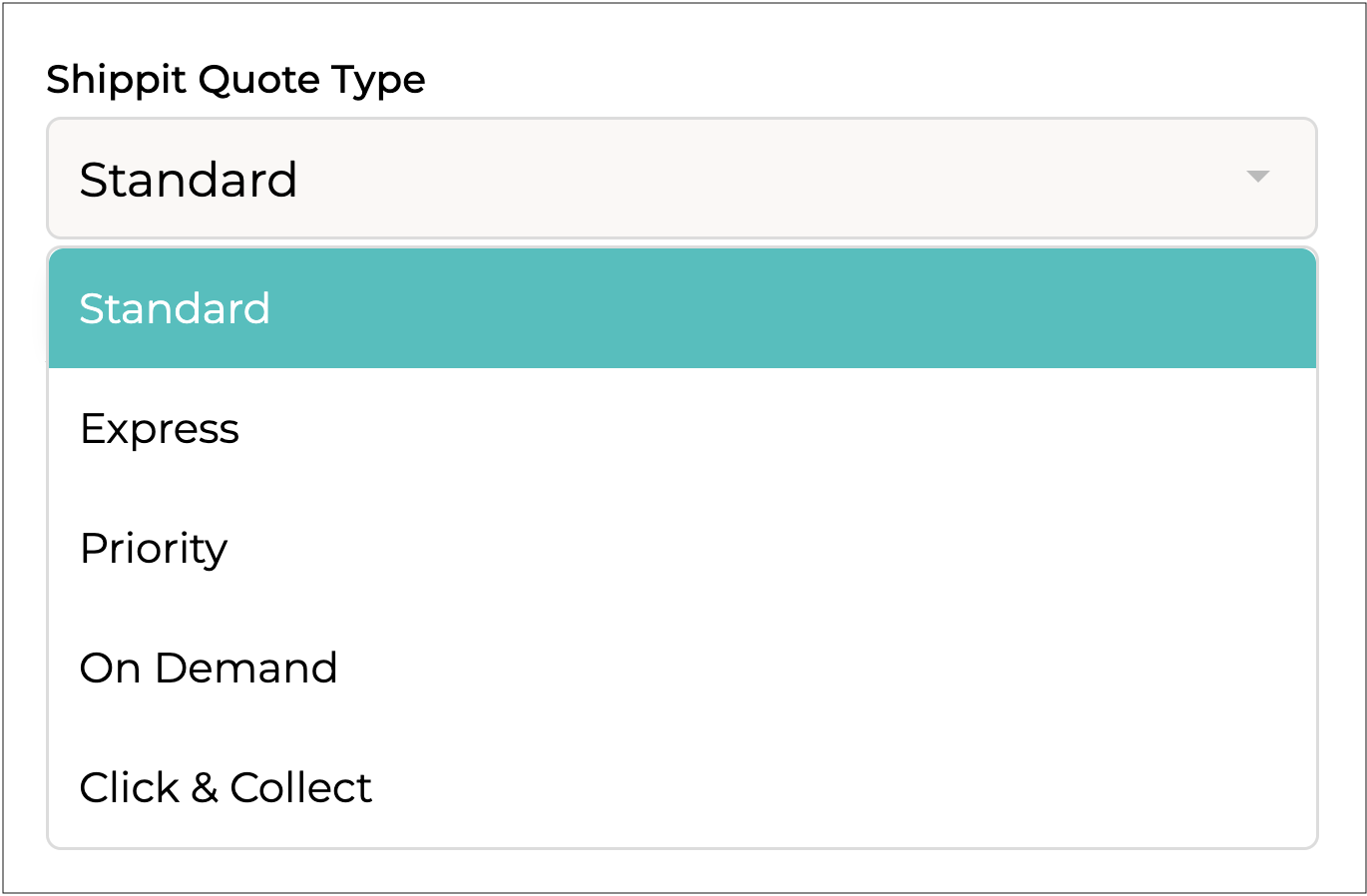
**Shippit Quote Type**
Select the service type you'd like to quote for - **Standard**, **Express**, **Priority**, **On Demand** or **Click & Collect**.
**Subject To Tax\* \[required field]**
Select whether or not tax applies to this shipping method.
**Add Margin $**
Optionally add a fixed margin on top of the quoted amount from Shippit. This can help cover packaging and handling costs if applicable.
**Add Margin %**
Optionally add a margin as a percentage of the quoted amount from Shippit. This can help cover packaging and handling costs if applicable.
***
{% endstep %}
{% step %}
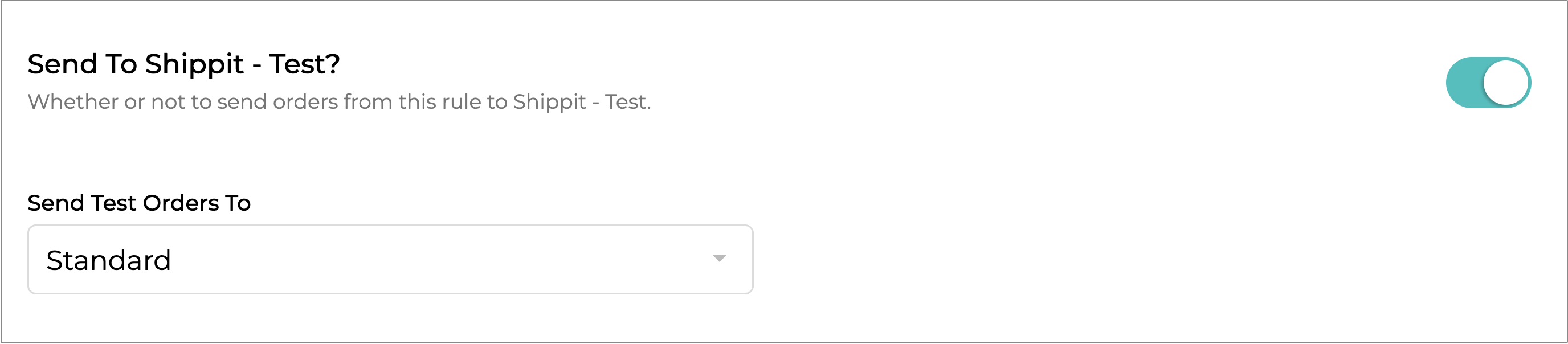
#### Send To Shippit - Test?
Toggle on to send orders from this rule to **Shippit - Test**, where the name "Test" will actually reflect whatever name you chose during the integration setup.
{% hint style="warning" %}
This section will only show if you integrated Shippit with your account.
👉 See the [Shippit](/supplyd-erp/settings/integrations/shipping-integrations/shippit.md) document for details about integrating Shippit with Supply'd.
{% endhint %}
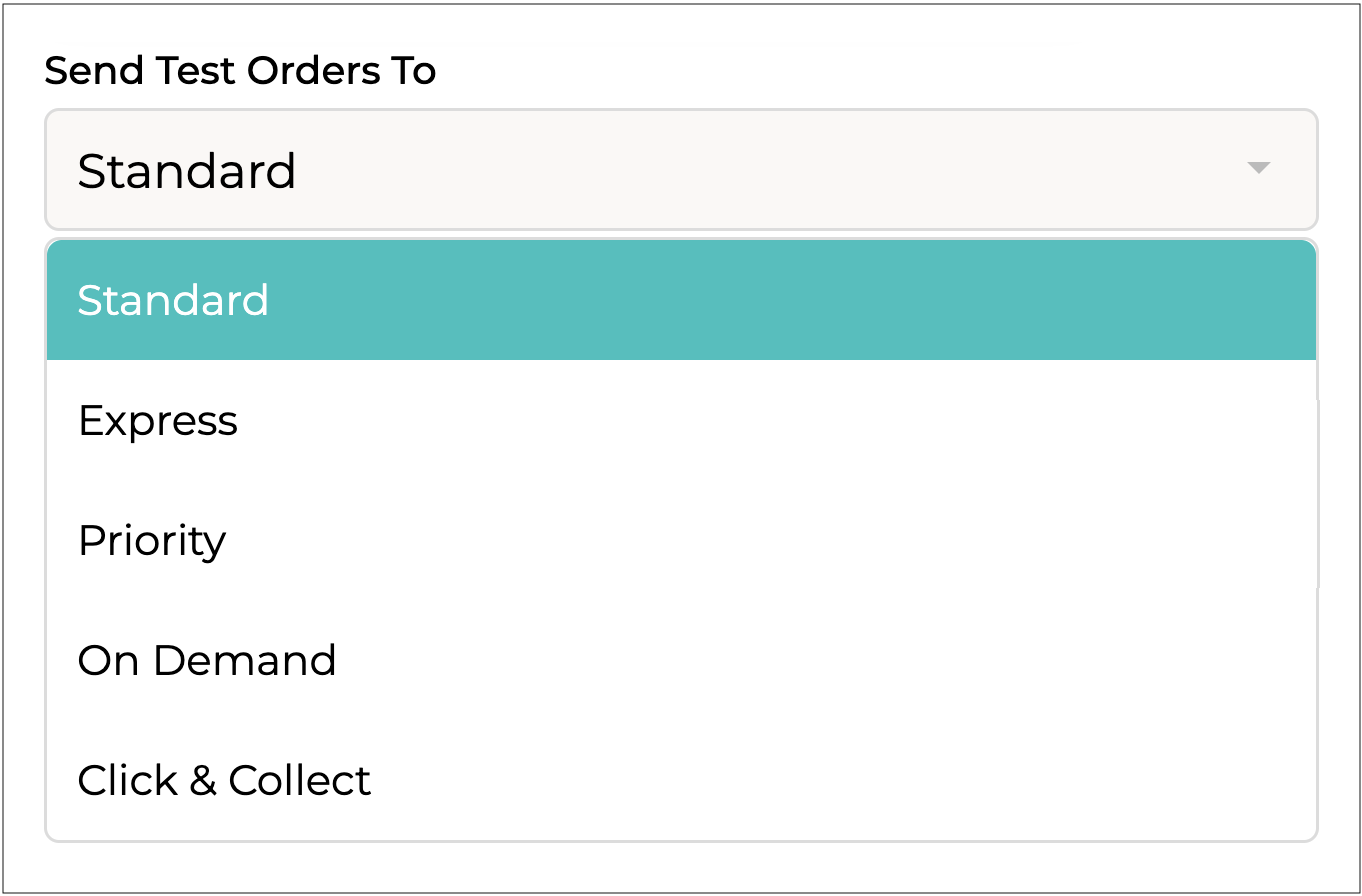
**Send "Test" Orders To**
Select where orders using this rule should be mapped to in **Shippit - "Test"**.
{% hint style="success" %}
These options let you define whether orders using this shipping rule are sent to Shippit and, if so, which default shipping type to use. Select the shipping type you want these orders sent to Shippit as.
{% endhint %}
Repeat this step if you have any other Shippit integrations
***
{% endstep %}
{% step %}
#### Send To Starshipit - My Company?
Toggle on to send orders from this rule to **Starshipit - "My Company"**, where the name "My Company" will actually reflect your business name, or whatever name you chose during the integration setup.
{% hint style="info" %}
This option will only show if StarShipit is integrated with your account.
👉 See the [Starshipit](/supplyd-erp/settings/integrations/shipping-integrations/starshipit.md) document for details about integrating Starshipit with Supply'd.
{% endhint %}
***
{% endstep %}
{% step %}
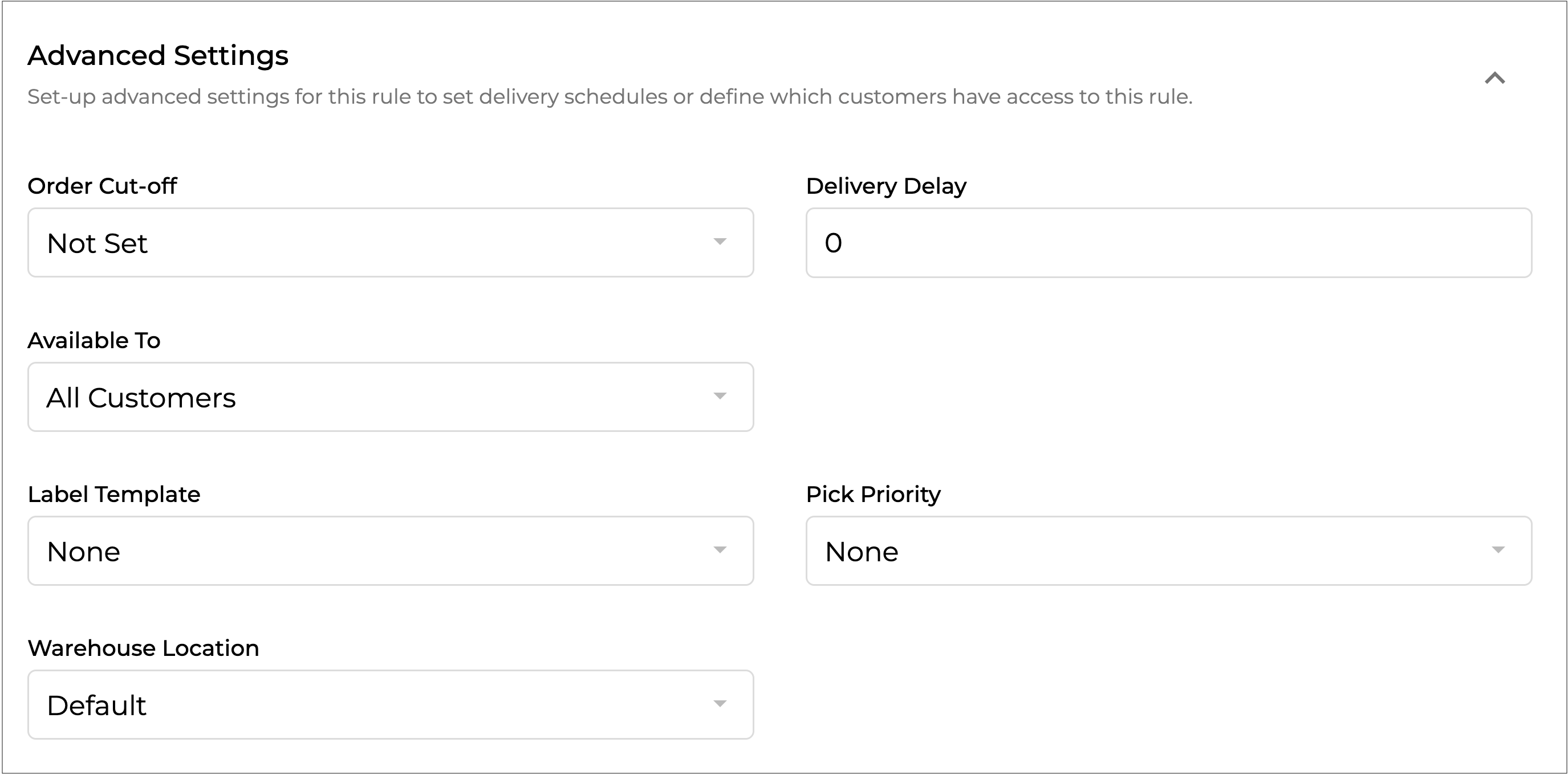
#### Advanced Settings
Configure advanced settings for this rule to set delivery schedules or specify which customers can use this rule.
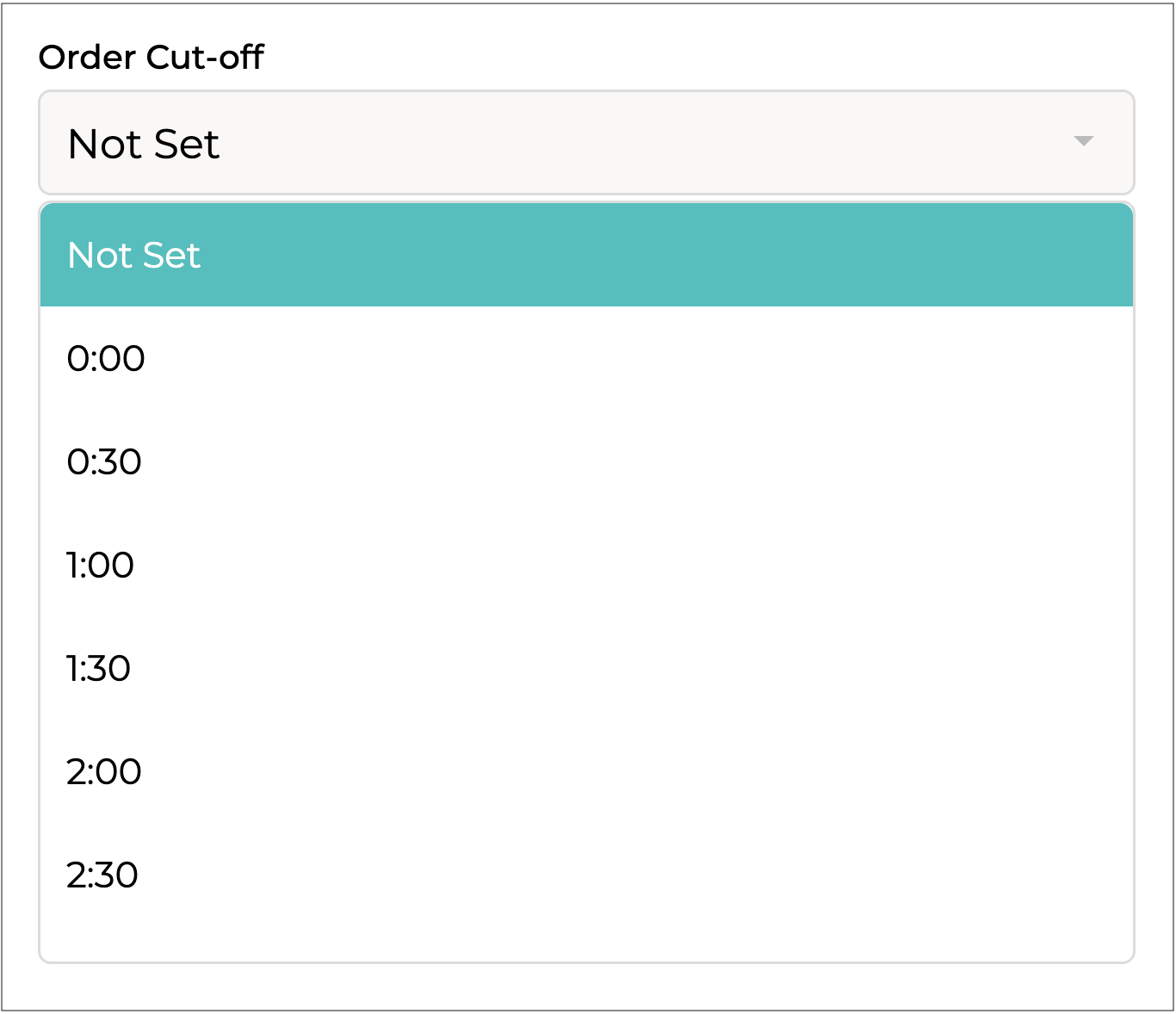
**Order Cut-off**
A delivery cut-off defines the period of time prior to a delivery day that an order must be placed. If this time has passed the delivery day would not be available to the customer when ordering.
Choose "Not Set" to not use delivery schedules.
**Delivery Delay**
A delivery delay defines the time between when an order is placed and when it is delivered.
Enter the delivery delay in number of days.
For example:
* For same-day delivery, enter "0".
* For next-day delivery, enter "1".
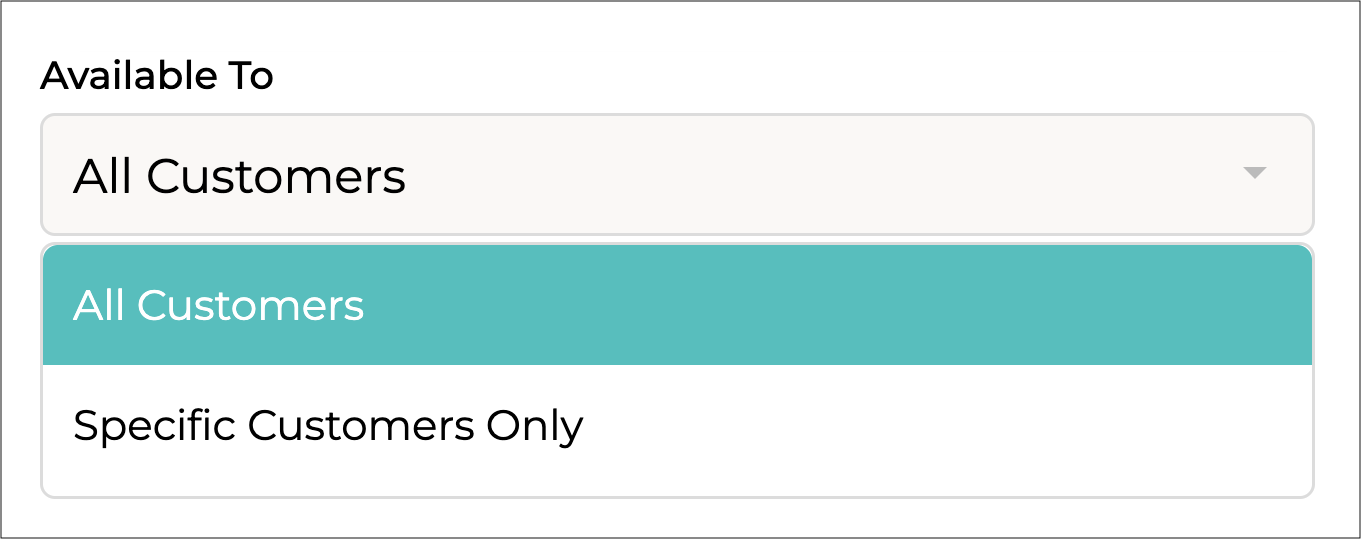
**Available To**
Whether this rule is available to all customers or just specific set of customers.
When **Specific Customers Only** is selected an additional field - **Customer(s)** - will appear.
**Customer(s)**
Select or enter the customers this rule applies to. Typing in or clicking the field will display a list of customers to choose from. Only customers in this list will be able to see and use this shipping rule.
{% hint style="info" %}
This field will only show if "**Specific Customers Only**" is selected in the **Available To** field.
{% endhint %}
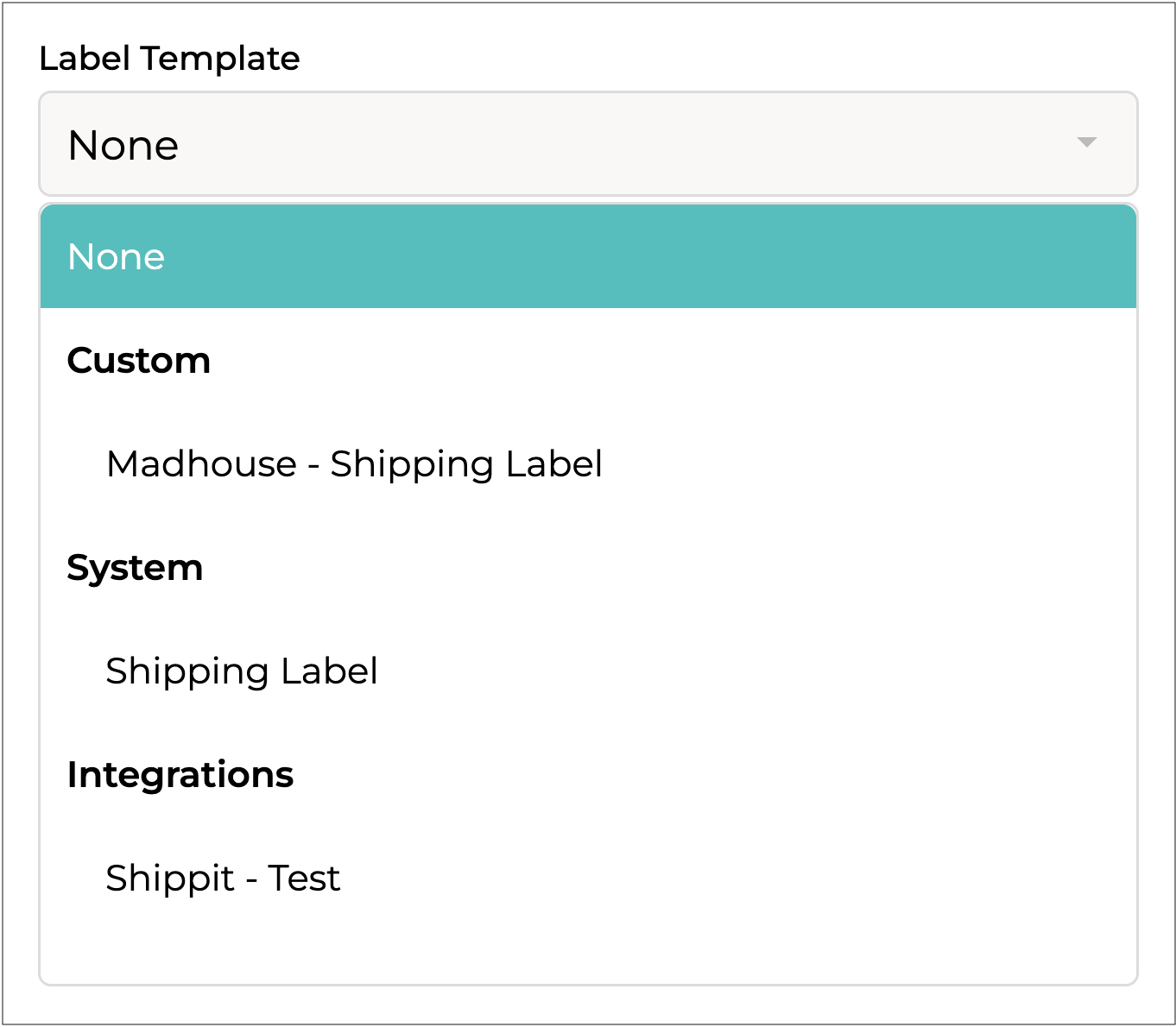
**Label Template**
Select the shipping label template or integration to use for orders with this shipping rule.
Select **None** to ignore labels for this rule.
{% hint style="warning" %}
If using an integration such as Shippit, ensure **Send To \[integration\_name]** is toggled on (see steps 7 & 8) so the order is synced. If orders are not sent to the integration, labels will fail to print.
{% endhint %}
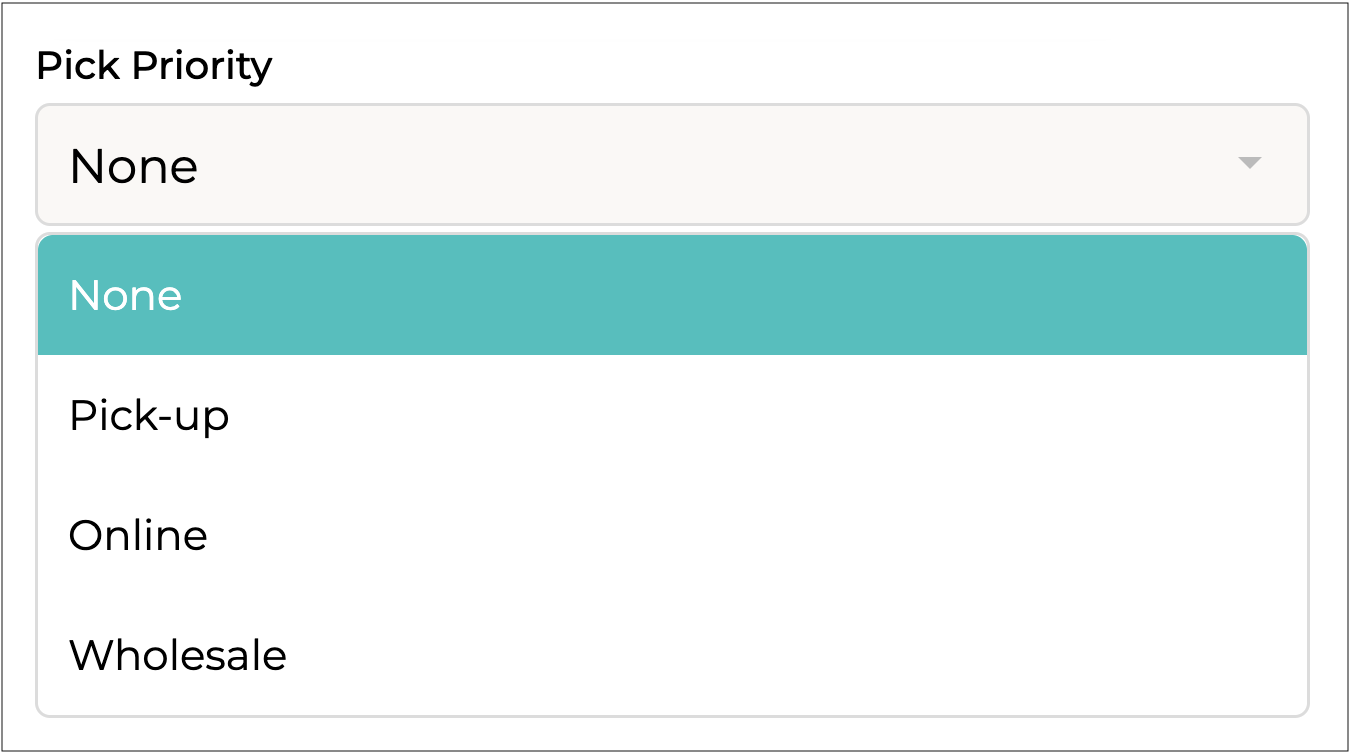
**Pick Priority**
Select the pick priority for orders placed with this shipping rule.
{% hint style="success" %}
**Pick Priority** determines the order in which items are selected for picking. Items with a higher priority are picked before lower priority items.
{% endhint %}
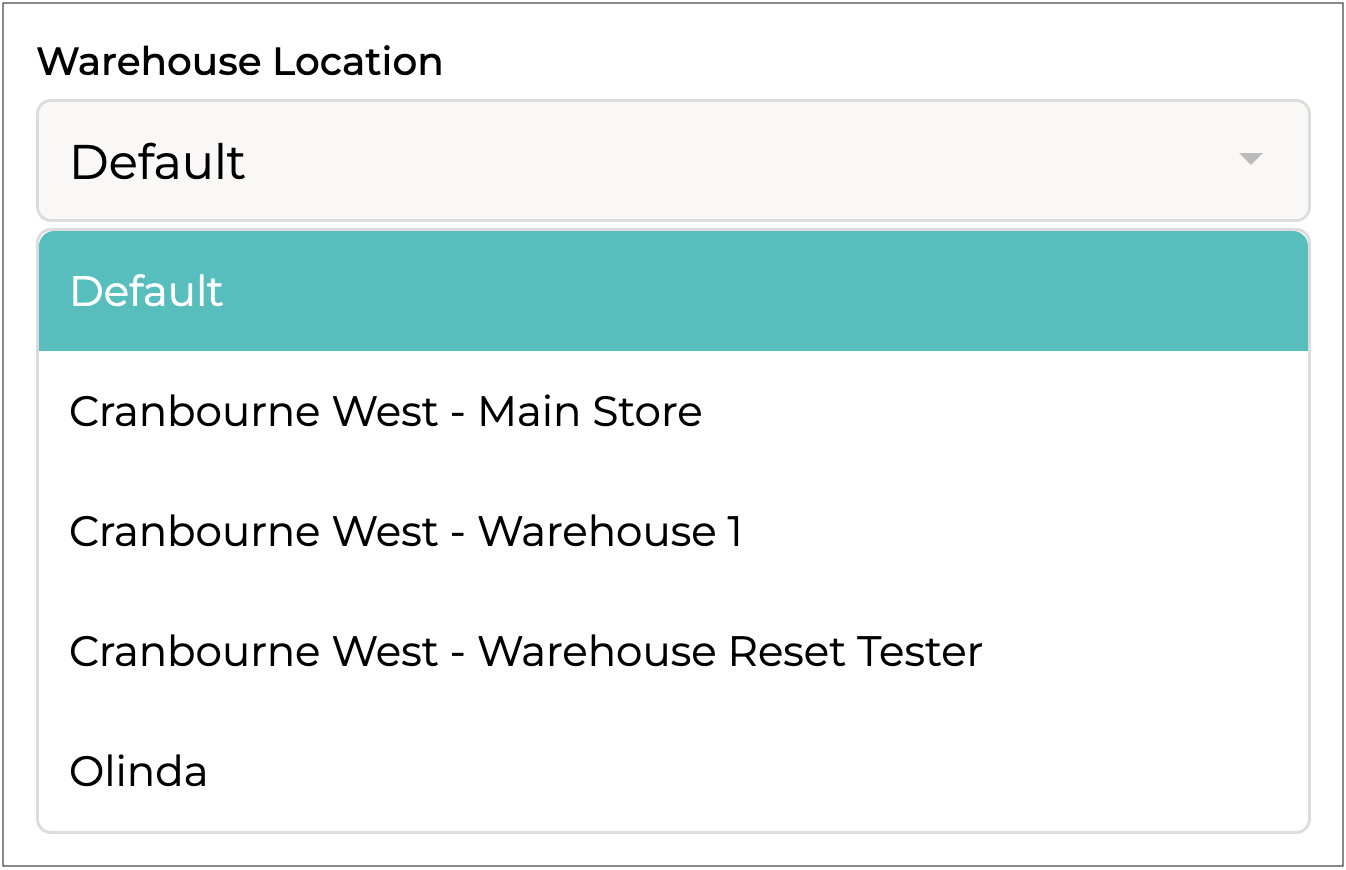
**Warehouse Location**
Select whether to override the default warehouse location for orders using this shipping rule.
* If set to **Default**, the system will use the warehouse defined in your [Sales Settings](/supplyd-erp/settings/sales-settings.md).
* If another location is selected, the pick location and inventory will be allocated to that chosen warehouse.
***
{% endstep %}
{% step %}
#### Click Save
Click to add the **Rules**.
{% endstep %}
{% endstepper %}
***
### Editing a Rule
To edit a rule:
{% stepper %}
{% step %}
Click on your company name in the top right and select **Settings**.
{% endstep %}
{% step %}
Scroll down and select **Shipping Settings** from the **Settings** menu. The **Shipping Zones** list will open.
{% endstep %}
{% step %}
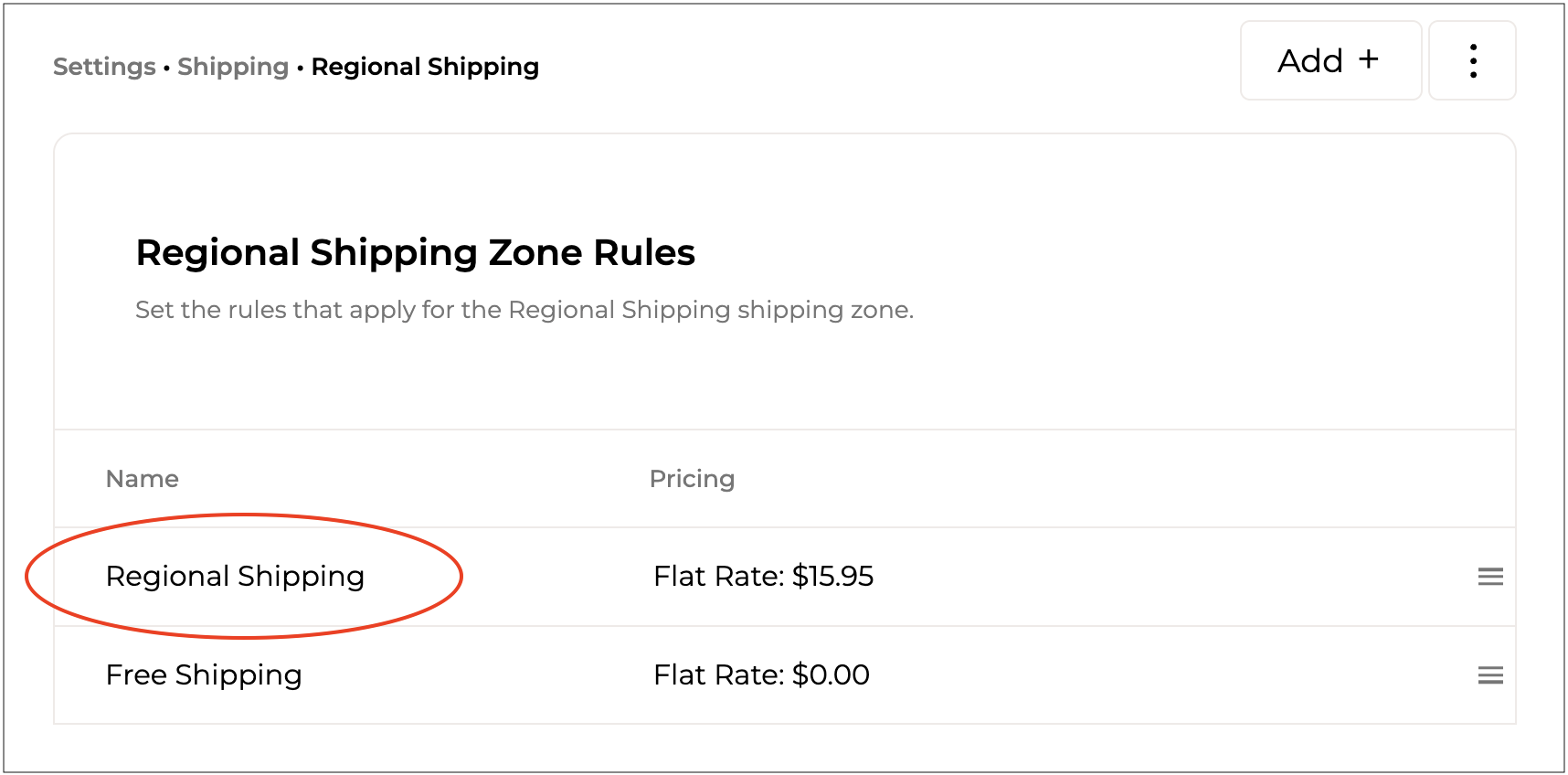
Select the zone from the list that contains the rule you want to edit. The **Shipping Zone Rules** page for that zone will open.
{% endstep %}
{% step %}
Select the rule you want to edit.
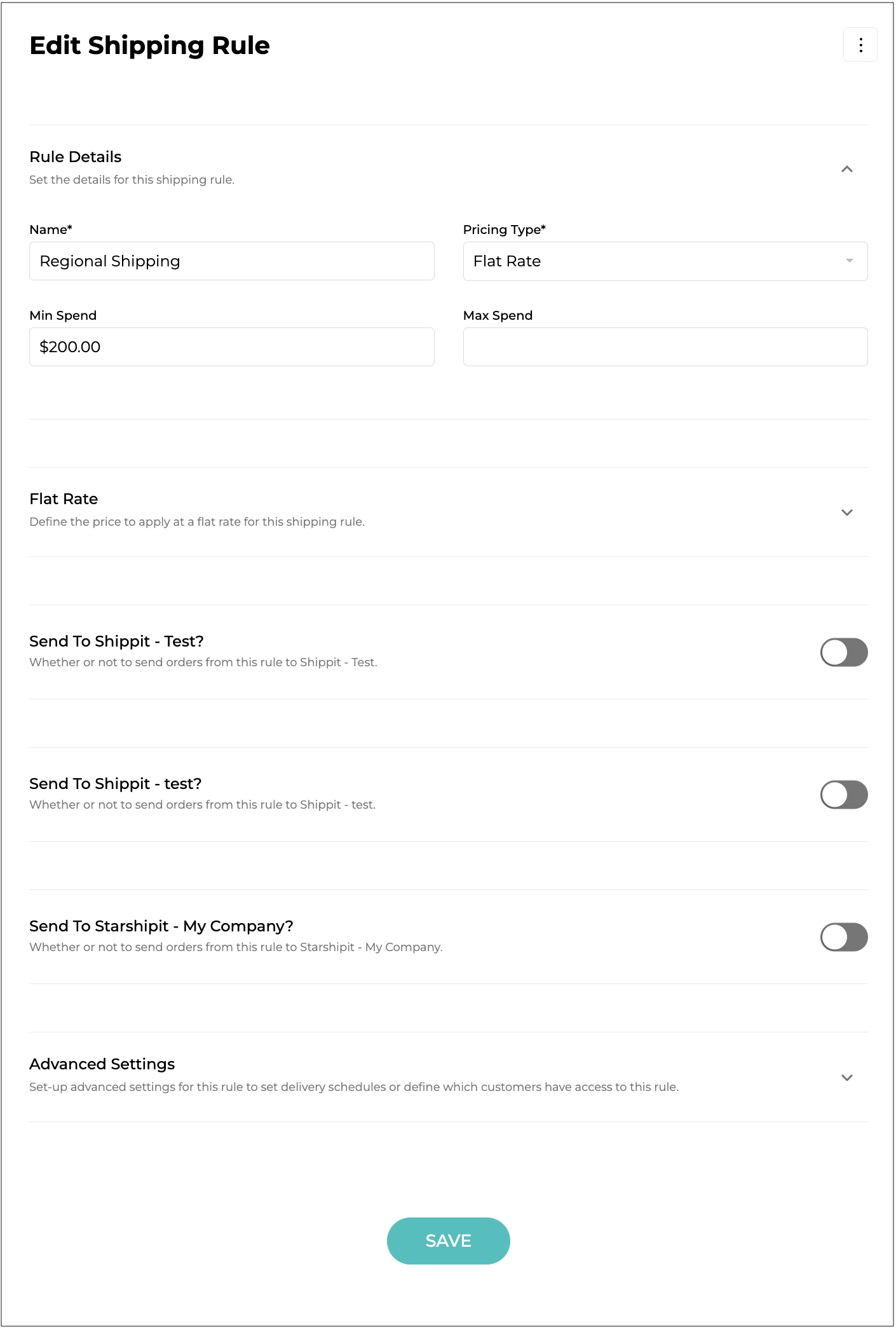
The **Edit Shipping Rule** form will open.
{% endstep %}
{% step %}
Update any details as needed, following the guidelines outlined above for [#adding-a-shipping-rule](#adding-a-shipping-rule "mention").
{% endstep %}
{% step %}
Click to update the rule details.
{% endstep %}
{% endstepper %}
***
### Removing a Rule
To remove a rule:
{% stepper %}
{% step %}
Click on your company name in the top right and select **Settings**.
{% endstep %}
{% step %}
Scroll down and select **Shipping Settings** from the **Settings** menu. The **Shipping Zones** list will open.
{% endstep %}
{% step %}
Select the zone from the list that contains the rule you want to remove. The **Shipping Zone Rules** page for that zone will open.
{% endstep %}
{% step %}
Select the rule you would like to remove.
{% endstep %}
{% step %}
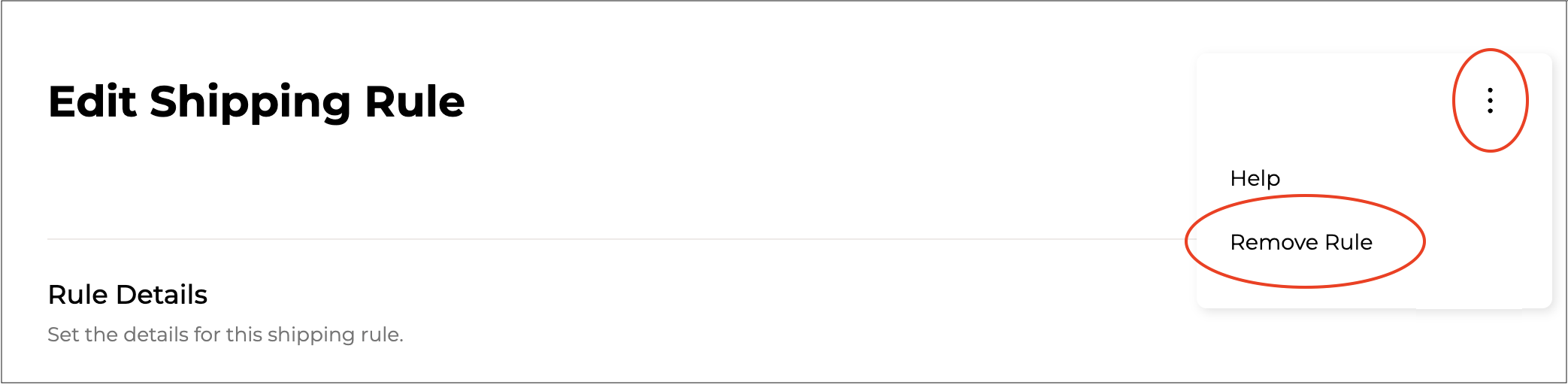
Click on the 3 dots in the top right and select **Remove Rule** from the menu.
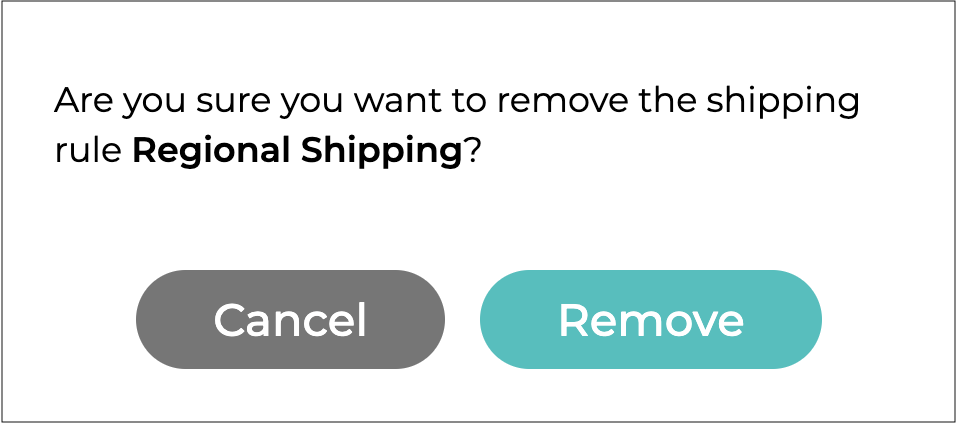
You will be asked to confirm.
Click .
{% endstep %}
{% endstepper %}
***
## Assigning a Zone on a Customer Level
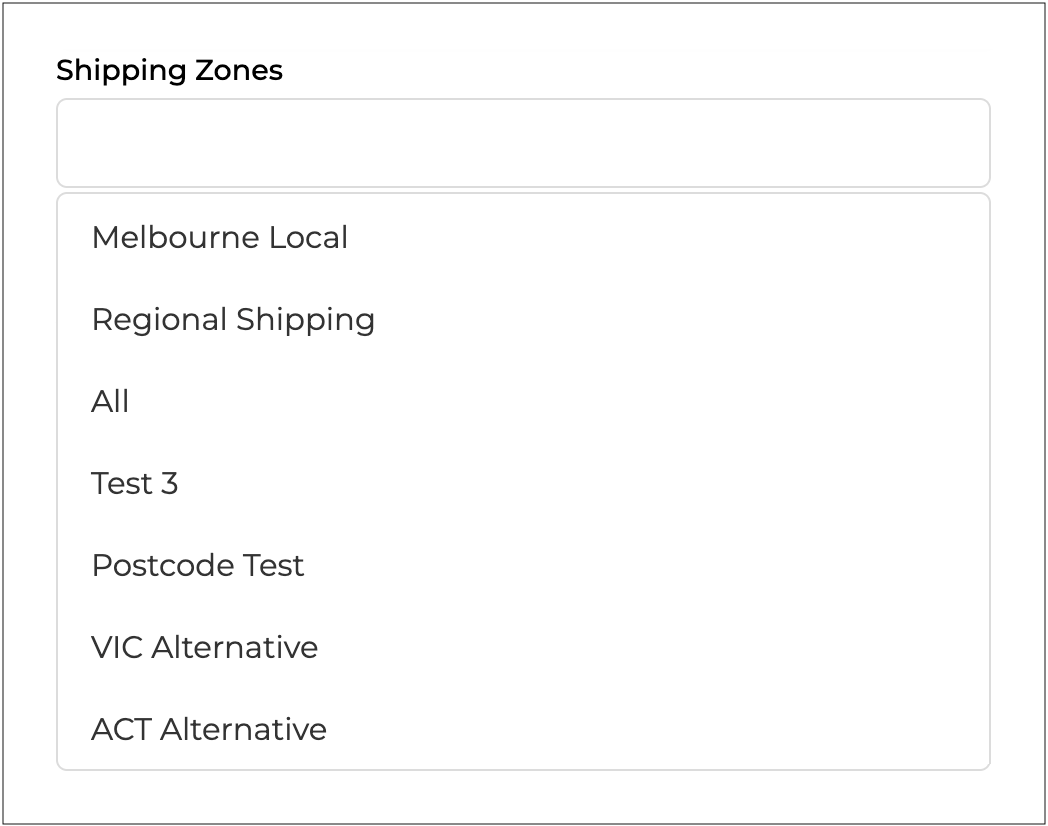
In addition to setting Shipping Zones by state or postcode, you can also assign Shipping Zones at the customer level.
This allows you to define a subset of shipping zones that can apply specifically to a customer. Note that the customer’s location must still meet the conditions of the zone and rule for the Shipping Zone to apply.
For example, if you have a regular customer who uses a different delivery service, you can apply an alternative set of rules for them.
* Create a zone for this purpose, eg. **Vic Alt**.
* In the rules for this zone, add the applicable shipping rules and rates.
To assign a specific zone to a customer, follow the guidelines as follows:
{% stepper %}
{% step %}
#### Select the Customer
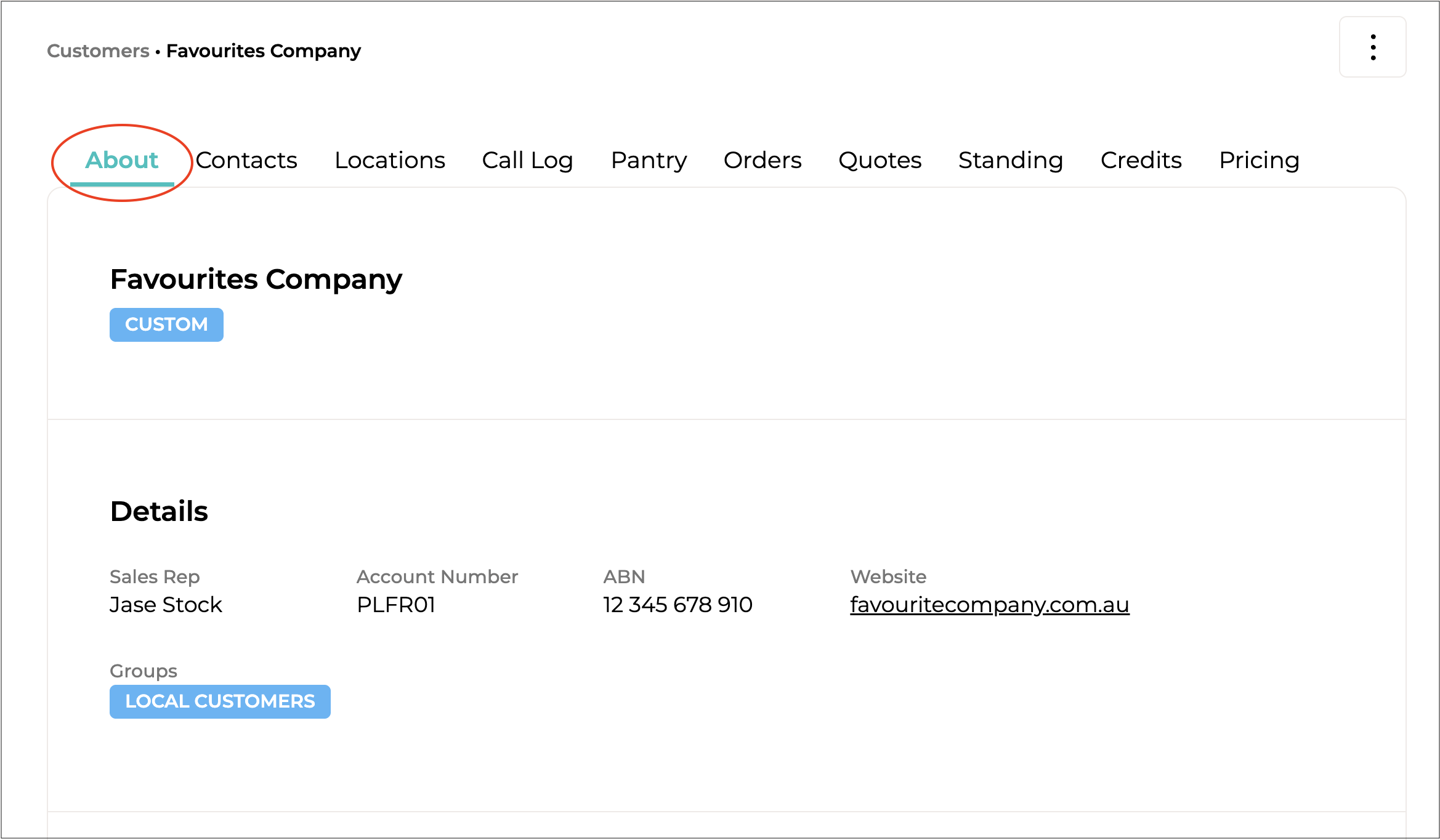
1. Select **Customers** from the main menu. The **Customer** page will open listing all your customers.
2. Select the customer to assign a zone to.

The customer's details page will open.
***
{% endstep %}
{% step %}
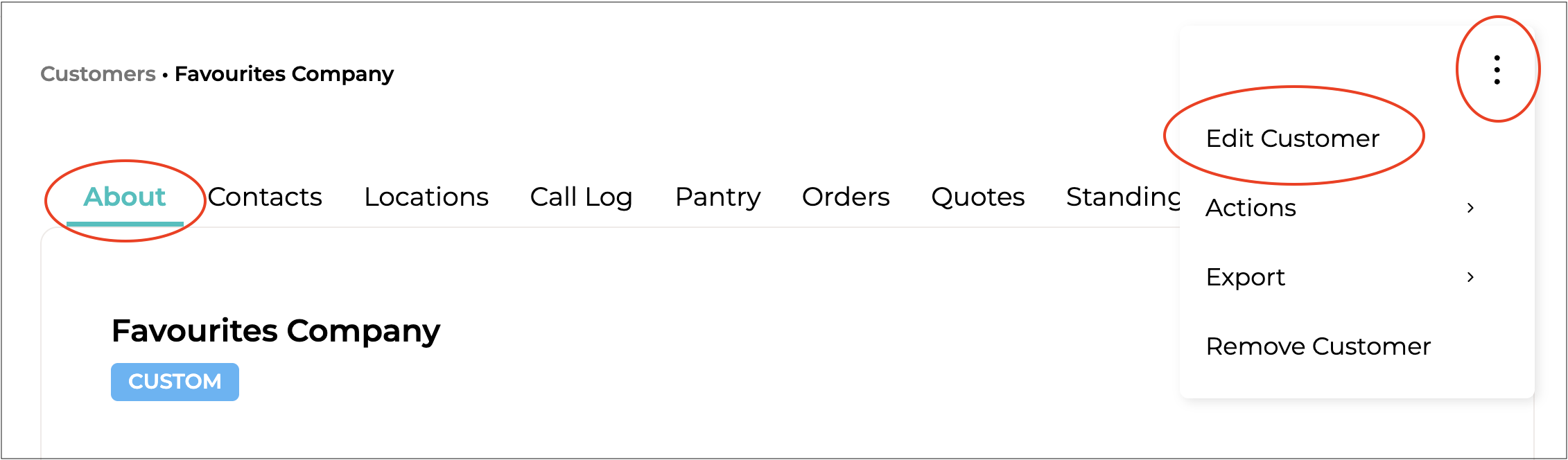
#### Select Edit Customer
Click on the 3 dots in the top right and select **Edit Customer**.
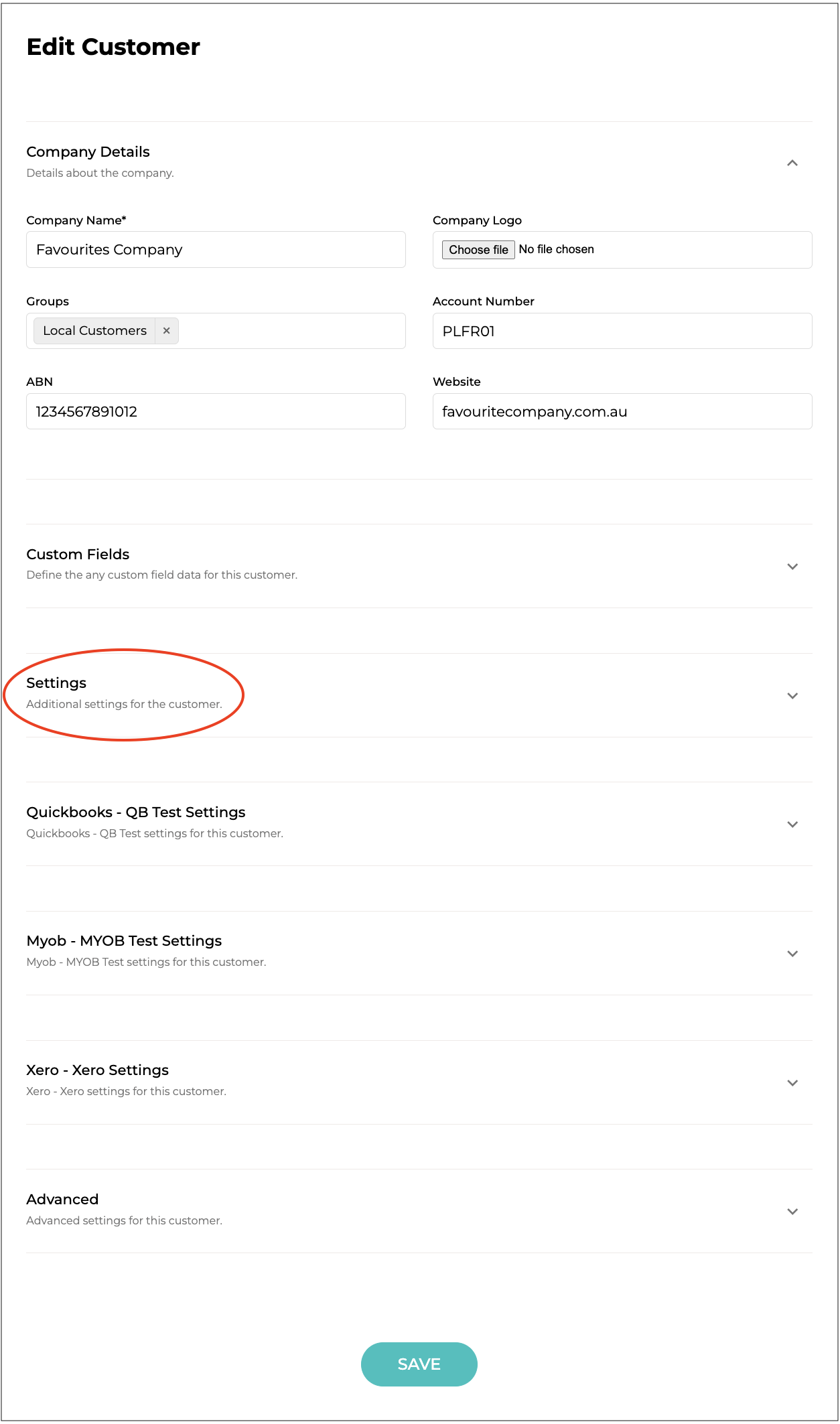
The **Edit Customer** form will open.
***
{% endstep %}
{% step %}
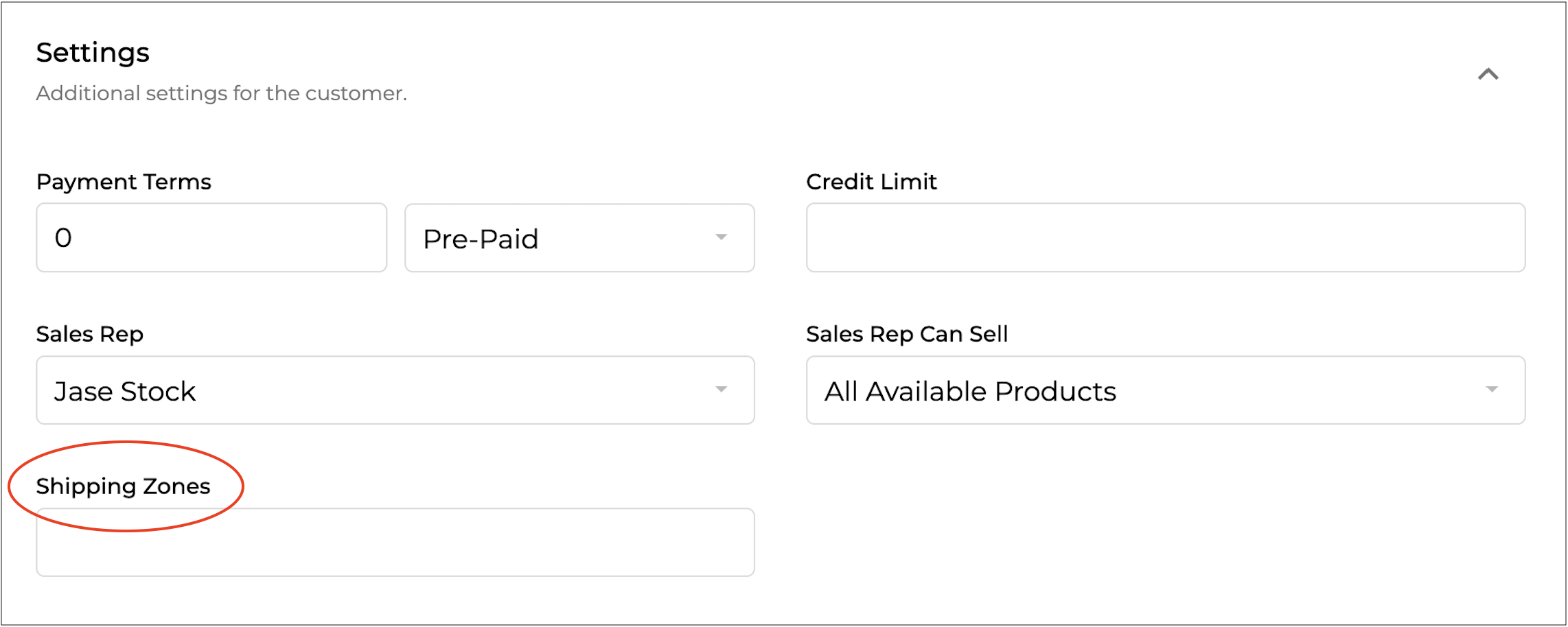
#### Select the Shipping Zone
In the **Settings** section, click on the **Shipping Zones** field and select the appropriate zone.
***
{% endstep %}
{% step %}
#### Click Save
Click to assign the zone to the customer.
{% endstep %}
{% endstepper %}
***
## Assigning a Zone on a Product Level
Shipping Zones can also be assigned at the product level, overriding other zones and rules that would normally apply.
* For example: Some products may require refrigerated transport, have higher costs, specific delivery days, or only be deliverable within a certain radius.
* In this case, create a separate shipping zone with rules reflecting these special conditions.
* When applied, if one or more of these items are added to an order or cart, only the selected zones will be available.
To assign a specific zone to a product, follow the guidelines as follows:
{% stepper %}
{% step %}
#### Select the Product
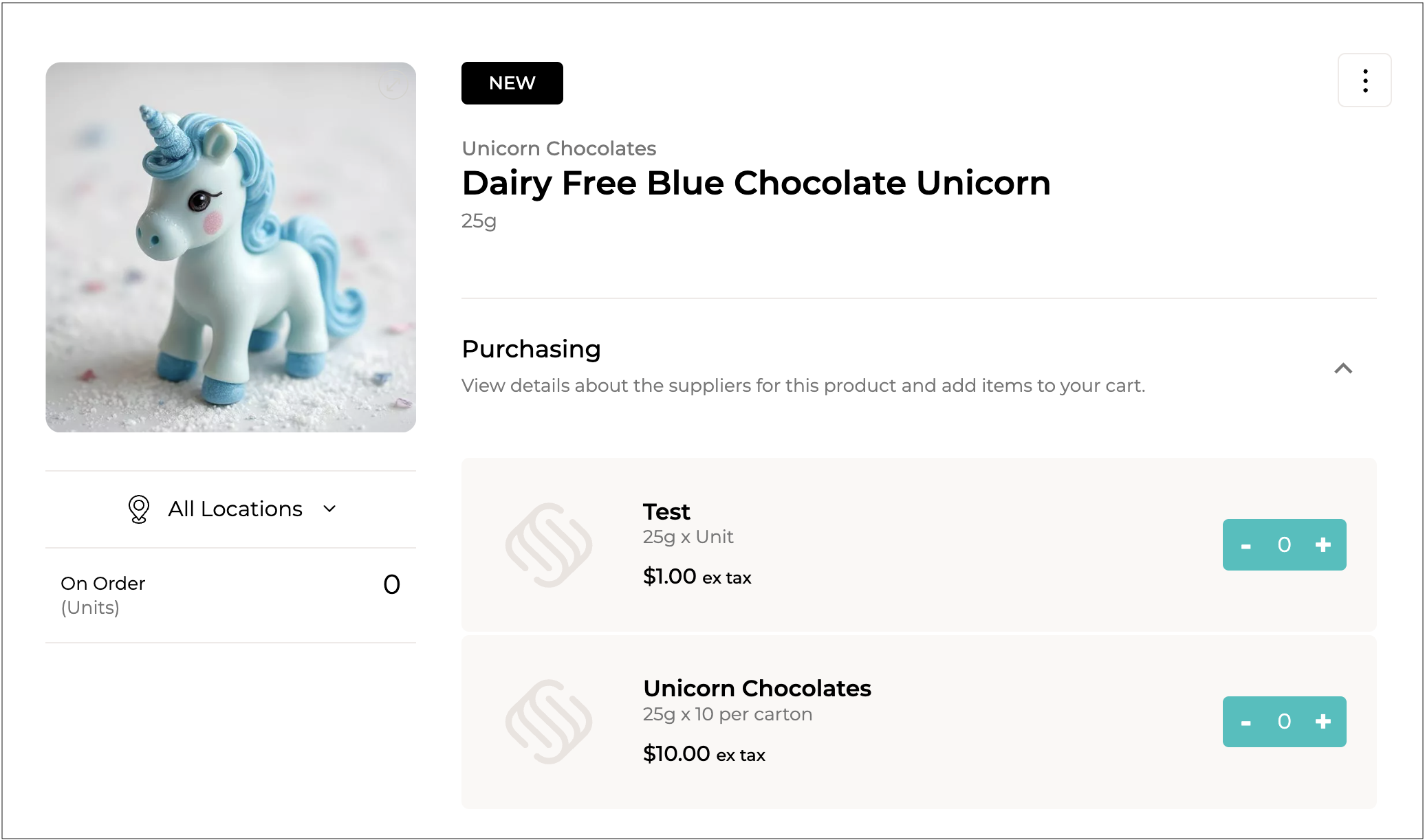
1. Select **Products** from the main menu. The **Products** page will open listing all your products.
2. Select the product to assign a zone to.

The product's details page will open.
***
{% endstep %}
{% step %}
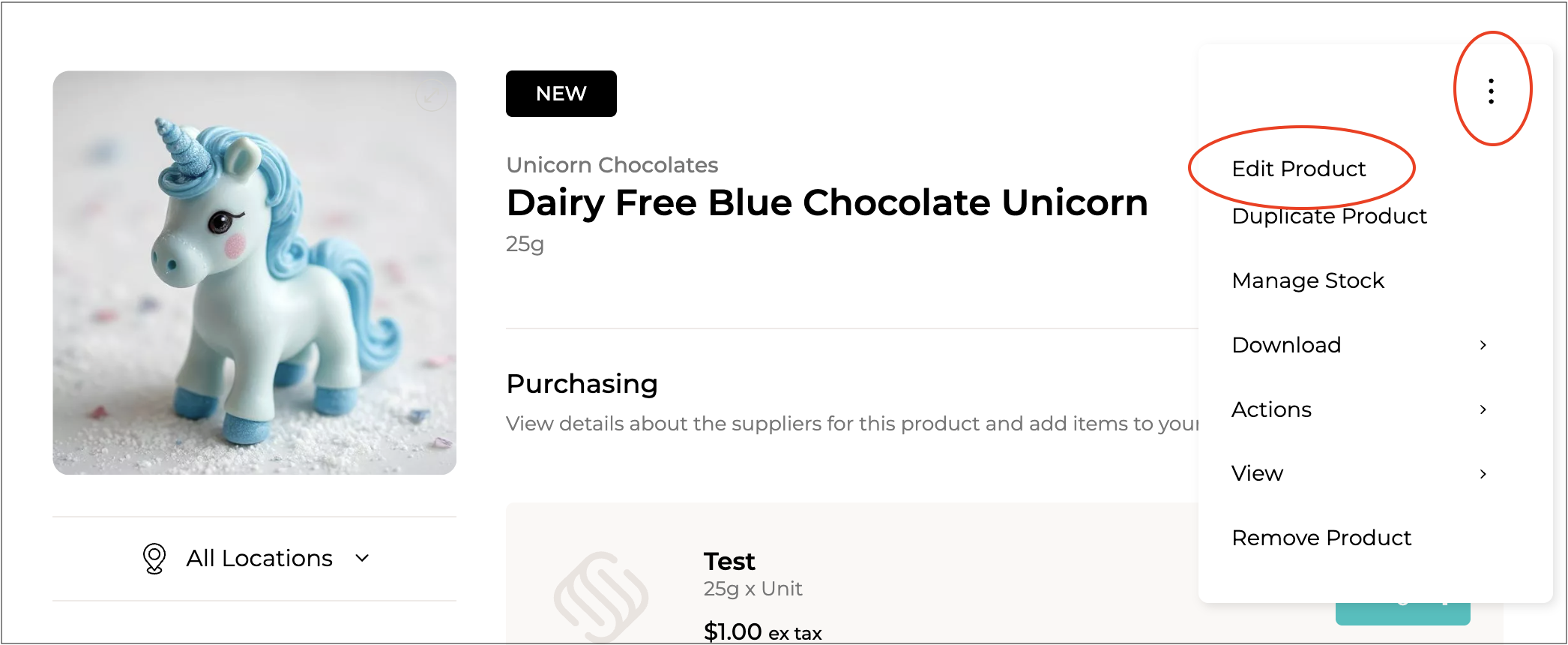
#### Select Edit Product
Click on the 3 dots in the top right and select **Edit Product**.
The **Edit Product** form will open.
***
{% endstep %}
{% step %}
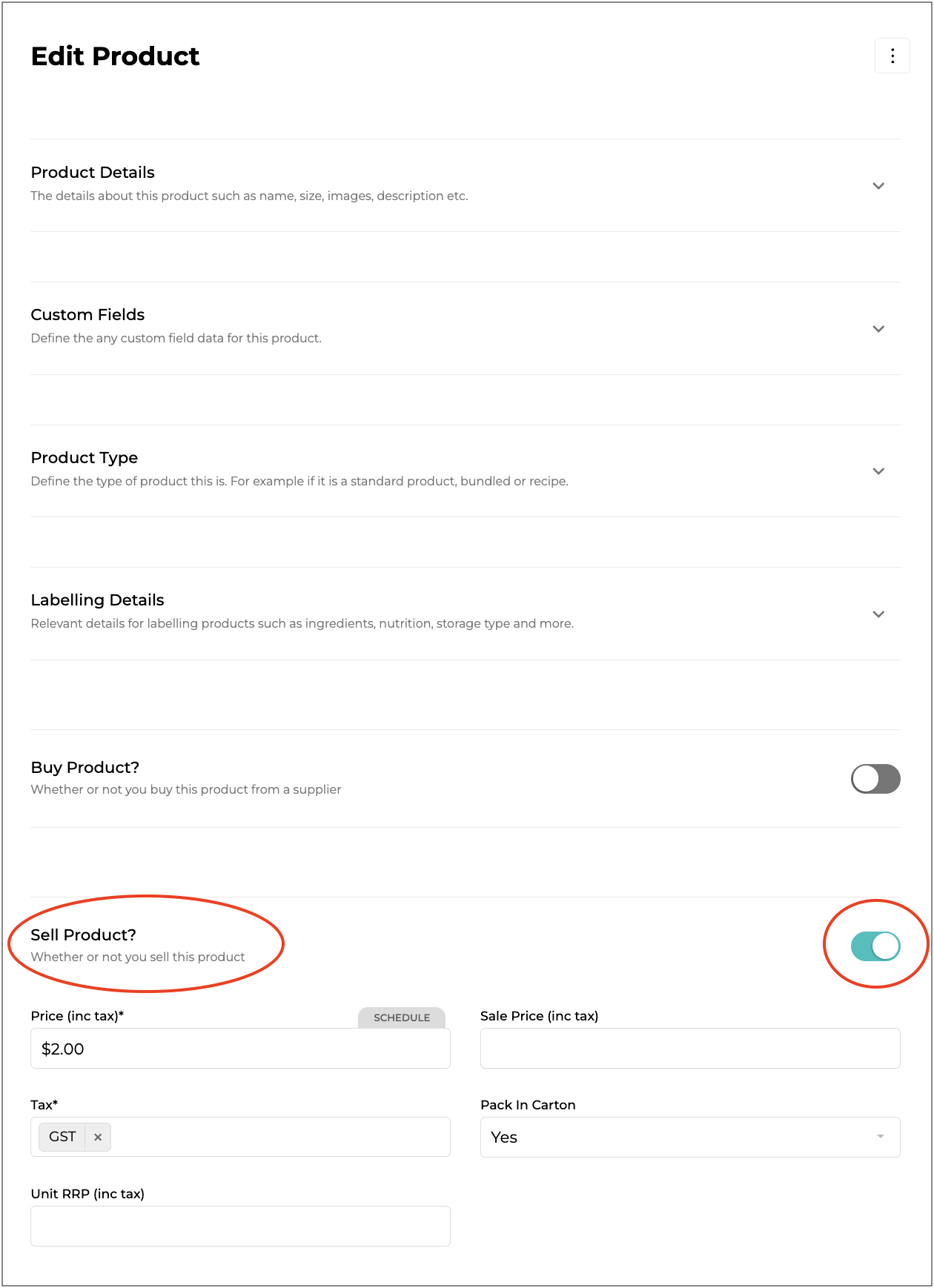
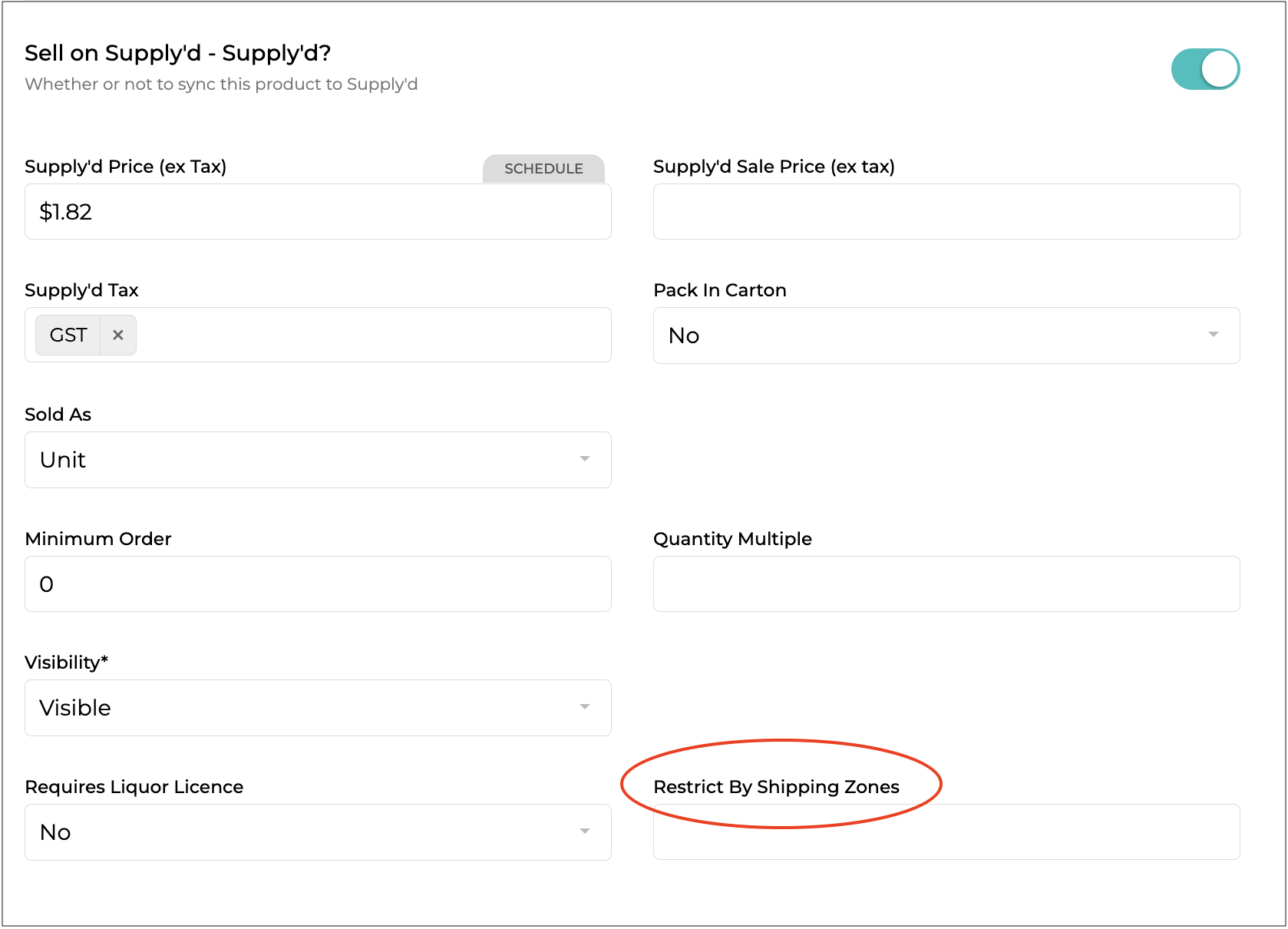
#### Select the Shipping Zone
Scroll down and toggle on **Sell Product?**.
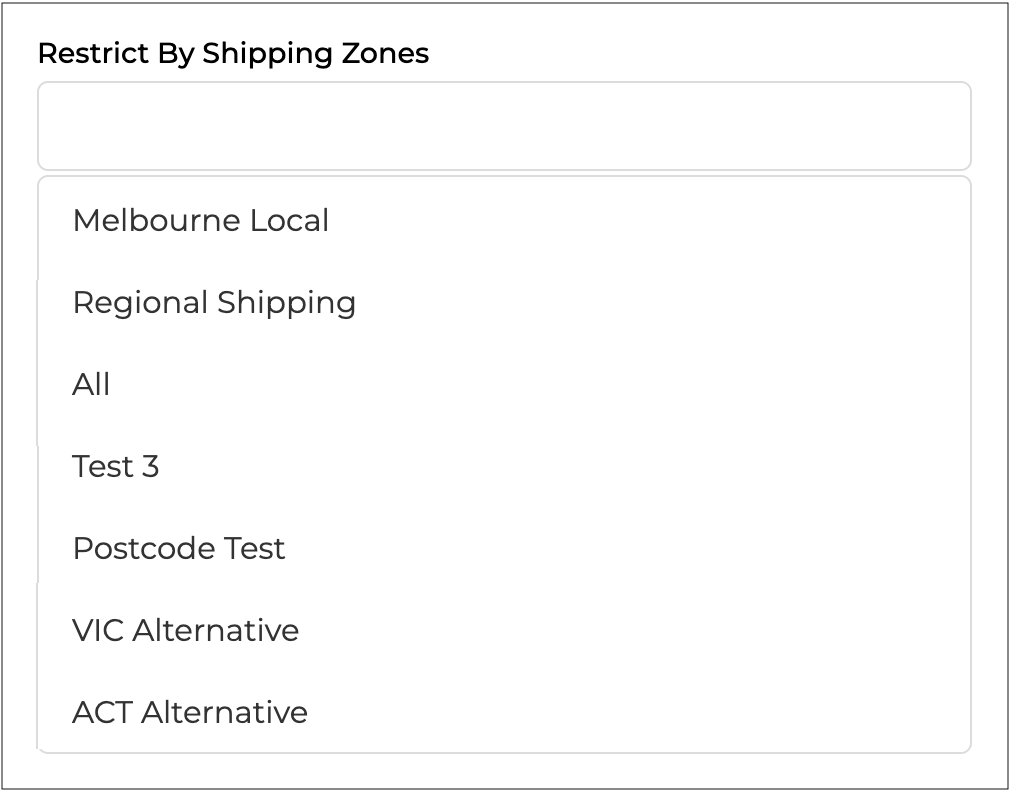
In the **Sell on Supply'd** section, click on the **Restrict By Shipping Zones** field and select the appropriate zone(s).
***
{% endstep %}
{% step %}
#### Click Save
Click to assign the zone to the product.
{% endstep %}
{% endstepper %}
---
# Agent Instructions
This documentation is published with GitBook. GitBook is the documentation platform designed so that both humans and AI agents can read, navigate, and reason over technical content effectively. Learn more at gitbook.com.
## Querying This Documentation
If you need additional information that is not directly available in this page, you can query the documentation by asking a question.
Perform an HTTP GET request on the following URL with the `ask` and `goal` query parameters:
```
GET https://help.supplyd.co/supplyd-erp/settings/shipping-settings.md?ask=&goal=
```
`ask` is the immediate question: it should be specific, self-contained, and written in natural language.
`goal` is what the user is ultimately trying to achieve, the reason they need the answer. Sharing it helps GitBook give you a better, more relevant answer. A goal is most helpful when it describes the outcome the user wants rather than restating the question. For example, with `ask=how do I create an API token`, a goal like `automate deployments from our CI pipeline` lets GitBook tailor the answer to that use case.
The response will contain a direct answer to the question and relevant excerpts and sources from the documentation.
Use this mechanism when the answer is not explicitly present in the current page, you need clarification or additional context, or you want to retrieve related documentation sections.









 to apply your settings.


 .
.

 or **Add+** in the top right.




.png?alt=media&token=d31d8a8a-13cd-45bf-8d2d-9879838b7aa8)
 to add the **Rules**.



 to assign the zone to the product.