> For the complete documentation index, see [llms.txt](https://help.supplyd.co/llms.txt). Markdown versions of documentation pages are available by appending `.md` to page URLs; this page is available as [Markdown](https://help.supplyd.co/supplyd-erp/settings/sales-settings.md).

# Sales Settings

Sales Settings in Supply'd help you configure how sales are managed, making it easier to tailor orders, pricing, payments, and other sales processes to suit your business.

**Sales Settings** let you configure how sales are managed in Supply'd. You can customise settings for orders, payments, invoicing, and other sales processes to match the way your business operates. This helps reduce manual work, prevent errors, and save time, while ensuring that every order follows the rules and preferences you’ve set - resulting in a smoother, more efficient ordering process tailored to your specific needs.

In **Sales Settings** you can set defaults for:

* [#sales-order-settings](#sales-order-settings "mention")
* [#invoice-settings](#invoice-settings "mention")
* [#sales-order-settings](#sales-order-settings "mention")
* [#standing-orders](#standing-orders "mention")
* [#quotes](#quotes "mention")

As an **Additional Option**, you can also adjust the numbering sequence used for different document types, such as sales orders, purchase orders, invoices, and more:

* [#edit-order-numbers](#edit-order-numbers "mention")

***

## Applying & Editing Your Sales Settings

{% stepper %}
{% step %}

#### Go to Settings

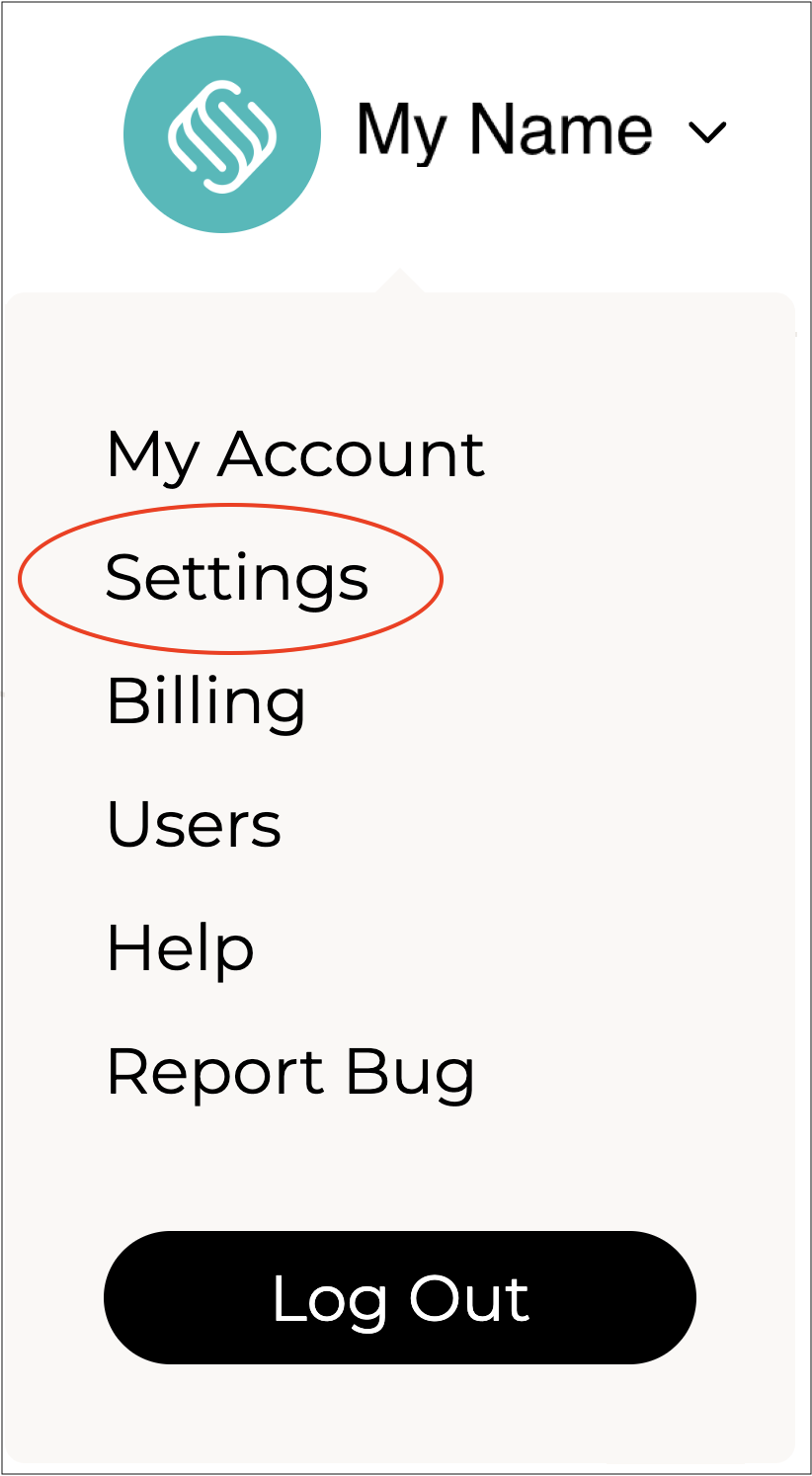
Click on your company name in the top right and select **Settings**.&#x20;

<figure><img src="https://2965503026-files.gitbook.io/~/files/v0/b/gitbook-x-prod.appspot.com/o/spaces%2FDaPYJDB89ny0x7wcMedb%2Fuploads%2FQRICojD4TZWkp8dsCMX3%2FSpacer.png?alt=media&amp;token=3bc5fa40-c805-461a-a4e4-b8c4ca526aad" alt=""><figcaption></figcaption></figure>

<figure><img src="https://2965503026-files.gitbook.io/~/files/v0/b/gitbook-x-prod.appspot.com/o/spaces%2FDaPYJDB89ny0x7wcMedb%2Fuploads%2FF4PHp7MOvUhvNnGRFm3N%2FSettings.png?alt=media&amp;token=0f083361-b311-49f1-a026-aafde809130f" alt="" width="188"><figcaption></figcaption></figure>

<figure><img src="https://2965503026-files.gitbook.io/~/files/v0/b/gitbook-x-prod.appspot.com/o/spaces%2FDaPYJDB89ny0x7wcMedb%2Fuploads%2FQRICojD4TZWkp8dsCMX3%2FSpacer.png?alt=media&amp;token=3bc5fa40-c805-461a-a4e4-b8c4ca526aad" alt=""><figcaption></figcaption></figure>

***

{% endstep %}

{% step %}

#### Select Sales Settings

Scroll down and select **Sales Settings** from the **Settings** menu.<br>

<figure><img src="https://2965503026-files.gitbook.io/~/files/v0/b/gitbook-x-prod.appspot.com/o/spaces%2FDaPYJDB89ny0x7wcMedb%2Fuploads%2FjgoZefkKLfq2Q0F1zK5R%2FSpacer.png?alt=media&amp;token=8d2d23d7-ec51-4c76-8b78-d80e9e506a90" alt=""><figcaption></figcaption></figure>

![](https://2965503026-files.gitbook.io/~/files/v0/b/gitbook-x-prod.appspot.com/o/spaces%2FDaPYJDB89ny0x7wcMedb%2Fuploads%2FuZwUtnOfKorNDpDr1jaK%2F2%20-%20Select%20Sales%20Settings.png?alt=media\&token=d669816e-8895-45a6-802f-c3d6b8490d73)

<figure><img src="https://2965503026-files.gitbook.io/~/files/v0/b/gitbook-x-prod.appspot.com/o/spaces%2FDaPYJDB89ny0x7wcMedb%2Fuploads%2FZfdmX4NwTljIiVSRhIs6%2FSpacer.png?alt=media&amp;token=abde7c40-2c0c-4e05-afcb-a7e916640d9c" alt=""><figcaption></figcaption></figure>

The **Sales Settings** form will open.&#x20;

<figure><img src="https://2965503026-files.gitbook.io/~/files/v0/b/gitbook-x-prod.appspot.com/o/spaces%2FDaPYJDB89ny0x7wcMedb%2Fuploads%2FnR0YxxLrC015mplUQU2z%2FSpacer.png?alt=media&amp;token=b6311d0a-7879-406e-94d5-1b54ddd0813d" alt=""><figcaption></figcaption></figure>

<figure><img src="https://2965503026-files.gitbook.io/~/files/v0/b/gitbook-x-prod.appspot.com/o/spaces%2FDaPYJDB89ny0x7wcMedb%2Fuploads%2FKLcOL9Mf3mrTergADvE0%2FSales%20Settings%20Form.png?alt=media&amp;token=a160326e-7906-42c7-9f4d-4d9c7eef0f36" alt="" width="563"><figcaption></figcaption></figure>

<figure><img src="https://2965503026-files.gitbook.io/~/files/v0/b/gitbook-x-prod.appspot.com/o/spaces%2FDaPYJDB89ny0x7wcMedb%2Fuploads%2FnR0YxxLrC015mplUQU2z%2FSpacer.png?alt=media&amp;token=b6311d0a-7879-406e-94d5-1b54ddd0813d" alt=""><figcaption></figcaption></figure>

{% hint style="success" %}
To open or close the sections on this form click the little arrows to the right of the titles (as circled in red above).
{% endhint %}

<figure><img src="https://2965503026-files.gitbook.io/~/files/v0/b/gitbook-x-prod.appspot.com/o/spaces%2FDaPYJDB89ny0x7wcMedb%2Fuploads%2FnR0YxxLrC015mplUQU2z%2FSpacer.png?alt=media&amp;token=b6311d0a-7879-406e-94d5-1b54ddd0813d" alt=""><figcaption></figcaption></figure>

\
Complete the fields as per the guidelines below:

<figure><img src="https://2965503026-files.gitbook.io/~/files/v0/b/gitbook-x-prod.appspot.com/o/spaces%2FDaPYJDB89ny0x7wcMedb%2Fuploads%2FnR0YxxLrC015mplUQU2z%2FSpacer.png?alt=media&amp;token=b6311d0a-7879-406e-94d5-1b54ddd0813d" alt=""><figcaption></figcaption></figure>

***

{% endstep %}

{% step %}

### Sales Order Settings

Choose your settings for your sales orders.

<figure><img src="https://2965503026-files.gitbook.io/~/files/v0/b/gitbook-x-prod.appspot.com/o/spaces%2FDaPYJDB89ny0x7wcMedb%2Fuploads%2FSKhppTkTtH6GA3VuqTdp%2FSpacer.png?alt=media&amp;token=f3740b31-d738-41cd-994a-ad757509f446" alt=""><figcaption></figcaption></figure>

<figure><img src="https://2965503026-files.gitbook.io/~/files/v0/b/gitbook-x-prod.appspot.com/o/spaces%2FDaPYJDB89ny0x7wcMedb%2Fuploads%2FM7tNcoc3pURY9O0asDAz%2F1%20-%20Sales%20Order%20Settings.png?alt=media&amp;token=638f7d43-3781-45db-af94-059adf4d05be" alt=""><figcaption></figcaption></figure>

<figure><img src="https://2965503026-files.gitbook.io/~/files/v0/b/gitbook-x-prod.appspot.com/o/spaces%2FDaPYJDB89ny0x7wcMedb%2Fuploads%2FSKhppTkTtH6GA3VuqTdp%2FSpacer.png?alt=media&amp;token=f3740b31-d738-41cd-994a-ad757509f446" alt=""><figcaption></figcaption></figure>

**Default Warehouse**

Select the warehouse that Supply’d orders are mapped to by default for pick and pack from your list of [Locations](/supplyd-erp/settings/locations.md).

<figure><img src="https://2965503026-files.gitbook.io/~/files/v0/b/gitbook-x-prod.appspot.com/o/spaces%2FDaPYJDB89ny0x7wcMedb%2Fuploads%2FSKhppTkTtH6GA3VuqTdp%2FSpacer.png?alt=media&amp;token=f3740b31-d738-41cd-994a-ad757509f446" alt=""><figcaption></figcaption></figure>

**Show Paid Icon**

Choose whether or not to show a paid icon next to paid orders on the sales orders screen.&#x20;

<figure><img src="https://2965503026-files.gitbook.io/~/files/v0/b/gitbook-x-prod.appspot.com/o/spaces%2FDaPYJDB89ny0x7wcMedb%2Fuploads%2FSKhppTkTtH6GA3VuqTdp%2FSpacer.png?alt=media&amp;token=f3740b31-d738-41cd-994a-ad757509f446" alt=""><figcaption></figcaption></figure>

**Show Overdue**

Choose whether or not to show a overdue flag next to paid orders on the sales orders screen.&#x20;

<figure><img src="https://2965503026-files.gitbook.io/~/files/v0/b/gitbook-x-prod.appspot.com/o/spaces%2FDaPYJDB89ny0x7wcMedb%2Fuploads%2FSKhppTkTtH6GA3VuqTdp%2FSpacer.png?alt=media&amp;token=f3740b31-d738-41cd-994a-ad757509f446" alt=""><figcaption></figcaption></figure>

**Show Total Item Count**

Choose whether or not to show a total item count on the order screen.&#x20;

<figure><img src="https://2965503026-files.gitbook.io/~/files/v0/b/gitbook-x-prod.appspot.com/o/spaces%2FDaPYJDB89ny0x7wcMedb%2Fuploads%2FCsYeYiE2X4Nv6WMIepLj%2FSpacer.png?alt=media&amp;token=941403ea-f591-4674-a633-68ed30cf34af" alt=""><figcaption></figcaption></figure>

{% hint style="info" %}
This will show only when viewing a specific sales order.&#x20;
{% endhint %}

<figure><img src="https://2965503026-files.gitbook.io/~/files/v0/b/gitbook-x-prod.appspot.com/o/spaces%2FDaPYJDB89ny0x7wcMedb%2Fuploads%2FSKhppTkTtH6GA3VuqTdp%2FSpacer.png?alt=media&amp;token=f3740b31-d738-41cd-994a-ad757509f446" alt=""><figcaption></figcaption></figure>

**Order Date Display**

Select which date - either **Order Date** or **Delivery Date** - you would like to display on the sales orders screen.&#x20;

<figure><img src="https://2965503026-files.gitbook.io/~/files/v0/b/gitbook-x-prod.appspot.com/o/spaces%2FDaPYJDB89ny0x7wcMedb%2Fuploads%2FSKhppTkTtH6GA3VuqTdp%2FSpacer.png?alt=media&amp;token=f3740b31-d738-41cd-994a-ad757509f446" alt=""><figcaption></figcaption></figure>

<figure><img src="https://2965503026-files.gitbook.io/~/files/v0/b/gitbook-x-prod.appspot.com/o/spaces%2FDaPYJDB89ny0x7wcMedb%2Fuploads%2FyRNiK6gSbsbQ59Racn4X%2FOrder%20Date%20Display.png?alt=media&amp;token=5fbaf6d0-8439-406f-af5a-7d26cace5275" alt="" width="375"><figcaption></figcaption></figure>

<figure><img src="https://2965503026-files.gitbook.io/~/files/v0/b/gitbook-x-prod.appspot.com/o/spaces%2FDaPYJDB89ny0x7wcMedb%2Fuploads%2FSKhppTkTtH6GA3VuqTdp%2FSpacer.png?alt=media&amp;token=f3740b31-d738-41cd-994a-ad757509f446" alt=""><figcaption></figcaption></figure>

**Autofill Delivery Date**

Choose whether or not to automatically fill the next available delivery date when creating or modifying an order. This will autofill the next delivery date according to the configured delivery schedule for the selected rule/zone. It will only be updated if a delivery date has not already been supplied.&#x20;

<figure><img src="https://2965503026-files.gitbook.io/~/files/v0/b/gitbook-x-prod.appspot.com/o/spaces%2FDaPYJDB89ny0x7wcMedb%2Fuploads%2FSKhppTkTtH6GA3VuqTdp%2FSpacer.png?alt=media&amp;token=f3740b31-d738-41cd-994a-ad757509f446" alt=""><figcaption></figcaption></figure>

**Recalculate Due Date From Delivery Date**

Choose whether or not to automatically recalculate the due date based on the delivery date.&#x20;

If set to "**Yes**", the due date of an order will be recalculated from the delivery date when a delivery date is added or updated.

<figure><img src="https://2965503026-files.gitbook.io/~/files/v0/b/gitbook-x-prod.appspot.com/o/spaces%2FDaPYJDB89ny0x7wcMedb%2Fuploads%2FSKhppTkTtH6GA3VuqTdp%2FSpacer.png?alt=media&amp;token=f3740b31-d738-41cd-994a-ad757509f446" alt=""><figcaption></figcaption></figure>

**Imported Orders Display Name**

Select which name to display on the sales order screen when orders are imported.&#x20;

If "**Company Name**" is selected and no company name is provided, the relative first and last names will be displayed.&#x20;

<figure><img src="https://2965503026-files.gitbook.io/~/files/v0/b/gitbook-x-prod.appspot.com/o/spaces%2FDaPYJDB89ny0x7wcMedb%2Fuploads%2FSKhppTkTtH6GA3VuqTdp%2FSpacer.png?alt=media&amp;token=f3740b31-d738-41cd-994a-ad757509f446" alt=""><figcaption></figcaption></figure>

<figure><img src="https://2965503026-files.gitbook.io/~/files/v0/b/gitbook-x-prod.appspot.com/o/spaces%2FDaPYJDB89ny0x7wcMedb%2Fuploads%2FEWDGGFIRjvKzulELgvVW%2F8%20-%20Imported%20Orders%20Display%20Name.png?alt=media&amp;token=69f71610-249b-46a7-8d94-26150d9e10d4" alt="" width="375"><figcaption></figcaption></figure>

<figure><img src="https://2965503026-files.gitbook.io/~/files/v0/b/gitbook-x-prod.appspot.com/o/spaces%2FDaPYJDB89ny0x7wcMedb%2Fuploads%2FSKhppTkTtH6GA3VuqTdp%2FSpacer.png?alt=media&amp;token=f3740b31-d738-41cd-994a-ad757509f446" alt=""><figcaption></figcaption></figure>

**Email Customer Invoices For**

Choose whether or not to send invoices upon shipment for custom customers.

<figure><img src="https://2965503026-files.gitbook.io/~/files/v0/b/gitbook-x-prod.appspot.com/o/spaces%2FDaPYJDB89ny0x7wcMedb%2Fuploads%2FSKhppTkTtH6GA3VuqTdp%2FSpacer.png?alt=media&amp;token=f3740b31-d738-41cd-994a-ad757509f446" alt=""><figcaption></figcaption></figure>

<figure><img src="https://2965503026-files.gitbook.io/~/files/v0/b/gitbook-x-prod.appspot.com/o/spaces%2FDaPYJDB89ny0x7wcMedb%2Fuploads%2Fe3FJ7iZPUNURZfHvBSTg%2F9%20-%20Email%20Customer%20Invoices%20For.png?alt=media&amp;token=f54e1e76-b2de-4e08-a084-3a62fd28ae9a" alt="" width="375"><figcaption></figcaption></figure>

<figure><img src="https://2965503026-files.gitbook.io/~/files/v0/b/gitbook-x-prod.appspot.com/o/spaces%2FDaPYJDB89ny0x7wcMedb%2Fuploads%2FSKhppTkTtH6GA3VuqTdp%2FSpacer.png?alt=media&amp;token=f3740b31-d738-41cd-994a-ad757509f446" alt=""><figcaption></figcaption></figure>

**Send Change Confirmation Emails**&#x20;

Choose whether to send yourself an email confirmation when a **Sales Order** is modified. This email is sent to you, not the customer.

<figure><img src="https://2965503026-files.gitbook.io/~/files/v0/b/gitbook-x-prod.appspot.com/o/spaces%2FDaPYJDB89ny0x7wcMedb%2Fuploads%2FbJDih3Dwv41QavjV1QDa%2FSpacer.png?alt=media&amp;token=6c34f805-9610-4de9-8f8a-a029f13dd1a1" alt=""><figcaption></figcaption></figure>

**Calculate Tax On Orders Using**

Select how tax is calculated for orders. Different calculation methods may produce slightly different results due to rounding:

<figure><img src="https://2965503026-files.gitbook.io/~/files/v0/b/gitbook-x-prod.appspot.com/o/spaces%2FDaPYJDB89ny0x7wcMedb%2Fuploads%2FbJDih3Dwv41QavjV1QDa%2FSpacer.png?alt=media&amp;token=6c34f805-9610-4de9-8f8a-a029f13dd1a1" alt=""><figcaption></figcaption></figure>

<figure><img src="https://2965503026-files.gitbook.io/~/files/v0/b/gitbook-x-prod.appspot.com/o/spaces%2FDaPYJDB89ny0x7wcMedb%2Fuploads%2Fg3hIHVAbw6P7RVZ5L6u2%2FSales%20Settings%20-%20Calculate%20Tax%20On%20Orders%20Using.png?alt=media&amp;token=0f53c52b-02e6-4205-9a07-669be8f97f87" alt="" width="375"><figcaption></figcaption></figure>

<figure><img src="https://2965503026-files.gitbook.io/~/files/v0/b/gitbook-x-prod.appspot.com/o/spaces%2FDaPYJDB89ny0x7wcMedb%2Fuploads%2FbJDih3Dwv41QavjV1QDa%2FSpacer.png?alt=media&amp;token=6c34f805-9610-4de9-8f8a-a029f13dd1a1" alt=""><figcaption></figcaption></figure>

* **Sum of Line Item Tax** - Calculates the tax for each individual line item, then adds these amounts together to determine the total tax for the order.
* **Percentage of Order Subtotal** - Calculates the tax based on the applicable percentage of the order subtotal. If the order contains items with different tax rates or items with no tax, the relevant line items are grouped by tax rate and the tax is calculated separately for each applicable subtotal.

{% hint style="info" %}
When **Percentage of Order Subtotal** is selected, Supply’d calculates tax separately using the subtotal of the line items that have each applicable tax rate. Line items with **no tax** are excluded from the taxable subtotal.<br>

For example:

* **$5.00** item with **10% tax**
* **$10.00** item with **no tax**
* **Order Subtotal** = $15.00
* **Taxable Subtotal** = $5.00
* **Tax** = $0.50<br>

If an order contains multiple tax rates, Supply’d groups the relevant line items by **tax rate**, calculates the subtotal for each group, and then applies the corresponding tax percentage to each subtotal separately.
{% endhint %}

<figure><img src="https://2965503026-files.gitbook.io/~/files/v0/b/gitbook-x-prod.appspot.com/o/spaces%2FDaPYJDB89ny0x7wcMedb%2Fuploads%2FbJDih3Dwv41QavjV1QDa%2FSpacer.png?alt=media&amp;token=6c34f805-9610-4de9-8f8a-a029f13dd1a1" alt=""><figcaption></figcaption></figure>

**Default Export Fields**

Select the default fields you would like when exporting orders.&#x20;

<figure><img src="https://2965503026-files.gitbook.io/~/files/v0/b/gitbook-x-prod.appspot.com/o/spaces%2FDaPYJDB89ny0x7wcMedb%2Fuploads%2FSKhppTkTtH6GA3VuqTdp%2FSpacer.png?alt=media&amp;token=f3740b31-d738-41cd-994a-ad757509f446" alt=""><figcaption></figcaption></figure>

<figure><img src="https://2965503026-files.gitbook.io/~/files/v0/b/gitbook-x-prod.appspot.com/o/spaces%2FDaPYJDB89ny0x7wcMedb%2Fuploads%2Fxcn1CPDEZyEJhZKq82MO%2FDefault%20Export%20Fields.png?alt=media&amp;token=fba5dbaa-a1d3-4574-8fc6-2401c653a5e6" alt=""><figcaption></figcaption></figure>

<figure><img src="https://2965503026-files.gitbook.io/~/files/v0/b/gitbook-x-prod.appspot.com/o/spaces%2FDaPYJDB89ny0x7wcMedb%2Fuploads%2FSKhppTkTtH6GA3VuqTdp%2FSpacer.png?alt=media&amp;token=f3740b31-d738-41cd-994a-ad757509f446" alt=""><figcaption></figcaption></figure>

***

{% endstep %}

{% step %}

### Invoice Settings

Set the default settings for invoices created by Supply'd, including how invoices are configured and managed.

<figure><img src="https://2965503026-files.gitbook.io/~/files/v0/b/gitbook-x-prod.appspot.com/o/spaces%2FDaPYJDB89ny0x7wcMedb%2Fuploads%2FbJDih3Dwv41QavjV1QDa%2FSpacer.png?alt=media&amp;token=6c34f805-9610-4de9-8f8a-a029f13dd1a1" alt=""><figcaption></figcaption></figure>

<figure><img src="https://2965503026-files.gitbook.io/~/files/v0/b/gitbook-x-prod.appspot.com/o/spaces%2FDaPYJDB89ny0x7wcMedb%2Fuploads%2FksM6TAhFPSzJlzMSqGeB%2FSales%20Settings%20-%20Invoice%20Settings.png?alt=media&amp;token=1a294428-2d7f-4dfc-8b1a-da97ad50fed1" alt=""><figcaption></figcaption></figure>

<figure><img src="https://2965503026-files.gitbook.io/~/files/v0/b/gitbook-x-prod.appspot.com/o/spaces%2FDaPYJDB89ny0x7wcMedb%2Fuploads%2FbJDih3Dwv41QavjV1QDa%2FSpacer.png?alt=media&amp;token=6c34f805-9610-4de9-8f8a-a029f13dd1a1" alt=""><figcaption></figcaption></figure>

**Default Payment Term**

Enter the default payment terms to apply to customer invoices. This will apply from the date of order creation and can be overridden at a customer level if on an applicable plan.&#x20;

Enter the number of days and select one of the following: <br>

<figure><img src="https://2965503026-files.gitbook.io/~/files/v0/b/gitbook-x-prod.appspot.com/o/spaces%2FDaPYJDB89ny0x7wcMedb%2Fuploads%2FjgoZefkKLfq2Q0F1zK5R%2FSpacer.png?alt=media&amp;token=8d2d23d7-ec51-4c76-8b78-d80e9e506a90" alt=""><figcaption></figcaption></figure>

<figure><img src="https://2965503026-files.gitbook.io/~/files/v0/b/gitbook-x-prod.appspot.com/o/spaces%2FDaPYJDB89ny0x7wcMedb%2Fuploads%2F5TlT4hsE8mfdcohlP11d%2FDefault%20Payment%20Term.png?alt=media&amp;token=dc69b477-d67e-401b-b9d0-d1d648908526" alt="" width="375"><figcaption></figcaption></figure>

<figure><img src="https://2965503026-files.gitbook.io/~/files/v0/b/gitbook-x-prod.appspot.com/o/spaces%2FDaPYJDB89ny0x7wcMedb%2Fuploads%2FbJDih3Dwv41QavjV1QDa%2FSpacer.png?alt=media&amp;token=6c34f805-9610-4de9-8f8a-a029f13dd1a1" alt=""><figcaption></figcaption></figure>

* **Days:** Payment is due the specified number of days after the invoice date.
* **Days EOM (End of Month):** Payment is due the specified number of days after the end of the invoice month.
* **Days EOW (End of Week):** Payment is due the specified number of days after the end of the invoice week.
* **Pre-Paid:** Payment is required before the order is processed or supplied.

<figure><img src="https://2965503026-files.gitbook.io/~/files/v0/b/gitbook-x-prod.appspot.com/o/spaces%2FDaPYJDB89ny0x7wcMedb%2Fuploads%2FbJDih3Dwv41QavjV1QDa%2FSpacer.png?alt=media&amp;token=6c34f805-9610-4de9-8f8a-a029f13dd1a1" alt=""><figcaption></figcaption></figure>

**When To Generate Invoices**

Select when you would like invoices to be generated for this store's sales orders.

<figure><img src="https://2965503026-files.gitbook.io/~/files/v0/b/gitbook-x-prod.appspot.com/o/spaces%2FDaPYJDB89ny0x7wcMedb%2Fuploads%2FbJDih3Dwv41QavjV1QDa%2FSpacer.png?alt=media&amp;token=6c34f805-9610-4de9-8f8a-a029f13dd1a1" alt=""><figcaption></figcaption></figure>

<figure><img src="https://2965503026-files.gitbook.io/~/files/v0/b/gitbook-x-prod.appspot.com/o/spaces%2FDaPYJDB89ny0x7wcMedb%2Fuploads%2FhCqq2Kj3gaJJTMBMBPyR%2FWhen%20To%20Generate%20Invoices.jpg?alt=media&amp;token=aed196f3-7999-4d7f-803f-687f1588bf45" alt="" width="375"><figcaption></figcaption></figure>

<figure><img src="https://2965503026-files.gitbook.io/~/files/v0/b/gitbook-x-prod.appspot.com/o/spaces%2FDaPYJDB89ny0x7wcMedb%2Fuploads%2FbJDih3Dwv41QavjV1QDa%2FSpacer.png?alt=media&amp;token=6c34f805-9610-4de9-8f8a-a029f13dd1a1" alt=""><figcaption></figcaption></figure>

* **Manually:** You choose when to generate invoices for these orders.
* **When Shipped:** An invoice is generated for each Sales Order when it is shipped.
* **Daily:** A single consolidated invoice is generated at the end of each day for the customer's shipped orders.
* **Weekly:** A single consolidated invoice is generated at the end of each week for the customer's shipped orders.
* **Monthly:** A single consolidated invoice is generated at the end of each month for the customer's shipped orders.

<figure><img src="https://2965503026-files.gitbook.io/~/files/v0/b/gitbook-x-prod.appspot.com/o/spaces%2FDaPYJDB89ny0x7wcMedb%2Fuploads%2FbJDih3Dwv41QavjV1QDa%2FSpacer.png?alt=media&amp;token=6c34f805-9610-4de9-8f8a-a029f13dd1a1" alt=""><figcaption></figcaption></figure>

**When To Send Weekly Invoices**

Select the day of the week when invoices should be sent to customers.

<figure><img src="https://2965503026-files.gitbook.io/~/files/v0/b/gitbook-x-prod.appspot.com/o/spaces%2FDaPYJDB89ny0x7wcMedb%2Fuploads%2FbJDih3Dwv41QavjV1QDa%2FSpacer.png?alt=media&amp;token=6c34f805-9610-4de9-8f8a-a029f13dd1a1" alt=""><figcaption></figcaption></figure>

<figure><img src="https://2965503026-files.gitbook.io/~/files/v0/b/gitbook-x-prod.appspot.com/o/spaces%2FDaPYJDB89ny0x7wcMedb%2Fuploads%2F7hqZ3ePOXB7KxNwIGuiN%2FWhen%20To%20Send%20Weekly%20Invoices.png?alt=media&amp;token=5503a7d3-d2cf-4f7b-ab53-7d4b80ef73a9" alt="" width="375"><figcaption></figcaption></figure>

<figure><img src="https://2965503026-files.gitbook.io/~/files/v0/b/gitbook-x-prod.appspot.com/o/spaces%2FDaPYJDB89ny0x7wcMedb%2Fuploads%2FbJDih3Dwv41QavjV1QDa%2FSpacer.png?alt=media&amp;token=6c34f805-9610-4de9-8f8a-a029f13dd1a1" alt=""><figcaption></figcaption></figure>

**How To Format Consolidated Invoices**

Select how you would like sales orders to be displayed on the **Consolidated Invoice**:

<figure><img src="https://2965503026-files.gitbook.io/~/files/v0/b/gitbook-x-prod.appspot.com/o/spaces%2FDaPYJDB89ny0x7wcMedb%2Fuploads%2FbJDih3Dwv41QavjV1QDa%2FSpacer.png?alt=media&amp;token=6c34f805-9610-4de9-8f8a-a029f13dd1a1" alt=""><figcaption></figcaption></figure>

<figure><img src="https://2965503026-files.gitbook.io/~/files/v0/b/gitbook-x-prod.appspot.com/o/spaces%2FDaPYJDB89ny0x7wcMedb%2Fuploads%2FVEpaKm94zwvX9LYxBl1o%2FSales%20Settings%20-%20How%20To%20Format%20Consolidated%20Invoices.png?alt=media&amp;token=b0e5e3ad-01cd-4d34-86f7-49c6c6efef69" alt="" width="375"><figcaption></figcaption></figure>

<figure><img src="https://2965503026-files.gitbook.io/~/files/v0/b/gitbook-x-prod.appspot.com/o/spaces%2FDaPYJDB89ny0x7wcMedb%2Fuploads%2FbJDih3Dwv41QavjV1QDa%2FSpacer.png?alt=media&amp;token=6c34f805-9610-4de9-8f8a-a029f13dd1a1" alt=""><figcaption></figcaption></figure>

* **Concatenate** - Displays each Sales Order in full, one after another, with headers showing the **Order Number** and **Order Date**.
* **Merge By Product** - Combines line items for the same product across all included Sales Orders. The **Unit Price** is averaged based on the prices across those orders.
* **One Line Per Order** - Displays each Sales Order as a single line item, with the line price equal to the **total value of the order**.

{% hint style="info" %}
**Merge By Product** combines matching line items across all included Sales Orders. Product line items are merged by **product**, while non-product line items are merged by their **type**, such as **Shipping**, **Transaction Fees**, **Deposits**, or **Credits**.

The **tax rate** is also used to determine whether line items can be merged. If otherwise matching line items have different tax rates, they will remain as separate lines on the Consolidated Invoice. For example, if two orders contain **Shipping** charges with different tax rates, **Shipping** will appear as two separate line items.
{% endhint %}

<figure><img src="https://2965503026-files.gitbook.io/~/files/v0/b/gitbook-x-prod.appspot.com/o/spaces%2FDaPYJDB89ny0x7wcMedb%2Fuploads%2FbJDih3Dwv41QavjV1QDa%2FSpacer.png?alt=media&amp;token=6c34f805-9610-4de9-8f8a-a029f13dd1a1" alt=""><figcaption></figcaption></figure>

**Order Description Template**

Enter a custom description template to override the default **Sales Order description** used on **Consolidated Invoices**. Leave this field blank to use the default description.

<figure><img src="https://2965503026-files.gitbook.io/~/files/v0/b/gitbook-x-prod.appspot.com/o/spaces%2FDaPYJDB89ny0x7wcMedb%2Fuploads%2FbJDih3Dwv41QavjV1QDa%2FSpacer.png?alt=media&amp;token=6c34f805-9610-4de9-8f8a-a029f13dd1a1" alt=""><figcaption></figcaption></figure>

**Allow Online Invoice Payments**

Select whether or not customers can pay their invoices online via credit card through Supply'd.&#x20;

{% hint style="warning" %}
If enabled, when a customer pays via Online Payment, the charge is captured immediately, effectively locking the order. No further changes can be made, and the order cannot be marked as **"Unpaid"** after payment.

Once the customer has paid, the payment option on the order will switch from **Invoice** to **Credit Card**, and a green dot will appear next to the order to indicate that it has been paid - <img src="https://2965503026-files.gitbook.io/~/files/v0/b/gitbook-x-prod.appspot.com/o/spaces%2FDaPYJDB89ny0x7wcMedb%2Fuploads%2F7HmO4pu5Jl04cLyHPjUA%2FPaid%20Green%20Dot.jpg?alt=media&amp;token=08c44f91-da7a-471f-a221-09692a7ff1d0" alt="" data-size="line">.
{% endhint %}

<figure><img src="https://2965503026-files.gitbook.io/~/files/v0/b/gitbook-x-prod.appspot.com/o/spaces%2FDaPYJDB89ny0x7wcMedb%2Fuploads%2FbJDih3Dwv41QavjV1QDa%2FSpacer.png?alt=media&amp;token=6c34f805-9610-4de9-8f8a-a029f13dd1a1" alt=""><figcaption></figcaption></figure>

**Pre-Paid Handled Automatically**

Select whether orders on pre-paid terms are automatically switched to/from <img src="https://2965503026-files.gitbook.io/~/files/v0/b/gitbook-x-prod.appspot.com/o/spaces%2FDaPYJDB89ny0x7wcMedb%2Fuploads%2FRuKmvNGrV4cA1znmjmfy%2FAwaiting%20Payment.png?alt=media&amp;token=6e5f3347-75c2-4835-870c-3af7ddc97e0a" alt="" data-size="line"> status.&#x20;

<figure><img src="https://2965503026-files.gitbook.io/~/files/v0/b/gitbook-x-prod.appspot.com/o/spaces%2FDaPYJDB89ny0x7wcMedb%2Fuploads%2FbJDih3Dwv41QavjV1QDa%2FSpacer.png?alt=media&amp;token=6c34f805-9610-4de9-8f8a-a029f13dd1a1" alt=""><figcaption></figcaption></figure>

**Show Free Shipping**

Choose whether to display the **Shipping** line on invoices when no shipping charge applies.

<figure><img src="https://2965503026-files.gitbook.io/~/files/v0/b/gitbook-x-prod.appspot.com/o/spaces%2FDaPYJDB89ny0x7wcMedb%2Fuploads%2F1x8wGFE8A6AxVZ5ncJ7M%2FSpacer.png?alt=media&amp;token=ab952960-4972-4830-8443-a9e10623e660" alt=""><figcaption></figcaption></figure>

<figure><img src="https://2965503026-files.gitbook.io/~/files/v0/b/gitbook-x-prod.appspot.com/o/spaces%2FDaPYJDB89ny0x7wcMedb%2Fuploads%2FpBup0HRRBvNzLwlFNA8W%2F12%20-%20Show%20free%20Shipping%20Drop%20Down.png?alt=media&amp;token=415dca81-7651-496d-822d-cd57fdf3dab5" alt="" width="375"><figcaption></figcaption></figure>

<figure><img src="https://2965503026-files.gitbook.io/~/files/v0/b/gitbook-x-prod.appspot.com/o/spaces%2FDaPYJDB89ny0x7wcMedb%2Fuploads%2FbJDih3Dwv41QavjV1QDa%2FSpacer.png?alt=media&amp;token=6c34f805-9610-4de9-8f8a-a029f13dd1a1" alt=""><figcaption></figcaption></figure>

**Payment Bank Details**

Enter the payment details you would like to show on invoices. For example, Bank deposit details, if applicable.

<figure><img src="https://2965503026-files.gitbook.io/~/files/v0/b/gitbook-x-prod.appspot.com/o/spaces%2FDaPYJDB89ny0x7wcMedb%2Fuploads%2FbJDih3Dwv41QavjV1QDa%2FSpacer.png?alt=media&amp;token=6c34f805-9610-4de9-8f8a-a029f13dd1a1" alt=""><figcaption></figcaption></figure>

**Default Invoice Message**

Enter the default message to be included when sending an invoice.

<figure><img src="https://2965503026-files.gitbook.io/~/files/v0/b/gitbook-x-prod.appspot.com/o/spaces%2FDaPYJDB89ny0x7wcMedb%2Fuploads%2FbJDih3Dwv41QavjV1QDa%2FSpacer.png?alt=media&amp;token=6c34f805-9610-4de9-8f8a-a029f13dd1a1" alt=""><figcaption></figcaption></figure>

***

{% endstep %}

{% step %}

### Standing Orders

Configure how **Standing Orders** are created, managed, and processed in Supply'd.

<figure><img src="https://2965503026-files.gitbook.io/~/files/v0/b/gitbook-x-prod.appspot.com/o/spaces%2FDaPYJDB89ny0x7wcMedb%2Fuploads%2FSKhppTkTtH6GA3VuqTdp%2FSpacer.png?alt=media&amp;token=f3740b31-d738-41cd-994a-ad757509f446" alt=""><figcaption></figcaption></figure>

<figure><img src="https://2965503026-files.gitbook.io/~/files/v0/b/gitbook-x-prod.appspot.com/o/spaces%2FDaPYJDB89ny0x7wcMedb%2Fuploads%2F71iqfJAKiDuLpqpehDx7%2FStanding%20Orders.png?alt=media&amp;token=63ed6ca7-f7d6-43b2-8e8c-131585f584a1" alt=""><figcaption></figcaption></figure>

<figure><img src="https://2965503026-files.gitbook.io/~/files/v0/b/gitbook-x-prod.appspot.com/o/spaces%2FDaPYJDB89ny0x7wcMedb%2Fuploads%2FSKhppTkTtH6GA3VuqTdp%2FSpacer.png?alt=media&amp;token=f3740b31-d738-41cd-994a-ad757509f446" alt=""><figcaption></figcaption></figure>

**Create Orders With Status**

Select the status - either **Draft** or **Order Placed** - that you would like standing orders to be created as.&#x20;

<figure><img src="https://2965503026-files.gitbook.io/~/files/v0/b/gitbook-x-prod.appspot.com/o/spaces%2FDaPYJDB89ny0x7wcMedb%2Fuploads%2FSKhppTkTtH6GA3VuqTdp%2FSpacer.png?alt=media&amp;token=f3740b31-d738-41cd-994a-ad757509f446" alt=""><figcaption></figcaption></figure>

<figure><img src="https://2965503026-files.gitbook.io/~/files/v0/b/gitbook-x-prod.appspot.com/o/spaces%2FDaPYJDB89ny0x7wcMedb%2Fuploads%2FKwk5A0YqhnycRUuT58Z7%2F12%20-%20Create%20Orders%20With%20Status.png?alt=media&amp;token=4dbe713b-14a3-4d1d-a9d3-11e3918a2786" alt="" width="375"><figcaption></figcaption></figure>

<figure><img src="https://2965503026-files.gitbook.io/~/files/v0/b/gitbook-x-prod.appspot.com/o/spaces%2FDaPYJDB89ny0x7wcMedb%2Fuploads%2FSKhppTkTtH6GA3VuqTdp%2FSpacer.png?alt=media&amp;token=f3740b31-d738-41cd-994a-ad757509f446" alt=""><figcaption></figcaption></figure>

* **Draft:** If you wish to review each order before placing.
* **Order Placed:** Have the order automatically approved ready to go.

<figure><img src="https://2965503026-files.gitbook.io/~/files/v0/b/gitbook-x-prod.appspot.com/o/spaces%2FDaPYJDB89ny0x7wcMedb%2Fuploads%2FbJDih3Dwv41QavjV1QDa%2FSpacer.png?alt=media&amp;token=6c34f805-9610-4de9-8f8a-a029f13dd1a1" alt=""><figcaption></figcaption></figure>

**Standing Order Mode**

Select the mode you would like to use for managing standing orders:

<figure><img src="https://2965503026-files.gitbook.io/~/files/v0/b/gitbook-x-prod.appspot.com/o/spaces%2FDaPYJDB89ny0x7wcMedb%2Fuploads%2FbJDih3Dwv41QavjV1QDa%2FSpacer.png?alt=media&amp;token=6c34f805-9610-4de9-8f8a-a029f13dd1a1" alt=""><figcaption></figcaption></figure>

<figure><img src="https://2965503026-files.gitbook.io/~/files/v0/b/gitbook-x-prod.appspot.com/o/spaces%2FDaPYJDB89ny0x7wcMedb%2Fuploads%2F9QufoBck9FjpRM7jejBl%2FStanding%20Order%20Mode%20Drop%20Down.png?alt=media&amp;token=c738224b-dfaf-4dda-9de2-8984e1c9e28a" alt="" width="375"><figcaption></figcaption></figure>

<figure><img src="https://2965503026-files.gitbook.io/~/files/v0/b/gitbook-x-prod.appspot.com/o/spaces%2FDaPYJDB89ny0x7wcMedb%2Fuploads%2FbJDih3Dwv41QavjV1QDa%2FSpacer.png?alt=media&amp;token=6c34f805-9610-4de9-8f8a-a029f13dd1a1" alt=""><figcaption></figcaption></figure>

* **Individual Standing Orders:** Each standing order is displayed individually in a table, similar to Sales Orders and Purchase Orders.
* **Weekly View:** For each customer, manage standing orders by entering the products and selecting the day(s) of the week they are required.

<figure><img src="https://2965503026-files.gitbook.io/~/files/v0/b/gitbook-x-prod.appspot.com/o/spaces%2FDaPYJDB89ny0x7wcMedb%2Fuploads%2FbJDih3Dwv41QavjV1QDa%2FSpacer.png?alt=media&amp;token=6c34f805-9610-4de9-8f8a-a029f13dd1a1" alt=""><figcaption></figcaption></figure>

**Time Of Day**

Select the time of day when standing orders are processed, based on your local timezone.

<figure><img src="https://2965503026-files.gitbook.io/~/files/v0/b/gitbook-x-prod.appspot.com/o/spaces%2FDaPYJDB89ny0x7wcMedb%2Fuploads%2FbJDih3Dwv41QavjV1QDa%2FSpacer.png?alt=media&amp;token=6c34f805-9610-4de9-8f8a-a029f13dd1a1" alt=""><figcaption></figcaption></figure>

<figure><img src="https://2965503026-files.gitbook.io/~/files/v0/b/gitbook-x-prod.appspot.com/o/spaces%2FDaPYJDB89ny0x7wcMedb%2Fuploads%2FN92mdKkb8AzD869mIeCV%2FTime%20Of%20Day%20Drop%20Down.png?alt=media&amp;token=7d684390-3f63-45f0-adc4-3b70b6276762" alt="" width="375"><figcaption></figcaption></figure>

<figure><img src="https://2965503026-files.gitbook.io/~/files/v0/b/gitbook-x-prod.appspot.com/o/spaces%2FDaPYJDB89ny0x7wcMedb%2Fuploads%2FbJDih3Dwv41QavjV1QDa%2FSpacer.png?alt=media&amp;token=6c34f805-9610-4de9-8f8a-a029f13dd1a1" alt=""><figcaption></figcaption></figure>

**Lead Time (Days)**

Enter how many days in advance standing orders should be processed. This is usually set to zero unless you are using Weekly View mode.

<figure><img src="https://2965503026-files.gitbook.io/~/files/v0/b/gitbook-x-prod.appspot.com/o/spaces%2FDaPYJDB89ny0x7wcMedb%2Fuploads%2FbJDih3Dwv41QavjV1QDa%2FSpacer.png?alt=media&amp;token=6c34f805-9610-4de9-8f8a-a029f13dd1a1" alt=""><figcaption></figcaption></figure>

***

{% endstep %}

{% step %}

### Quotes

Configure your settings for quotes.

<figure><img src="https://2965503026-files.gitbook.io/~/files/v0/b/gitbook-x-prod.appspot.com/o/spaces%2FDaPYJDB89ny0x7wcMedb%2Fuploads%2FSKhppTkTtH6GA3VuqTdp%2FSpacer.png?alt=media&amp;token=f3740b31-d738-41cd-994a-ad757509f446" alt=""><figcaption></figcaption></figure>

<figure><img src="https://2965503026-files.gitbook.io/~/files/v0/b/gitbook-x-prod.appspot.com/o/spaces%2FDaPYJDB89ny0x7wcMedb%2Fuploads%2FdQ1mFONUD2ssj5QJNHdM%2FQuotes.png?alt=media&amp;token=798b9794-77f3-4c54-afd5-289675d96ce1" alt=""><figcaption></figcaption></figure>

<figure><img src="https://2965503026-files.gitbook.io/~/files/v0/b/gitbook-x-prod.appspot.com/o/spaces%2FDaPYJDB89ny0x7wcMedb%2Fuploads%2FSKhppTkTtH6GA3VuqTdp%2FSpacer.png?alt=media&amp;token=f3740b31-d738-41cd-994a-ad757509f446" alt=""><figcaption></figcaption></figure>

**Terms & Conditions**

Add your company’s standard terms, such as payment or delivery details. These will automatically appear on all quotes sent through Supply’d.

<figure><img src="https://2965503026-files.gitbook.io/~/files/v0/b/gitbook-x-prod.appspot.com/o/spaces%2FDaPYJDB89ny0x7wcMedb%2Fuploads%2Fz71KS4q2rucgTHuQqq54%2FSpacer.png?alt=media&amp;token=cffcfa75-2ea4-44f4-b89b-fab7dac6a292" alt=""><figcaption></figcaption></figure>

**Default Quote Message**

Add a **Default Quote Message** to set a standard message that will automatically appear on all quotes sent to suppliers. You can customise this message to suit your business needs, saving time by automatically applying it to every new quote.

<figure><img src="https://2965503026-files.gitbook.io/~/files/v0/b/gitbook-x-prod.appspot.com/o/spaces%2FDaPYJDB89ny0x7wcMedb%2Fuploads%2Fz71KS4q2rucgTHuQqq54%2FSpacer.png?alt=media&amp;token=cffcfa75-2ea4-44f4-b89b-fab7dac6a292" alt=""><figcaption></figcaption></figure>

***

{% endstep %}

{% step %}

#### Click Save

Click  to apply your <img src="https://2965503026-files.gitbook.io/~/files/v0/b/gitbook-x-prod.appspot.com/o/spaces%2FDaPYJDB89ny0x7wcMedb%2Fuploads%2FAeOMN718l445EgyKLkoA%2FSAVE.png?alt=media&amp;token=cd49babe-f4de-4ea0-be07-30cdc6bd957c" alt="" data-size="line"> settings.

<figure><img src="https://2965503026-files.gitbook.io/~/files/v0/b/gitbook-x-prod.appspot.com/o/spaces%2FDaPYJDB89ny0x7wcMedb%2Fuploads%2FCsYeYiE2X4Nv6WMIepLj%2FSpacer.png?alt=media&amp;token=941403ea-f591-4674-a633-68ed30cf34af" alt=""><figcaption></figcaption></figure>

{% endstep %}
{% endstepper %}

***

## Additional Options

### Edit Order Numbers

Clicking on the 3 dots in the top right of the **Order Settings** form gives you the option to edit your order numbers.

<figure><img src="https://2965503026-files.gitbook.io/~/files/v0/b/gitbook-x-prod.appspot.com/o/spaces%2FDaPYJDB89ny0x7wcMedb%2Fuploads%2Fg50eHTC5WJShnUsc7OjF%2FThree%20Dots%20Edit%20Order%20Numbers.png?alt=media&amp;token=254dfe66-5ebe-4bc1-aed6-06d3c918ef52" alt=""><figcaption></figcaption></figure>

Selecting **Edit Order Numbers** will open the **Order Numbers** form.

<figure><img src="https://2965503026-files.gitbook.io/~/files/v0/b/gitbook-x-prod.appspot.com/o/spaces%2FDaPYJDB89ny0x7wcMedb%2Fuploads%2FE6bIJBhLa5kdtFo4coYN%2FEdit%20Order%20Numbers.png?alt=media&amp;token=8f5fa891-3c85-4d43-bb3c-ab69bfda0be8" alt="" width="563"><figcaption></figcaption></figure>

Here you can change the next number that will be allocated within different sections of the system, such as Sales Orders, Invoices, or Purchase Orders.

Click <img src="https://2965503026-files.gitbook.io/~/files/v0/b/gitbook-x-prod.appspot.com/o/spaces%2FDaPYJDB89ny0x7wcMedb%2Fuploads%2Fw7vNdWre4ViL4czC3qLv%2FSAVE.png?alt=media&amp;token=96a25e18-5d77-4c97-82c6-d9d9d6362740" alt="" data-size="line"> to apply your changes.


---

# Agent Instructions
This documentation is published with GitBook. GitBook is the documentation platform designed so that both humans and AI agents can read, navigate, and reason over technical content effectively. Learn more at gitbook.com.

## Querying This Documentation
If you need additional information that is not directly available in this page, you can query the documentation dynamically by asking a question.

Perform an HTTP GET request on the current page URL with the `ask` query parameter, and the optional `goal` query parameter:

```
GET https://help.supplyd.co/supplyd-erp/settings/sales-settings.md?ask=<question>&goal=<endgoal>
```

`ask` is the immediate question: it should be specific, self-contained, and written in natural language.
`goal` is optional and describes the broader end goal you are ultimately trying to accomplish on behalf of the user. GitBook uses it to tailor the answer towards what is most useful for that goal.

The response will contain a direct answer to the question and relevant excerpts and sources from the documentation.

Use this mechanism when the answer is not explicitly present in the current page, you need clarification or additional context, or you want to retrieve related documentation sections.