> For the complete documentation index, see [llms.txt](https://help.supplyd.co/llms.txt). Markdown versions of documentation pages are available by appending `.md` to page URLs; this page is available as [Markdown](https://help.supplyd.co/supplyd-erp/settings/pick-and-pack-settings/the-pick-and-pack-settings-page.md).
# The Pick & Pack Settings Page
The Pick & Pack page provides a central workspace for managing order fulfilment, helping your team pick and pack orders accurately, consistently and efficiently.
The **Pick & Pack Settings** page provides a central place to configure how orders are picked, packed and prepared for delivery or collection in Supply’d. From here, you can manage general workflow settings, Pick Tubs, Pick Priorities and Pack Stations to suit your fulfilment processes, streamline warehouse workflows, reduce errors and ensure orders are handled consistently across your locations.
This document explains how to view the **Pick & Pack Settings** page, including general workflow settings, Pick Tubs, Pick Priorities and Pack Stations.
***
## Viewing the Pick & Pack Settings Page
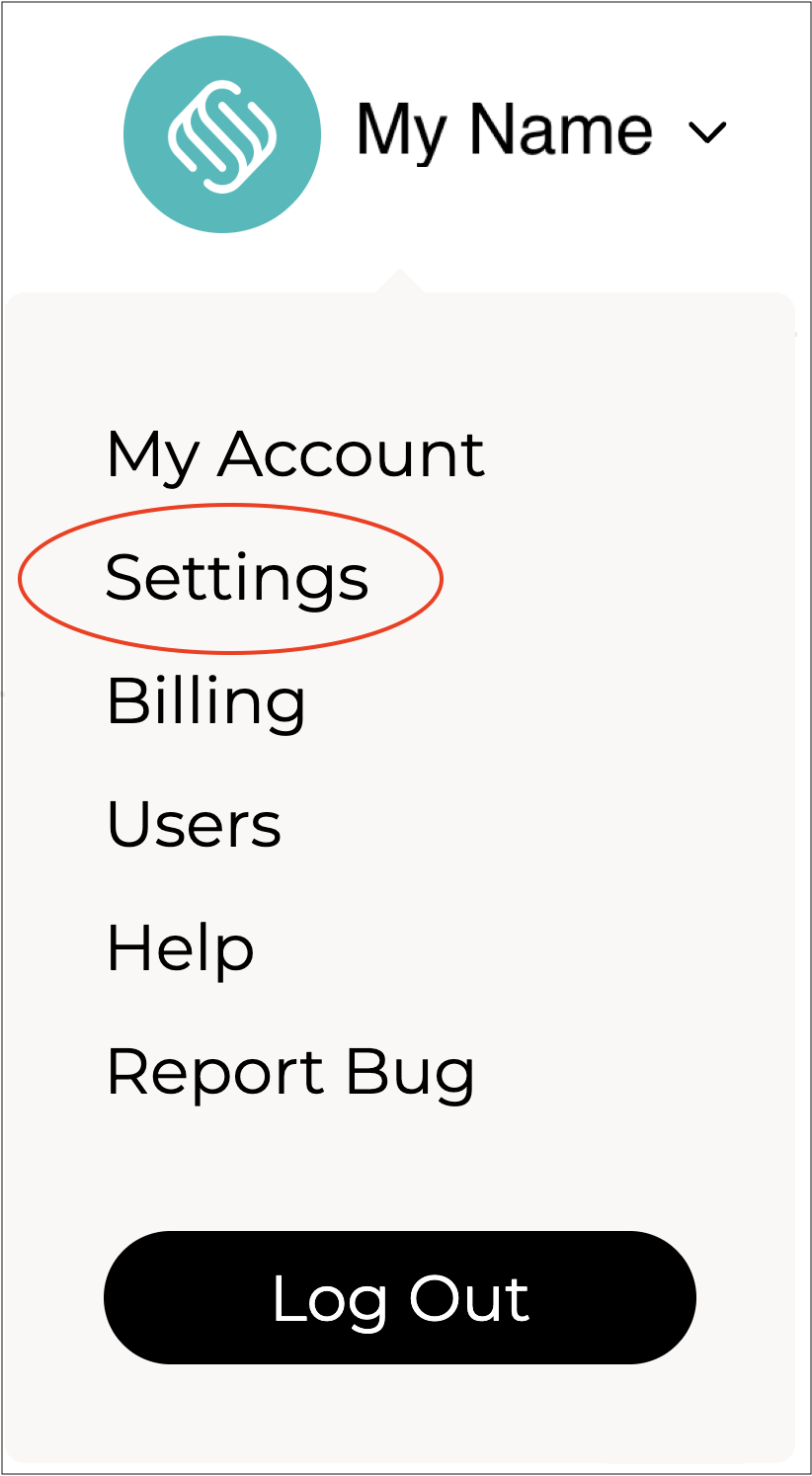
To view, create or edit your **Pick & Pack Settings** click on your company name in the top right and select **Settings**.
The **Settings** menu will open. Scroll down and select **Pick & Pack Settings**.
The **Pick & Pack Settings** page will open.
You will see 4 tabs:
**Settings**
Displays your current Pick & Pack configuration and allows you to manage the settings that control how orders are picked, packed and prepared for fulfilment.
{% hint style="success" %}
👉 See the [Pick & Pack Settings](https://help.supplyd.co/supplyd-erp/settings/pick-and-pack-settings.md) document for more details.
{% endhint %}
**Pick Tubs**
Lists the tubs available for holding and organising products while orders are being picked. From here, you can view and configure existing tubs or add new ones to support your picking workflow.
{% hint style="success" %}
👉 See the [Pick Tubs](https://help.supplyd.co/supplyd-erp/settings/pick-and-pack-settings/pick-tubs.md) document for setup instructions.
{% endhint %}
**Pick Priorities**
Lists the stations where picked orders are packed and prepared for delivery or collection. From here, you can add new Pack Stations or update existing ones to suit your packing workflow.
{% hint style="success" %}
👉 See the [Pick Priorities](https://help.supplyd.co/supplyd-erp/settings/pick-and-pack-settings/pick-priorities.md) document for more information.
{% endhint %}
**Pack Stations**
Lists the stations where picked orders are packed and prepared for delivery or collection. From here, you can add new Pack Stations or update existing ones to suit your packing workflow.
{% hint style="success" %}
👉 See the [Pack Stations](https://help.supplyd.co/supplyd-erp/settings/pick-and-pack-settings/pack-stations.md) document for setup instructions.
{% endhint %}
---
# Agent Instructions
This documentation is published with GitBook. GitBook is the documentation platform designed so that both humans and AI agents can read, navigate, and reason over technical content effectively. Learn more at gitbook.com.
## Querying This Documentation
If you need additional information that is not directly available in this page, you can query the documentation by asking a question.
Perform an HTTP GET request on the following URL with the `ask` and `goal` query parameters:
```
GET https://help.supplyd.co/supplyd-erp/settings/pick-and-pack-settings/the-pick-and-pack-settings-page.md?ask=&goal=
```
`ask` is the immediate question: it should be specific, self-contained, and written in natural language.
`goal` is what the user is ultimately trying to achieve, the reason they need the answer. Sharing it helps GitBook give you a better, more relevant answer. A goal is most helpful when it describes the outcome the user wants rather than restating the question. For example, with `ask=how do I create an API token`, a goal like `automate deployments from our CI pipeline` lets GitBook tailor the answer to that use case.
The response will contain a direct answer to the question and relevant excerpts and sources from the documentation.
Use this mechanism when the answer is not explicitly present in the current page, you need clarification or additional context, or you want to retrieve related documentation sections.

 The **Settings** menu will open. Scroll down and select **Pick & Pack Settings**.
