> For the complete documentation index, see [llms.txt](https://help.supplyd.co/llms.txt). Markdown versions of documentation pages are available by appending `.md` to page URLs; this page is available as [Markdown](https://help.supplyd.co/supplyd-erp/settings/integrations/sales-channel-integrations/shopify.md).

# Shopify

Integrating Supply’d with Shopify syncs inventory, orders, and product details in real-time, keeping your store up-to-date effortlessly.

Integrating Shopify with Supply’d streamlines your eCommerce operations by automatically syncing orders, products, and inventory between platforms. This integration ensures accurate stock levels, faster order processing, and simplified accounting, thus saving time and reducing manual errors across your sales and fulfilment workflows.

This document will guide you through:

* [#connecting-to-shopify](#connecting-to-shopify "mention")
* [#shopify-payments-and-payouts](#shopify-payments-and-payouts "mention")
* [#editing-the-shopify-integration](#editing-the-shopify-integration "mention")
* [#disconnecting-from-shopify](#disconnecting-from-shopify "mention")

***

## Connecting to Shopify

{% stepper %}
{% step %}

#### Go to Settings

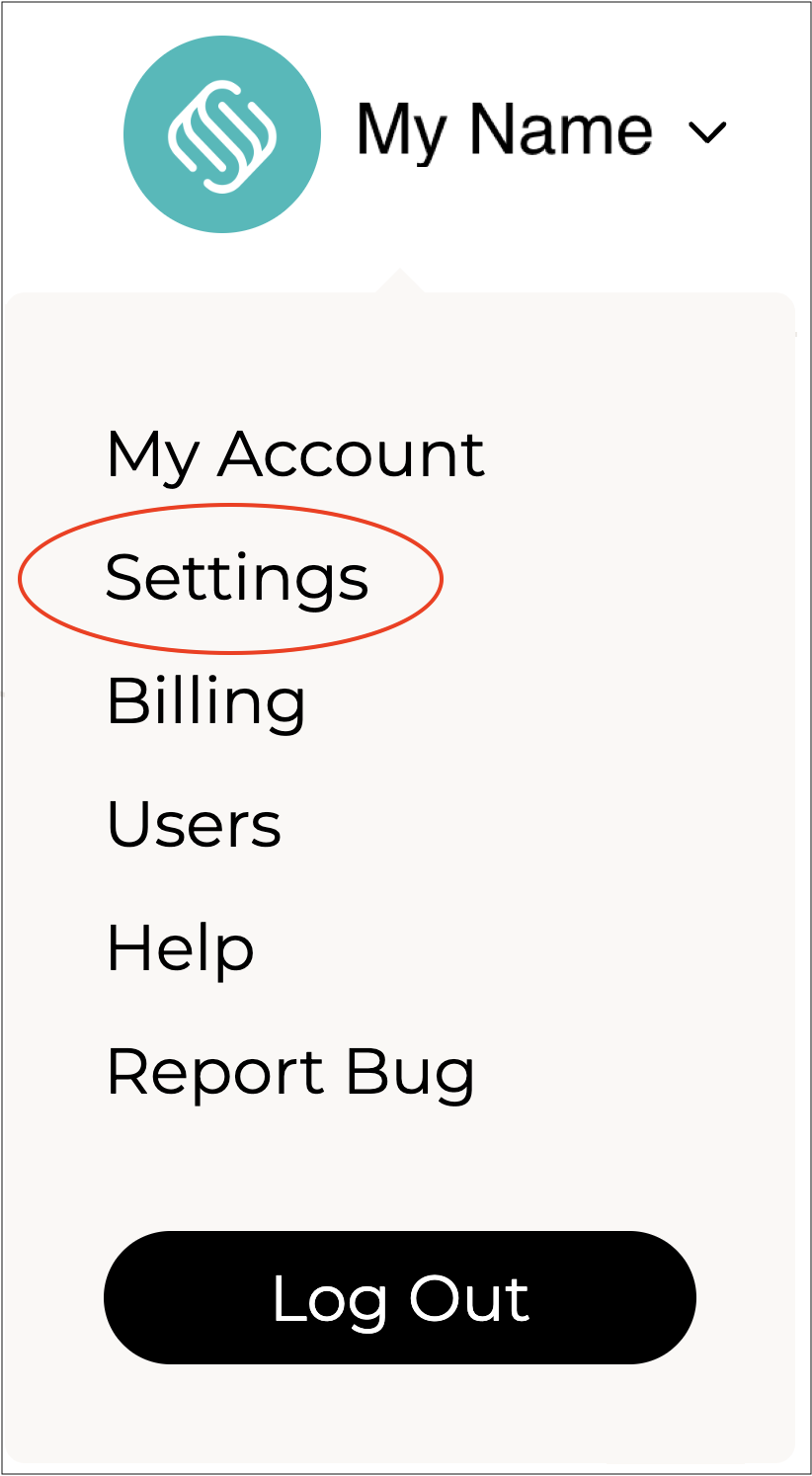
Click on your company name in the top right and select **Settings**.&#x20;

<figure><img src="https://2965503026-files.gitbook.io/~/files/v0/b/gitbook-x-prod.appspot.com/o/spaces%2FDaPYJDB89ny0x7wcMedb%2Fuploads%2FQRICojD4TZWkp8dsCMX3%2FSpacer.png?alt=media&amp;token=3bc5fa40-c805-461a-a4e4-b8c4ca526aad" alt=""><figcaption></figcaption></figure>

<figure><img src="https://2965503026-files.gitbook.io/~/files/v0/b/gitbook-x-prod.appspot.com/o/spaces%2FDaPYJDB89ny0x7wcMedb%2Fuploads%2FF4PHp7MOvUhvNnGRFm3N%2FSettings.png?alt=media&amp;token=0f083361-b311-49f1-a026-aafde809130f" alt="" width="188"><figcaption></figcaption></figure>

<figure><img src="https://2965503026-files.gitbook.io/~/files/v0/b/gitbook-x-prod.appspot.com/o/spaces%2FDaPYJDB89ny0x7wcMedb%2Fuploads%2FQRICojD4TZWkp8dsCMX3%2FSpacer.png?alt=media&amp;token=3bc5fa40-c805-461a-a4e4-b8c4ca526aad" alt=""><figcaption></figcaption></figure>

***

{% endstep %}

{% step %}

#### Select Integrations

Scroll down and select **Integrations** from the **Settings** menu.

<figure><img src="https://2965503026-files.gitbook.io/~/files/v0/b/gitbook-x-prod.appspot.com/o/spaces%2FDaPYJDB89ny0x7wcMedb%2Fuploads%2FJQoK51rAlNV35ONrOlL2%2FSpacer.png?alt=media&amp;token=f41a1fb1-0826-45bd-895f-fee2aaf47f02" alt=""><figcaption></figcaption></figure>

<figure><img src="https://2965503026-files.gitbook.io/~/files/v0/b/gitbook-x-prod.appspot.com/o/spaces%2FDaPYJDB89ny0x7wcMedb%2Fuploads%2FkzlXjLJvIzoXTgP96cqP%2FSelect%20Integrations.png?alt=media&amp;token=9bb29cdf-31e1-47bf-a80c-a3cc4f1f4066" alt=""><figcaption></figcaption></figure>

<figure><img src="https://2965503026-files.gitbook.io/~/files/v0/b/gitbook-x-prod.appspot.com/o/spaces%2FDaPYJDB89ny0x7wcMedb%2Fuploads%2FJQoK51rAlNV35ONrOlL2%2FSpacer.png?alt=media&amp;token=f41a1fb1-0826-45bd-895f-fee2aaf47f02" alt=""><figcaption></figcaption></figure>

***

{% endstep %}

{% step %}

#### Click Add+

Click on **Add +** in the top right.

<figure><img src="https://2965503026-files.gitbook.io/~/files/v0/b/gitbook-x-prod.appspot.com/o/spaces%2FDaPYJDB89ny0x7wcMedb%2Fuploads%2FJQoK51rAlNV35ONrOlL2%2FSpacer.png?alt=media&amp;token=f41a1fb1-0826-45bd-895f-fee2aaf47f02" alt=""><figcaption></figcaption></figure>

<figure><img src="https://2965503026-files.gitbook.io/~/files/v0/b/gitbook-x-prod.appspot.com/o/spaces%2FDaPYJDB89ny0x7wcMedb%2Fuploads%2FvrGb3GKwVdj3AmI164QZ%2FScreenshot%202025-10-24%20at%209.29.35%E2%80%AFam.png?alt=media&amp;token=45867df5-e4ec-463d-ab83-c255e0ad8ba8" alt=""><figcaption></figcaption></figure>

<figure><img src="https://2965503026-files.gitbook.io/~/files/v0/b/gitbook-x-prod.appspot.com/o/spaces%2FDaPYJDB89ny0x7wcMedb%2Fuploads%2FJQoK51rAlNV35ONrOlL2%2FSpacer.png?alt=media&amp;token=f41a1fb1-0826-45bd-895f-fee2aaf47f02" alt=""><figcaption></figcaption></figure>

The **Add Integration** page will show.&#x20;

<figure><img src="https://2965503026-files.gitbook.io/~/files/v0/b/gitbook-x-prod.appspot.com/o/spaces%2FDaPYJDB89ny0x7wcMedb%2Fuploads%2FJQoK51rAlNV35ONrOlL2%2FSpacer.png?alt=media&amp;token=f41a1fb1-0826-45bd-895f-fee2aaf47f02" alt=""><figcaption></figcaption></figure>

![](https://2965503026-files.gitbook.io/~/files/v0/b/gitbook-x-prod.appspot.com/o/spaces%2FDaPYJDB89ny0x7wcMedb%2Fuploads%2FvvfiUhsz0R6cYPa775uM%2FSelect%20Shopify.png?alt=media\&token=c73e09c3-de1d-4077-9b95-cef24935eb34)

<figure><img src="https://2965503026-files.gitbook.io/~/files/v0/b/gitbook-x-prod.appspot.com/o/spaces%2FDaPYJDB89ny0x7wcMedb%2Fuploads%2FJQoK51rAlNV35ONrOlL2%2FSpacer.png?alt=media&amp;token=f41a1fb1-0826-45bd-895f-fee2aaf47f02" alt=""><figcaption></figcaption></figure>

***

{% endstep %}

{% step %}

#### Click Shopify

Click on the **Shopify** logo (as circled above).&#x20;

<figure><img src="https://2965503026-files.gitbook.io/~/files/v0/b/gitbook-x-prod.appspot.com/o/spaces%2FDaPYJDB89ny0x7wcMedb%2Fuploads%2FJQoK51rAlNV35ONrOlL2%2FSpacer.png?alt=media&amp;token=f41a1fb1-0826-45bd-895f-fee2aaf47f02" alt=""><figcaption></figcaption></figure>

<figure><img src="https://2965503026-files.gitbook.io/~/files/v0/b/gitbook-x-prod.appspot.com/o/spaces%2FDaPYJDB89ny0x7wcMedb%2Fuploads%2F6xVwnJTTbuYANhFkSQg8%2FScreenshot%202025-10-22%20at%202.21.10%E2%80%AFpm.png?alt=media&amp;token=28081591-80aa-4f7f-b9a2-be794e4ee50a" alt="" width="281"><figcaption></figcaption></figure>

<figure><img src="https://2965503026-files.gitbook.io/~/files/v0/b/gitbook-x-prod.appspot.com/o/spaces%2FDaPYJDB89ny0x7wcMedb%2Fuploads%2FJQoK51rAlNV35ONrOlL2%2FSpacer.png?alt=media&amp;token=f41a1fb1-0826-45bd-895f-fee2aaf47f02" alt=""><figcaption></figcaption></figure>

You will be taken to Shopify where you can login and grant access to Supply'd.

<figure><img src="https://2965503026-files.gitbook.io/~/files/v0/b/gitbook-x-prod.appspot.com/o/spaces%2FDaPYJDB89ny0x7wcMedb%2Fuploads%2FG8XYUeWDpFyAAfHvQ26p%2FSpacer.png?alt=media&amp;token=d1017aad-751e-46d9-ad85-7546e0f615cb" alt=""><figcaption></figcaption></figure>

![](https://cdn.filestackcontent.com/HhkahSvRSuXWwHopTLJQ)

<figure><img src="https://2965503026-files.gitbook.io/~/files/v0/b/gitbook-x-prod.appspot.com/o/spaces%2FDaPYJDB89ny0x7wcMedb%2Fuploads%2FG8XYUeWDpFyAAfHvQ26p%2FSpacer.png?alt=media&amp;token=d1017aad-751e-46d9-ad85-7546e0f615cb" alt=""><figcaption></figcaption></figure>

***

{% endstep %}

{% step %}

#### Return to Supply'd

After returning to Supply'd, the **Shopify Settings** screen should appear.

<figure><img src="https://2965503026-files.gitbook.io/~/files/v0/b/gitbook-x-prod.appspot.com/o/spaces%2FDaPYJDB89ny0x7wcMedb%2Fuploads%2FG8XYUeWDpFyAAfHvQ26p%2FSpacer.png?alt=media&amp;token=d1017aad-751e-46d9-ad85-7546e0f615cb" alt=""><figcaption></figcaption></figure>

![](https://2965503026-files.gitbook.io/~/files/v0/b/gitbook-x-prod.appspot.com/o/spaces%2FDaPYJDB89ny0x7wcMedb%2Fuploads%2FbrGGToCeWyKP0CGRAsBG%2F7%20-%20Shopify%20Settings.png?alt=media\&token=1582b03e-742a-4675-8c78-06c2711fea22)

<figure><img src="https://2965503026-files.gitbook.io/~/files/v0/b/gitbook-x-prod.appspot.com/o/spaces%2FDaPYJDB89ny0x7wcMedb%2Fuploads%2FG8XYUeWDpFyAAfHvQ26p%2FSpacer.png?alt=media&amp;token=d1017aad-751e-46d9-ad85-7546e0f615cb" alt=""><figcaption></figcaption></figure>

{% hint style="info" %}
If the **Shopify Settings** page doesn't appear:

1. Click on your name in the top right corner, and select **Settings.**&#x20;
2. Scroll down and select **Integrations.**
3. Select **Shopify** from the **Integrations** list.&#x20;

You can also follow these steps if you need to make changes to the settings at a later date.
{% endhint %}

<figure><img src="https://2965503026-files.gitbook.io/~/files/v0/b/gitbook-x-prod.appspot.com/o/spaces%2FDaPYJDB89ny0x7wcMedb%2Fuploads%2FG8XYUeWDpFyAAfHvQ26p%2FSpacer.png?alt=media&amp;token=d1017aad-751e-46d9-ad85-7546e0f615cb" alt=""><figcaption></figcaption></figure>

Complete the sections as follows:

<figure><img src="https://2965503026-files.gitbook.io/~/files/v0/b/gitbook-x-prod.appspot.com/o/spaces%2FDaPYJDB89ny0x7wcMedb%2Fuploads%2FJQoK51rAlNV35ONrOlL2%2FSpacer.png?alt=media&amp;token=f41a1fb1-0826-45bd-895f-fee2aaf47f02" alt=""><figcaption></figcaption></figure>

***

{% endstep %}

{% step %}

### Shopify Settings

<figure><img src="https://2965503026-files.gitbook.io/~/files/v0/b/gitbook-x-prod.appspot.com/o/spaces%2FDaPYJDB89ny0x7wcMedb%2Fuploads%2FG8XYUeWDpFyAAfHvQ26p%2FSpacer.png?alt=media&amp;token=d1017aad-751e-46d9-ad85-7546e0f615cb" alt=""><figcaption></figcaption></figure>

<figure><img src="https://2965503026-files.gitbook.io/~/files/v0/b/gitbook-x-prod.appspot.com/o/spaces%2FDaPYJDB89ny0x7wcMedb%2Fuploads%2Fcon8wFkErvwBrkcaTcsF%2FShopify%20Settings.png?alt=media&amp;token=09831519-3327-4e85-a83b-4a98bbd64751" alt=""><figcaption></figcaption></figure>

<figure><img src="https://2965503026-files.gitbook.io/~/files/v0/b/gitbook-x-prod.appspot.com/o/spaces%2FDaPYJDB89ny0x7wcMedb%2Fuploads%2FG8XYUeWDpFyAAfHvQ26p%2FSpacer.png?alt=media&amp;token=d1017aad-751e-46d9-ad85-7546e0f615cb" alt=""><figcaption></figcaption></figure>

**Integration Name**&#x20;

Enter a reference name for this integration.

<figure><img src="https://2965503026-files.gitbook.io/~/files/v0/b/gitbook-x-prod.appspot.com/o/spaces%2FDaPYJDB89ny0x7wcMedb%2Fuploads%2FG8XYUeWDpFyAAfHvQ26p%2FSpacer.png?alt=media&amp;token=d1017aad-751e-46d9-ad85-7546e0f615cb" alt=""><figcaption></figcaption></figure>

**Connected Shopify Store**&#x20;

The name of the connected store. This field cannot be edited.

<figure><img src="https://2965503026-files.gitbook.io/~/files/v0/b/gitbook-x-prod.appspot.com/o/spaces%2FDaPYJDB89ny0x7wcMedb%2Fuploads%2FG8XYUeWDpFyAAfHvQ26p%2FSpacer.png?alt=media&amp;token=d1017aad-751e-46d9-ad85-7546e0f615cb" alt=""><figcaption></figcaption></figure>

***

{% endstep %}

{% step %}

### **Sync Orders**

Toggle on to sync orders from Shopify to Supply'd.

<figure><img src="https://2965503026-files.gitbook.io/~/files/v0/b/gitbook-x-prod.appspot.com/o/spaces%2FDaPYJDB89ny0x7wcMedb%2Fuploads%2FG8XYUeWDpFyAAfHvQ26p%2FSpacer.png?alt=media&amp;token=d1017aad-751e-46d9-ad85-7546e0f615cb" alt=""><figcaption></figcaption></figure>

<figure><img src="https://2965503026-files.gitbook.io/~/files/v0/b/gitbook-x-prod.appspot.com/o/spaces%2FDaPYJDB89ny0x7wcMedb%2Fuploads%2FK0s1jVJ1eHc8Fz21zH5N%2FSync%20Orders%20Section.png?alt=media&amp;token=484001ec-9fb6-4274-8fec-1c46ee4a1d79" alt=""><figcaption></figcaption></figure>

<figure><img src="https://2965503026-files.gitbook.io/~/files/v0/b/gitbook-x-prod.appspot.com/o/spaces%2FDaPYJDB89ny0x7wcMedb%2Fuploads%2FG8XYUeWDpFyAAfHvQ26p%2FSpacer.png?alt=media&amp;token=d1017aad-751e-46d9-ad85-7546e0f615cb" alt=""><figcaption></figcaption></figure>

**Order Number Prefix**&#x20;

Enter an optional prefix for Supply'd invoice numbers sent to Shopify.

<figure><img src="https://2965503026-files.gitbook.io/~/files/v0/b/gitbook-x-prod.appspot.com/o/spaces%2FDaPYJDB89ny0x7wcMedb%2Fuploads%2FG8XYUeWDpFyAAfHvQ26p%2FSpacer.png?alt=media&amp;token=d1017aad-751e-46d9-ad85-7546e0f615cb" alt=""><figcaption></figcaption></figure>

**Reduce Inventory On Import**&#x20;

Choose whether to reduce Supply’d inventory when orders are imported.&#x20;

<figure><img src="https://2965503026-files.gitbook.io/~/files/v0/b/gitbook-x-prod.appspot.com/o/spaces%2FDaPYJDB89ny0x7wcMedb%2Fuploads%2FG8XYUeWDpFyAAfHvQ26p%2FSpacer.png?alt=media&amp;token=d1017aad-751e-46d9-ad85-7546e0f615cb" alt=""><figcaption></figcaption></figure>

<figure><img src="https://2965503026-files.gitbook.io/~/files/v0/b/gitbook-x-prod.appspot.com/o/spaces%2FDaPYJDB89ny0x7wcMedb%2Fuploads%2FpsYxSebgaJZ9ryPiHNEX%2F8%20-%20Reduce%20Inventory%20on%20Import.png?alt=media&amp;token=ad70dc45-0495-4402-808d-a61f6c97d895" alt="" width="375"><figcaption></figcaption></figure>

<figure><img src="https://2965503026-files.gitbook.io/~/files/v0/b/gitbook-x-prod.appspot.com/o/spaces%2FDaPYJDB89ny0x7wcMedb%2Fuploads%2FG8XYUeWDpFyAAfHvQ26p%2FSpacer.png?alt=media&amp;token=d1017aad-751e-46d9-ad85-7546e0f615cb" alt=""><figcaption></figcaption></figure>

**Reduce Stock On Hand On Import**&#x20;

Choose whether or not to reduce stock on hand on import.&#x20;

<figure><img src="https://2965503026-files.gitbook.io/~/files/v0/b/gitbook-x-prod.appspot.com/o/spaces%2FDaPYJDB89ny0x7wcMedb%2Fuploads%2FG8XYUeWDpFyAAfHvQ26p%2FSpacer.png?alt=media&amp;token=d1017aad-751e-46d9-ad85-7546e0f615cb" alt=""><figcaption></figcaption></figure>

<figure><img src="https://2965503026-files.gitbook.io/~/files/v0/b/gitbook-x-prod.appspot.com/o/spaces%2FDaPYJDB89ny0x7wcMedb%2Fuploads%2F8uc3CyZKWF3k5eONM4jB%2FReduce%20Stock%20On%20Hand%20On%20Import%20Drop%20Down.png?alt=media&amp;token=a32c5a7a-db57-4554-b13b-fbe039ee0a2a" alt="" width="375"><figcaption></figcaption></figure>

<figure><img src="https://2965503026-files.gitbook.io/~/files/v0/b/gitbook-x-prod.appspot.com/o/spaces%2FDaPYJDB89ny0x7wcMedb%2Fuploads%2FG8XYUeWDpFyAAfHvQ26p%2FSpacer.png?alt=media&amp;token=d1017aad-751e-46d9-ad85-7546e0f615cb" alt=""><figcaption></figcaption></figure>

* **Never:** Available stock is reduced when the order is imported. On-hand stock is reduced when the order is picked in Supply'd.
* **On Import:** Both available stock and on-hand stock are reduced immediately when the order is imported.
* **When Fulfilled:** Available stock is reduced when the order is imported. On-hand stock is reduced when the order reaches the **Fulfilled** or **Completed** status.

<figure><img src="https://2965503026-files.gitbook.io/~/files/v0/b/gitbook-x-prod.appspot.com/o/spaces%2FDaPYJDB89ny0x7wcMedb%2Fuploads%2FCsYeYiE2X4Nv6WMIepLj%2FSpacer.png?alt=media&amp;token=941403ea-f591-4674-a633-68ed30cf34af" alt=""><figcaption></figcaption></figure>

**Sync Orders**&#x20;

Select which orders to sync from Shopify - **All Orders** or **All Orders Since Date**.&#x20;

<figure><img src="https://2965503026-files.gitbook.io/~/files/v0/b/gitbook-x-prod.appspot.com/o/spaces%2FDaPYJDB89ny0x7wcMedb%2Fuploads%2FG8XYUeWDpFyAAfHvQ26p%2FSpacer.png?alt=media&amp;token=d1017aad-751e-46d9-ad85-7546e0f615cb" alt=""><figcaption></figcaption></figure>

<figure><img src="https://2965503026-files.gitbook.io/~/files/v0/b/gitbook-x-prod.appspot.com/o/spaces%2FDaPYJDB89ny0x7wcMedb%2Fuploads%2FVfslxVjSHCty3IeRvaR0%2F10%20-%20Sync%20Orders%20Drop%20Down.png?alt=media&amp;token=41061d99-9bf8-460f-b0c2-ba5d6e780159" alt="" width="375"><figcaption></figcaption></figure>

<figure><img src="https://2965503026-files.gitbook.io/~/files/v0/b/gitbook-x-prod.appspot.com/o/spaces%2FDaPYJDB89ny0x7wcMedb%2Fuploads%2FG8XYUeWDpFyAAfHvQ26p%2FSpacer.png?alt=media&amp;token=d1017aad-751e-46d9-ad85-7546e0f615cb" alt=""><figcaption></figcaption></figure>

When **All Orders Since Date** is selected, an additional field - **Order Sync Start Date** - will appear.

<figure><img src="https://2965503026-files.gitbook.io/~/files/v0/b/gitbook-x-prod.appspot.com/o/spaces%2FDaPYJDB89ny0x7wcMedb%2Fuploads%2FG8XYUeWDpFyAAfHvQ26p%2FSpacer.png?alt=media&amp;token=d1017aad-751e-46d9-ad85-7546e0f615cb" alt=""><figcaption></figcaption></figure>

**Order Sync Start Date**&#x20;

Select the month, year and date from the calendar.&#x20;

{% hint style="info" %}
This field will only show when **All Orders Since Date** is selected.
{% endhint %}

<figure><img src="https://2965503026-files.gitbook.io/~/files/v0/b/gitbook-x-prod.appspot.com/o/spaces%2FDaPYJDB89ny0x7wcMedb%2Fuploads%2FG8XYUeWDpFyAAfHvQ26p%2FSpacer.png?alt=media&amp;token=d1017aad-751e-46d9-ad85-7546e0f615cb" alt=""><figcaption></figcaption></figure>

<figure><img src="https://2965503026-files.gitbook.io/~/files/v0/b/gitbook-x-prod.appspot.com/o/spaces%2FDaPYJDB89ny0x7wcMedb%2Fuploads%2FkVBphTGnCxQYvcSuGAgC%2F10.1%20-%20Order%20Sync%20Start.png?alt=media&amp;token=b5453b57-5270-49ee-9e7a-86b37e8d2b63" alt="" width="375"><figcaption></figcaption></figure>

<figure><img src="https://2965503026-files.gitbook.io/~/files/v0/b/gitbook-x-prod.appspot.com/o/spaces%2FDaPYJDB89ny0x7wcMedb%2Fuploads%2FG8XYUeWDpFyAAfHvQ26p%2FSpacer.png?alt=media&amp;token=d1017aad-751e-46d9-ad85-7546e0f615cb" alt=""><figcaption></figcaption></figure>

**Your Address - Warehouse**&#x20;

Select which warehouse would you like to map this Shopify location to. This location is used to pick orders from using pick & pack.&#x20;

{% hint style="info" %}
Your Address will be the address you have set in Shopify. There will be multiple fields if you have more than one address set up in [Locations](/supplyd-erp/settings/locations.md).
{% endhint %}

<figure><img src="https://2965503026-files.gitbook.io/~/files/v0/b/gitbook-x-prod.appspot.com/o/spaces%2FDaPYJDB89ny0x7wcMedb%2Fuploads%2FG8XYUeWDpFyAAfHvQ26p%2FSpacer.png?alt=media&amp;token=d1017aad-751e-46d9-ad85-7546e0f615cb" alt=""><figcaption></figcaption></figure>

<figure><img src="https://2965503026-files.gitbook.io/~/files/v0/b/gitbook-x-prod.appspot.com/o/spaces%2FDaPYJDB89ny0x7wcMedb%2Fuploads%2FIoIEyNnFsFahNIdL1XlG%2F11%20-%20Warehouse.png?alt=media&amp;token=a24b4de4-c97b-4f99-93c6-de88b9cb3644" alt="" width="375"><figcaption></figcaption></figure>

<figure><img src="https://2965503026-files.gitbook.io/~/files/v0/b/gitbook-x-prod.appspot.com/o/spaces%2FDaPYJDB89ny0x7wcMedb%2Fuploads%2FbJDih3Dwv41QavjV1QDa%2FSpacer.png?alt=media&amp;token=6c34f805-9610-4de9-8f8a-a029f13dd1a1" alt=""><figcaption></figcaption></figure>

***

<figure><img src="https://2965503026-files.gitbook.io/~/files/v0/b/gitbook-x-prod.appspot.com/o/spaces%2FDaPYJDB89ny0x7wcMedb%2Fuploads%2FG8XYUeWDpFyAAfHvQ26p%2FSpacer.png?alt=media&amp;token=d1017aad-751e-46d9-ad85-7546e0f615cb" alt=""><figcaption></figcaption></figure>

#### FAQs

{% hint style="info" %}
**Q: Does enabling Order Sync create duplicate orders?**

**A:** No. Supply'd uses the **SKU and Barcode** to match products when orders are synced, helping ensure the correct products are identified and preventing duplicate orders from being created.
{% endhint %}

{% hint style="info" %}
**Q: If Order Sync was turned off and is enabled later, will it import historical orders?**

**A:** No. Order Sync will only import orders from the point it is enabled. Historical orders will not be imported unless they are subsequently updated in Shopify.
{% endhint %}

<figure><img src="https://2965503026-files.gitbook.io/~/files/v0/b/gitbook-x-prod.appspot.com/o/spaces%2FDaPYJDB89ny0x7wcMedb%2Fuploads%2FbJDih3Dwv41QavjV1QDa%2FSpacer.png?alt=media&amp;token=6c34f805-9610-4de9-8f8a-a029f13dd1a1" alt=""><figcaption></figcaption></figure>

***

{% endstep %}

{% step %}

### Advanced Mapping

Set-up advanced mapping rules to define specific actions based on order information. These actions will run once at the time of import if all the conditions defined in a rule set are met.

<figure><img src="https://2965503026-files.gitbook.io/~/files/v0/b/gitbook-x-prod.appspot.com/o/spaces%2FDaPYJDB89ny0x7wcMedb%2Fuploads%2FG8XYUeWDpFyAAfHvQ26p%2FSpacer.png?alt=media&amp;token=d1017aad-751e-46d9-ad85-7546e0f615cb" alt=""><figcaption></figcaption></figure>

<figure><img src="https://cdn.filestackcontent.com/QuoQ3xXiRDCJcoCTFMoE" alt=""><figcaption></figcaption></figure>

<figure><img src="https://2965503026-files.gitbook.io/~/files/v0/b/gitbook-x-prod.appspot.com/o/spaces%2FDaPYJDB89ny0x7wcMedb%2Fuploads%2FG8XYUeWDpFyAAfHvQ26p%2FSpacer.png?alt=media&amp;token=d1017aad-751e-46d9-ad85-7546e0f615cb" alt=""><figcaption></figcaption></figure>

To add a **Rule:**

1. Click **Add Rule Set**.&#x20;
2. Select your desired conditions from the drop-down menus.&#x20;
3. Add any additional conditions, if required, by clicking **Add Condition**.
4. Select your desired **Actions** from the drop-down menus.&#x20;
5. Add any additional actions, if required, by clicking **Add Action**.

<figure><img src="https://2965503026-files.gitbook.io/~/files/v0/b/gitbook-x-prod.appspot.com/o/spaces%2FDaPYJDB89ny0x7wcMedb%2Fuploads%2FJQoK51rAlNV35ONrOlL2%2FSpacer.png?alt=media&amp;token=f41a1fb1-0826-45bd-895f-fee2aaf47f02" alt=""><figcaption></figcaption></figure>

Repeat as required to add any additional **Rule Sets**.

<figure><img src="https://2965503026-files.gitbook.io/~/files/v0/b/gitbook-x-prod.appspot.com/o/spaces%2FDaPYJDB89ny0x7wcMedb%2Fuploads%2FJQoK51rAlNV35ONrOlL2%2FSpacer.png?alt=media&amp;token=f41a1fb1-0826-45bd-895f-fee2aaf47f02" alt=""><figcaption></figcaption></figure>

***

{% endstep %}

{% step %}

### Sync Inventory

Toggle on if you would like to sync inventory from Supply'd to Shopify.

<figure><img src="https://2965503026-files.gitbook.io/~/files/v0/b/gitbook-x-prod.appspot.com/o/spaces%2FDaPYJDB89ny0x7wcMedb%2Fuploads%2FbJDih3Dwv41QavjV1QDa%2FSpacer.png?alt=media&amp;token=6c34f805-9610-4de9-8f8a-a029f13dd1a1" alt=""><figcaption></figcaption></figure>

{% hint style="warning" %}
As a general rule, inventory syncing matches products using the **SKU** and **Barcode**. Make sure these fields are completed and match between Supply'd and your sales channels so inventory can be correctly identified and updated, as Supply'd inventory syncing is live and continuous.

If you choose not to sync inventory from Supply'd to **Shopify**, Supply'd will still use the **SKU** to match products when Sales Orders are imported from that channel. Make sure the SKU in Shopify matches the SKU in Supply'd so products can be correctly identified and added to the Sales Order.

**Important:** If the SKU does not match, Supply'd will not be able to automatically identify the product.
{% endhint %}

<figure><img src="https://2965503026-files.gitbook.io/~/files/v0/b/gitbook-x-prod.appspot.com/o/spaces%2FDaPYJDB89ny0x7wcMedb%2Fuploads%2FG8XYUeWDpFyAAfHvQ26p%2FSpacer.png?alt=media&amp;token=d1017aad-751e-46d9-ad85-7546e0f615cb" alt=""><figcaption></figcaption></figure>

<figure><img src="https://cdn.filestackcontent.com/MepQufVQKqlDvgxBgJyg" alt=""><figcaption></figcaption></figure>

<figure><img src="https://2965503026-files.gitbook.io/~/files/v0/b/gitbook-x-prod.appspot.com/o/spaces%2FDaPYJDB89ny0x7wcMedb%2Fuploads%2FG8XYUeWDpFyAAfHvQ26p%2FSpacer.png?alt=media&amp;token=d1017aad-751e-46d9-ad85-7546e0f615cb" alt=""><figcaption></figcaption></figure>

**Warehouse**&#x20;

Select which warehouse would you like to map this Shopify location to.&#x20;

{% hint style="info" %}
Your Address will be the address you have set in Shopify. There will be multiple fields if you have more than one address set up in [Locations](/supplyd-erp/settings/locations.md).
{% endhint %}

<figure><img src="https://2965503026-files.gitbook.io/~/files/v0/b/gitbook-x-prod.appspot.com/o/spaces%2FDaPYJDB89ny0x7wcMedb%2Fuploads%2FG8XYUeWDpFyAAfHvQ26p%2FSpacer.png?alt=media&amp;token=d1017aad-751e-46d9-ad85-7546e0f615cb" alt=""><figcaption></figcaption></figure>

<figure><img src="https://2965503026-files.gitbook.io/~/files/v0/b/gitbook-x-prod.appspot.com/o/spaces%2FDaPYJDB89ny0x7wcMedb%2Fuploads%2FFCpqfM06zbunJ9crEceh%2F14%20-%20Warehouse%20copy.png?alt=media&amp;token=972e6e1b-3f79-471a-9865-3de586c8d418" alt="" width="375"><figcaption></figcaption></figure>

<figure><img src="https://2965503026-files.gitbook.io/~/files/v0/b/gitbook-x-prod.appspot.com/o/spaces%2FDaPYJDB89ny0x7wcMedb%2Fuploads%2FG8XYUeWDpFyAAfHvQ26p%2FSpacer.png?alt=media&amp;token=d1017aad-751e-46d9-ad85-7546e0f615cb" alt=""><figcaption></figcaption></figure>

**Untracked Stock Setting**&#x20;

Select how would you like Supply'd to handle products that are set as "Untracked" in Shopify.&#x20;

<figure><img src="https://2965503026-files.gitbook.io/~/files/v0/b/gitbook-x-prod.appspot.com/o/spaces%2FDaPYJDB89ny0x7wcMedb%2Fuploads%2FG8XYUeWDpFyAAfHvQ26p%2FSpacer.png?alt=media&amp;token=d1017aad-751e-46d9-ad85-7546e0f615cb" alt=""><figcaption></figcaption></figure>

<figure><img src="https://2965503026-files.gitbook.io/~/files/v0/b/gitbook-x-prod.appspot.com/o/spaces%2FDaPYJDB89ny0x7wcMedb%2Fuploads%2FcJvtscAFBW3DXkxw2nGW%2F15-%20Shopify%20Untracked%20Stock.png?alt=media&amp;token=623178e6-5eaa-488d-8615-1aadd1e98615" alt="" width="375"><figcaption></figcaption></figure>

<figure><img src="https://2965503026-files.gitbook.io/~/files/v0/b/gitbook-x-prod.appspot.com/o/spaces%2FDaPYJDB89ny0x7wcMedb%2Fuploads%2FG8XYUeWDpFyAAfHvQ26p%2FSpacer.png?alt=media&amp;token=d1017aad-751e-46d9-ad85-7546e0f615cb" alt=""><figcaption></figcaption></figure>

* **Use Supply'd Setting:** Will update the product to match Supply'd manage stock setting.
* **Ignore Product:** Product will be ignored and inventory/status will not be synced.

<figure><img src="https://2965503026-files.gitbook.io/~/files/v0/b/gitbook-x-prod.appspot.com/o/spaces%2FDaPYJDB89ny0x7wcMedb%2Fuploads%2FG8XYUeWDpFyAAfHvQ26p%2FSpacer.png?alt=media&amp;token=d1017aad-751e-46d9-ad85-7546e0f615cb" alt=""><figcaption></figcaption></figure>

**Stock Buffer**&#x20;

Set a default buffer for inventory sent to Shopify. A buffer will reduce the quantity of each products inventory by the buffer amount to help prevent overselling. This can be overridden at a product level.

{% hint style="success" %}
The **Stock Buffer** helps reserve a portion of available stock for other sales channels, such as in-store sales. It is useful for preventing the final items from being sold online when they may be needed for in-store customers.

**Example:** If you have **10 units** in stock and set a Stock Buffer of **2**, only **8 units** will be made available for online sales. The remaining 2 units are effectively held back for in-store sales, helping avoid a situation where an online customer purchases the last item and an in-store customer misses out.
{% endhint %}

<figure><img src="https://2965503026-files.gitbook.io/~/files/v0/b/gitbook-x-prod.appspot.com/o/spaces%2FDaPYJDB89ny0x7wcMedb%2Fuploads%2FbJDih3Dwv41QavjV1QDa%2FSpacer.png?alt=media&amp;token=6c34f805-9610-4de9-8f8a-a029f13dd1a1" alt=""><figcaption></figcaption></figure>

***

<figure><img src="https://2965503026-files.gitbook.io/~/files/v0/b/gitbook-x-prod.appspot.com/o/spaces%2FDaPYJDB89ny0x7wcMedb%2Fuploads%2FbJDih3Dwv41QavjV1QDa%2FSpacer.png?alt=media&amp;token=6c34f805-9610-4de9-8f8a-a029f13dd1a1" alt=""><figcaption></figcaption></figure>

#### FAQs

{% hint style="info" %}
**Q: What settings are required for inventory levels to sync to Shopify?**

**A:** All four of the following settings must be enabled/configured:<br>

1. **Sync Inventory:** Enabled in the integration settings.
2. **Inventory Sync Setting:** Set to **Use Supply'd Setting**.
3. **Track Inventory:** Under **Edit Product → Sell On Shopify**, set **Track Inventory** to **Yes**.
4. **Manage Stock:** Set to **Yes** for the relevant location.<br>

**Track Inventory vs Manage Stock:** These settings serve different purposes. **Track Inventory** controls whether product information, including inventory tracking, is managed and pushed to Shopify. **Manage Stock** is set **per location** and controls whether the actual stock levels for that location are pushed to Shopify. Because Manage Stock can vary between locations, these settings need to remain separate.
{% endhint %}

{% hint style="info" %}
**Q: Does the Stock Status field (In Stock / Out of Stock) sync to Shopify?**

**A:** No. **Stock Status** does not sync to Shopify and must be managed manually in Shopify. Only the **actual stock levels** sync, and only when **Manage Stock** is set to **Yes** for the relevant location.
{% endhint %}

{% hint style="info" %}
**Q: What happens when Manage Stock is set to No?**

**A:** Inventory syncing is disabled for that location. Supply'd will not push the stock level for that location to Shopify.
{% endhint %}

{% hint style="info" %}
**Q: A client has stock discrepancies on Shopify. What should we check first?**

**A:** Check these three settings/processes first:<br>

1. **Stock Buffer:** Check whether a stock buffer is configured, as this can affect the quantity displayed on Shopify.
2. **Stock Deduction Setting:** Check when stock is deducted from inventory when orders are imported.
3. **Fulfilment Process:** Check whether orders are being fulfilled from **Supply'd or Shopify**, as this affects when stock is deducted.<br>

**If the client is fulfilling orders from Shopify:**\
Change **Reduce Stock on Import** to **When Fulfilled**, and have the client fulfil orders through **Supply'd** so inventory is deducted at the appropriate stage and remains in sync.
{% endhint %}

<figure><img src="https://2965503026-files.gitbook.io/~/files/v0/b/gitbook-x-prod.appspot.com/o/spaces%2FDaPYJDB89ny0x7wcMedb%2Fuploads%2FbJDih3Dwv41QavjV1QDa%2FSpacer.png?alt=media&amp;token=6c34f805-9610-4de9-8f8a-a029f13dd1a1" alt=""><figcaption></figcaption></figure>

***

{% endstep %}

{% step %}

### Sync Products?

Toggle on if you would like to sync products added in Supply'd to Shopify automatically. You can select which products to sync when editing each product in Supply'd.

<figure><img src="https://2965503026-files.gitbook.io/~/files/v0/b/gitbook-x-prod.appspot.com/o/spaces%2FDaPYJDB89ny0x7wcMedb%2Fuploads%2FbJDih3Dwv41QavjV1QDa%2FSpacer.png?alt=media&amp;token=6c34f805-9610-4de9-8f8a-a029f13dd1a1" alt=""><figcaption></figcaption></figure>

{% hint style="warning" %}
As a general rule, product syncing matches products using the **SKU** and **Barcode**. Make sure these fields are completed and match between Supply'd and your sales channels to prevent duplicate products from being created, as Supply'd product syncing is live and continuous.

If you choose not to sync products from Supply'd to **Shopify**, Supply'd will still try to match products when Sales Orders are imported from that channel. Products are matched using their **SKU**, so make sure the SKU in the sales channel matches the SKU in Supply'd so products can be correctly identified and added to the Sales Order.

**Important:** If the SKU does not match, Supply'd will not be able to automatically identify the product.
{% endhint %}

<figure><img src="https://2965503026-files.gitbook.io/~/files/v0/b/gitbook-x-prod.appspot.com/o/spaces%2FDaPYJDB89ny0x7wcMedb%2Fuploads%2FG8XYUeWDpFyAAfHvQ26p%2FSpacer.png?alt=media&amp;token=d1017aad-751e-46d9-ad85-7546e0f615cb" alt=""><figcaption></figcaption></figure>

![](https://cdn.filestackcontent.com/SlitwpuDQZmoYHD1IKVa)

<figure><img src="https://2965503026-files.gitbook.io/~/files/v0/b/gitbook-x-prod.appspot.com/o/spaces%2FDaPYJDB89ny0x7wcMedb%2Fuploads%2FG8XYUeWDpFyAAfHvQ26p%2FSpacer.png?alt=media&amp;token=d1017aad-751e-46d9-ad85-7546e0f615cb" alt=""><figcaption></figcaption></figure>

**Name Format\* \[required field]**&#x20;

The format to use when sending product names to Shopify. Uses out templating language, see docs for more details. Some common options:<br>

* **{{brand}}:** Products brand name.
* **{{name}}:** Products name.
* **{{size\_unit}:** Products size (e.g. 100 for a product that is 100g).
* **{{size\_measure}}:** Products size measurement in short form (e.g. "g" for grams).
* **{{carton\_qty}}:** The quantity per carton (e.g. "8" for 8 per carton, "1" for items sold by unit).

<figure><img src="https://2965503026-files.gitbook.io/~/files/v0/b/gitbook-x-prod.appspot.com/o/spaces%2FDaPYJDB89ny0x7wcMedb%2Fuploads%2FG8XYUeWDpFyAAfHvQ26p%2FSpacer.png?alt=media&amp;token=d1017aad-751e-46d9-ad85-7546e0f615cb" alt=""><figcaption></figcaption></figure>

**Description Mapping**&#x20;

Set-up how descriptions map to Shopify. Add Supply'd fields using handlebars and basic HTML tags are supported.&#x20;

👉 See available fields and learn more in the [Handlebars](/supplyd-erp/settings/templating/handlebars.md) document.

<figure><img src="https://2965503026-files.gitbook.io/~/files/v0/b/gitbook-x-prod.appspot.com/o/spaces%2FDaPYJDB89ny0x7wcMedb%2Fuploads%2FG8XYUeWDpFyAAfHvQ26p%2FSpacer.png?alt=media&amp;token=d1017aad-751e-46d9-ad85-7546e0f615cb" alt=""><figcaption></figcaption></figure>

**Default Sales Channels**&#x20;

Select the Sales Channels where a new product pushed to Shopify will be published.

<figure><img src="https://2965503026-files.gitbook.io/~/files/v0/b/gitbook-x-prod.appspot.com/o/spaces%2FDaPYJDB89ny0x7wcMedb%2Fuploads%2FG8XYUeWDpFyAAfHvQ26p%2FSpacer.png?alt=media&amp;token=d1017aad-751e-46d9-ad85-7546e0f615cb" alt=""><figcaption></figcaption></figure>

**Metafields**

Metafields are synced automatically to Shopify for all products. This data allows you to customise how certain additional data is presented within your Shopify theme.&#x20;

<figure><img src="https://2965503026-files.gitbook.io/~/files/v0/b/gitbook-x-prod.appspot.com/o/spaces%2FDaPYJDB89ny0x7wcMedb%2Fuploads%2FmbL9OgSjx8nmO36Mscsj%2FSpacer.png?alt=media&amp;token=4cf73227-f3fa-45e1-ab66-47b41045aee4" alt=""><figcaption></figcaption></figure>

To configure the metafields to be accessible within your Shopify:

1. Login to your Shopify Admin.
2. Click on "**Settings**" in the bottom right.
3. Click **Metafields and Metaobjects** in the left menu.&#x20;
4. Click **Products**, then **View unstructured metafields**

<figure><img src="https://2965503026-files.gitbook.io/~/files/v0/b/gitbook-x-prod.appspot.com/o/spaces%2FDaPYJDB89ny0x7wcMedb%2Fuploads%2FG8XYUeWDpFyAAfHvQ26p%2FSpacer.png?alt=media&amp;token=d1017aad-751e-46d9-ad85-7546e0f615cb" alt=""><figcaption></figcaption></figure>

<figure><img src="https://2965503026-files.gitbook.io/~/files/v0/b/gitbook-x-prod.appspot.com/o/spaces%2FDaPYJDB89ny0x7wcMedb%2Fuploads%2FyVlCmzuVVRYPmjd6QVWm%2Fimage%20copy.png?alt=media&amp;token=6cd6aea9-7e2b-4087-87d4-392722335d15" alt=""><figcaption></figcaption></figure>

<figure><img src="https://2965503026-files.gitbook.io/~/files/v0/b/gitbook-x-prod.appspot.com/o/spaces%2FDaPYJDB89ny0x7wcMedb%2Fuploads%2FG8XYUeWDpFyAAfHvQ26p%2FSpacer.png?alt=media&amp;token=d1017aad-751e-46d9-ad85-7546e0f615cb" alt=""><figcaption></figcaption></figure>

Next to a definition you would like to add select "Add Definition". The only fields you need to enter here are the "Name" and "Type" which must match the corresponding type below:

* product\_info.ingredients = Multi Line Text
* product\_info.allergens = Multi Line Text
* product\_info.nutrition = JSON
* product\_info.allergens\_may\_contain = Single Line Text
* product\_info.storage\_type = Single Line Text
* product\_info.manufacture\_country = Single Line Text
* product\_info.shelf\_life = Single Line Text
* product\_info.carton\_qty = Single Line Text
* product\_info.carton\_size = Single Line Text
* product\_info.carton\_weight = Single Line Text
* product\_info.\[custom\_field\_name] = Single Line Text for all types except for "Long Text" which should be Multi Line Text

<figure><img src="https://2965503026-files.gitbook.io/~/files/v0/b/gitbook-x-prod.appspot.com/o/spaces%2FDaPYJDB89ny0x7wcMedb%2Fuploads%2FG8XYUeWDpFyAAfHvQ26p%2FSpacer.png?alt=media&amp;token=d1017aad-751e-46d9-ad85-7546e0f615cb" alt=""><figcaption></figcaption></figure>

{% hint style="danger" %}
If any of these field types do not match the product the product sync to Shopify will fail.
{% endhint %}

<figure><img src="https://2965503026-files.gitbook.io/~/files/v0/b/gitbook-x-prod.appspot.com/o/spaces%2FDaPYJDB89ny0x7wcMedb%2Fuploads%2FG8XYUeWDpFyAAfHvQ26p%2FSpacer.png?alt=media&amp;token=d1017aad-751e-46d9-ad85-7546e0f615cb" alt=""><figcaption></figcaption></figure>

The nutrition information in passed as a JSON and can be rendered within your theme as a table using code similar to the below:

<figure><img src="https://2965503026-files.gitbook.io/~/files/v0/b/gitbook-x-prod.appspot.com/o/spaces%2FDaPYJDB89ny0x7wcMedb%2Fuploads%2FG8XYUeWDpFyAAfHvQ26p%2FSpacer.png?alt=media&amp;token=d1017aad-751e-46d9-ad85-7546e0f615cb" alt=""><figcaption></figcaption></figure>

<pre><code><strong>{% if product.metafields.product_info.nutrition %}
</strong>  &#x3C;table>
    &#x3C;tr>
      &#x3C;td colspan="3">
        Servings Size: {{ product.metafields.product_info.nutrition.value.serving_size }}
        &#x3C;br/>Servings Per Package: {{ product.metafields.product_info.nutrition.value.servings_per_package }}
      &#x3C;/td>
    &#x3C;/tr>
    &#x3C;tr>
      &#x3C;td>&#x3C;/td>
      &#x3C;td>Per Serve&#x3C;/td>
      &#x3C;td>Per 100g&#x3C;/td>
    &#x3C;/tr>
    {% for row in product.metafields.product_info.nutrition.value.rows -%}
      &#x3C;tr>
        &#x3C;td>{{ row[1].name }}&#x3C;/td>
        &#x3C;td>{{ row[1].per_serve }}&#x3C;/td>
        &#x3C;td>{{ row[1].per_100 }}&#x3C;/td>
      &#x3C;/tr>
    {%- endfor %}
  &#x3C;/table>
{% endif %}
</code></pre>

<figure><img src="https://2965503026-files.gitbook.io/~/files/v0/b/gitbook-x-prod.appspot.com/o/spaces%2FDaPYJDB89ny0x7wcMedb%2Fuploads%2FG8XYUeWDpFyAAfHvQ26p%2FSpacer.png?alt=media&amp;token=d1017aad-751e-46d9-ad85-7546e0f615cb" alt=""><figcaption></figcaption></figure>

{% hint style="danger" %}
**Important: Product Sync**

When **Product Sync** runs, Supply'd will overwrite product data in Shopify. Make sure all product information in Supply'd is up to date before enabling the sync.

If products managed by Supply'd are edited directly in Shopify, those changes may eventually be overwritten by the sync. **This is expected behaviour and not a bug.**
{% endhint %}

<figure><img src="https://2965503026-files.gitbook.io/~/files/v0/b/gitbook-x-prod.appspot.com/o/spaces%2FDaPYJDB89ny0x7wcMedb%2Fuploads%2FbJDih3Dwv41QavjV1QDa%2FSpacer.png?alt=media&amp;token=6c34f805-9610-4de9-8f8a-a029f13dd1a1" alt=""><figcaption></figcaption></figure>

***

<figure><img src="https://2965503026-files.gitbook.io/~/files/v0/b/gitbook-x-prod.appspot.com/o/spaces%2FDaPYJDB89ny0x7wcMedb%2Fuploads%2FbJDih3Dwv41QavjV1QDa%2FSpacer.png?alt=media&amp;token=6c34f805-9610-4de9-8f8a-a029f13dd1a1" alt=""><figcaption></figcaption></figure>

#### FAQs

{% hint style="info" %}
**Q: When Sell on Square (Adding Products >** [Sell on Square - \[Square Integration Name\]? ](https://help.supplyd.co/supplyd-erp/products/adding-products#sell-on-square-square-integration-name)**) is turned off in Supply'd, will the product that was previously synced be removed from Square?** **A:** No. Supply'd does not delete products from Square. If you no longer want the product available in Square, you’ll need to archive or remove it directly in Square. Currently, there is no way to remove a product from Square through Supply'd.
{% endhint %}

<figure><img src="https://2965503026-files.gitbook.io/~/files/v0/b/gitbook-x-prod.appspot.com/o/spaces%2FDaPYJDB89ny0x7wcMedb%2Fuploads%2FbJDih3Dwv41QavjV1QDa%2FSpacer.png?alt=media&amp;token=6c34f805-9610-4de9-8f8a-a029f13dd1a1" alt=""><figcaption></figcaption></figure>

***

{% endstep %}

{% step %}

#### Click Save

Click <img src="https://2965503026-files.gitbook.io/~/files/v0/b/gitbook-x-prod.appspot.com/o/spaces%2FDaPYJDB89ny0x7wcMedb%2Fuploads%2FJyH1Jg5NQ2KO4xnrHrr4%2FSAVE.png?alt=media&amp;token=b5d85f06-7737-442f-a5b1-531ab35a5aab" alt="" data-size="line"> to add the Shopify integration.

<figure><img src="https://2965503026-files.gitbook.io/~/files/v0/b/gitbook-x-prod.appspot.com/o/spaces%2FDaPYJDB89ny0x7wcMedb%2Fuploads%2FmbL9OgSjx8nmO36Mscsj%2FSpacer.png?alt=media&amp;token=4cf73227-f3fa-45e1-ab66-47b41045aee4" alt=""><figcaption></figcaption></figure>

{% endstep %}
{% endstepper %}

***

{% hint style="success" %}
**Fundamental Rule: Supply'd Is the Source of Truth**\ <br>

**Q: What's the fundamental rule for clients using Shopify with Supply'd?**

**A:** **Supply'd is the source of truth.** If the data in Supply'd isn't accurate - such as stock levels, **Sell On Shopify** settings, or product details - the connected Shopify store won't be accurate either.\ <br>

Clients should **not edit product data directly in Shopify** for products controlled by Supply'd. Any changes made in Shopify may eventually be **overwritten by Supply'd during the sync**. This is expected behaviour and not a bug.
{% endhint %}

***

## Additional Options

Clicking the 3 dots in top right corner of the **Integrations** page brings up an additional menu.

#### Export Products&#x20;

Allows you to export your products from Shopify to a **Supply'd Product Import** **File**, allowing you to import products from Shopify into Supply'd.&#x20;

👉 See the [Bulk Importing of Products](/supplyd-erp/products/bulk-importing-of-products.md) document.

<figure><img src="https://cdn.filestackcontent.com/7Cl8qk2nR8S6CFT0eqh6" alt=""><figcaption></figcaption></figure>

***

#### Advanced > Re-sync Orders

Will re-sync all orders from Shopify with Supply'd.

{% hint style="danger" %}
**WARNING: This will remove all orders for this integration in Supply'd and begin to sync from the start again. This is not recommended and should be avoided unless absolutely necessary.**&#x20;
{% endhint %}

<img src="https://cdn.filestackcontent.com/IXxoSfRVTLriphmm7PDb" alt="" width="375">

***

#### Remove Integration&#x20;

Allows you to remove the Shopify integration.&#x20;

👉 See [#disconnecting-from-shopify](#disconnecting-from-shopify "mention") below.

***

## Shopify Payments & Payouts

When you integrate Shopify with Supply’d, all sales orders are automatically synced and recorded to a clearing account in your connected accounting software (Xero or MYOB). This makes it easier to track payments, manage merchant fees, and reconcile your accounts accurately.

#### How It Works

1. **Sales Happen:** Orders come in via Shopify, using all sorts of payment methods.
2. **Supply’d Does Its Thing:** We capture those sales and log them in the right clearing account in your accounting software - eg. Shopify Clearing Account.
3. **Payouts Arrive:** Stripe, PayPal, Afterpay, etc. send payouts (with fees already deducted) to your bank. You’ll reconcile this payout against the clearing account.
4. **Merchant Fees:** You create bills for merchant fees and reconcile them against the clearing account.

This setup ensures all Shopify sales are recorded correctly and payouts are easy to match in your accounting system.

<figure><img src="https://2965503026-files.gitbook.io/~/files/v0/b/gitbook-x-prod.appspot.com/o/spaces%2FDaPYJDB89ny0x7wcMedb%2Fuploads%2F1I8unxZuU0pHqeu5NBho%2FShopify%20Clearing.png?alt=media&amp;token=c1b27688-312d-4802-996f-967c55b8381d" alt=""><figcaption></figcaption></figure>

The simplified example chart above illustrates the flow. You’ll have multiple payouts from different payment methods, such as PayPal, Stripe, Visa, Afterpay, and others, along with their associated merchant fees.

{% hint style="success" %}
See the [Clearing Account Flow for Sales Channels](/supplyd-erp/settings/integrations/accounting-integrations/clearing-account-flow-for-sales-channels.md) for further information.
{% endhint %}

{% hint style="success" %}
For more information on syncing your accounting software, see the relevant documents in the [Integrations](/supplyd-erp/settings/integrations.md) section.
{% endhint %}

***

## Editing the Shopify Integration

If you like to edit the Shopify integration:

{% stepper %}
{% step %}
Click on your company name in the top right corner and select **Settings** from the menu.

{% endstep %}

{% step %}
Scroll down and select **Integrations**.&#x20;

{% endstep %}

{% step %}
Select **Shopify** from the **Integrations** list. The **Shopify Settings** page will open.

{% endstep %}

{% step %}
Update any details required following the guidelines above for [#connecting-to-shopify](#connecting-to-shopify "mention").

{% endstep %}

{% step %}
Click <img src="https://2965503026-files.gitbook.io/~/files/v0/b/gitbook-x-prod.appspot.com/o/spaces%2FDaPYJDB89ny0x7wcMedb%2Fuploads%2FJyH1Jg5NQ2KO4xnrHrr4%2FSAVE.png?alt=media&amp;token=b5d85f06-7737-442f-a5b1-531ab35a5aab" alt="" data-size="line"> to update the settings.

<figure><img src="https://2965503026-files.gitbook.io/~/files/v0/b/gitbook-x-prod.appspot.com/o/spaces%2FDaPYJDB89ny0x7wcMedb%2Fuploads%2FJQoK51rAlNV35ONrOlL2%2FSpacer.png?alt=media&amp;token=f41a1fb1-0826-45bd-895f-fee2aaf47f02" alt=""><figcaption></figcaption></figure>

{% endstep %}
{% endstepper %}

***

## Disconnecting from Shopify

If you like to disconnect from Shopify:

{% stepper %}
{% step %}
Click on your company name in the top right corner and select **Settings** from the menu.

{% endstep %}

{% step %}
Scroll down and select **Integrations**.&#x20;

{% endstep %}

{% step %}
Select **Shopify** from the **Integrations** list.&#x20;

{% endstep %}

{% step %}
Click on the 3 dots in the top right corner and select **Remove Integration.**

<figure><img src="https://2965503026-files.gitbook.io/~/files/v0/b/gitbook-x-prod.appspot.com/o/spaces%2FDaPYJDB89ny0x7wcMedb%2Fuploads%2FJQoK51rAlNV35ONrOlL2%2FSpacer.png?alt=media&amp;token=f41a1fb1-0826-45bd-895f-fee2aaf47f02" alt=""><figcaption></figcaption></figure>

<figure><img src="https://2965503026-files.gitbook.io/~/files/v0/b/gitbook-x-prod.appspot.com/o/spaces%2FDaPYJDB89ny0x7wcMedb%2Fuploads%2FNpnsQzvJU96TM2aKUbVV%2F18%20-%20Shopify%20Remove.png?alt=media&amp;token=34f60857-1511-4897-8337-d242605ff1e1" alt=""><figcaption></figcaption></figure>

<figure><img src="https://2965503026-files.gitbook.io/~/files/v0/b/gitbook-x-prod.appspot.com/o/spaces%2FDaPYJDB89ny0x7wcMedb%2Fuploads%2FJQoK51rAlNV35ONrOlL2%2FSpacer.png?alt=media&amp;token=f41a1fb1-0826-45bd-895f-fee2aaf47f02" alt=""><figcaption></figcaption></figure>

You will be asked to confirm.

<figure><img src="https://2965503026-files.gitbook.io/~/files/v0/b/gitbook-x-prod.appspot.com/o/spaces%2FDaPYJDB89ny0x7wcMedb%2Fuploads%2FJQoK51rAlNV35ONrOlL2%2FSpacer.png?alt=media&amp;token=f41a1fb1-0826-45bd-895f-fee2aaf47f02" alt=""><figcaption></figcaption></figure>

<figure><img src="https://2965503026-files.gitbook.io/~/files/v0/b/gitbook-x-prod.appspot.com/o/spaces%2FDaPYJDB89ny0x7wcMedb%2Fuploads%2F6EMlzhCPHrullQkMLZoI%2FConfirm%20Remove%20Shopify.png?alt=media&amp;token=546c7831-d05a-4fda-8aff-0de0bb527be1" alt="" width="375"><figcaption></figcaption></figure>

<figure><img src="https://2965503026-files.gitbook.io/~/files/v0/b/gitbook-x-prod.appspot.com/o/spaces%2FDaPYJDB89ny0x7wcMedb%2Fuploads%2FmbL9OgSjx8nmO36Mscsj%2FSpacer.png?alt=media&amp;token=4cf73227-f3fa-45e1-ab66-47b41045aee4" alt=""><figcaption></figcaption></figure>

Click <img src="https://2965503026-files.gitbook.io/~/files/v0/b/gitbook-x-prod.appspot.com/o/spaces%2FDaPYJDB89ny0x7wcMedb%2Fuploads%2FnxEPPopP8Lg6iQR4I0cH%2FRemove.png?alt=media&amp;token=929f38a3-9c52-45f2-bbf2-293e7b122383" alt="" data-size="line">.

<figure><img src="https://2965503026-files.gitbook.io/~/files/v0/b/gitbook-x-prod.appspot.com/o/spaces%2FDaPYJDB89ny0x7wcMedb%2Fuploads%2FCsYeYiE2X4Nv6WMIepLj%2FSpacer.png?alt=media&amp;token=941403ea-f591-4674-a633-68ed30cf34af" alt=""><figcaption></figcaption></figure>

{% endstep %}
{% endstepper %}


---

# Agent Instructions
This documentation is published with GitBook. GitBook is the documentation platform designed so that both humans and AI agents can read, navigate, and reason over technical content effectively. Learn more at gitbook.com.

## Querying This Documentation
If you need additional information that is not directly available in this page, you can query the documentation dynamically by asking a question.

Perform an HTTP GET request on the current page URL with the `ask` query parameter, and the optional `goal` query parameter:

```
GET https://help.supplyd.co/supplyd-erp/settings/integrations/sales-channel-integrations/shopify.md?ask=<question>&goal=<endgoal>
```

`ask` is the immediate question: it should be specific, self-contained, and written in natural language.
`goal` is optional and describes the broader end goal you are ultimately trying to accomplish on behalf of the user. GitBook uses it to tailor the answer towards what is most useful for that goal.

The response will contain a direct answer to the question and relevant excerpts and sources from the documentation.

Use this mechanism when the answer is not explicitly present in the current page, you need clarification or additional context, or you want to retrieve related documentation sections.