> For the complete documentation index, see [llms.txt](https://help.supplyd.co/llms.txt). Markdown versions of documentation pages are available by appending `.md` to page URLs; this page is available as [Markdown](https://help.supplyd.co/supplyd-erp/settings/integrations/accounting-integrations/myob.md).

# MYOB

Supply'd can integrate directly to MYOB to automate a number of previously manual processes.

Integrating **MYOB** with **Supply’d** streamlines your accounting and inventory management by automatically syncing invoices, purchase orders, and financial data between the two systems. This integration helps reduce manual data entry, minimise errors, and keep your accounts up to date - saving time and improving accuracy across your business operations.

The integration works with Account Right Live and Essentials. Functionality includes:

* **Automatic syncing of order invoices to MYOB.**
* **Automatic syncing of inventory from MYOB (optional).**
* **Automatic syncing of credit card payments to MYOB.**
* **Automatic syncing of payments reconciled in MYOB.**
* **Automatic syncing of payout fees to MYOB.**

Integrating with MYOB is quick and easy!

&#x20;

This document will guide you through:

* [#connecting-to-myob](#connecting-to-myob "mention")
* [#reconciling-supplyd-sales-invoices-in-myob](#reconciling-supplyd-sales-invoices-in-myob "mention")
* [#sync-purchase-orders](#sync-purchase-orders "mention")
* [#disconnecting-from-myob](#disconnecting-from-myob "mention")

***

## Connecting to MYOB

{% stepper %}
{% step %}

#### Go to Settings

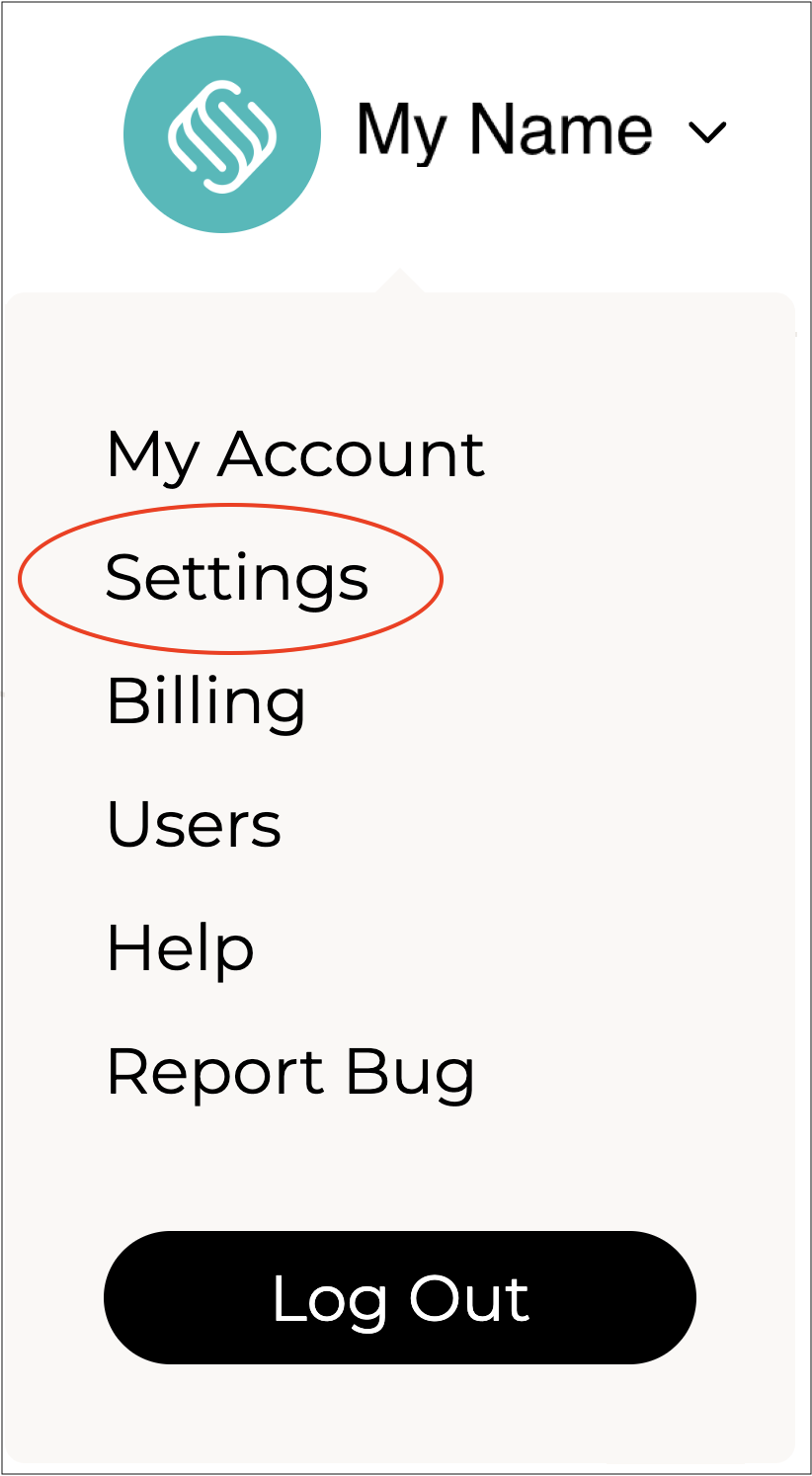
Click on your company name in the top right and select **Settings**.&#x20;

<figure><img src="https://2965503026-files.gitbook.io/~/files/v0/b/gitbook-x-prod.appspot.com/o/spaces%2FDaPYJDB89ny0x7wcMedb%2Fuploads%2FQRICojD4TZWkp8dsCMX3%2FSpacer.png?alt=media&amp;token=3bc5fa40-c805-461a-a4e4-b8c4ca526aad" alt=""><figcaption></figcaption></figure>

<figure><img src="https://2965503026-files.gitbook.io/~/files/v0/b/gitbook-x-prod.appspot.com/o/spaces%2FDaPYJDB89ny0x7wcMedb%2Fuploads%2FF4PHp7MOvUhvNnGRFm3N%2FSettings.png?alt=media&amp;token=0f083361-b311-49f1-a026-aafde809130f" alt="" width="188"><figcaption></figcaption></figure>

<figure><img src="https://2965503026-files.gitbook.io/~/files/v0/b/gitbook-x-prod.appspot.com/o/spaces%2FDaPYJDB89ny0x7wcMedb%2Fuploads%2FQRICojD4TZWkp8dsCMX3%2FSpacer.png?alt=media&amp;token=3bc5fa40-c805-461a-a4e4-b8c4ca526aad" alt=""><figcaption></figcaption></figure>

***

{% endstep %}

{% step %}

#### Select Integrations

Scroll down and select **Integrations** from the **Settings** menu.

<figure><img src="https://2965503026-files.gitbook.io/~/files/v0/b/gitbook-x-prod.appspot.com/o/spaces%2FDaPYJDB89ny0x7wcMedb%2Fuploads%2FJQoK51rAlNV35ONrOlL2%2FSpacer.png?alt=media&amp;token=f41a1fb1-0826-45bd-895f-fee2aaf47f02" alt=""><figcaption></figcaption></figure>

<figure><img src="https://2965503026-files.gitbook.io/~/files/v0/b/gitbook-x-prod.appspot.com/o/spaces%2FDaPYJDB89ny0x7wcMedb%2Fuploads%2FkzlXjLJvIzoXTgP96cqP%2FSelect%20Integrations.png?alt=media&amp;token=9bb29cdf-31e1-47bf-a80c-a3cc4f1f4066" alt=""><figcaption></figcaption></figure>

<figure><img src="https://2965503026-files.gitbook.io/~/files/v0/b/gitbook-x-prod.appspot.com/o/spaces%2FDaPYJDB89ny0x7wcMedb%2Fuploads%2FJQoK51rAlNV35ONrOlL2%2FSpacer.png?alt=media&amp;token=f41a1fb1-0826-45bd-895f-fee2aaf47f02" alt=""><figcaption></figcaption></figure>

***

{% endstep %}

{% step %}

#### Click Add+

Click on **Add +** in the top right.

<figure><img src="https://2965503026-files.gitbook.io/~/files/v0/b/gitbook-x-prod.appspot.com/o/spaces%2FDaPYJDB89ny0x7wcMedb%2Fuploads%2FJQoK51rAlNV35ONrOlL2%2FSpacer.png?alt=media&amp;token=f41a1fb1-0826-45bd-895f-fee2aaf47f02" alt=""><figcaption></figcaption></figure>

<figure><img src="https://2965503026-files.gitbook.io/~/files/v0/b/gitbook-x-prod.appspot.com/o/spaces%2FDaPYJDB89ny0x7wcMedb%2Fuploads%2FI7IofVBZqMlNmQhusMhh%2FScreenshot%202025-10-24%20at%209.29.35%E2%80%AFam.png?alt=media&amp;token=fc9f456a-1b76-43e3-bcd6-893adcd6ff54" alt=""><figcaption></figcaption></figure>

<figure><img src="https://2965503026-files.gitbook.io/~/files/v0/b/gitbook-x-prod.appspot.com/o/spaces%2FDaPYJDB89ny0x7wcMedb%2Fuploads%2FJQoK51rAlNV35ONrOlL2%2FSpacer.png?alt=media&amp;token=f41a1fb1-0826-45bd-895f-fee2aaf47f02" alt=""><figcaption></figcaption></figure>

The **Add Integration** page will show.&#x20;

<figure><img src="https://2965503026-files.gitbook.io/~/files/v0/b/gitbook-x-prod.appspot.com/o/spaces%2FDaPYJDB89ny0x7wcMedb%2Fuploads%2FJQoK51rAlNV35ONrOlL2%2FSpacer.png?alt=media&amp;token=f41a1fb1-0826-45bd-895f-fee2aaf47f02" alt=""><figcaption></figcaption></figure>

![](https://2965503026-files.gitbook.io/~/files/v0/b/gitbook-x-prod.appspot.com/o/spaces%2FDaPYJDB89ny0x7wcMedb%2Fuploads%2FyklZi6oNpRUVZkK5Sfzv%2FSelect%20MYOB.png?alt=media\&token=014e54d9-50ab-4e61-a81a-4d4944237e91)

<figure><img src="https://2965503026-files.gitbook.io/~/files/v0/b/gitbook-x-prod.appspot.com/o/spaces%2FDaPYJDB89ny0x7wcMedb%2Fuploads%2FJQoK51rAlNV35ONrOlL2%2FSpacer.png?alt=media&amp;token=f41a1fb1-0826-45bd-895f-fee2aaf47f02" alt=""><figcaption></figcaption></figure>

***

{% endstep %}

{% step %}

#### Click MYOB

Click on the **MYOB** logo (as circled above).&#x20;

<figure><img src="https://2965503026-files.gitbook.io/~/files/v0/b/gitbook-x-prod.appspot.com/o/spaces%2FDaPYJDB89ny0x7wcMedb%2Fuploads%2FJQoK51rAlNV35ONrOlL2%2FSpacer.png?alt=media&amp;token=f41a1fb1-0826-45bd-895f-fee2aaf47f02" alt=""><figcaption></figcaption></figure>

<figure><img src="https://2965503026-files.gitbook.io/~/files/v0/b/gitbook-x-prod.appspot.com/o/spaces%2FDaPYJDB89ny0x7wcMedb%2Fuploads%2F1iOIaCcvjRSafIpOhVdn%2FMYOB%20Logo.png?alt=media&amp;token=e0160c81-5335-4556-aa1d-1a240dc9de22" alt="" width="279"><figcaption></figcaption></figure>

<figure><img src="https://2965503026-files.gitbook.io/~/files/v0/b/gitbook-x-prod.appspot.com/o/spaces%2FDaPYJDB89ny0x7wcMedb%2Fuploads%2FJQoK51rAlNV35ONrOlL2%2FSpacer.png?alt=media&amp;token=f41a1fb1-0826-45bd-895f-fee2aaf47f02" alt=""><figcaption></figcaption></figure>

You will be taken to MYOB where you can login and grant access to Supply'd.

<figure><img src="https://2965503026-files.gitbook.io/~/files/v0/b/gitbook-x-prod.appspot.com/o/spaces%2FDaPYJDB89ny0x7wcMedb%2Fuploads%2FDZNTv9gQrJbh9c0nHJ3h%2FSpacer.png?alt=media&amp;token=c4a7c300-6c65-4f4e-8078-239d5c3be9f4" alt=""><figcaption></figcaption></figure>

<img src="https://cdn.filestackcontent.com/M8YLbfICQuyjymIZ3Y1d" alt="" width="375">

<figure><img src="https://2965503026-files.gitbook.io/~/files/v0/b/gitbook-x-prod.appspot.com/o/spaces%2FDaPYJDB89ny0x7wcMedb%2Fuploads%2FDZNTv9gQrJbh9c0nHJ3h%2FSpacer.png?alt=media&amp;token=c4a7c300-6c65-4f4e-8078-239d5c3be9f4" alt=""><figcaption></figcaption></figure>

***

{% endstep %}

{% step %}

#### Return to Supply'd

After returning to Supply'd, the **MYOB Settings** screen should appear.

<figure><img src="https://2965503026-files.gitbook.io/~/files/v0/b/gitbook-x-prod.appspot.com/o/spaces%2FDaPYJDB89ny0x7wcMedb%2Fuploads%2FG8XYUeWDpFyAAfHvQ26p%2FSpacer.png?alt=media&amp;token=d1017aad-751e-46d9-ad85-7546e0f615cb" alt=""><figcaption></figcaption></figure>

<img src="https://2965503026-files.gitbook.io/~/files/v0/b/gitbook-x-prod.appspot.com/o/spaces%2FDaPYJDB89ny0x7wcMedb%2Fuploads%2FCq5AZubjreTLprMm371m%2F6%20-%20MYOB%20Settings%20Form.png?alt=media&amp;token=765bc774-bf36-45f5-b9ec-47e6f7479f29" alt="" width="563">

<figure><img src="https://2965503026-files.gitbook.io/~/files/v0/b/gitbook-x-prod.appspot.com/o/spaces%2FDaPYJDB89ny0x7wcMedb%2Fuploads%2FDZNTv9gQrJbh9c0nHJ3h%2FSpacer.png?alt=media&amp;token=c4a7c300-6c65-4f4e-8078-239d5c3be9f4" alt=""><figcaption></figcaption></figure>

{% hint style="success" %}
To open or close the sections on this form click the little arrows to the right of the titles (as circled in red above).
{% endhint %}

<figure><img src="https://2965503026-files.gitbook.io/~/files/v0/b/gitbook-x-prod.appspot.com/o/spaces%2FDaPYJDB89ny0x7wcMedb%2Fuploads%2FBPKlxKQqC6kxr8SbKMqh%2FSpacer.png?alt=media&amp;token=f615a829-f279-45a9-a26c-e6bb89fe6cb2" alt=""><figcaption></figcaption></figure>

{% hint style="info" %}
The list of additional integrations will vary based on the third-party platforms you’ve connected to Supply’d.
{% endhint %}

<figure><img src="https://2965503026-files.gitbook.io/~/files/v0/b/gitbook-x-prod.appspot.com/o/spaces%2FDaPYJDB89ny0x7wcMedb%2Fuploads%2FuxhVie8zkC5QIamv76sd%2FSpacer.png?alt=media&amp;token=370d48f4-334b-41ce-86b9-308d52400940" alt=""><figcaption></figcaption></figure>

{% hint style="info" %}
If the **MYOB Settings** page doesn't appear:

1. Click on your name in the top right corner, and select **Settings.**&#x20;
2. Scroll down and select **Integrations.**
3. Select **MYOB** from the **Integrations** list.&#x20;

You can also follow these steps if you need to make changes to the settings at a later date.
{% endhint %}

<figure><img src="https://2965503026-files.gitbook.io/~/files/v0/b/gitbook-x-prod.appspot.com/o/spaces%2FDaPYJDB89ny0x7wcMedb%2Fuploads%2FG8XYUeWDpFyAAfHvQ26p%2FSpacer.png?alt=media&amp;token=d1017aad-751e-46d9-ad85-7546e0f615cb" alt=""><figcaption></figcaption></figure>

Complete the sections as follows:

<figure><img src="https://2965503026-files.gitbook.io/~/files/v0/b/gitbook-x-prod.appspot.com/o/spaces%2FDaPYJDB89ny0x7wcMedb%2Fuploads%2FJQoK51rAlNV35ONrOlL2%2FSpacer.png?alt=media&amp;token=f41a1fb1-0826-45bd-895f-fee2aaf47f02" alt=""><figcaption></figcaption></figure>

***

{% endstep %}

{% step %}

### MYOB Settings

<figure><img src="https://2965503026-files.gitbook.io/~/files/v0/b/gitbook-x-prod.appspot.com/o/spaces%2FDaPYJDB89ny0x7wcMedb%2Fuploads%2FDZNTv9gQrJbh9c0nHJ3h%2FSpacer.png?alt=media&amp;token=c4a7c300-6c65-4f4e-8078-239d5c3be9f4" alt=""><figcaption></figcaption></figure>

![](https://2965503026-files.gitbook.io/~/files/v0/b/gitbook-x-prod.appspot.com/o/spaces%2FDaPYJDB89ny0x7wcMedb%2Fuploads%2FsdmUOK9A02HlhrjIgE9w%2FMYOB%20Settings.png?alt=media\&token=6899eb7e-476b-45df-8ab1-d81c9e296bd6)

<figure><img src="https://2965503026-files.gitbook.io/~/files/v0/b/gitbook-x-prod.appspot.com/o/spaces%2FDaPYJDB89ny0x7wcMedb%2Fuploads%2FDZNTv9gQrJbh9c0nHJ3h%2FSpacer.png?alt=media&amp;token=c4a7c300-6c65-4f4e-8078-239d5c3be9f4" alt=""><figcaption></figcaption></figure>

**Integration Name\* \[required field]**&#x20;

Enter a reference name for this integration.

<figure><img src="https://2965503026-files.gitbook.io/~/files/v0/b/gitbook-x-prod.appspot.com/o/spaces%2FDaPYJDB89ny0x7wcMedb%2Fuploads%2FpSfHqATM2wEpDmEErOj7%2FSpacer.png?alt=media&amp;token=c65790b6-e9ad-4cca-a351-d386ff5b70b9" alt=""><figcaption></figcaption></figure>

***

{% endstep %}

{% step %}

### General Settings

The overall settings for integration with MYOB.

<figure><img src="https://2965503026-files.gitbook.io/~/files/v0/b/gitbook-x-prod.appspot.com/o/spaces%2FDaPYJDB89ny0x7wcMedb%2Fuploads%2FQtkbOvupemVLqyPmkVYy%2FSpacer.png?alt=media&amp;token=546e54ca-547e-4be4-baf7-c0c5b5559bcc" alt=""><figcaption></figcaption></figure>

<figure><img src="https://2965503026-files.gitbook.io/~/files/v0/b/gitbook-x-prod.appspot.com/o/spaces%2FDaPYJDB89ny0x7wcMedb%2Fuploads%2F03pkBtMW4v8ejl32vFPO%2FGeneral%20Settings.png?alt=media&amp;token=df990700-444a-46b7-bd95-e638010208b3" alt=""><figcaption></figcaption></figure>

<figure><img src="https://2965503026-files.gitbook.io/~/files/v0/b/gitbook-x-prod.appspot.com/o/spaces%2FDaPYJDB89ny0x7wcMedb%2Fuploads%2FQtkbOvupemVLqyPmkVYy%2FSpacer.png?alt=media&amp;token=546e54ca-547e-4be4-baf7-c0c5b5559bcc" alt=""><figcaption></figcaption></figure>

{% hint style="warning" %}
&#x20;Your settings may vary from the examples shown.
{% endhint %}

<figure><img src="https://2965503026-files.gitbook.io/~/files/v0/b/gitbook-x-prod.appspot.com/o/spaces%2FDaPYJDB89ny0x7wcMedb%2Fuploads%2FQtkbOvupemVLqyPmkVYy%2FSpacer.png?alt=media&amp;token=546e54ca-547e-4be4-baf7-c0c5b5559bcc" alt=""><figcaption></figcaption></figure>

**Sync Locations**

Select the locations you would like to sync to this MYOB integration.&#x20;

This will restrict orders and other data to be only synced for specific locations. Leave blank to sync all locations.

<figure><img src="https://2965503026-files.gitbook.io/~/files/v0/b/gitbook-x-prod.appspot.com/o/spaces%2FDaPYJDB89ny0x7wcMedb%2Fuploads%2FQtkbOvupemVLqyPmkVYy%2FSpacer.png?alt=media&amp;token=546e54ca-547e-4be4-baf7-c0c5b5559bcc" alt=""><figcaption></figcaption></figure>

**Default Product Income Account**&#x20;

Select the default income account for products to be assigned to.

This can be overridden at a product level.&#x20;

<figure><img src="https://2965503026-files.gitbook.io/~/files/v0/b/gitbook-x-prod.appspot.com/o/spaces%2FDaPYJDB89ny0x7wcMedb%2Fuploads%2FQtkbOvupemVLqyPmkVYy%2FSpacer.png?alt=media&amp;token=546e54ca-547e-4be4-baf7-c0c5b5559bcc" alt=""><figcaption></figcaption></figure>

<figure><img src="https://2965503026-files.gitbook.io/~/files/v0/b/gitbook-x-prod.appspot.com/o/spaces%2FDaPYJDB89ny0x7wcMedb%2Fuploads%2F64wXNYBBIrstBP5AcI5X%2FDefault%20Product%20Income%20Account.png?alt=media&amp;token=77da56ae-bc43-4dc0-90e6-80e2e821450b" alt="" width="375"><figcaption></figcaption></figure>

<figure><img src="https://2965503026-files.gitbook.io/~/files/v0/b/gitbook-x-prod.appspot.com/o/spaces%2FDaPYJDB89ny0x7wcMedb%2Fuploads%2FQtkbOvupemVLqyPmkVYy%2FSpacer.png?alt=media&amp;token=546e54ca-547e-4be4-baf7-c0c5b5559bcc" alt=""><figcaption></figcaption></figure>

**Default Product Cost of Sales Account**&#x20;

Select the default cost of sales account for products to be assigned to.&#x20;

This can be overridden at a product level.

<figure><img src="https://2965503026-files.gitbook.io/~/files/v0/b/gitbook-x-prod.appspot.com/o/spaces%2FDaPYJDB89ny0x7wcMedb%2Fuploads%2FQtkbOvupemVLqyPmkVYy%2FSpacer.png?alt=media&amp;token=546e54ca-547e-4be4-baf7-c0c5b5559bcc" alt=""><figcaption></figcaption></figure>

<figure><img src="https://2965503026-files.gitbook.io/~/files/v0/b/gitbook-x-prod.appspot.com/o/spaces%2FDaPYJDB89ny0x7wcMedb%2Fuploads%2FOWON6f5bUenkyCtjE14U%2FDefault%20Product%20Cost%20of%20Sales%20Account.png?alt=media&amp;token=3eaabf27-6e54-4f80-a5c6-c86ab844f27f" alt="" width="375"><figcaption></figcaption></figure>

<figure><img src="https://2965503026-files.gitbook.io/~/files/v0/b/gitbook-x-prod.appspot.com/o/spaces%2FDaPYJDB89ny0x7wcMedb%2Fuploads%2FQtkbOvupemVLqyPmkVYy%2FSpacer.png?alt=media&amp;token=546e54ca-547e-4be4-baf7-c0c5b5559bcc" alt=""><figcaption></figcaption></figure>

**Default Product Asset Account**&#x20;

Select the default cost of goods account for products to be assigned to.&#x20;

This can be overridden at a product level.

<figure><img src="https://2965503026-files.gitbook.io/~/files/v0/b/gitbook-x-prod.appspot.com/o/spaces%2FDaPYJDB89ny0x7wcMedb%2Fuploads%2FQtkbOvupemVLqyPmkVYy%2FSpacer.png?alt=media&amp;token=546e54ca-547e-4be4-baf7-c0c5b5559bcc" alt=""><figcaption></figcaption></figure>

<figure><img src="https://2965503026-files.gitbook.io/~/files/v0/b/gitbook-x-prod.appspot.com/o/spaces%2FDaPYJDB89ny0x7wcMedb%2Fuploads%2FaWX5vFnDo4gLfu5IcBUZ%2FDefault%20Product%20Asset%20Account.png?alt=media&amp;token=166ca891-af3e-481b-9f76-c0eac7d1dc4e" alt="" width="375"><figcaption></figcaption></figure>

<figure><img src="https://2965503026-files.gitbook.io/~/files/v0/b/gitbook-x-prod.appspot.com/o/spaces%2FDaPYJDB89ny0x7wcMedb%2Fuploads%2FQtkbOvupemVLqyPmkVYy%2FSpacer.png?alt=media&amp;token=546e54ca-547e-4be4-baf7-c0c5b5559bcc" alt=""><figcaption></figcaption></figure>

**Default Product Expense Account**&#x20;

Select the default expense for products to be assigned to.&#x20;

This can be overridden at a product level.

<figure><img src="https://2965503026-files.gitbook.io/~/files/v0/b/gitbook-x-prod.appspot.com/o/spaces%2FDaPYJDB89ny0x7wcMedb%2Fuploads%2FQtkbOvupemVLqyPmkVYy%2FSpacer.png?alt=media&amp;token=546e54ca-547e-4be4-baf7-c0c5b5559bcc" alt=""><figcaption></figcaption></figure>

<figure><img src="https://2965503026-files.gitbook.io/~/files/v0/b/gitbook-x-prod.appspot.com/o/spaces%2FDaPYJDB89ny0x7wcMedb%2Fuploads%2F0R06FGihMaU9QfOOYNau%2FDefault%20Product%20Expense%20Account.png?alt=media&amp;token=a18b7f6a-eeef-46df-a9e6-88e23471a2b8" alt="" width="375"><figcaption></figcaption></figure>

<figure><img src="https://2965503026-files.gitbook.io/~/files/v0/b/gitbook-x-prod.appspot.com/o/spaces%2FDaPYJDB89ny0x7wcMedb%2Fuploads%2FQtkbOvupemVLqyPmkVYy%2FSpacer.png?alt=media&amp;token=546e54ca-547e-4be4-baf7-c0c5b5559bcc" alt=""><figcaption></figcaption></figure>

**Income GST Tax Code**&#x20;

Select the GST tax code in Myob that applies to Income.

<figure><img src="https://2965503026-files.gitbook.io/~/files/v0/b/gitbook-x-prod.appspot.com/o/spaces%2FDaPYJDB89ny0x7wcMedb%2Fuploads%2FQtkbOvupemVLqyPmkVYy%2FSpacer.png?alt=media&amp;token=546e54ca-547e-4be4-baf7-c0c5b5559bcc" alt=""><figcaption></figcaption></figure>

<figure><img src="https://2965503026-files.gitbook.io/~/files/v0/b/gitbook-x-prod.appspot.com/o/spaces%2FDaPYJDB89ny0x7wcMedb%2Fuploads%2Fit8V9K5JxisthizKqKio%2FIncome%20GST%20Tax%20Code.png?alt=media&amp;token=31e87795-cf95-4d93-bd7d-4d7f4ede3bfa" alt="" width="375"><figcaption></figcaption></figure>

<figure><img src="https://2965503026-files.gitbook.io/~/files/v0/b/gitbook-x-prod.appspot.com/o/spaces%2FDaPYJDB89ny0x7wcMedb%2Fuploads%2FQtkbOvupemVLqyPmkVYy%2FSpacer.png?alt=media&amp;token=546e54ca-547e-4be4-baf7-c0c5b5559bcc" alt=""><figcaption></figcaption></figure>

**Income GST Free Tax Code**&#x20;

Select the GST free tax code in Myob that applies to income.

<figure><img src="https://2965503026-files.gitbook.io/~/files/v0/b/gitbook-x-prod.appspot.com/o/spaces%2FDaPYJDB89ny0x7wcMedb%2Fuploads%2FQtkbOvupemVLqyPmkVYy%2FSpacer.png?alt=media&amp;token=546e54ca-547e-4be4-baf7-c0c5b5559bcc" alt=""><figcaption></figcaption></figure>

<figure><img src="https://2965503026-files.gitbook.io/~/files/v0/b/gitbook-x-prod.appspot.com/o/spaces%2FDaPYJDB89ny0x7wcMedb%2Fuploads%2FtVAqUlrcopz0a6YcOigu%2FIncome%20GST%20Free%20Tax%20Code.png?alt=media&amp;token=72f001fa-292e-49f0-8b5b-4e3eb45c77d9" alt="" width="375"><figcaption></figcaption></figure>

<figure><img src="https://2965503026-files.gitbook.io/~/files/v0/b/gitbook-x-prod.appspot.com/o/spaces%2FDaPYJDB89ny0x7wcMedb%2Fuploads%2FQtkbOvupemVLqyPmkVYy%2FSpacer.png?alt=media&amp;token=546e54ca-547e-4be4-baf7-c0c5b5559bcc" alt=""><figcaption></figcaption></figure>

**Purchase GST Tax Code**&#x20;

The GST tax code in MYOB used for recording expenses.

<figure><img src="https://2965503026-files.gitbook.io/~/files/v0/b/gitbook-x-prod.appspot.com/o/spaces%2FDaPYJDB89ny0x7wcMedb%2Fuploads%2FQtkbOvupemVLqyPmkVYy%2FSpacer.png?alt=media&amp;token=546e54ca-547e-4be4-baf7-c0c5b5559bcc" alt=""><figcaption></figcaption></figure>

<figure><img src="https://2965503026-files.gitbook.io/~/files/v0/b/gitbook-x-prod.appspot.com/o/spaces%2FDaPYJDB89ny0x7wcMedb%2Fuploads%2F3EJtCJZHBDkpcsdcvbOm%2FPurchase%20GST%20Tax%20Code.png?alt=media&amp;token=d2d23b4e-82f6-4947-b02f-0de9266e34f8" alt="" width="375"><figcaption></figcaption></figure>

<figure><img src="https://2965503026-files.gitbook.io/~/files/v0/b/gitbook-x-prod.appspot.com/o/spaces%2FDaPYJDB89ny0x7wcMedb%2Fuploads%2FQtkbOvupemVLqyPmkVYy%2FSpacer.png?alt=media&amp;token=546e54ca-547e-4be4-baf7-c0c5b5559bcc" alt=""><figcaption></figcaption></figure>

**Purchase GST Free Tax Code**&#x20;

Select the GST-free tax code in MYOB used for recording GST-free expenses.

<figure><img src="https://2965503026-files.gitbook.io/~/files/v0/b/gitbook-x-prod.appspot.com/o/spaces%2FDaPYJDB89ny0x7wcMedb%2Fuploads%2FQtkbOvupemVLqyPmkVYy%2FSpacer.png?alt=media&amp;token=546e54ca-547e-4be4-baf7-c0c5b5559bcc" alt=""><figcaption></figcaption></figure>

<div align="center"><figure><img src="https://2965503026-files.gitbook.io/~/files/v0/b/gitbook-x-prod.appspot.com/o/spaces%2FDaPYJDB89ny0x7wcMedb%2Fuploads%2FHrwmNceHfty2aBNHOXet%2FPurchase%20GST%20Free%20Tax%20Code.png?alt=media&amp;token=1f7ef85a-9b70-49a1-abec-27a829aa3ce2" alt="" width="375"><figcaption></figcaption></figure></div>

<figure><img src="https://2965503026-files.gitbook.io/~/files/v0/b/gitbook-x-prod.appspot.com/o/spaces%2FDaPYJDB89ny0x7wcMedb%2Fuploads%2FQtkbOvupemVLqyPmkVYy%2FSpacer.png?alt=media&amp;token=546e54ca-547e-4be4-baf7-c0c5b5559bcc" alt=""><figcaption></figcaption></figure>

***

{% endstep %}

{% step %}

### Sync Supply'd Orders?

Toggle on to sync invoices from Supply'd to MYOB.

<figure><img src="https://2965503026-files.gitbook.io/~/files/v0/b/gitbook-x-prod.appspot.com/o/spaces%2FDaPYJDB89ny0x7wcMedb%2Fuploads%2FQtkbOvupemVLqyPmkVYy%2FSpacer.png?alt=media&amp;token=546e54ca-547e-4be4-baf7-c0c5b5559bcc" alt=""><figcaption></figcaption></figure>

<figure><img src="https://2965503026-files.gitbook.io/~/files/v0/b/gitbook-x-prod.appspot.com/o/spaces%2FDaPYJDB89ny0x7wcMedb%2Fuploads%2F95JhuzGW4hWDdLJu8n9B%2FMYOB%20Sync%20Supply'd%20Orders.png?alt=media&amp;token=72b14599-82b0-420e-833d-613602ac21ac" alt=""><figcaption></figcaption></figure>

<figure><img src="https://2965503026-files.gitbook.io/~/files/v0/b/gitbook-x-prod.appspot.com/o/spaces%2FDaPYJDB89ny0x7wcMedb%2Fuploads%2FQtkbOvupemVLqyPmkVYy%2FSpacer.png?alt=media&amp;token=546e54ca-547e-4be4-baf7-c0c5b5559bcc" alt=""><figcaption></figcaption></figure>

**Supply'd Invoice Number Prefix**&#x20;

Enter an optional prefix for Supply'd invoice numbers sent to MYOB.

<figure><img src="https://2965503026-files.gitbook.io/~/files/v0/b/gitbook-x-prod.appspot.com/o/spaces%2FDaPYJDB89ny0x7wcMedb%2Fuploads%2FQtkbOvupemVLqyPmkVYy%2FSpacer.png?alt=media&amp;token=546e54ca-547e-4be4-baf7-c0c5b5559bcc" alt=""><figcaption></figcaption></figure>

**Supply'd Income Account**

Select the income account for products to be assigned to when sold through this channel. This can be overridden at a product level.

<figure><img src="https://2965503026-files.gitbook.io/~/files/v0/b/gitbook-x-prod.appspot.com/o/spaces%2FDaPYJDB89ny0x7wcMedb%2Fuploads%2FbJDih3Dwv41QavjV1QDa%2FSpacer.png?alt=media&amp;token=6c34f805-9610-4de9-8f8a-a029f13dd1a1" alt=""><figcaption></figcaption></figure>

<figure><img src="https://2965503026-files.gitbook.io/~/files/v0/b/gitbook-x-prod.appspot.com/o/spaces%2FDaPYJDB89ny0x7wcMedb%2Fuploads%2Fn6fZ6w2tawwNjUOiExA3%2FMYOB%20-%20Supply'd%20Income%20Account.png?alt=media&amp;token=d82332fb-20e0-47b6-bf8f-0eacd4ff51d4" alt="" width="375"><figcaption></figcaption></figure>

<figure><img src="https://2965503026-files.gitbook.io/~/files/v0/b/gitbook-x-prod.appspot.com/o/spaces%2FDaPYJDB89ny0x7wcMedb%2Fuploads%2FbJDih3Dwv41QavjV1QDa%2FSpacer.png?alt=media&amp;token=6c34f805-9610-4de9-8f8a-a029f13dd1a1" alt=""><figcaption></figcaption></figure>

**Supply'd Clearing Account**&#x20;

Choose which account to sync payments made against these orders to in Supply'd. This is recommended to be a Supply'd clearing account for payments from invoices. This should be a "Current Liability" account with "Enable payments to this account" checked.

<figure><img src="https://2965503026-files.gitbook.io/~/files/v0/b/gitbook-x-prod.appspot.com/o/spaces%2FDaPYJDB89ny0x7wcMedb%2Fuploads%2FQtkbOvupemVLqyPmkVYy%2FSpacer.png?alt=media&amp;token=546e54ca-547e-4be4-baf7-c0c5b5559bcc" alt=""><figcaption></figcaption></figure>

<figure><img src="https://2965503026-files.gitbook.io/~/files/v0/b/gitbook-x-prod.appspot.com/o/spaces%2FDaPYJDB89ny0x7wcMedb%2Fuploads%2FcsX8Ym31Id9jlrI9XUer%2FSupply'd%20Clearing%20Account.png?alt=media&amp;token=f5f51b62-f159-4e3e-addc-2d15e205aac0" alt="" width="375"><figcaption></figcaption></figure>

<figure><img src="https://2965503026-files.gitbook.io/~/files/v0/b/gitbook-x-prod.appspot.com/o/spaces%2FDaPYJDB89ny0x7wcMedb%2Fuploads%2FQtkbOvupemVLqyPmkVYy%2FSpacer.png?alt=media&amp;token=546e54ca-547e-4be4-baf7-c0c5b5559bcc" alt=""><figcaption></figcaption></figure>

**Supply'd Credit Card Fees Account**&#x20;

Select which account to sync credit card fees received from Supply'd to in Myob. This should be a "Revenue" account.

<figure><img src="https://2965503026-files.gitbook.io/~/files/v0/b/gitbook-x-prod.appspot.com/o/spaces%2FDaPYJDB89ny0x7wcMedb%2Fuploads%2FQtkbOvupemVLqyPmkVYy%2FSpacer.png?alt=media&amp;token=546e54ca-547e-4be4-baf7-c0c5b5559bcc" alt=""><figcaption></figcaption></figure>

<figure><img src="https://2965503026-files.gitbook.io/~/files/v0/b/gitbook-x-prod.appspot.com/o/spaces%2FDaPYJDB89ny0x7wcMedb%2Fuploads%2F2UAAKobFuzAYTrFBfjDS%2F19%20-%20Supply'd%20Credit%20Card%20Fees%20Account.png?alt=media&amp;token=748cf515-7861-438d-a7b6-ad9afd6fcbbd" alt="" width="375"><figcaption></figcaption></figure>

<figure><img src="https://2965503026-files.gitbook.io/~/files/v0/b/gitbook-x-prod.appspot.com/o/spaces%2FDaPYJDB89ny0x7wcMedb%2Fuploads%2FQtkbOvupemVLqyPmkVYy%2FSpacer.png?alt=media&amp;token=546e54ca-547e-4be4-baf7-c0c5b5559bcc" alt=""><figcaption></figcaption></figure>

**Supply'd Credit Account**&#x20;

Select which rounding account to sync any required rounding to in Myob. This should be a "Current Liability" account.

<figure><img src="https://2965503026-files.gitbook.io/~/files/v0/b/gitbook-x-prod.appspot.com/o/spaces%2FDaPYJDB89ny0x7wcMedb%2Fuploads%2FQtkbOvupemVLqyPmkVYy%2FSpacer.png?alt=media&amp;token=546e54ca-547e-4be4-baf7-c0c5b5559bcc" alt=""><figcaption></figcaption></figure>

<figure><img src="https://2965503026-files.gitbook.io/~/files/v0/b/gitbook-x-prod.appspot.com/o/spaces%2FDaPYJDB89ny0x7wcMedb%2Fuploads%2Fm9dYiez1mIWYVRHVvuNp%2FSupply'd%20Credit%20Account.png?alt=media&amp;token=c1582ce0-cb48-4e99-9e66-8ff488d231ab" alt="" width="375"><figcaption></figcaption></figure>

<figure><img src="https://2965503026-files.gitbook.io/~/files/v0/b/gitbook-x-prod.appspot.com/o/spaces%2FDaPYJDB89ny0x7wcMedb%2Fuploads%2FQtkbOvupemVLqyPmkVYy%2FSpacer.png?alt=media&amp;token=546e54ca-547e-4be4-baf7-c0c5b5559bcc" alt=""><figcaption></figcaption></figure>

***

{% endstep %}

{% step %}

### Repeat for Other Supply'd Stores

Toggle on any additional Supply’d Stores you would like to sync with this Xero integration, then complete the relevant details for each store in the same way as outlined in the last step.

<figure><img src="https://2965503026-files.gitbook.io/~/files/v0/b/gitbook-x-prod.appspot.com/o/spaces%2FDaPYJDB89ny0x7wcMedb%2Fuploads%2FbJDih3Dwv41QavjV1QDa%2FSpacer.png?alt=media&amp;token=6c34f805-9610-4de9-8f8a-a029f13dd1a1" alt=""><figcaption></figcaption></figure>

***

{% endstep %}

{% step %}

### Sync \[Channel] - \[Integration Name] Orders?

Toggle on to sync imported orders from an integrated channel.&#x20;

<figure><img src="https://2965503026-files.gitbook.io/~/files/v0/b/gitbook-x-prod.appspot.com/o/spaces%2FDaPYJDB89ny0x7wcMedb%2Fuploads%2FpSfHqATM2wEpDmEErOj7%2FSpacer.png?alt=media&amp;token=c65790b6-e9ad-4cca-a351-d386ff5b70b9" alt=""><figcaption></figcaption></figure>

We are using Shopify as an example.

<figure><img src="https://2965503026-files.gitbook.io/~/files/v0/b/gitbook-x-prod.appspot.com/o/spaces%2FDaPYJDB89ny0x7wcMedb%2Fuploads%2FQtkbOvupemVLqyPmkVYy%2FSpacer.png?alt=media&amp;token=546e54ca-547e-4be4-baf7-c0c5b5559bcc" alt=""><figcaption></figcaption></figure>

<figure><img src="https://2965503026-files.gitbook.io/~/files/v0/b/gitbook-x-prod.appspot.com/o/spaces%2FDaPYJDB89ny0x7wcMedb%2Fuploads%2FhgEU2sLPRIWvMo7jp6FK%2F22%20-%20MYOB%20Sync%20Shopify.png?alt=media&amp;token=97304a37-6de6-48e6-a850-23cf04c45a54" alt=""><figcaption></figcaption></figure>

<figure><img src="https://2965503026-files.gitbook.io/~/files/v0/b/gitbook-x-prod.appspot.com/o/spaces%2FDaPYJDB89ny0x7wcMedb%2Fuploads%2FQtkbOvupemVLqyPmkVYy%2FSpacer.png?alt=media&amp;token=546e54ca-547e-4be4-baf7-c0c5b5559bcc" alt=""><figcaption></figcaption></figure>

**\[Channel] Invoice Number Prefix**&#x20;

Enter an optional prefix for imported \[Channel] invoice numbers sent to Myob. For imported orders it is recommended to leave this blank as the prefix applied on the integration itself will already be added.

<figure><img src="https://2965503026-files.gitbook.io/~/files/v0/b/gitbook-x-prod.appspot.com/o/spaces%2FDaPYJDB89ny0x7wcMedb%2Fuploads%2FQtkbOvupemVLqyPmkVYy%2FSpacer.png?alt=media&amp;token=546e54ca-547e-4be4-baf7-c0c5b5559bcc" alt=""><figcaption></figcaption></figure>

**When to Sync Invoices**

Choose when to generate invoices for this store's sales orders:

<figure><img src="https://2965503026-files.gitbook.io/~/files/v0/b/gitbook-x-prod.appspot.com/o/spaces%2FDaPYJDB89ny0x7wcMedb%2Fuploads%2FQtkbOvupemVLqyPmkVYy%2FSpacer.png?alt=media&amp;token=546e54ca-547e-4be4-baf7-c0c5b5559bcc" alt=""><figcaption></figcaption></figure>

<figure><img src="https://2965503026-files.gitbook.io/~/files/v0/b/gitbook-x-prod.appspot.com/o/spaces%2FDaPYJDB89ny0x7wcMedb%2Fuploads%2F6pKaGozuBs4vp79cFPtT%2F23%20-%20When%20To%20Generate%20Invoices%20Drop%20Down.png?alt=media&amp;token=d8a2c8e6-ead3-4382-ac25-965e590087fb" alt="" width="375"><figcaption></figcaption></figure>

<figure><img src="https://2965503026-files.gitbook.io/~/files/v0/b/gitbook-x-prod.appspot.com/o/spaces%2FDaPYJDB89ny0x7wcMedb%2Fuploads%2FQtkbOvupemVLqyPmkVYy%2FSpacer.png?alt=media&amp;token=546e54ca-547e-4be4-baf7-c0c5b5559bcc" alt=""><figcaption></figcaption></figure>

* **Manually:** You explicitly generated invoices for these orders.
* **When Shipped:** Invoices will be generated for each Sales Order when they're shipped.
* **Daily:** A consolidated invoice will be generated for this customer's shipped orders at the end of each day.
* **Weekly:** A consolidated invoice will be generated for this customer's shipped orders at the end of each week.
* **Monthly:** A consolidated invoice will be generated for this customer's shipped orders at the end of each month.

<figure><img src="https://2965503026-files.gitbook.io/~/files/v0/b/gitbook-x-prod.appspot.com/o/spaces%2FDaPYJDB89ny0x7wcMedb%2Fuploads%2FbJDih3Dwv41QavjV1QDa%2FSpacer.png?alt=media&amp;token=6c34f805-9610-4de9-8f8a-a029f13dd1a1" alt=""><figcaption></figcaption></figure>

**\[Channel] Income Account**

Select the MYOB **Income** account used to record sales revenue from this channel. This can be overridden at a product level.

<figure><img src="https://2965503026-files.gitbook.io/~/files/v0/b/gitbook-x-prod.appspot.com/o/spaces%2FDaPYJDB89ny0x7wcMedb%2Fuploads%2FbJDih3Dwv41QavjV1QDa%2FSpacer.png?alt=media&amp;token=6c34f805-9610-4de9-8f8a-a029f13dd1a1" alt=""><figcaption></figcaption></figure>

<figure><img src="https://2965503026-files.gitbook.io/~/files/v0/b/gitbook-x-prod.appspot.com/o/spaces%2FDaPYJDB89ny0x7wcMedb%2Fuploads%2FbjzbHBhuPIFfSepMyocE%2FShopify%20Store%20Income%20Account%20Drop%20Down.jpg?alt=media&amp;token=595f3292-e6aa-4a0d-b28a-2916d690899a" alt="" width="375"><figcaption></figcaption></figure>

<figure><img src="https://2965503026-files.gitbook.io/~/files/v0/b/gitbook-x-prod.appspot.com/o/spaces%2FDaPYJDB89ny0x7wcMedb%2Fuploads%2FbJDih3Dwv41QavjV1QDa%2FSpacer.png?alt=media&amp;token=6c34f805-9610-4de9-8f8a-a029f13dd1a1" alt=""><figcaption></figcaption></figure>

**\[Channel] Clearing Account**&#x20;

Select the account to sync payments made against these orders to in \[Channel]. This is recommended to be a specific clearing account for payments from \[Channel]. This should be a "**Current Liability**" account with "**Enable payments to this account**" checked.

<figure><img src="https://2965503026-files.gitbook.io/~/files/v0/b/gitbook-x-prod.appspot.com/o/spaces%2FDaPYJDB89ny0x7wcMedb%2Fuploads%2FQtkbOvupemVLqyPmkVYy%2FSpacer.png?alt=media&amp;token=546e54ca-547e-4be4-baf7-c0c5b5559bcc" alt=""><figcaption></figcaption></figure>

<figure><img src="https://2965503026-files.gitbook.io/~/files/v0/b/gitbook-x-prod.appspot.com/o/spaces%2FDaPYJDB89ny0x7wcMedb%2Fuploads%2Fj4FjRwIAQoimurVbURZh%2FShopify%20Store%20Clearing%20Account.png?alt=media&amp;token=7cd62748-9c93-4eee-a53c-b97da448a953" alt="" width="375"><figcaption></figcaption></figure>

<figure><img src="https://2965503026-files.gitbook.io/~/files/v0/b/gitbook-x-prod.appspot.com/o/spaces%2FDaPYJDB89ny0x7wcMedb%2Fuploads%2FQtkbOvupemVLqyPmkVYy%2FSpacer.png?alt=media&amp;token=546e54ca-547e-4be4-baf7-c0c5b5559bcc" alt=""><figcaption></figcaption></figure>

**\[Channel] Credit Card Fees Account**

Choose the account where credit card fees received from Supply'd will be recorded. This should be a "**Income**" account.

<figure><img src="https://2965503026-files.gitbook.io/~/files/v0/b/gitbook-x-prod.appspot.com/o/spaces%2FDaPYJDB89ny0x7wcMedb%2Fuploads%2FbJDih3Dwv41QavjV1QDa%2FSpacer.png?alt=media&amp;token=6c34f805-9610-4de9-8f8a-a029f13dd1a1" alt=""><figcaption></figcaption></figure>

**\[Channel] Credit Account**&#x20;

Select the account where any credits from Supply'd will be recorded. This should be a "**Income**" account.

<figure><img src="https://2965503026-files.gitbook.io/~/files/v0/b/gitbook-x-prod.appspot.com/o/spaces%2FDaPYJDB89ny0x7wcMedb%2Fuploads%2FbJDih3Dwv41QavjV1QDa%2FSpacer.png?alt=media&amp;token=6c34f805-9610-4de9-8f8a-a029f13dd1a1" alt=""><figcaption></figcaption></figure>

***

{% endstep %}

{% step %}

### Sync Other Platforms

For other platforms, such as, WooCommerce, Square etc. that you would like to sync, toggle on and complete the fields as explained above.

<figure><img src="https://2965503026-files.gitbook.io/~/files/v0/b/gitbook-x-prod.appspot.com/o/spaces%2FDaPYJDB89ny0x7wcMedb%2Fuploads%2FQtkbOvupemVLqyPmkVYy%2FSpacer.png?alt=media&amp;token=546e54ca-547e-4be4-baf7-c0c5b5559bcc" alt=""><figcaption></figcaption></figure>

***

{% endstep %}

{% step %}

### Sync Purchase Orders

Toggle on to sync purchase orders from Supply'd to Myob.

<figure><img src="https://2965503026-files.gitbook.io/~/files/v0/b/gitbook-x-prod.appspot.com/o/spaces%2FDaPYJDB89ny0x7wcMedb%2Fuploads%2FQtkbOvupemVLqyPmkVYy%2FSpacer.png?alt=media&amp;token=546e54ca-547e-4be4-baf7-c0c5b5559bcc" alt=""><figcaption></figcaption></figure>

![](https://cdn.filestackcontent.com/1ApYM931R1WaM58AZnwm)

<figure><img src="https://2965503026-files.gitbook.io/~/files/v0/b/gitbook-x-prod.appspot.com/o/spaces%2FDaPYJDB89ny0x7wcMedb%2Fuploads%2FQtkbOvupemVLqyPmkVYy%2FSpacer.png?alt=media&amp;token=546e54ca-547e-4be4-baf7-c0c5b5559bcc" alt=""><figcaption></figcaption></figure>

**Supply'd Purchase Order Prefix**&#x20;

Enter an optional prefix for Supply'd order numbers sent to MYOB.

<figure><img src="https://2965503026-files.gitbook.io/~/files/v0/b/gitbook-x-prod.appspot.com/o/spaces%2FDaPYJDB89ny0x7wcMedb%2Fuploads%2FQtkbOvupemVLqyPmkVYy%2FSpacer.png?alt=media&amp;token=546e54ca-547e-4be4-baf7-c0c5b5559bcc" alt=""><figcaption></figcaption></figure>

**Credit Card Fees Expense Account**&#x20;

Choose the account to sync credit card fees paid from Supply'd to in Myob. This should be an "Expense" account.

<figure><img src="https://2965503026-files.gitbook.io/~/files/v0/b/gitbook-x-prod.appspot.com/o/spaces%2FDaPYJDB89ny0x7wcMedb%2Fuploads%2FQtkbOvupemVLqyPmkVYy%2FSpacer.png?alt=media&amp;token=546e54ca-547e-4be4-baf7-c0c5b5559bcc" alt=""><figcaption></figcaption></figure>

<figure><img src="https://2965503026-files.gitbook.io/~/files/v0/b/gitbook-x-prod.appspot.com/o/spaces%2FDaPYJDB89ny0x7wcMedb%2Fuploads%2FWZtKpRDHL2FDrSAMQjwK%2FCredit%20Card%20Fees%20Expense%20Account.png?alt=media&amp;token=19052625-070f-4457-820c-361965e3240c" alt="" width="375"><figcaption></figcaption></figure>

<figure><img src="https://2965503026-files.gitbook.io/~/files/v0/b/gitbook-x-prod.appspot.com/o/spaces%2FDaPYJDB89ny0x7wcMedb%2Fuploads%2FQtkbOvupemVLqyPmkVYy%2FSpacer.png?alt=media&amp;token=546e54ca-547e-4be4-baf7-c0c5b5559bcc" alt=""><figcaption></figcaption></figure>

{% hint style="info" %}
Once a Purchase Order (PO) has been reconciled in the **Expenses** module, it will be synced to your connected accounting system as a **Bill**. The PO does not need to be paid or completed before it can sync.&#x20;

👉 For details on how to reconcile in Supply'd, see the [Reconciling Purchase Orders](/supplyd-erp/expenses/reconciling-purchase-orders.md) document.
{% endhint %}

<figure><img src="https://2965503026-files.gitbook.io/~/files/v0/b/gitbook-x-prod.appspot.com/o/spaces%2FDaPYJDB89ny0x7wcMedb%2Fuploads%2FbJDih3Dwv41QavjV1QDa%2FSpacer.png?alt=media&amp;token=6c34f805-9610-4de9-8f8a-a029f13dd1a1" alt=""><figcaption></figcaption></figure>

***

{% endstep %}

{% step %}

### Sync Inventory

Toggle on to sync inventory totals from Supply'd to Myob.

<figure><img src="https://2965503026-files.gitbook.io/~/files/v0/b/gitbook-x-prod.appspot.com/o/spaces%2FDaPYJDB89ny0x7wcMedb%2Fuploads%2FQtkbOvupemVLqyPmkVYy%2FSpacer.png?alt=media&amp;token=546e54ca-547e-4be4-baf7-c0c5b5559bcc" alt=""><figcaption></figcaption></figure>

![](https://2965503026-files.gitbook.io/~/files/v0/b/gitbook-x-prod.appspot.com/o/spaces%2FDaPYJDB89ny0x7wcMedb%2Fuploads%2FXj1KP88eDUQXr29caM0j%2FSync%20Inventory.png?alt=media\&token=0a18cf79-ee06-47ab-9234-c3bb5ccbe17c)

<figure><img src="https://2965503026-files.gitbook.io/~/files/v0/b/gitbook-x-prod.appspot.com/o/spaces%2FDaPYJDB89ny0x7wcMedb%2Fuploads%2FQtkbOvupemVLqyPmkVYy%2FSpacer.png?alt=media&amp;token=546e54ca-547e-4be4-baf7-c0c5b5559bcc" alt=""><figcaption></figcaption></figure>

**Sync COGs**

Choose how you would like to sync the **Cost of Goods Sold (COGS)** from Supply'd to MYOB.

<figure><img src="https://2965503026-files.gitbook.io/~/files/v0/b/gitbook-x-prod.appspot.com/o/spaces%2FDaPYJDB89ny0x7wcMedb%2Fuploads%2FQtkbOvupemVLqyPmkVYy%2FSpacer.png?alt=media&amp;token=546e54ca-547e-4be4-baf7-c0c5b5559bcc" alt=""><figcaption></figcaption></figure>

<figure><img src="https://2965503026-files.gitbook.io/~/files/v0/b/gitbook-x-prod.appspot.com/o/spaces%2FDaPYJDB89ny0x7wcMedb%2Fuploads%2FavB8IM9HQ7Njkycbz4H5%2FSync%20COGS%20Drop%20Down.png?alt=media&amp;token=f51cfa9b-ef94-4058-af6d-6ba441af66a2" alt="" width="375"><figcaption></figcaption></figure>

<figure><img src="https://2965503026-files.gitbook.io/~/files/v0/b/gitbook-x-prod.appspot.com/o/spaces%2FDaPYJDB89ny0x7wcMedb%2Fuploads%2FQtkbOvupemVLqyPmkVYy%2FSpacer.png?alt=media&amp;token=546e54ca-547e-4be4-baf7-c0c5b5559bcc" alt=""><figcaption></figcaption></figure>

* **By Invoice:** A journal entry will be made for each invoice with the costs of goods transfer.
* **Daily Summary:** A journal entry will be made once each day with the total cost of goods transfer.

<figure><img src="https://2965503026-files.gitbook.io/~/files/v0/b/gitbook-x-prod.appspot.com/o/spaces%2FDaPYJDB89ny0x7wcMedb%2Fuploads%2FbJDih3Dwv41QavjV1QDa%2FSpacer.png?alt=media&amp;token=6c34f805-9610-4de9-8f8a-a029f13dd1a1" alt=""><figcaption></figcaption></figure>

**Inventory Adjustment Account**

Select the **Current Liability** account used to record inventory adjustments that are not related to received orders or sales, such as stocktakes or write-offs.

<figure><img src="https://2965503026-files.gitbook.io/~/files/v0/b/gitbook-x-prod.appspot.com/o/spaces%2FDaPYJDB89ny0x7wcMedb%2Fuploads%2FQtkbOvupemVLqyPmkVYy%2FSpacer.png?alt=media&amp;token=546e54ca-547e-4be4-baf7-c0c5b5559bcc" alt=""><figcaption></figcaption></figure>

<figure><img src="https://2965503026-files.gitbook.io/~/files/v0/b/gitbook-x-prod.appspot.com/o/spaces%2FDaPYJDB89ny0x7wcMedb%2Fuploads%2FhwR5ckiW5ggF3VJUdfiq%2FInventory%20Adjustment%20Account.png?alt=media&amp;token=b3c1ddab-3725-4b8d-b8c6-fa21f117674f" alt="" width="375"><figcaption></figcaption></figure>

<figure><img src="https://2965503026-files.gitbook.io/~/files/v0/b/gitbook-x-prod.appspot.com/o/spaces%2FDaPYJDB89ny0x7wcMedb%2Fuploads%2FQtkbOvupemVLqyPmkVYy%2FSpacer.png?alt=media&amp;token=546e54ca-547e-4be4-baf7-c0c5b5559bcc" alt=""><figcaption></figcaption></figure>

***

{% endstep %}

{% step %}

### Job Numbers

Match each Supply'd location to its **Job Number** in MYOB.&#x20;

<figure><img src="https://2965503026-files.gitbook.io/~/files/v0/b/gitbook-x-prod.appspot.com/o/spaces%2FDaPYJDB89ny0x7wcMedb%2Fuploads%2FbJDih3Dwv41QavjV1QDa%2FSpacer.png?alt=media&amp;token=6c34f805-9610-4de9-8f8a-a029f13dd1a1" alt=""><figcaption></figcaption></figure>

<figure><img src="https://2965503026-files.gitbook.io/~/files/v0/b/gitbook-x-prod.appspot.com/o/spaces%2FDaPYJDB89ny0x7wcMedb%2Fuploads%2F3QgjJxJT12nW5CwhPV1r%2F1%20-%20Job%20Numbers.png?alt=media&amp;token=6351a5d8-330c-4bc2-a114-98ce851bc4b7" alt=""><figcaption></figcaption></figure>

<figure><img src="https://2965503026-files.gitbook.io/~/files/v0/b/gitbook-x-prod.appspot.com/o/spaces%2FDaPYJDB89ny0x7wcMedb%2Fuploads%2FbJDih3Dwv41QavjV1QDa%2FSpacer.png?alt=media&amp;token=6c34f805-9610-4de9-8f8a-a029f13dd1a1" alt=""><figcaption></figcaption></figure>

{% hint style="info" %}
The locations shown will be different depending on the locations set up in your Supply'd account.
{% endhint %}

<figure><img src="https://2965503026-files.gitbook.io/~/files/v0/b/gitbook-x-prod.appspot.com/o/spaces%2FDaPYJDB89ny0x7wcMedb%2Fuploads%2FbJDih3Dwv41QavjV1QDa%2FSpacer.png?alt=media&amp;token=6c34f805-9610-4de9-8f8a-a029f13dd1a1" alt=""><figcaption></figcaption></figure>

<figure><img src="https://2965503026-files.gitbook.io/~/files/v0/b/gitbook-x-prod.appspot.com/o/spaces%2FDaPYJDB89ny0x7wcMedb%2Fuploads%2FZHBzVX5Ik4UyooybY6Jk%2FNarre%20Warren%20-%20Main%20Store.png?alt=media&amp;token=05a96dc3-e1c0-4ca7-8924-84692df3711d" alt="" width="375"><figcaption></figcaption></figure>

<figure><img src="https://2965503026-files.gitbook.io/~/files/v0/b/gitbook-x-prod.appspot.com/o/spaces%2FDaPYJDB89ny0x7wcMedb%2Fuploads%2FbJDih3Dwv41QavjV1QDa%2FSpacer.png?alt=media&amp;token=6c34f805-9610-4de9-8f8a-a029f13dd1a1" alt=""><figcaption></figcaption></figure>

Select **Not Mapped** if you don’t want to link the Supply'd location to a specific **Job Number** in MYOB.

<figure><img src="https://2965503026-files.gitbook.io/~/files/v0/b/gitbook-x-prod.appspot.com/o/spaces%2FDaPYJDB89ny0x7wcMedb%2Fuploads%2FbJDih3Dwv41QavjV1QDa%2FSpacer.png?alt=media&amp;token=6c34f805-9610-4de9-8f8a-a029f13dd1a1" alt=""><figcaption></figcaption></figure>

***

{% endstep %}

{% step %}

#### Click Save

Click <img src="https://2965503026-files.gitbook.io/~/files/v0/b/gitbook-x-prod.appspot.com/o/spaces%2FDaPYJDB89ny0x7wcMedb%2Fuploads%2FwZDu3NeCe1p7WkaimJPA%2FSAVE.png?alt=media&amp;token=cbe99225-782a-4629-9900-a3938d8bce96" alt="" data-size="line"> to add the MYOB integration.

<figure><img src="https://2965503026-files.gitbook.io/~/files/v0/b/gitbook-x-prod.appspot.com/o/spaces%2FDaPYJDB89ny0x7wcMedb%2Fuploads%2FQtkbOvupemVLqyPmkVYy%2FSpacer.png?alt=media&amp;token=546e54ca-547e-4be4-baf7-c0c5b5559bcc" alt=""><figcaption></figcaption></figure>

{% endstep %}
{% endstepper %}

***

## Reconciling Supply'd Sales Invoices in MYOB

When reconciling Supply’d sales invoices in MYOB, the process depends on the type of payment:

1. **Invoice Payments & Cash on Delivery (COD):**\
   These payments are made directly to you (eg. bank transfer or cash). In MYOB, you’ll manually match the payment to the corresponding invoice to mark it as paid.<br>
2. **Credit Card (CC) & Online Payments via Supply’d:**\
   How payments and fees are handled in MYOB:
   * These **payments** are collected through Supply’d and **automatically recorded in the clearing account** in MYOB.&#x20;
   * Supply’d sends you a weekly **payout** (with fees already deducted), which you'll r**econcile against the clearing account**.
   * To fully balance the clearing account, you’ll also need to **manually create a bill for the Supply’d fees** and **reconcile** **it against the clearing account**.

<figure><img src="https://2965503026-files.gitbook.io/~/files/v0/b/gitbook-x-prod.appspot.com/o/spaces%2FDaPYJDB89ny0x7wcMedb%2Fuploads%2FwF9QY4UmcCmuPGBBpvPw%2FClearing%20Account%20Diagram.png?alt=media&amp;token=99100eba-11f3-4766-85a9-1043b6c08aad" alt=""><figcaption></figcaption></figure>

By following this process, you ensure all Supply’d sales invoices are accurately tracked and reconciled in MYOB.

{% hint style="info" %}
This only applies to Supply'd sales (those created in Supply'd). Sales from other channels will be directed to their designated clearing accounts.

\
See the [Clearing Account Flow for Sales Channels](/supplyd-erp/settings/integrations/accounting-integrations/clearing-account-flow-for-sales-channels.md) document for further information.
{% endhint %}

{% hint style="success" %}
For information on a specific integration, please refer to the relevant documentation in the [Integrations](/supplyd-erp/settings/integrations.md) section.
{% endhint %}

***

## Editing the MYOB Integration

If you like to edit the MYOB integration:

{% stepper %}
{% step %}
Click on your company name in the top right corner and select **Settings** from the menu.

{% endstep %}

{% step %}
Scroll down and select **Integrations**.&#x20;

{% endstep %}

{% step %}
Select **MYOB** from the **Integrations** list. The **MYOB Settings** page will open.

{% endstep %}

{% step %}
Update any details required following the guidelines above for [#connecting-to-myob](#connecting-to-myob "mention").

{% endstep %}

{% step %}
Click <img src="https://2965503026-files.gitbook.io/~/files/v0/b/gitbook-x-prod.appspot.com/o/spaces%2FDaPYJDB89ny0x7wcMedb%2Fuploads%2FwZDu3NeCe1p7WkaimJPA%2FSAVE.png?alt=media&amp;token=cbe99225-782a-4629-9900-a3938d8bce96" alt="" data-size="line"> to update the settings.

<figure><img src="https://2965503026-files.gitbook.io/~/files/v0/b/gitbook-x-prod.appspot.com/o/spaces%2FDaPYJDB89ny0x7wcMedb%2Fuploads%2FJQoK51rAlNV35ONrOlL2%2FSpacer.png?alt=media&amp;token=f41a1fb1-0826-45bd-895f-fee2aaf47f02" alt=""><figcaption></figcaption></figure>

{% endstep %}
{% endstepper %}

***

## Disconnecting from MYOB

If you like to disconnect from MYOB:

{% stepper %}
{% step %}
Click on your company name in the top right corner and select **Settings** from the menu.

{% endstep %}

{% step %}
Scroll down and select **Integrations**.&#x20;

{% endstep %}

{% step %}
Select **MYOB** from the **Integrations** list.&#x20;

{% endstep %}

{% step %}
Click on the 3 dots in the top right corner and select **Remove Integration.**

<figure><img src="https://2965503026-files.gitbook.io/~/files/v0/b/gitbook-x-prod.appspot.com/o/spaces%2FDaPYJDB89ny0x7wcMedb%2Fuploads%2FJQoK51rAlNV35ONrOlL2%2FSpacer.png?alt=media&amp;token=f41a1fb1-0826-45bd-895f-fee2aaf47f02" alt=""><figcaption></figcaption></figure>

<figure><img src="https://2965503026-files.gitbook.io/~/files/v0/b/gitbook-x-prod.appspot.com/o/spaces%2FDaPYJDB89ny0x7wcMedb%2Fuploads%2FEJPpgcaqPn1SXMna01oe%2F30%20-%20Remove%20Integration.png?alt=media&amp;token=979ac1b2-0555-4c1e-98d5-a245b105e81a" alt=""><figcaption></figcaption></figure>

<figure><img src="https://2965503026-files.gitbook.io/~/files/v0/b/gitbook-x-prod.appspot.com/o/spaces%2FDaPYJDB89ny0x7wcMedb%2Fuploads%2FJQoK51rAlNV35ONrOlL2%2FSpacer.png?alt=media&amp;token=f41a1fb1-0826-45bd-895f-fee2aaf47f02" alt=""><figcaption></figcaption></figure>

You will be asked to confirm.

<figure><img src="https://2965503026-files.gitbook.io/~/files/v0/b/gitbook-x-prod.appspot.com/o/spaces%2FDaPYJDB89ny0x7wcMedb%2Fuploads%2FJQoK51rAlNV35ONrOlL2%2FSpacer.png?alt=media&amp;token=f41a1fb1-0826-45bd-895f-fee2aaf47f02" alt=""><figcaption></figcaption></figure>

<figure><img src="https://2965503026-files.gitbook.io/~/files/v0/b/gitbook-x-prod.appspot.com/o/spaces%2FDaPYJDB89ny0x7wcMedb%2Fuploads%2FAHQzylkVeevXNAc3oZld%2F31%20-%20Confirm%20Remove.png?alt=media&amp;token=83a94a16-cd87-4649-ab2a-16f6a6520fe4" alt="" width="375"><figcaption></figcaption></figure>

<figure><img src="https://2965503026-files.gitbook.io/~/files/v0/b/gitbook-x-prod.appspot.com/o/spaces%2FDaPYJDB89ny0x7wcMedb%2Fuploads%2FmbL9OgSjx8nmO36Mscsj%2FSpacer.png?alt=media&amp;token=4cf73227-f3fa-45e1-ab66-47b41045aee4" alt=""><figcaption></figcaption></figure>

Click <img src="https://2965503026-files.gitbook.io/~/files/v0/b/gitbook-x-prod.appspot.com/o/spaces%2FDaPYJDB89ny0x7wcMedb%2Fuploads%2FnxEPPopP8Lg6iQR4I0cH%2FRemove.png?alt=media&amp;token=929f38a3-9c52-45f2-bbf2-293e7b122383" alt="" data-size="line">.

<figure><img src="https://2965503026-files.gitbook.io/~/files/v0/b/gitbook-x-prod.appspot.com/o/spaces%2FDaPYJDB89ny0x7wcMedb%2Fuploads%2FQ73DWH7us1Bt1IP7fSLP%2FSpacer.png?alt=media&amp;token=5876748e-e9f8-4e11-a7e4-db521ca30ee9" alt=""><figcaption></figcaption></figure>

{% endstep %}
{% endstepper %}


---

# Agent Instructions
This documentation is published with GitBook. GitBook is the documentation platform designed so that both humans and AI agents can read, navigate, and reason over technical content effectively. Learn more at gitbook.com.

## Querying This Documentation
If you need additional information that is not directly available in this page, you can query the documentation dynamically by asking a question.

Perform an HTTP GET request on the current page URL with the `ask` query parameter, and the optional `goal` query parameter:

```
GET https://help.supplyd.co/supplyd-erp/settings/integrations/accounting-integrations/myob.md?ask=<question>&goal=<endgoal>
```

`ask` is the immediate question: it should be specific, self-contained, and written in natural language.
`goal` is optional and describes the broader end goal you are ultimately trying to accomplish on behalf of the user. GitBook uses it to tailor the answer towards what is most useful for that goal.

The response will contain a direct answer to the question and relevant excerpts and sources from the documentation.

Use this mechanism when the answer is not explicitly present in the current page, you need clarification or additional context, or you want to retrieve related documentation sections.