> For the complete documentation index, see [llms.txt](https://help.supplyd.co/llms.txt). Markdown versions of documentation pages are available by appending `.md` to page URLs; this page is available as [Markdown](https://help.supplyd.co/supplyd-erp/settings/device-set-up/the-device-set-up-page.md).
# The Device Set-Up Page
Device Set-up in Supply’d allows you to add and manage printers and scales, helping streamline production, improve accuracy, and ensure devices are available where they’re needed.
Device Set-up in Supply’d allows you to add, configure and manage connected printers and scales. By setting up devices in one central location, you can ensure they are available for production, labelling, weighing, and other operational tasks. Effective device management helps improve accuracy, streamline workflows, and support efficient day-to-day operations.
This document will guide you through how to view the **Device Set-up** page and the information and options available.
* [#the-devices-page](#the-devices-page "mention")
* [#printers](#printers "mention")
* [#scales](#scales "mention")
***
## The Devices Page
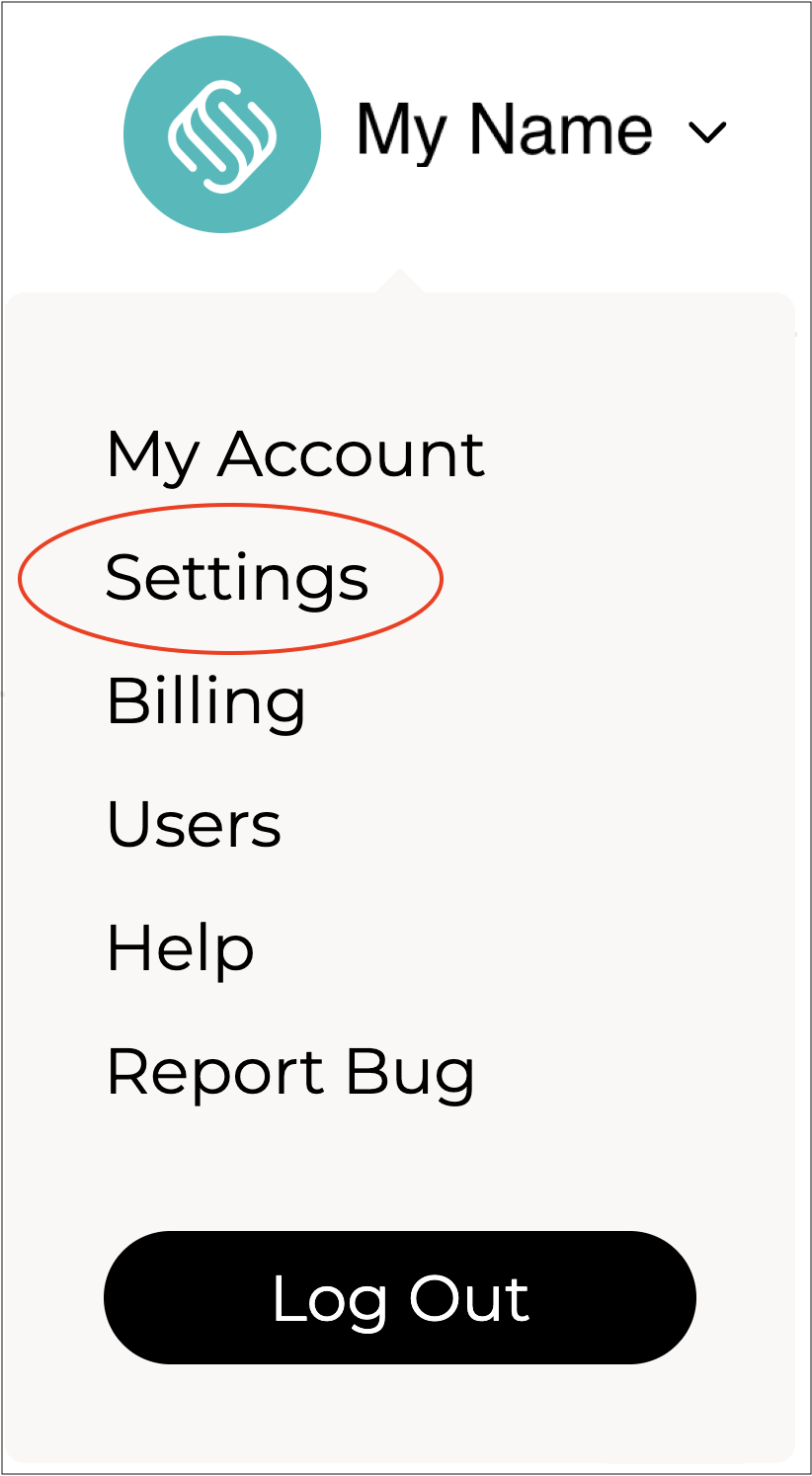
To view the **Device Set-up** page, select your name in the top right to open the menu, then select **Settings** to open the **Settings** menu.
Scroll down and select **Device Set-up** from the **Settings** menu.

The **Devices** page will open.

You will see 2 tabs on this page - **Printers** and **Scales**.
***
#### Printers
The **Printers** tab lists all printers that have been added for use with Supply’d. From this page, you can manage existing printers and add new ones.
{% hint style="success" %}
Printers in the list have colour-coded **Types** beside them for easy identification:\ - Identifies printers configured for printing labels.
- Identifies printers configured for printing receipts.\
{% endhint %}
{% hint style="success" icon="lightbulb-exclamation" %}
You can rearrange the **Printers** list by clicking and dragging the three lines next to a printer’s name to the desired position.
{% endhint %}
{% hint style="success" %}
👉 For details on adding and managing printers, see the [Adding & Managing Printers](https://help.supplyd.co/supplyd-erp/settings/device-set-up/adding-and-managing-printers.md) document.
{% endhint %}
***
#### Scales
The Scales tab lists all scales that have been added for use with Supply’d. From this page, you can manage existing scales, configure their settings, and add new scales for use in production and weighing processes.
{% hint style="warning" %}
**Integrated Scales** is currently available as a **private beta** and supports **Wedderburn scales**.
👉 See the [Wedderburn](https://help.supplyd.co/supplyd-erp/settings/integrations/sales-channel-integrations/wedderburn.md) document for instructions on integrating **Wedderburn** with Supply’d.
{% endhint %}
{% hint style="success" %}
👉 For details on adding and managing scales, see the [Adding & Managing Scales](https://help.supplyd.co/supplyd-erp/settings/device-set-up/adding-and-managing-scales.md) document.
{% endhint %}
---
# Agent Instructions
This documentation is published with GitBook. GitBook is the documentation platform designed so that both humans and AI agents can read, navigate, and reason over technical content effectively. Learn more at gitbook.com.
## Querying This Documentation
If you need additional information that is not directly available in this page, you can query the documentation by asking a question.
Perform an HTTP GET request on the following URL with the `ask` and `goal` query parameters:
```
GET https://help.supplyd.co/supplyd-erp/settings/device-set-up/the-device-set-up-page.md?ask=&goal=
```
`ask` is the immediate question: it should be specific, self-contained, and written in natural language.
`goal` is what the user is ultimately trying to achieve, the reason they need the answer. Sharing it helps GitBook give you a better, more relevant answer. A goal is most helpful when it describes the outcome the user wants rather than restating the question. For example, with `ask=how do I create an API token`, a goal like `automate deployments from our CI pipeline` lets GitBook tailor the answer to that use case.
The response will contain a direct answer to the question and relevant excerpts and sources from the documentation.
Use this mechanism when the answer is not explicitly present in the current page, you need clarification or additional context, or you want to retrieve related documentation sections.

 - Identifies printers configured for printing labels.
 - Identifies printers configured for printing receipts.\
