> For the complete documentation index, see [llms.txt](https://help.supplyd.co/llms.txt). Markdown versions of documentation pages are available by appending `.md` to page URLs; this page is available as [Markdown](https://help.supplyd.co/supplyd-erp/settings/customer-settings.md).
# Customer Settings
Default customer settings in Supply’d ensure consistency, reduce errors, and improve efficiency for a seamless ordering experience.
**Customer Settings** in Supply’d let you manage how your business interacts with customers and tailor the system to fit your workflow. Here, you can set up default options for payments, notifications, and other preferences to suit your operations. These settings help you save time by automating processes, ensure consistency across all customer interactions, and make it easier to manage day-to-day operations efficiently.
In **Customer Settings** you can set defaults for:
* [#customer-defaults](#customer-defaults "mention")
* [Invoice Settings](#invoice-settings)
* [Customer Notifications](#customer-notifications)
* [Customer Price List Defaults](#customer-price-list-defaults)
* [Pantry Defaults](#pantry-defaults)
* [Credit Holds](#credit-hold)
* [Default Operating Hours](#default-operating-hours)
You also have the ability to set [#custom-fields](#custom-fields "mention") for any other details your company may require.
{% hint style="success" %}
These defaults will be applied to all customers unless overridden at a customer level.
👉 See the [Managing Customers](/supplyd-erp/customers/managing-customers.md) document for information on how to do this.
{% endhint %}
***
## Adding Your Customer Settings
{% stepper %}
{% step %}
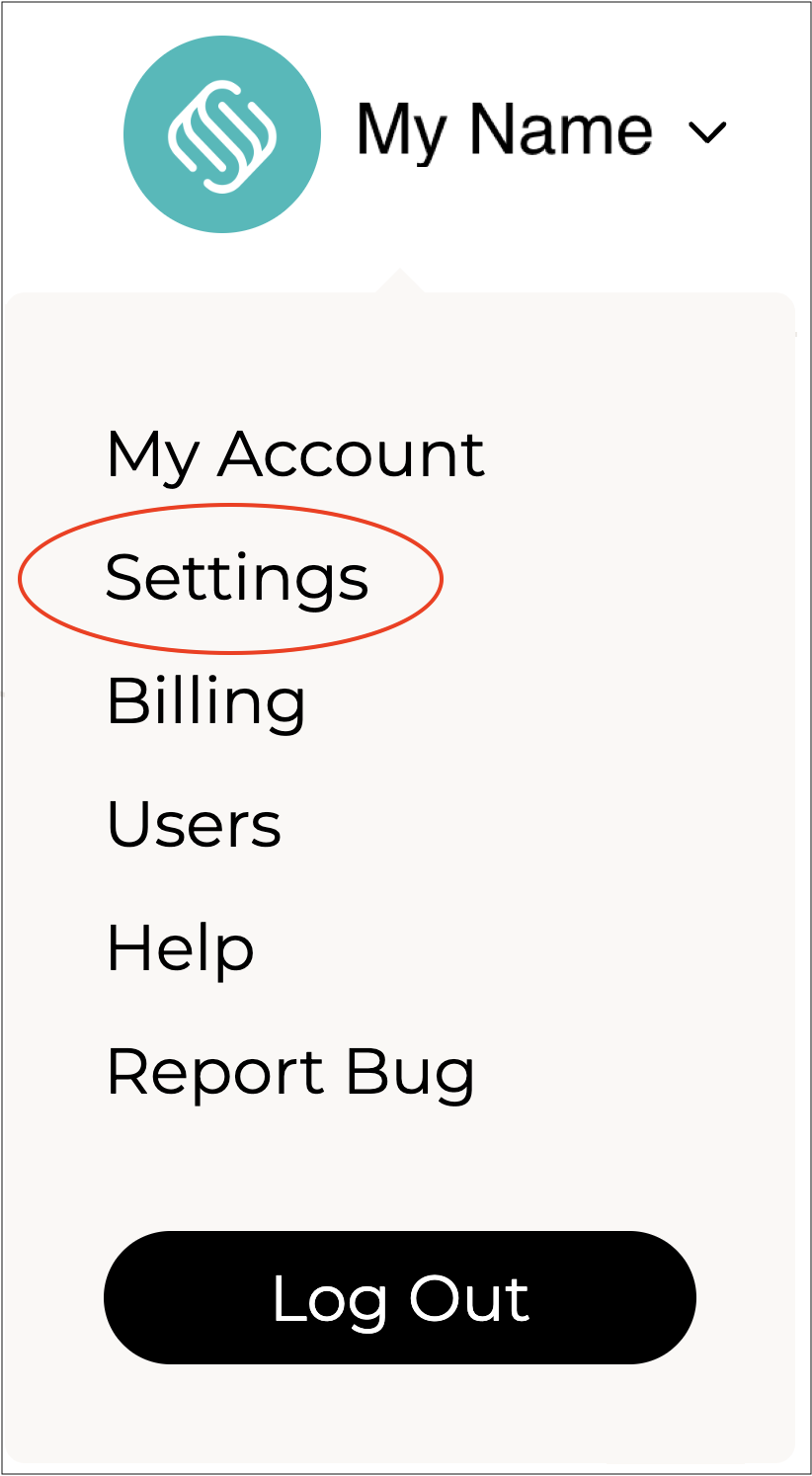
#### Go to Settings
Click on your company name in the top right and select **Settings**.
***
{% endstep %}
{% step %}
#### Select Customer Settings
Scroll down and select **Customer Settings** from the **Settings** menu
\
The **Customer Settings** form will open.
{% hint style="success" %}
To open or close the sections on this form click the little arrows to the right of the titles (as circled in red above).
{% endhint %}
Complete the fields as per the guidelines below:
***
{% endstep %}
{% step %}
### Customer Defaults
**Accepted Payment Types**
Select the payment types you would like to accept from your customers by ticking the relevant boxes.
{% hint style="warning" %}
**Credit Card** is required and cannot be unticked.
{% endhint %}
**Order Minimums**
Select whether or not to apply a minimum order requirement to customers purchasing on Supply'd.
* **No Minimums:** There is no minimum amount of products customers need to order from you.
* **Minimum Spend:** Requires customers to spend a minimum amount when placing an order. When selected, an additional **Minimum Spend** field will appear where you can enter the minimum order value required.\
* **Minimum Carton Qty:** Requires customers to purchase a minimum number of cartons when ordering. When selected, an additional **Minimum Qty** field will appear where you can enter the minimum number of cartons required.\
**Credit Card Fees**
Select whether or not to on-charge credit card fees.
If on-charged the customer will see the additional credit card fees at the checkout.
When **On Charge to Buyer** is selected, an extra field - **Tax on Credit Card Fees** - will show for you to enter any tax applicable on these fees.
{% hint style="warning" %}
The **Credit Card Fees** settings available will depend on the country your company operates in.
For **Australian companies**, these settings cannot be edited. From **1 October 2026**, card payment surcharges can no longer be applied to customers for supported card payments in Australia. As a result, the **Credit Card Fees** options are disabled.\
\
**Note:** The Australian changes relate specifically to surcharges charged because a customer pays by card. They do not apply to other charges such as weekend, public holiday, booking, or service fees.
{% endhint %}
**Tax on Credit Card Fees**
The applicable tax on credit card fees charged to the customer.
{% hint style="warning" %}
For **Australian companies**, this field will not be shown because card payment surcharges can no longer be applied from **1 October 2026**.
For **companies outside Australia**, this field will remain available where Credit Card Fees can be charged and **On Charge to Buyer** is selected under **Credit Card fees**.
{% endhint %}
**Maximum Credit Card Charge**
Enter the maximum amount that can be paid by credit card. If a sales order paid by credit card exceeds this amount, Supply'd automatically changes the payment method to **Invoice**. This helps prevent staff from accidentally processing large credit card transactions.
***
{% endstep %}
{% step %}
### **Invoice Settings**

**Default Payment Term**
Enter the default payment terms to apply to customer invoices. This will apply from the date of order creation and can be overridden at a customer level if on an applicable plan.
Enter the number of days and select one of the following:
* **Days**
* **Days EOM** (End of Month)
* **Days EOW** (End of Week)
* **Pre-Paid**\
**Show Free Shipping**
Select whether or not to show the shipping line on invoices that have free shipping.
**Allow Online Invoice Payments**
Select whether or not customers can pay their invoices online via credit card through Supply'd.
{% hint style="warning" %}
If enabled, when a customer pays via Online Payment, the charge is captured immediately, effectively locking the order. No further changes can be made, and the order cannot be marked as **"Unpaid"** after payment.
Once the customer has paid, the payment option on the order will switch from **Invoice** to **Credit Card**, and a green dot will appear next to the order to indicate that it has been paid - .
**Note:** Online Invoice Payments are only available for custom customers.
{% endhint %}
**Pre-Paid Handled Automatically**
Select whether orders on pre-paid terms are automatically switched to/from status.
**Payment Bank Details**
Enter the payment details you would like to show on invoices. For example, Bank deposit details, if applicable.
**Default Invoice Message**
The default message to be sent with the invoice.
***
{% endstep %}
{% step %}
### **Customer Notifications**
Send automatic follow-ups to customers to remind them to order from you or pay outstanding invoices.

**Delivery Notification Reply Email**
Enter the reply address sent with delivery notifications to customers.
**Invoice Notification Reply Email**
Enter the reply address sent with invoice notifications to customers.
***
{% endstep %}
{% step %}
### **Customer Price List Defaults**
Set your default configuration for generating price lists.

**Products**
Select which products to include in the price list.
**Split By Categories**
Select whether or not items on the price list should be broken up into categories.
**Fields**
Select the fields you would like to include in the price list. To remove a field, simply click the cross beside it.
***
{% endstep %}
{% step %}
### **Pantry Defaults**
Set your default configuration for customer pantry lists.

**Default View**
Choose the default view for the **Customer Pantry** tab - either **Pantry** or **Recently Ordered**.
**Recent Order Count**
Enter the number of orders to be displayed on the **Recently Ordered** screen.
***
{% endstep %}
{% step %}
### **Credit Hold**
Set whether credit hold should be automatically managed by Supply'd.

**Auto Apply Credit Hold**
Specify if credit hold should be applied when a customer exceeds their terms.
Set when the credit hold should apply - **Never**, **Once Overdue**, or a specific number of days (1–90).
**Auto Release Credit Hold**
Select whether or not a customer's credit hold should be automatically released once they have paid all overdue invoices.
***
{% endstep %}
{% step %}
### Default Operating Hours
Select the default operating hours for locations. These determine when deliveries can occur and can be overridden at the customer level. They also serve as the default hours for orders not assigned to customers.

***
{% endstep %}
{% step %}
### Custom Fields
Add custom fields on the **Customers** page to store and manage specific information.
To add a custom field, click . The **Custom Fields** form will appear.

**Field Name**
Enter a name for the custom field. This will be displayed as the label on the production screen for this field.
**Field Type**
Select the type of field for this custom field - **Short Text**, **Long Text** or **Drop Down**.
**Default Text**
The default text to pre-fill this field. Leave blank to not pre-fill this field.
**Required**
Select whether or not the field is a required field, ie. the field must be completed.
Repeat the steps above for any other custom fields you would like to create.
To remove a custom field, click the **X** beside the field name. You will be asked to confirm.

***
{% endstep %}
{% step %}
#### Save
Click to apply your settings.
{% endstep %}
{% endstepper %}
---
# Agent Instructions
This documentation is published with GitBook. GitBook is the documentation platform designed so that both humans and AI agents can read, navigate, and reason over technical content effectively. Learn more at gitbook.com.
## Querying This Documentation
If you need additional information that is not directly available in this page, you can query the documentation by asking a question.
Perform an HTTP GET request on the following URL with the `ask` and `goal` query parameters:
```
GET https://help.supplyd.co/supplyd-erp/settings/customer-settings.md?ask=&goal=
```
`ask` is the immediate question: it should be specific, self-contained, and written in natural language.
`goal` is what the user is ultimately trying to achieve, the reason they need the answer. Sharing it helps GitBook give you a better, more relevant answer. A goal is most helpful when it describes the outcome the user wants rather than restating the question. For example, with `ask=how do I create an API token`, a goal like `automate deployments from our CI pipeline` lets GitBook tailor the answer to that use case.
The response will contain a direct answer to the question and relevant excerpts and sources from the documentation.
Use this mechanism when the answer is not explicitly present in the current page, you need clarification or additional context, or you want to retrieve related documentation sections.



 .
**Note:** Online Invoice Payments are only available for custom customers.
{% endhint %}
.
**Note:** Online Invoice Payments are only available for custom customers.
{% endhint %}
 status.


 . The **Custom Fields** form will appear.


 to apply your settings.