> For the complete documentation index, see [llms.txt](https://help.supplyd.co/llms.txt). Markdown versions of documentation pages are available by appending `.md` to page URLs; this page is available as [Markdown](https://help.supplyd.co/supplyd-erp/settings/company-settings.md).
# Company Settings
Company settings define details about your company such as profile details and the company type.
**Company Settings** in Supply’d allow you to manage key information and preferences for your business. Here, you can update company details, set operating hours, define delivery and billing addresses, configure default settings, and customise how Supply’d interacts with your team and customers.
**Company Settings** you can manage are:
* [#company-details](#company-details "mention")
* [#company-profile](#company-profile "mention")
* [#company-setting](#company-setting "mention")
* [#operating-days](#operating-days "mention")
***
## Applying Your Company Settings
{% stepper %}
{% step %}
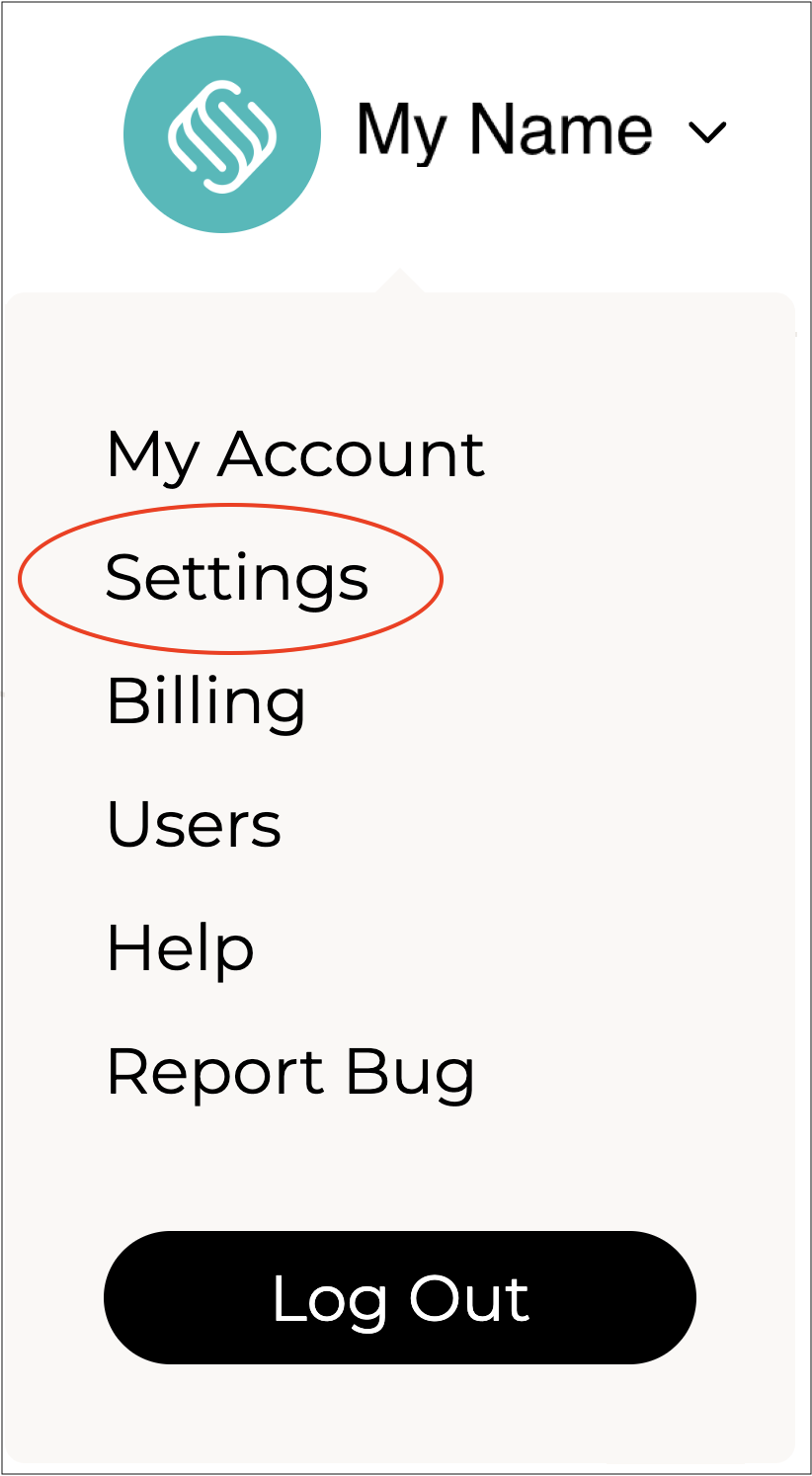
#### Go to Settings
Click on your company name in the top right and select **Settings**.
***
{% endstep %}
{% step %}
#### Select Company Settings
Select **Company Settings** from the **Settings** menu.
\
The **Company Settings** form will open.
{% hint style="success" %}
To open or close the sections on this form click the little arrows to the right of the titles (as circled in red above).
{% endhint %}
\
Complete the fields as per the guidelines below:
***
{% endstep %}
{% step %}
### Company Details
Enter or edit your company information, such as your business name and contact details.
**Trading Name\* \[required field]**
Enter the trading name of your business. This is the name customers will see in Supply'd. For example, if your legal business name was Milk Co Pty Ltd, but you trade as Milk Co, you would simply enter the value "Milk Co".
**Company Logo**
Upload your company logo. It is recommended to use a PNG image with a transparent background. Square images work best if available at least 500px wide. Wider images can be used as well. JPG images are also accepted.
**Business Number\* \[required field]**
Enter your business number. Commonly known as ABN or NZBN, depending on the region. The number must be valid and active. Your legal company name will automatically be pulled from the business registration database.
{% hint style="warning" %}
If you need to update your **Business Number** in the future, enter the new number and then **c**lick outside the field. Wait for the **Legal Name** to update before selecting .
If you enter the new Business Number and select immediately, the new number will be saved, but the **Legal Name will not be updated**.\
\
Updating the **Business Number** in **Company Settings** does not automatically update the Business Number in your [Supply'd Stores](/supplyd-erp/settings/supplyd-stores.md) **Settings**. If you have one or more Supply’d stores, you may also need to update the Business Number in each store’s settings. Otherwise, documents such as invoices generated from the store may continue to display the old business details.
{% endhint %}
**Company Legal Name\* \[required field]**
This is automatically pulled from the business registration database after entering your business number and cannot be edited.
**GS1 Company Prefix**
Enter the 4–11 digit company identification number issued by GS1. This number is used as part of GTIN, SSCC, and other EDI numbers to identify your company in electronic business transactions.
{% hint style="success" %}
* **EDI** - Electronic Data Interchange, used to exchange business documents such as orders, invoices, and shipping information between companies.
* **GTIN** - Global Trade Item Number, used to identify products.
* **SSCC** - Serial Shipping Container Code, used to identify shipping units such as pallets or cartons.
* **Company identification number** - A **4–11 digit number** assigned by **GS1** that forms part of GTINs, SSCCs, and other EDI identification numbers.
{% endhint %}
{% hint style="warning" %}
**Supply'd Stores**\
Changes made in here are not automatically applied to your [Supply'd Stores](/supplyd-erp/settings/supplyd-stores.md). This allows businesses to operate different brands or legal entities under the same parent company.
If you update details such as the business number, legal name, contact information or logo, review the settings for each store and update them where required. Otherwise, stores may continue displaying outdated information.
{% endhint %}
***
{% endstep %}
{% step %}
### Company Profile
**Support Email\* \[required field]**
Enter the email address customers/suppliers can use to contact you in case of an issue or enquiry. This is not publicly available until an order or connection has been made.
**Support Phone\* \[required field]**
Enter the email phone number customers/suppliers can use to contact you in case of an issue or enquiry. This is not publicly available until an order or connection has been made.
**Your Website**
Enter your website address. If you don't have a website please use a Facebook or Instagram URL.
**Business Categories**
Select the category, or categories, that are most appropriate for your business.
For example, if you are a bakery who also has a cafe, you would select "Cafe"and "Bakery/Patisserie".
**Profile URL\* \[required field]**
Enter the URL slug (the end part of your Supply'd URL after the backslash ( / ) ) for your company page on Supply'd.
**Description**
Add a description of your business to display on your profile. This helps present your business to potential customers.
***
{% endstep %}
{% step %}
### Company Setting
**Enable Supplier**
Select whether or not your company is a supplier selling goods B2B. If set to **Yes** all supplier functionality is enabled in Supply'd. (Will only show for customers paid plans.)
**Currency\* \[required field]**
Select the primary currency that you trade with.
**Timezone\* \[required field]**
Select the timezone your business most commonly trades in. This will be a default timezone for all new users you add to Supply'd.
**Week Starts On**
Select the first day of the week according to your business.
This is relevant, for example, when a customer has payment terms like 5 days EOW (End of Week)**.** The system will use this field to determine the end of the week for calculating the due date.
**Date Format**
Choose how dates are displayed in Supply’d to match your regional or company preferences.
**Liquor Licence**
To order products that require a liquor licence, you must upload your licence here. Accepted file formats are PDF, JPG, or PNG.
**Accept Hub Connections**
Select whether or not your company shows in the **Customer** > **Connect** tab for suppliers on Supply'd. Enabling this allows suppliers using Supply’d ERP or Hub to connect with you and submit products for ranging consideration.
{% hint style="success" %}
Supply’d Hub is a platform where suppliers can showcase and range their products with retailers. Suppliers can list their products, connect with current and potential customers, and present their product range to businesses such as grocery stores and supermarkets for ranging consideration and future supply opportunities.
👉 See the [Accepting Offers from Suppliers](/supplyd-erp/products/offers/accepting-offers-from-suppliers.md) document for more information.
{% endhint %}
**Place Product Offers To Customers**
Select whether or not your company would like to submit products to customers for ranging consideration.
{% hint style="success" %}
If enabled, you can submit products to your customers for ranging consideration. Retailers can review offers in the **Products → Offers** tab. From there, they can range the product (which creates their own ranged version of the product), request samples, or reject the offer. All updates are reflected on the product page. Once a retailer ranges a product, they can begin purchasing it through Supply’d.
👉 For more details, see the [Placing Offers to Customers](/supplyd-erp/products/offers/placing-offers-to-customers.md) document.
{% endhint %}
***
{% endstep %}
{% step %}
### Operating Days
Select the days your business operates. These **Operating Days** are used to manage delivery schedules.
***
{% endstep %}
{% step %}
#### Save
Click to apply your settings.
{% endstep %}
{% endstepper %}
---
# Agent Instructions
This documentation is published with GitBook. GitBook is the documentation platform designed so that both humans and AI agents can read, navigate, and reason over technical content effectively. Learn more at gitbook.com.
## Querying This Documentation
If you need additional information that is not directly available in this page, you can query the documentation by asking a question.
Perform an HTTP GET request on the following URL with the `ask` and `goal` query parameters:
```
GET https://help.supplyd.co/supplyd-erp/settings/company-settings.md?ask=&goal=
```
`ask` is the immediate question: it should be specific, self-contained, and written in natural language.
`goal` is what the user is ultimately trying to achieve, the reason they need the answer. Sharing it helps GitBook give you a better, more relevant answer. A goal is most helpful when it describes the outcome the user wants rather than restating the question. For example, with `ask=how do I create an API token`, a goal like `automate deployments from our CI pipeline` lets GitBook tailor the answer to that use case.
The response will contain a direct answer to the question and relevant excerpts and sources from the documentation.
Use this mechanism when the answer is not explicitly present in the current page, you need clarification or additional context, or you want to retrieve related documentation sections.



 .
If you enter the new Business Number and select
.
If you enter the new Business Number and select 


 to apply your settings.