> For the complete documentation index, see [llms.txt](https://help.supplyd.co/llms.txt). Markdown versions of documentation pages are available by appending `.md` to page URLs; this page is available as [Markdown](https://help.supplyd.co/supplyd-erp/scanner/scan-to-list-scanner.md).
# Scan to List (Scanner)
The Scan to List feature lets you quickly capture multiple items into a list, enabling you to perform a range of actions while reducing manual entry and improving efficiency.
The **Scan to List** feature is designed to simplify and speed up your workflow by allowing you to scan multiple items into a single list in seconds. Once captured, you can perform a variety of actions on the selected items, making processes like label printing, exporting, and item updates more efficient. By reducing the need for manual entry, **Scan to List** helps improve accuracy while saving valuable time.
In this document, we will guide you through using the **Scan to List** feature to create a list and perform actions on the items within it.
* [#creating-your-list](#creating-your-list "mention")
* [#actions](#actions "mention")
* [#print-shelf-tickets](#print-shelf-tickets "mention")
* [#print-product-labels](#print-product-labels "mention")
* [#export-products](#export-products "mention")
* [#bulk-edit](#bulk-edit "mention")
***
## Creating Your List
{% stepper %}
{% step %}
#### Select Scan To List
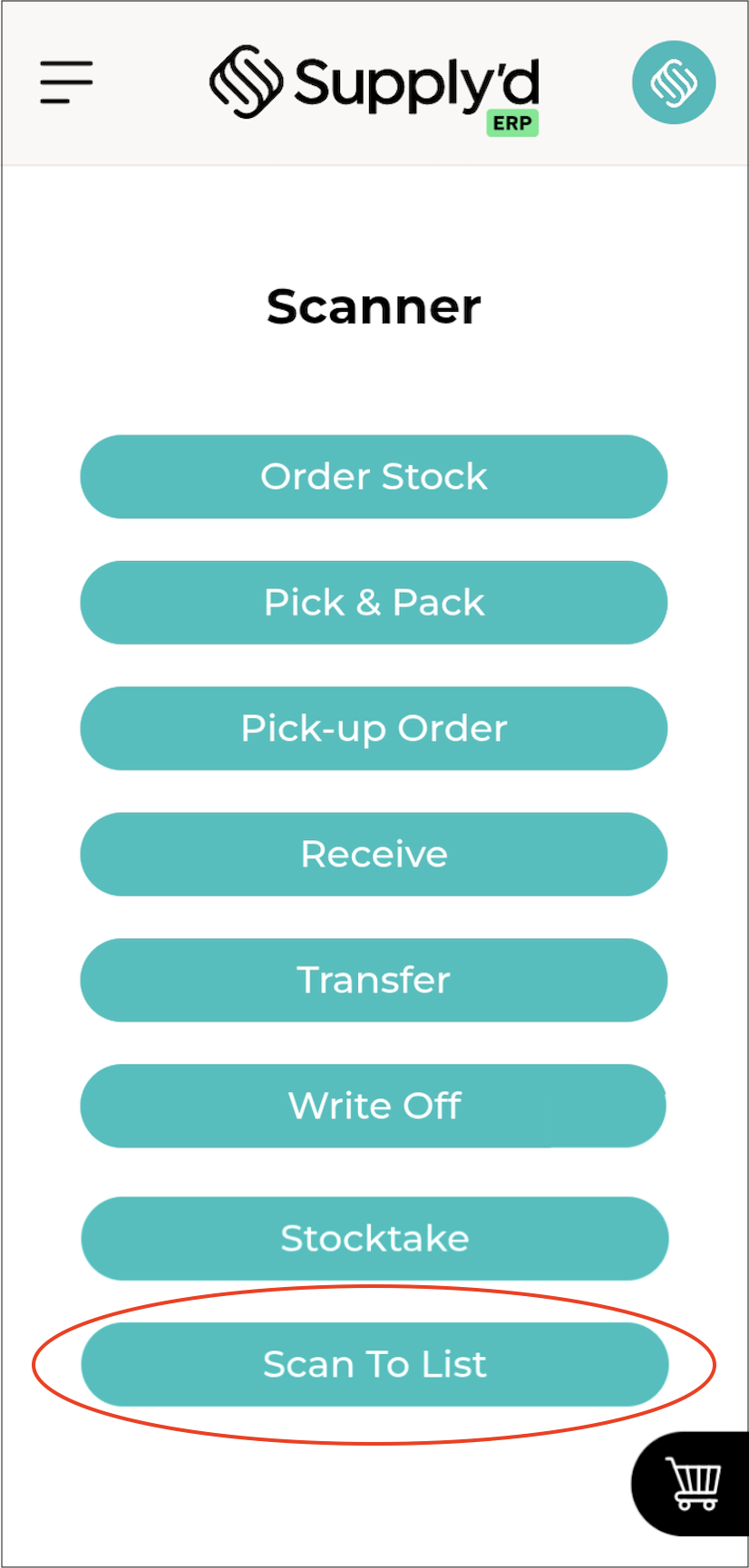
Open Supply'd on the scanner, go to the **Scanner** menu and select **Scan To List**.
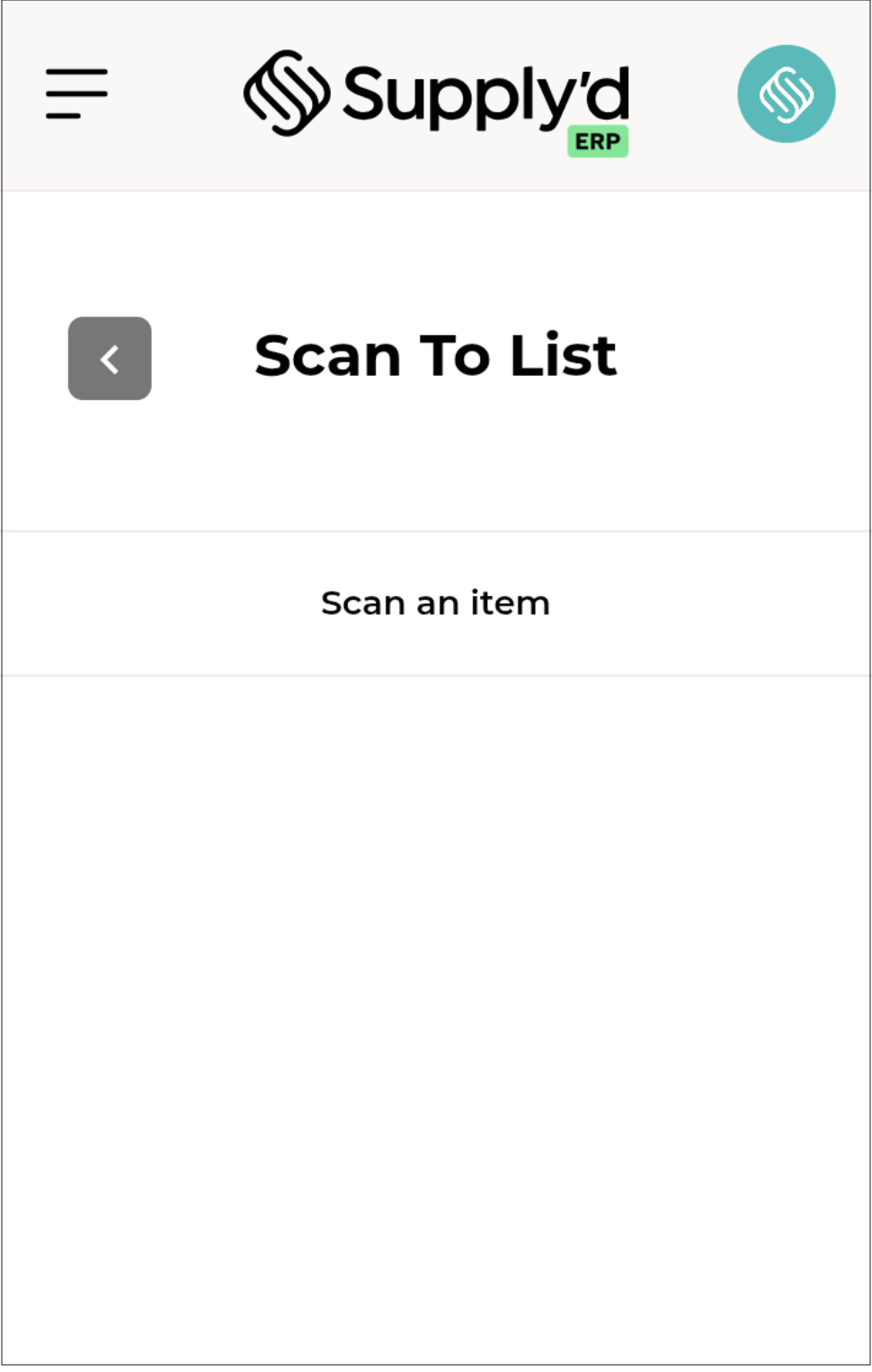
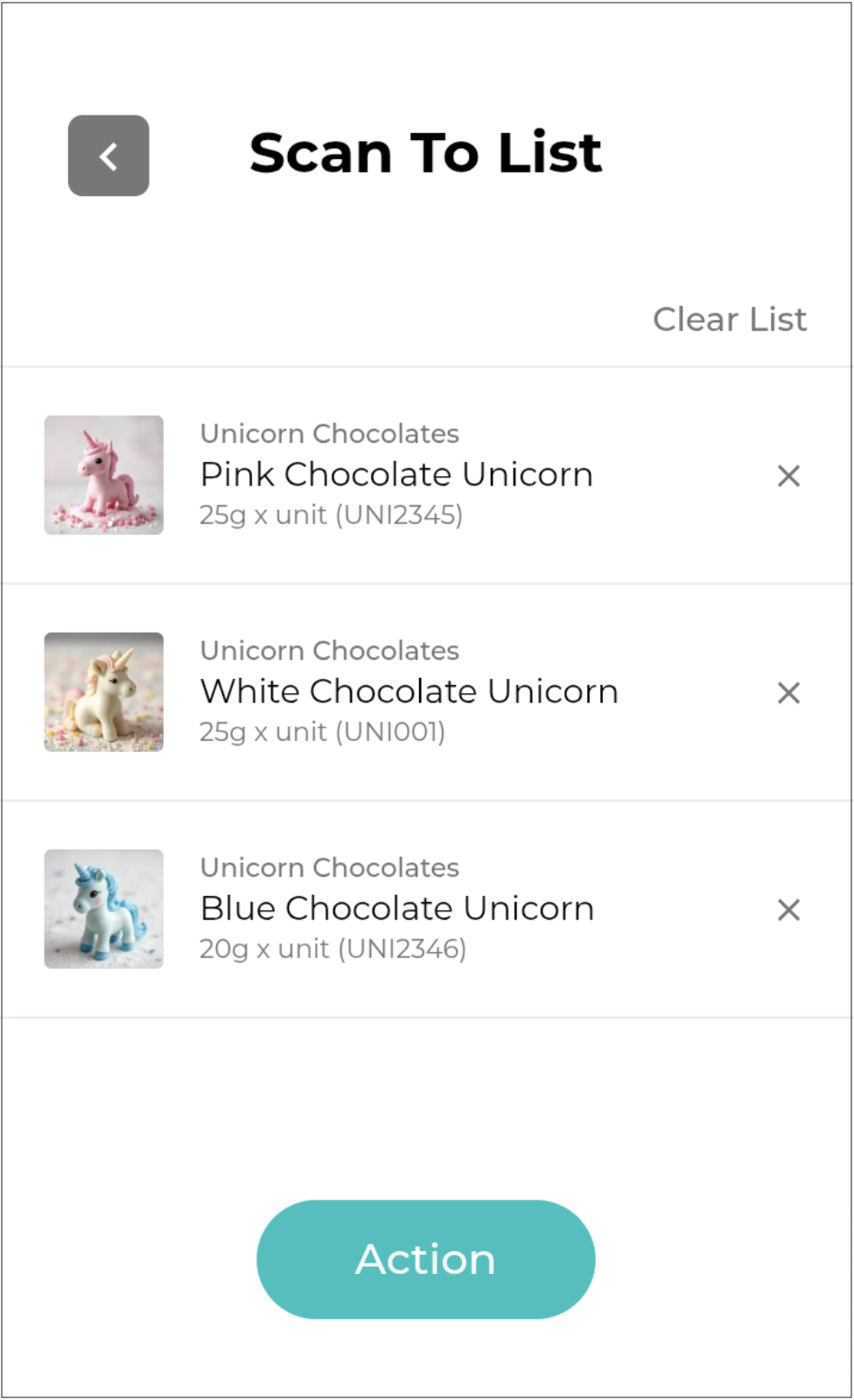
The **Scan To List** screen will open.
***
{% endstep %}
{% step %}
#### Scan Items
To scan an item to add to your list, point the scanner at the barcode on the item and press the scan button. The item will appear on the screen.
Repeat for any other items you would like to include on your list.
{% hint style="success" %}
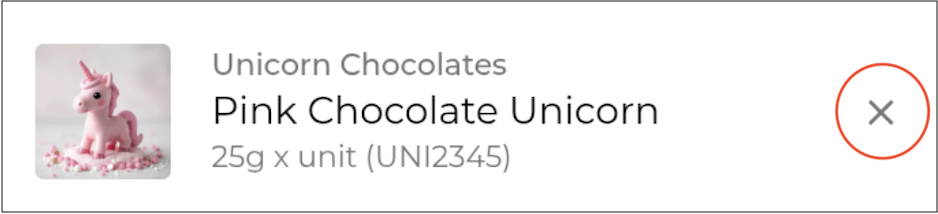
To remove a single item from the list, click the **X** next to that item.
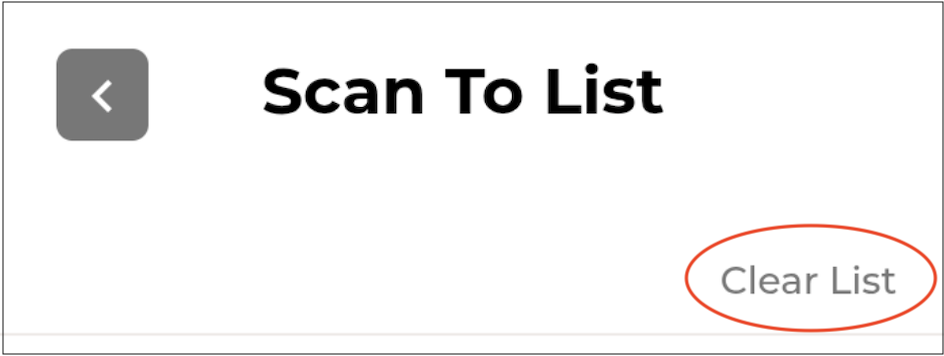
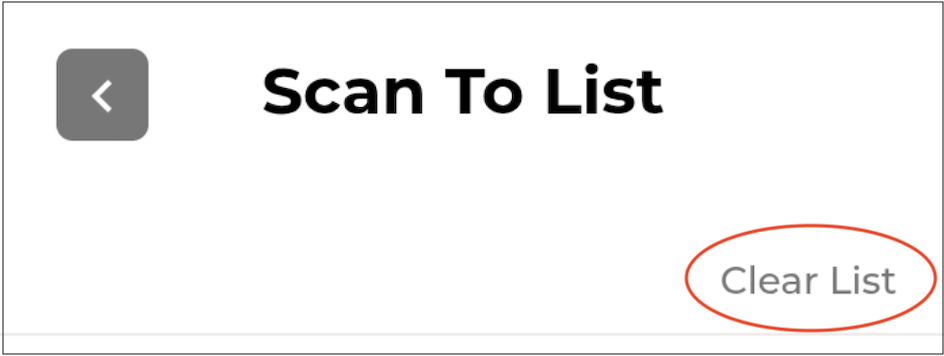
To remove all items at once, click **Clear List**.\
{% endhint %}
{% endstep %}
{% endstepper %}
***
## Actions
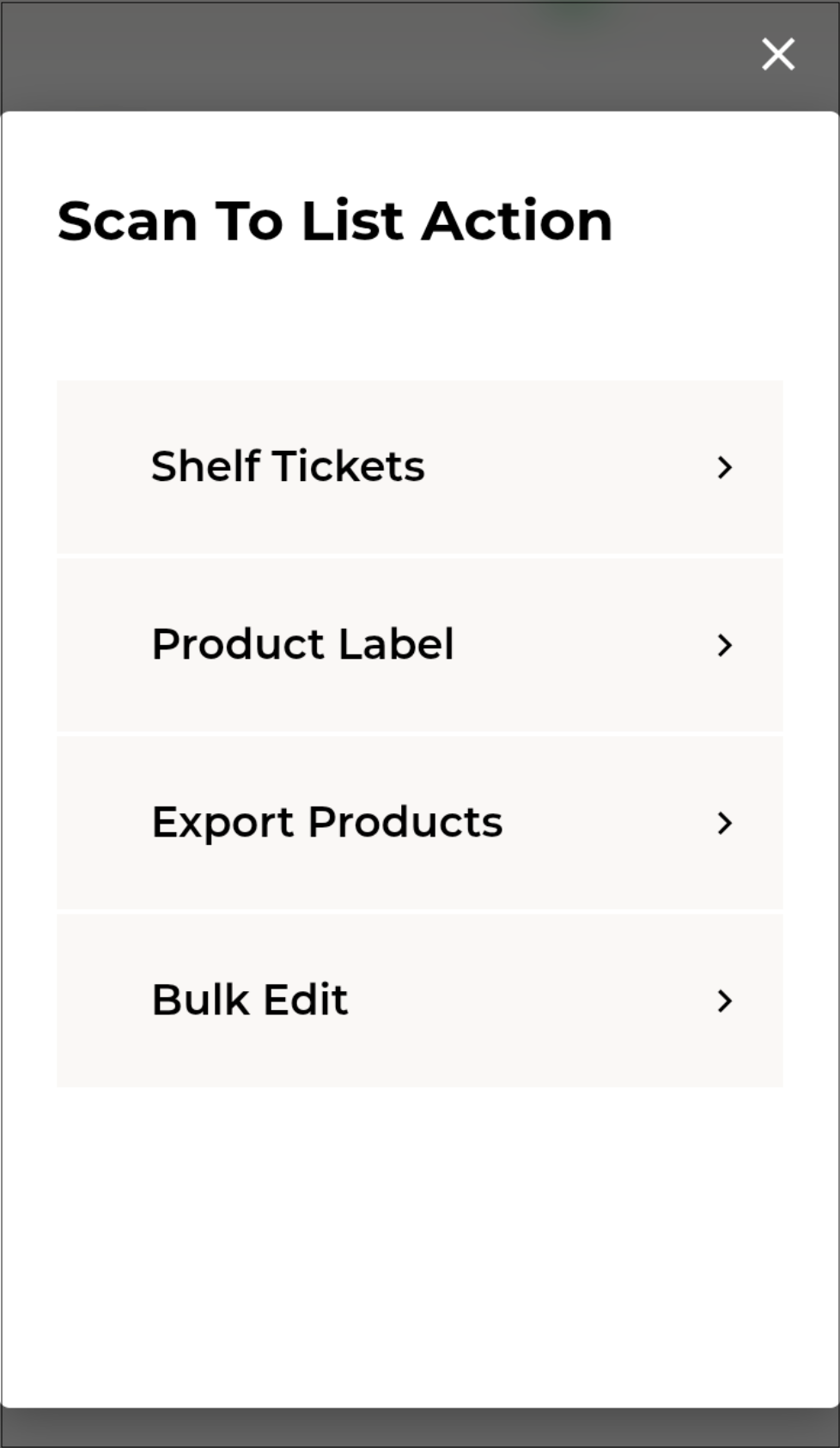
Once you have created the list, click to open the **Scan To List Action** screen to select the action you would like to perform.
Actions that can be performed are:
* Print [#shelf-tickets](#shelf-tickets "mention")
* Print [#product-labels](#product-labels "mention")
* [#export-products](#export-products "mention")
* [#bulk-edit](#bulk-edit "mention")
***
### Shelf Tickets
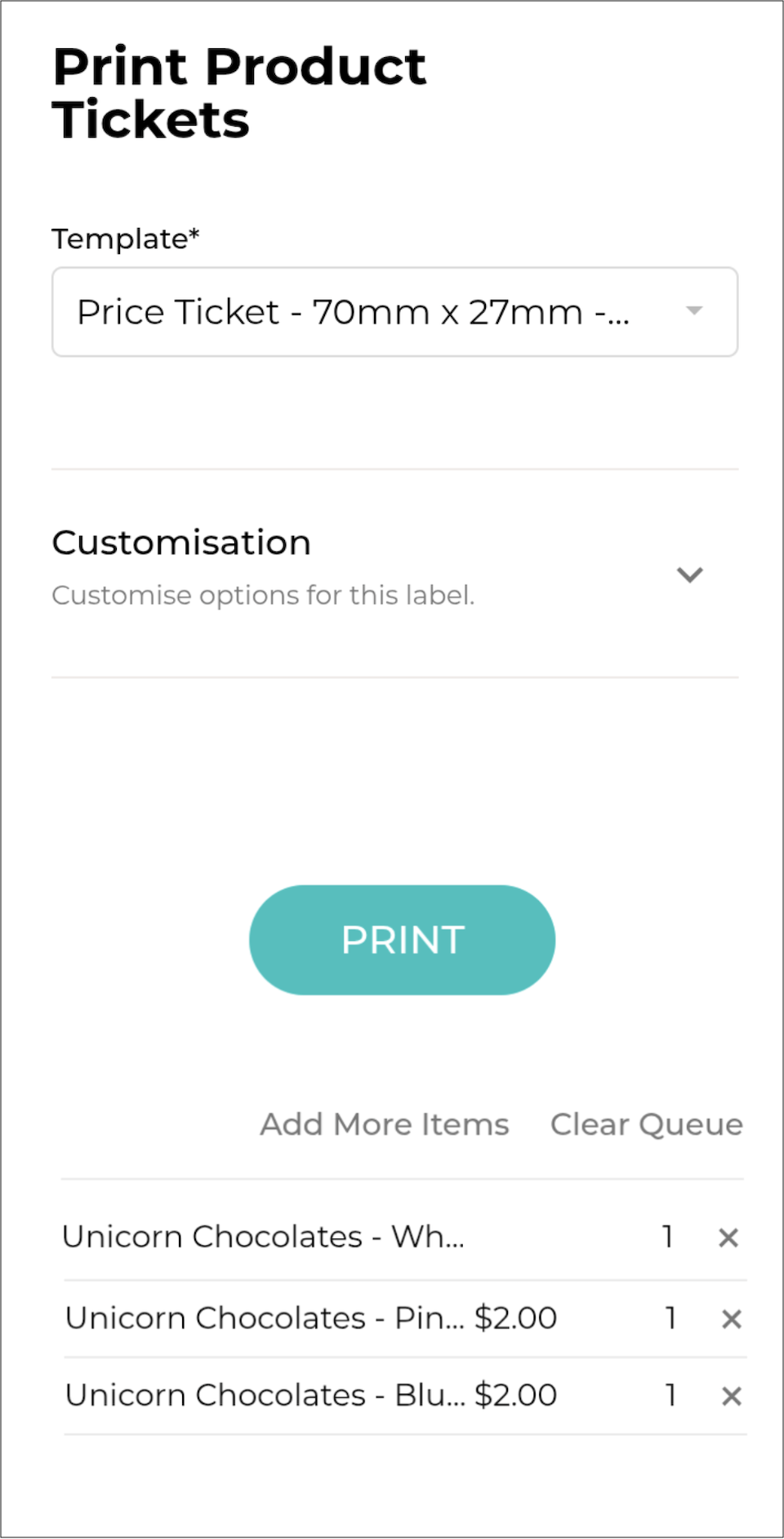
Selecting this option opens the **Print Product Tickets** form, allowing you to print shelf tickets for all items on your list.
{% hint style="success" %}
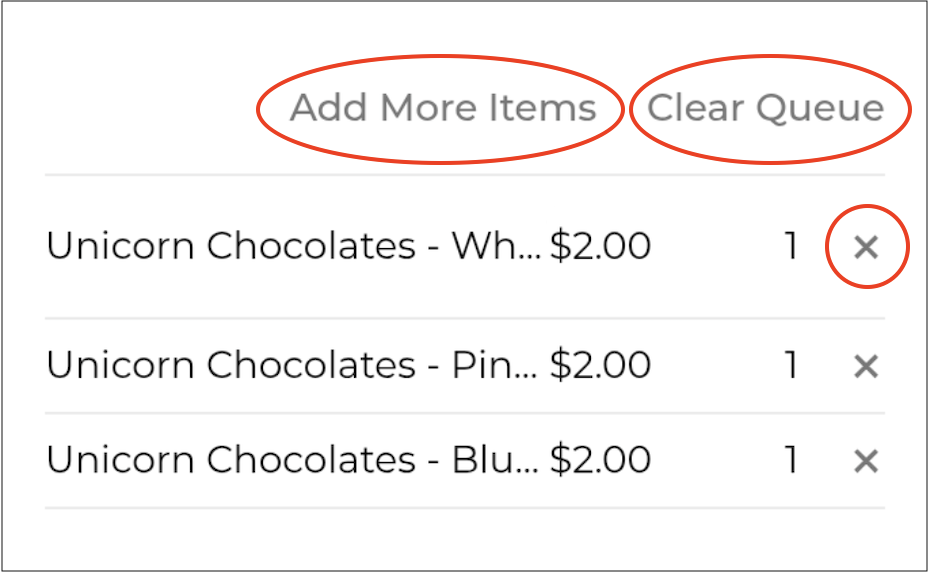
* From this screen, you also have the option to **Add More Items**. You will be taken back to the **Scan To List** where you can scan more items to add to the list.
* To remove a single item from the list, simply click the **X** beside the item.
* To remove all items from the print queue, click **Clear Queue**.
{% endhint %}
{% stepper %}
{% step %}
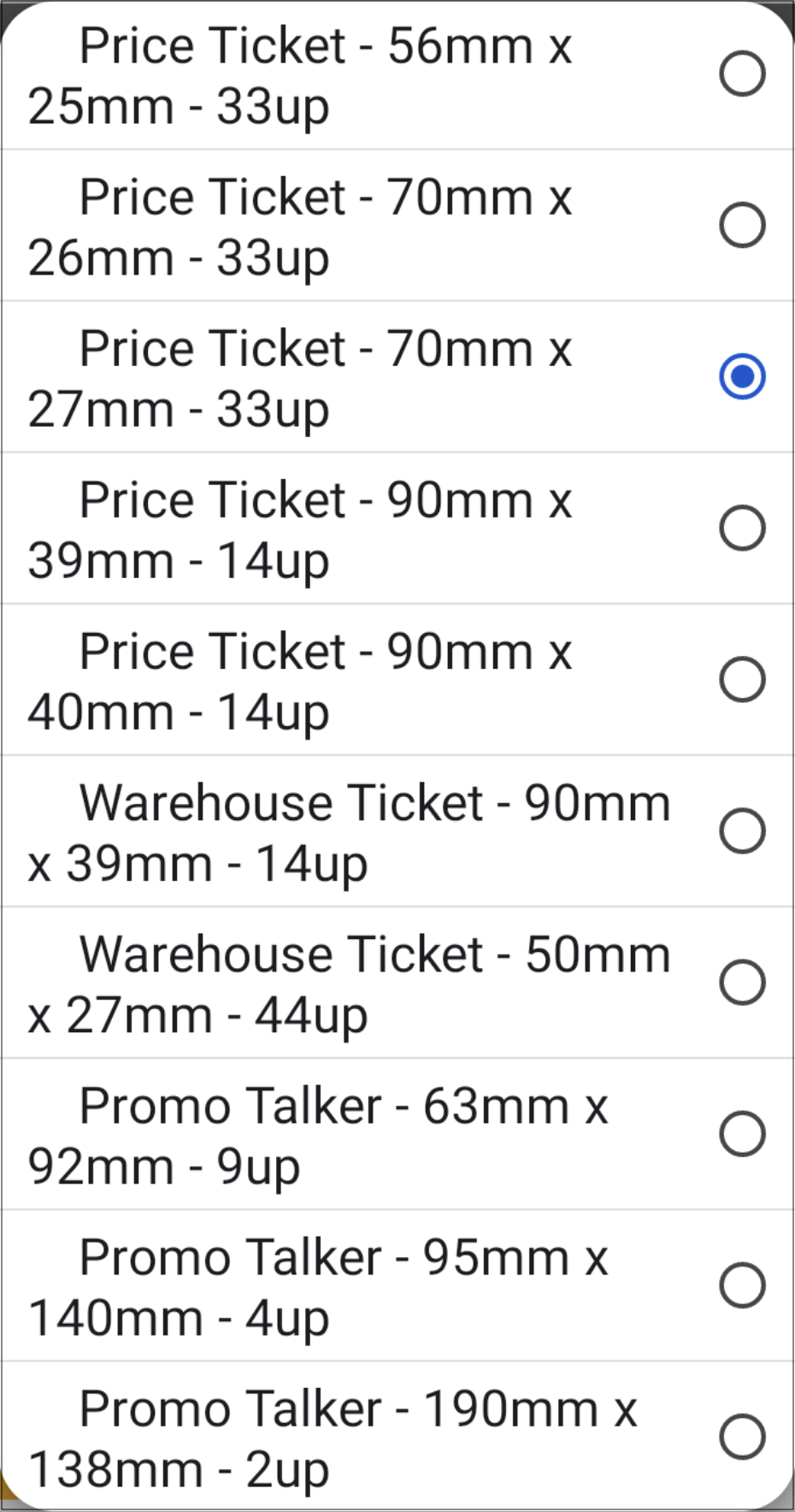
Select the **Template\*** – This required field lets you choose which template to use for your tickets.
{% hint style="success" %}
Supply’d offers a variety of templates for you to choose from.
👉 For instructions on creating your own templates, please refer to the [Templating](/supplyd-erp/settings/templating.md) document.
{% endhint %}
{% endstep %}
{% step %}
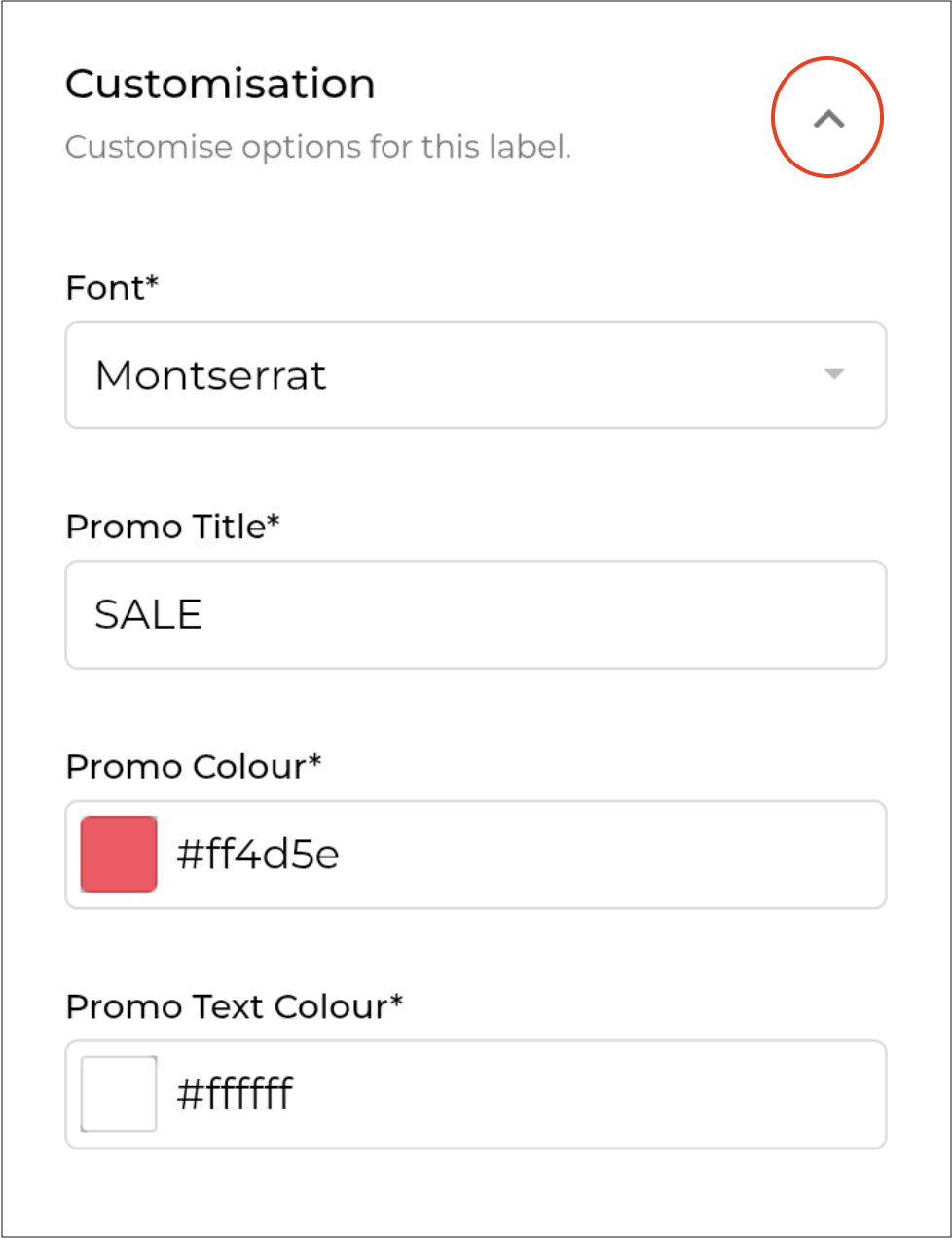
If you would like to customise the labels, click the small arrow on the right (as circled in red below) to expand the customisation section.
Here you can change the default font and colours.
{% endstep %}
{% step %}
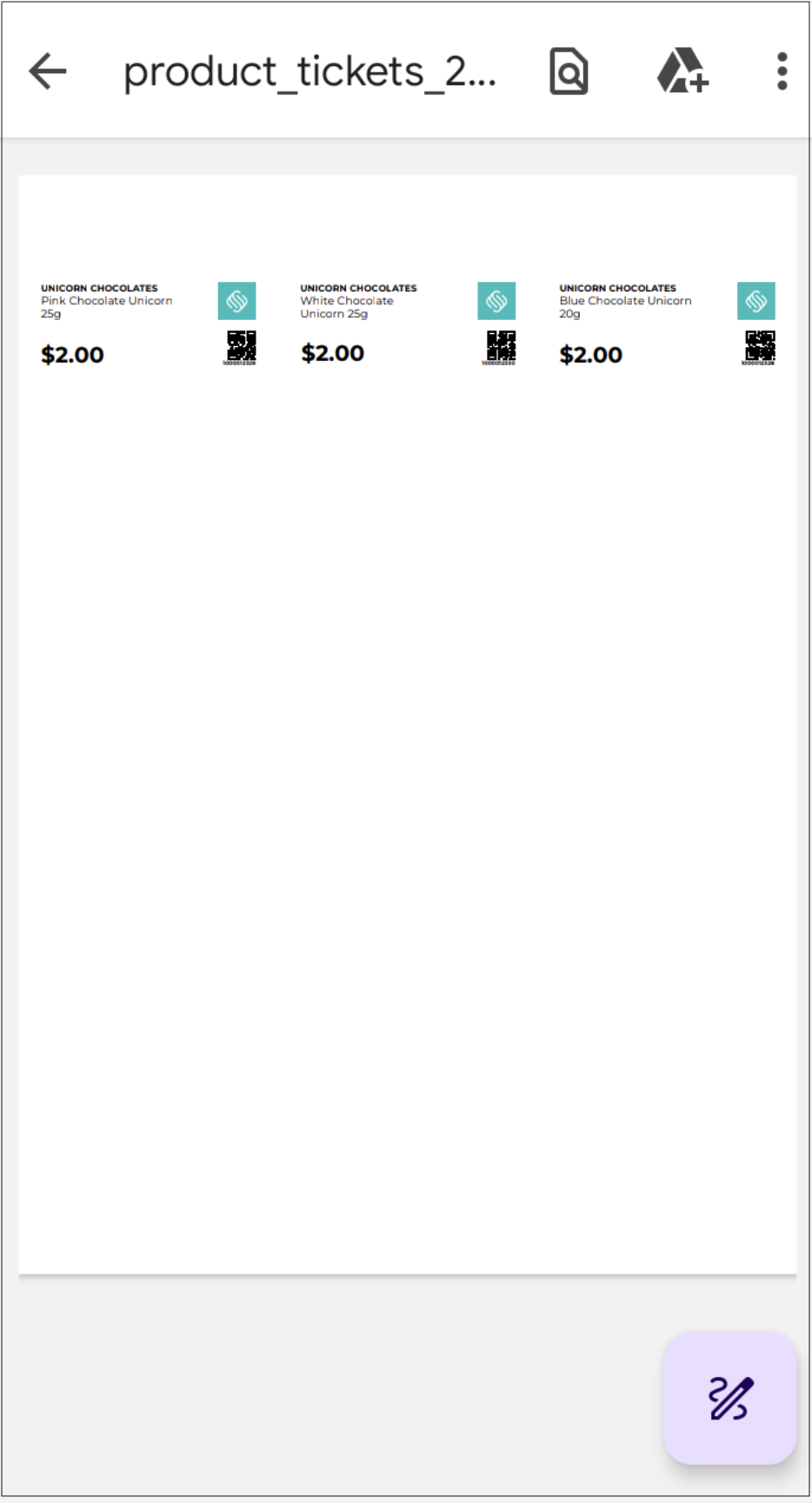
Click to generate the tickets.
{% endstep %}
{% step %}
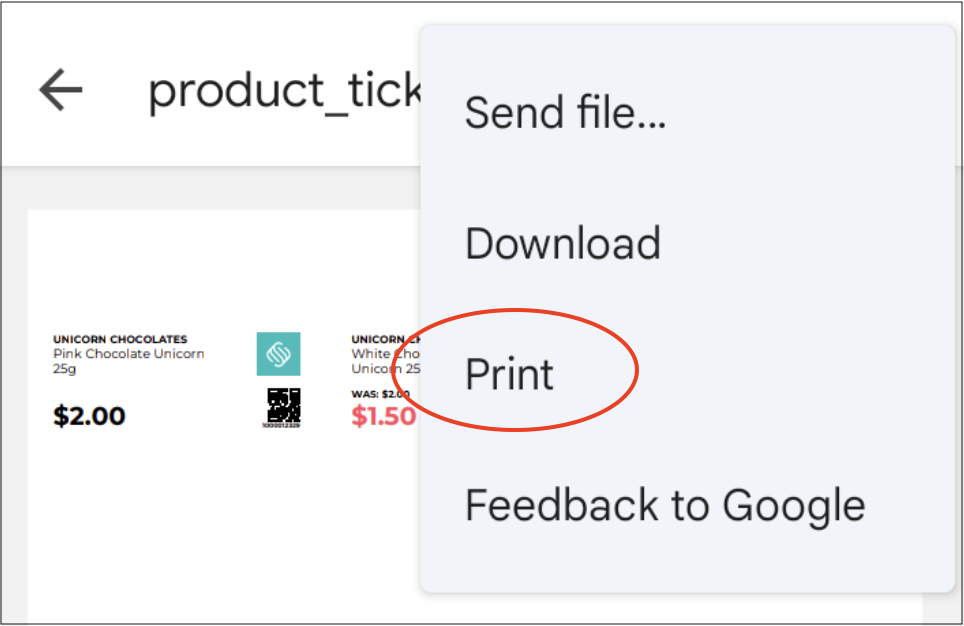
To print the tickets, click on the 3 dots in the top right and select **Print**.
{% endstep %}
{% endstepper %}
***
### Product Labels
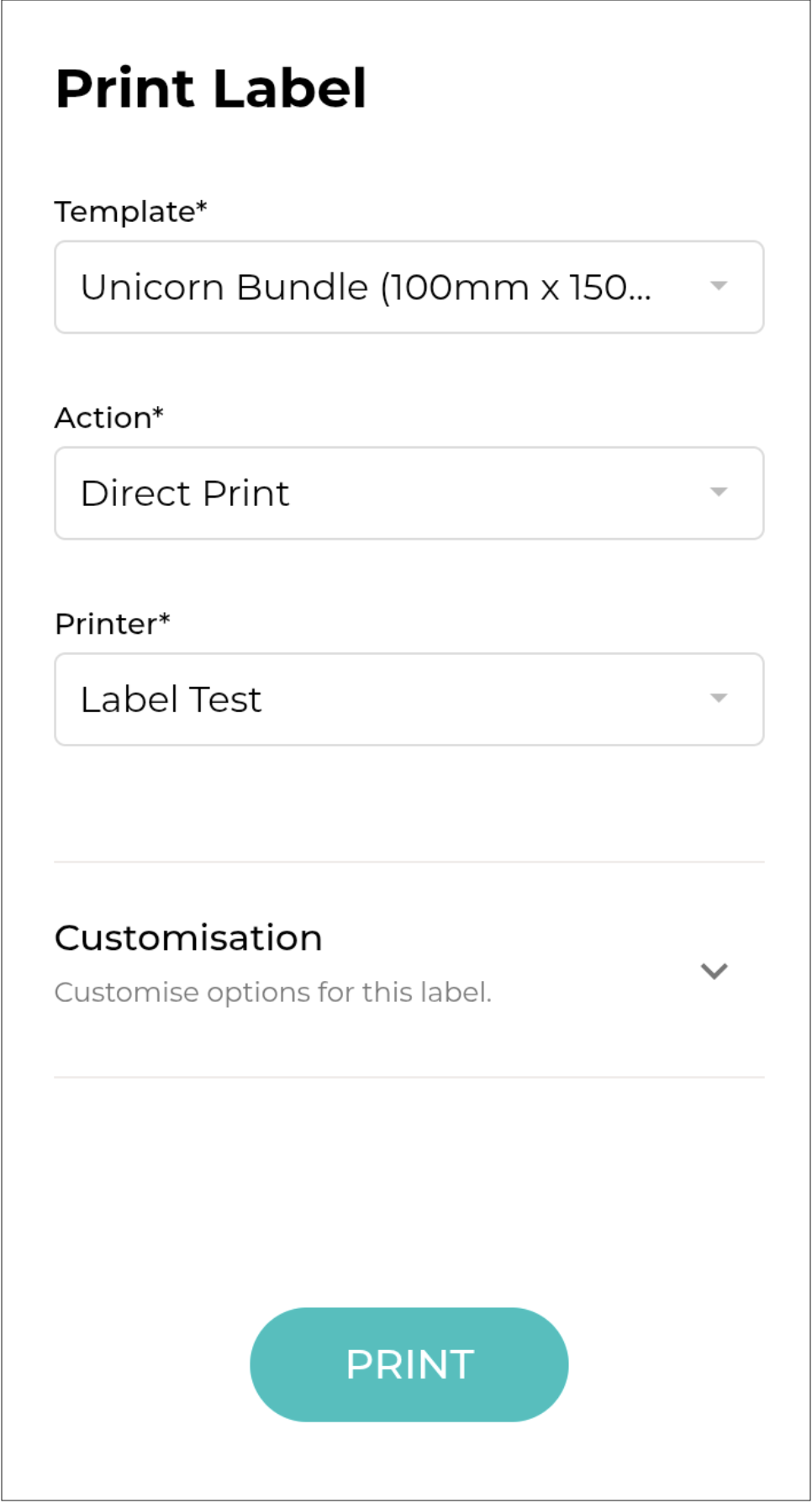
This will open the **Print Label** form.
{% stepper %}
{% step %}
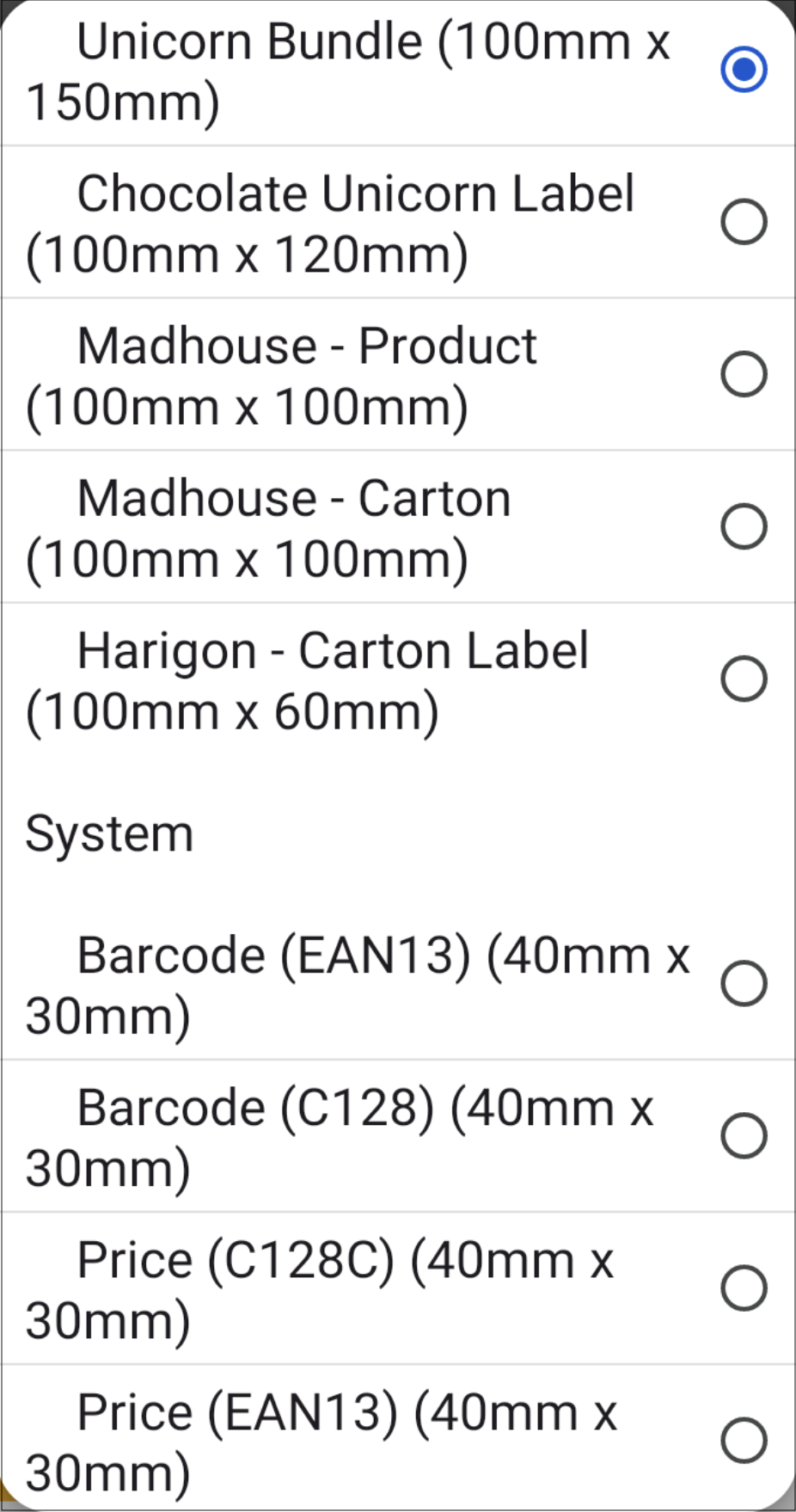
Select the **Template\*** – This field is required and lets you choose which template to use for your labels.
{% hint style="success" %}
Supply’d offers a variety of system templates for you to choose from.
👉 For instructions on creating your own templates, please refer to the [Templating](/supplyd-erp/settings/templating.md) document.
{% endhint %}
{% endstep %}
{% step %}
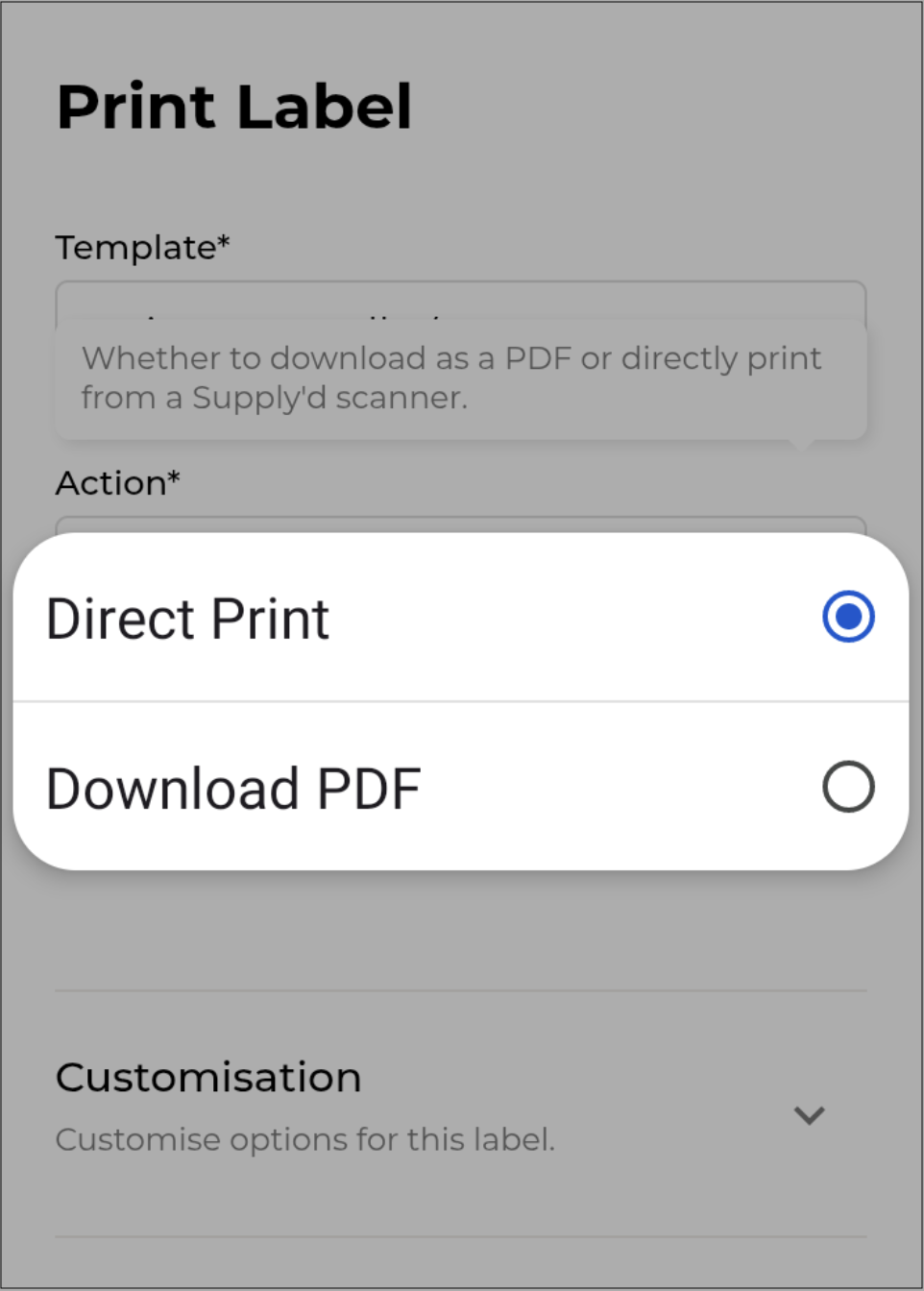
Select the **Action**:
* **Direct Print** to print the labels immediately.
* **Download PDF** to save the labels to your device in PDF format.
{% endstep %}
{% step %}
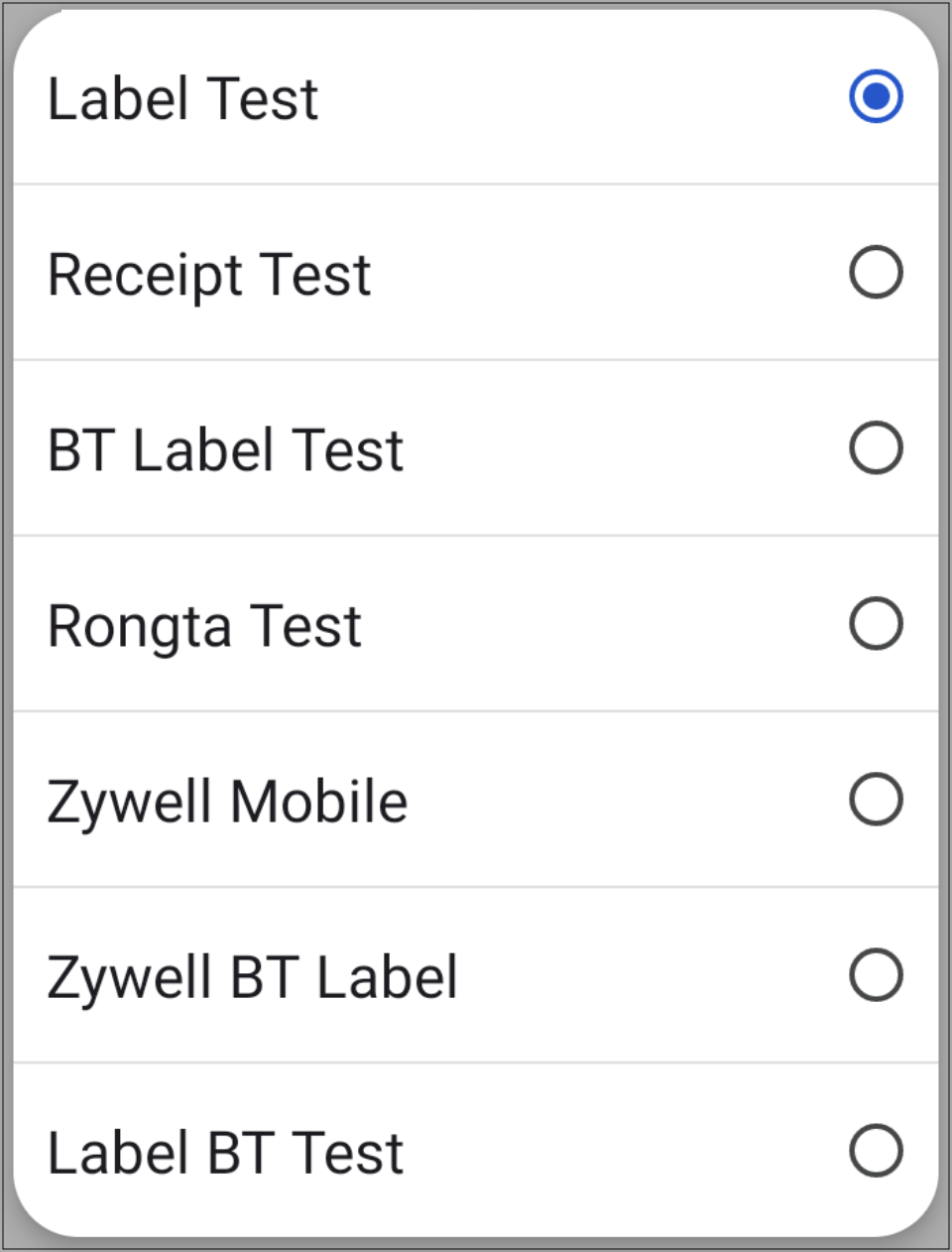
Select the **Printer**.
{% endstep %}
{% step %}
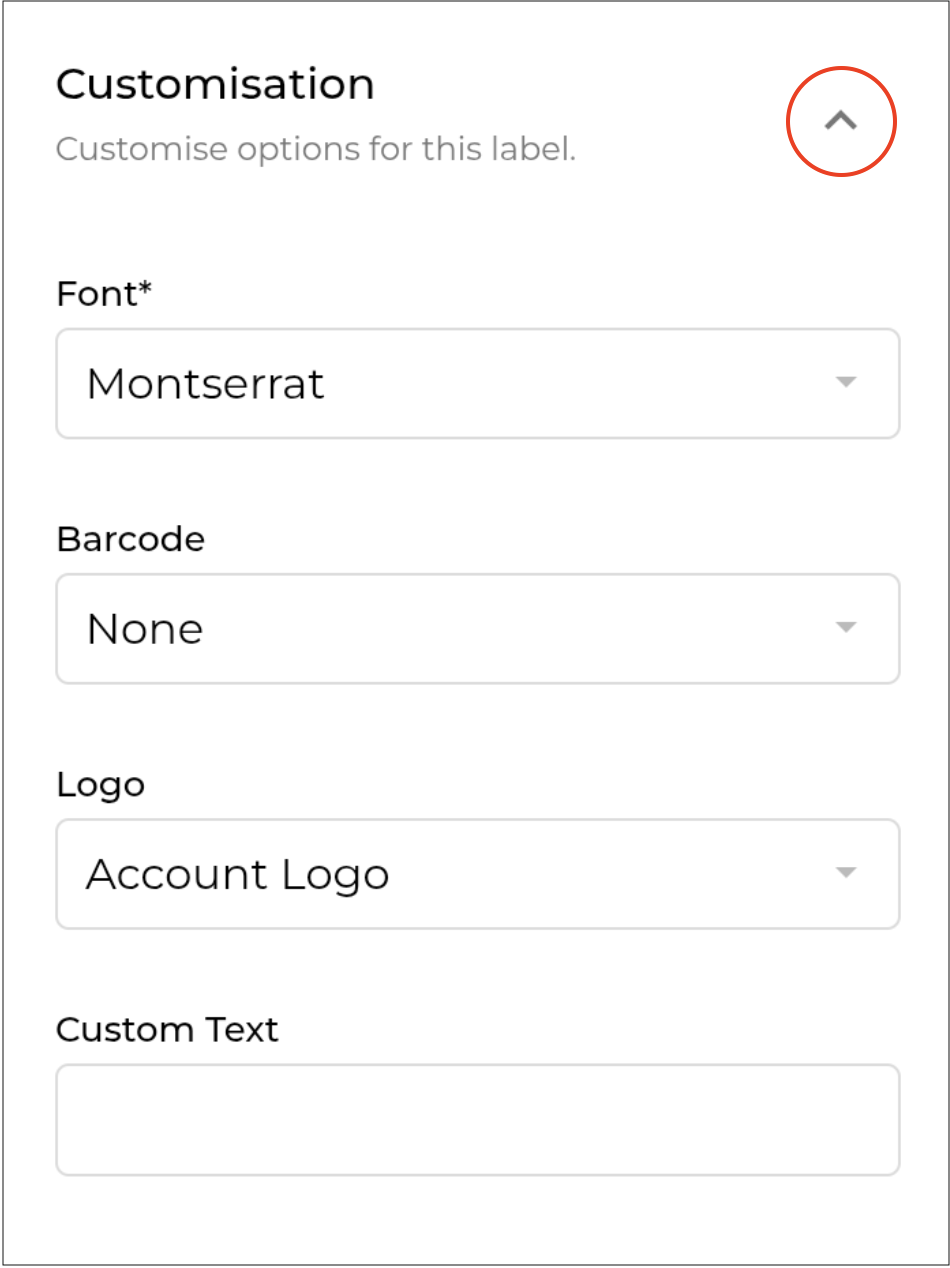
If you would like to customise the labels, click the small **arrow** on the right to expand the customisation section.
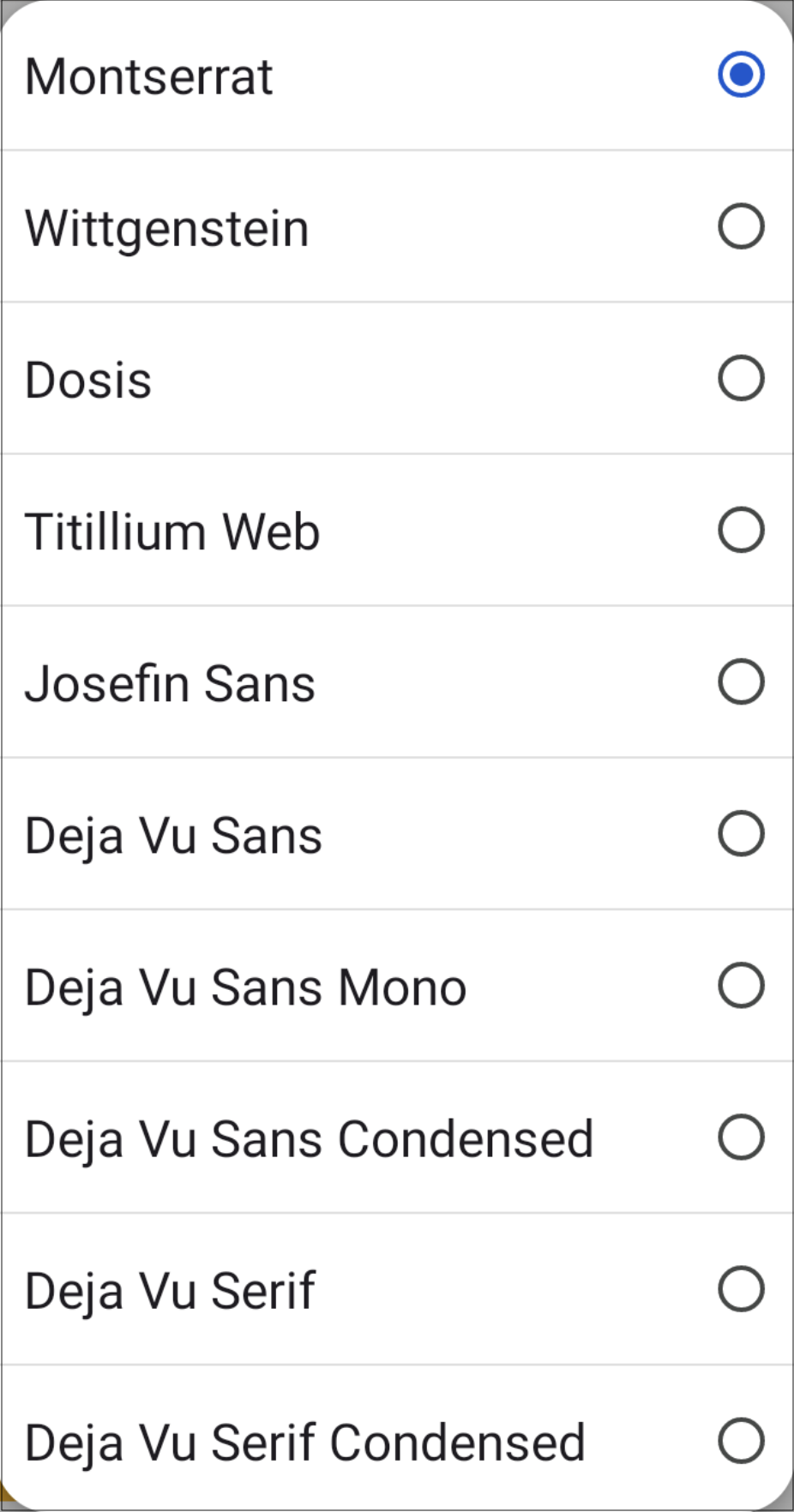
**Font**
Select the font you would like to use for your label.
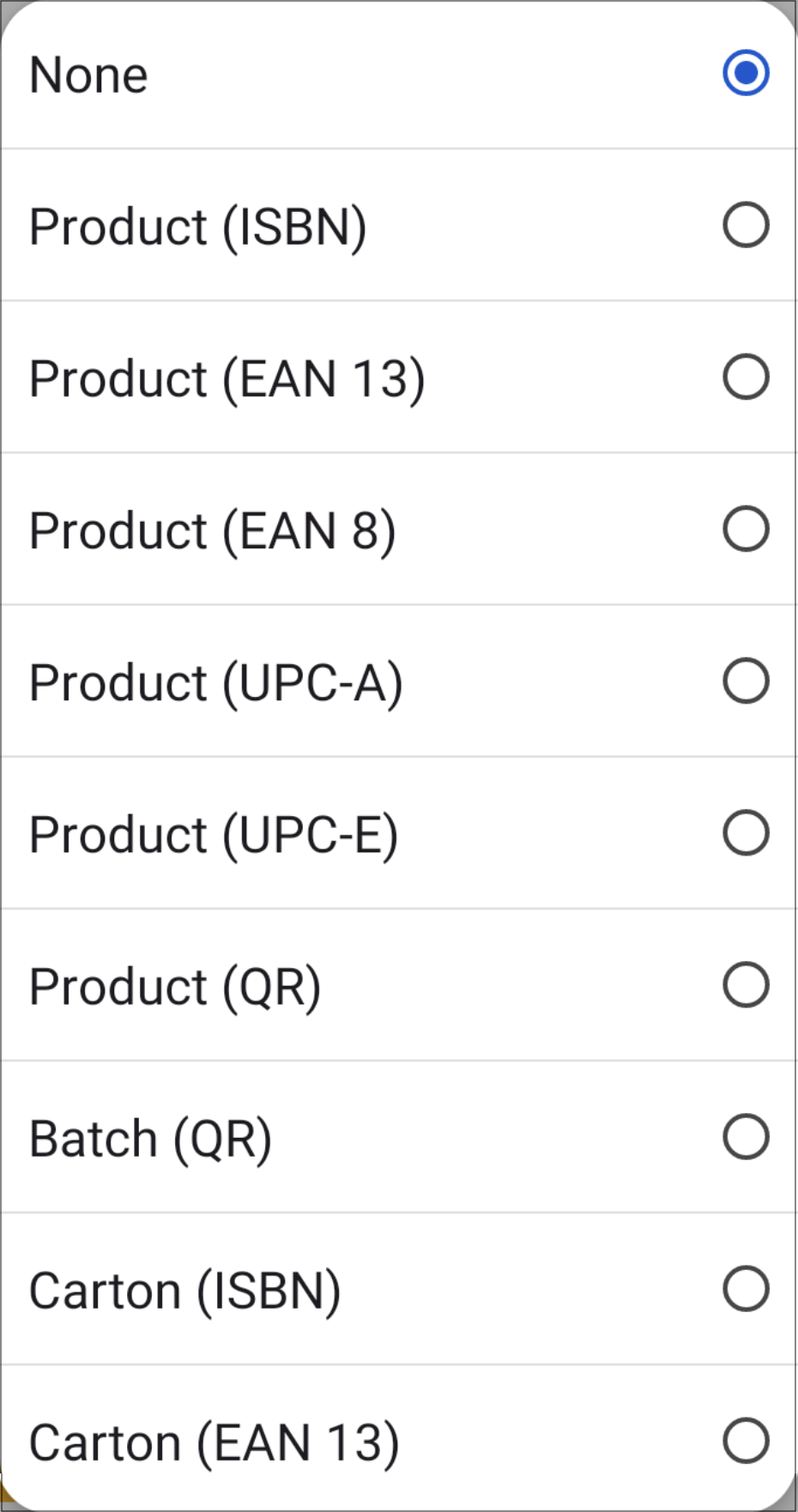
**Barcode**
Select the barcode type you want to use on the label. Choose **None** to not include a barcode.
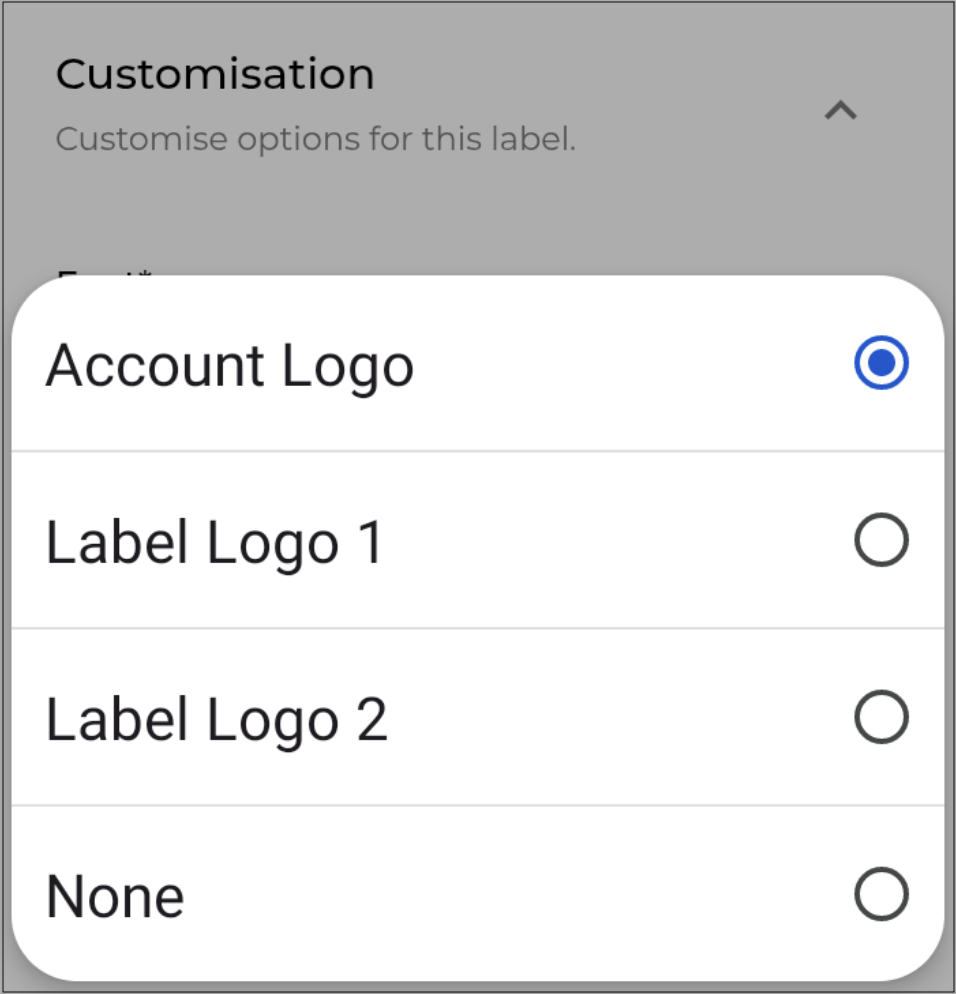
**Logo**
Choose the logo you would like to use on the label. Choose **None** to not include a logo.
**Custom Text**
Add any custom text you would like to include on the label.
{% endstep %}
{% step %}
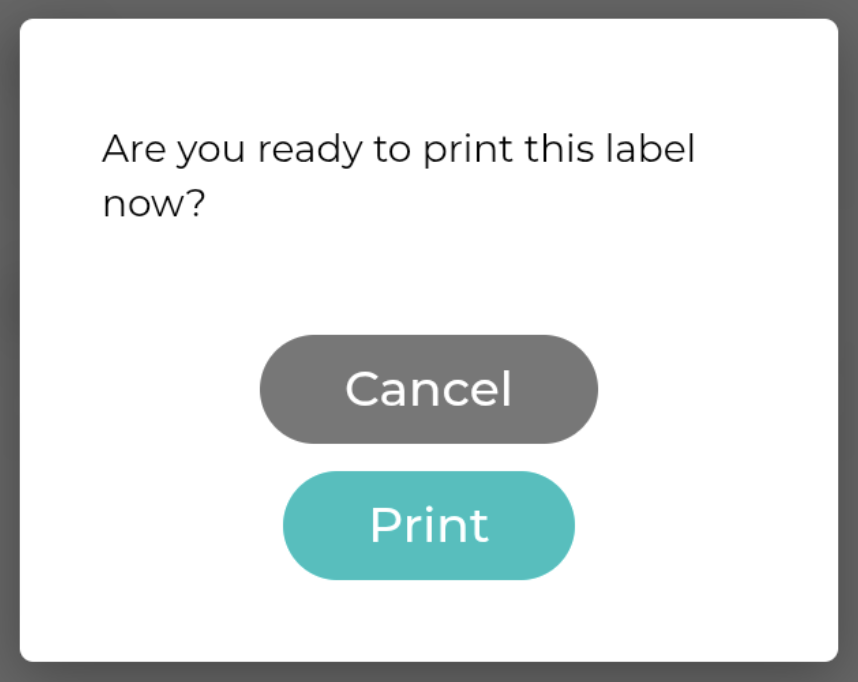
Click . You will be asked to confirm.
Click . The scanner will connect to the printer to print the labels.
{% endstep %}
{% endstepper %}
***
### Export Products
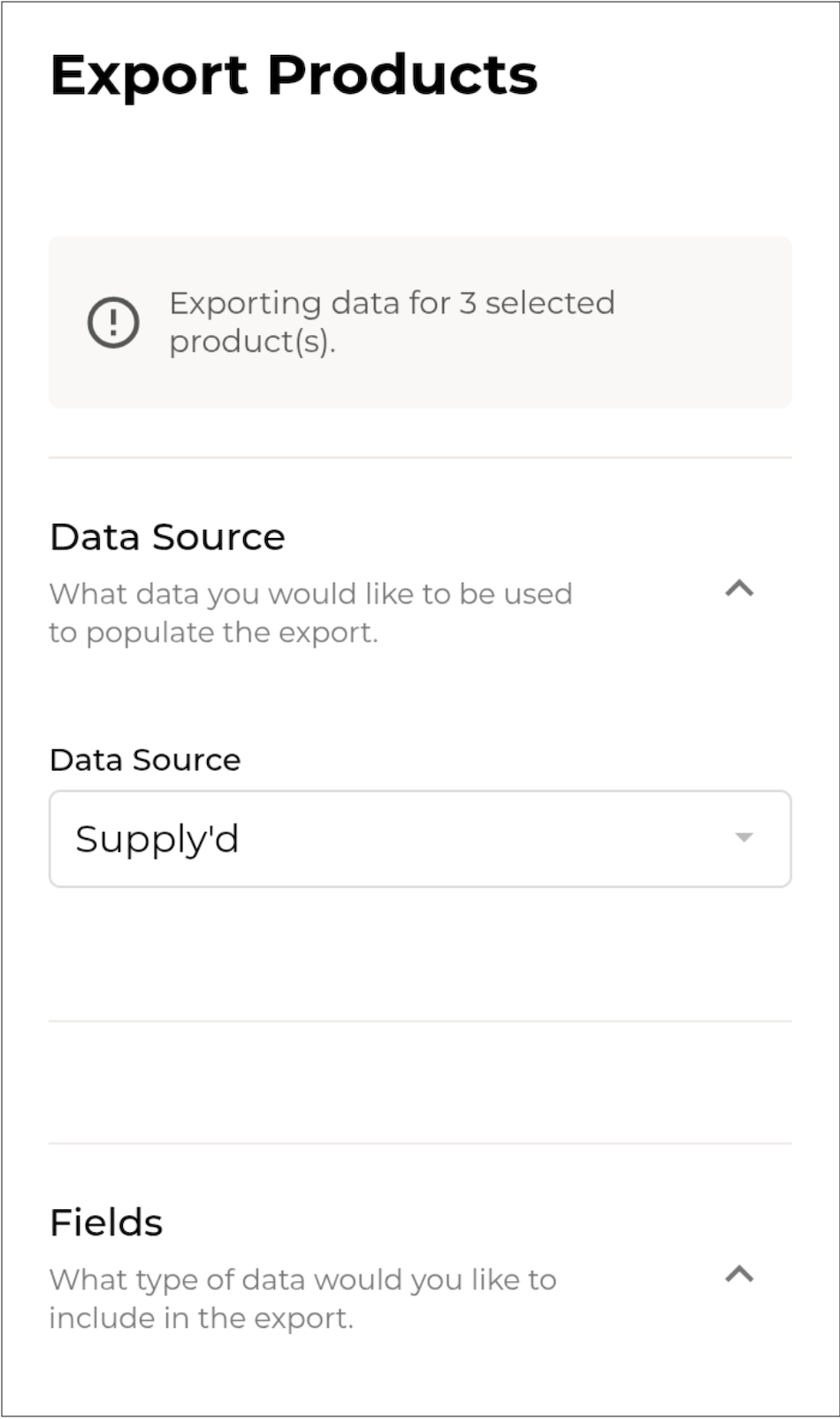
Selecting this option opens the **Export Products** form, allowing you to export the data for all items on your list.
{% stepper %}
{% step %}
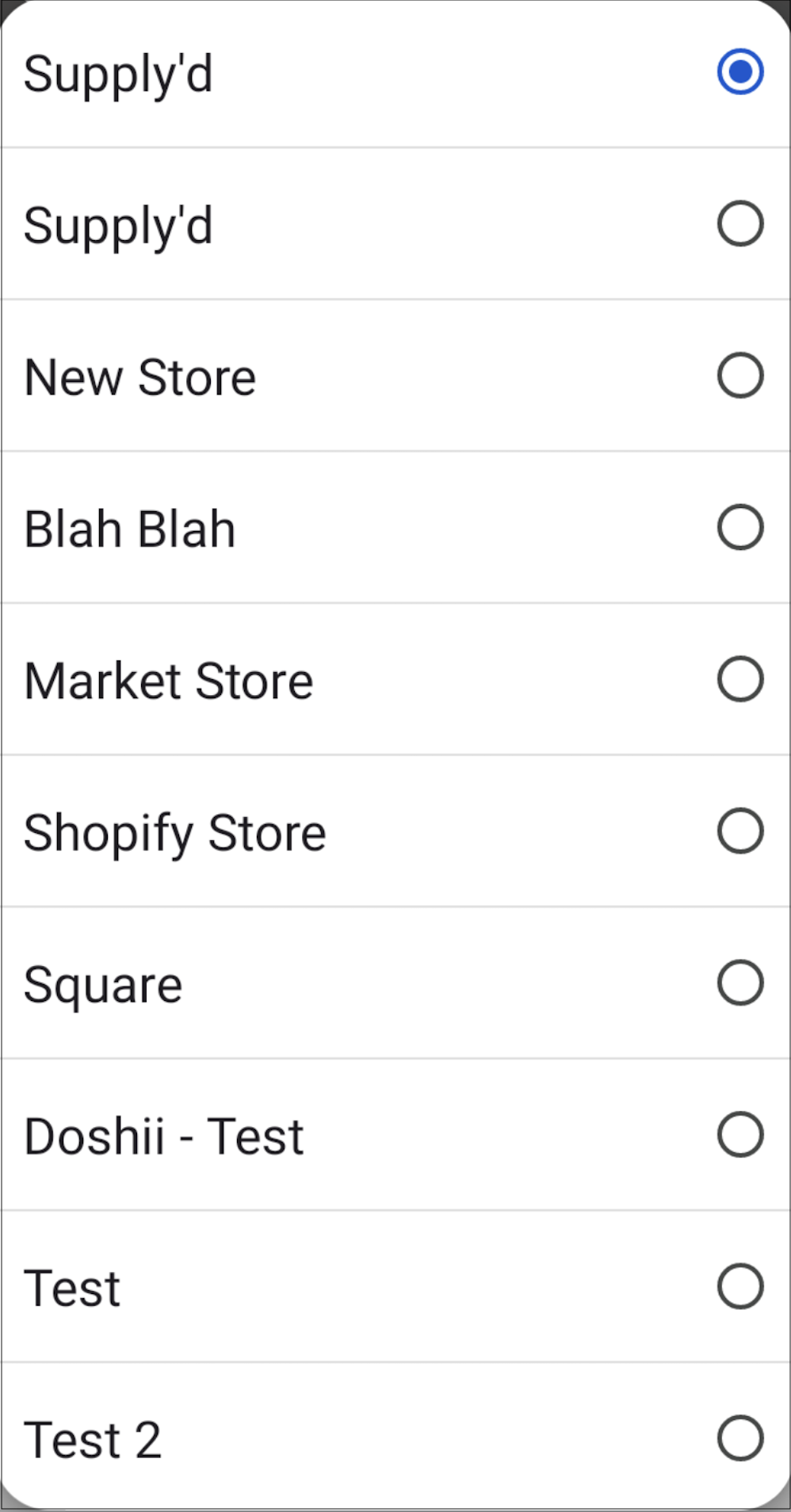
Select the **Data Source** for the export.
{% endstep %}
{% step %}
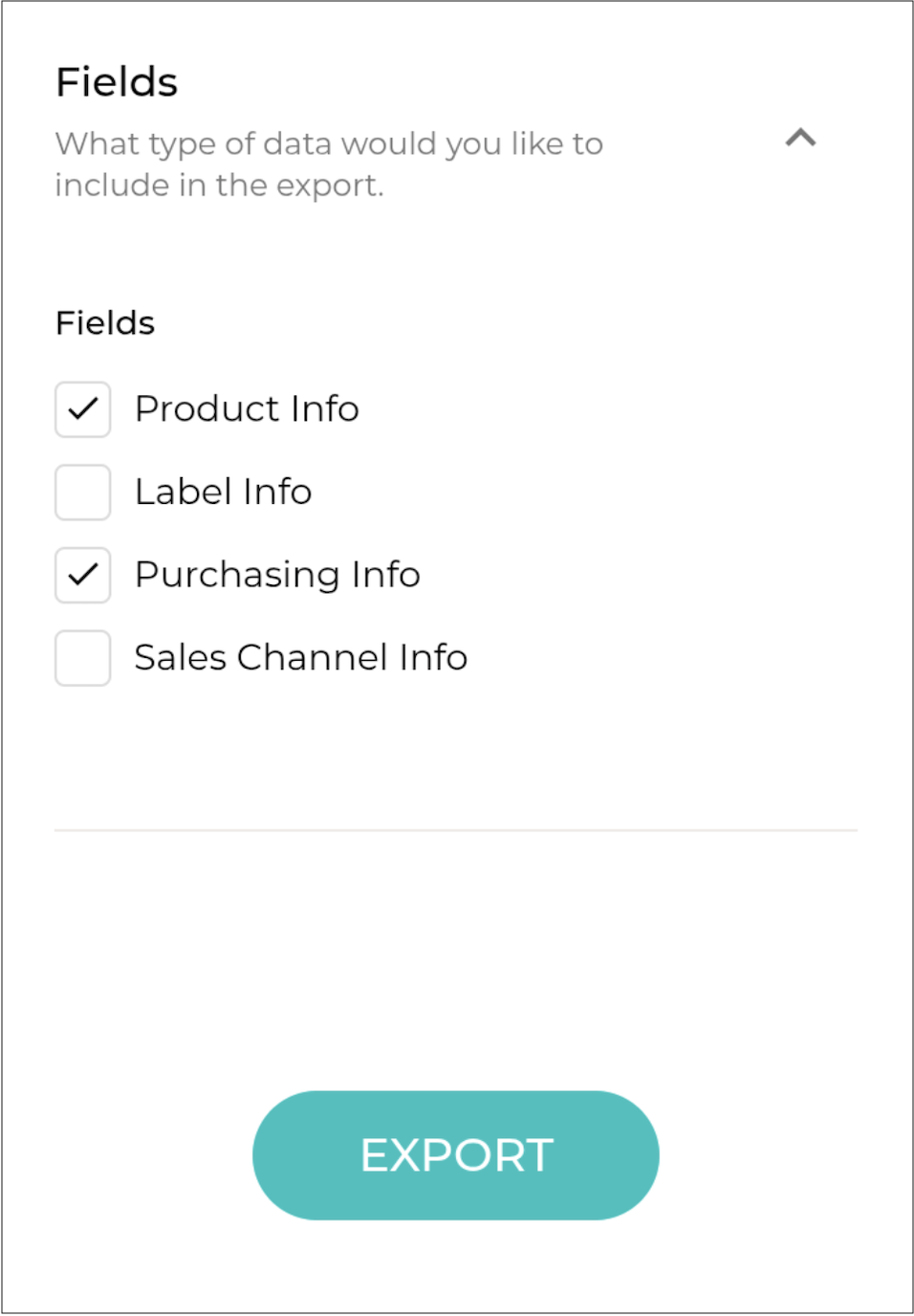
In the **Fields** section, tick the boxes next the **Fields** that you would like to include in the export.
{% endstep %}
{% step %}
Click . The data will be exported to your device in a spreadsheet.
{% endstep %}
{% endstepper %}
***
### Bulk Edit
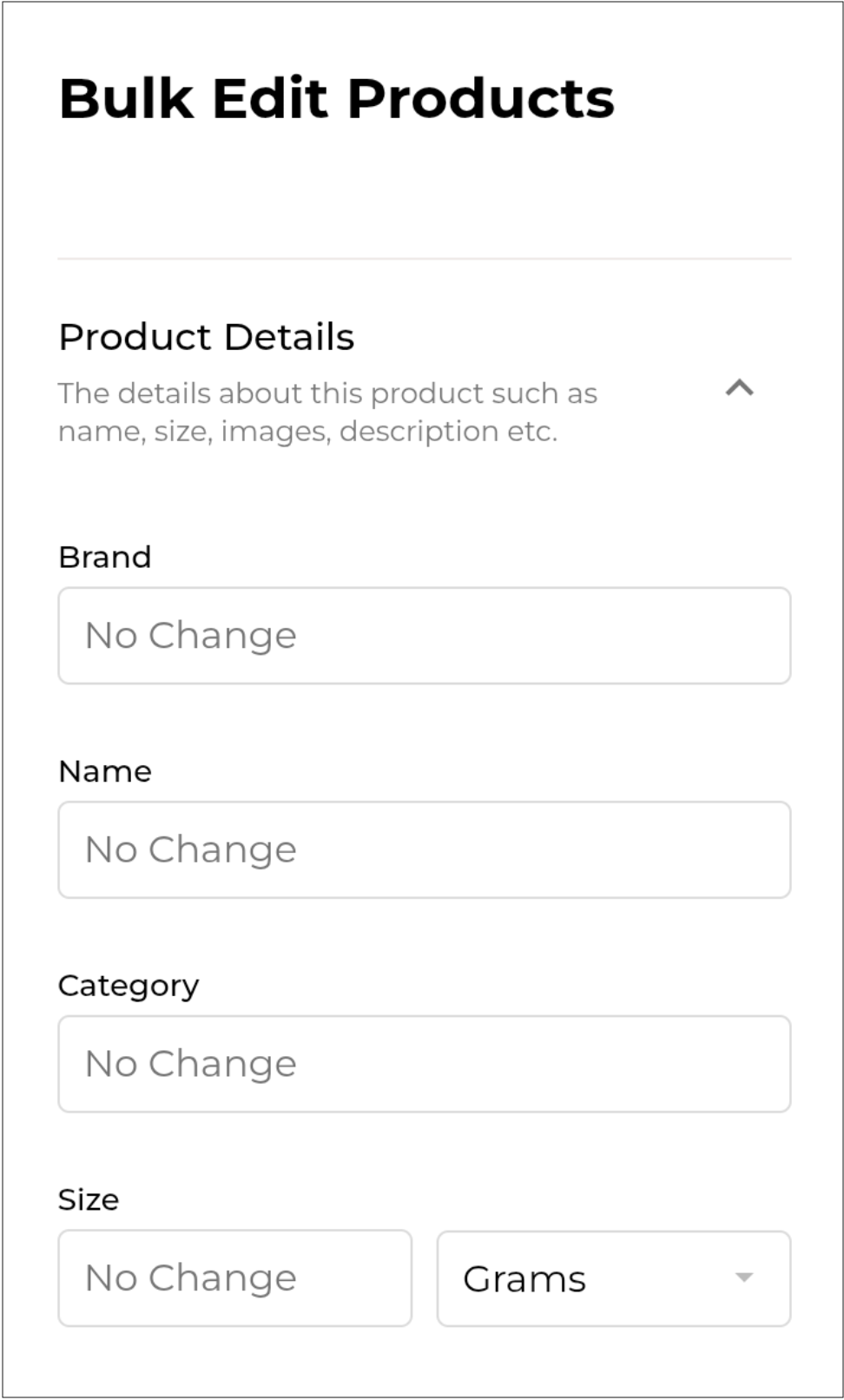
Opens the **Bulk Edit Products** form allowing you to update multiple products with the same changes - such as price, supplier, or category.
👉 See the [Bulk Editing Products](/supplyd-erp/products/managing-products/bulk-editing-products.md) document for full details.
{% hint style="warning" %}
Once you have completed all necessary actions, it is recommended to clear the list. If items remain in the list, they will stay there indefinitely, which can result in products being actioned multiple times.
{% endhint %}
---
# Agent Instructions
This documentation is published with GitBook. GitBook is the documentation platform designed so that both humans and AI agents can read, navigate, and reason over technical content effectively. Learn more at gitbook.com.
## Querying This Documentation
If you need additional information that is not directly available in this page, you can query the documentation by asking a question.
Perform an HTTP GET request on the following URL with the `ask` and `goal` query parameters:
```
GET https://help.supplyd.co/supplyd-erp/scanner/scan-to-list-scanner.md?ask=&goal=
```
`ask` is the immediate question: it should be specific, self-contained, and written in natural language.
`goal` is what the user is ultimately trying to achieve, the reason they need the answer. Sharing it helps GitBook give you a better, more relevant answer. A goal is most helpful when it describes the outcome the user wants rather than restating the question. For example, with `ask=how do I create an API token`, a goal like `automate deployments from our CI pipeline` lets GitBook tailor the answer to that use case.
The response will contain a direct answer to the question and relevant excerpts and sources from the documentation.
Use this mechanism when the answer is not explicitly present in the current page, you need clarification or additional context, or you want to retrieve related documentation sections.

 to open the **Scan To List Action** screen to select the action you would like to perform.

 to generate the tickets.

 . The scanner will connect to the printer to print the labels.
 . The data will be exported to your device in a spreadsheet.