> For the complete documentation index, see [llms.txt](https://help.supplyd.co/llms.txt). Markdown versions of documentation pages are available by appending `.md` to page URLs; this page is available as [Markdown](https://help.supplyd.co/supplyd-erp/scanner/receiving-stock-scanner.md).
# Receiving Stock (Scanner)
Using a Supply'd handheld scanner streamlines stock receiving by reducing manual entry, minimising errors, and ensuring real-time inventory updates for a more efficient process.
The Supply’d handheld scanner can also be used to receive stock that does not have an associated Purchase Order. This allows you to quickly add items to inventory as they arrive, whether they are unplanned deliveries, supplier samples, or miscellaneous stock. By scanning product barcodes, you can quickly and easily records quantities, add batch or expiry details, and update your inventory in real time, ensuring your stock records remain accurate even for items outside standard orders.
A Supply’d handheld scanner can be used to receive both **Orders** or **Stock**. This document will focus on receiving **Stock**.
{% hint style="success" %}
👉 If you need to receive in items that are associated with an order, see the [Receiving Orders (Scanner)](/supplyd-erp/scanner/receiving-orders-scanner.md) document.
{% endhint %}
In this document, we will guide you through the **Receiving Stock** process step-by-step, providing detailed explanations and helpful insights for:
* [#starting-a-receive](#starting-a-receive "mention")
* [#receiving-stock](#receiving-stock "mention")
* [#adding-batch-data](#adding-batch-data "mention")
* [#additional-options](#additional-options "mention")
* [#finalising-a-receive](#finalising-a-receive "mention")
***
## Starting a Receive
{% stepper %}
{% step %}
#### Open Supply'd on the Scanner
To start a **Receive**, open Supply'd on the scanner.
***
{% endstep %}
{% step %}
#### Select Receive
Select **Receive** from the **Scanner** menu.
The **Start Receiving** screen will show.
{% hint style="info" %}
If a previous Receive hasn't been finalised and you attempt to start a new one, you will be prompted to resume the incomplete Receive.
{% endhint %}
***
{% endstep %}
{% step %}
#### Select the Type
Clicking the **Type** field will give you two options:
* **Order:** Receiving an entire order.
* **Stock:** Receiving specific products.
In this case select **Stock**.
***
{% endstep %}
{% step %}
#### Select the Location
Select the receiving location for the order from the drop-down menu.
***
{% endstep %}
{% step %}
#### Click Start
Click .
{% endstep %}
{% endstepper %}
***
## Receiving Stock
After pressing , the **Scanner - Receive Stock** screen will show, flashing red to indicate it's ready to scan.\
\
{% stepper %}
{% step %}
#### Select Item
You can either scan the item's barcode or search for it manually. Scanning is the quickest and easiest method.
**Scanning**
To scan the item, point the scanner at the barcode on the item and press either of the scanner buttons on the sides.
**Manual Search**
Searching manually is useful if the item doesn't scan, doesn't have a barcode or the barcode is damaged. To search manually, in the **Search Products** field, start to type the name of the item and a list of matching products will show for you to select from.
{% hint style="info" %}
### Scanning GS1 & Price-Embedded Barcodes in Supply’d
**Scanning GS1 Databar / Datamatrix During a Receive**\
**Steps:**
1. Assign barcodes to products.
2. Place a **Purchase Order (PO)**.
3. Open **Scanner > Receive** and scan a product barcode to start the Receive.
**Behavior:**
* **Simple GTIN:** Increments by units.
* **Complex GS1 Databar / Datamatrix**: Increments by weight if encoded; otherwise units. Weight, expiry, batch info saved.\
***
\
\
**Scanning Price-Embedded Barcodes During a Receive**
**Steps:**
1. Enter the product’s **PLU** (5 digits) into the product’s **Barcode field**.
2. Place a **PO**.
3. Start a **Receive** and scan the price-embedded barcode.
**Behavior:**
* Quantity is automatically calculated based on the price encoded in the barcode.\
***
👉 GS1 scanning should already be enabled on Supply’d scanners. However, if you need to enable it for any reason, follow the steps outlined in .\
\
{% endhint %}
***
{% endstep %}
{% step %}
#### Scan and/or Count
Once the item is scanned or selected, a screen will appear detailing the item and the stock levels.
Scan each item's barcode or count the number of items received and add the number using the **"**. In our example, we are receiving 10 White Chocolate Unicorns.
{% hint style="success" %}
If the number is large, you can click the **"0"** and type the number in
{% endhint %}
***
{% endstep %}
{% step %}
#### Add Batch Details
If required, you can add any batch data details by clicking the 3 dots next to **Batch Data**.
👉 See the [#adding-batch-data](#adding-batch-data "mention") section below for full details.
***
{% endstep %}
{% step %}
#### Click Done
Click (or close the screen by clicking the **X**).
***
{% endstep %}
{% step %}
#### Repeat for All Other Items
Repeat for any other stock you need to **Receive**.
***
{% endstep %}
{% step %}
#### Finalise the Receive
Once completed, click (**Finalise Receiving**).
You will be asked to confirm.
Click .
**Receiving Finalise** will flash across the top of the screen in green.
{% hint style="warning" %}
Be sure to remember to finalise the **Receive**, as the inventory numbers will not be updated until then.
{% endhint %}
{% endstep %}
{% endstepper %}
***
## Adding Batch Data
Prior to finalising, clicking the 3 dots next to **Batch data**, will bring up a menu:
***
#### Edit Batch
Opens the **Edit Batch Data** form where you can enter the details for the batch.
Complete the form as follows:
**Batch Code (Optional)**
Enter an optional batch code reference for this item.
**Cost of Goods (ex tax)**
The cost of goods for a unit (or what is defined in your inventory carton quantity, if not units). This is used for margin calculations when the item is sold.
{% hint style="success" %}
You can press to pull the current average buy price if it is empty.
{% endhint %}
**Production Date (Optional)**
The date the product was produced. Select the day, month and year from the calendar.
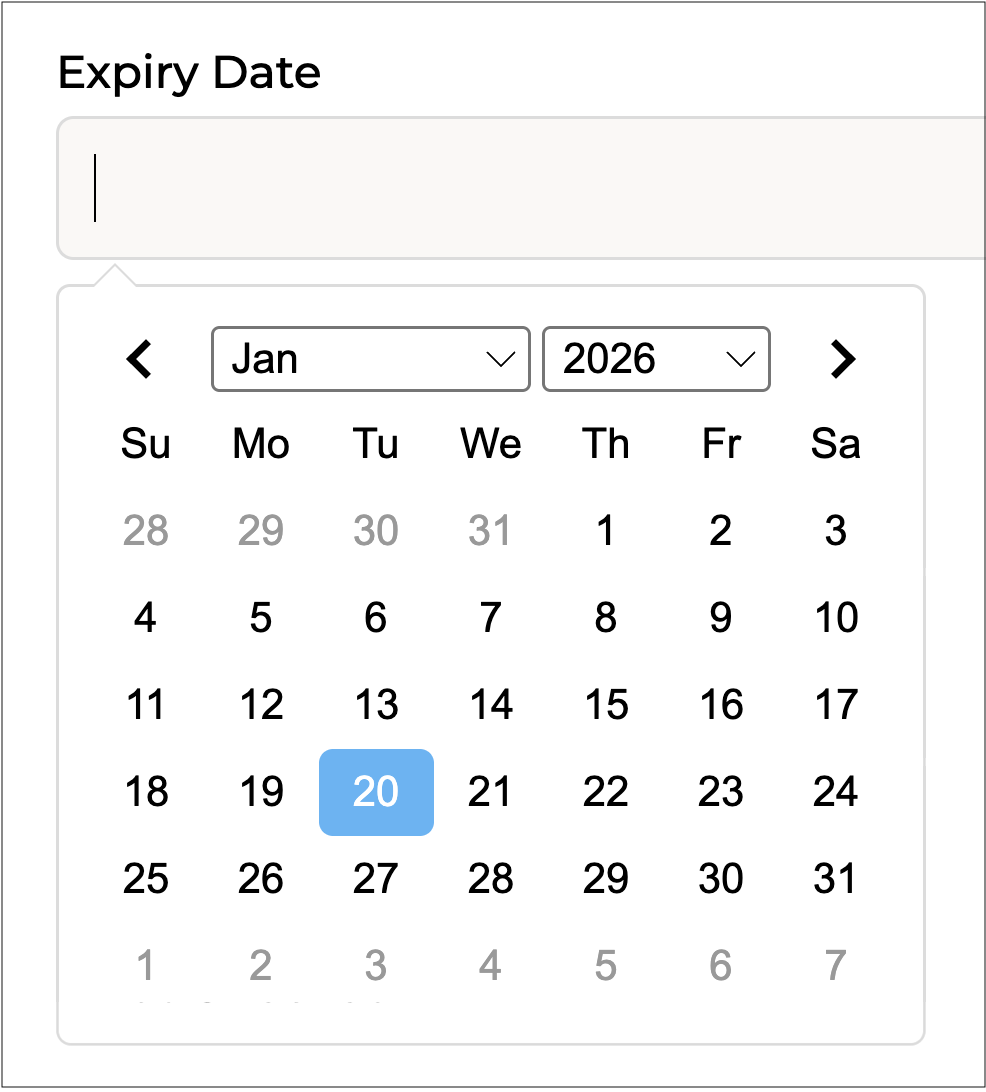
**Expiry Date (Optional)**
Select the expiry date for the batch.
**Expiry Type**
Select the type of expiry - either **Best Before** or **Use By**. If the **Expiry Date** is not provided this field will be ignored.
**Quality Control**
Select whether or not this product passed the quality control check.
{% hint style="info" %}
This will only show if set in **Enable QC Check** in the [Sales Settings](/supplyd-erp/settings/sales-settings.md#receiving-orders) section in your [Sales Settings](/supplyd-erp/settings/sales-settings.md).
{% endhint %}
**Notes**
Optionally, add any notes relevant to this batch.
**Attachments**
Attach files to a batch. For example, businesses can store Certificates of Analysis (CoA) or other relevant documents directly against batches for easy access. Simply click **Choose File** and select the file you want to attach.
{% hint style="success" %}
If you have multiple files attached, you can rearrange them by clicking the 3 lines next to the file name and dragging them into your preferred order.
{% endhint %}
Click to apply this information to the batch.
Add the number of items with these batch details by using the . In our example all items received have the same batch details so the number is "**10**".
***
#### Match Batch
Automatically matches existing batch data and updates the inventory numbers accordingly.
***
#### Split Batch
If the items you are receiving are from different batches, you can add them here. Clicking this opens the **Edit Batch Data** form, as above, where you can enter the details for the batch. Add the number of items with these batch details by using the .
\
Repeat the process for remaining batches.
\
The total from all batches should equal the total number received.
In our example, we received 6 items from one batch and 4 from another, making a total of 10.
***
#### Edit Bin Location
Opens the **Edit BIN Location** form where you can enter details of the items location in the warehouse or store.\
\
Once you have all the required details for the item, click the **X** in the top right corner to close the item and proceed to the next one.
Repeat the process for each item being received.
***
## Additional Options
Prior to finalising, clicking the 3 dots on the scanner screen, will bring up a menu:
***
### View Items Received
Open the **Edit Receive Stock** screen where you can view all the items you have entered.
Clicking on the 3 dots beside an item opens a menu.
**Edit Item** \
\
Opens a screen where you can edit the number or add **Batch Data** (as above).\
\
**Remove Item**\
\
Will remove the item from the list. You will be asked to confirm.\
\
\
You can also **Finalise** the receive from this screen.
***
### Finalise Receive
Will finalise the Receive. An alternative to the **Finalise Receive** button. You will be asked to confirm.
***
### Cancel Receive
Will cancel the receive. You will be asked to confirm.
***
{% hint style="success" %}
If you need to receive in items that are associated with an order, you would instead use the **Receive Orders** function.
👉 See the [Receiving Orders (Scanner)](/supplyd-erp/scanner/receiving-orders-scanner.md) document for details on doing this.
{% endhint %}
***
## Viewing the Receives List on the Scanner
To view a list of receives on the scanner, click the 3 lines on the top left to take you to the Supply'd main menu.
Select **Inventory**, then the **Receives** tab.
Receives are labeled with colour-coded tags - either , - for easy identification.
Clicking on a receive will bring up all the details, including the Order Number, date, location, the items and number of items received, and the dollar value.
***
## Filtering the Receives List
It is also possible to filter the Receives list. To do this, click on the 3 lines under the heading.
These options will appear for you to select from.
**Transfer Status**
Select one or more from the drop-down menu.
**Warehouse**
Select the location(s) you would like to filter by from the drop-down menu.
**Date Range**
Clicking the field will open a calendar, allowing you to select a date or date range for filtering. Click to set the dates.
Click to apply your selections and filter the **Receives** list.
---
# Agent Instructions
This documentation is published with GitBook. GitBook is the documentation platform designed so that both humans and AI agents can read, navigate, and reason over technical content effectively. Learn more at gitbook.com.
## Querying This Documentation
If you need additional information that is not directly available in this page, you can query the documentation by asking a question.
Perform an HTTP GET request on the following URL with the `ask` and `goal` query parameters:
```
GET https://help.supplyd.co/supplyd-erp/scanner/receiving-stock-scanner.md?ask=&goal=
```
`ask` is the immediate question: it should be specific, self-contained, and written in natural language.
`goal` is what the user is ultimately trying to achieve, the reason they need the answer. Sharing it helps GitBook give you a better, more relevant answer. A goal is most helpful when it describes the outcome the user wants rather than restating the question. For example, with `ask=how do I create an API token`, a goal like `automate deployments from our CI pipeline` lets GitBook tailor the answer to that use case.
The response will contain a direct answer to the question and relevant excerpts and sources from the documentation.
Use this mechanism when the answer is not explicitly present in the current page, you need clarification or additional context, or you want to retrieve related documentation sections.


 .
.


 . In our example, we are receiving 10 White Chocolate Unicorns.

 (or close the screen by clicking the **X**).
 (**Finalise Receiving**).


 .
**Receiving Finalise** will flash across the top of the screen in green.
.
**Receiving Finalise** will flash across the top of the screen in green.


 to pull the current average buy price if it is empty.
{% endhint %}
**Production Date (Optional)**
The date the product was produced. Select the day, month and year from the calendar.
to pull the current average buy price if it is empty.
{% endhint %}
**Production Date (Optional)**
The date the product was produced. Select the day, month and year from the calendar.



 to apply this information to the batch.

 . In our example all items received have the same batch details so the number is "**10**".
***
#### Match Batch
Automatically matches existing batch data and updates the inventory numbers accordingly.
. In our example all items received have the same batch details so the number is "**10**".
***
#### Match Batch
Automatically matches existing batch data and updates the inventory numbers accordingly.

 .
\
Repeat the process for remaining batches.
\
The total from all batches should equal the total number received.
.
\
Repeat the process for remaining batches.
\
The total from all batches should equal the total number received.


 ***
### View Items Received
Open the **Edit Receive Stock** screen where you can view all the items you have entered.
***
### View Items Received
Open the **Edit Receive Stock** screen where you can view all the items you have entered.


 Select **Inventory**, then the **Receives** tab.
 Receives are labeled with colour-coded tags - either
  ,
,  - for easy identification.


 to set the dates.

 to apply your selections and filter the **Receives** list.
---
# Agent Instructions
This documentation is published with GitBook. GitBook is the documentation platform designed so that both humans and AI agents can read, navigate, and reason over technical content effectively. Learn more at gitbook.com.
## Querying This Documentation
If you need additional information that is not directly available in this page, you can query the documentation by asking a question.
Perform an HTTP GET request on the following URL with the `ask` and `goal` query parameters:
```
GET https://help.supplyd.co/supplyd-erp/scanner/receiving-stock-scanner.md?ask=
to apply your selections and filter the **Receives** list.
---
# Agent Instructions
This documentation is published with GitBook. GitBook is the documentation platform designed so that both humans and AI agents can read, navigate, and reason over technical content effectively. Learn more at gitbook.com.
## Querying This Documentation
If you need additional information that is not directly available in this page, you can query the documentation by asking a question.
Perform an HTTP GET request on the following URL with the `ask` and `goal` query parameters:
```
GET https://help.supplyd.co/supplyd-erp/scanner/receiving-stock-scanner.md?ask=