> For the complete documentation index, see [llms.txt](https://help.supplyd.co/llms.txt). Markdown versions of documentation pages are available by appending `.md` to page URLs; this page is available as [Markdown](https://help.supplyd.co/supplyd-erp/scanner/gs1-barcode-scanning-scanner.md).
# GS1 Barcode Scanning (Scanner)
Enabling GS1 barcode scanning lets scanners automatically capture batch, weight, and expiry, streamlining Receives and reducing manual entry errors.
GS1 barcode scanning allows your scanners to read advanced barcodes, including Databar and Datamatrix, which can contain not just the product code, but also additional information like batch numbers, weight, and expiry dates. This capability streamlines Receives, improves inventory accuracy, and reduces manual data entry, making production and stock management faster and more reliable.
{% hint style="success" %}
#### **What is a GS1 Barcode?**
A **GS1 barcode** is a standardised barcode used globally to identify products and share additional information in a machine-readable format.
* It can include a **GTIN (Global Trade Item Number)** to identify the product.
* It can also encode **extra data** such as **batch numbers, expiry dates, and weight**.
* GS1 barcodes come in formats like **Databar** or **Datamatrix**, allowing more information to be stored than a standard barcode.
Using GS1 barcodes helps automate inventory management, ensures accurate tracking, and reduces manual data entry errors.
{% endhint %}
***
## Enabling GS1 Scanning
GS1 scanning is usually already enabled on Supply’d scanners. If you need to enable it for any reason, follow these steps:
{% stepper %}
{% step %}
#### Open the Scanner Settings
Open the scanner and swipe up from the bottom of the screen to show all apps. Select **Settings**.
***
{% endstep %}
{% step %}
#### Select Enterprise Setting > Scanner
Scroll to **Enterprise Setting** and select **Scanner**.
***
{% endstep %}
{% step %}
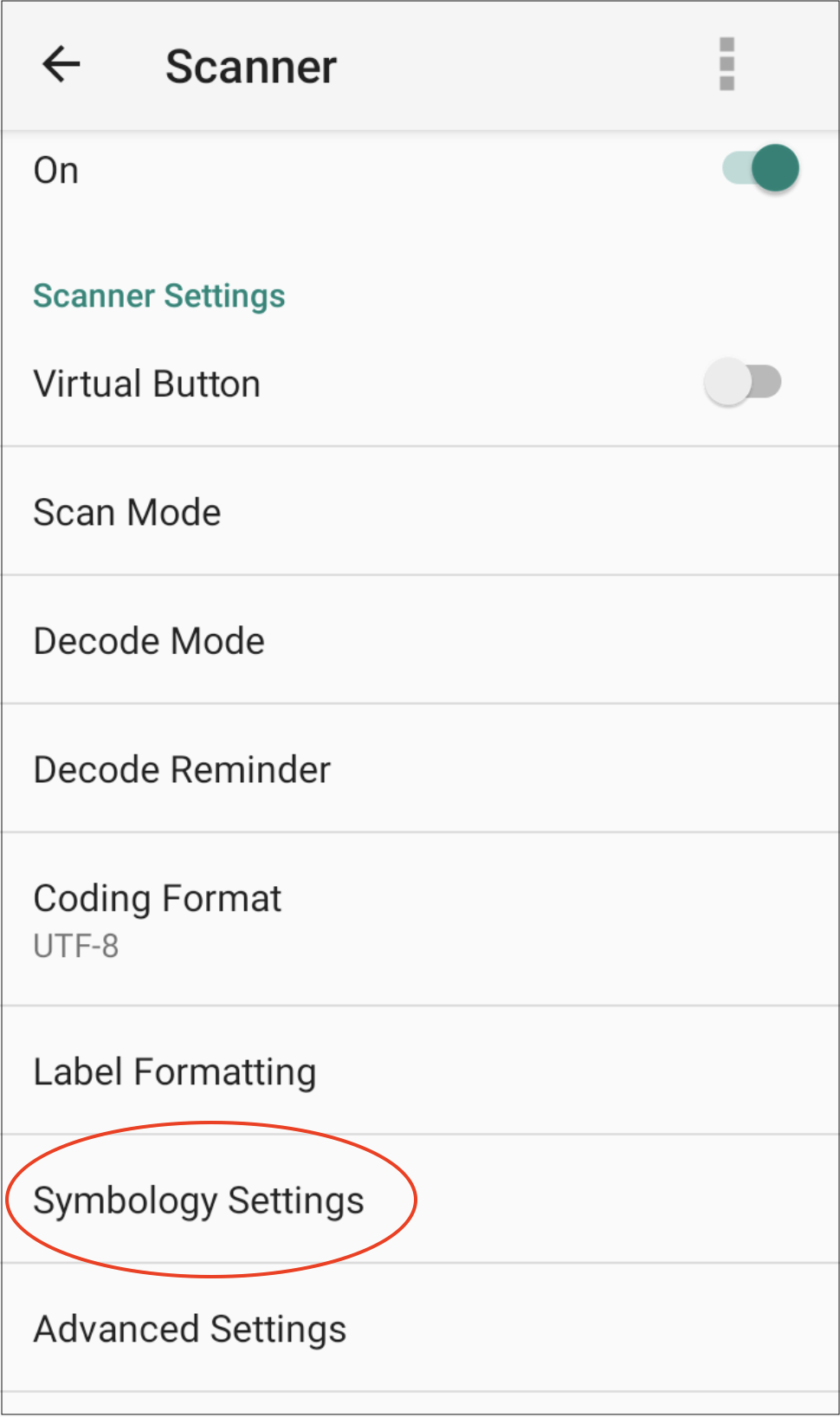
#### Select Symbology Settings
Select **Symbology Settings**.
***
{% endstep %}
{% step %}
#### Select GS1 DataBar Family
Scroll down and select **GS1 DataBar Family**.
***
{% endstep %}
{% step %}
#### Enable GS1 Types
Toggle on the 3 GS1 Databar types.
***
{% endstep %}
{% step %}
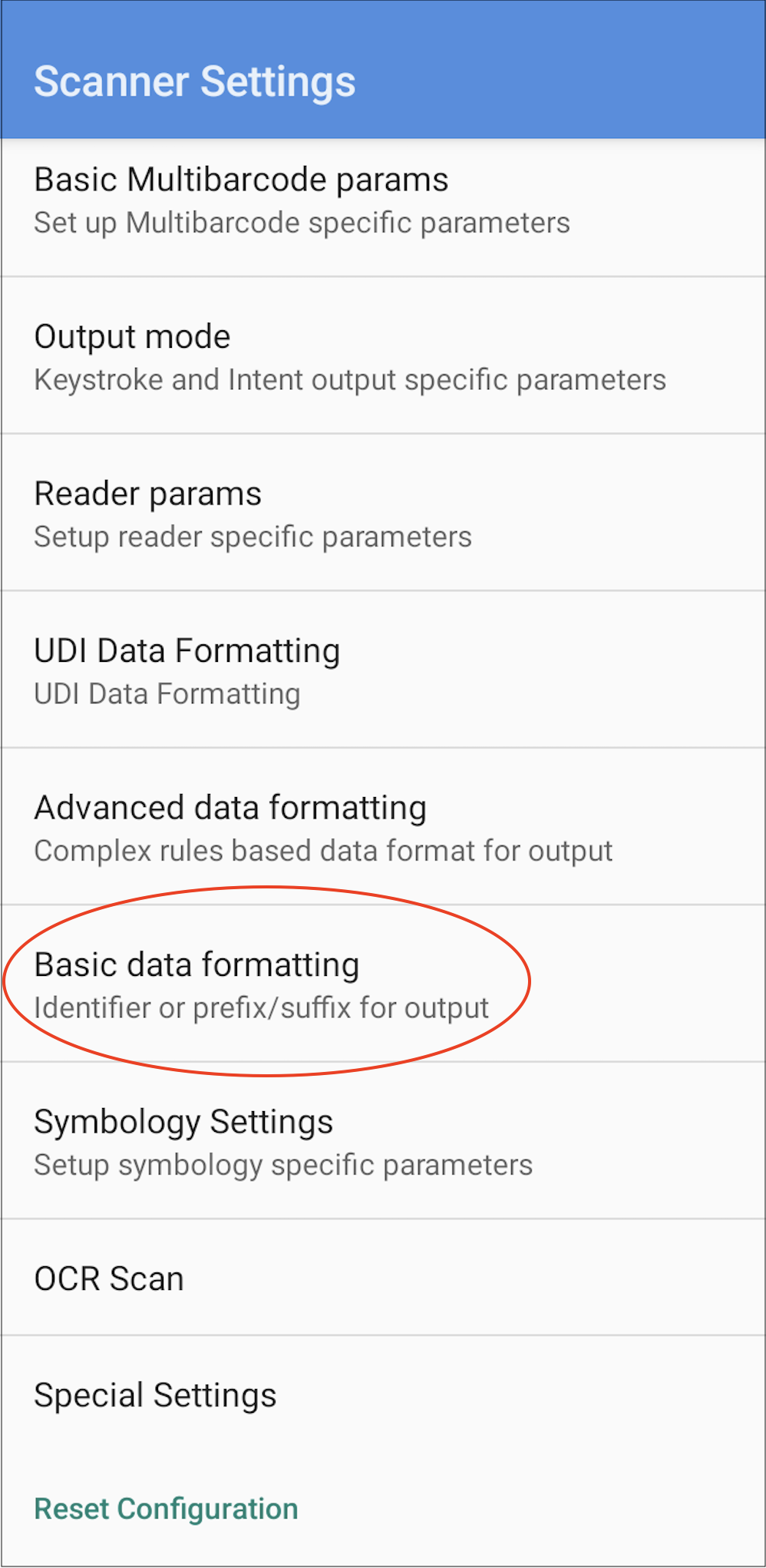
#### Configure Basic Data Formatting
Go to back to **Scanner Settings** and select **Basic Data Formatting**.
Select **Append Formatting**.
Click on **Replace**.
Enter:
* **Target text:** `\x1D`
* **Replacement:** `[GS]`
Click **OK** to save the settings.
{% hint style="info" %}
This setup allows the scanner to correctly interpret **Databar** and **Datamatrix** barcodes including batch numbers, weight, and expiry information.
Always test by scanning a sample barcode to confirm it’s working as expected.
{% endhint %}
{% endstep %}
{% endstepper %}
***
## Scanning GS1 & Price-Embedded Barcodes in Supply’d
### **Scanning GS1 Databar / Datamatrix During a Receive**
**Steps:**
1. Assign barcodes to products.
2. Place a **Purchase Order (PO)**.
3. Open **Scanner > Receive** and scan a product barcode to start the Receive.
**Behavior:**
| Barcode Type | Quantity Update | Batch Info Saved |
| -------------------------------- | ------------------------------------------------ | -------------------------- |
| Simple GTIN | Increments by units | N/A |
| Complex GS1 Databar / Datamatrix | Increments by weight if encoded; otherwise units | Weight, expiry, batch info |
***
### **Scanning Price-Embedded Barcodes During a Receive**
**Steps:**
1. Enter the product’s **PLU** (5 digits) into the product’s **Barcode field**.
2. Place a **PO**.
3. Start a **Receive** and scan the price-embedded barcode.
**Behavior:**
* Quantity is automatically calculated based on the price encoded in the barcode.
---
# Agent Instructions
This documentation is published with GitBook. GitBook is the documentation platform designed so that both humans and AI agents can read, navigate, and reason over technical content effectively. Learn more at gitbook.com.
## Querying This Documentation
If you need additional information that is not directly available in this page, you can query the documentation by asking a question.
Perform an HTTP GET request on the following URL with the `ask` and `goal` query parameters:
```
GET https://help.supplyd.co/supplyd-erp/scanner/gs1-barcode-scanning-scanner.md?ask=&goal=
```
`ask` is the immediate question: it should be specific, self-contained, and written in natural language.
`goal` is what the user is ultimately trying to achieve, the reason they need the answer. Sharing it helps GitBook give you a better, more relevant answer. A goal is most helpful when it describes the outcome the user wants rather than restating the question. For example, with `ask=how do I create an API token`, a goal like `automate deployments from our CI pipeline` lets GitBook tailor the answer to that use case.
The response will contain a direct answer to the question and relevant excerpts and sources from the documentation.
Use this mechanism when the answer is not explicitly present in the current page, you need clarification or additional context, or you want to retrieve related documentation sections.