> For the complete documentation index, see [llms.txt](https://help.supplyd.co/llms.txt). Markdown versions of documentation pages are available by appending `.md` to page URLs; this page is available as [Markdown](https://help.supplyd.co/supplyd-erp/sales/creating-sales-orders/sales-order-options.md).
# Sales Order Options
Sales order options help you manage the order, meet customer requirements and keep order details accurate.
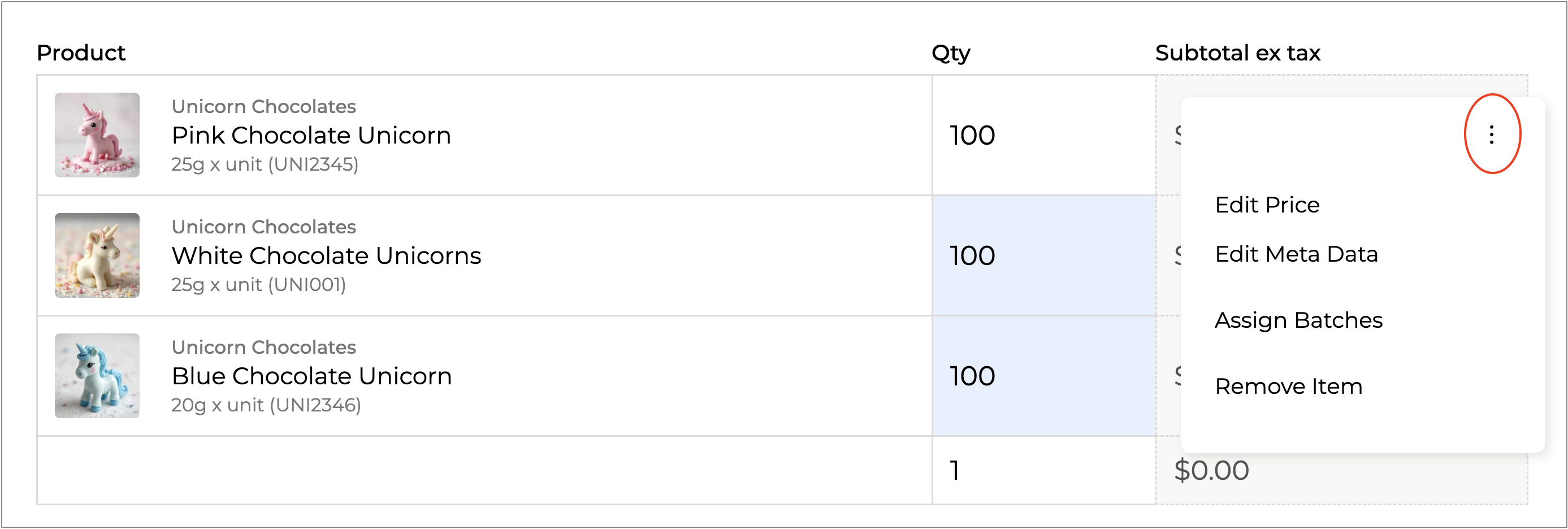
Before placing a sales order, you can use additional options to manage the order. These options give you flexibility to meet customer requirements and keep order details accurate. Access them through the three-dot menu in the top-right corner of the order.
{% hint style="success" %}
For sales order options available after an order has been placed, see the [Managing Sales Orders](https://help.supplyd.co/supplyd-erp/sales/managing-sales-orders.md) documentation.
{% endhint %}
This document explains how to access and use these options to manage your sales orders.
* [#options-for-sales-order-items](#options-for-sales-order-items "mention")
* [#options-for-a-sales-order](#options-for-a-sales-order "mention")
***
## Options for Sales Order Items
Before placing the order, click the three dots to the right of an order item to open a menu of additional item options.
***
### Edit Price
Opens the **Edit Price** form to edit the items price.
{% stepper %}
{% step %}
Complete the form as follows:
**Supply’d Price**
The default price of the product in Supply’d, automatically populated from the product’s settings.
**Customer Price**
The price set for the product for this particular customer, automatically populated from the customer’s settings.
{% hint style="success" %}
👉 See **Customer Specific Pricing** for more information.
{% endhint %}
**Discount**
Optionally, apply a discount to the product price. Select the discount type from the drop-down menu:
* **%** - Apply a percentage discount.
* **$** - Apply a fixed dollar amount discount.
The discount is calculated from the **Customer Price** if it differs from the **Supply’d Price**.
**Tax Type**
The type of tax applicable to the product, such as GST.
**Item Price Ex Tax**
The price of the item before tax is applied. You can manually enter a new price here, and the **Item Price Inc Tax** will automatically adjust to reflect the change.
**Item Price Inc Tax**
The price of the item including tax. You can manually enter a new price here, and the **Item Price Ex Tax** will automatically adjust accordingly.
{% endstep %}
{% step %}
Click to apply the new item price.
{% endstep %}
{% step %}
Repeat with any remaining items that you wish to edit.
{% endstep %}
{% endstepper %}
{% hint style="success" %}
The updated price will remain in place even if you modify the order or update the quantity after the order has been placed.
{% endhint %}
\
***
### Edit Meta Data
Meta data allows you to store additional data against an order item as a key and value pair. For example, if you wanted to specify order specific information such as specific colours, specs, flavours etc you can use Meta Data for this.
For example, if a customer orders a **5 Pack of Boxed Chocolates**, you can use **Meta Data** to record their chosen flavours, such as **1st Flavour – Raspberry** and **2nd Flavour – Caramel**, without changing the original product details in Supply’d.
{% hint style="success" %}
👉 See [Adding Meta Data](https://help.supplyd.co/supplyd-erp/sales/creating-sales-orders/adding-meta-data.md) for full details and instructions.
{% endhint %}
***
### Assign Batches
Opens the **Assign Batches** form, enabling you to assign batches to the order.
Press the **"+"** button to add the number of items from each batch required for the order.
{% hint style="success" %}
If the number is large, you can click the **"0"** and type the number in.
{% endhint %}
{% hint style="info" %}
A product can have multiple batches available, so make sure to select the specific batches you want to include in the order. You can add stock from multiple batches if necessary, ensuring that the combined total matches the quantity required for the order.
{% endhint %}
Click to assign the batches to the order.
{% hint style="success" %}
Should you need to remove the batch assignments, simply click on the 3 dots in the top right of the **Assign Batches** form and select **Remove Assignments**.\
{% endhint %}
***
### Remove Item
Will remove the item from the order. You will be asked to confirm.
Click .
***
## Options for a Sales Order
Before saving the order, click the three dots in the top-right corner to open a menu of additional order options.
***
### Place Order
Places the order. This provides an alternative to clicking the button.
***
### Show Prices Inc Tax
Displays prices including applicable taxes, such as GST. Once selected, the option changes to **Show Prices Ex Tax**, allowing you to switch back to prices excluding tax.
***
### Import Lines
Allows you to add multiple products and quantities to the sales order from a CSV file, reducing manual entry when creating orders with many items.
**Upload CSV**
Click to select and upload the CSV file containing the products and quantities you want to import into the sales order.
**Mode**
Select how the imported line items should be applied to the order:
* **Append** - Add the imported line items to the existing items in the order.
* **Replace** - Replace all existing line items with the imported items.
***
### Remove
Will remove the order. You will be asked to confirm.
{% hint style="success" %}
Once an order is placed, it can be managed as needed by following the guidelines in the [Managing Sales Orders](https://help.supplyd.co/supplyd-erp/sales/managing-sales-orders.md) documentation.
{% endhint %}
---
# Agent Instructions
This documentation is published with GitBook. GitBook is the documentation platform designed so that both humans and AI agents can read, navigate, and reason over technical content effectively. Learn more at gitbook.com.
## Querying This Documentation
If you need additional information that is not directly available in this page, you can query the documentation by asking a question.
Perform an HTTP GET request on the following URL with the `ask` and `goal` query parameters:
```
GET https://help.supplyd.co/supplyd-erp/sales/creating-sales-orders/sales-order-options.md?ask=&goal=
```
`ask` is the immediate question: it should be specific, self-contained, and written in natural language.
`goal` is what the user is ultimately trying to achieve, the reason they need the answer. Sharing it helps GitBook give you a better, more relevant answer. A goal is most helpful when it describes the outcome the user wants rather than restating the question. For example, with `ask=how do I create an API token`, a goal like `automate deployments from our CI pipeline` lets GitBook tailor the answer to that use case.
The response will contain a direct answer to the question and relevant excerpts and sources from the documentation.
Use this mechanism when the answer is not explicitly present in the current page, you need clarification or additional context, or you want to retrieve related documentation sections.



 to apply the new item price.
{% endstep %}
{% step %}
Repeat with any remaining items that you wish to edit.


 button.
***
### Show Prices Inc Tax
Displays prices including applicable taxes, such as GST. Once selected, the option changes to **Show Prices Ex Tax**, allowing you to switch back to prices excluding tax.
***
### Import Lines
Allows you to add multiple products and quantities to the sales order from a CSV file, reducing manual entry when creating orders with many items.

 to select and upload the CSV file containing the products and quantities you want to import into the sales order.
**Mode**
Select how the imported line items should be applied to the order:
