> For the complete documentation index, see [llms.txt](https://help.supplyd.co/llms.txt). Markdown versions of documentation pages are available by appending `.md` to page URLs; this page is available as [Markdown](https://help.supplyd.co/supplyd-erp/purchases/searching-and-filtering-purchase-orders.md).
# Searching & Filtering Purchase Orders
Searching and filtering Purchase Orders helps you quickly locate the orders you need, monitor their status and manage supplier purchases more efficiently.
The **Purchase Orders** page provides a central place to view and manage orders placed with your suppliers. Using the search and filter options, you can quickly locate a specific Purchase Order or view orders that meet particular criteria without browsing the complete list.
On the **Purchase Orders** page, select the magnifying glass to search by supplier, Purchase Order number or keyword.
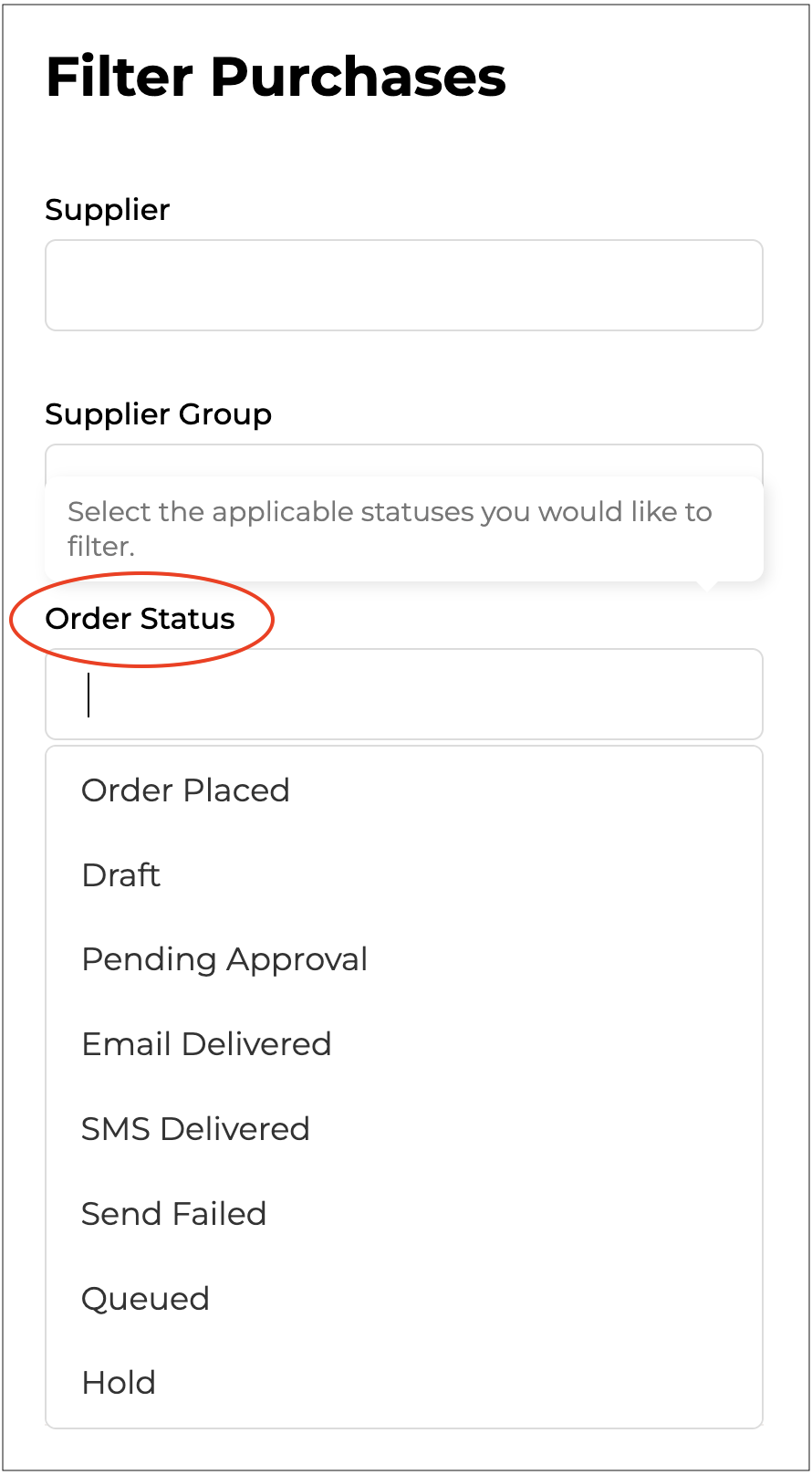
To narrow the list based on specific criteria, select the 3 lines beside the 3 dots in the top right to open the **Filter Purchases** form. You can use multiple filters together to quickly find the offers relevant to the task you are completing.
**Supplier**
Select a specific supplier to display only Purchase Orders placed with that supplier. This is useful when reviewing order history, checking outstanding purchases or locating an order from a particular supplier.
**Supplier Group**
Select one or more Supplier Groups to display Purchase Orders from suppliers assigned to those groups. This allows you to review related suppliers together, such as suppliers grouped by category, region or purchasing requirements.
{% hint style="success" %}
A **Supplier Group** is a collection of suppliers organised together for easier management, such as by category, region or supplier type.
👉 See [Adding a Supplier Group](/supplyd-erp/suppliers/adding-suppliers-and-supplier-groups/adding-a-supplier-group.md) for information on setting up Supplier Groups.
{% endhint %}
**Order Status**
Select one or more order statuses to display Purchase Orders at a particular stage, such as **Order Placed**, **Draft**, **Pending Approval**, **Completed** or **Cancelled**. This makes it easier to identify orders requiring action or review orders at the same stage of the purchasing process.
**Location**
Select one or more locations to display only Purchase Orders associated with those locations. This is useful for reviewing orders placed for, or scheduled for delivery to, a particular business location.
**Department**
Select one or more departments to display Purchase Orders associated with those departments. This helps teams review and manage purchases relevant to a particular operational area.
{% hint style="success" %}
A **Department** is an optional way to organise and group your operations, teams or work areas within a location. Departments can be added when configuring your locations.
👉 See the [Locations](/supplyd-erp/settings/locations.md#departments) section of the [Locations](/supplyd-erp/settings/locations.md) document for more information about departments and how to add them.
{% endhint %}
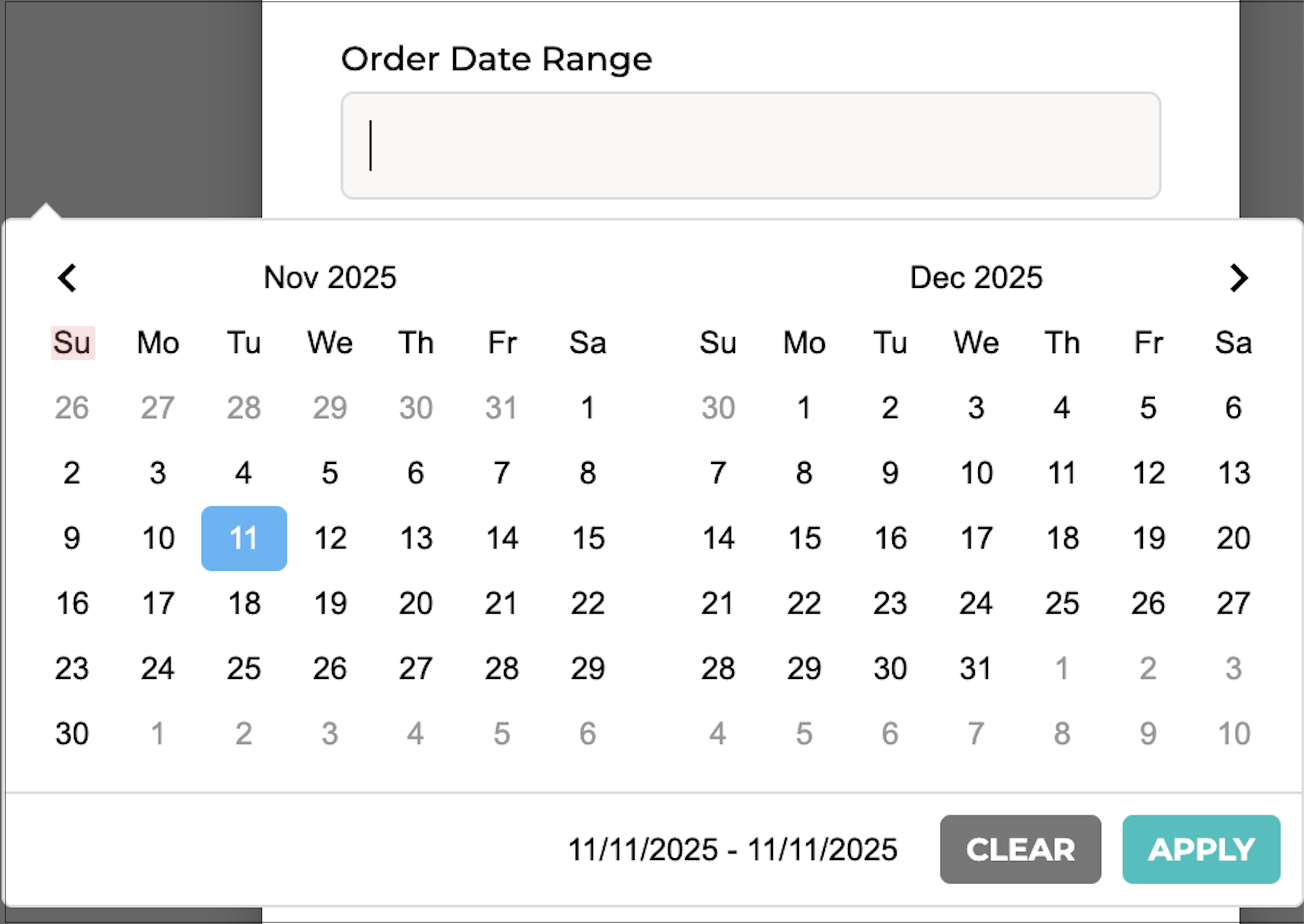
**Order Date Range**
Select a date range to display Purchase Orders created within that period. Selecting the field opens a calendar where you can choose the start and end dates.
Click to set the date range.
**Delivery Date Range**
Select a date range to display Purchase Orders with an expected delivery date within that period. This is useful for reviewing upcoming deliveries or finding orders scheduled to arrive during a specific timeframe.
**Historical Data**
Select an option to include older Purchase Orders that fall outside the default viewing period. This is useful when reviewing past purchases or locating an order that does not appear in the current list.
Click to apply your selections and filter the **Purchase Orders** list.
---
# Agent Instructions
This documentation is published with GitBook. GitBook is the documentation platform designed so that both humans and AI agents can read, navigate, and reason over technical content effectively. Learn more at gitbook.com.
## Querying This Documentation
If you need additional information that is not directly available in this page, you can query the documentation by asking a question.
Perform an HTTP GET request on the following URL with the `ask` and `goal` query parameters:
```
GET https://help.supplyd.co/supplyd-erp/purchases/searching-and-filtering-purchase-orders.md?ask=&goal=
```
`ask` is the immediate question: it should be specific, self-contained, and written in natural language.
`goal` is what the user is ultimately trying to achieve, the reason they need the answer. Sharing it helps GitBook give you a better, more relevant answer. A goal is most helpful when it describes the outcome the user wants rather than restating the question. For example, with `ask=how do I create an API token`, a goal like `automate deployments from our CI pipeline` lets GitBook tailor the answer to that use case.
The response will contain a direct answer to the question and relevant excerpts and sources from the documentation.
Use this mechanism when the answer is not explicitly present in the current page, you need clarification or additional context, or you want to retrieve related documentation sections.


 to set the date range.
**Delivery Date Range**
Select a date range to display Purchase Orders with an expected delivery date within that period. This is useful for reviewing upcoming deliveries or finding orders scheduled to arrive during a specific timeframe.
**Historical Data**
Select an option to include older Purchase Orders that fall outside the default viewing period. This is useful when reviewing past purchases or locating an order that does not appear in the current list.
to set the date range.
**Delivery Date Range**
Select a date range to display Purchase Orders with an expected delivery date within that period. This is useful for reviewing upcoming deliveries or finding orders scheduled to arrive during a specific timeframe.
**Historical Data**
Select an option to include older Purchase Orders that fall outside the default viewing period. This is useful when reviewing past purchases or locating an order that does not appear in the current list.

 to apply your selections and filter the **Purchase Orders** list.
---
# Agent Instructions
This documentation is published with GitBook. GitBook is the documentation platform designed so that both humans and AI agents can read, navigate, and reason over technical content effectively. Learn more at gitbook.com.
## Querying This Documentation
If you need additional information that is not directly available in this page, you can query the documentation by asking a question.
Perform an HTTP GET request on the following URL with the `ask` and `goal` query parameters:
```
GET https://help.supplyd.co/supplyd-erp/purchases/searching-and-filtering-purchase-orders.md?ask=
to apply your selections and filter the **Purchase Orders** list.
---
# Agent Instructions
This documentation is published with GitBook. GitBook is the documentation platform designed so that both humans and AI agents can read, navigate, and reason over technical content effectively. Learn more at gitbook.com.
## Querying This Documentation
If you need additional information that is not directly available in this page, you can query the documentation by asking a question.
Perform an HTTP GET request on the following URL with the `ask` and `goal` query parameters:
```
GET https://help.supplyd.co/supplyd-erp/purchases/searching-and-filtering-purchase-orders.md?ask=