> For the complete documentation index, see [llms.txt](https://help.supplyd.co/llms.txt). Markdown versions of documentation pages are available by appending `.md` to page URLs; this page is available as [Markdown](https://help.supplyd.co/supplyd-erp/purchases/placing-purchase-orders/placing-a-purchase-order.md).
# Placing a Purchase Order
Placing an order is made really easy in Supply'd. We reworked the standard ordering process and made it faster and more seamless than existing ordering platforms and stores.
Placing purchase orders in Supply’d is a simple and efficient way to manage supplier relationships and restock inventory. From selecting suppliers to confirming and receiving deliveries, Supply’d offers flexible tools to streamline your procurement process and keep everything organised.
{% hint style="success" %}
Purchase orders can be created through the app or using a Supply’d handheld scanner.
👉 See the [Ordering Stock (Scanner)](/supplyd-erp/scanner/ordering-stock-scanner.md) document for information on ordering stock with a scanner.\
\
\
Purchase Orders can also be created from the **Purchases** and **Suppliers** pages.
👉 See the [Creating a Purchase Order from the Purchases Page](/supplyd-erp/purchases/placing-purchase-orders/creating-a-purchase-order-from-the-purchases-page.md) document for instructions.
👉 To create an order from a supplier’s page, see the [Creating a Purchase Order from a Supplier's Page](/supplyd-erp/purchases/placing-purchase-orders/creating-a-purchase-order-from-a-suppliers-page.md) document.
{% endhint %}
{% hint style="success" %}
Supply’d also has a **Smart Purchase Orders** feature, which helps you order faster and more accurately by using real-time data. It considers factors such as current stock levels, historical sales, and upcoming production to suggest the right quantities to order.
\
👉 See the [Smart Purchase Orders](/supplyd-erp/purchases/smart-purchase-orders.md) document for details on how to use this feature.
{% endhint %}
This document will guide you through placing **Purchase Orders** through the app, including:
* [#adding-items-to-the-cart](#adding-items-to-the-cart "mention")
* [#the-shopping-trolley-checkout-button](#the-shopping-trolley-checkout-button "mention")
* [#reviewing-the-cart-and-checking-out](#reviewing-the-cart-and-checking-out "mention")
* [#additional-options](#additional-options "mention")
***
## Adding Items to the Cart
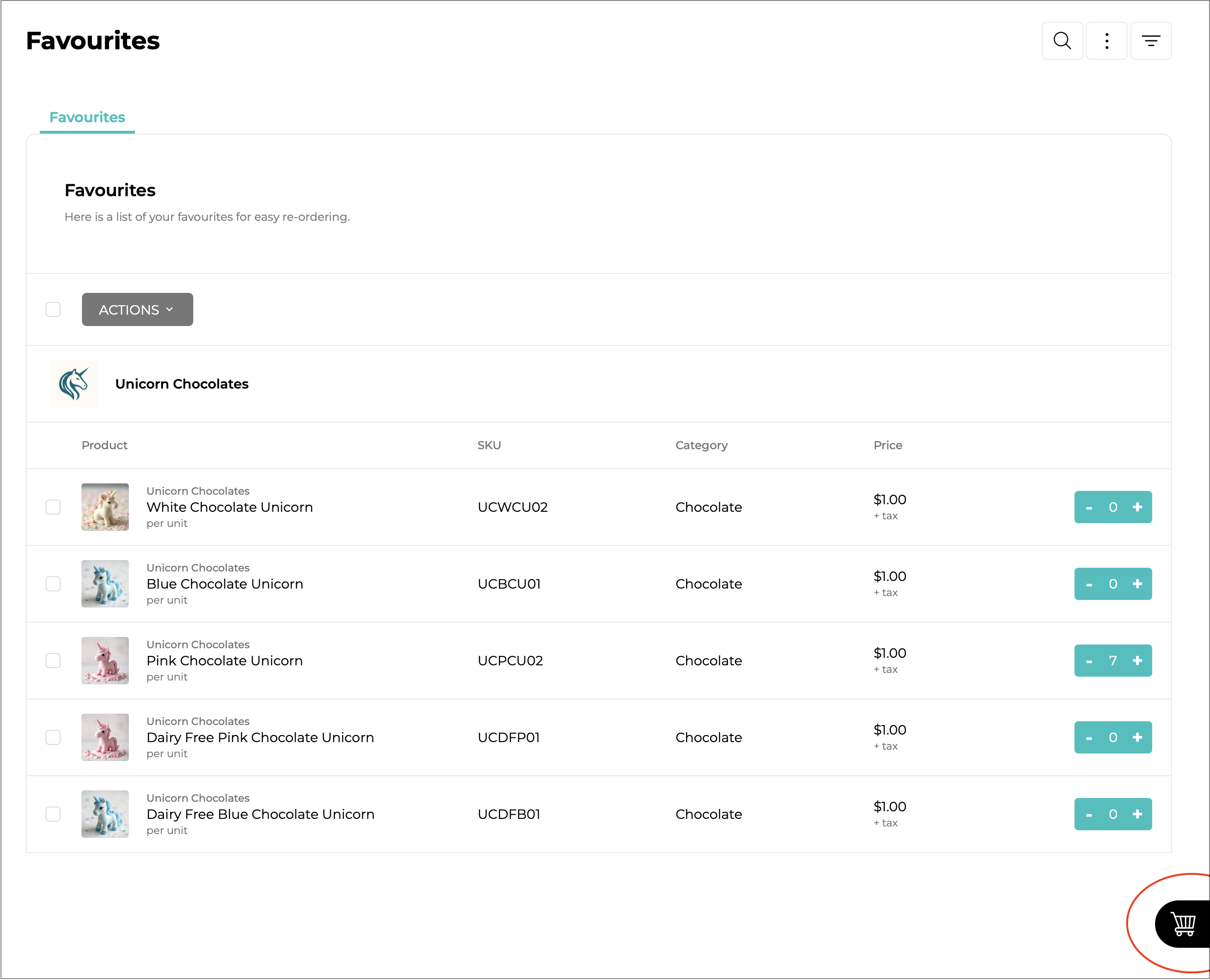
With Supply’d, you can add items to your cart from anywhere in the app. Whether you’re viewing products, browsing suppliers, or ordering from your Favourites, you can easily build your cart and place an order without switching screens. Anywhere you see beside a product, you can add it directly to your order.
Select the **+** on the button beside a product to add it to your cart, ensuring the correct ordering location is selected. Select the **−** button to reduce the quantity in your cart.
You can add products from multiple suppliers to the same cart. Supply’d streamlines checkout by allowing you to review and place all supplier orders at once.
{% hint style="success" %}
If you want to add a large number of items you can click and hold (or long press on mobile) the "**+**" or "**-**" for about 2 seconds and a text field will appear to enter a new value, click the tick to apply.\
{% endhint %}
{% hint style="info" %}
In the [Users](/supplyd-erp/settings/users.md#user-restrictions) section of each [Users](/supplyd-erp/settings/users.md) settings, you can set a default location for each user. This location will be selected automatically when the user reviews an order.
{% endhint %}
{% hint style="warning" %}
Confirm whether the product is purchased by **Unit** or **Carton** to avoid over-ordering. In this example, unicorns are ordered as individual units. If they were supplied in cartons of 10, ordering a quantity of 20 would result in 200 unicorns being ordered!
{% endhint %}
***
### The Shopping Trolley Checkout Button
When products have been added to your cart, a shopping trolley button will appear in the bottom-right corner of the page.
Hovering over this, the button will expand and say **Checkout**.
Select this button at any time to review your order or adjust the products and quantities in your cart.
***
## Reviewing the Cart & Checking Out
Checking out on Supply'd is really quick and easy.
When viewing the cart you can see all your orders for all of your suppliers. You can review the order for each supplier and adjust the quantities as required. If the option is available (ie. for Supply’d suppliers - this isn’t available for custom suppliers you’ve added to your account), be sure to review the payment and shipping methods for each supplier. If there are multiple options available you can use the drop down to select alternative methods for each supplier.
{% stepper %}
{% step %}
#### Review Each Supplier Order
Check the products and quantities listed under each supplier. Adjust the quantities or remove products as required. Perform any additional options as outlined below in [#additional-options](#additional-options "mention").
***
{% endstep %}
{% step %}
#### Check for Order Errors
Review any warnings or errors, such as not meeting a supplier’s minimum order requirements. Resolve all issues before attempting to place the orders.
***
{% endstep %}
{% step %}
#### Review Payment & Shipping Methods
If available, check the selected payment and shipping methods for each supplier. Use the drop-down menus to choose an alternative option where required.
{% hint style="info" %}
Payment and shipping methods are available for **Supply’d Suppliers** but not for **Custom Suppliers** added to your account.
{% endhint %}
***
{% endstep %}
{% step %}
#### Select the Preferred Delivery Date
Select the **Preferred Delivery** field, then choose a date from the calendar.
Grey-shaded dates indicate the supplier’s configured delivery days. If no dates are shaded, the supplier either has no specific delivery days configured or can deliver on any day.
{% hint style="info" %}
Grey-shaded dates indicate the supplier’s configured delivery days. If no dates are shaded, the supplier either has no specific delivery days configured or can deliver on any day.
{% endhint %}
***
{% endstep %}
{% step %}
#### Select a Department
If **Departments** are configured, select the department responsible for the order. This helps organise and track Purchase Orders by department.
{% hint style="info" %}
This field will only show if **Order By Department** is set to "**Yes**" in the [Purchase Settings](/supplyd-erp/settings/purchase-settings.md#cart-settings) section of your [Purchase Settings](/supplyd-erp/settings/purchase-settings.md).
{% endhint %}
{% hint style="success" %}
👉 See the [Departments](/supplyd-erp/settings/locations/departments.md) document for information on creating and managing **Departments**.
{% endhint %}
***
{% endstep %}
{% step %}
#### Add Order Notes
Enter any instructions or information the supplier needs for the order in the **Order Notes** field.
***
{% endstep %}
{% step %}
#### Choose When to Send the Order
Under **Send Timing**, choose whether to send the Purchase Order immediately or schedule it to be sent later. Scheduling the order is useful when preparing it in advance but delaying when the supplier receives the notification.
{% hint style="info" %}
This field will only show if **Enable Send Later** is set to "**Yes**" in the [Purchase Settings](/supplyd-erp/settings/purchase-settings.md#cart-settings) section of your [Purchase Settings](/supplyd-erp/settings/purchase-settings.md).\
{% endhint %}
When **Send Later** is selected, choose the date on which the order should be sent.
{% hint style="info" %}
If you choose a specific **Send Later** date, the **Preferred Delivery Date** will be recalculated based on the supplier’s delivery settings.
{% endhint %}
***
{% endstep %}
{% step %}
#### Place the Orders
Once you have reviewed and confirmed the order details, click to place the order. If successful, each supplier will be notified and can begin fulfilling their order.
{% hint style="warning" %}
**Order Approvals:** If the user placing the order requires approval, designated approvers will receive an email to review, approve or modify it. Approvers can also access the order from the **Orders** section. Selecting **Modify Order** adds the order to the approver’s cart and removes any items already there, so existing orders should be completed first.
👉 See the [Purchase Order Approvals](/supplyd-erp/purchases/placing-purchase-orders/purchase-order-approvals.md) document for more information.
{% endhint %}
{% endstep %}
{% endstepper %}
***
### Additional Options
Clicking on the 3 dots on the right beside the supplier's name will bring up a menu.
***
#### Place Order
An alternative to the button at the bottom of the screen.
***
#### Place Without Sending
Places the Purchase Order without emailing it to the supplier.
When you select **Place Without Sending**, Supply’d displays a confirmation message advising that the order will be placed silently.
Click to confirm. The Purchase Order will be placed without emailing or notifying the supplier.
{% hint style="info" %}
This option is primarily used to update your own purchasing records, similar to modifying an existing Purchase Order. The order is placed in Supply’d and can be used for receiving and tracking purposes, but no email or notification is sent to the supplier.
This can be useful in situations where you need to create or update a Purchase Order internally without requesting additional stock. For example, if a Purchase Order was partially received and a subsequent order was created for outstanding items, you may need to place an order against your records so goods can be received against the correct Purchase Order. Using **Place Without Sending** helps maintain accurate receiving records while avoiding the risk of the supplier receiving a duplicate order request.
⚠️ **Important:** The supplier will not receive an email or order notification. Use this option only when the Purchase Order is being created or updated for internal purposes and the supplier does not need to be notified.
{% endhint %}
***
#### Postpone
Allows you to postpone sending the order to a later date. After selecting this option, a calendar will appear for you to choose the desired date. The items will be temporarily removed from your cart until the selected date.
{% hint style="info" %}
If any items from a supplier have been postponed, all items from that supplier will appear greyed out when ordering via Add to Cart or from the Supplier page. This helps prevent accidental double-ordering. (Items will not appear greyed out when ordering from the Purchases page.) If you click on any greyed-out item, a warning will appear to let you decide whether to release the postponed order or leave it as is.
{% endhint %}
{% hint style="success" %}
👉 See the [Managing Purchase Orders](/supplyd-erp/purchases/managing-purchase-orders.md#postponed-orders) section in the [Managing Purchase Orders](/supplyd-erp/purchases/managing-purchase-orders.md) document for information on managing postponed orders.
{% endhint %}
***
#### Change Location
Lets you select a different location for the order before placing it. This is useful if you manage multiple locations and need the order associated with a different site.
Select the new location in the **New Location** field and click .
***
#### Remove
Will remove all items from the cart. You will be asked to confirm.
Click .
***
{% hint style="success" %}
Purchase Orders can also be created from the **Purchases** and **Suppliers** pages.
👉 See the [Creating a Purchase Order from the Purchases Page](/supplyd-erp/purchases/placing-purchase-orders/creating-a-purchase-order-from-the-purchases-page.md) document for instructions.
👉 To create an order from a supplier’s page, see the [Creating a Purchase Order from a Supplier's Page](/supplyd-erp/purchases/placing-purchase-orders/creating-a-purchase-order-from-a-suppliers-page.md) document.
👉 You can find out more about how to manage your orders in the [Managing Purchase Orders](/supplyd-erp/purchases/managing-purchase-orders.md) document.
{% endhint %}
---
# Agent Instructions
This documentation is published with GitBook. GitBook is the documentation platform designed so that both humans and AI agents can read, navigate, and reason over technical content effectively. Learn more at gitbook.com.
## Querying This Documentation
If you need additional information that is not directly available in this page, you can query the documentation by asking a question.
Perform an HTTP GET request on the following URL with the `ask` and `goal` query parameters:
```
GET https://help.supplyd.co/supplyd-erp/purchases/placing-purchase-orders/placing-a-purchase-order.md?ask=&goal=
```
`ask` is the immediate question: it should be specific, self-contained, and written in natural language.
`goal` is what the user is ultimately trying to achieve, the reason they need the answer. Sharing it helps GitBook give you a better, more relevant answer. A goal is most helpful when it describes the outcome the user wants rather than restating the question. For example, with `ask=how do I create an API token`, a goal like `automate deployments from our CI pipeline` lets GitBook tailor the answer to that use case.
The response will contain a direct answer to the question and relevant excerpts and sources from the documentation.
Use this mechanism when the answer is not explicitly present in the current page, you need clarification or additional context, or you want to retrieve related documentation sections.

 beside a product, you can add it directly to your order.


 button beside a product to add it to your cart, ensuring the correct ordering location is selected. Select the **−** button to reduce the quantity in your cart.
You can add products from multiple suppliers to the same cart. Supply’d streamlines checkout by allowing you to review and place all supplier orders at once.
{% hint style="success" %}
If you want to add a large number of items you can click and hold (or long press on mobile) the "**+**" or "**-**" for about 2 seconds and a text field will appear to enter a new value, click the tick to apply.\
button beside a product to add it to your cart, ensuring the correct ordering location is selected. Select the **−** button to reduce the quantity in your cart.
You can add products from multiple suppliers to the same cart. Supply’d streamlines checkout by allowing you to review and place all supplier orders at once.
{% hint style="success" %}
If you want to add a large number of items you can click and hold (or long press on mobile) the "**+**" or "**-**" for about 2 seconds and a text field will appear to enter a new value, click the tick to apply.\ 
 Select this button at any time to review your order or adjust the products and quantities in your cart.
 ***
## Reviewing the Cart & Checking Out
Checking out on Supply'd is really quick and easy.
When viewing the cart you can see all your orders for all of your suppliers. You can review the order for each supplier and adjust the quantities as required. If the option is available (ie. for Supply’d suppliers - this isn’t available for custom suppliers you’ve added to your account), be sure to review the payment and shipping methods for each supplier. If there are multiple options available you can use the drop down to select alternative methods for each supplier.
***
## Reviewing the Cart & Checking Out
Checking out on Supply'd is really quick and easy.
When viewing the cart you can see all your orders for all of your suppliers. You can review the order for each supplier and adjust the quantities as required. If the option is available (ie. for Supply’d suppliers - this isn’t available for custom suppliers you’ve added to your account), be sure to review the payment and shipping methods for each supplier. If there are multiple options available you can use the drop down to select alternative methods for each supplier.
 {% stepper %}
{% step %}
#### Review Each Supplier Order
Check the products and quantities listed under each supplier. Adjust the quantities or remove products as required. Perform any additional options as outlined below in [#additional-options](#additional-options "mention").
{% stepper %}
{% step %}
#### Review Each Supplier Order
Check the products and quantities listed under each supplier. Adjust the quantities or remove products as required. Perform any additional options as outlined below in [#additional-options](#additional-options "mention").


 to place the order. If successful, each supplier will be notified and can begin fulfilling their order.


 to confirm. The Purchase Order will be placed without emailing or notifying the supplier.
{% hint style="info" %}
This option is primarily used to update your own purchasing records, similar to modifying an existing Purchase Order. The order is placed in Supply’d and can be used for receiving and tracking purposes, but no email or notification is sent to the supplier.
This can be useful in situations where you need to create or update a Purchase Order internally without requesting additional stock. For example, if a Purchase Order was partially received and a subsequent order was created for outstanding items, you may need to place an order against your records so goods can be received against the correct Purchase Order. Using **Place Without Sending** helps maintain accurate receiving records while avoiding the risk of the supplier receiving a duplicate order request.
⚠️ **Important:** The supplier will not receive an email or order notification. Use this option only when the Purchase Order is being created or updated for internal purposes and the supplier does not need to be notified.
{% endhint %}
***
#### Postpone
Allows you to postpone sending the order to a later date. After selecting this option, a calendar will appear for you to choose the desired date. The items will be temporarily removed from your cart until the selected date.
to confirm. The Purchase Order will be placed without emailing or notifying the supplier.
{% hint style="info" %}
This option is primarily used to update your own purchasing records, similar to modifying an existing Purchase Order. The order is placed in Supply’d and can be used for receiving and tracking purposes, but no email or notification is sent to the supplier.
This can be useful in situations where you need to create or update a Purchase Order internally without requesting additional stock. For example, if a Purchase Order was partially received and a subsequent order was created for outstanding items, you may need to place an order against your records so goods can be received against the correct Purchase Order. Using **Place Without Sending** helps maintain accurate receiving records while avoiding the risk of the supplier receiving a duplicate order request.
⚠️ **Important:** The supplier will not receive an email or order notification. Use this option only when the Purchase Order is being created or updated for internal purposes and the supplier does not need to be notified.
{% endhint %}
***
#### Postpone
Allows you to postpone sending the order to a later date. After selecting this option, a calendar will appear for you to choose the desired date. The items will be temporarily removed from your cart until the selected date.


 .
***
#### Remove
Will remove all items from the cart. You will be asked to confirm.
.
***
#### Remove
Will remove all items from the cart. You will be asked to confirm.

 .
***
{% hint style="success" %}
Purchase Orders can also be created from the **Purchases** and **Suppliers** pages.
👉 See the [Creating a Purchase Order from the Purchases Page](/supplyd-erp/purchases/placing-purchase-orders/creating-a-purchase-order-from-the-purchases-page.md) document for instructions.
👉 To create an order from a supplier’s page, see the [Creating a Purchase Order from a Supplier's Page](/supplyd-erp/purchases/placing-purchase-orders/creating-a-purchase-order-from-a-suppliers-page.md) document.
.
***
{% hint style="success" %}
Purchase Orders can also be created from the **Purchases** and **Suppliers** pages.
👉 See the [Creating a Purchase Order from the Purchases Page](/supplyd-erp/purchases/placing-purchase-orders/creating-a-purchase-order-from-the-purchases-page.md) document for instructions.
👉 To create an order from a supplier’s page, see the [Creating a Purchase Order from a Supplier's Page](/supplyd-erp/purchases/placing-purchase-orders/creating-a-purchase-order-from-a-suppliers-page.md) document.