> For the complete documentation index, see [llms.txt](https://help.supplyd.co/llms.txt). Markdown versions of documentation pages are available by appending `.md` to page URLs; this page is available as [Markdown](https://help.supplyd.co/supplyd-erp/products/managing-products/printing-product-labels-in-bulk.md).

# Printing Product Labels in Bulk

Printing product labels in bulk saves time, reduces repetitive tasks, and helps ensure labels are prepared consistently across multiple products.

**Supply’d** allows you to print product labels for multiple products at once, making it quicker and easier to prepare labels when managing a large number of products. Select the products you need, choose your label options, and print the labels together in a single action.

{% hint style="success" %}
Product labels can also be printed individually from a product’s page.&#x20;

👉 See the [Printing Product Labels](/supplyd-erp/products/managing-products/printing-product-labels.md) document for details.
{% endhint %}

The following steps will guide you through the process.

{% stepper %}
{% step %}

#### Go to the Products Page

Select **Products** from the main menu. The **Products** page will open, displaying a list of all your products.

<figure><img src="https://2965503026-files.gitbook.io/~/files/v0/b/gitbook-x-prod.appspot.com/o/spaces%2FDaPYJDB89ny0x7wcMedb%2Fuploads%2FBiSgYf5TeVVHUCIkoYzx%2FSpacer.png?alt=media&amp;token=d07d4fad-e994-4c5a-b152-06f2504e1f76" alt=""><figcaption></figcaption></figure>

<figure><img src="https://2965503026-files.gitbook.io/~/files/v0/b/gitbook-x-prod.appspot.com/o/spaces%2FDaPYJDB89ny0x7wcMedb%2Fuploads%2FvBof5Nqb72x3QmuCt43f%2FProducts%20Page.png?alt=media&amp;token=c64e39a1-77a5-4190-be4d-62ba0c05ec21" alt=""><figcaption></figcaption></figure>

<figure><img src="https://2965503026-files.gitbook.io/~/files/v0/b/gitbook-x-prod.appspot.com/o/spaces%2FDaPYJDB89ny0x7wcMedb%2Fuploads%2FbJDih3Dwv41QavjV1QDa%2FSpacer.png?alt=media&amp;token=6c34f805-9610-4de9-8f8a-a029f13dd1a1" alt=""><figcaption></figcaption></figure>

***

{% endstep %}

{% step %}

#### Select the Products

Select the products you want to print labels or shelf tickets for by ticking the checkbox beside each product.

<figure><img src="https://2965503026-files.gitbook.io/~/files/v0/b/gitbook-x-prod.appspot.com/o/spaces%2FDaPYJDB89ny0x7wcMedb%2Fuploads%2FbJDih3Dwv41QavjV1QDa%2FSpacer.png?alt=media&amp;token=6c34f805-9610-4de9-8f8a-a029f13dd1a1" alt=""><figcaption></figcaption></figure>

<figure><img src="https://2965503026-files.gitbook.io/~/files/v0/b/gitbook-x-prod.appspot.com/o/spaces%2FDaPYJDB89ny0x7wcMedb%2Fuploads%2FgMbmocLcrcSVhItkjQ8u%2FProducts%20-%20Tick%20Products.png?alt=media&amp;token=c1954689-c372-4b42-aa76-5d12960e3b73" alt=""><figcaption></figcaption></figure>

<figure><img src="https://2965503026-files.gitbook.io/~/files/v0/b/gitbook-x-prod.appspot.com/o/spaces%2FDaPYJDB89ny0x7wcMedb%2Fuploads%2FbJDih3Dwv41QavjV1QDa%2FSpacer.png?alt=media&amp;token=6c34f805-9610-4de9-8f8a-a029f13dd1a1" alt=""><figcaption></figcaption></figure>

{% hint style="success" %}
Clicking the box beside the <img src="https://2965503026-files.gitbook.io/~/files/v0/b/gitbook-x-prod.appspot.com/o/spaces%2FDaPYJDB89ny0x7wcMedb%2Fuploads%2FH8TtfvLsYVlP1sueVLBC%2FACTIONS.png?alt=media&amp;token=38b4a893-7f43-43c5-995d-ffd7bf39d711" alt="" data-size="line"> button will select all products on the list.\ <br>

<p align="center"><img src="https://2965503026-files.gitbook.io/~/files/v0/b/gitbook-x-prod.appspot.com/o/spaces%2FDaPYJDB89ny0x7wcMedb%2Fuploads%2FlPxgIntHlP7Vx0g8WukR%2F2%20-%20Actions%20Tick.png?alt=media&amp;token=88ac434f-754e-4b1d-8627-b69c12614d19" alt="" data-size="original"><br><br></p>
{% endhint %}

<figure><img src="https://2965503026-files.gitbook.io/~/files/v0/b/gitbook-x-prod.appspot.com/o/spaces%2FDaPYJDB89ny0x7wcMedb%2Fuploads%2FbJDih3Dwv41QavjV1QDa%2FSpacer.png?alt=media&amp;token=6c34f805-9610-4de9-8f8a-a029f13dd1a1" alt=""><figcaption></figcaption></figure>

{% hint style="success" %}
You can search or use the **Filter Products** form to narrow the list by specific criteria if you want to perform actions on matching products.
{% endhint %}

<figure><img src="https://2965503026-files.gitbook.io/~/files/v0/b/gitbook-x-prod.appspot.com/o/spaces%2FDaPYJDB89ny0x7wcMedb%2Fuploads%2FbJDih3Dwv41QavjV1QDa%2FSpacer.png?alt=media&amp;token=6c34f805-9610-4de9-8f8a-a029f13dd1a1" alt=""><figcaption></figcaption></figure>

{% hint style="info" %}
The <img src="https://2965503026-files.gitbook.io/~/files/v0/b/gitbook-x-prod.appspot.com/o/spaces%2FDaPYJDB89ny0x7wcMedb%2Fuploads%2FMDyQDh7Gg9Jdv255AfEe%2FACTIONS%20-%20Grey.png?alt=media&amp;token=ae9828a0-3926-4832-80ea-3d932a8971c1" alt="" data-size="line"> button remains greyed out and inactive until at least one product is selected. Once you select one or more products, the button turns blue and becomes clickable, allowing you to access the available bulk actions.
{% endhint %}

<figure><img src="https://2965503026-files.gitbook.io/~/files/v0/b/gitbook-x-prod.appspot.com/o/spaces%2FDaPYJDB89ny0x7wcMedb%2Fuploads%2FbJDih3Dwv41QavjV1QDa%2FSpacer.png?alt=media&amp;token=6c34f805-9610-4de9-8f8a-a029f13dd1a1" alt=""><figcaption></figcaption></figure>

***

{% endstep %}

{% step %}

#### Select Download > Product Labels

Click the <img src="https://2965503026-files.gitbook.io/~/files/v0/b/gitbook-x-prod.appspot.com/o/spaces%2FDaPYJDB89ny0x7wcMedb%2Fuploads%2FH8TtfvLsYVlP1sueVLBC%2FACTIONS.png?alt=media&amp;token=38b4a893-7f43-43c5-995d-ffd7bf39d711" alt="" data-size="line"> button to open the menu and and select **Product Label**.

<figure><img src="https://2965503026-files.gitbook.io/~/files/v0/b/gitbook-x-prod.appspot.com/o/spaces%2FDaPYJDB89ny0x7wcMedb%2Fuploads%2FbJDih3Dwv41QavjV1QDa%2FSpacer.png?alt=media&amp;token=6c34f805-9610-4de9-8f8a-a029f13dd1a1" alt=""><figcaption></figcaption></figure>

<figure><img src="https://2965503026-files.gitbook.io/~/files/v0/b/gitbook-x-prod.appspot.com/o/spaces%2FDaPYJDB89ny0x7wcMedb%2Fuploads%2FOGgJjPwXdVfzBekTpl1t%2FProducts%20-%20Actions%20Download%20.png?alt=media&amp;token=c51c5ab7-c9dd-43a3-9be9-72d526041294" alt="" width="375"><figcaption></figcaption></figure>

<figure><img src="https://2965503026-files.gitbook.io/~/files/v0/b/gitbook-x-prod.appspot.com/o/spaces%2FDaPYJDB89ny0x7wcMedb%2Fuploads%2FbJDih3Dwv41QavjV1QDa%2FSpacer.png?alt=media&amp;token=6c34f805-9610-4de9-8f8a-a029f13dd1a1" alt=""><figcaption></figcaption></figure>

The **Print Label** form will open.

<figure><img src="https://2965503026-files.gitbook.io/~/files/v0/b/gitbook-x-prod.appspot.com/o/spaces%2FDaPYJDB89ny0x7wcMedb%2Fuploads%2FbJDih3Dwv41QavjV1QDa%2FSpacer.png?alt=media&amp;token=6c34f805-9610-4de9-8f8a-a029f13dd1a1" alt=""><figcaption></figcaption></figure>

<figure><img src="https://2965503026-files.gitbook.io/~/files/v0/b/gitbook-x-prod.appspot.com/o/spaces%2FDaPYJDB89ny0x7wcMedb%2Fuploads%2FaBTysiNutHEIRjtlon93%2FPropducts%20-%20Price%20Changes%20-%20Bulk%20Print%20Label%20Form.png?alt=media&amp;token=bc58059d-053e-40ec-9351-2f8d9e611aec" alt="" width="563"><figcaption></figcaption></figure>

<figure><img src="https://2965503026-files.gitbook.io/~/files/v0/b/gitbook-x-prod.appspot.com/o/spaces%2FDaPYJDB89ny0x7wcMedb%2Fuploads%2FbJDih3Dwv41QavjV1QDa%2FSpacer.png?alt=media&amp;token=6c34f805-9610-4de9-8f8a-a029f13dd1a1" alt=""><figcaption></figcaption></figure>

{% hint style="success" %}
To remove an item from the list, simply click the "**X**" to the right of the product.
{% endhint %}

<figure><img src="https://2965503026-files.gitbook.io/~/files/v0/b/gitbook-x-prod.appspot.com/o/spaces%2FDaPYJDB89ny0x7wcMedb%2Fuploads%2FbJDih3Dwv41QavjV1QDa%2FSpacer.png?alt=media&amp;token=6c34f805-9610-4de9-8f8a-a029f13dd1a1" alt=""><figcaption></figcaption></figure>

{% hint style="success" %}
To open or close the **Customisation** section on this form, click the small arrow to the right of the section, as circled in red above.
{% endhint %}

<figure><img src="https://2965503026-files.gitbook.io/~/files/v0/b/gitbook-x-prod.appspot.com/o/spaces%2FDaPYJDB89ny0x7wcMedb%2Fuploads%2FbJDih3Dwv41QavjV1QDa%2FSpacer.png?alt=media&amp;token=6c34f805-9610-4de9-8f8a-a029f13dd1a1" alt=""><figcaption></figcaption></figure>

Complete the form by following the guidelines below:

<figure><img src="https://2965503026-files.gitbook.io/~/files/v0/b/gitbook-x-prod.appspot.com/o/spaces%2FDaPYJDB89ny0x7wcMedb%2Fuploads%2FbJDih3Dwv41QavjV1QDa%2FSpacer.png?alt=media&amp;token=6c34f805-9610-4de9-8f8a-a029f13dd1a1" alt=""><figcaption></figcaption></figure>

***

{% endstep %}

{% step %}

#### Label & Print Details

<figure><img src="https://2965503026-files.gitbook.io/~/files/v0/b/gitbook-x-prod.appspot.com/o/spaces%2FDaPYJDB89ny0x7wcMedb%2Fuploads%2FbJDih3Dwv41QavjV1QDa%2FSpacer.png?alt=media&amp;token=6c34f805-9610-4de9-8f8a-a029f13dd1a1" alt=""><figcaption></figcaption></figure>

<figure><img src="https://2965503026-files.gitbook.io/~/files/v0/b/gitbook-x-prod.appspot.com/o/spaces%2FDaPYJDB89ny0x7wcMedb%2Fuploads%2FPlKKnk6JE1ObUOEiXFZm%2FProduct%20Price%20Changes%20Print%20Details.png?alt=media&amp;token=66204281-767d-4508-b283-2973c5b81c79" alt=""><figcaption></figcaption></figure>

<figure><img src="https://2965503026-files.gitbook.io/~/files/v0/b/gitbook-x-prod.appspot.com/o/spaces%2FDaPYJDB89ny0x7wcMedb%2Fuploads%2FbJDih3Dwv41QavjV1QDa%2FSpacer.png?alt=media&amp;token=6c34f805-9610-4de9-8f8a-a029f13dd1a1" alt=""><figcaption></figcaption></figure>

**Template\* \[required field]**&#x20;

Select the template to use when generating the label. Choose a **Custom** label if you have created a custom label template, or select a **System** label to use one of the standard templates provided by Supply’d.

<figure><img src="https://2965503026-files.gitbook.io/~/files/v0/b/gitbook-x-prod.appspot.com/o/spaces%2FDaPYJDB89ny0x7wcMedb%2Fuploads%2FbJDih3Dwv41QavjV1QDa%2FSpacer.png?alt=media&amp;token=6c34f805-9610-4de9-8f8a-a029f13dd1a1" alt=""><figcaption></figcaption></figure>

<figure><img src="https://2965503026-files.gitbook.io/~/files/v0/b/gitbook-x-prod.appspot.com/o/spaces%2FDaPYJDB89ny0x7wcMedb%2Fuploads%2FBOR5gmBErZx0CZEHct4f%2FTemplate%20Drop%20Down.png?alt=media&amp;token=e348b609-d600-410b-940d-2ef998658e17" alt="" width="375"><figcaption></figcaption></figure>

<figure><img src="https://2965503026-files.gitbook.io/~/files/v0/b/gitbook-x-prod.appspot.com/o/spaces%2FDaPYJDB89ny0x7wcMedb%2Fuploads%2FbJDih3Dwv41QavjV1QDa%2FSpacer.png?alt=media&amp;token=6c34f805-9610-4de9-8f8a-a029f13dd1a1" alt=""><figcaption></figcaption></figure>

{% hint style="success" %}
👉 See the [Templates](/supplyd-erp/settings/templates.md) document for details on creating custom label templates.&#x20;
{% endhint %}

<figure><img src="https://2965503026-files.gitbook.io/~/files/v0/b/gitbook-x-prod.appspot.com/o/spaces%2FDaPYJDB89ny0x7wcMedb%2Fuploads%2FbJDih3Dwv41QavjV1QDa%2FSpacer.png?alt=media&amp;token=6c34f805-9610-4de9-8f8a-a029f13dd1a1" alt=""><figcaption></figcaption></figure>

**Action**

Select whether you want to download the labels as a PDF or print them directly from a Supply’d scanner.

<figure><img src="https://2965503026-files.gitbook.io/~/files/v0/b/gitbook-x-prod.appspot.com/o/spaces%2FDaPYJDB89ny0x7wcMedb%2Fuploads%2FbJDih3Dwv41QavjV1QDa%2FSpacer.png?alt=media&amp;token=6c34f805-9610-4de9-8f8a-a029f13dd1a1" alt=""><figcaption></figcaption></figure>

<figure><img src="https://2965503026-files.gitbook.io/~/files/v0/b/gitbook-x-prod.appspot.com/o/spaces%2FDaPYJDB89ny0x7wcMedb%2Fuploads%2FuPMGxVUbdoLdUzGUZ0U9%2FProduct%20Print%20Label%20-%20Action.png?alt=media&amp;token=b7c0566c-0c60-43e2-b7ab-3d7be9f2a0b9" alt="" width="375"><figcaption></figcaption></figure>

<figure><img src="https://2965503026-files.gitbook.io/~/files/v0/b/gitbook-x-prod.appspot.com/o/spaces%2FDaPYJDB89ny0x7wcMedb%2Fuploads%2FbJDih3Dwv41QavjV1QDa%2FSpacer.png?alt=media&amp;token=6c34f805-9610-4de9-8f8a-a029f13dd1a1" alt=""><figcaption></figcaption></figure>

**Printer**

Select the printer you want to use to print the product labels. The available printers will depend on the printers that have been connected and configured in your **Supply’d** account.

If no printer is selected, you can choose to generate the labels as a **PDF** instead, depending on the option selected in the **Actions** field.

<figure><img src="https://2965503026-files.gitbook.io/~/files/v0/b/gitbook-x-prod.appspot.com/o/spaces%2FDaPYJDB89ny0x7wcMedb%2Fuploads%2FbJDih3Dwv41QavjV1QDa%2FSpacer.png?alt=media&amp;token=6c34f805-9610-4de9-8f8a-a029f13dd1a1" alt=""><figcaption></figcaption></figure>

<figure><img src="https://2965503026-files.gitbook.io/~/files/v0/b/gitbook-x-prod.appspot.com/o/spaces%2FDaPYJDB89ny0x7wcMedb%2Fuploads%2FTGoyKUGf1rDqW4H20Qa9%2FProducts%20-%20Label%20Printer.png?alt=media&amp;token=849dc66a-7de7-4aa9-b1ee-f41ed7e5e7f1" alt="" width="375"><figcaption></figcaption></figure>

<figure><img src="https://2965503026-files.gitbook.io/~/files/v0/b/gitbook-x-prod.appspot.com/o/spaces%2FDaPYJDB89ny0x7wcMedb%2Fuploads%2FbJDih3Dwv41QavjV1QDa%2FSpacer.png?alt=media&amp;token=6c34f805-9610-4de9-8f8a-a029f13dd1a1" alt=""><figcaption></figcaption></figure>

{% hint style="success" %}
👉 The [Device Set-Up](/supplyd-erp/settings/device-set-up.md) document provides guidance on how to add, configure, and manage connected printers in Supply’d. It explains the steps required to set up printers and ensure they are ready to use for printing labels and other documents.
{% endhint %}

<figure><img src="https://2965503026-files.gitbook.io/~/files/v0/b/gitbook-x-prod.appspot.com/o/spaces%2FDaPYJDB89ny0x7wcMedb%2Fuploads%2FbJDih3Dwv41QavjV1QDa%2FSpacer.png?alt=media&amp;token=6c34f805-9610-4de9-8f8a-a029f13dd1a1" alt=""><figcaption></figcaption></figure>

**Sales Channel**

Select the sales channel to use when printing the product label. The selected sales channel determines which carton quantity and pricing data are used on the label.

<figure><img src="https://2965503026-files.gitbook.io/~/files/v0/b/gitbook-x-prod.appspot.com/o/spaces%2FDaPYJDB89ny0x7wcMedb%2Fuploads%2FbJDih3Dwv41QavjV1QDa%2FSpacer.png?alt=media&amp;token=6c34f805-9610-4de9-8f8a-a029f13dd1a1" alt=""><figcaption></figcaption></figure>

<figure><img src="https://2965503026-files.gitbook.io/~/files/v0/b/gitbook-x-prod.appspot.com/o/spaces%2FDaPYJDB89ny0x7wcMedb%2Fuploads%2FXAHWhPGcePlxMfos9r17%2FProducts%20-%20Print%20Label%20-%20Sales%20Channel.png?alt=media&amp;token=08d22af5-6457-4a70-9f8f-a92de80b068c" alt="" width="375"><figcaption></figcaption></figure>

<figure><img src="https://2965503026-files.gitbook.io/~/files/v0/b/gitbook-x-prod.appspot.com/o/spaces%2FDaPYJDB89ny0x7wcMedb%2Fuploads%2FbJDih3Dwv41QavjV1QDa%2FSpacer.png?alt=media&amp;token=6c34f805-9610-4de9-8f8a-a029f13dd1a1" alt=""><figcaption></figcaption></figure>

***

{% endstep %}

{% step %}

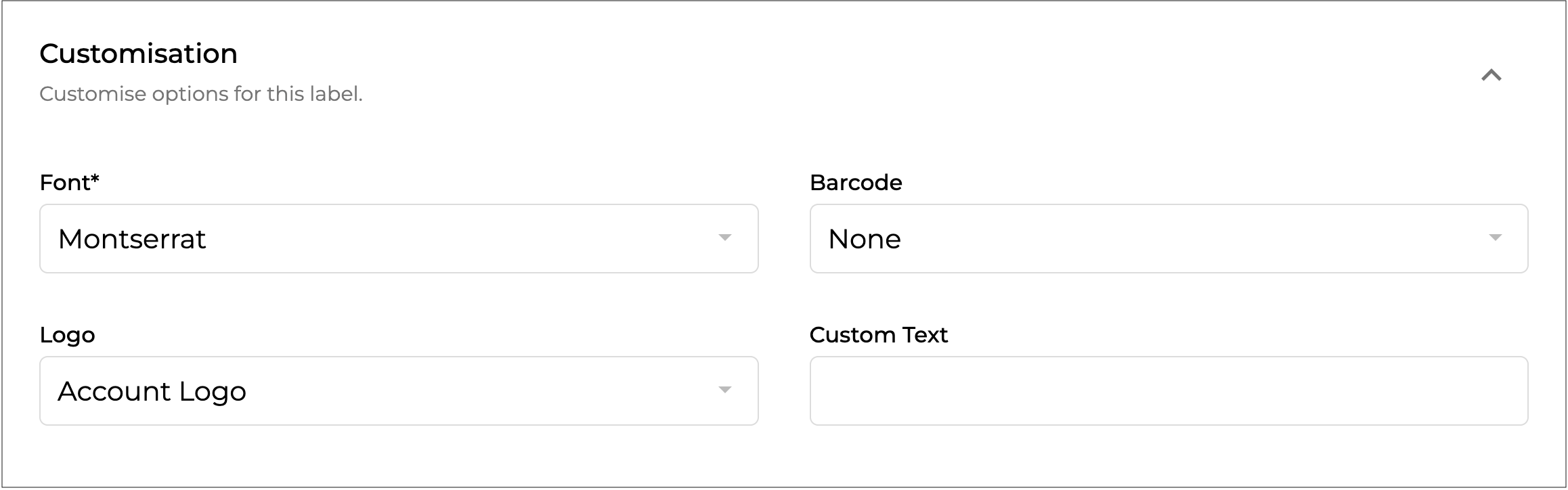
#### Customisation

Complete this section if you want to include additional information on the label. If left blank, the label will include only the **product name and barcode**.

For **price labels**, the **product name, price, and barcode** will be included by default.

<figure><img src="https://2965503026-files.gitbook.io/~/files/v0/b/gitbook-x-prod.appspot.com/o/spaces%2FDaPYJDB89ny0x7wcMedb%2Fuploads%2FbJDih3Dwv41QavjV1QDa%2FSpacer.png?alt=media&amp;token=6c34f805-9610-4de9-8f8a-a029f13dd1a1" alt=""><figcaption></figcaption></figure>

<figure><img src="https://2965503026-files.gitbook.io/~/files/v0/b/gitbook-x-prod.appspot.com/o/spaces%2FDaPYJDB89ny0x7wcMedb%2Fuploads%2FNnLLnWE1X2OnDVXT6W4F%2F4%20-%20Customisation.png?alt=media&amp;token=92d41b13-9c61-4f8a-9eac-5e73eb614069" alt=""><figcaption></figcaption></figure>

<figure><img src="https://2965503026-files.gitbook.io/~/files/v0/b/gitbook-x-prod.appspot.com/o/spaces%2FDaPYJDB89ny0x7wcMedb%2Fuploads%2FbJDih3Dwv41QavjV1QDa%2FSpacer.png?alt=media&amp;token=6c34f805-9610-4de9-8f8a-a029f13dd1a1" alt=""><figcaption></figcaption></figure>

**Font\* \[required field]**&#x20;

Select the font you want to use for the label text.&#x20;

<figure><img src="https://2965503026-files.gitbook.io/~/files/v0/b/gitbook-x-prod.appspot.com/o/spaces%2FDaPYJDB89ny0x7wcMedb%2Fuploads%2FbJDih3Dwv41QavjV1QDa%2FSpacer.png?alt=media&amp;token=6c34f805-9610-4de9-8f8a-a029f13dd1a1" alt=""><figcaption></figcaption></figure>

<figure><img src="https://2965503026-files.gitbook.io/~/files/v0/b/gitbook-x-prod.appspot.com/o/spaces%2FDaPYJDB89ny0x7wcMedb%2Fuploads%2FTOAOGP4ENuohWxQcx5CU%2FFont%20Drop%20Down.png?alt=media&amp;token=b83af597-5aab-4567-ad1b-2cad0378fd92" alt="" width="375"><figcaption></figcaption></figure>

<figure><img src="https://2965503026-files.gitbook.io/~/files/v0/b/gitbook-x-prod.appspot.com/o/spaces%2FDaPYJDB89ny0x7wcMedb%2Fuploads%2FbJDih3Dwv41QavjV1QDa%2FSpacer.png?alt=media&amp;token=6c34f805-9610-4de9-8f8a-a029f13dd1a1" alt=""><figcaption></figcaption></figure>

**Barcode**&#x20;

Select the barcode type you want to use on the label. Leave the field set to **None** if you do not want to print a barcode.

<figure><img src="https://2965503026-files.gitbook.io/~/files/v0/b/gitbook-x-prod.appspot.com/o/spaces%2FDaPYJDB89ny0x7wcMedb%2Fuploads%2FbJDih3Dwv41QavjV1QDa%2FSpacer.png?alt=media&amp;token=6c34f805-9610-4de9-8f8a-a029f13dd1a1" alt=""><figcaption></figcaption></figure>

<figure><img src="https://2965503026-files.gitbook.io/~/files/v0/b/gitbook-x-prod.appspot.com/o/spaces%2FDaPYJDB89ny0x7wcMedb%2Fuploads%2FG9fXkm29LZyQQFmNKQrr%2FBarcode%20Drop%20Down.png?alt=media&amp;token=efcaf5c3-1a93-46b7-aacd-2939685562a4" alt="" width="375"><figcaption></figcaption></figure>

<figure><img src="https://2965503026-files.gitbook.io/~/files/v0/b/gitbook-x-prod.appspot.com/o/spaces%2FDaPYJDB89ny0x7wcMedb%2Fuploads%2FbJDih3Dwv41QavjV1QDa%2FSpacer.png?alt=media&amp;token=6c34f805-9610-4de9-8f8a-a029f13dd1a1" alt=""><figcaption></figcaption></figure>

**Logo**&#x20;

Select the logo you want to display on the label. Leave the field set to **None** if you do not want to include a logo on the label.

<figure><img src="https://2965503026-files.gitbook.io/~/files/v0/b/gitbook-x-prod.appspot.com/o/spaces%2FDaPYJDB89ny0x7wcMedb%2Fuploads%2FbJDih3Dwv41QavjV1QDa%2FSpacer.png?alt=media&amp;token=6c34f805-9610-4de9-8f8a-a029f13dd1a1" alt=""><figcaption></figcaption></figure>

<figure><img src="https://2965503026-files.gitbook.io/~/files/v0/b/gitbook-x-prod.appspot.com/o/spaces%2FDaPYJDB89ny0x7wcMedb%2Fuploads%2FjH0z5jzhMQqExIxK5LRJ%2FLogo%20Drop%20Down.png?alt=media&amp;token=22d39956-c47b-425d-976c-66dca1289a6c" alt="" width="375"><figcaption></figcaption></figure>

<figure><img src="https://2965503026-files.gitbook.io/~/files/v0/b/gitbook-x-prod.appspot.com/o/spaces%2FDaPYJDB89ny0x7wcMedb%2Fuploads%2FbJDih3Dwv41QavjV1QDa%2FSpacer.png?alt=media&amp;token=6c34f805-9610-4de9-8f8a-a029f13dd1a1" alt=""><figcaption></figcaption></figure>

{% hint style="warning" %}
This setting only applies to label templates that use the **logo\_image** field.
{% endhint %}

<figure><img src="https://2965503026-files.gitbook.io/~/files/v0/b/gitbook-x-prod.appspot.com/o/spaces%2FDaPYJDB89ny0x7wcMedb%2Fuploads%2FbJDih3Dwv41QavjV1QDa%2FSpacer.png?alt=media&amp;token=6c34f805-9610-4de9-8f8a-a029f13dd1a1" alt=""><figcaption></figcaption></figure>

**Custom Text**&#x20;

Enter any custom text you want to include on the label. The maximum length is 20 characters.

<figure><img src="https://2965503026-files.gitbook.io/~/files/v0/b/gitbook-x-prod.appspot.com/o/spaces%2FDaPYJDB89ny0x7wcMedb%2Fuploads%2FbJDih3Dwv41QavjV1QDa%2FSpacer.png?alt=media&amp;token=6c34f805-9610-4de9-8f8a-a029f13dd1a1" alt=""><figcaption></figcaption></figure>

{% hint style="warning" %}
This setting only applies to label templates that use **custom text**.
{% endhint %}

<figure><img src="https://2965503026-files.gitbook.io/~/files/v0/b/gitbook-x-prod.appspot.com/o/spaces%2FDaPYJDB89ny0x7wcMedb%2Fuploads%2FbJDih3Dwv41QavjV1QDa%2FSpacer.png?alt=media&amp;token=6c34f805-9610-4de9-8f8a-a029f13dd1a1" alt=""><figcaption></figcaption></figure>

***

{% endstep %}

{% step %}

#### Click Print

Click <img src="https://2965503026-files.gitbook.io/~/files/v0/b/gitbook-x-prod.appspot.com/o/spaces%2FDaPYJDB89ny0x7wcMedb%2Fuploads%2FeUjeYXY2Tbefaoq6utYK%2FPRINT%20copy.png?alt=media&amp;token=a1164f27-53c9-428f-a0ef-da9fbd261231" alt="" data-size="line"> to generate the label for printing or downloading.

<figure><img src="https://2965503026-files.gitbook.io/~/files/v0/b/gitbook-x-prod.appspot.com/o/spaces%2FDaPYJDB89ny0x7wcMedb%2Fuploads%2FbJDih3Dwv41QavjV1QDa%2FSpacer.png?alt=media&amp;token=6c34f805-9610-4de9-8f8a-a029f13dd1a1" alt=""><figcaption></figcaption></figure>

{% hint style="success" %}
Whether the label is printed directly or generated as a PDF depends on the option selected in the **Actions** field above.
{% endhint %}

<figure><img src="https://2965503026-files.gitbook.io/~/files/v0/b/gitbook-x-prod.appspot.com/o/spaces%2FDaPYJDB89ny0x7wcMedb%2Fuploads%2FbJDih3Dwv41QavjV1QDa%2FSpacer.png?alt=media&amp;token=6c34f805-9610-4de9-8f8a-a029f13dd1a1" alt=""><figcaption></figcaption></figure>

<figure><img src="https://2965503026-files.gitbook.io/~/files/v0/b/gitbook-x-prod.appspot.com/o/spaces%2FDaPYJDB89ny0x7wcMedb%2Fuploads%2FbJDih3Dwv41QavjV1QDa%2FSpacer.png?alt=media&amp;token=6c34f805-9610-4de9-8f8a-a029f13dd1a1" alt=""><figcaption></figcaption></figure>

<figure><img src="https://2965503026-files.gitbook.io/~/files/v0/b/gitbook-x-prod.appspot.com/o/spaces%2FDaPYJDB89ny0x7wcMedb%2Fuploads%2FuOikB96LaMZNXEvFUND0%2FProduct%20Label.png?alt=media&amp;token=ffa59f49-c428-40ae-bbe3-829427ff2545" alt="" width="368"><figcaption></figcaption></figure>

<figure><img src="https://2965503026-files.gitbook.io/~/files/v0/b/gitbook-x-prod.appspot.com/o/spaces%2FDaPYJDB89ny0x7wcMedb%2Fuploads%2FbJDih3Dwv41QavjV1QDa%2FSpacer.png?alt=media&amp;token=6c34f805-9610-4de9-8f8a-a029f13dd1a1" alt=""><figcaption></figcaption></figure>

{% endstep %}
{% endstepper %}


---

# Agent Instructions
This documentation is published with GitBook. GitBook is the documentation platform designed so that both humans and AI agents can read, navigate, and reason over technical content effectively. Learn more at gitbook.com.

## Querying This Documentation
If you need additional information that is not directly available in this page, you can query the documentation by asking a question.

Perform an HTTP GET request on the following URL with the `ask` and `goal` query parameters:

```
GET https://help.supplyd.co/supplyd-erp/products/managing-products/printing-product-labels-in-bulk.md?ask=<question>&goal=<user_goal>
```

`ask` is the immediate question: it should be specific, self-contained, and written in natural language.
`goal` is what the user is ultimately trying to achieve, the reason they need the answer. Sharing it helps GitBook give you a better, more relevant answer. A goal is most helpful when it describes the outcome the user wants rather than restating the question. For example, with `ask=how do I create an API token`, a goal like `automate deployments from our CI pipeline` lets GitBook tailor the answer to that use case.

The response will contain a direct answer to the question and relevant excerpts and sources from the documentation.

Use this mechanism when the answer is not explicitly present in the current page, you need clarification or additional context, or you want to retrieve related documentation sections.