> For the complete documentation index, see [llms.txt](https://help.supplyd.co/llms.txt). Markdown versions of documentation pages are available by appending `.md` to page URLs; this page is available as [Markdown](https://help.supplyd.co/supplyd-erp/production/bakers-mode.md).
# Bakers Mode
Baker’s Mode in Supply’d simplifies recipe scaling by automatically converting ingredients into baker’s percentages, making it easier to maintain consistent formulas and adjust batch sizes accurately.
We know bakeries have unique, complex workflows, so we built a suite of tools specifically tailored to help you manage them. You can enable bakers mode within your production settings.
* **Starter within your starter? No problem:** We know you need it, and now you can do it! You can now use your starter *within* its own recipe without getting stuck in an infinite loop.
* **Automated Recipe Scaling:** Baker’s Mode in Supply’d takes the guesswork out of scaling recipes and keeps things nicely balanced, no matter how big the batch gets. Instead of juggling messy conversions, everything is shown in baker’s percentages so flour always stays the steady anchor at 100%, and the rest falls neatly into place. It’s a simple, reliable way to keep recipes consistent, whether you’re tweaking a small batch or ramping up for production - no calculator gymnastics required.
* **Deck Reports:** Planning your daily bake just got much easier. You can now select which products should appear on your deck reports and export the report for any given day to perfectly optimise your baking schedule.
* **Smart Write-offs for Stores:** Streamline your end-of-day routines. Your stores can now perform a "Smart Write-off," which automatically identifies all stock expiring at the end of the day, making it incredibly simple for your team to isolate and discard it.
* [#enabling-bakers-mode](#enabling-bakers-mode "mention")
* [#starter-within-a-starter](#starter-within-a-starter "mention")
* [#bakers-percentages](#bakers-percentages "mention")
* [#deck-reports](#deck-reports "mention")
* [#smart-write-offs](#smart-write-offs "mention")
***
## Enabling Bakers Mode
Baker’s Mode can be enabled in [Production Settings](/supplyd-erp/settings/production-settings.md), unlocking a set of features tailored for bakery workflows. Once enabled, you’ll gain access to tools built around baker’s percentages, support for starter-based recipes, and deck reporting. This allows you to better control production processes, improve accuracy, and streamline daily baking operations.
To enable **Bakers Mode**:
{% stepper %}
{% step %}
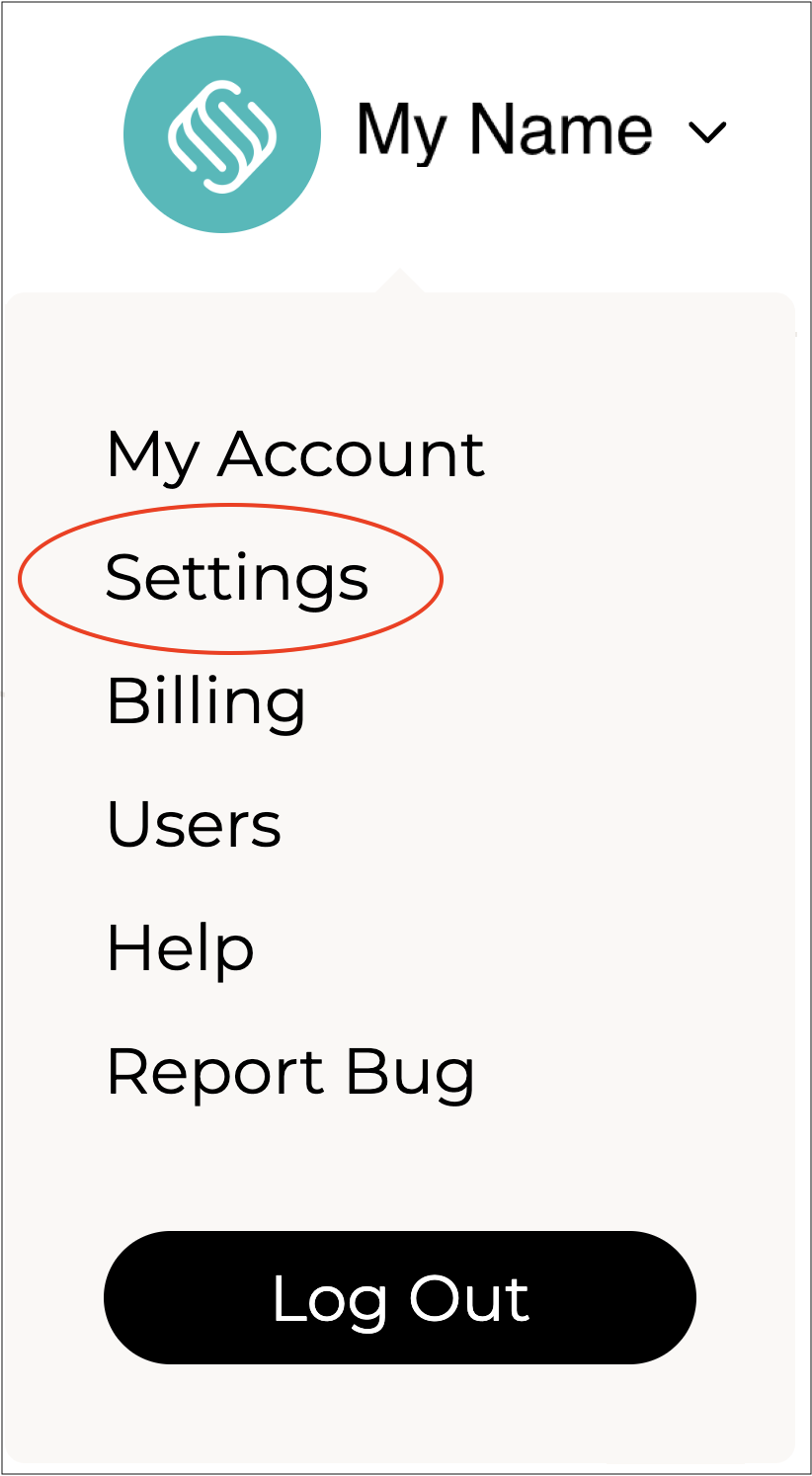
#### Go to Settings
Click on your company name in the top right and select **Settings**.
***
{% endstep %}
{% step %}
#### Select Production Settings
Select **Production Settings** from the **Settings** menu.

The **Production Settings** form will open.
{% hint style="success" %}
To open or close the sections on this form click the little arrows to the right of the titles (as circled in red above).
{% endhint %}
***
{% endstep %}
{% step %}
#### Go to Production Defaults
In the **Production Defaults** section, select "**Yes**" for the **Enable Bakers Mode** field.
***
{% endstep %}
{% step %}
#### Click Save
Click to apply your settings.
{% endstep %}
{% endstepper %}
***
## Starter within a Starter
Supply’d allows you to use a **starter within a starter** when [Creating a Production Product](/supplyd-erp/production/creating-a-production-product.md), such as a starter for sourdough bread, giving you full flexibility to model real bakery processes. This means a starter can be included as an ingredient in another starter without causing calculation issues or loops. It reflects how bakeries naturally build and maintain levains over time, making it easier to manage complex recipes, ensure consistency, and accurately track ingredient usage throughout production.
In Supply’d, using a **starter within a starter** is done by simply adding an existing starter as an ingredient when creating another starter or production product.
{% stepper %}
{% step %}
Create your base starter as a **Production Product**.
{% endstep %}
{% step %}
When creating a new starter, add that starter as a **Production Item** (ingredient) in the recipe.
{% endstep %}
{% step %}
The system recognises it as a production item and correctly calculates quantities without creating an infinite loop.
{% endstep %}
{% endstepper %}
This allows you to build layered recipes while keeping quantities, costs, and inventory tracking accurate throughout the production process.
{% hint style="info" %}
While this setting works best in Bakers Mode, it’s not exclusive to it. For example, outside of baking, you could use it if you have leftover rocky road after cutting - it can be added to a new batch of rocky road.
{% endhint %}
***
## Bakers Percentages
Baker’s percentages are a key concept in baking that define each ingredient as a ratio of flour, which is always set at 100%. This approach plays a crucial role in determining the texture, structure, and consistency of products like bread and sourdough.
To use Bakers Percentages, you need to:
* **Step 1:** Specify any products (ingredients) that will be used in percentage- or formula-based production recipes when you **Create the Product**.
* **Step 2:** Set the percentages when adding **Production Items** (ingredients) as you **Create the Production Product.**
{% stepper %}
{% step %}
#### Create the Products (Ingredients)
If a **Product** (ingredient) is part of "100% flour" when used in a Bakers Percentage-based production recipe, you specify this when creating the product.
Following the guidelines in the [Adding Products](/supplyd-erp/products/adding-products.md) or [Creating a Production Product](/supplyd-erp/production/creating-a-production-product.md) documents, complete the details in the **Product Details**, **Custom Fields**, and **Product Type** sections.
When completing the **Labelling Details** section, select "**Yes**" in the **Is Formula Based** field.
{% hint style="info" %}
This field will only show when **Bakers Mode** is enabled in the [Production Settings](/supplyd-erp/settings/production-settings.md#production-defaults) section in your [#production-settings](#production-settings "mention").
{% endhint %}
Complete the remaining details following the guidelines for adding a product.
***
{% endstep %}
{% step %}
#### Create the Production Product
Follow the guidelines in the [Creating a Production Product](/supplyd-erp/production/creating-a-production-product.md) and complete the sections up to the **Production Items** section.

Click **Edit Items**. The **Edit Production Items** form will show.


**Input Mode**
Select **Bakers Percentage**.


{% hint style="info" %}
**Baker’s Percentage** is a way of expressing ingredients as a ratio of the flour weight, rather than using fixed amounts like grams or cups. Flour is always 100%, and all other ingredients are shown as a percentage of that flour.
For example, if flour is 1,000 g, then 600 g of water is 60%, and 20 g of salt is 2%.
Unlike standard **Ingredient Measurements**, which are tied to one batch size, **Baker’s Percentages** make recipes easy to scale up or down and easier to compare between formulas.
{% endhint %}

When **Bakers Percentage** is selected additional fields will show.


* **Unit Size:** Weight or size of a single unit prior to baking.
* **Yield:** The amount of finished product the recipe will produce.

**Add Items**
Select the first item used in this product. Click .
{% hint style="success" %}
Clicking on, or typing in, the field that says **Type Product Name** will bring up a list of your products and ingredients.
{% endhint %}
You will see these fields:
**Stage**
Select the stage where this ingredient is used.
**Is Formula Based**
Select whether this ingredient is part of "100% flour" when used in a percentage-based production recipe.
{% hint style="warning" %}
If you use two different types of flour that are both marked as Formula Base, you must also allocate their proportions as percentages (eg. 60% and 40%). The total of all flours must always equal 100%. This rule also applies when flour is used across different stages - regardless of distribution, the combined flour content across all stages must total 100%.
{% endhint %}
**Bakers Percentage**
Enter the "bakers percentage" relative to 100% flour.
{% hint style="success" %}
For example, our recipe for Sourdough:
* 165g starter
* 33g salt
* 1648g bread flour
* 1154ml almond milk
\
First set flour as the reference at **100%**:
* **Bread Flour** = 1648 g → **100%**
Now convert everything relative to 1648 g flour:
* **Starter:** 165 g\
(165 ÷ 1648) × 100 = **10.0%**
* **Salt:** 33 g\
(33 ÷ 1648) × 100 = **2.0%**
* **Milk:** 1154 ml = 1154 g (assuming 1 ml = 1 g)\
(1154 ÷ 1648) × 100 = **70.0%**
* **Flour:** 1648 g = **100%**\
**Baker’s Percentage summary**
* **Bread Flour:** 100%
* **Starter:** 10.0%
* **Salt:** 2.0%
* **Almond Milk:** 70.0%\
{% endhint %}
Repeat the above steps for all items used, clicking after selecting each one.
{% hint style="info" %}
If flour is added and marked with “Formula Base = Yes,” it will be highlighted in orange to indicate that it is the reference point for all calculations. All other items will appear in blue by default.
{% endhint %}
Click to add all items.
When a Production Run begins, the system automatically calculates the required quantities of each item based on the batch size and displays them at the relevant stage, with the calculated amounts shown throughout the run.
{% endstep %}
{% endstepper %}
***
## Deck Reports
Deck Reports help you plan and organise your daily production by showing how your baking workload is distributed across ovens (or “decks”). They provide a clear view of what needs to be produced and when, making it easier to schedule efficiently, avoid bottlenecks, and ensure optimal use of your equipment.
{% hint style="success" %}
A **Deck Report** is a planning tool used in bakeries and production environments to organise daily production across ovens (or “decks”).
* **1 deck = 1 oven**, so the report shows how many ovens are currently being used.
* You can select which products appear on the report for a specific day.
* The report helps optimise the baking schedule, making it easier to plan production, reduce bottlenecks, and ensure efficient use of resources.
{% endhint %}
To generate a **Deck Report**:
{% stepper %}
{% step %}
Go to the Production Page
Select **Production** in the main menu to open the **Production** page.

***
{% endstep %}
{% step %}
#### Select Download > Deck Report
Click the 3 dots in the top right and select **Download** then **Deck Report**.
{% hint style="info" %}
This option will only show when **Bakers Mode** is enabled in the [Production Settings](/supplyd-erp/settings/production-settings.md#production-defaults) section in your [#production-settings](#production-settings "mention").
{% endhint %}
The **Download Production Deck Report** form will open.
**Scheduled Date**
Select the date for which you want to export the report.
Click to generate the report.
{% endstep %}
{% endstepper %}
***
## Smart Write-Offs
**Smart Write-Offs** streamline end-of-day stock management by automatically identifying inventory that is due to expire or needs to be discarded. This feature helps reduce manual checks, minimise errors, and ensures that expired or excess stock is properly removed, saving time and maintaining accurate inventory records.
Although not exclusive to **Bakers Mode**, this feature is particularly useful for bakeries, where unsold or overproduced items often need to be written off at the end of each day.
{% stepper %}
{% step %}
#### Go to the Write Offs Page
Select **Inventory** from the main menu, then open the **Write Offs** tab.
***
{% endstep %}
{% step %}
#### Select Smart Write-Off
Click on the 3 dots in the top right and select **Smart Write-Off**.
The **Smart Write-Off** form will open.
***
{% endstep %}
{% step %}
#### **Complete the Form**
**Method**
Select the method to use, either to write-off **Expired Batches** or **All Batches**.
* **Expired Batches:** Only write-off batches that have stock on hand and are due to expire.
* **All Batches:** Write-off all inventory, regardless of expiry.
**Location**
Select the location where the write-off will be applied.
***
{% endstep %}
{% step %}
#### Click Create
Click to generate a list of products to be written-off.
The **Edit Write-Off** form will open, and a **Write-Off Number** will be automatically assigned to the record.
***
{% endstep %}
{% step %}
#### Review the List
Review all items on the list. Quantities can be edited if needed, or click the 3 dots to the right of the item name to open a menu with the option to **Remove Item** from the write-off.
***
{% endstep %}
{% step %}
#### Finalise the Write-Off
Once any required adjustments have been made, click . You will be asked to confirm.
{% hint style="success" %}
As an alternative to the button, you can click on the 3 dots in the top right and select **Finalise Write Off**.
{% endhint %}
All items on the list will be written off, and the write-off will appear in the **Write-Offs** list, marked as .
{% hint style="info" %}
**Additional Options**
Prior to finalising the write-off, clicking the 3 dots in the top right will open a menu.\
\
\
**Finalise Write Off**
An alternative to the button, this option will finalise the write-off.
**Remove**
Will remove the write-off. You will be asked to confirm.
{% endhint %}
{% endstep %}
{% endstepper %}
---
# Agent Instructions
This documentation is published with GitBook. GitBook is the documentation platform designed so that both humans and AI agents can read, navigate, and reason over technical content effectively. Learn more at gitbook.com.
## Querying This Documentation
If you need additional information that is not directly available in this page, you can query the documentation dynamically by asking a question.
Perform an HTTP GET request on the current page URL with the `ask` query parameter, and the optional `goal` query parameter:
```
GET https://help.supplyd.co/supplyd-erp/production/bakers-mode.md?ask=&goal=
```
`ask` is the immediate question: it should be specific, self-contained, and written in natural language.
`goal` is optional and describes the broader end goal you are ultimately trying to accomplish on behalf of the user. GitBook uses it to tailor the answer towards what is most useful for that goal.
The response will contain a direct answer to the question and relevant excerpts and sources from the documentation.
Use this mechanism when the answer is not explicitly present in the current page, you need clarification or additional context, or you want to retrieve related documentation sections.

 [#smart-write-offs](#smart-write-offs "mention")
***
## Enabling Bakers Mode
Baker’s Mode can be enabled in [Production Settings](/supplyd-erp/settings/production-settings.md), unlocking a set of features tailored for bakery workflows. Once enabled, you’ll gain access to tools built around baker’s percentages, support for starter-based recipes, and deck reporting. This allows you to better control production processes, improve accuracy, and streamline daily baking operations.
To enable **Bakers Mode**:
{% stepper %}
{% step %}
#### Go to Settings
Click on your company name in the top right and select **Settings**.
[#smart-write-offs](#smart-write-offs "mention")
***
## Enabling Bakers Mode
Baker’s Mode can be enabled in [Production Settings](/supplyd-erp/settings/production-settings.md), unlocking a set of features tailored for bakery workflows. Once enabled, you’ll gain access to tools built around baker’s percentages, support for starter-based recipes, and deck reporting. This allows you to better control production processes, improve accuracy, and streamline daily baking operations.
To enable **Bakers Mode**:
{% stepper %}
{% step %}
#### Go to Settings
Click on your company name in the top right and select **Settings**.



 to apply your settings.


Click **Edit Items**. The **Edit Production Items** form will show.


**Input Mode**
Select **Bakers Percentage**.


Click **Edit Items**. The **Edit Production Items** form will show.


**Input Mode**
Select **Bakers Percentage**.

 
{% hint style="info" %}
**Baker’s Percentage** is a way of expressing ingredients as a ratio of the flour weight, rather than using fixed amounts like grams or cups. Flour is always 100%, and all other ingredients are shown as a percentage of that flour.
For example, if flour is 1,000 g, then 600 g of water is 60%, and 20 g of salt is 2%.
Unlike standard **Ingredient Measurements**, which are tied to one batch size, **Baker’s Percentages** make recipes easy to scale up or down and easier to compare between formulas.
{% endhint %}

When **Bakers Percentage** is selected additional fields will show.


* **Unit Size:** Weight or size of a single unit prior to baking.
* **Yield:** The amount of finished product the recipe will produce.


{% hint style="info" %}
**Baker’s Percentage** is a way of expressing ingredients as a ratio of the flour weight, rather than using fixed amounts like grams or cups. Flour is always 100%, and all other ingredients are shown as a percentage of that flour.
For example, if flour is 1,000 g, then 600 g of water is 60%, and 20 g of salt is 2%.
Unlike standard **Ingredient Measurements**, which are tied to one batch size, **Baker’s Percentages** make recipes easy to scale up or down and easier to compare between formulas.
{% endhint %}

When **Bakers Percentage** is selected additional fields will show.


* **Unit Size:** Weight or size of a single unit prior to baking.
* **Yield:** The amount of finished product the recipe will produce.


 .
.





 to generate the report.

 Smart Write-Offs
 **Smart Write-Offs** streamline end-of-day stock management by automatically identifying inventory that is due to expire or needs to be discarded. This feature helps reduce manual checks, minimise errors, and ensures that expired or excess stock is properly removed, saving time and maintaining accurate inventory records.
Although not exclusive to **Bakers Mode**, this feature is particularly useful for bakeries, where unsold or overproduced items often need to be written off at the end of each day.
{% stepper %}
{% step %}
#### Go to the Write Offs Page
Select **Inventory** from the main menu, then open the **Write Offs** tab.
**Smart Write-Offs** streamline end-of-day stock management by automatically identifying inventory that is due to expire or needs to be discarded. This feature helps reduce manual checks, minimise errors, and ensures that expired or excess stock is properly removed, saving time and maintaining accurate inventory records.
Although not exclusive to **Bakers Mode**, this feature is particularly useful for bakeries, where unsold or overproduced items often need to be written off at the end of each day.
{% stepper %}
{% step %}
#### Go to the Write Offs Page
Select **Inventory** from the main menu, then open the **Write Offs** tab.


 **Smart Write-Off**.


 to generate a list of products to be written-off.
The **Edit Write-Off** form will open, and a **Write-Off Number** will be automatically assigned to the record.
to generate a list of products to be written-off.
The **Edit Write-Off** form will open, and a **Write-Off Number** will be automatically assigned to the record.


 . You will be asked to confirm.

 .
.
