> For the complete documentation index, see [llms.txt](https://help.supplyd.co/llms.txt). Markdown versions of documentation pages are available by appending `.md` to page URLs; this page is available as [Markdown](https://help.supplyd.co/supplyd-erp/customers/managing-customers/customer-invoices.md).
# Customer Invoices
Customer invoices provide a clear record of amounts owed and payments due, making it easier to track outstanding balances, manage accounts receivable, and maintain accurate financial records.
The **Customer Invoices** tab allows you to view and manage invoices issued to or drafted for your customers in Supply’d. Keeping invoices organised helps you track billing activity, monitor outstanding amounts, and maintain an accurate record of customer transactions.
This document briefly explains the **Invoices** tab on a customer's page.
* [#the-customer-invoices-tab](#the-customer-invoices-tab "mention")
* [#invoice-details](#invoice-details "mention")
* [#sales-orders](#sales-orders "mention")
* [#invoice-activity](#invoice-activity "mention")
***
## The Customer Invoices Tab
The **Invoices** tab on a customer’s page lists the invoices associated with the customer, providing a central location to view and manage customer invoices and related information.
To view a customer’s invoices:
1. Select **Customers** from the main menu.
2. Select a customer to open their details.
3. Select the **Invoices** tab.
{% hint style="success" %}
👉 The **Customers** page and the options available in the **Customers** list are explained in [The Customers Page](/supplyd-erp/customers/the-customers-page.md) document.
{% endhint %}
{% hint style="success" %}
Customer Invoices have colour-coded types and statuses for easy identification:\
\
\
**Types:**
* - A standard individual invoice for each Sales Order.
* - An invoice for an upfront or partial payment toward the total Sales Order amount.
* - An invoice for the remaining amount of the Sales Order after any deposits or previous invoices have been taken into account.
* - A combined invoice for multiple Sales Orders for the same customer consolidated into a single invoice. This is useful for customers on weekly, monthly, or other credit terms, allowing all eligible orders within the selected period to be billed together.\
**Statuses:**
* - The invoice has been finalised and issued to the customer.
* - Payment has been received for the invoice in full.
* - The invoice has been created but is not yet finalised. It can still be reviewed and edited before it is issued to the customer.
* - The invoice has been cancelled and is no longer active.\
A green dot beside the status indicates that the invoice has been paid in full, while a red dot indicates that payment is overdue.
{% endhint %}
***
## Invoice Details
Click on an invoice to view its details.
A consolidated invoice will list all items under their respective **Sales Orders**:
***
#### Sales Orders
The **Sales Orders** section below the invoice details lists all Sales Orders associated with the invoice.
A **Consolidated Invoice** will list multiple orders:
***
#### Invoice Activity
The **Invoice Activity** section provides a history of actions and changes made to the invoice. It allows you to see when the invoice was created, issued, sent, paid, cancelled, or otherwise updated, along with the relevant activity details.
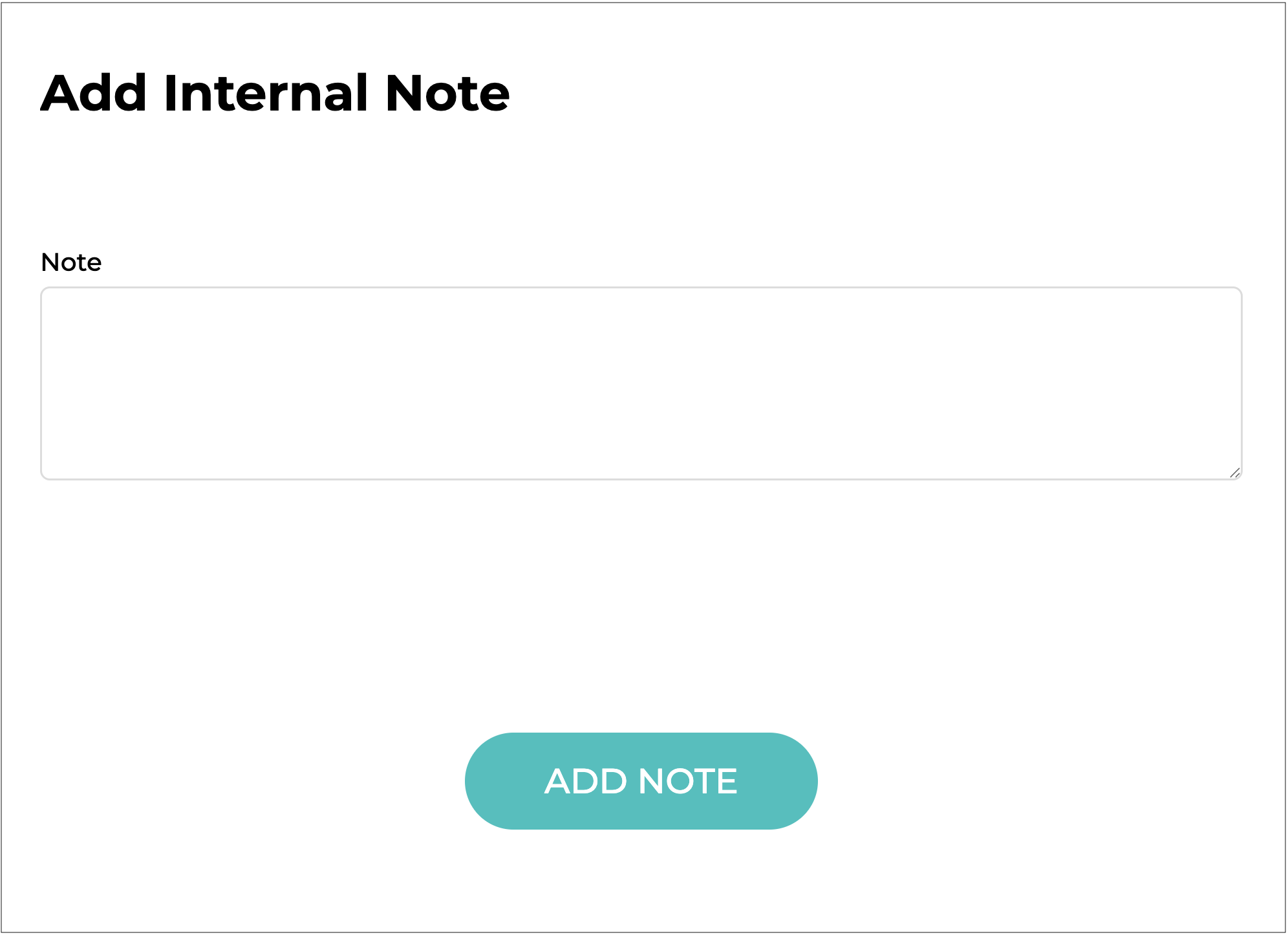
You also have the option of adding relevant internal notes by clicking , entering the note and clicking . The note will appear in the **Invoice Activity**.
{% hint style="success" %}
👉 See the [Sales Order Invoicing](/supplyd-erp/sales/sales-order-invoicing.md) document for details on managing customer sales invoices.
{% endhint %}
---
# Agent Instructions
This documentation is published with GitBook. GitBook is the documentation platform designed so that both humans and AI agents can read, navigate, and reason over technical content effectively. Learn more at gitbook.com.
## Querying This Documentation
If you need additional information that is not directly available in this page, you can query the documentation dynamically by asking a question.
Perform an HTTP GET request on the current page URL with the `ask` query parameter, and the optional `goal` query parameter:
```
GET https://help.supplyd.co/supplyd-erp/customers/managing-customers/customer-invoices.md?ask=&goal=
```
`ask` is the immediate question: it should be specific, self-contained, and written in natural language.
`goal` is optional and describes the broader end goal you are ultimately trying to accomplish on behalf of the user. GitBook uses it to tailor the answer towards what is most useful for that goal.
The response will contain a direct answer to the question and relevant excerpts and sources from the documentation.
Use this mechanism when the answer is not explicitly present in the current page, you need clarification or additional context, or you want to retrieve related documentation sections.

 - A standard individual invoice for each Sales Order.
*
- A standard individual invoice for each Sales Order.
*  - An invoice for an upfront or partial payment toward the total Sales Order amount.
*
- An invoice for an upfront or partial payment toward the total Sales Order amount.
*  - An invoice for the remaining amount of the Sales Order after any deposits or previous invoices have been taken into account.
*
- An invoice for the remaining amount of the Sales Order after any deposits or previous invoices have been taken into account.
*  - A combined invoice for multiple Sales Orders for the same customer consolidated into a single invoice. This is useful for customers on weekly, monthly, or other credit terms, allowing all eligible orders within the selected period to be billed together.\
  - The invoice has been finalised and issued to the customer.
*
- The invoice has been finalised and issued to the customer.
*  - Payment has been received for the invoice in full.
*
- Payment has been received for the invoice in full.
*  - The invoice has been created but is not yet finalised. It can still be reviewed and edited before it is issued to the customer.
*
- The invoice has been created but is not yet finalised. It can still be reviewed and edited before it is issued to the customer.
*  - The invoice has been cancelled and is no longer active.\


 , entering the note and clicking
  . The note will appear in the **Invoice Activity**.